

Windows 11 updates are supposed to improve your PC. But sometimes, they create new problems instead. One common issue is Windows Update error code 0x80070490. This error usually appears when Windows cannot install updates because of damaged system files or corrupted update components.
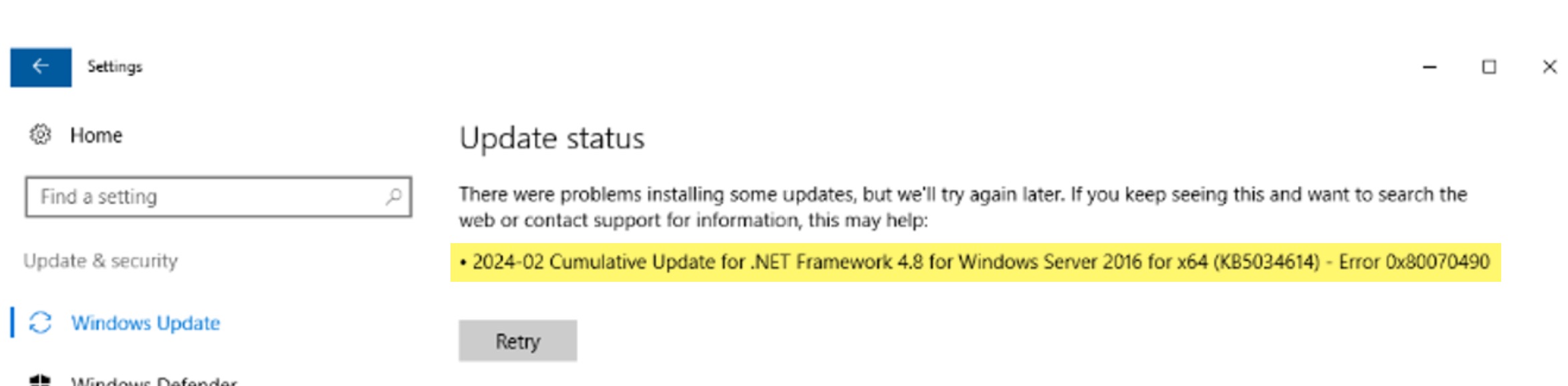
The good news is that you can fix it with a few simple methods.
Page Contents
What Causes Error Code 0x80070490?
This error often occurs when:
- Windows update files become corrupted
- Important system files are missing
- Windows Update services stop working correctly
- The component store gets damaged
Fix Windows Update Error Code 0x80070490
Let’s see how you can fix Windows 11 update error code 0x80070490:
Fix 1: Run the Windows Update Troubleshooter
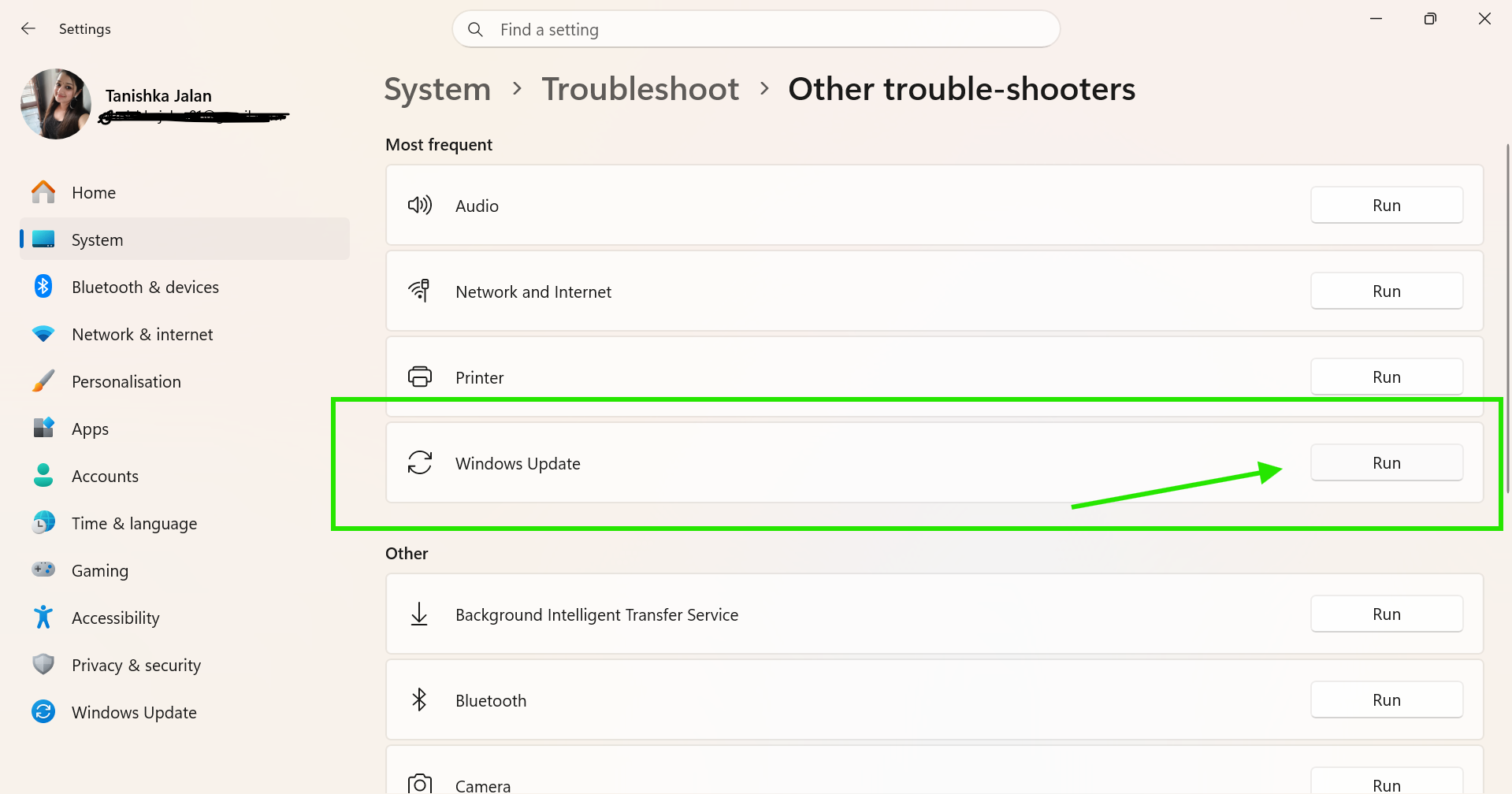
The built-in Activation Troubleshooter can automatically detect and fix common activation problems. Here are the steps to follow:
1. Press Windows + I to open Settings.
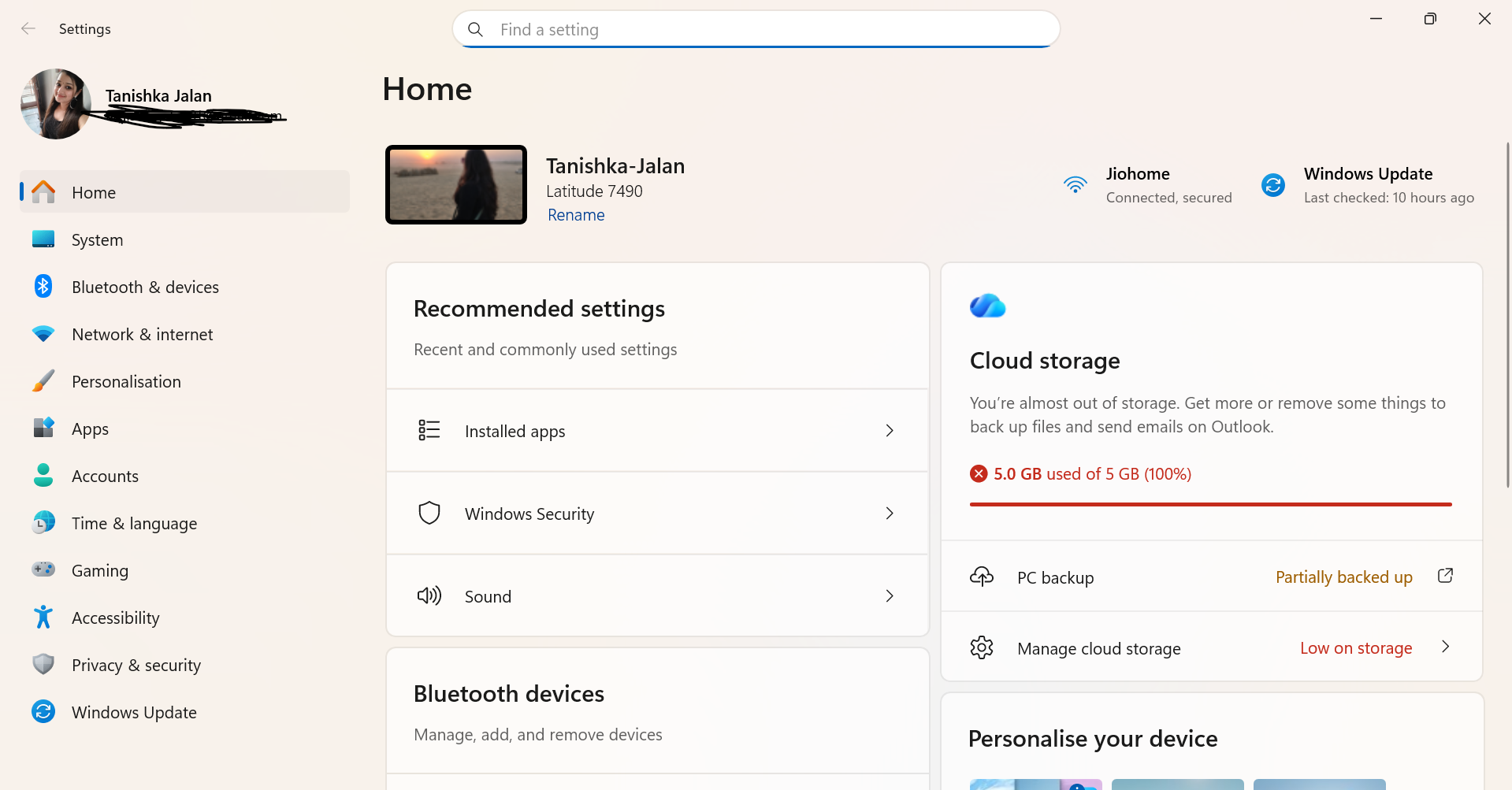
2. Go to System > Troubleshoot.
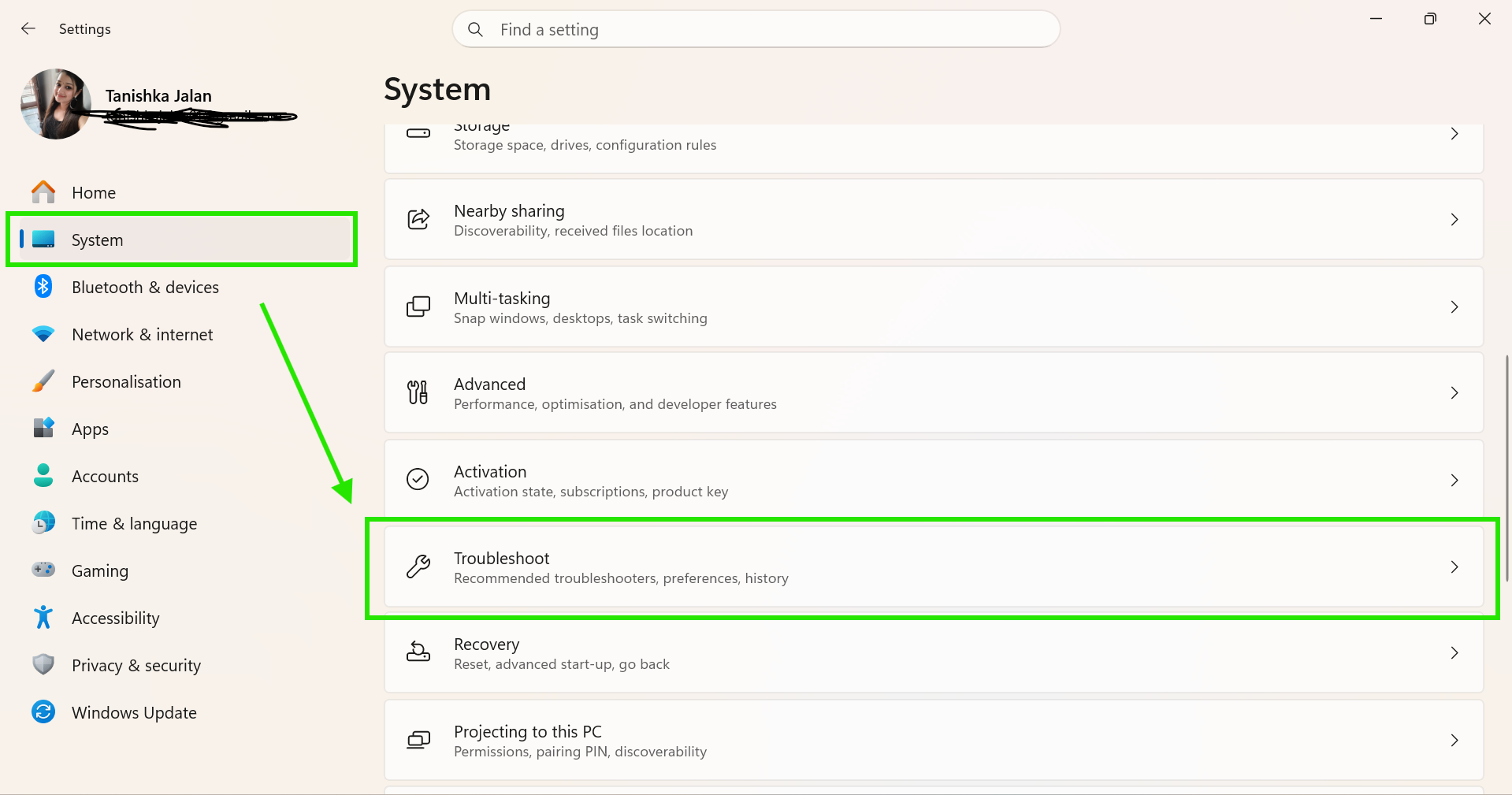
3. Click Other troubleshooters.
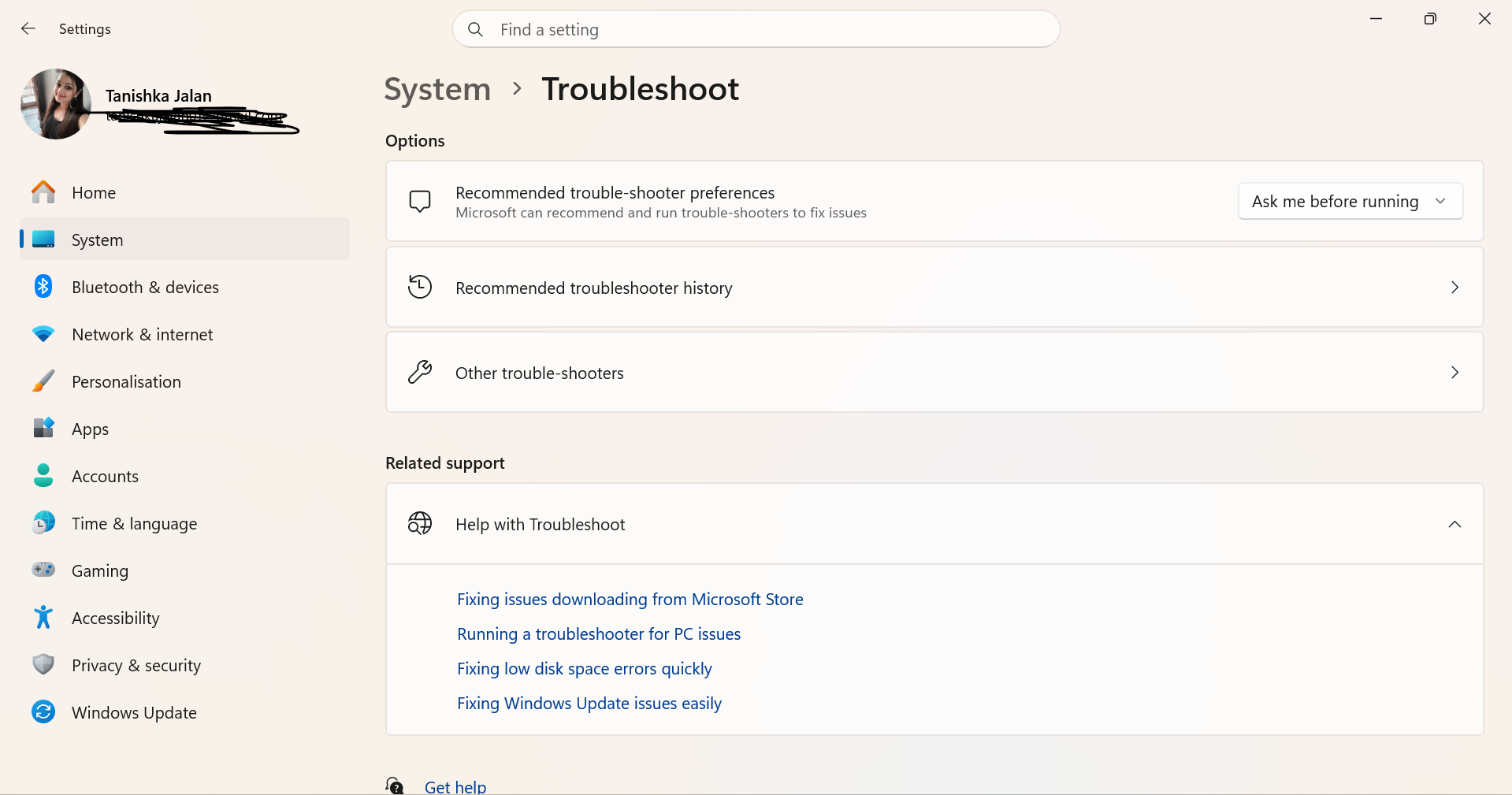
4. Now locate Windows Update and click Run.
5. Restart your computer after the process finishes.
Fix 2: Repair Corrupted System Files Using SFC
The System File Checker can scan and repair damaged Windows files.
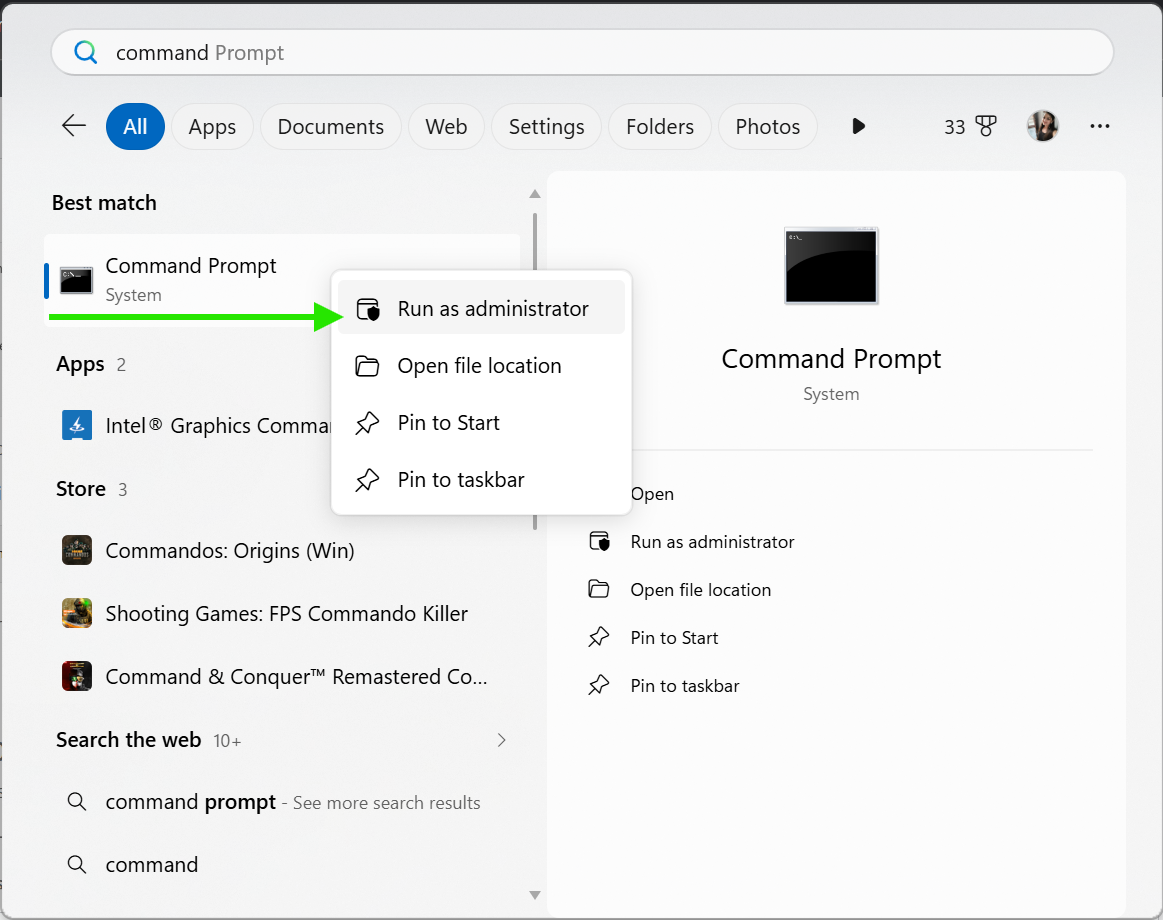
1. Type CMD in the Windows search bar.
2. Right-click Command Prompt.
3. Select Run as administrator.
4. Type the following command:
sfc /scannow
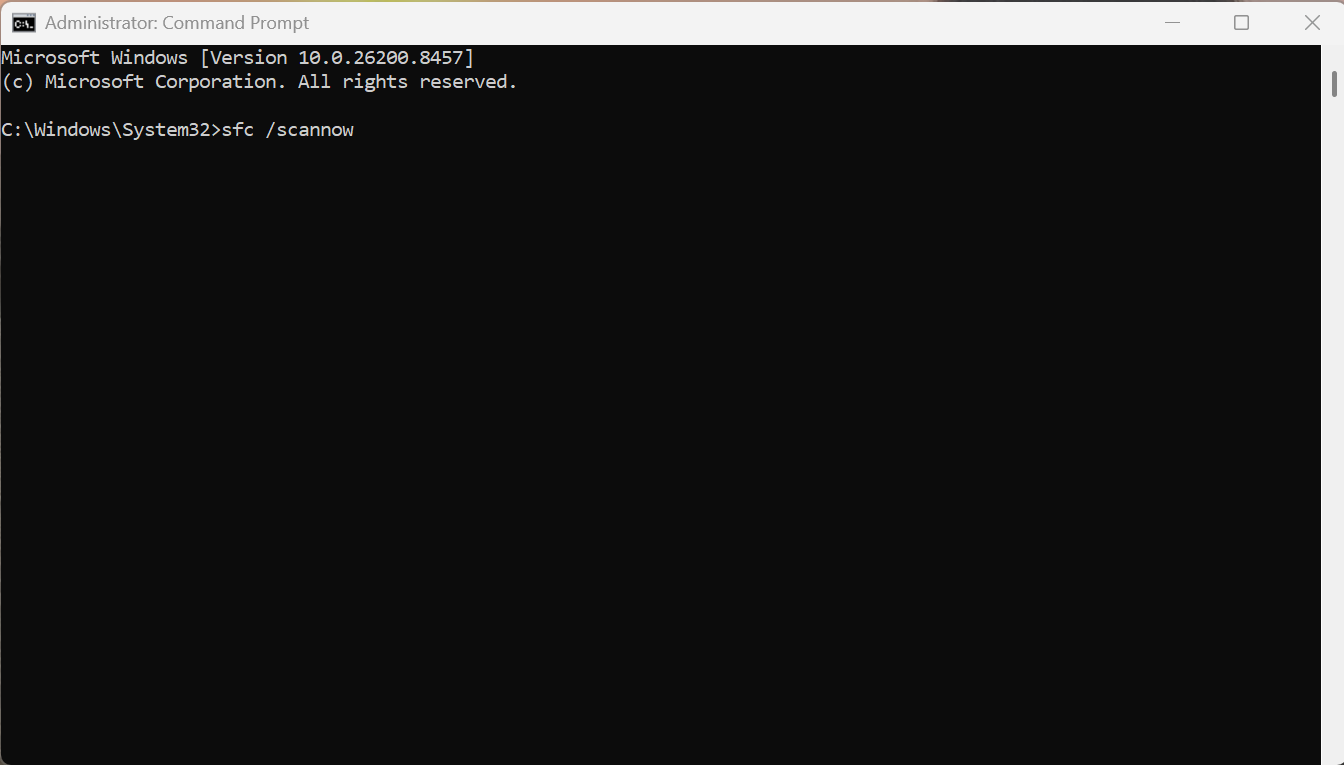
5. Press Enter.
6. Wait for the scan to complete.
7. Restart your PC.
Fix 3: Use The DISM Tool
DISM repairs the Windows image and fixes deeper corruption issues.
1. Open Command Prompt as Administrator.
2. Enter the following command:
DISM /Online /Cleanup-Image /RestoreHealth
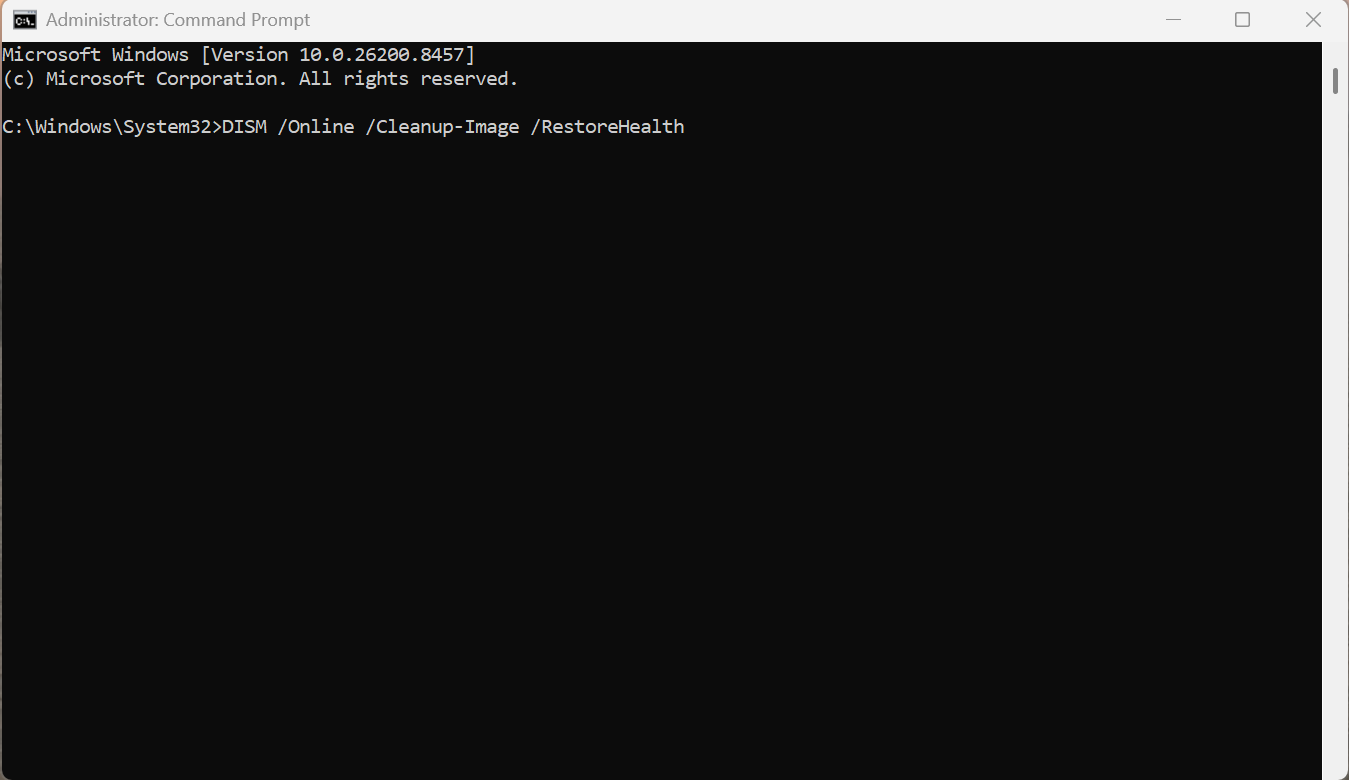
3. Press Enter.
4. Wait for the process to finish.
5. Restart your computer.
Fix 4: Reset Windows Update Components
Resetting update services can remove corrupted update files.
1. Open Command Prompt as Administrator.
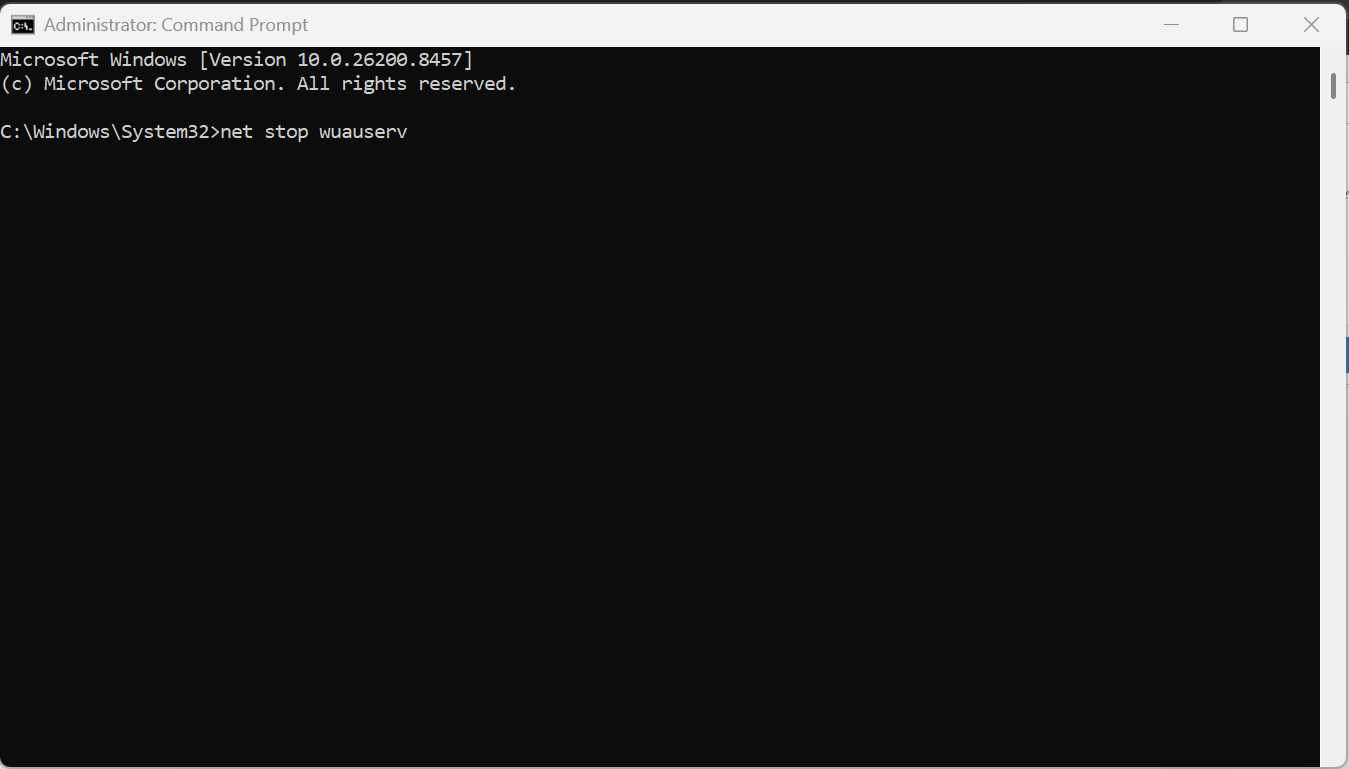
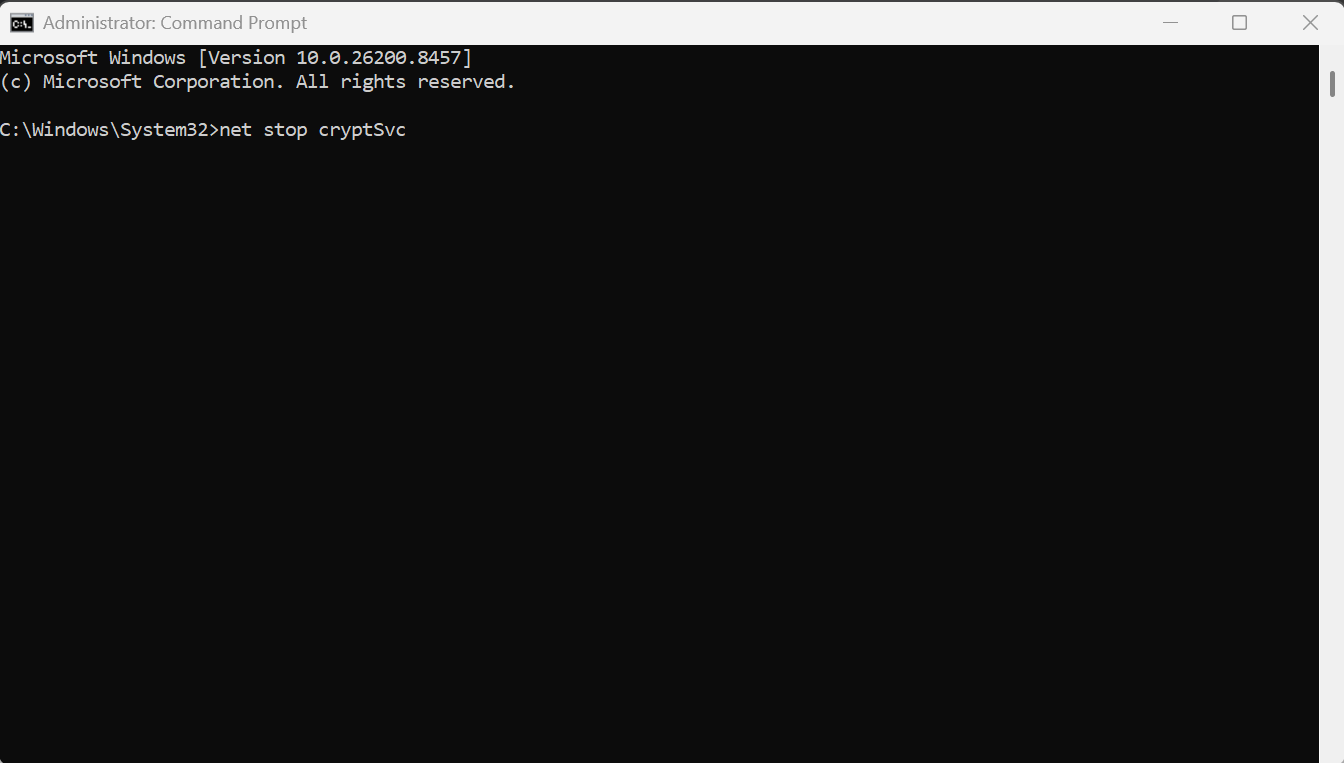
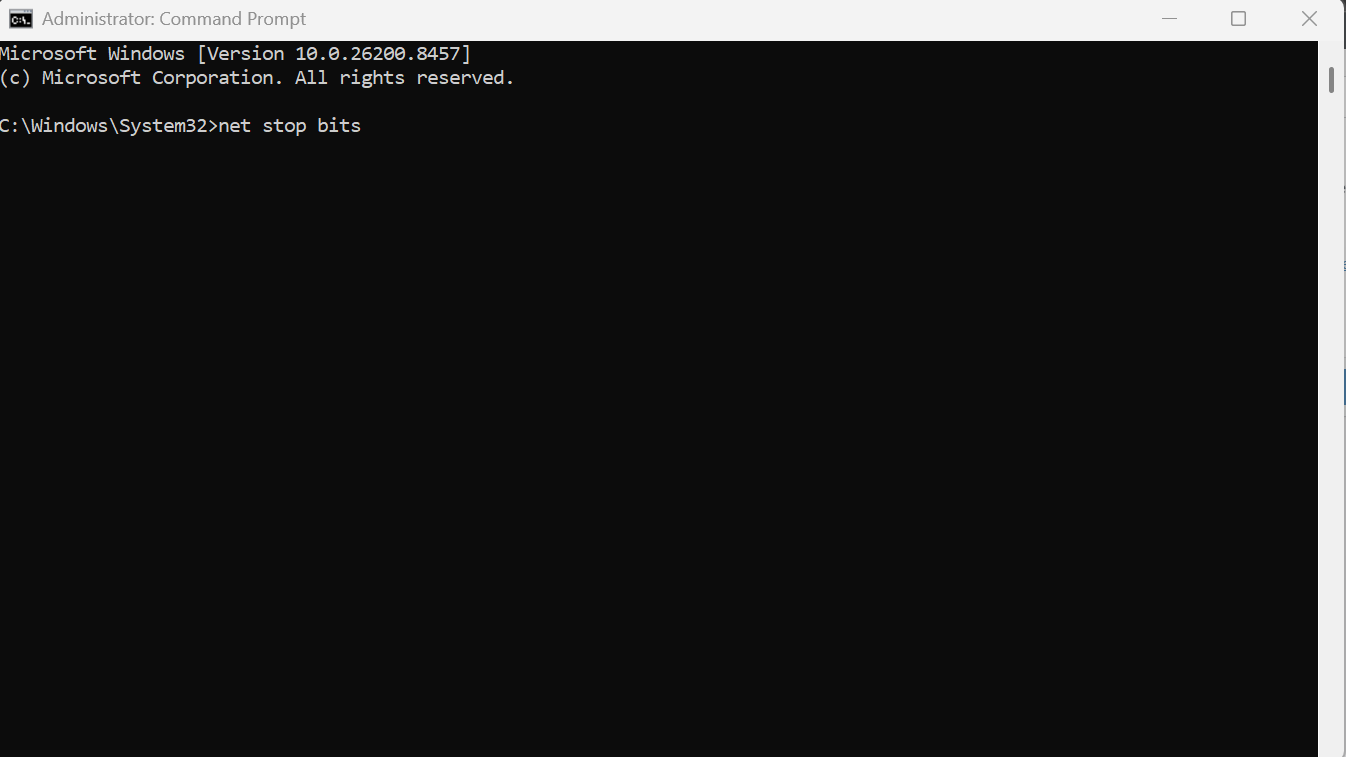
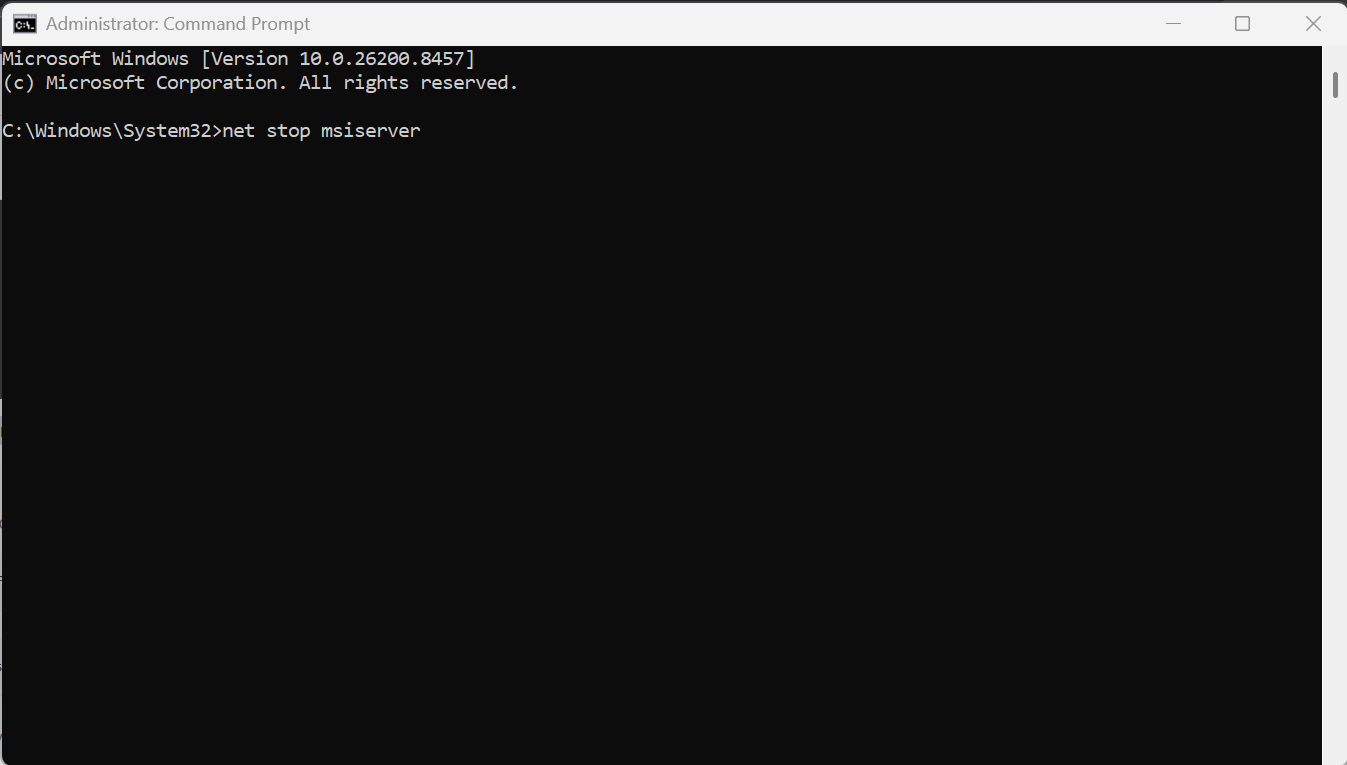
2. Stop Windows Update services by running:
net stop wuauserv
net stop cryptSvc
net stop bits
net stop msiserver
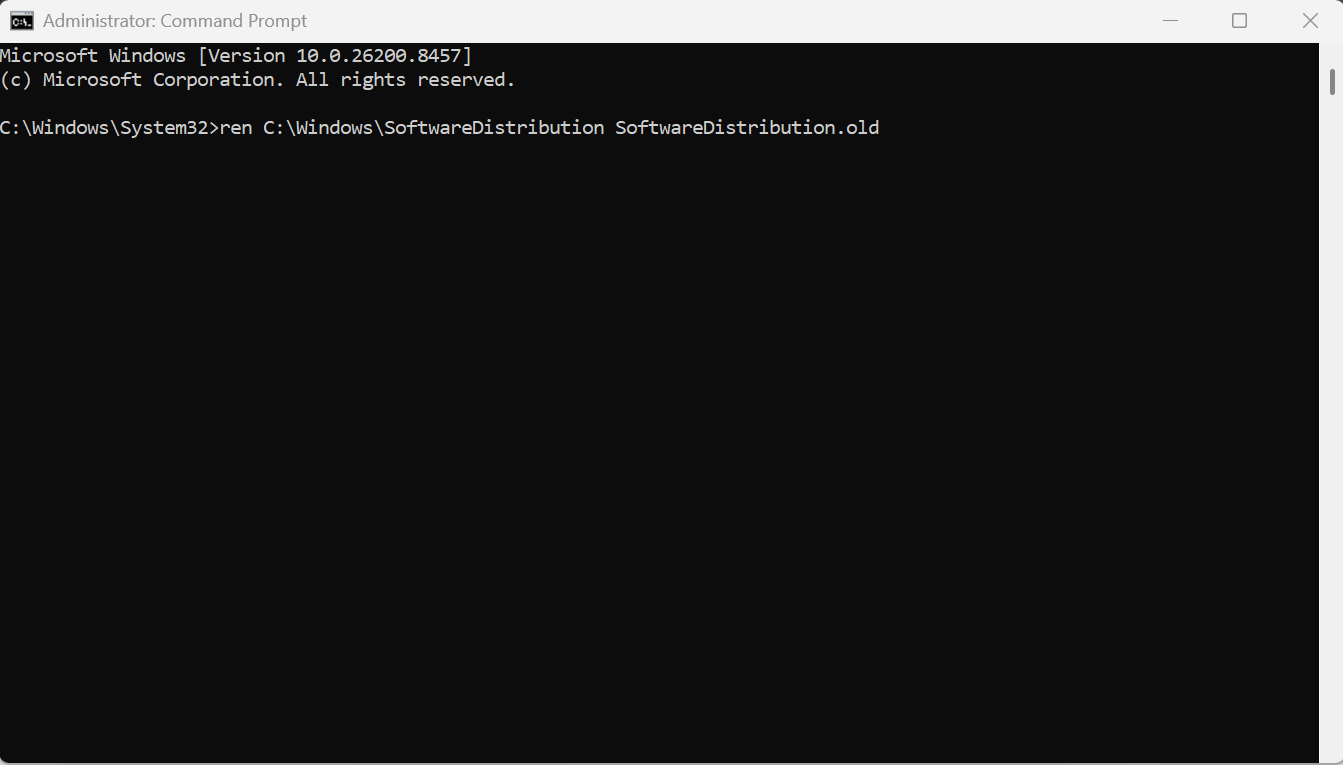
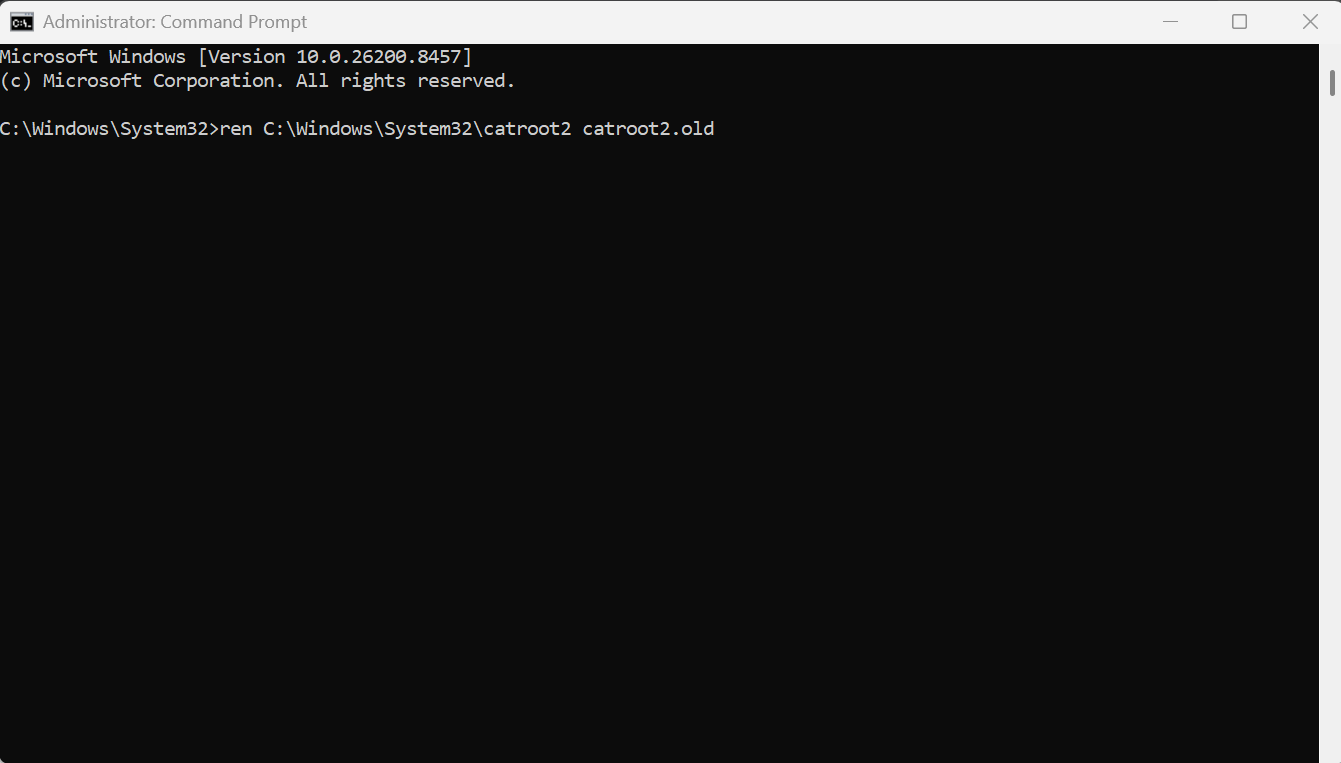
3. Rename the update cache folders using:
ren C:\Windows\SoftwareDistribution SoftwareDistribution.old
ren C:\Windows\System32\catroot2 catroot2.old
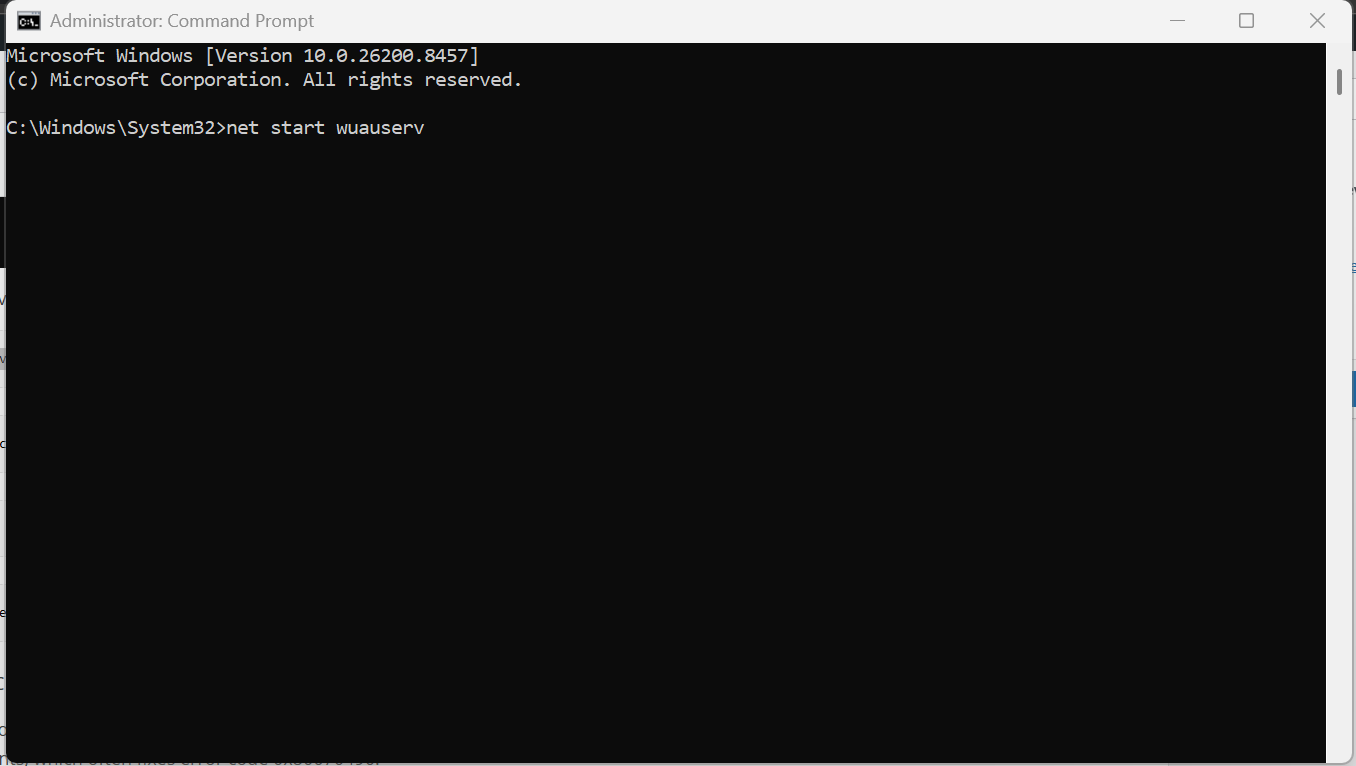
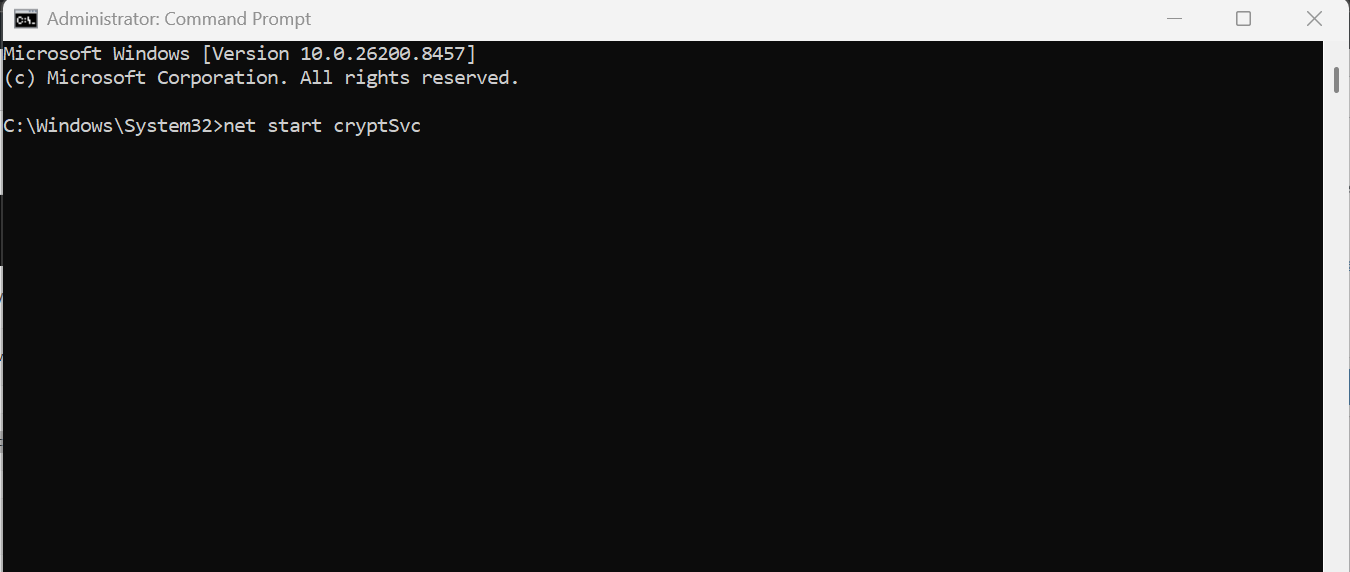
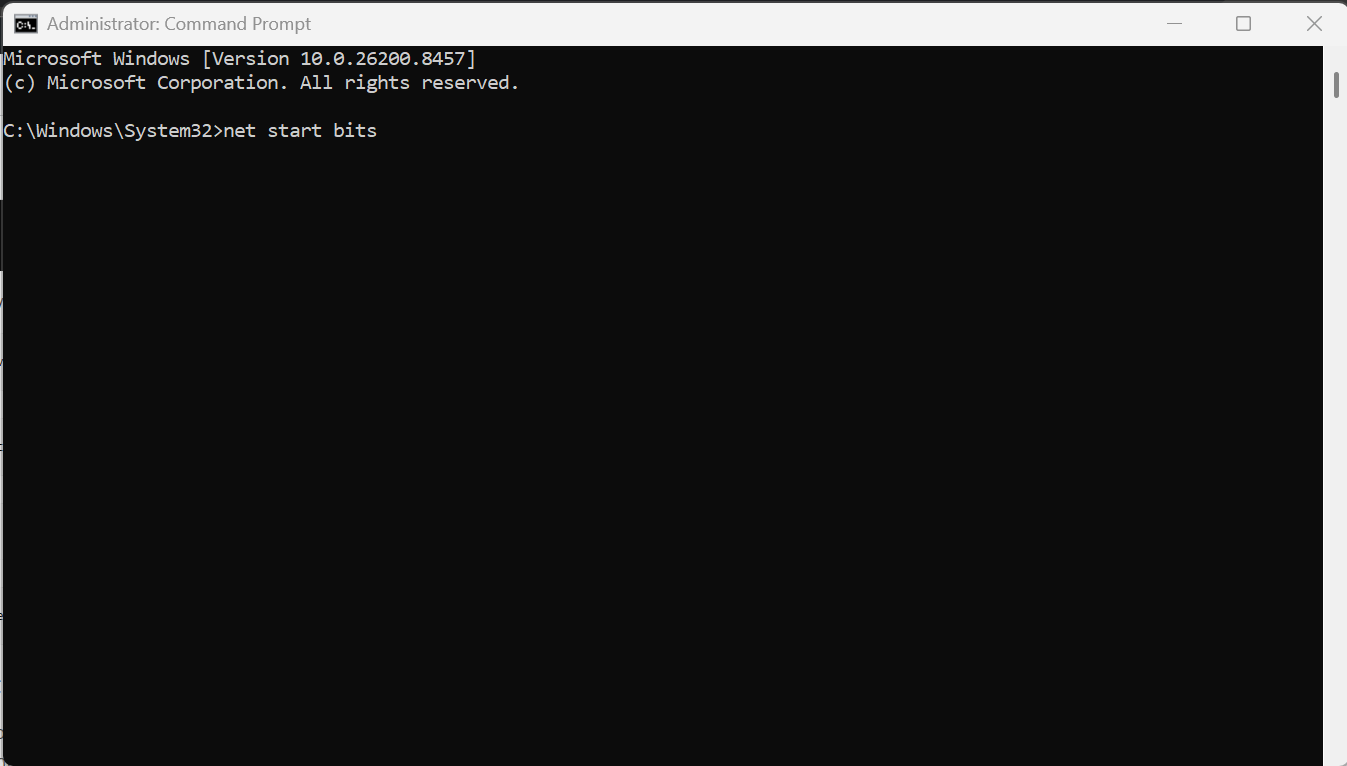
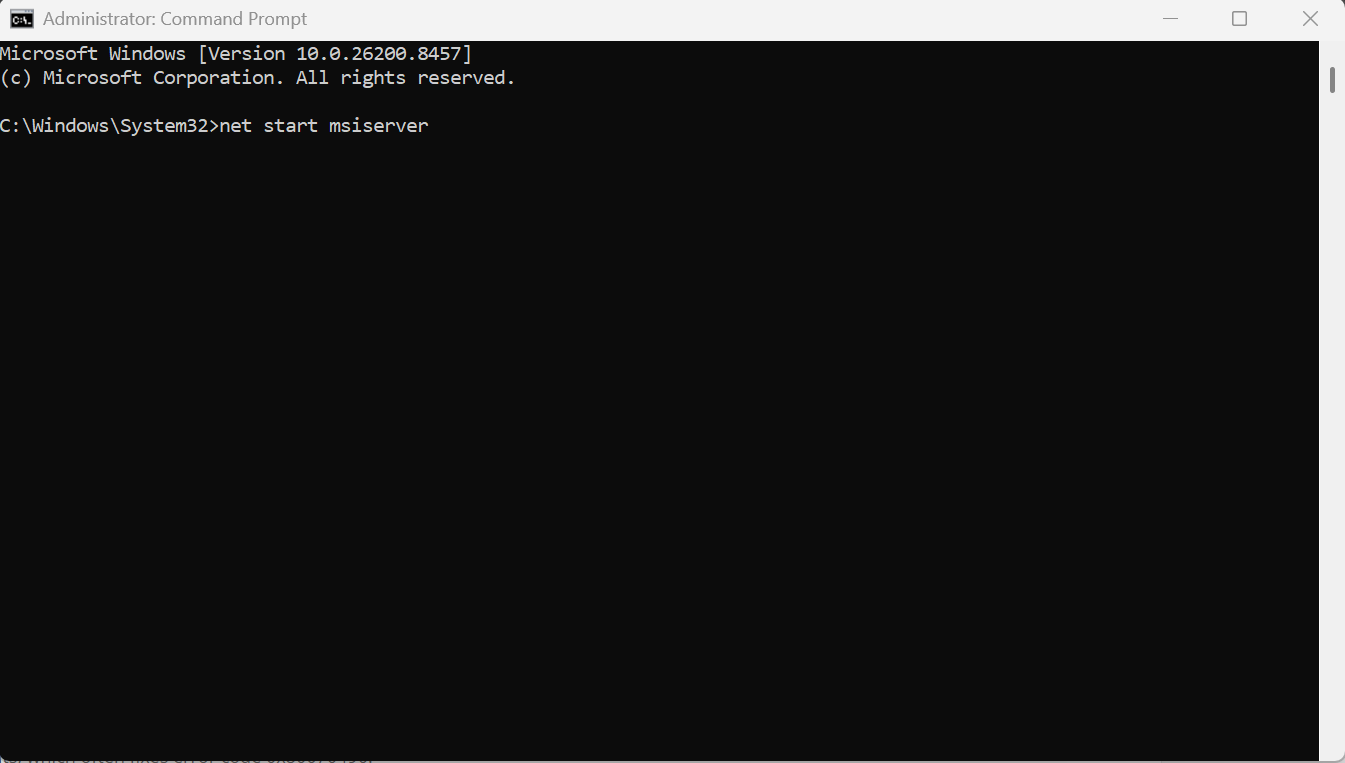
4. Restart the services with:
net start wuauserv
net start cryptSvc
net start bits
net start msiserver
5. Restart your PC and check for updates again.
This process removes corrupted update files and forces Windows to download fresh update components, which often fixes error code 0x80070490.
Fix 5: Perform A Windows Reset
If the error still appears and nothing works, resetting Windows can help.
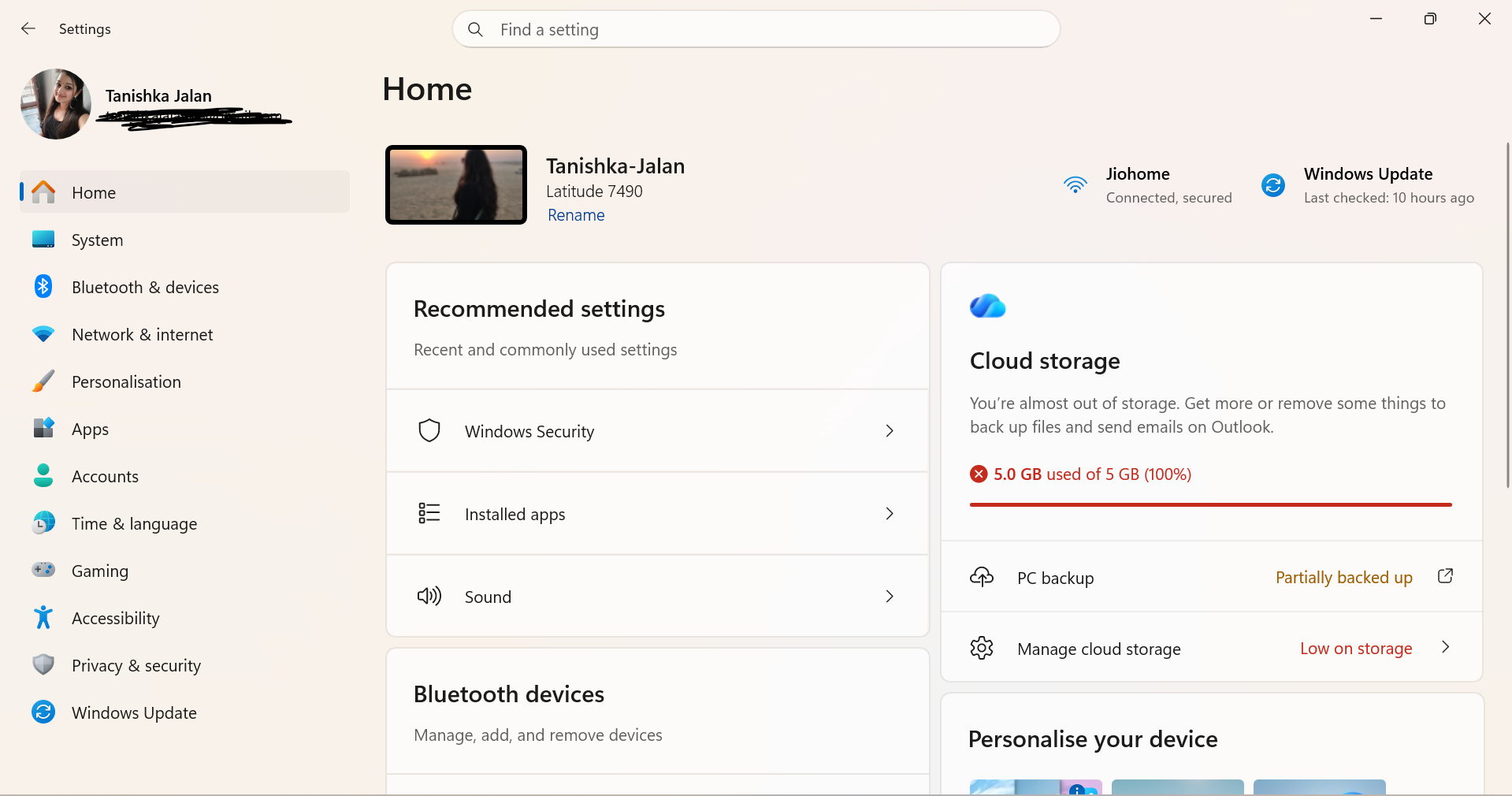
1. Open Settings.
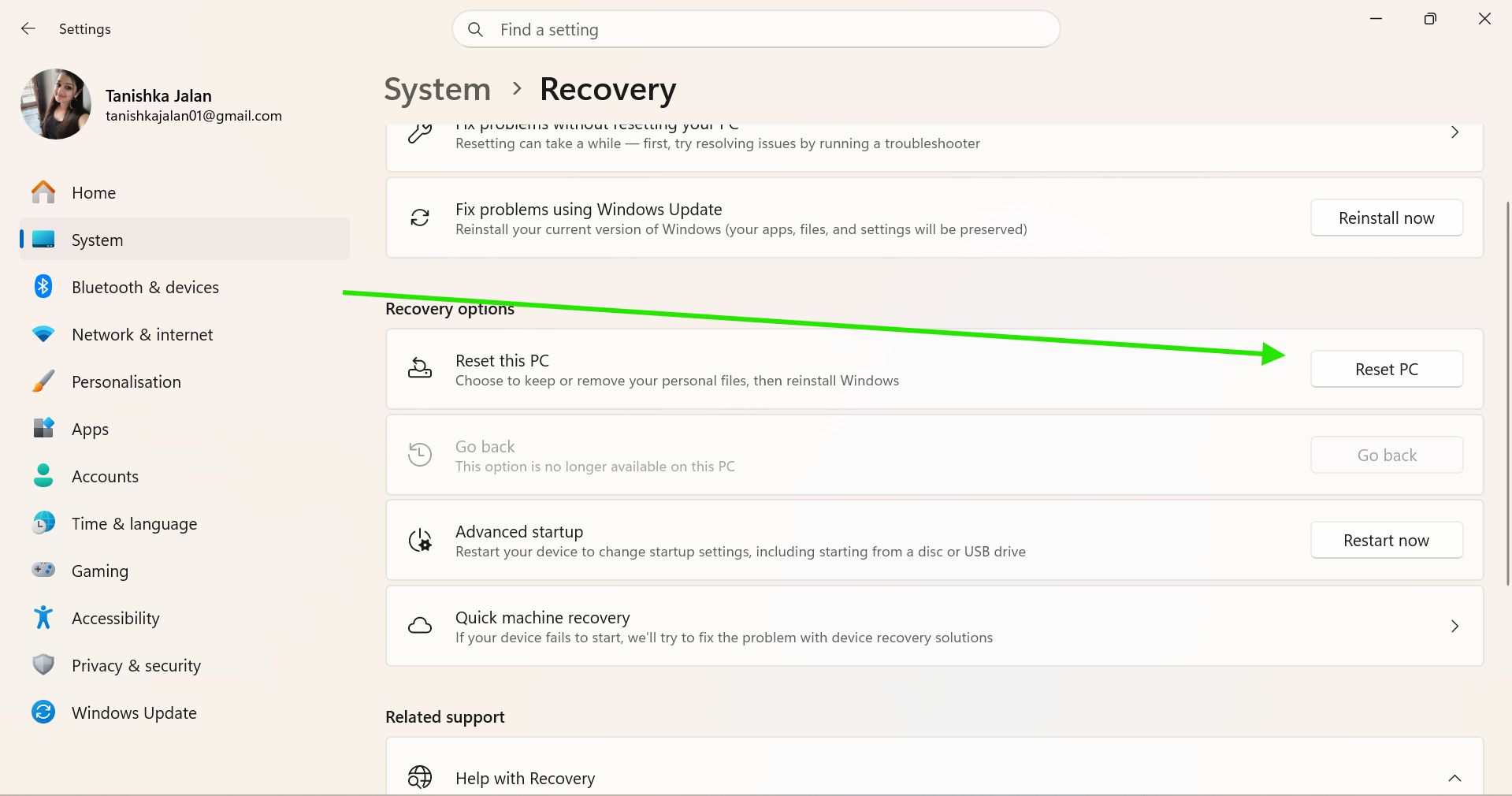
2. Go to System > Recovery.
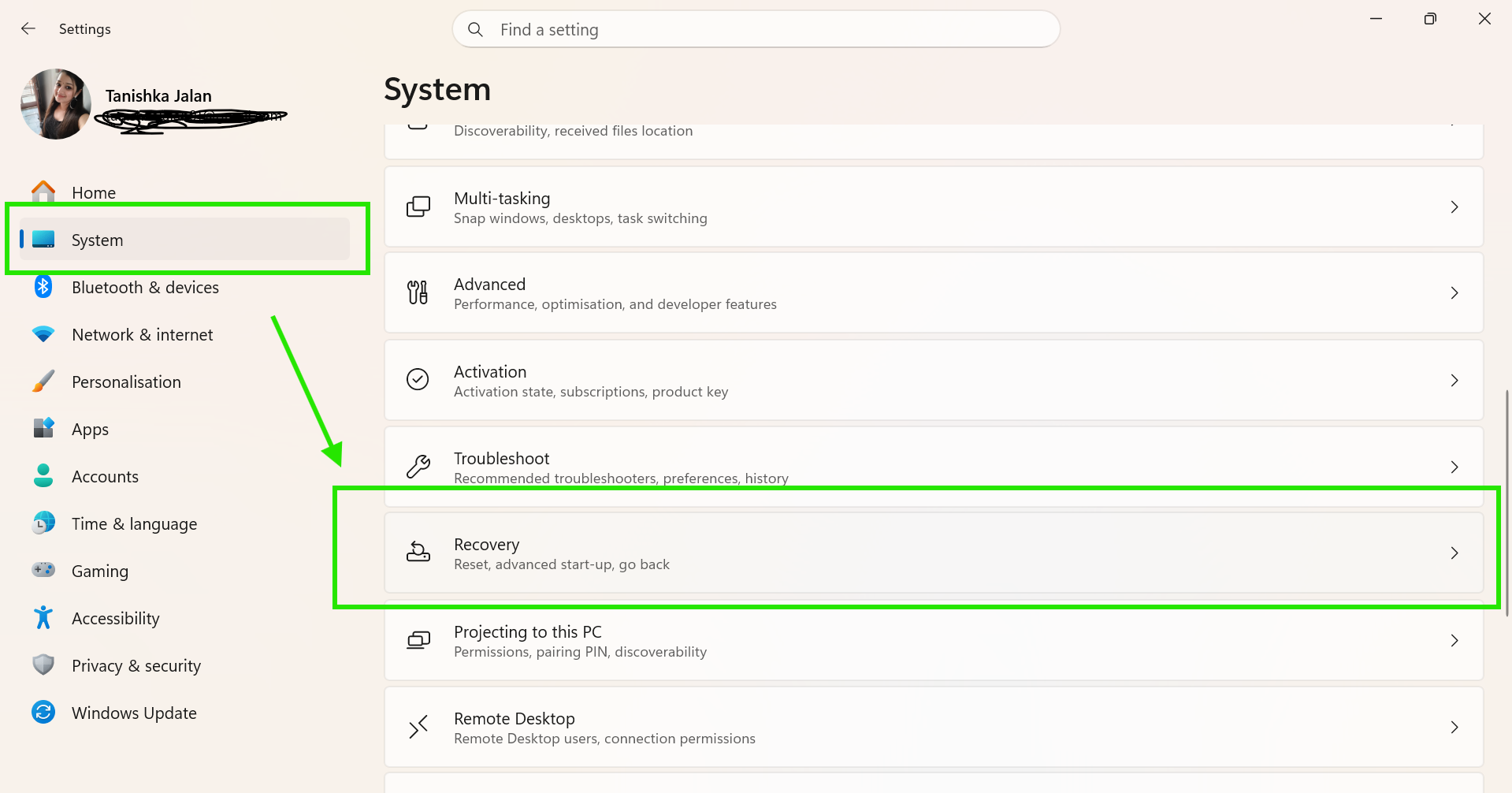
3. Click Reset PC.
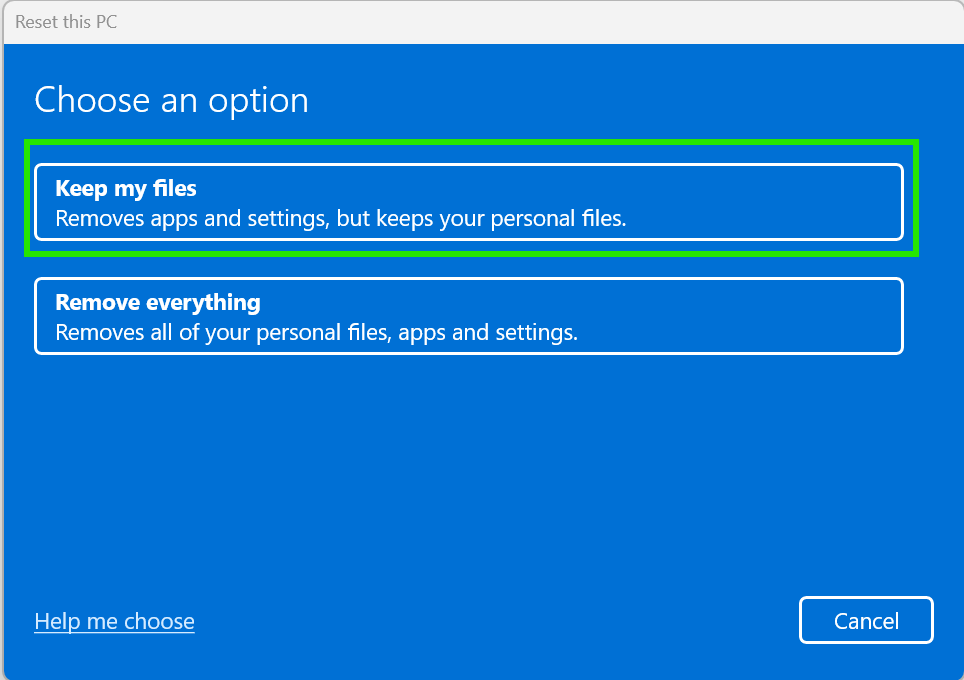
4. Choose Keep my files.
5. Follow the on-screen instructions.
6. Wait for Windows to reinstall.
7. Check if updates install successfully.
So, that’s how to fix the Windows 11 update error code 0x80070490. We believe all these fixes will resolve the issue and restore normal update functionality.




