Backing up your PC is supposed to protect your files. But sometimes Windows 11 displays a backup failed error instead. This can happen due to storage issues, disk errors or any miscellaneous reason.
If your backup failed on Windows 11, try the fixes below.
Page Contents
Why Does Windows 11 Backup Fail?
Common reasons include:
- There is not enough storage space on the backup drive
- Disk errors on the source or destination drive
- Backup location becoming unavailable
- Volume Shadow Copy Service (VSS) problems
- Antivirus interference
- Incorrect backup settings
Fix: Backup Failed On Windows 11 PC
Below are the fixes that work:
Fix 1: Check Available Storage Space
Windows backups require sufficient free space.
1. Open File Explorer.
2. Right click on the backup drive and select Properties.
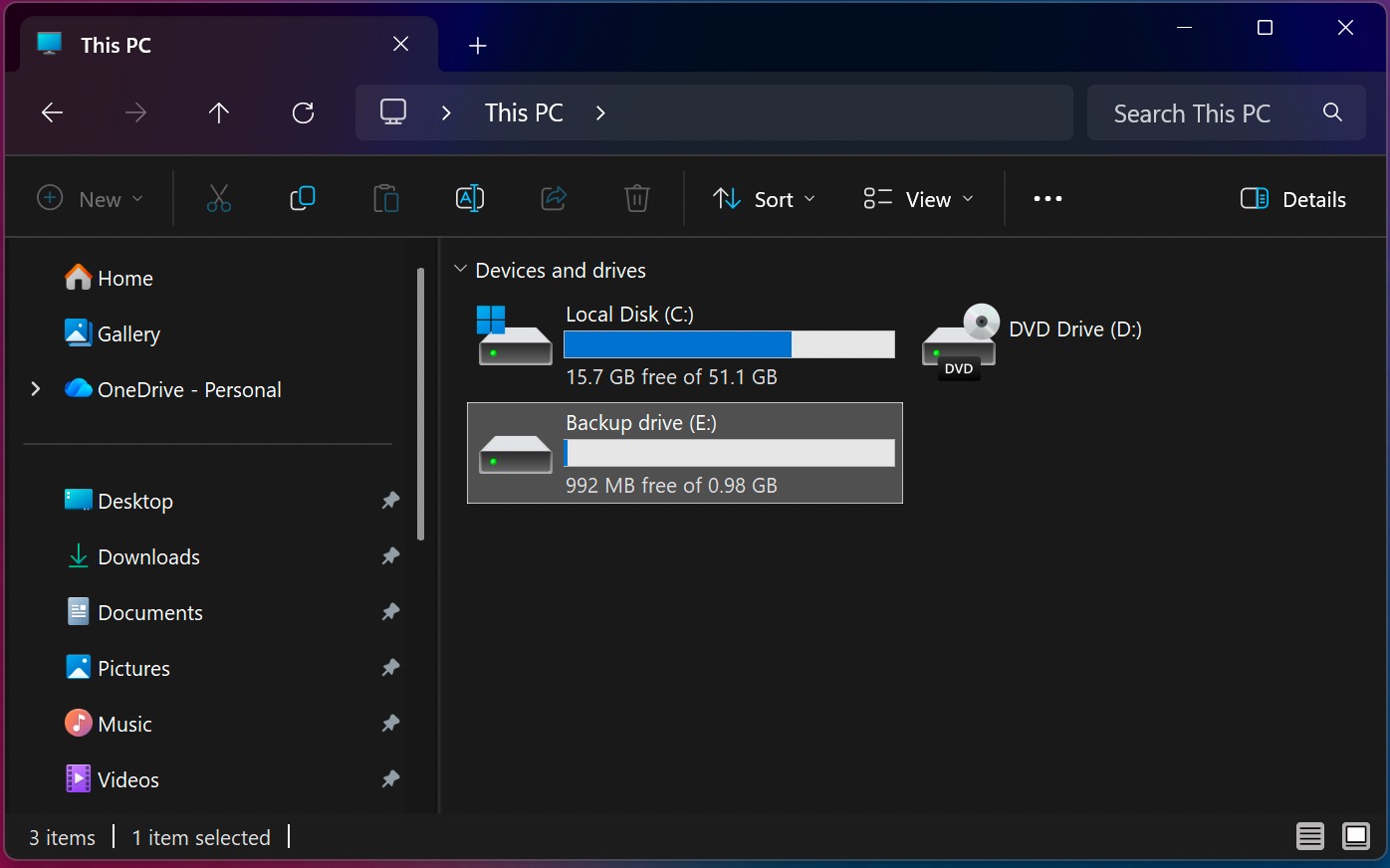
3. Check the available space.
4. Delete unnecessary files or choose a larger backup destination if needed.
Fix 2: Run A Disk Check When Backup Failed On Windows 11
Bad sectors or other disk related issues can also stop backups from completing.
1. Open Command Prompt as Administrator.
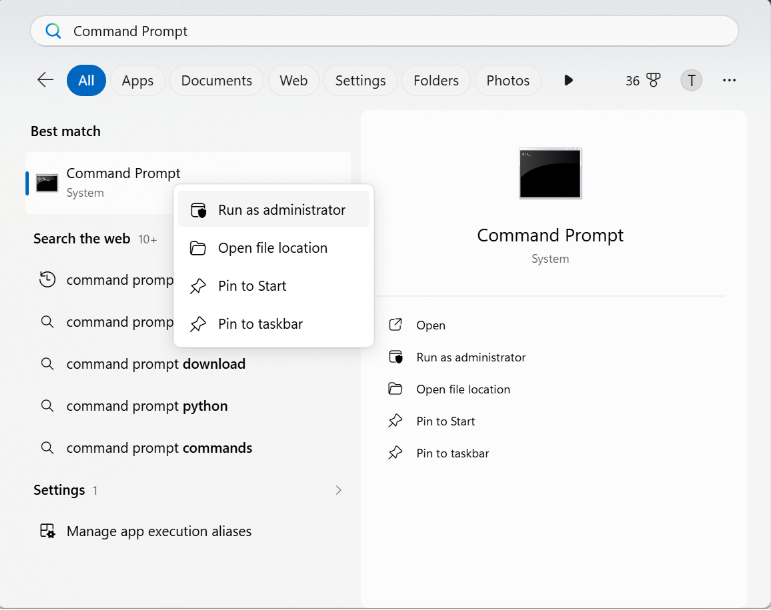
2. Type the command below and press Enter:
chkdsk /f /r
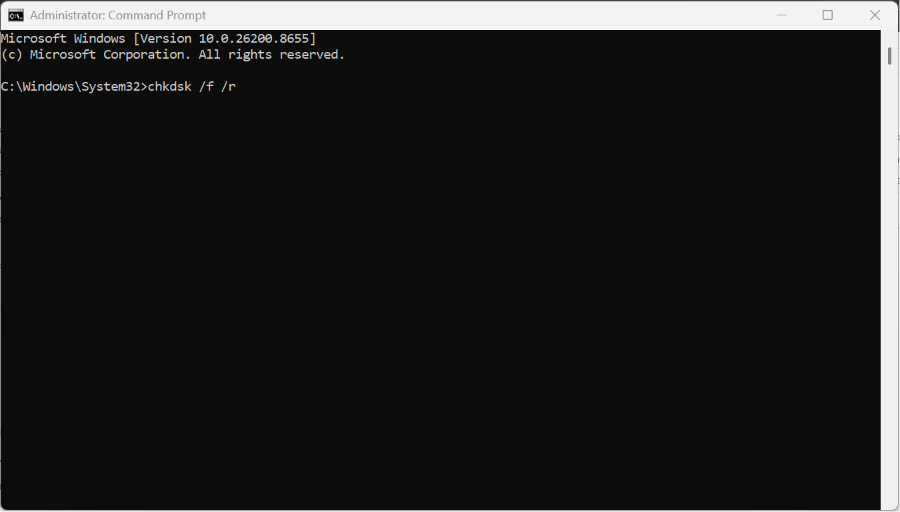
3. Restart your PC if prompted.
Fix 3: Verify The Backup Location
If the backup drive was moved, Windows won’t be able to find it.
1. Open your backup settings.
2. Confirm the selected destination is correct.
3. Reconnect external drives or verify network paths.
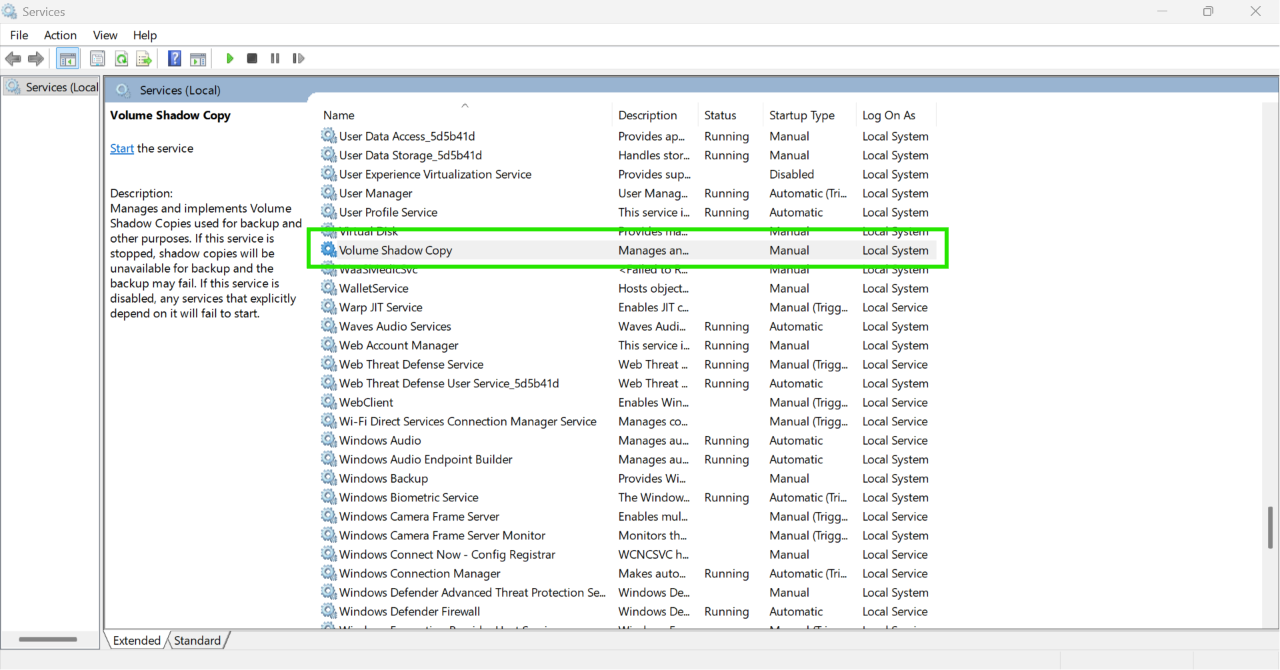
Fix 4: Restart The Volume Shadow Copy Service
1. Press Windows + R, type services.msc, and press Enter.
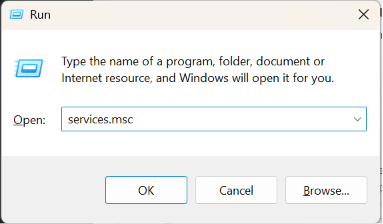
2. Locate the service named Volume Shadow Copy.
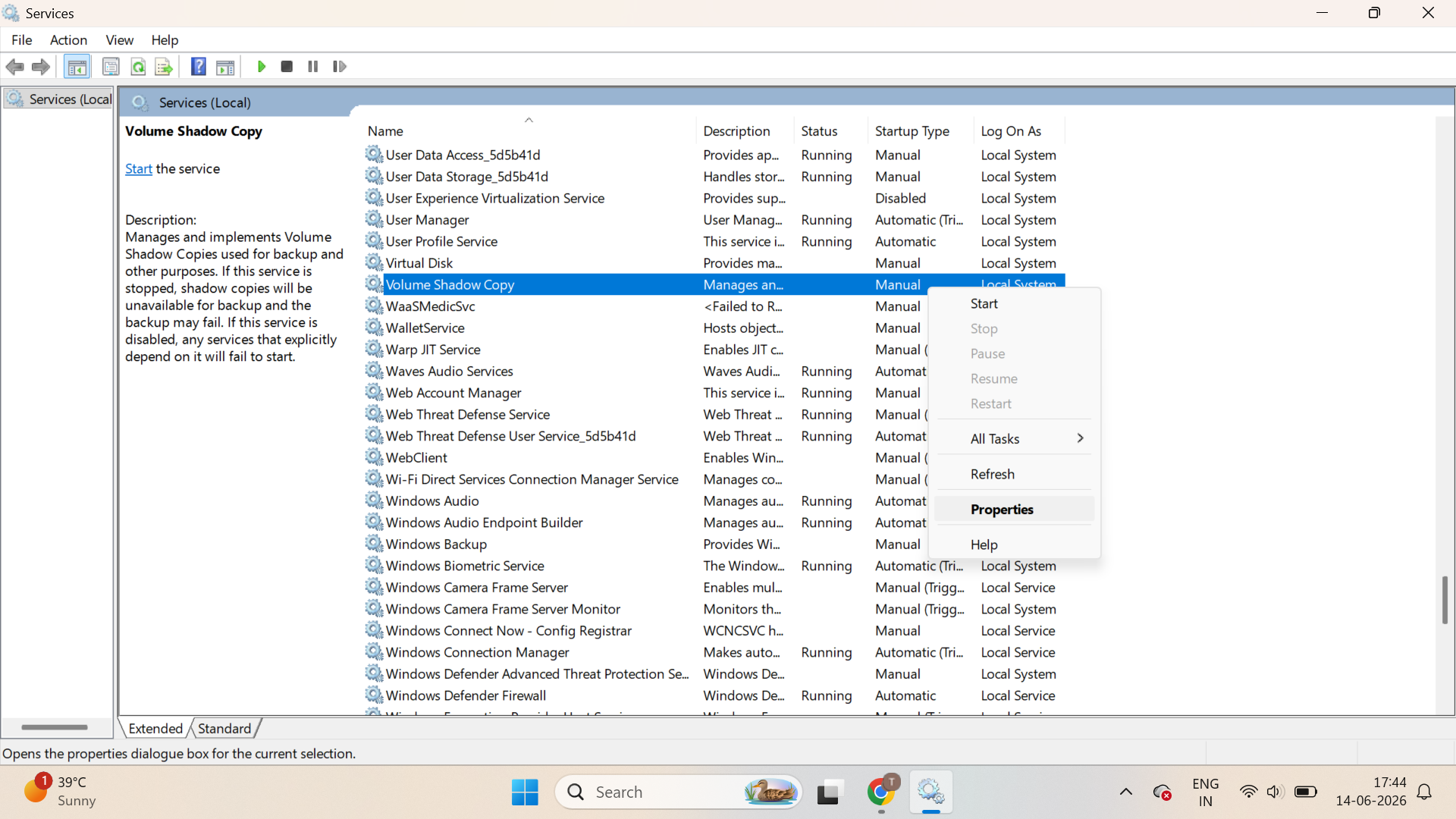
3. Set Startup type to Automatic.
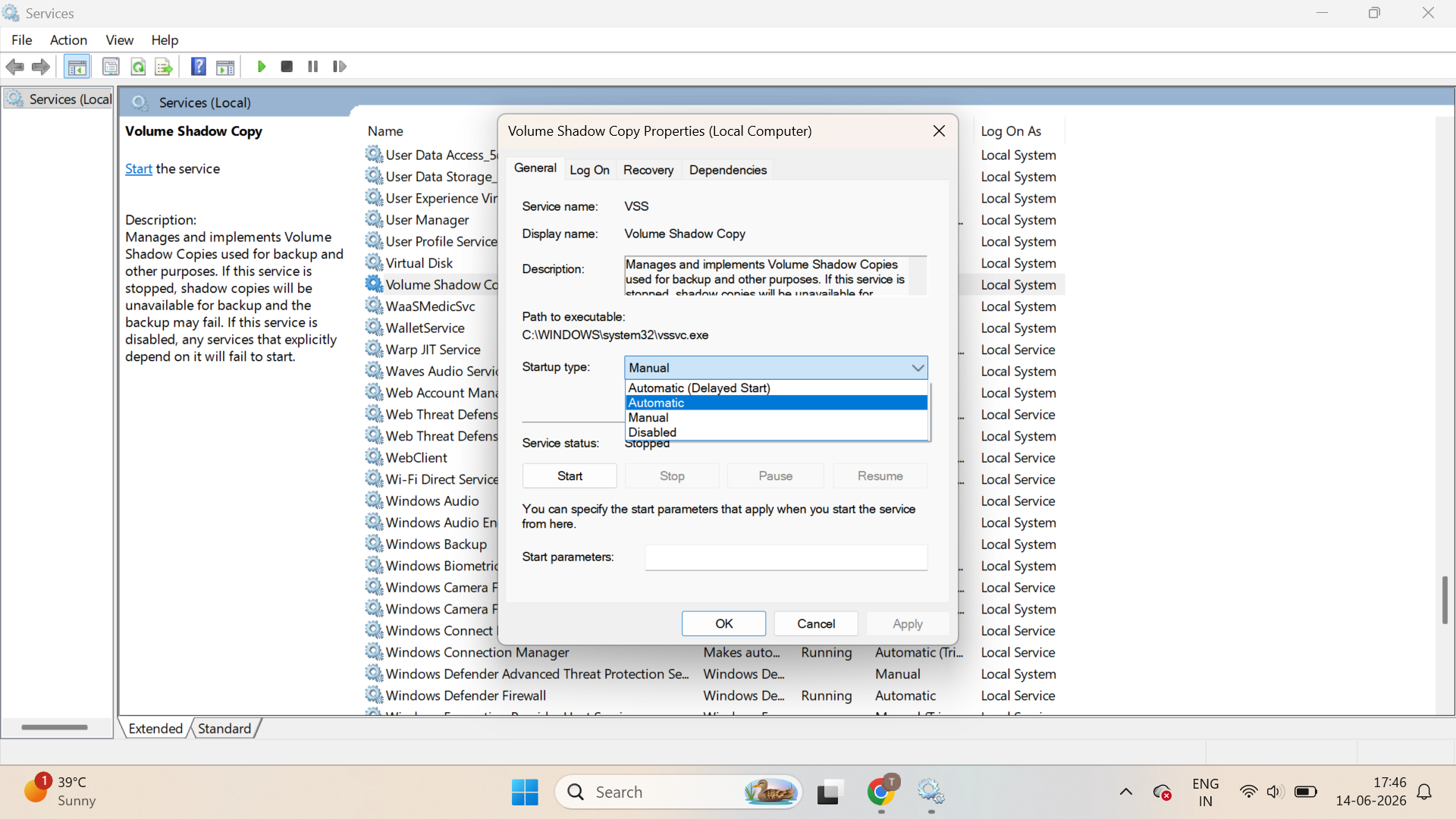
4. Click Start or Restart the service.
Fix 5: Temporarily Disable Antivirus Software
Third-party security tools can block backup operations. Especially, use of third-party antivirus seems a common cause.
1. Temporarily disable your antivirus.
2. Run the backup again.
3. Re-enable protection after testing.
Fix 6: Review Backup Settings
Open Windows Backup settings and verify the selected files, schedule, and destination drive. Incorrect settings can cause backup failures.

FAQs
1. How to back up laptop data in Windows 11?
To back up your data in Windows 11, go to Settings > Accounts > Windows Backup. Now enable backups for files, apps, and settings. You can also use File History or copy important files to an external drive or cloud storage.
2. How to fix Windows 11 backup issues?
Make sure the backup drive has sufficient free space. Run CHKDSK to fix disk errors. Verify the backup drive or network location is accessible. Restart the Volume Shadow Copy (VSS) service.