Consider a scenario. You have Windows 11 PC, and you logged in to your account. However, then you realize the taskbar has disappeared. All elements those usually associate with taskbar are now gone, making it difficult to use your the PC. There could be multiple reasons why this could occur. In this guide, we’ll fix this annoying issue.
Page Contents
Windows 11 Taskbar Disappeared? Try These Working Fixes
Try the fixes below to restore the taskbar.
Fix 1: Restart Windows Explorer
Windows Explorer controls the taskbar and desktop interface. Restarting it often fixes the issue immediately.
1. Press Ctrl + Shift + Esc to open Task Manager.
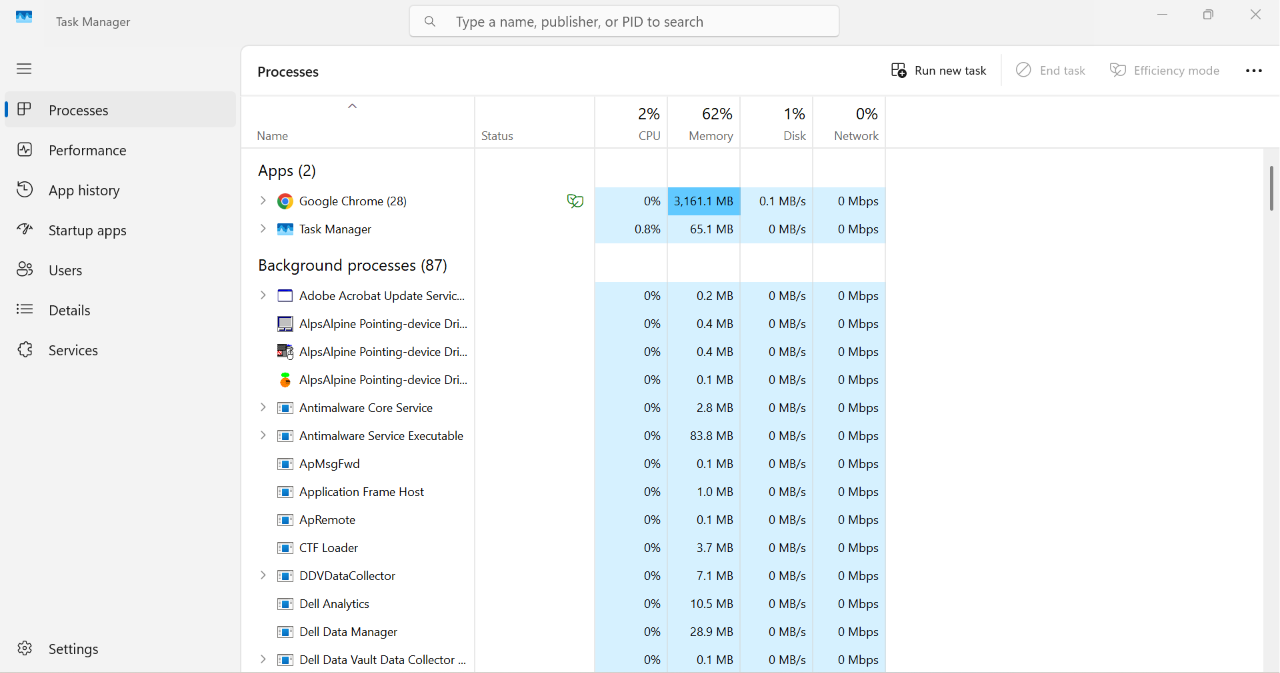
2. Find Windows Explorer under the Processes tab.
3. Right-click it and select Restart.
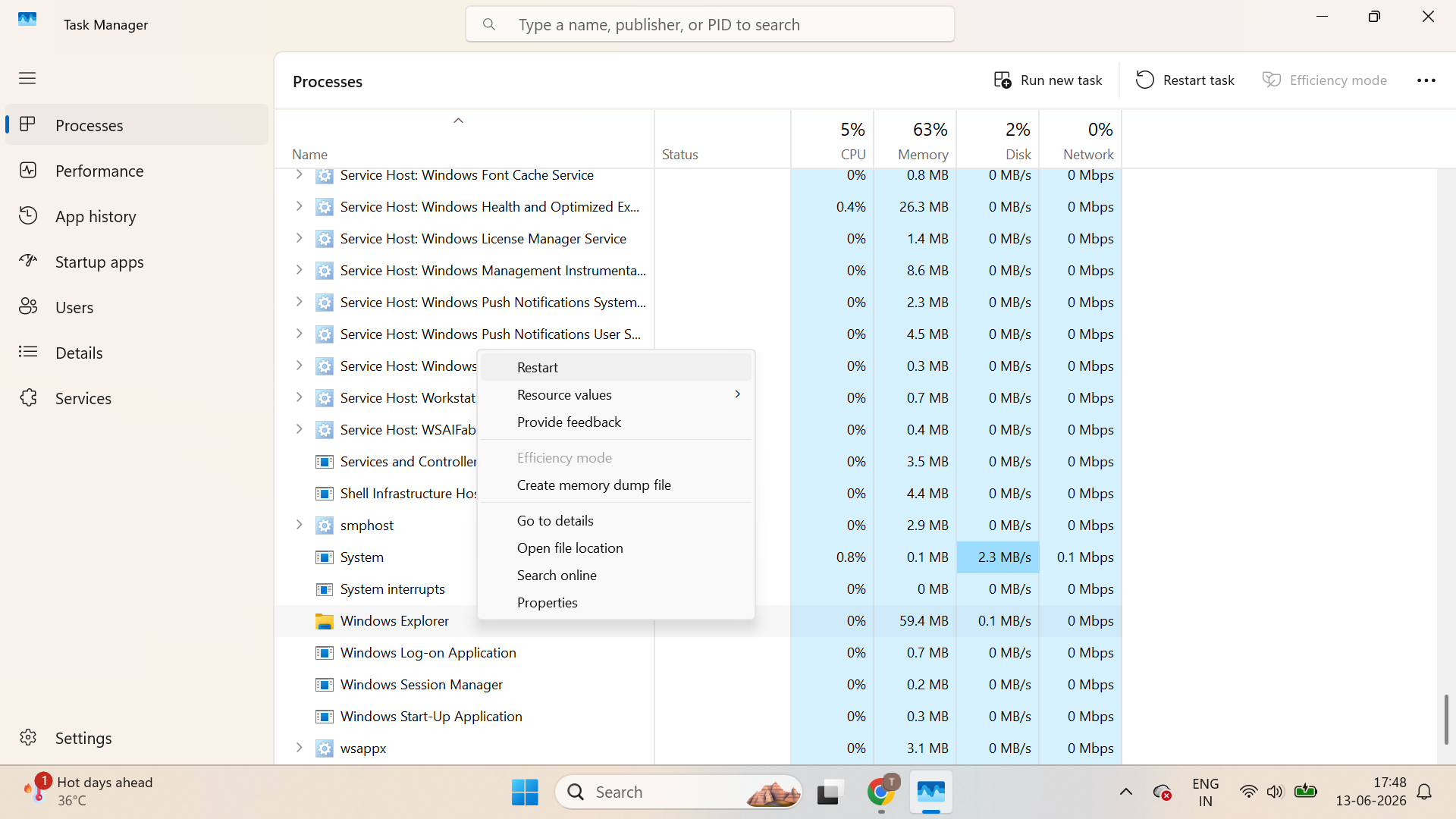
4. Wait a few seconds and check if the taskbar returns.
Fix 2: Run An SFC Scan
Corrupted system files can prevent the taskbar from loading properly. Run the SFC scan:
1. Open Task Manager using Ctrl + Shift + Esc.
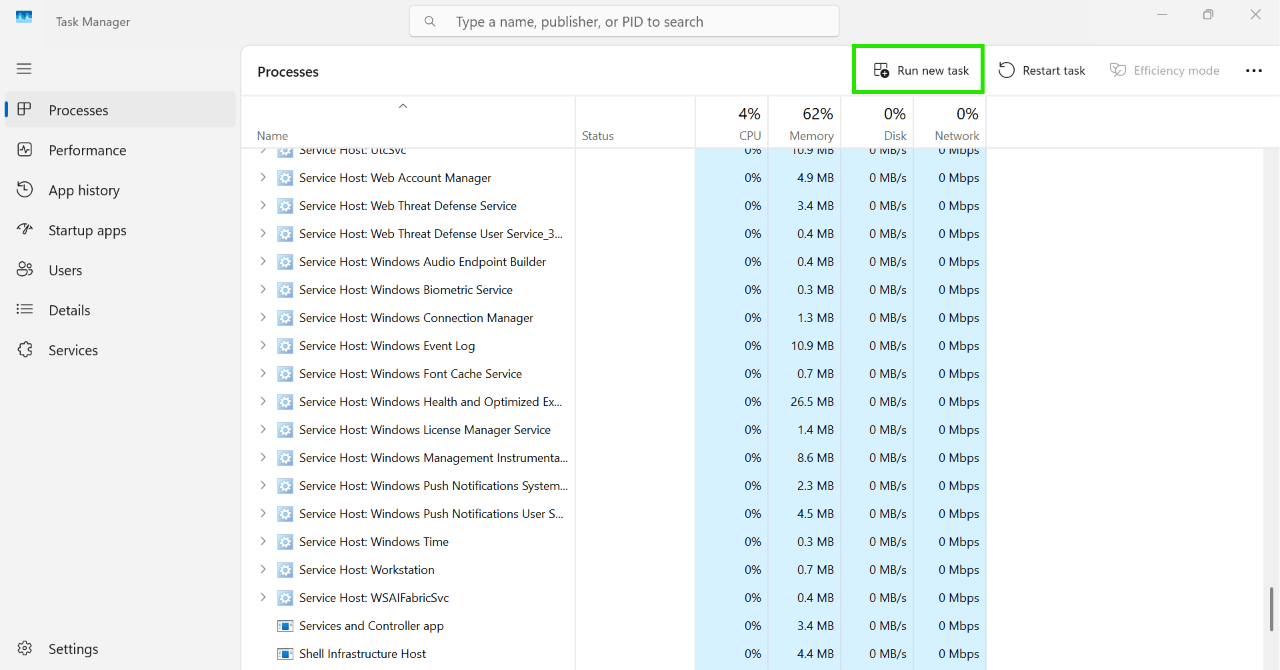
2. Click Run new task.
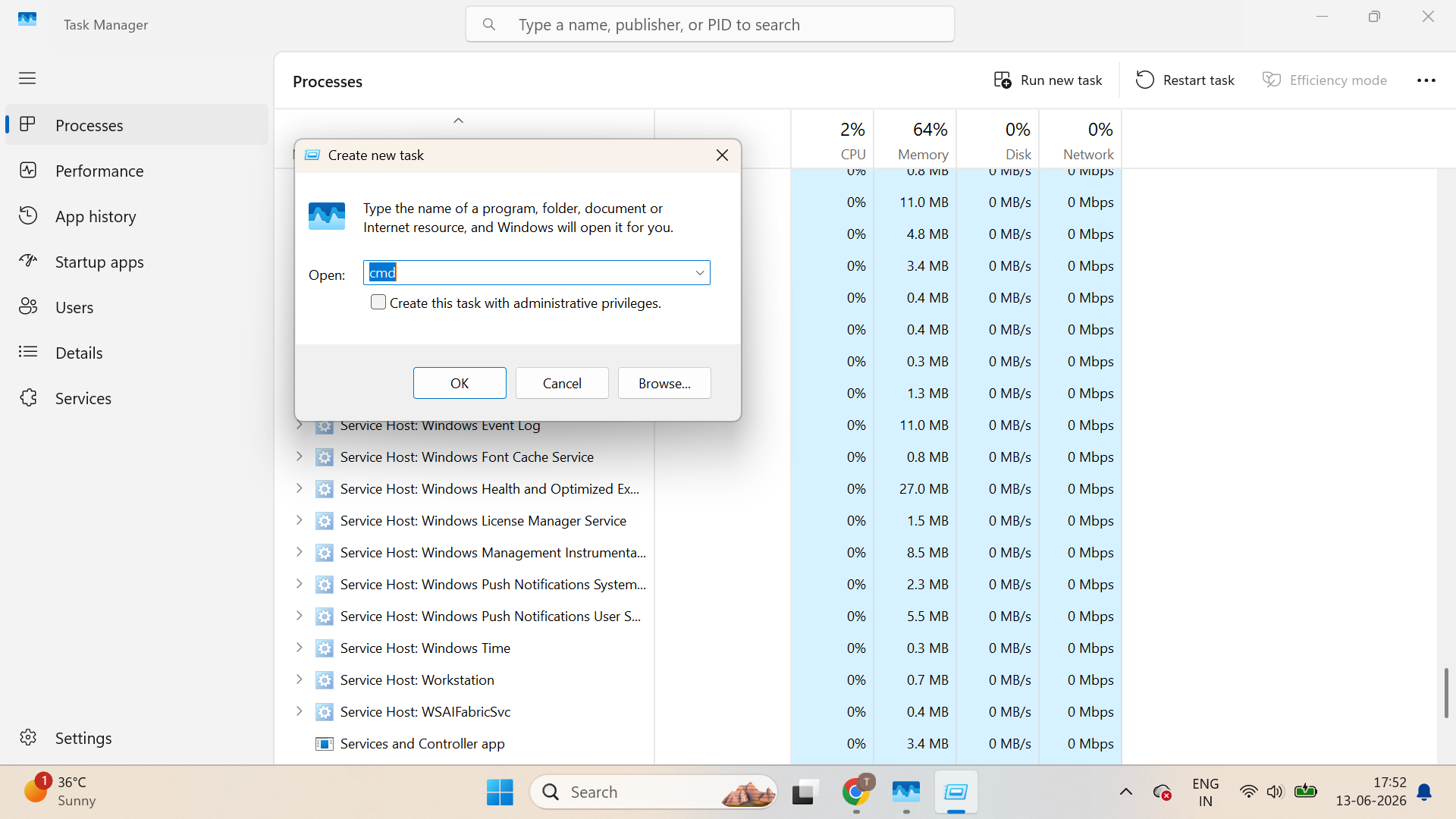
3. Type cmd, check Create this task with administrative privileges, and click OK.
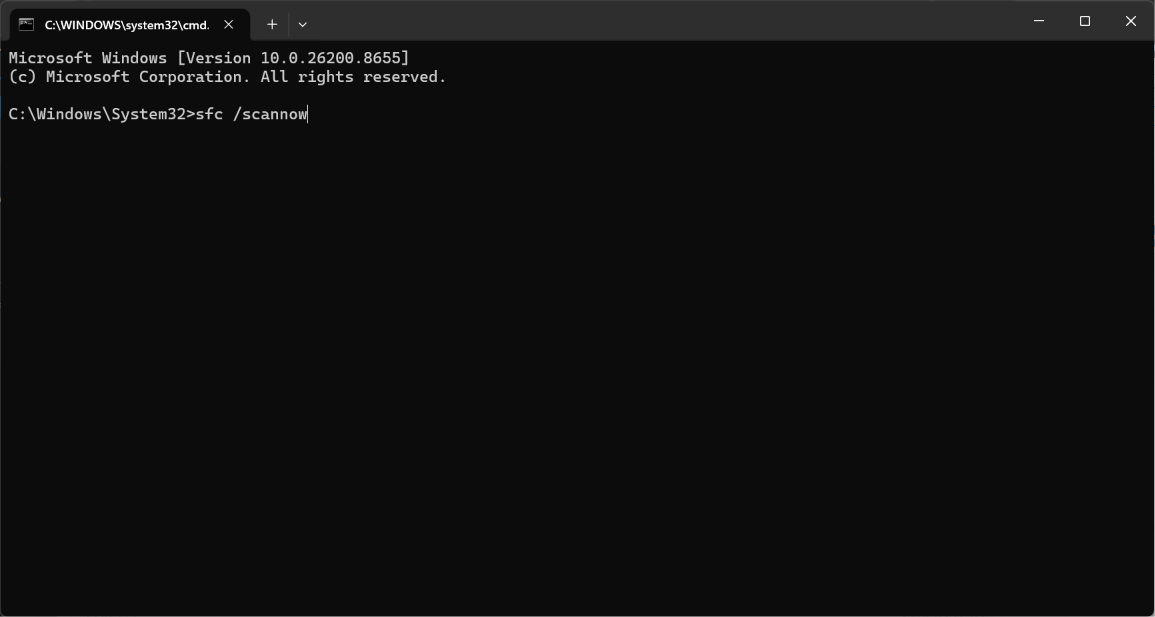
4. Enter the following command:
sfc /scannow
5. Let the scan complete, and restart your PC.
Fix 3: Disable Taskbar Auto-Hide
Sometimes the taskbar is not missing; it is hidden.
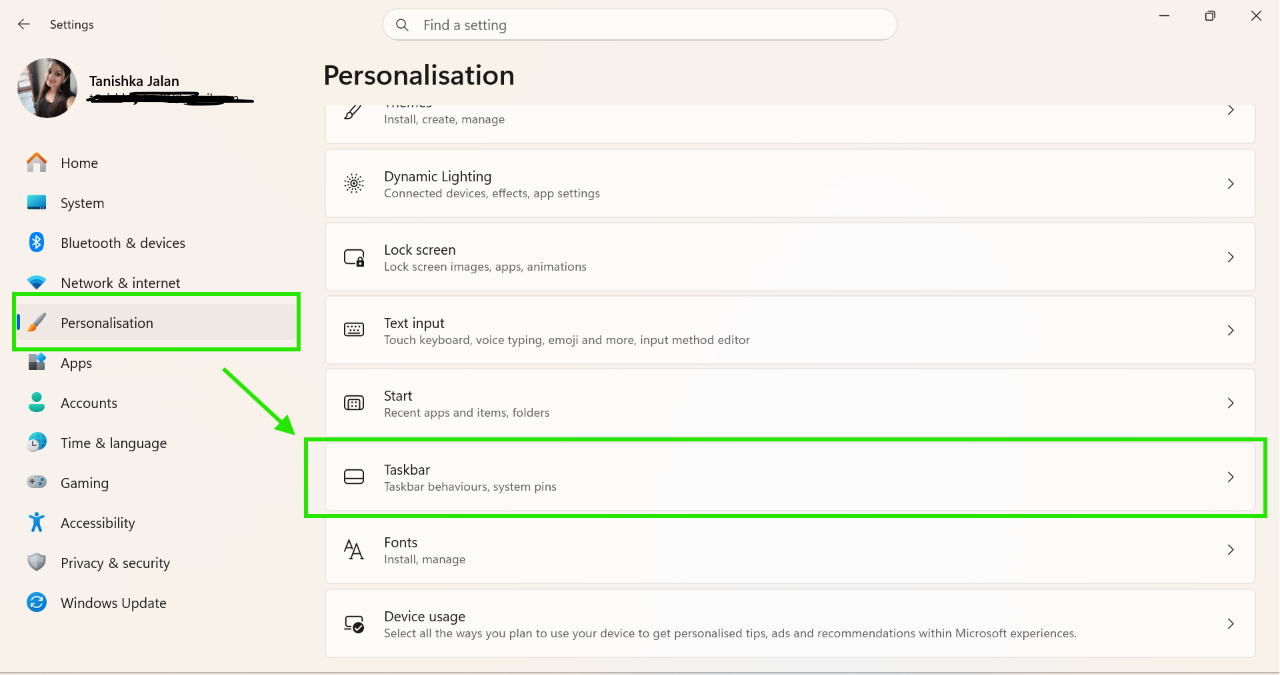
1. Press Windows + I to open Settings.
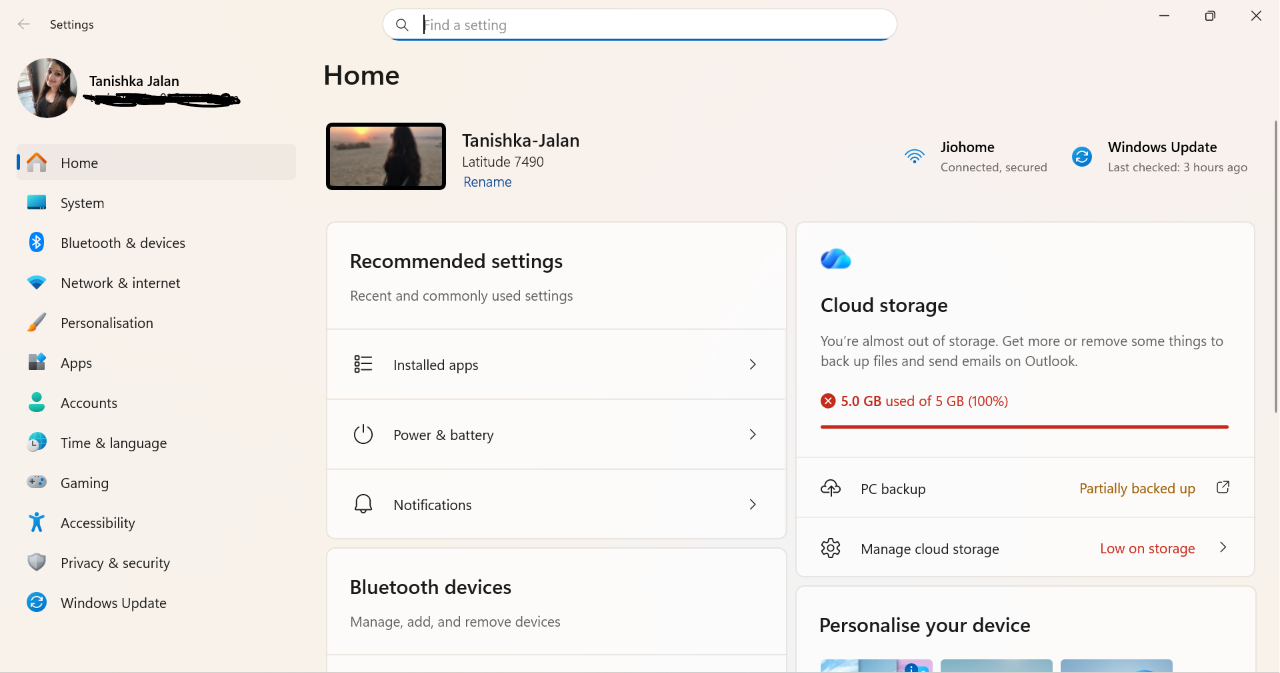
2. Go to Personalization> Taskbar.
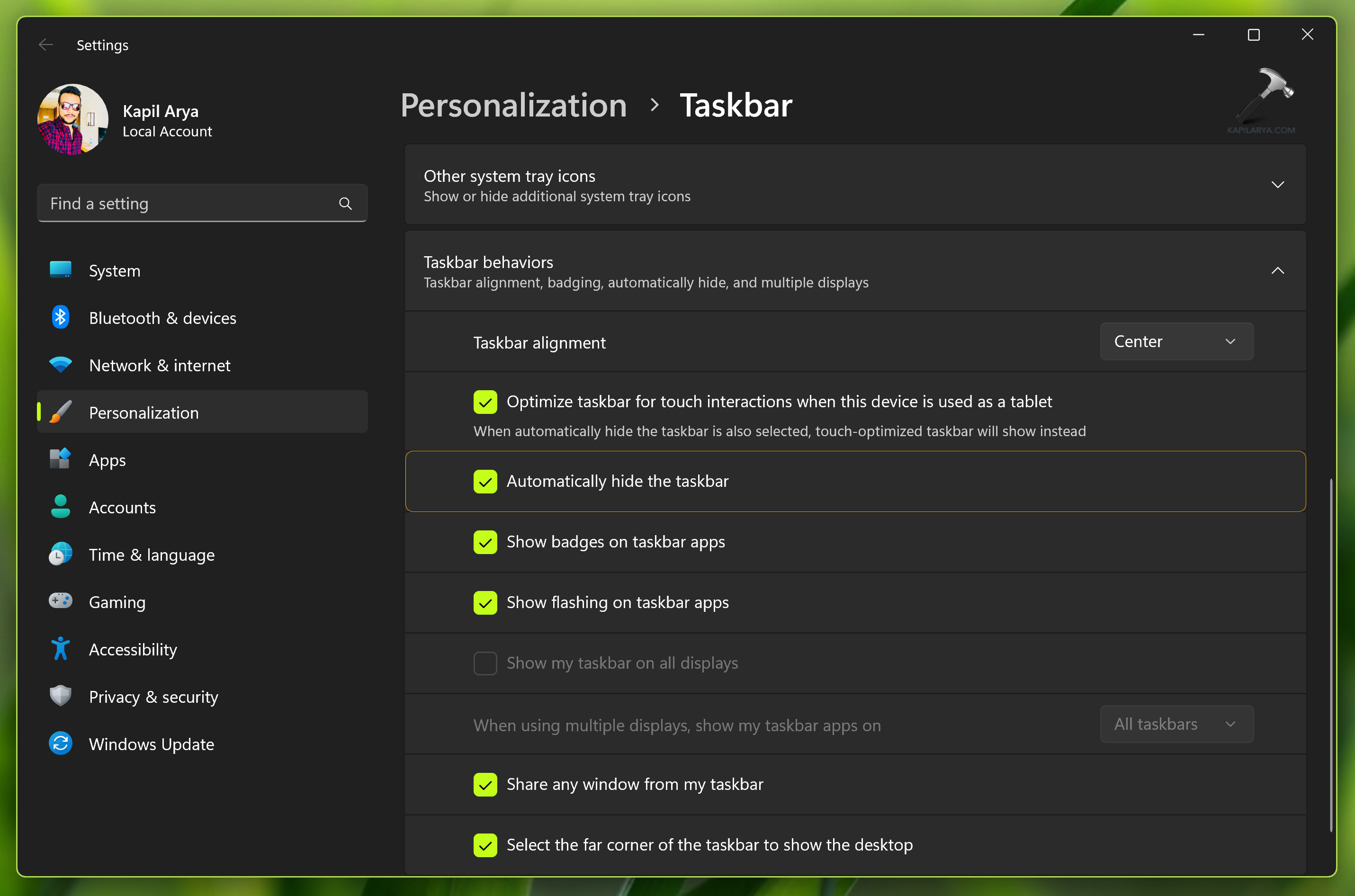
3. Expand Taskbar behaviors.
4. Turn off Automatically hide the taskbar.
Fix 4: Remove the IrisService Registry Key
A corrupted IrisService key can cause blank or missing taskbar icons.
1. Open administrative Command Prompt.
2. Type or paste following command and press the Enter key:
reg delete HKCU\SOFTWARE\Microsoft\Windows\CurrentVersion\IrisService /f && shutdown -r -t 0
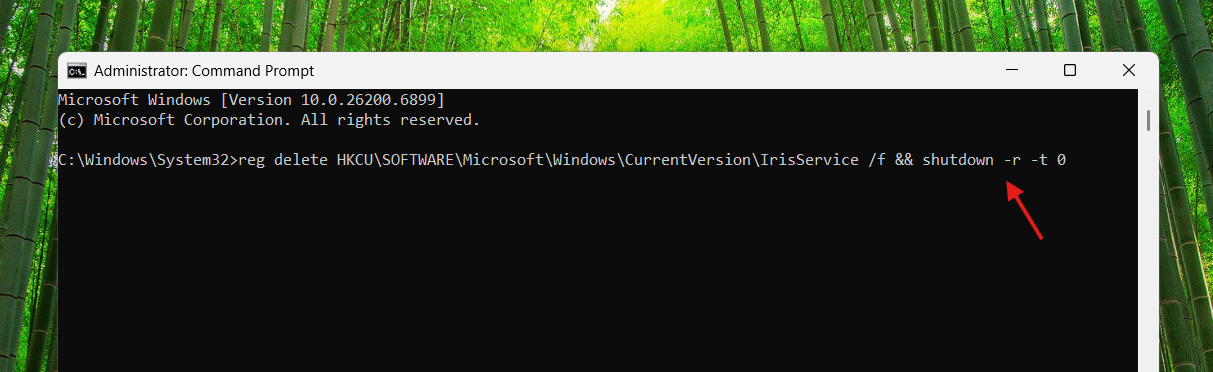
3. Close Command Prompt and restart your computer.
Fix 5: Uninstall the Latest Windows Update
If the issue started after an update, rolling back the update may help.
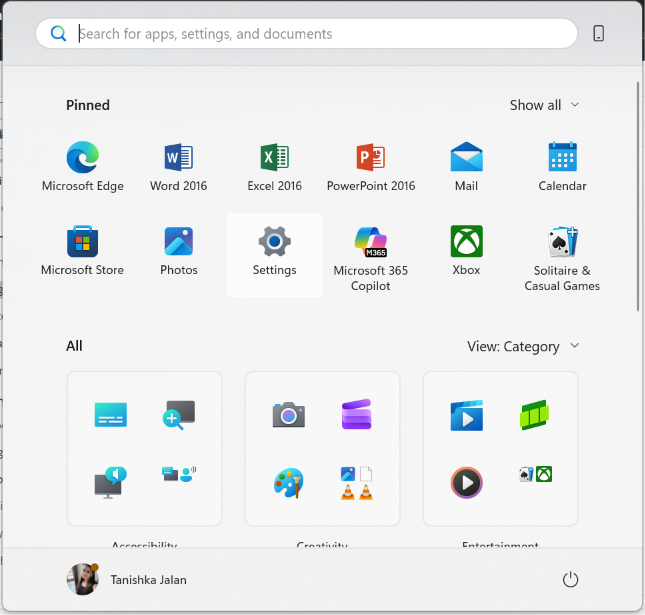
1. Open Settings > Windows Update.
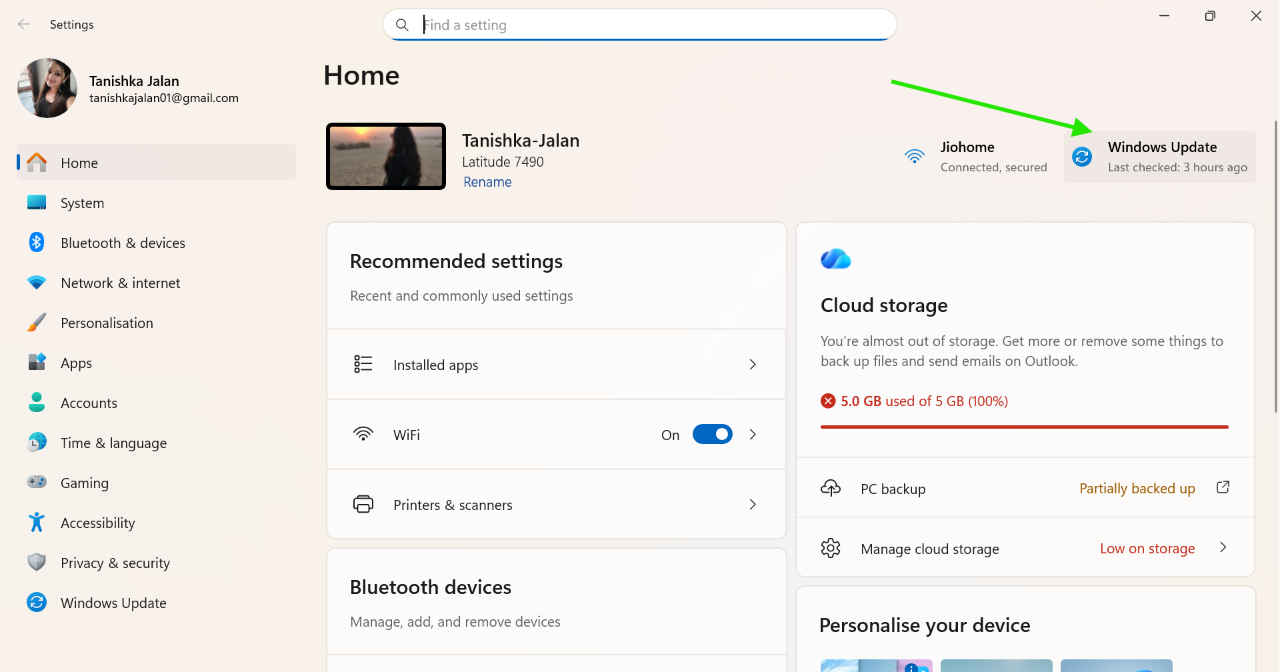
2. Select Update history.
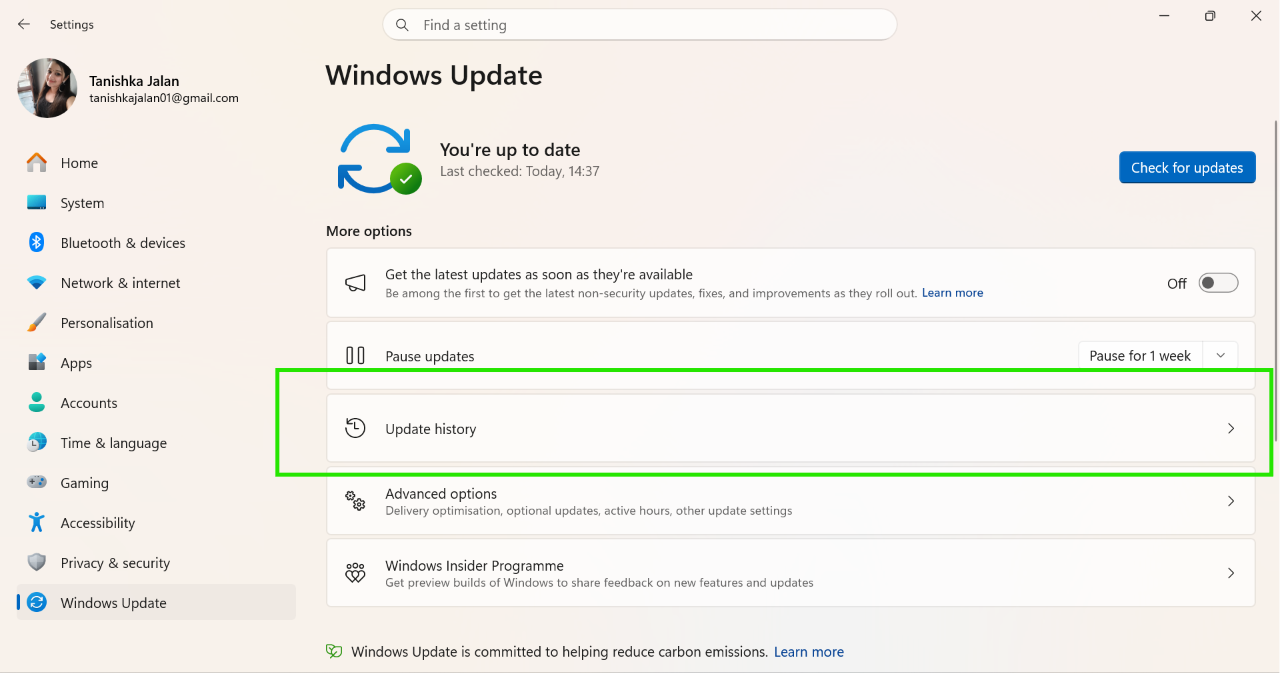
3. Click Uninstall updates.
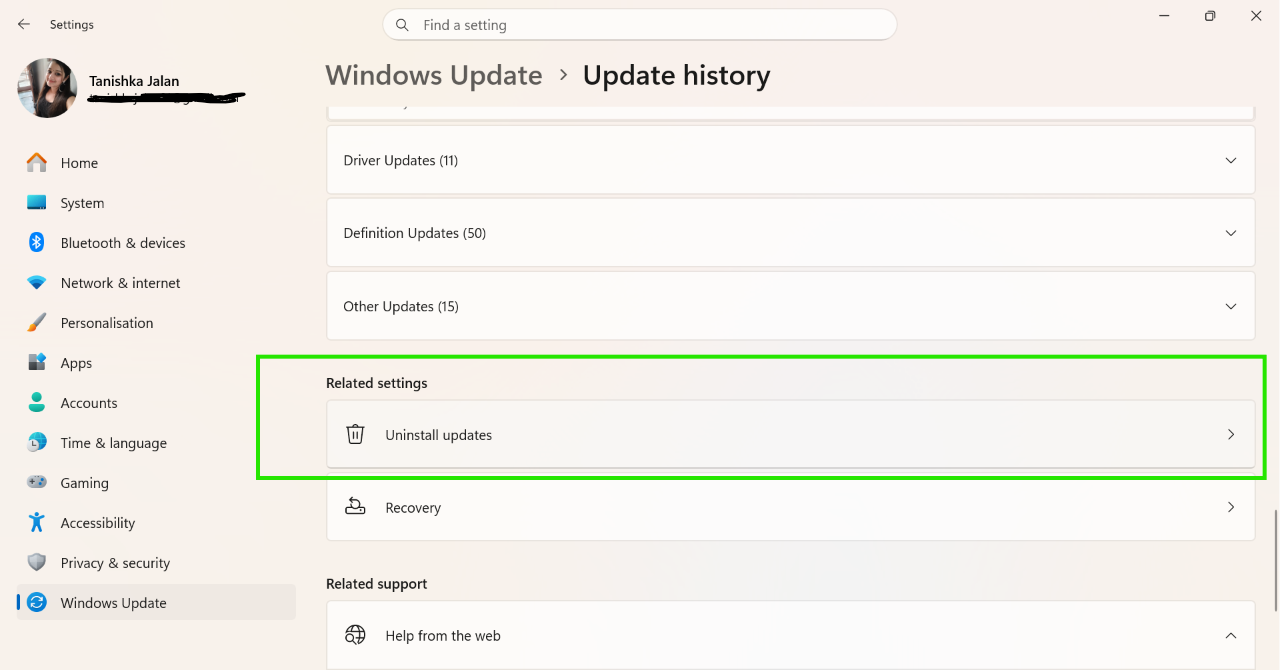
4. Remove the most recent update and restart your PC.
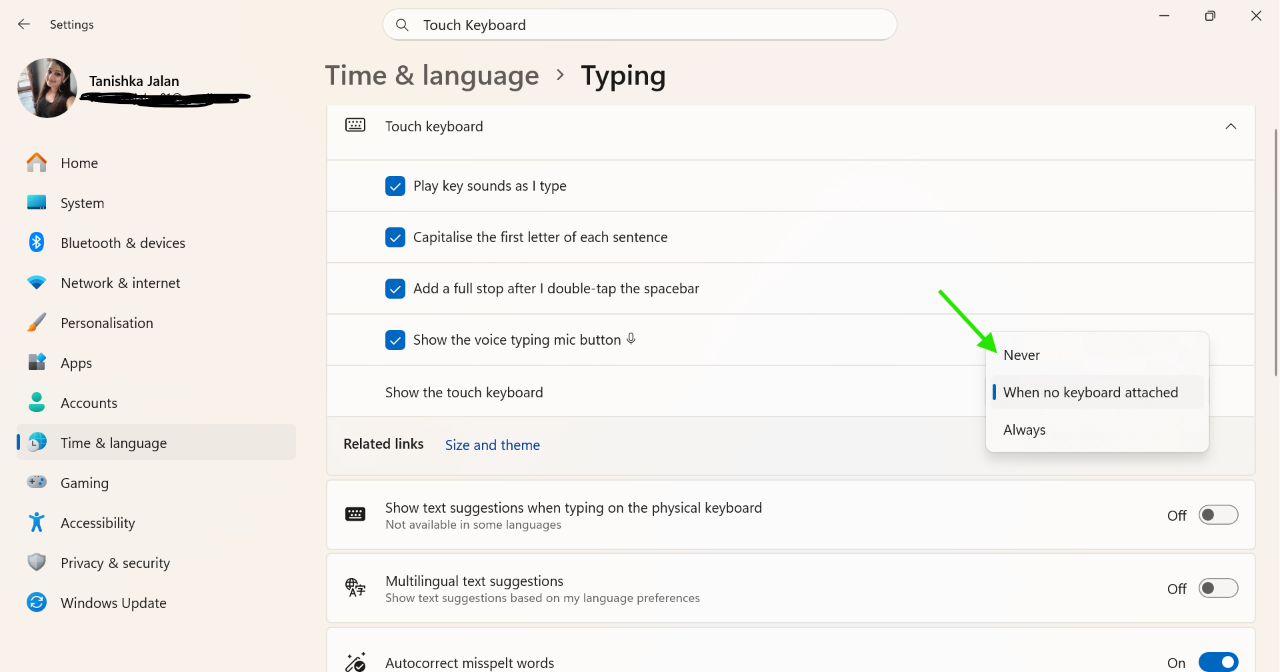
Fix 6: Turn Off the Touch Keyboard
The touch keyboard service can sometimes interfere with taskbar loading.
1. Open Settings.
2. Search for Touch Keyboard.
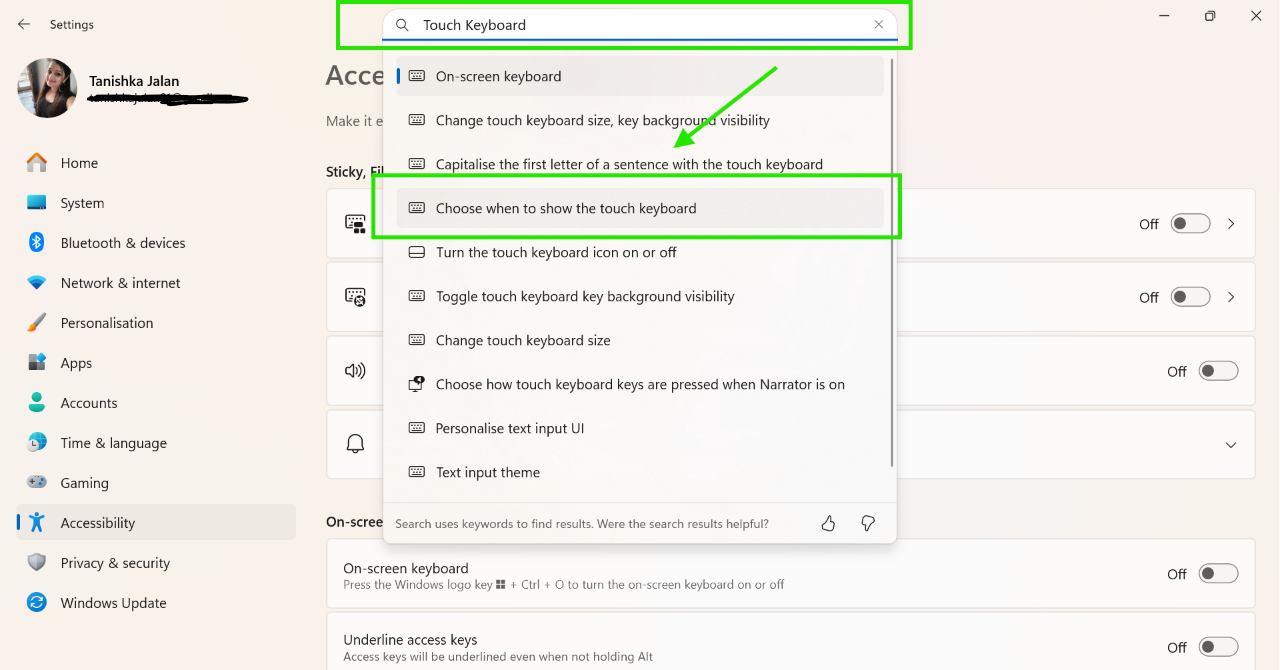
3. Open its settings and set it to Never.
So, that’s how you can fix it.
That’s it! If you have more questions, comment below!