You click Copilot. Instead of opening, you see “Copilot is disabled by your organization” But that’s your Windows 11 PC. Neither your work account nor your company laptop.
But sometimes it feels confusing. This error is usually easy to fix. It is often caused by an old work or school account or a Windows setting that has turned off Copilot. To fix it, follow the methods below.
Page Contents
Why does “Copilot Is Disabled By Your Organization Error” happen?
Well, this error message usually appears because:
- A work or school account is still connected to your PC.
- A Group Policy has disabled Copilot.
- A Registry setting is blocking Copilot.
Fix: Copilot Is Disabled By Your Organization
Let’s give you some simple and easy solutions:
Fix 1: Disconnect A Work Or School Account
If you once signed in with a work or school account, your Windows may still apply organizations’ policies. Here are the steps to disconnect work/school account.
1. Press Windows + I to open Settings.
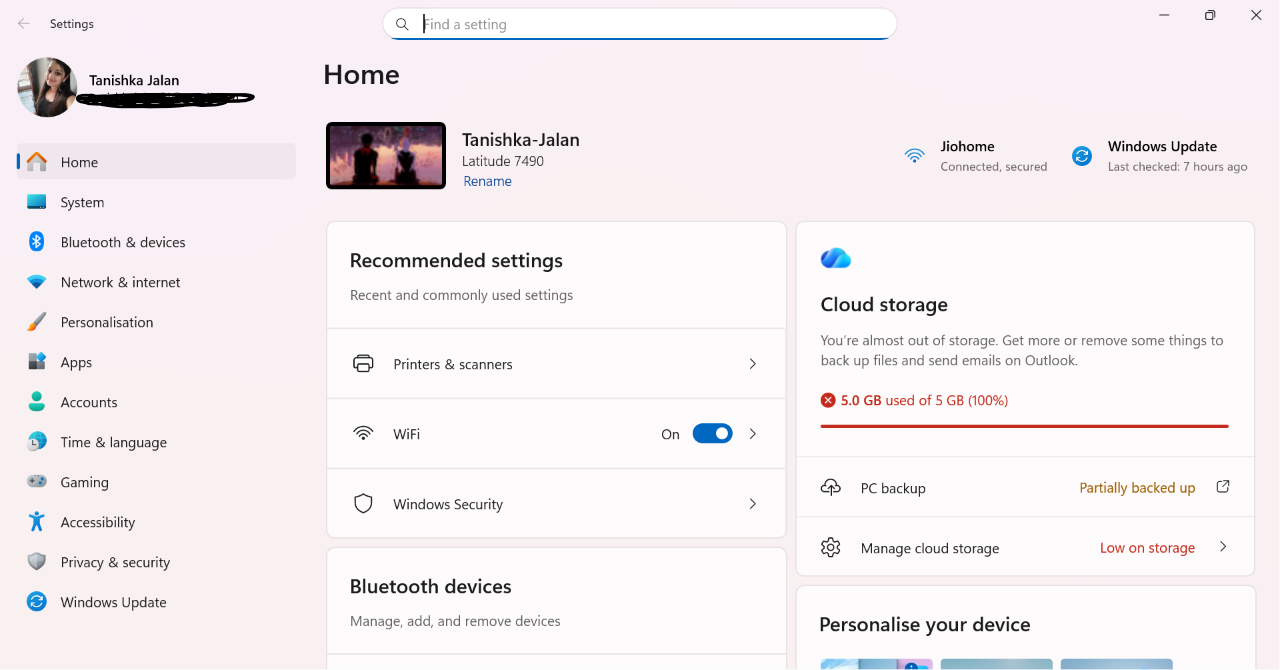
2. Click Accounts.
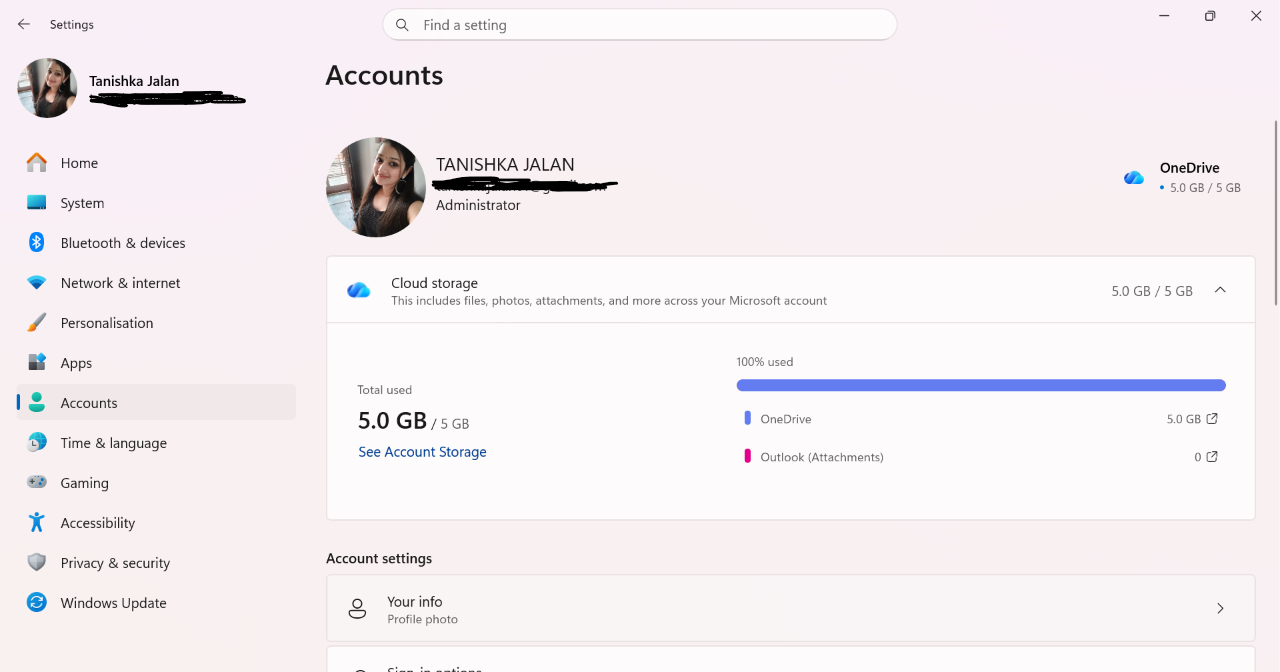
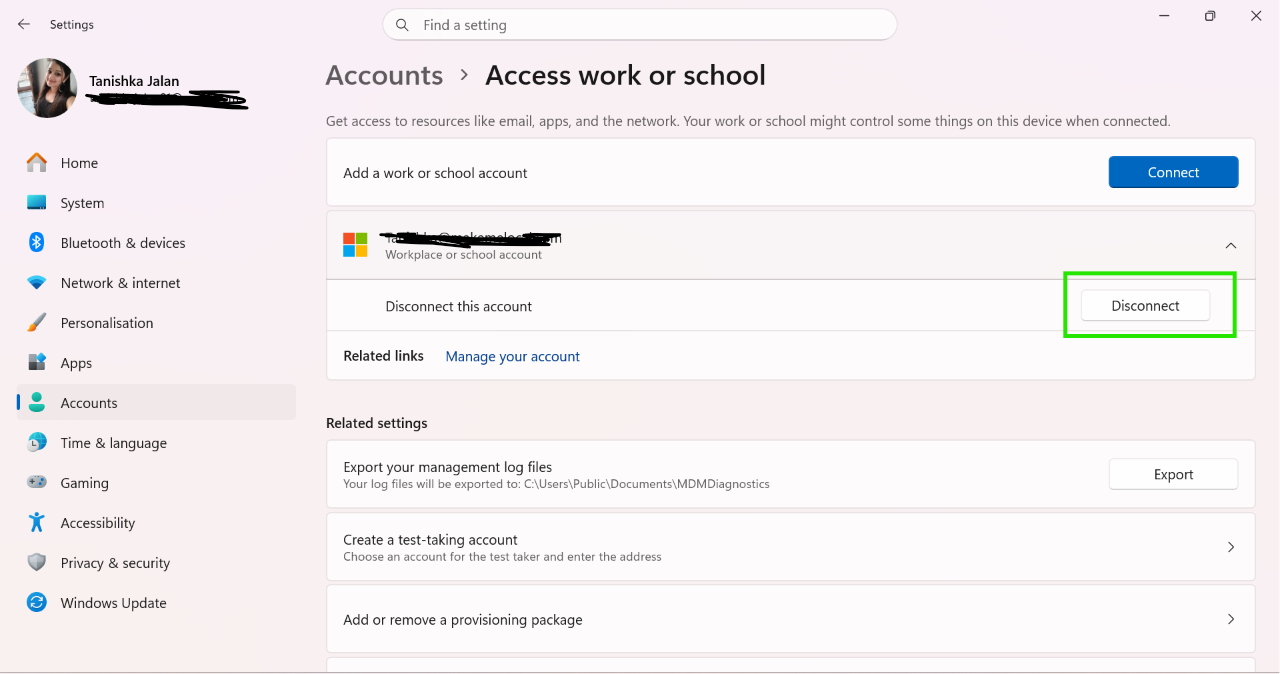
3. Select Access work or school.
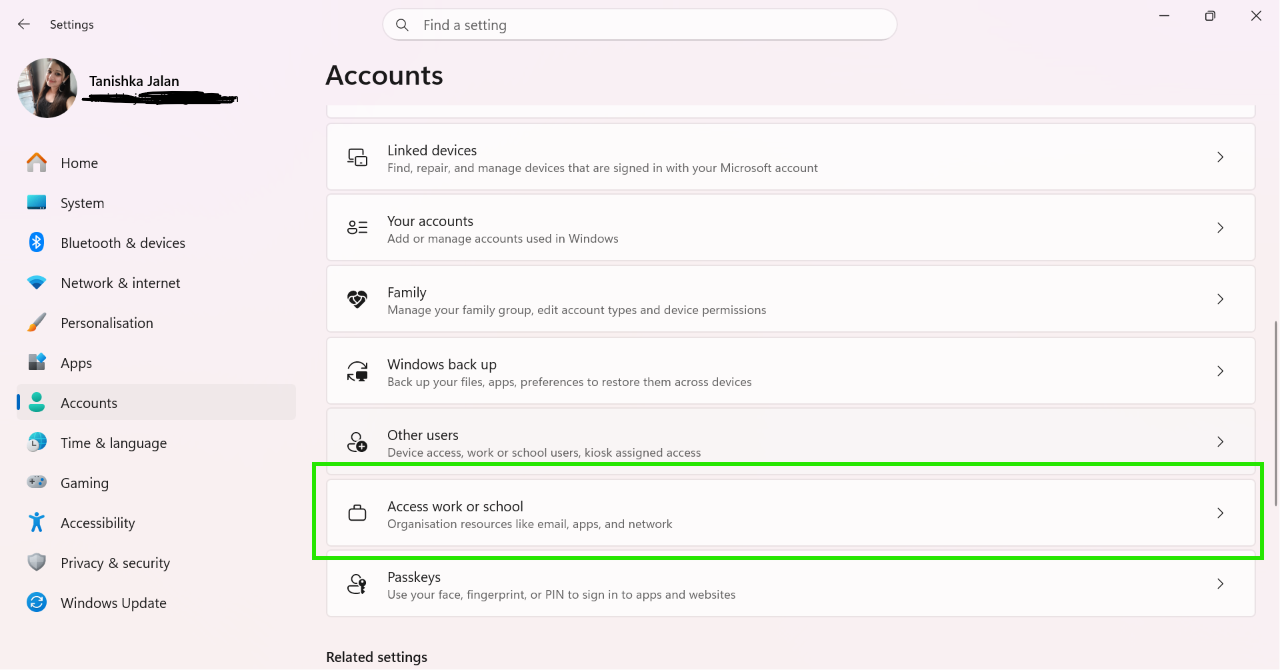
4. If you see a connected account, select it.
5. Click Disconnect.
6. Restart your PC.
7. Open Copilot and check if the error is gone.
Fix 2: Turn On Copilot in Group Policy
You can enable Copilot, if it is disabled.
Note: This method works only on Windows Pro, Enterprise, and Education.
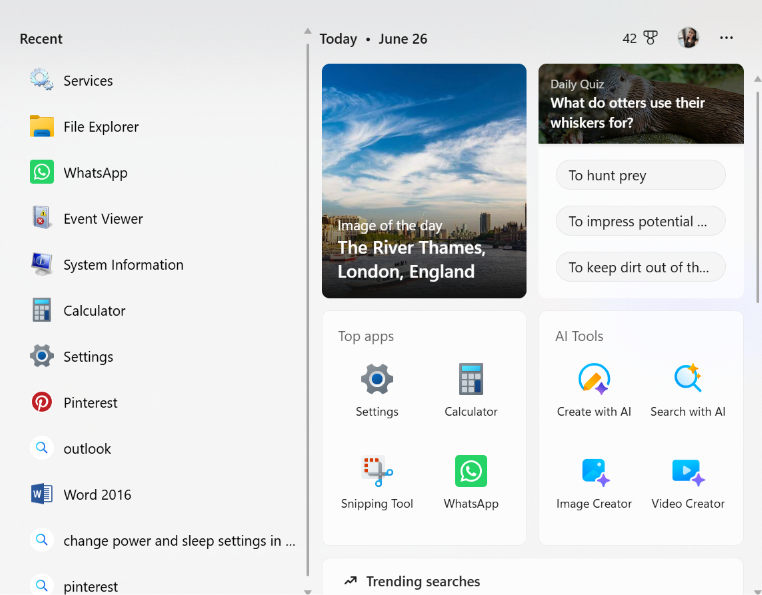
1. Press Windows + S, type gpedit.msc, and open Local Group Policy Editor.
2. Go to:
User Configuration > Administrative Templates > Windows Components > Windows Copilot.
3. Double-click Turn off Windows Copilot.
4. Select Disabled.
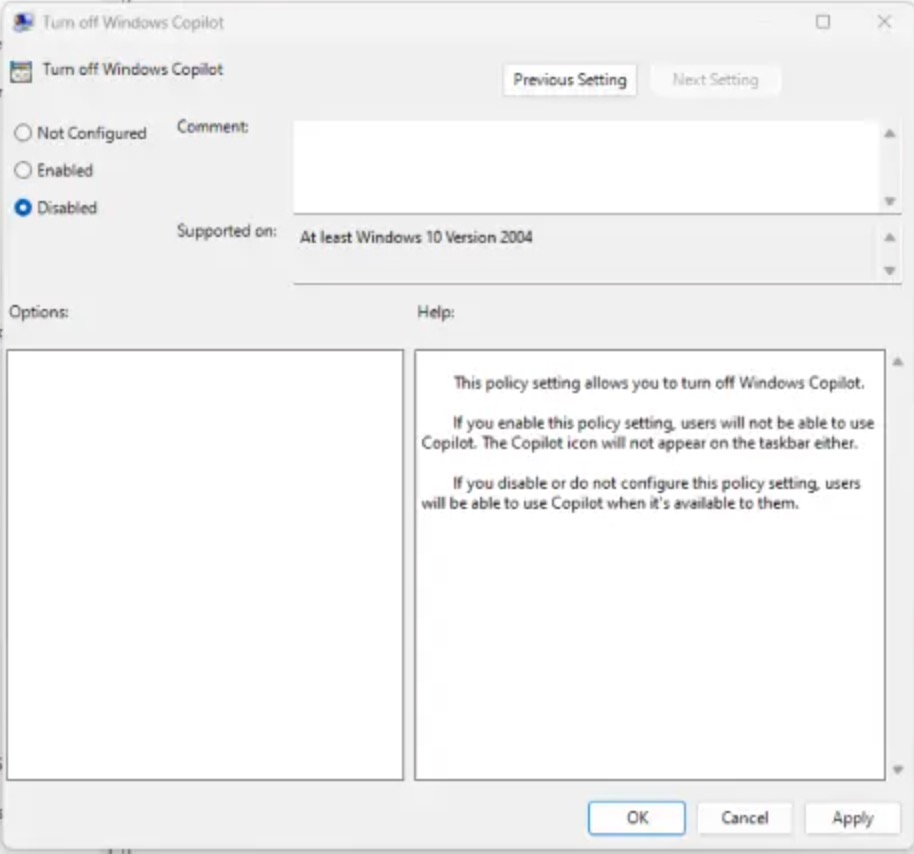
5. Click Apply and OK.
6. Restart your computer.
Fix 3: Using Registry
You can perform following registry manipulation to resolve this:
Note: Making mistakes while editing registry can affect your system adversely.
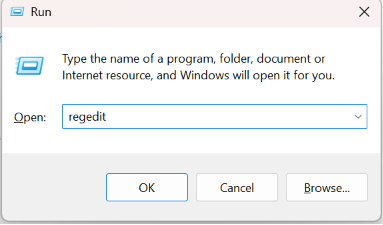
1. Press Windows + R, type regedit, and press Enter.
2. Go to following key:
HKEY_CURRENT_USER\Software\Policies\Microsoft\Windows
3. Open the WindowsCopilot key if it exists.
4. Double-click TurnOffWindowsCopilot.
5. Change the value to 0 and click OK.
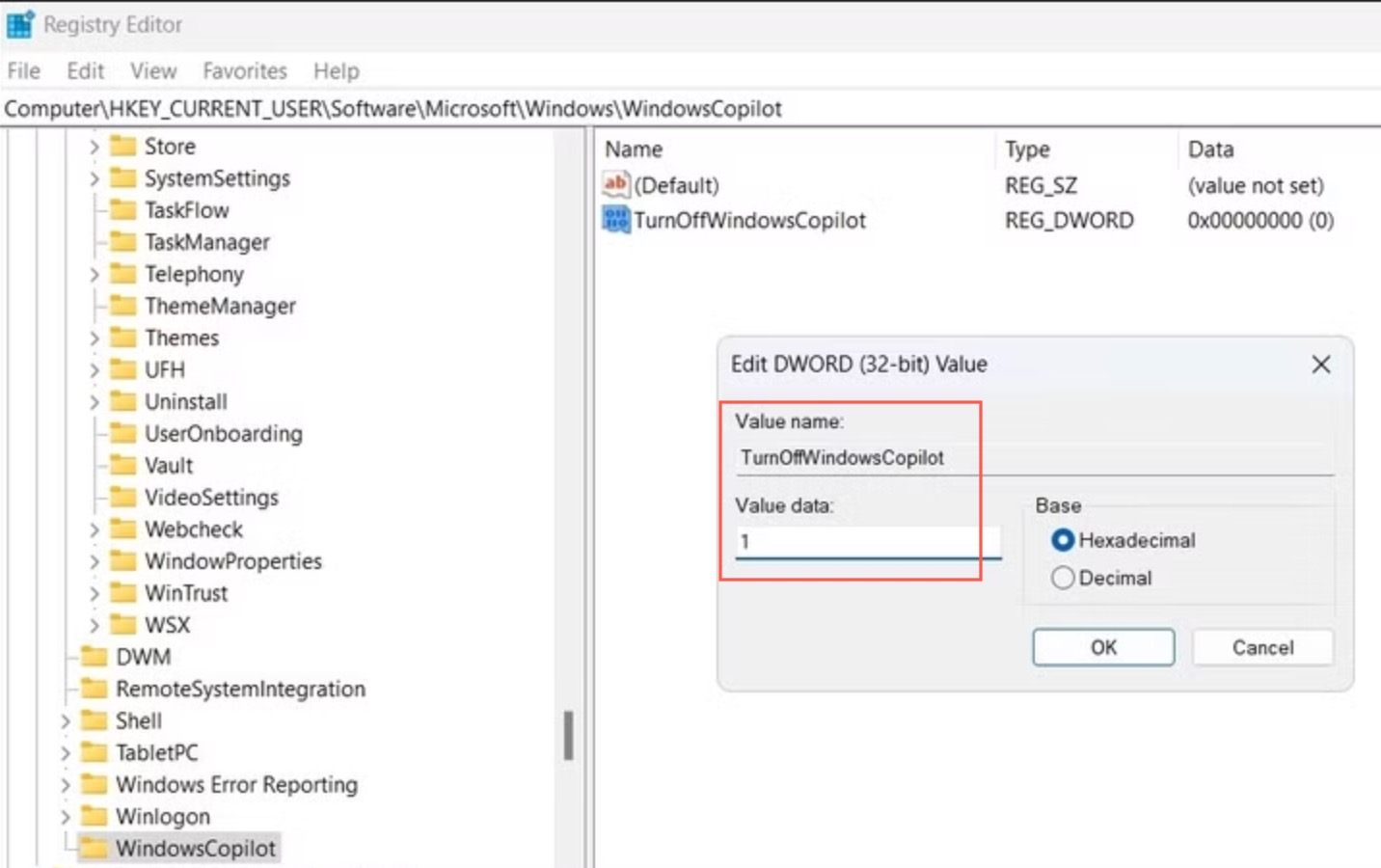
6. Also, check HKEY_LOCAL_MACHINE\SOFTWARE\Policies\Microsoft\Windows and make the same change if needed.
7. Restart your PC.
That’s it! Hope this helps you.