Microsoft is gearing up for the launch of next upcoming version for Windows 11, i.e. Version 26H2. FYI, Microsoft is releasing one major feature update per annum, for its Windows 11 versions. The last major feature update for Windows 11 was Version 25H2. Now the next upcoming version is ready to arrive for the stable release users. However, at the moment, the Version 26H2 is available early to Windows insiders in Release Preview channel. It would be released later for stable version users currently on previous version of Windows 11.
Page Contents
How to upgrade to Windows 11 Version 26H2
So if you’re on Windows 11 Version 25H2 at the moment, in this guide, we will see how you can early upgrade to the newer version. You can follow below mentioned detailed steps and you will be on Version 26H2.
Method 1: Using Windows Update
1. Right click on the Start button and select Settings.
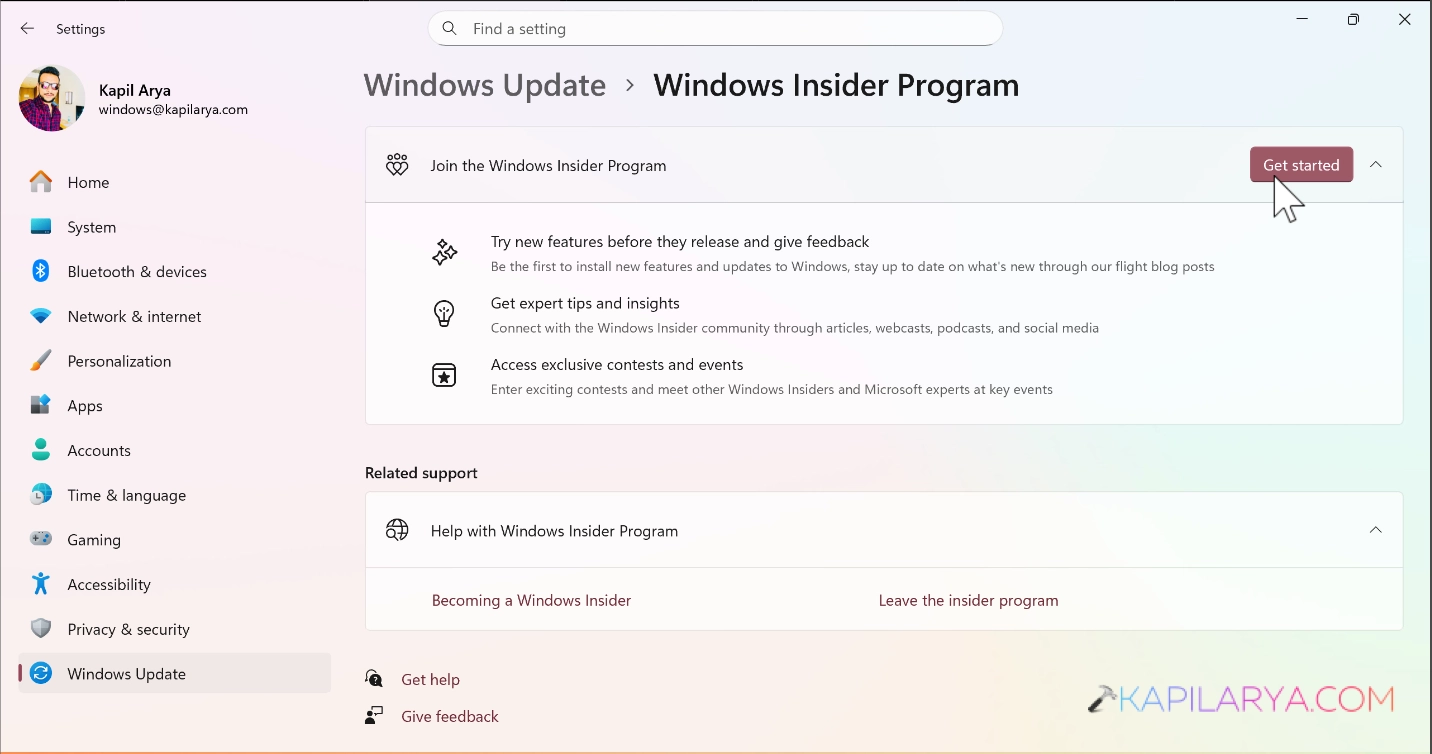
2. In the Settings app, go to Windows Update > Windows Insider Program. Click on the Get started button there.
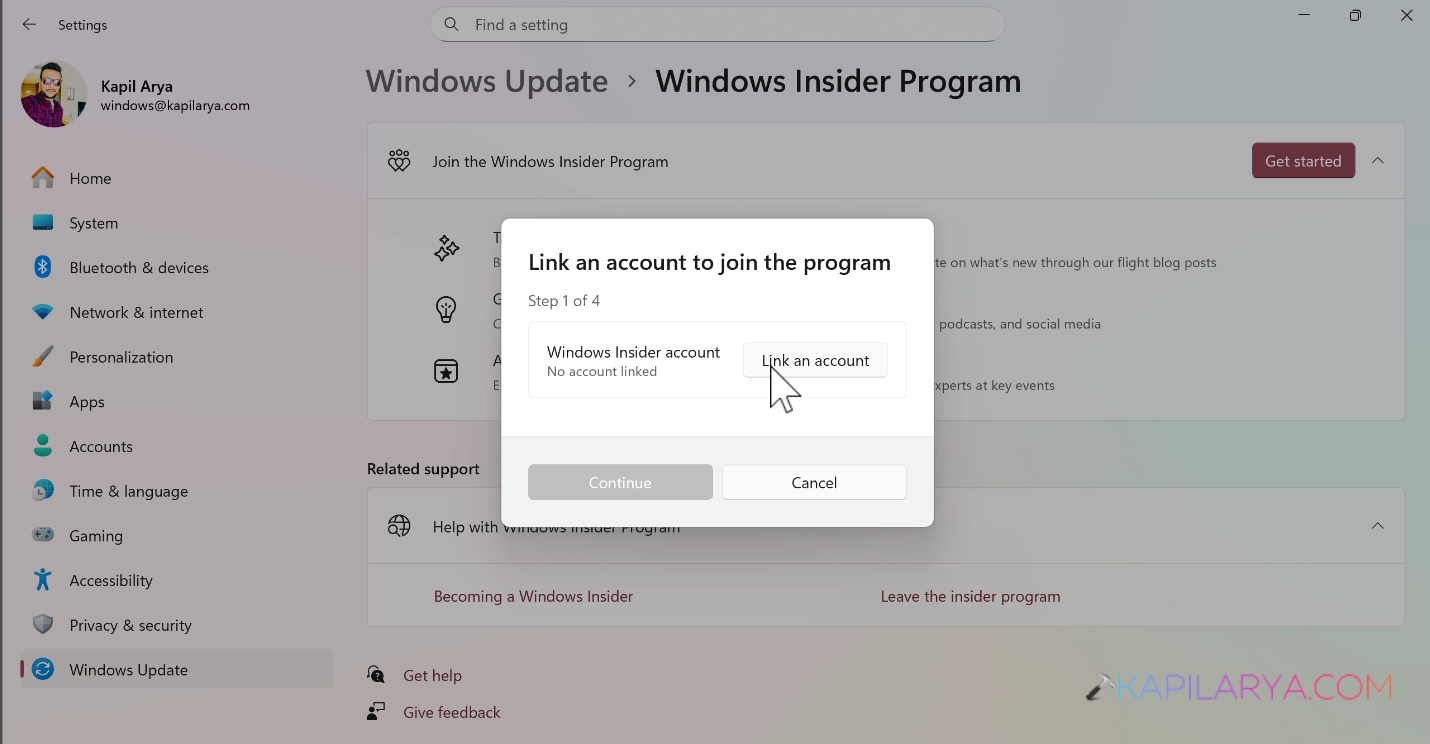
3. Now link your Microsoft account. The Microsoft account must be already registered with Windows Insider Program.
4. Next, you will be asked to select your insider channel. Carefully select the Release Preview channel here and click Continue.
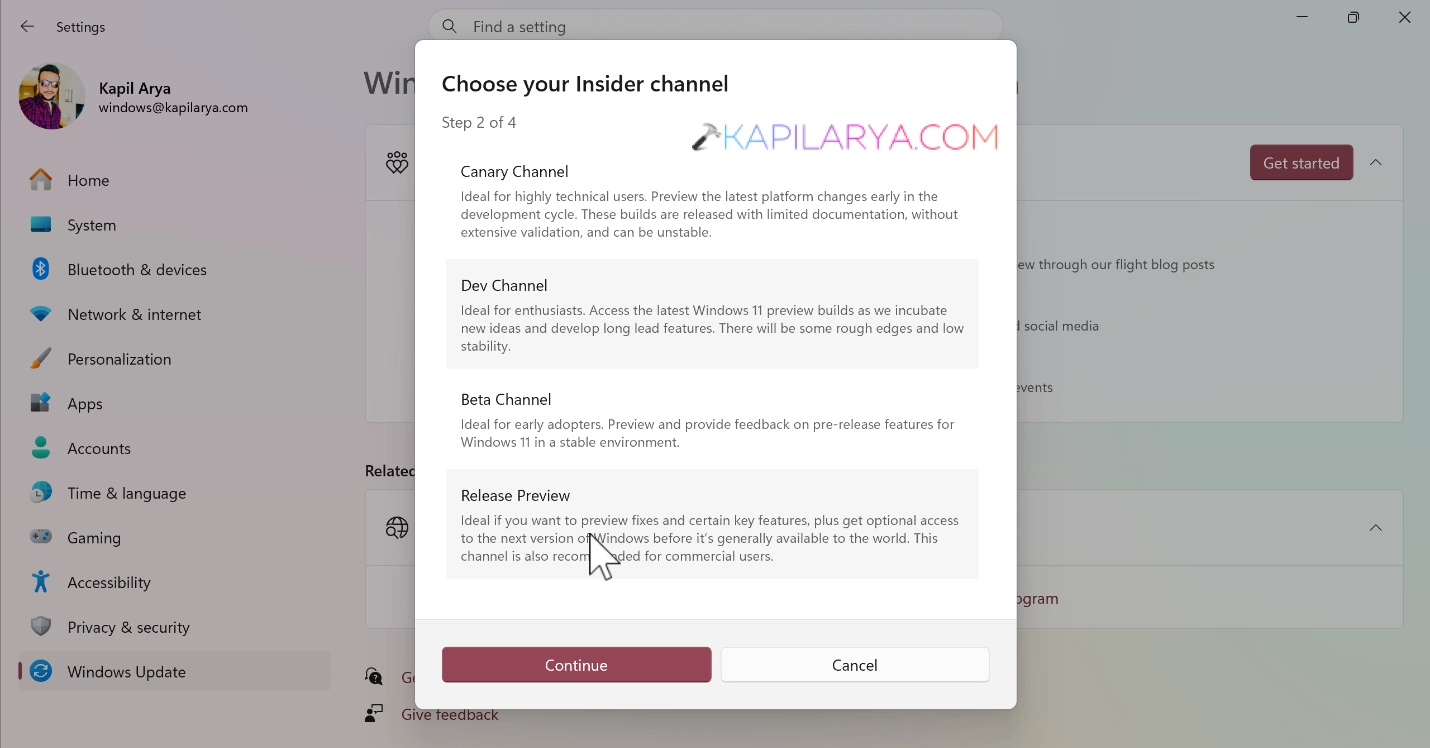
5. Now review the agreements for your device and click Continue.
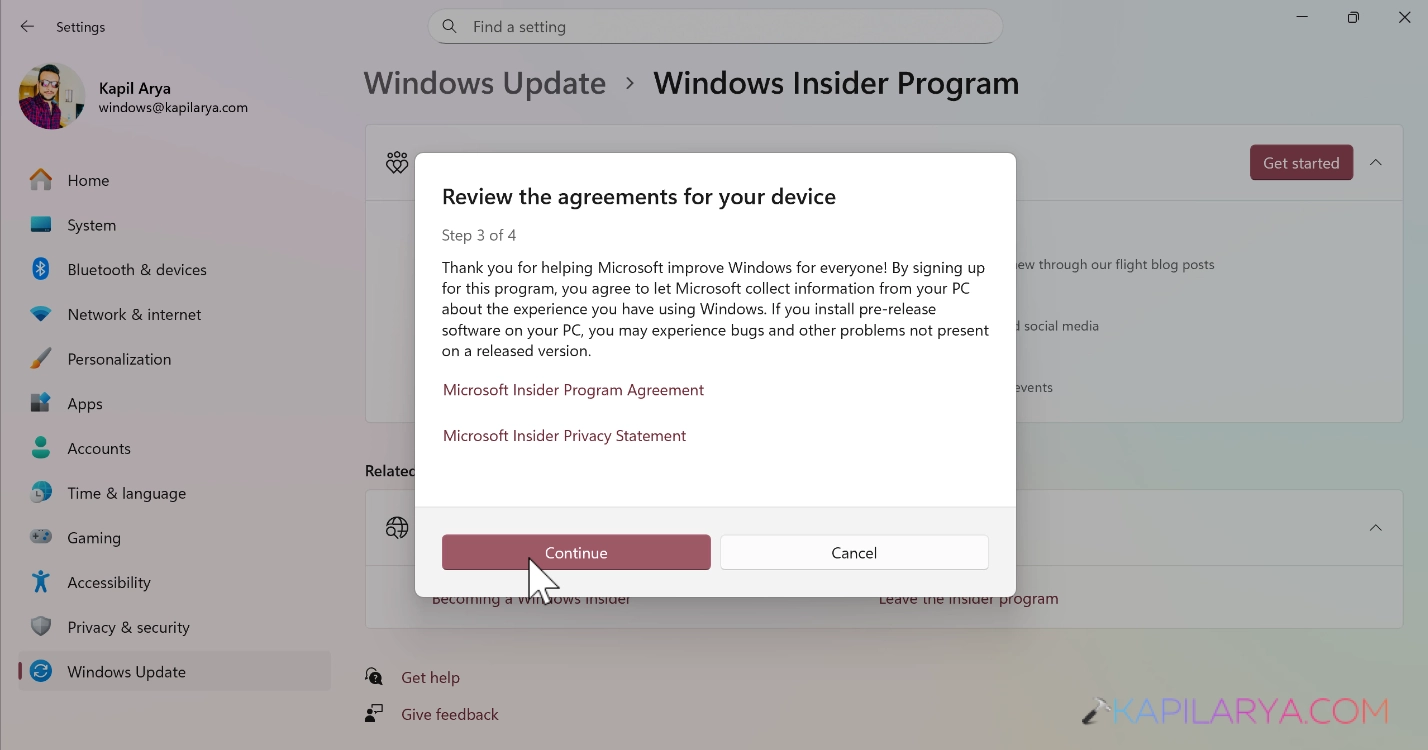
6. Then click on the Restart now to see these changes.
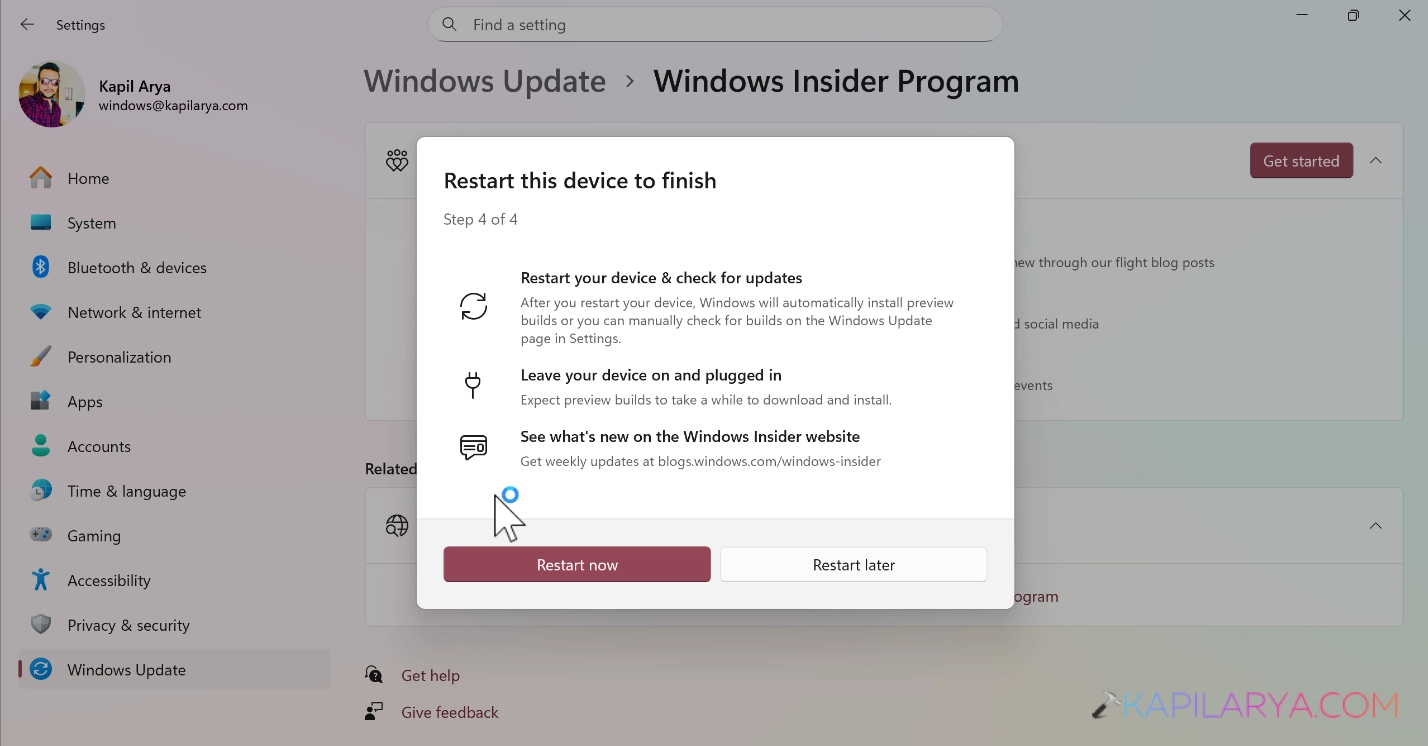
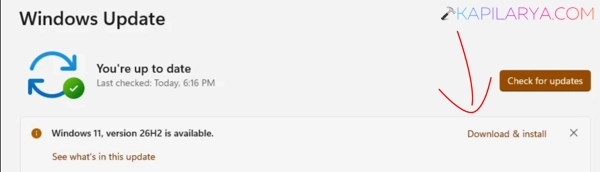
7. After multiple times restarting your device, you should be able to spot Windows 11, Version 26H2 is available message. Simply click on Download & install link and it would automatically install the update.
Method 2: Using ISO File
1. Go to the Windows Insider Preview ISO file download page (https://www.microsoft.com/en-us/software-download/windowsinsiderpreviewiso).
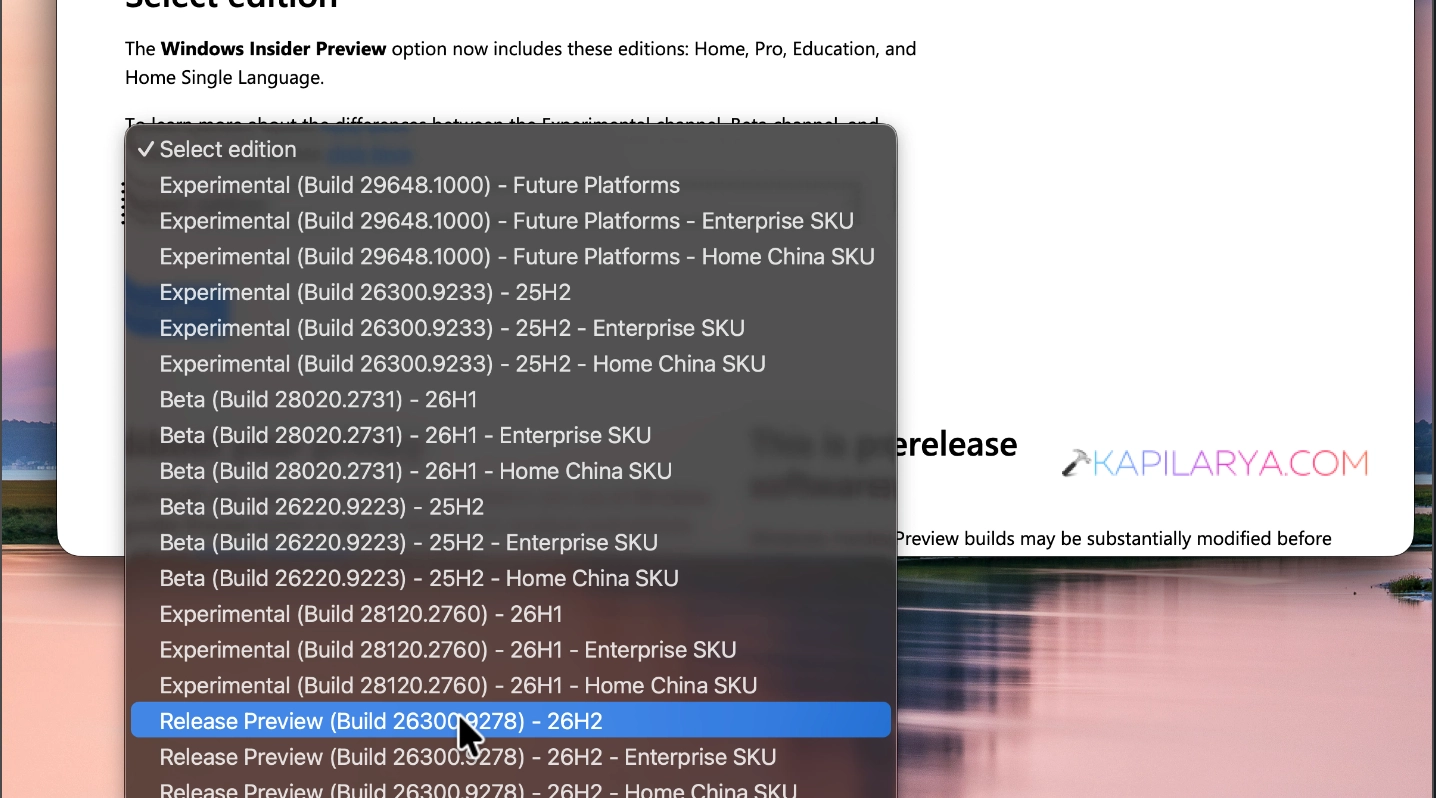
2. Sign into your Windows Insider account. Then under Select edition, choose Release Preview (Build 26300.9278) – 26H2.
3. Then select the language for the ISO file. Make sure the language for the ISO file and your Windows 11 installation is exactly same. If there is a mismatch of language between these two, you won’t be able to keep your data while upgrading.
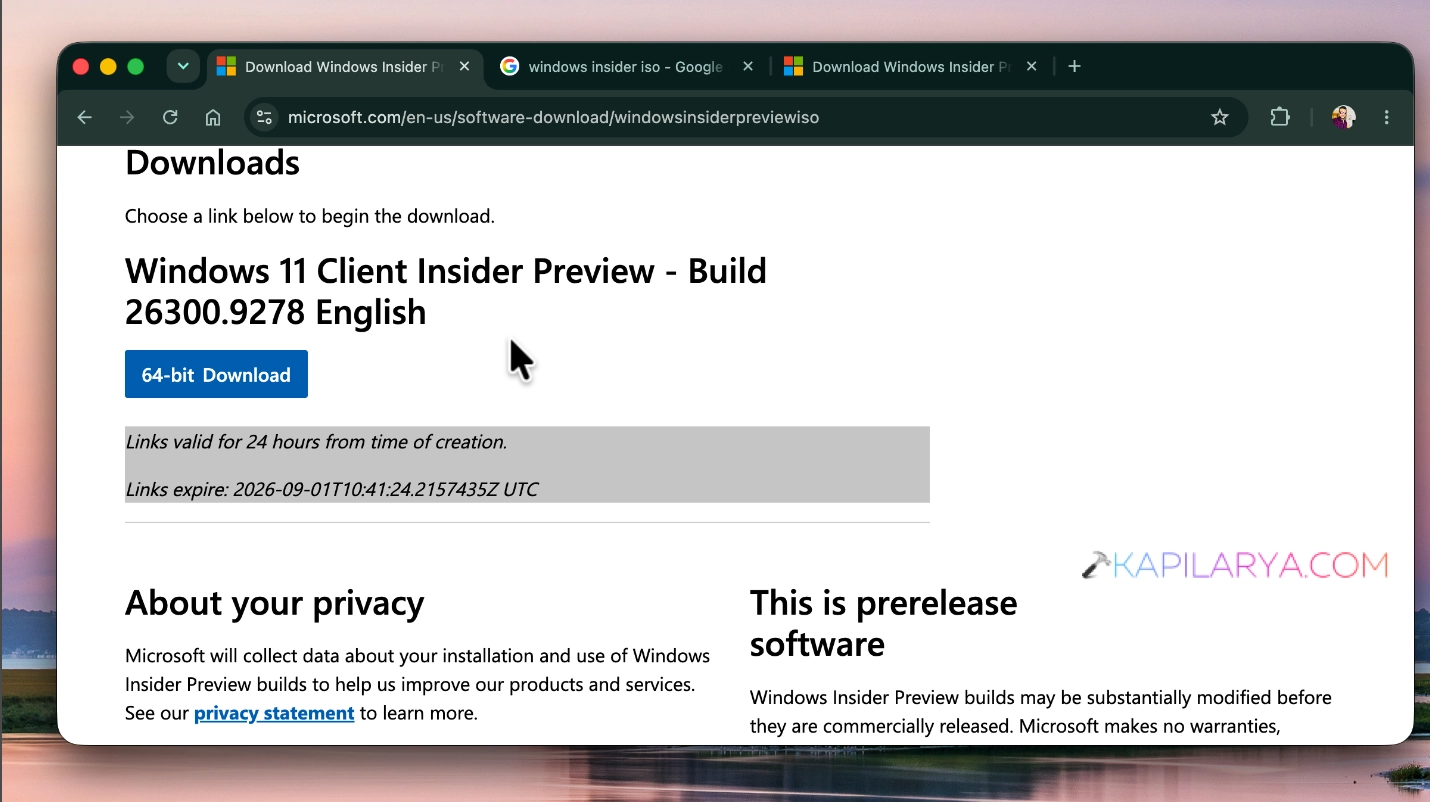
4. Finally, it would generate a Windows 11 Version 26H2 ISO file download link. This link is valid for 24 hours from the time of creation. You can use any of your device to download the Version 26H2 ISO file.
5. Once the ISO file has been downloaded, you can double click on it to mount it to a virtual DVD drive.
6. Then go to the virtual DVD drive, and double click on the setup.exe file to launch the setup.
7. Complete the set up with on screen instructions and finally that would help you to upgrade to Version 26H2.

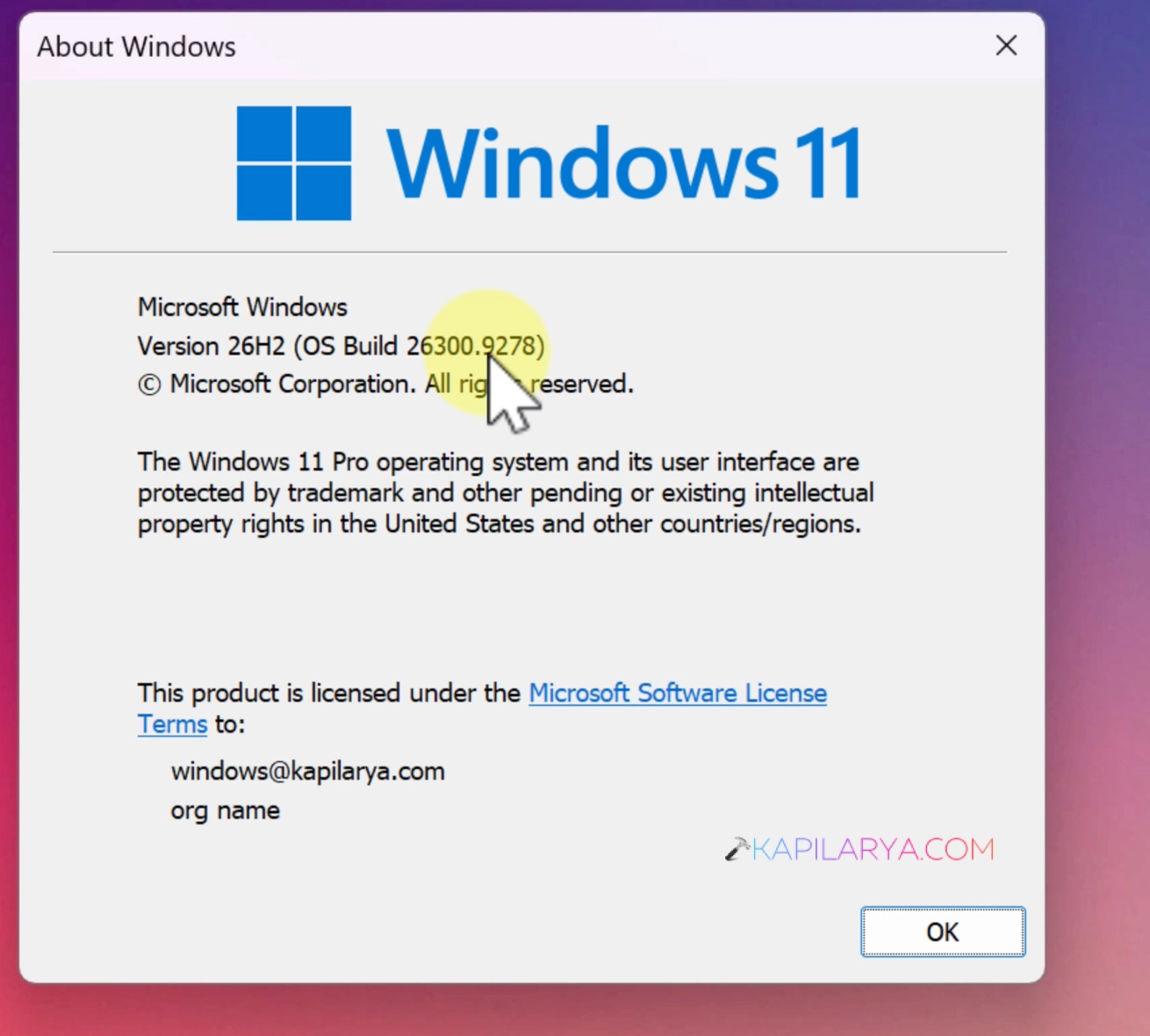
No matter what method you choose, after upgrading to Version 26H2, you should be able to spot the version like this.
Video guide
Here’s a video guide to help you more on this:
That’s it!