If you want to stay focused and do not want to get interrupted by notifications, you can enable Do not disturb on Windows 11. This feature is a successor of Focus Assist feature available previously on Windows operating system. You can enable the feature and stay focused on your current work. It helps you to control the frequency of notifications during the critical work hours. In case if your Windows 11 Do not disturb feature keep turning on automatically, here’s how to fix it.
Page Contents
Fix: Windows 11 Do Not Disturb keeps turning on
Fix 1: Using Settings
1. Open the Settings app.
2. Then go to System > Notifications.
3. Scroll down and turn Off Do not disturb option. Additionally expand Turn on do not disturb automatically. And uncheck all the options available there.
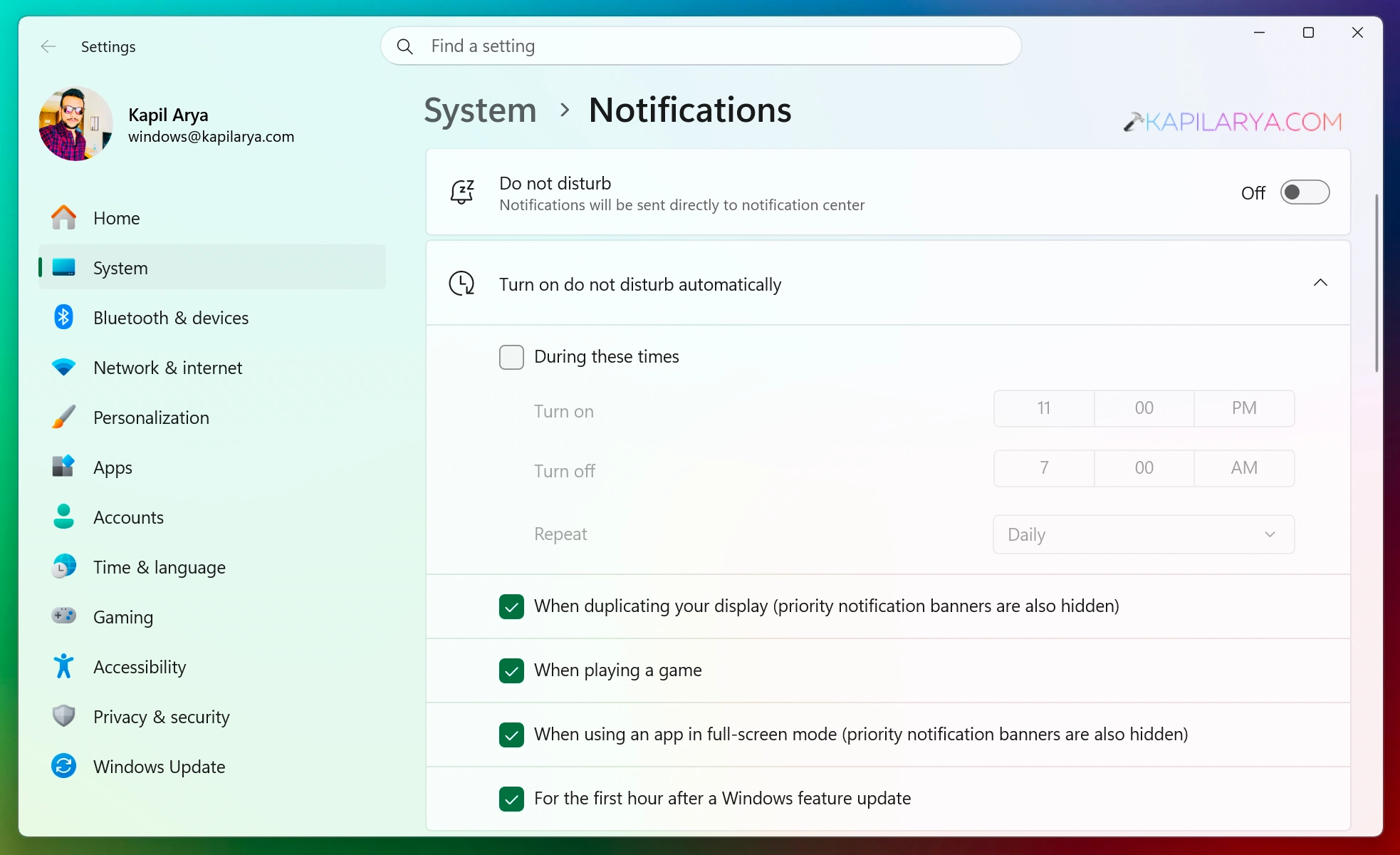
4. Close the Settings app and return to your work.
Fix 2: Using Command Prompt
1. Open the administrative Command Prompt.
2. Now in the administrative Command Prompt window, paste the command and press the Enter key.
reg add “HKCU\SOFTWARE\Microsoft\Windows\CurrentVersion\QuietHours” /v “Enabled” /t REG_DWORD /d 0 /f
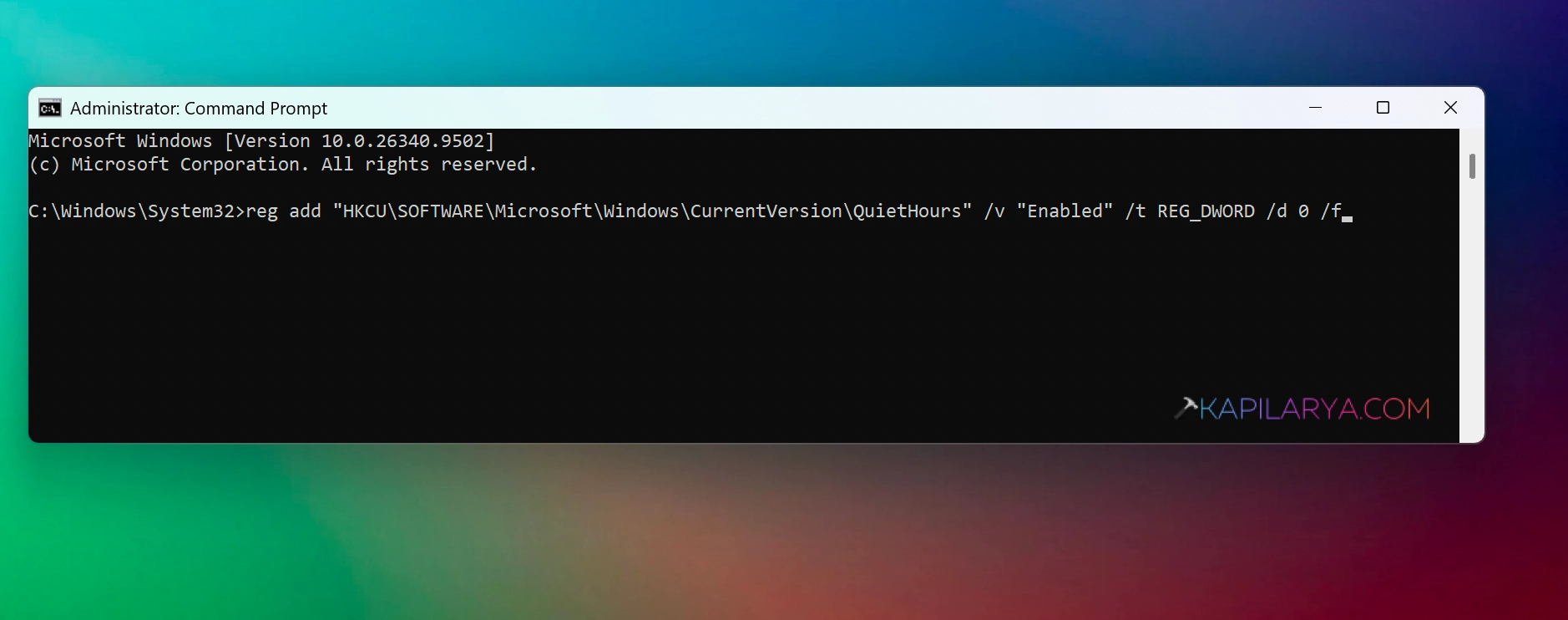
3. Once the command execution has been completed successfully, you can close the Command Prompt and return to your work.
Fix 3: Using Group Policy
Note: Group Policy Editor is not available in Windows 11 Home. If you’re on Windows 11 Home, you can try previous methods.
In case if your IT admin has applied some Group Policy settings, this can be reverted back or properly configured so that it aligns with setting you want.
1. Open the Local Group Policy editor using gpedit.msc command.
2. In the Local Group Policy window, navigate to User Configuration> Administrative templates > Start menu and taskbar > Notifications.
3. In the right pane of Notifications folder, locate the policy setting named Turn off quiet hours. Just double click on the policy setting to modify it.
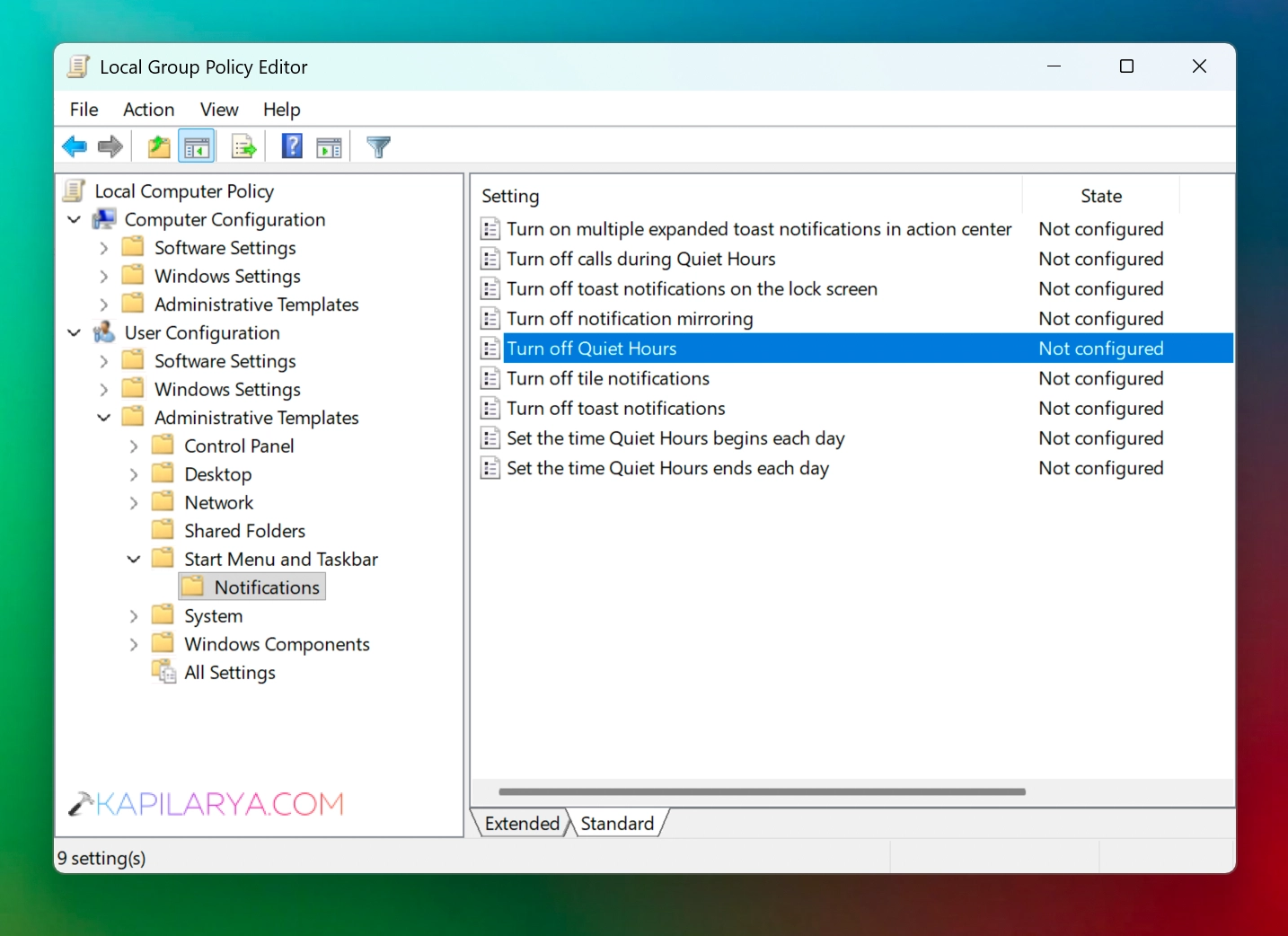
4. In the policy configuration window, choose Enabled and click Apply followed by OK.
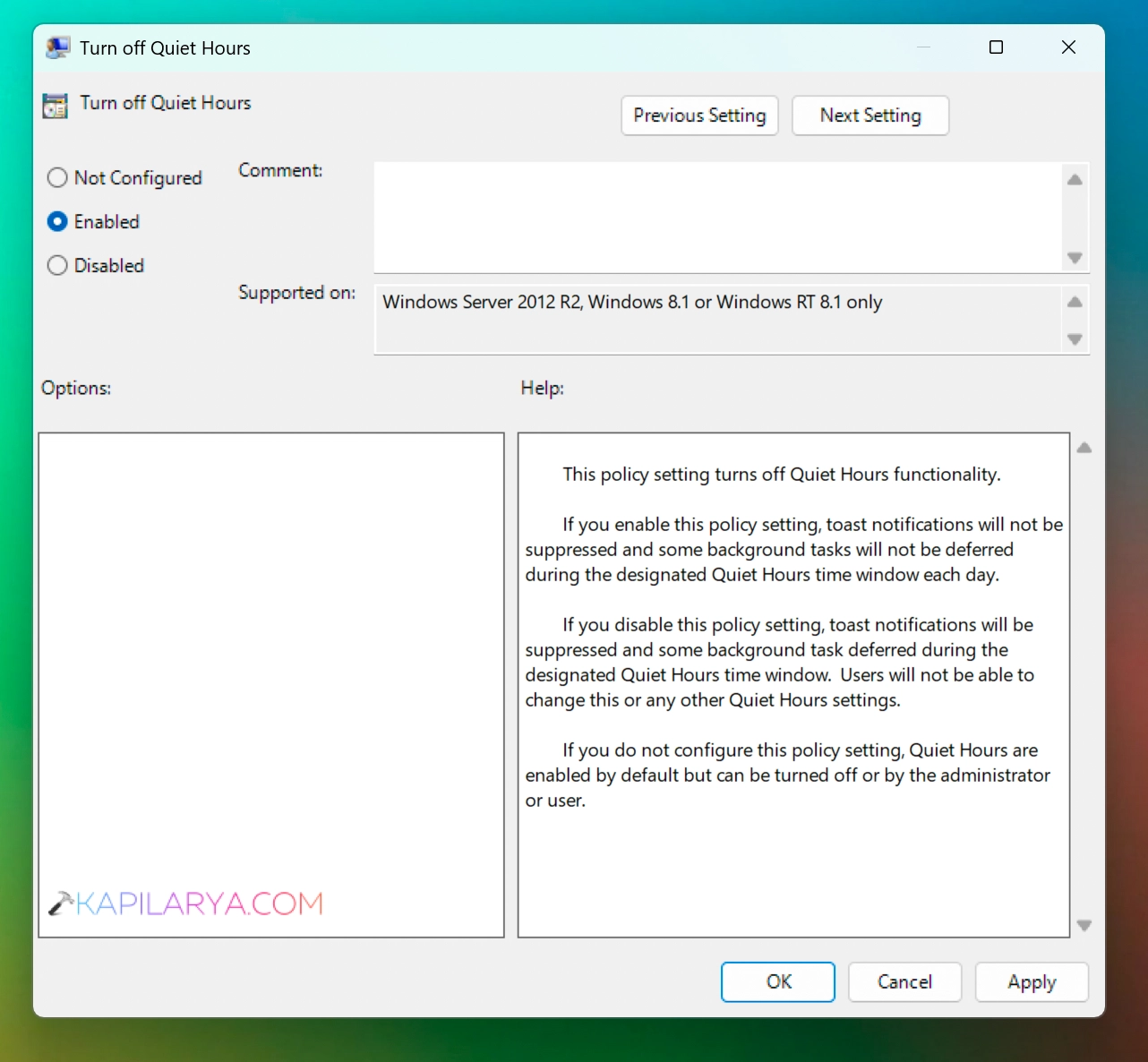
5. You can now close the Group Policy Editor and restart your system to make the changes effective.
That’s it!