

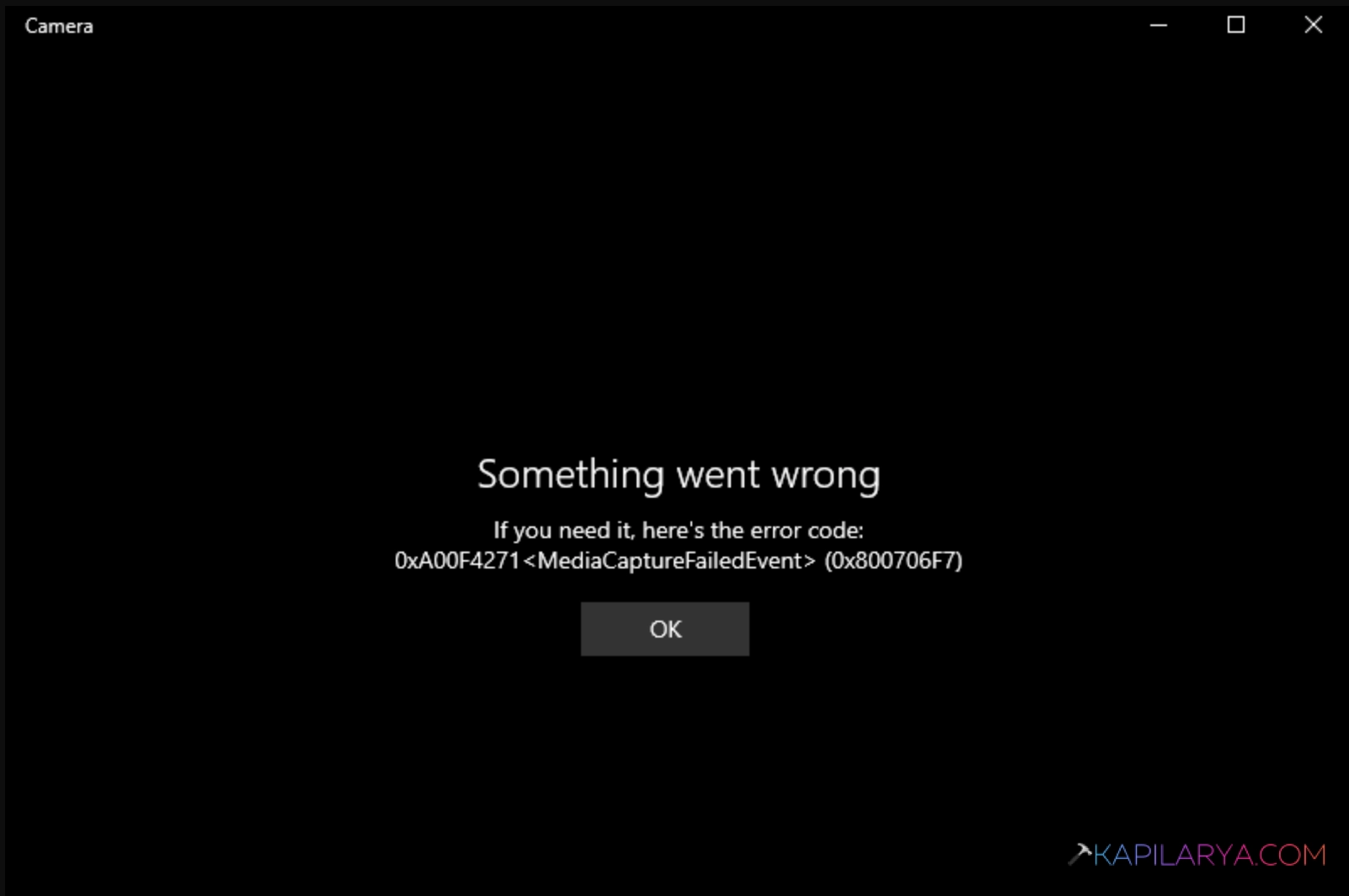
The Camera app comes built into Windows 11. This app can handle taking pictures, videos, and assist you during online meet ups while the camera is being used. If the Camera app is having a trouble, it would usually show an error code. Now in this article we will see how you can fix the Camera app error 0xA00F4271 in Windows 11. The Camera app tags this error code as <MediaCaptureFailedEvent>. An additional error code 0x800706F7 may also be associated.
Here is the screenshot of the error code as appeared while using the Camera app:
Page Contents
Fix: Error 0xA00F4271 in Windows 11 (Media Capture Failed Event)
Fix 1: Run Camera troubleshooter
1. Right click on the Start button and select Settings.
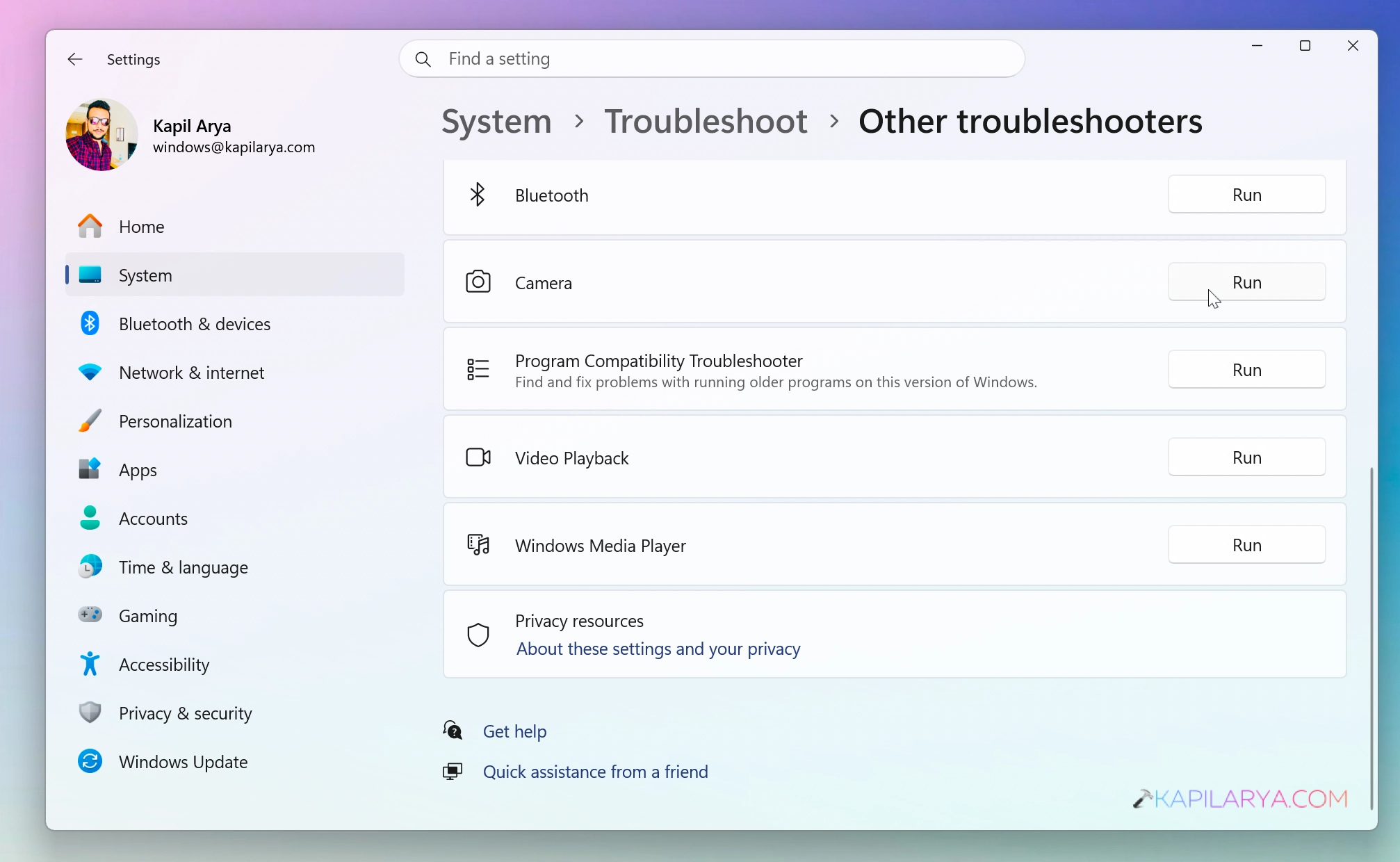
2. In the settings app, go to System > Troubleshoot > Other troubleshooters.
3. In the list of other troubleshooters, locate the camera entry and click on the Run button next to it.
4. Now let the troubleshooter be running and automatically fix the issue for you.
Fix 2: Terminate other camera-dependent processes
This error may appear because of camera-dependent third-party processes. Usually the third-party software you use on the system and those are if using camera, you might receive this error. Hence it would be a straightforward idea to terminate those processes.
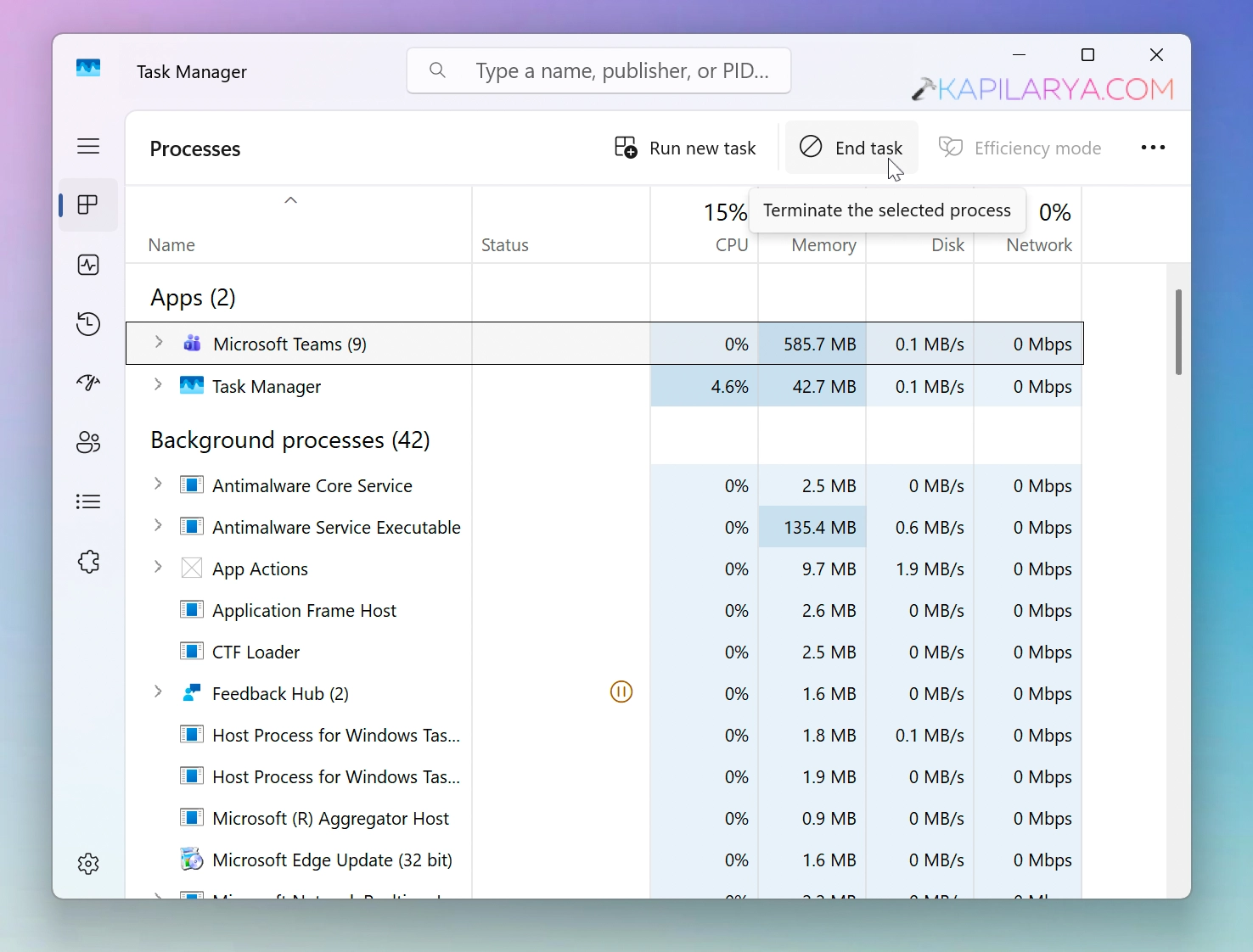
Open the Task Manager and locate the third-party processes that might be using camera. Choose these processes one by one and click end task for each.
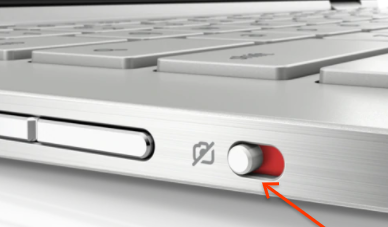
If you’re not able to find out which processes using camera, you can refer the below mentioned guide.
Fix 3: Update drivers
While you are getting this error, it is highly recommended that you update the camera driver to latest version. An outdated driver can contribute to this error. To update the driver you can follow these steps:
1. Right click on the Start button and select Device manager.
2. Once the Device Manager opens, locate the camera driver and right click on it.
3. In the right click context menu, choose Update driver.
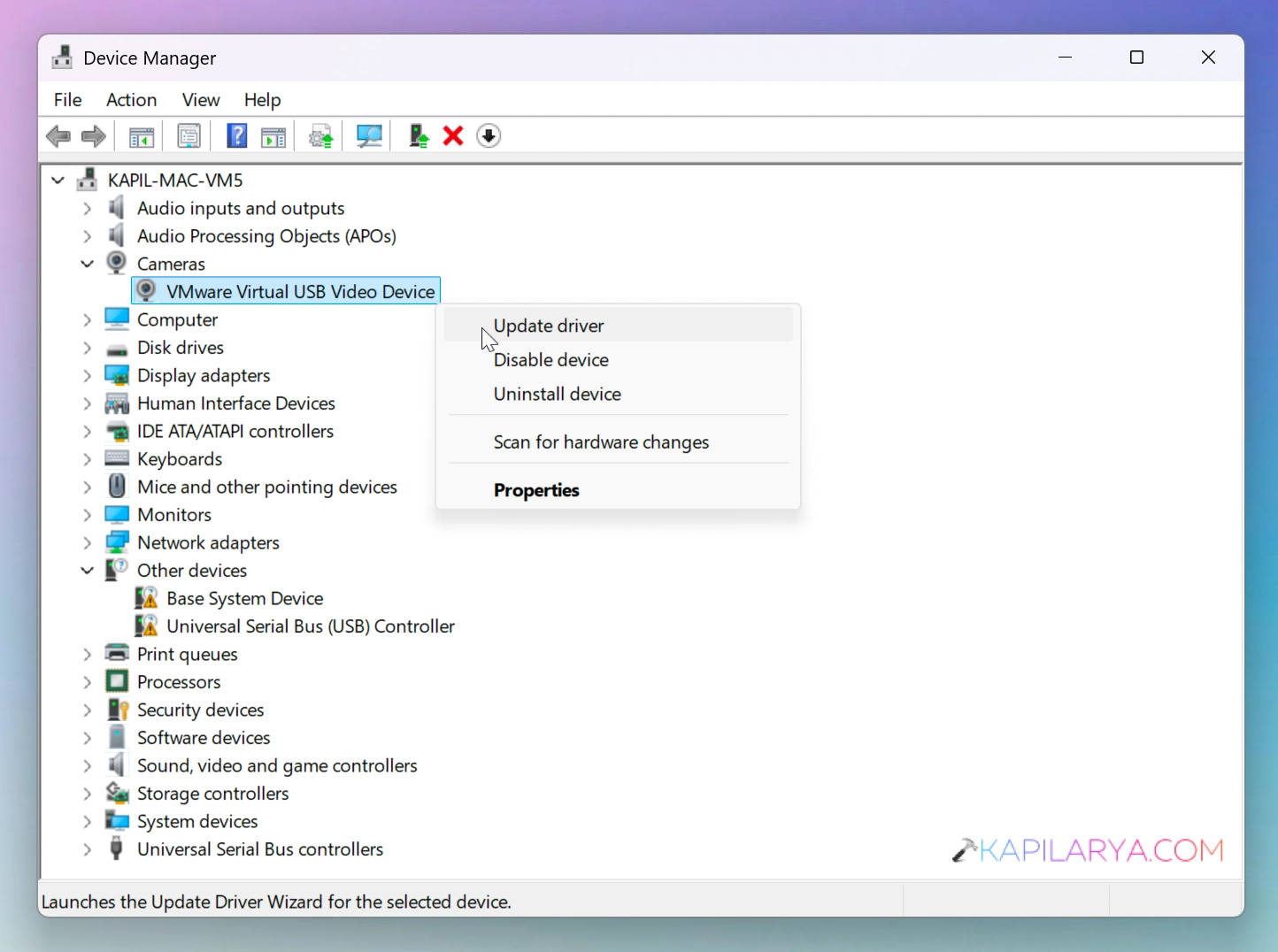
4. Follow the on screen instructions to complete the update for driver.
In case if you do not receive update for driver, you can alternatively try manually updating the camera driver. For this, you have to go to your device manufacturer website. And download the latest camera or webcam driver for your device model.
Once you install the latest version of camera driver, check and see if the issue has been resolved.
Fix 4: Update app
An outdated version of the Camera app can also be the root cause behind this error. To update the Camera app you can follow below mentioned steps:
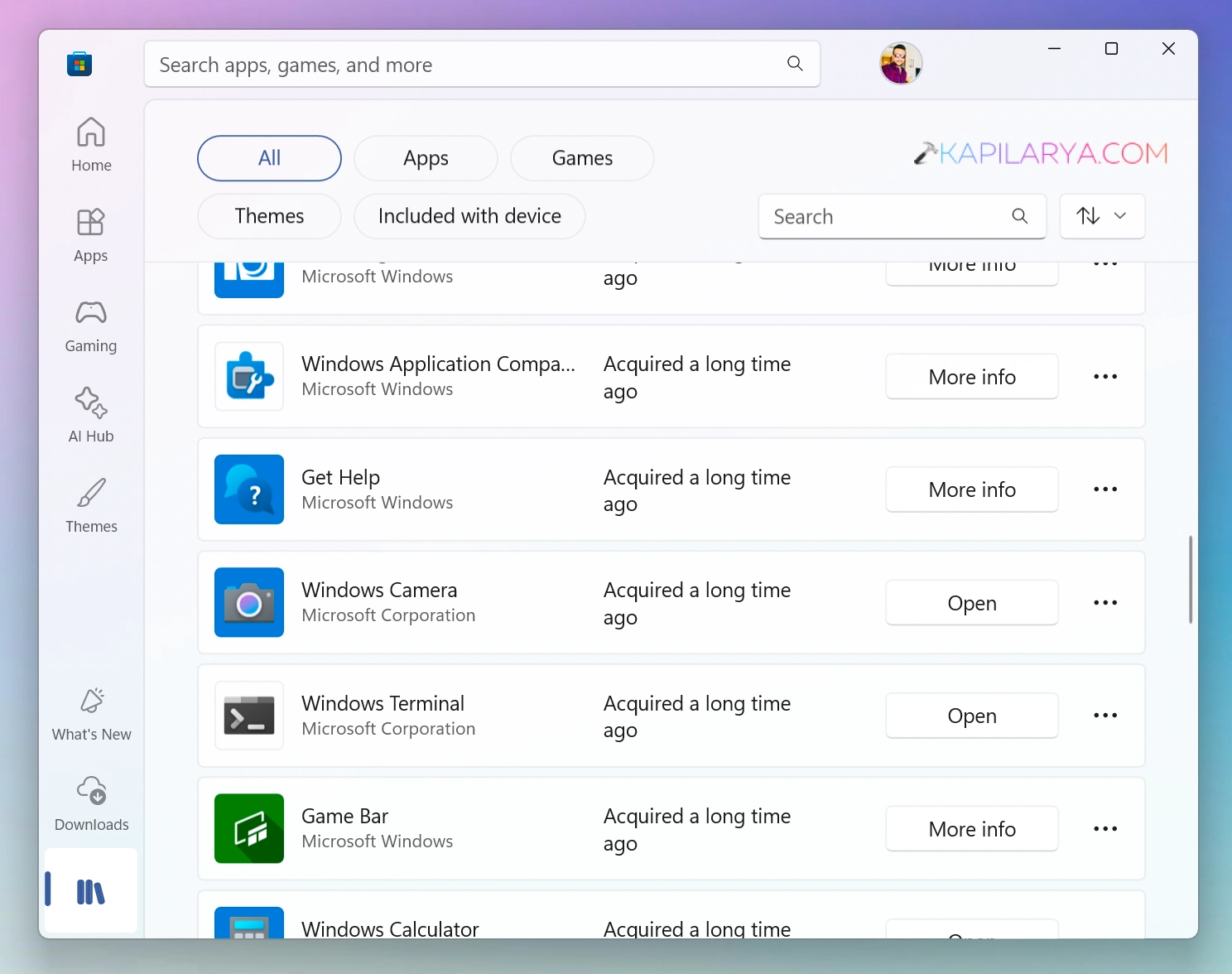
1. Open the Microsoft Store on your device.
2. Go to the Library section and locate the Camera app and click on the Update button. If the Camera app is already having the latest update installed you would instead have Open button.
Fix 5: Install latest updates
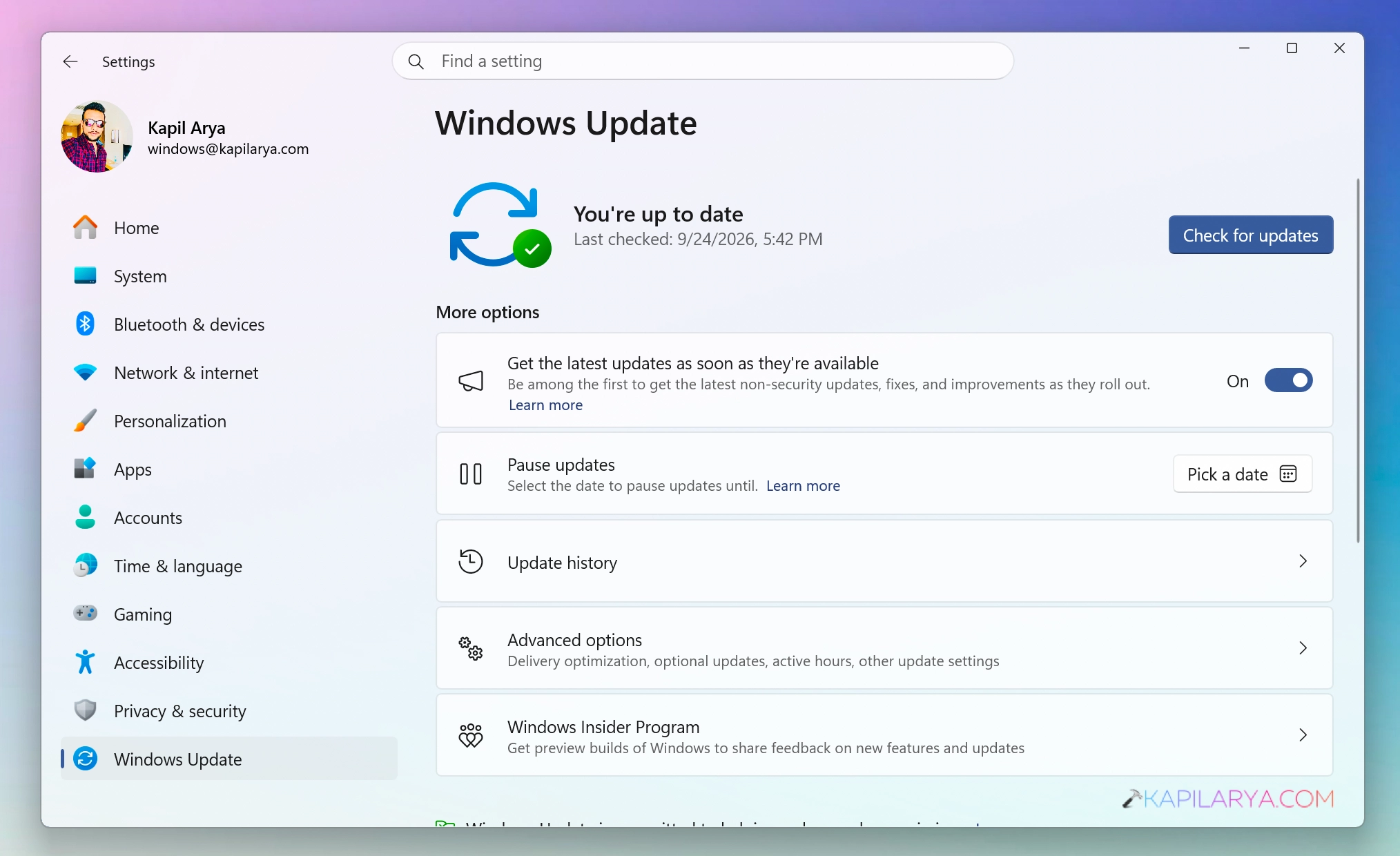
Once you receive this error, it is highly recommended that you install the latest Windows Updates available to you.
For this you can go to the Settings app > Windows Update. Here you have to simply click on Check for updates. And Windows will now detect the latest available updates and install them automatically.
That’s it!

![Guide to open RW2 files in Windows 11/10 [6 Options]](https://www.kapilarya.com/assets/Cam-2-768x508.jpg)
