

You are in the right article in case you have been looking for the answer to the question Camera app blocked in Windows 11. It is a vexing problem to many users of Windows 11 and can most often be resolved through relatively rudimentary troubleshooting. In this guide, you will come across 7 troubleshooting steps to correct this issue.

Page Contents
Why Does the Camera App Get Blocked in Windows 11?
In the case where your webcam is not found, does not start at all, or the apps show the error of No camera found, it is often confusing. But this normally indicates the same underlying cause. Go ahead and use alternative apps like Skype, Facebook Messenger, WhatsApp Web, Zoom or Microsoft Teams before considering it to be a hardware failure. In case the webcam is functioning with one type of application and not with the other, then it is not the issue of hardware, but a settings or permissions problem.
Knowledge of such symptoms can make you easily discover whether the problem is:
- A software/settings issue.
- An app conflict.
- There is a problem of camera permissions.
- Or a hardware failure occurs.
This knowledge will give you the appropriate solution without wasting time.
Camera app blocked in Windows 11 [Fix]
When not detected or when you can only see a blurry image, or an application tells you that the camera is blocked because of permissions or policies, your webcam can be fixed with one of the below-mentioned fixes.
Fix 1: Check Windows 11 Privacy Settings
This is a factor that can cause the error in the Camera app, being blocked.
1. Open Settings (Win + I). Go to Privacy & security. Select Camera (is in permissions under Apps).

2. Turn on these options:-
- Camera access
- Let apps access your camera
Allow devices like cameras and programs such as Zoom, Star Teams, Camera app, etc. In the event that these were found to be disabled, the option of enabling them will solve the problem instantly.

Fix 2: Check if Another Application Is Using the Camera
The location can be blocked by Windows sometimes due to already the use of webcam by another program.
1. Launch the Task Manager by pressing Ctrl + Shift + Esc. Or directly by hitting the Win key Menu.
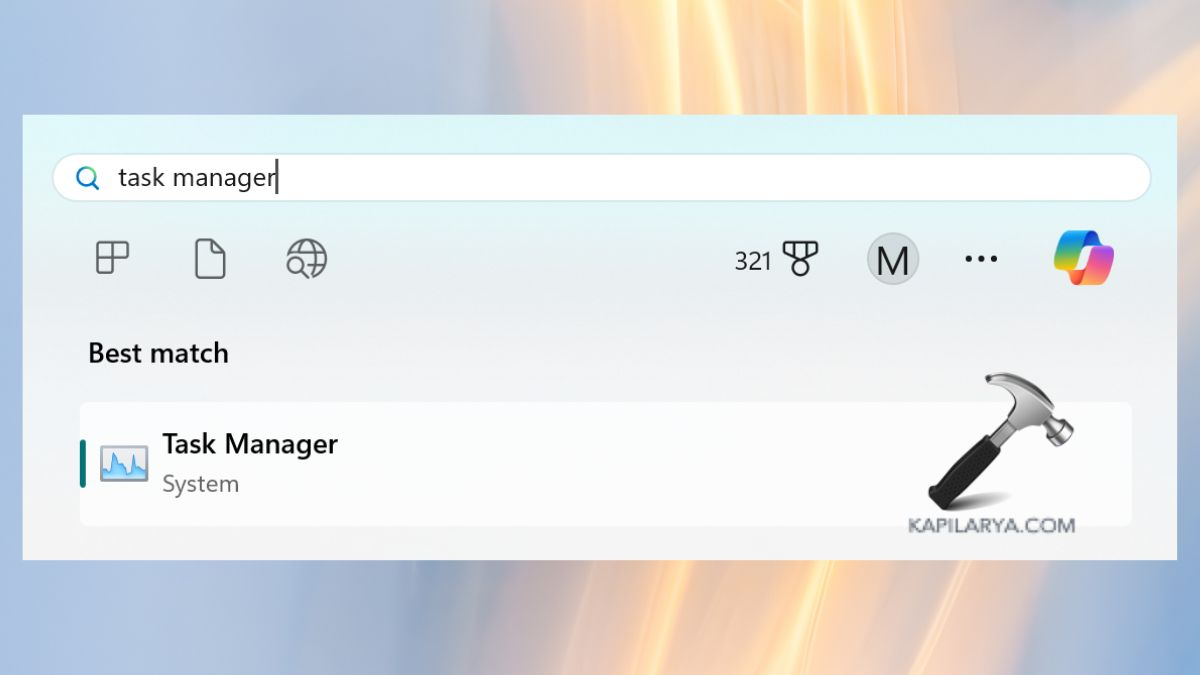
2. Find applications that use the camera. Right-click each app using the camera > End task. Reopen the Windows Camera application now.

Fix 3: Make Sure the Camera Slider or Physical Shutter Is Open
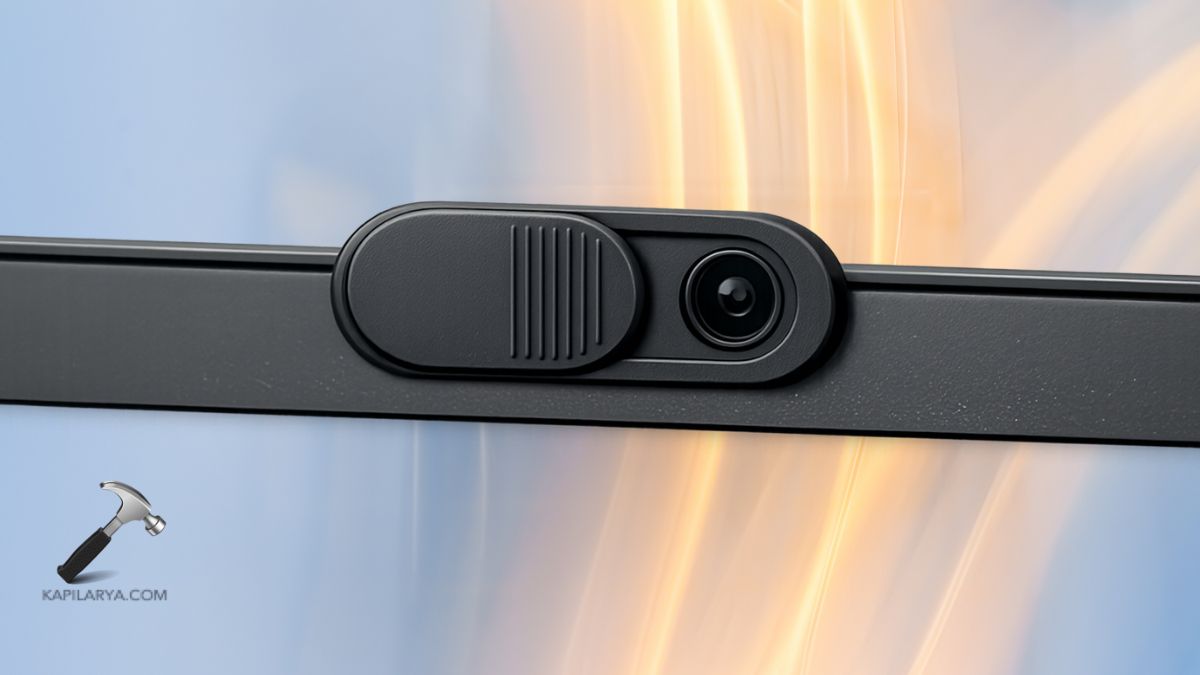
A camera privacy shutter is now present on many laptops. Windows will consider the camera blocked in case it is closed.
1. To expose the lens, slide the privacy cover.
2. Look at the side or the top of the laptop to see the presence of a hardware camera switch.
Fix 4: Check if the Camera Is Recognized in Device Manager
Windows are unable to utilize the camera unless it appears.
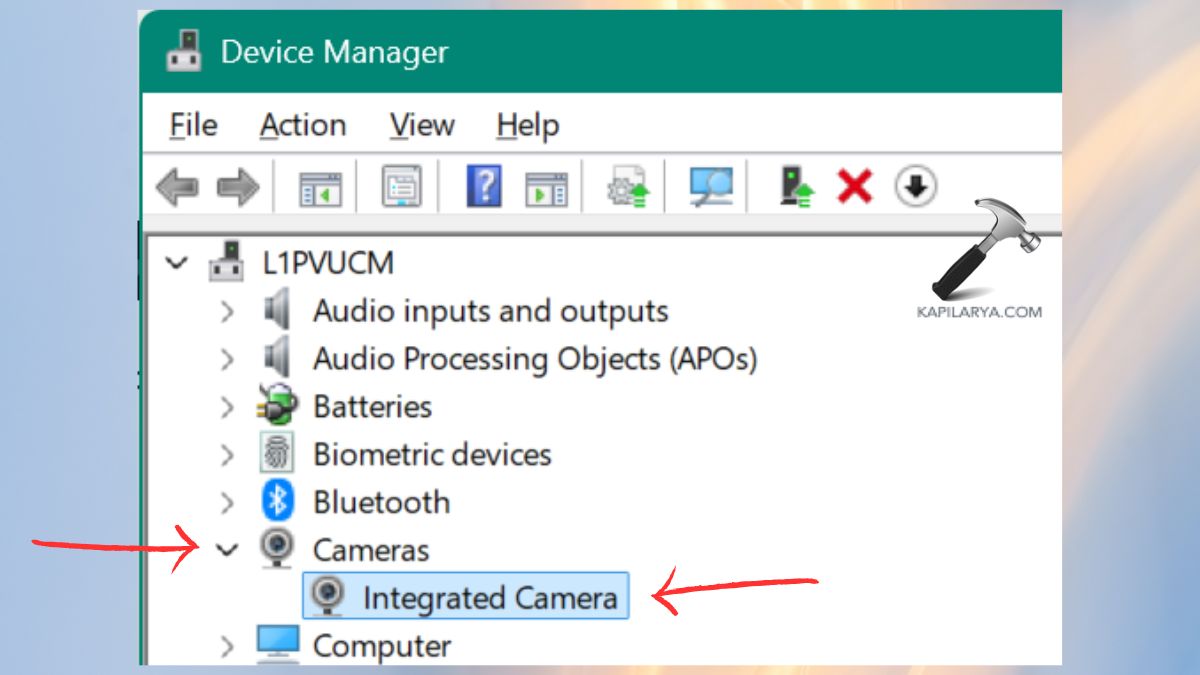
1. Right-click Start > Device Manager.

2. Expand the section “Cameras, Imaging devices” or “Sound, video and game controllers”. Look for your webcam. If it is missing, try unplugging and reconnecting external webcams.
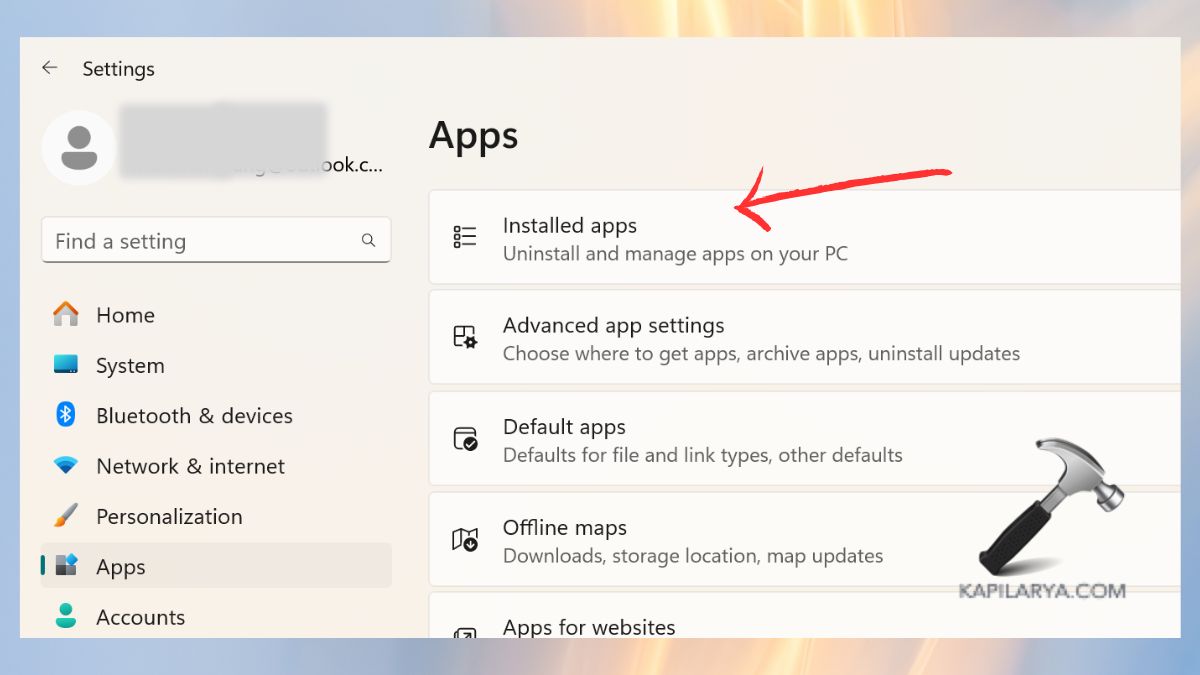
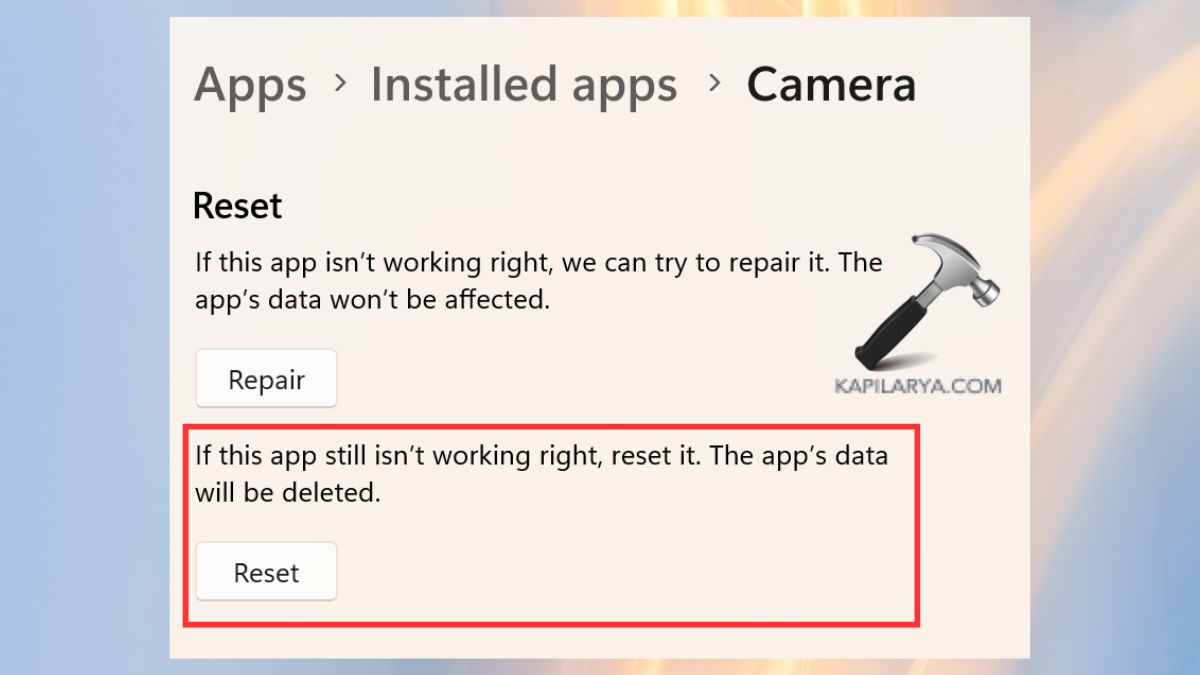
3. Then, select Camera > Advanced settings > Reset.
Fix 7: Run Windows Troubleshooter
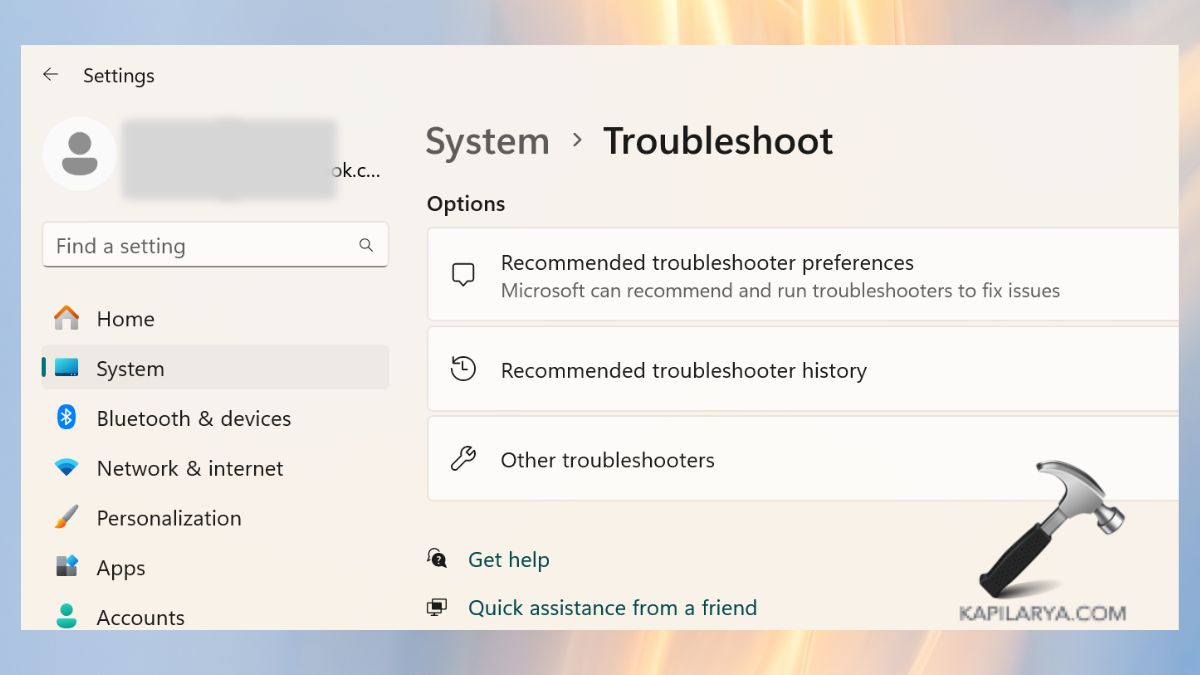
Run Windows Troubleshooter to fix the issue of camera app blocked on Windows 11.
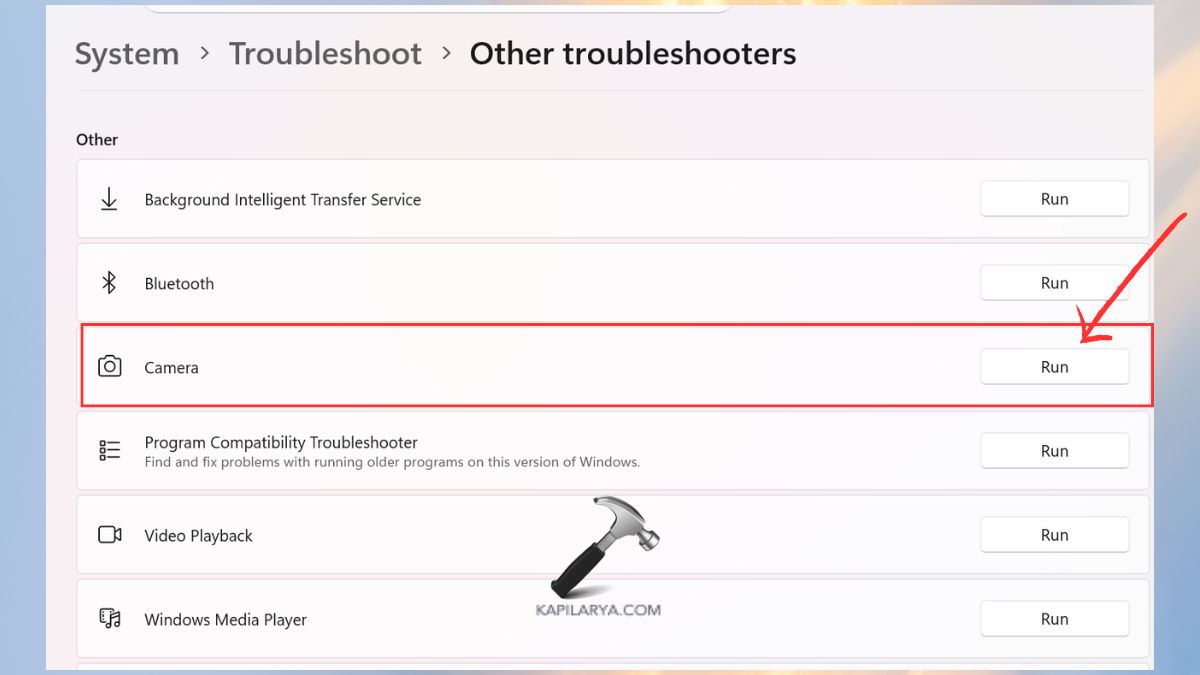
1. Open Settings. Access System > Troubleshoot > Other troubleshooters.
2. Execute the Camera Troubleshooter.
Frequently Asked Questions (FAQs)
Why is my camera app blocked on Windows 11?
Typically, because of privacy settings, application collision, antivirus blocking or inoperative camera drivers.
How do I unblock the camera on Windows 11?
Allow access to the camera and make sure that no other application is utilizing the camera, and inspect Device Manager.
Why is my webcam not working but detected?
It can be prevented by an antivirus or a blurred filter, or covered in the camera lens.
Why my camera work on Zoom but not on the Windows Camera app?
This occurs when permission of apps is switched off or when the Camera application is corrupt. Hence, restart the Camera using the seventh solution of this article.
That’s it!
![Fix: Camera doesn’t work in Windows 11 [2026 Fix]](https://www.kapilarya.com/assets/camera_privacy_1692031411.jpg)
![Guide to open RW2 files in Windows 11/10 [6 Options]](https://www.kapilarya.com/assets/Cam-2-768x508.jpg)
