

Reinstall deleted camera drivers in Windows 11 is among the most critical troubleshooting processes to perform after your webcam has suddenly ceased to work. You are in the right place regardless of whether you have an internal laptop webcam or an external USB camera. Here, in this guide, we will show you all the successful ways that can be used to reinstall camera drivers in Windows 11, despite them being entirely deleted.
Page Contents
Why Camera Drivers Matter in Windows 11
The drivers of the camera behave as the interface that connects your hardware in the camera with the Windows operating system. When such drivers become corrupted, old, uninstalled, or deleted by chance, then your camera goes dead.
These are the indications that the camera driver is lost/deleted:-
- The webcam is missing in the Device Manager.
- Error 0xA00F4292, 0xA00F4244, etc. visible on the camera app.
- Application using Zoom/Teams/Camera does not find your camera.
- The webcam light does not turn on.
- An unknown USB device is shown in the device.
These are some of the problems you may be experiencing, but with the following means, you can install your camera drivers entirely.
Reinstall deleted camera drivers in Windows 11
Installing deleted camera drivers on Windows 11 does not necessarily have to be that tricky. The camera can be brought back to working conditions easily using the step-by-step techniques listed below.
Method 1: Download and Install the Camera Driver Manually
The most surest method by which you can restore the lost camera drivers in Windows 11 is by downloading the right driver manually on the webpage of the manufacturer of your laptop or your camera.
1. Name your laptop manufacturer or model. Go to the support page of the company.
2. Find the Camera / Imaging device driver. Get the newest Windows 11-compatible driver.
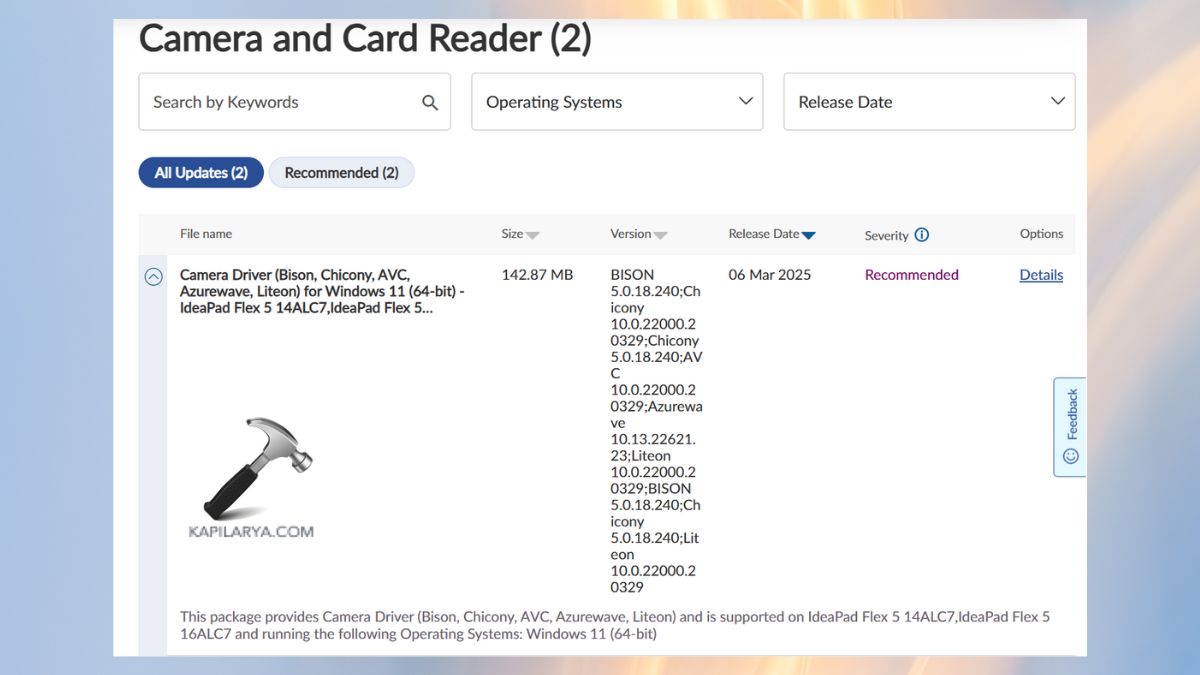
Install and restart the PC.
Method 2: Scan for Hardware Changes in Device Manager
This is a fast trick that makes Windows 11 recognize that it has no camera hardware and re-install the default drivers.
1. Either press Win + X, select Device Manager, or search it directly from Start menu.

2. Click one by one “Cameras,” “Imaging Devices, or “Sound, video and game controllers. Right click and choose “Scan hardware changes”.
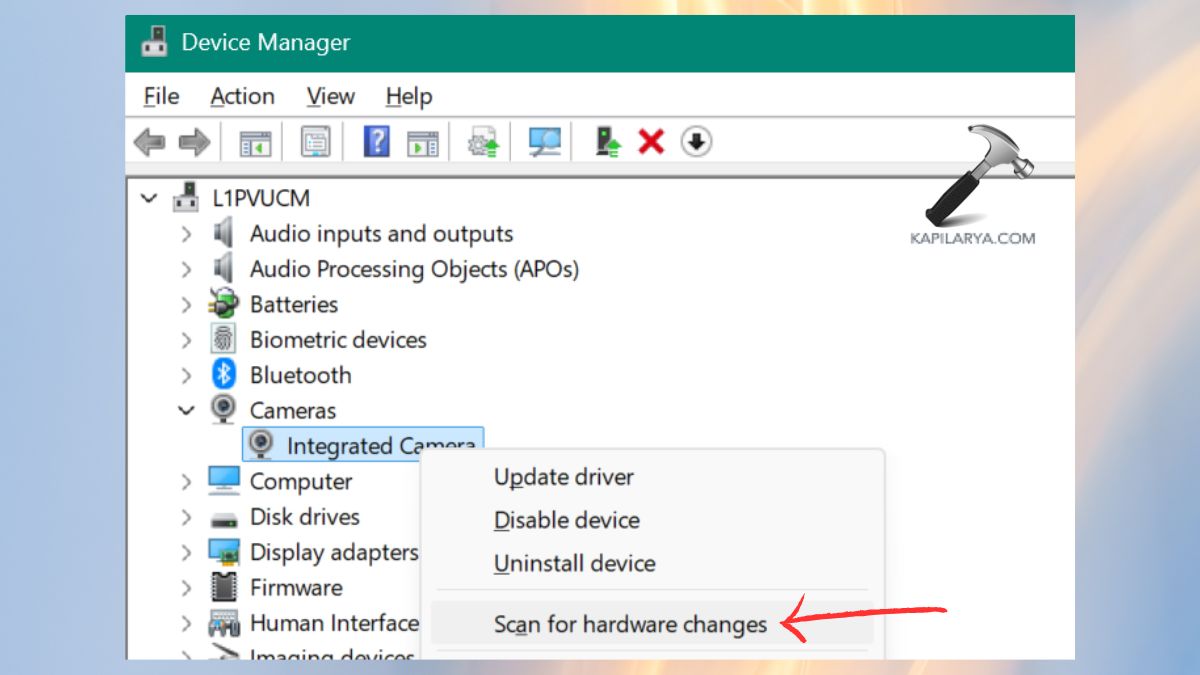
There will be automatic re-installation of the missing camera driver by Windows.
Method 3: Check for Windows Update (Automatic Driver Reinstallation)
Windows Update has a tendency to update the necessary hardware drivers, such as webcam drivers.
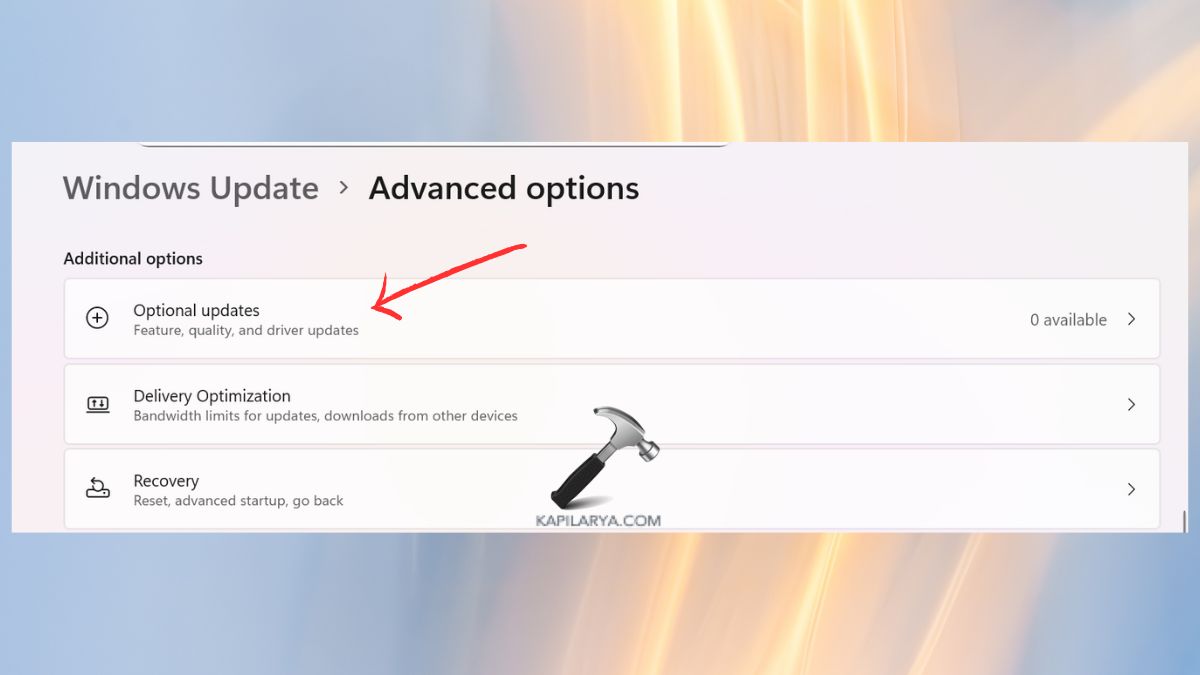
1. Open Windows Updates under Settings.
2. Click Check for updates.

3. Then, choose Advanced options > Optional Updates. Click on Optional Updates / Driver Updates and install pending updates. Then, just restart the PC.
Method 4: Try the Add Legacy Hardware Option
Should your camera driver get deleted, this better way can manually restore deleted drivers.
1. Open Device Manager again with Win + X keys or by simply selecting the search menu.

2. Click Action > Add legacy hardware.
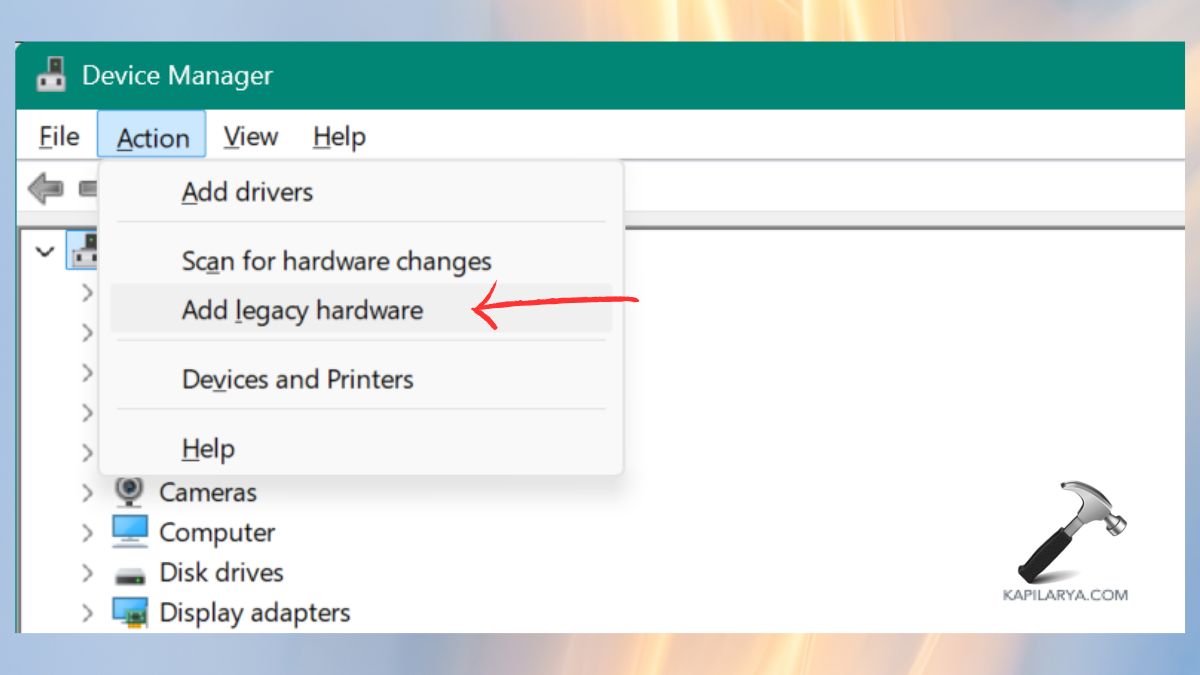
3. Proceed and then select “Install the hardware that I select manually”. Choose Cameras or Imaging equipment.
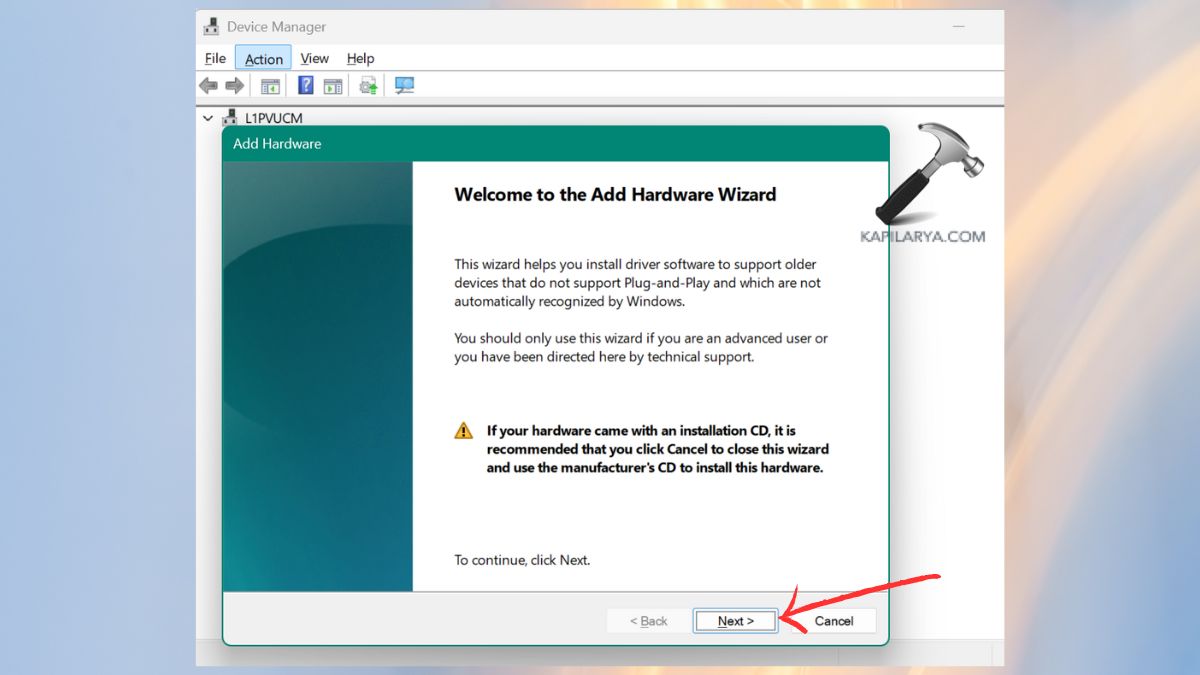
Provided there is, install the recommended camera driver.
Method 5: Restore Your System or Perform a Reset
Provided that the problem has recently appeared, it is possible to have the camera driver back by restoring Windows 11 to a previous state.
1. Do the Menu search: Create a restore point.

2. Click System Restore.

3. You should choose a restore point then the problem had not occurred. Carry out the restoration procedure.

4. Then, after this procedure, click on Settings > System > Recovery.

5. Click Reset this PC.
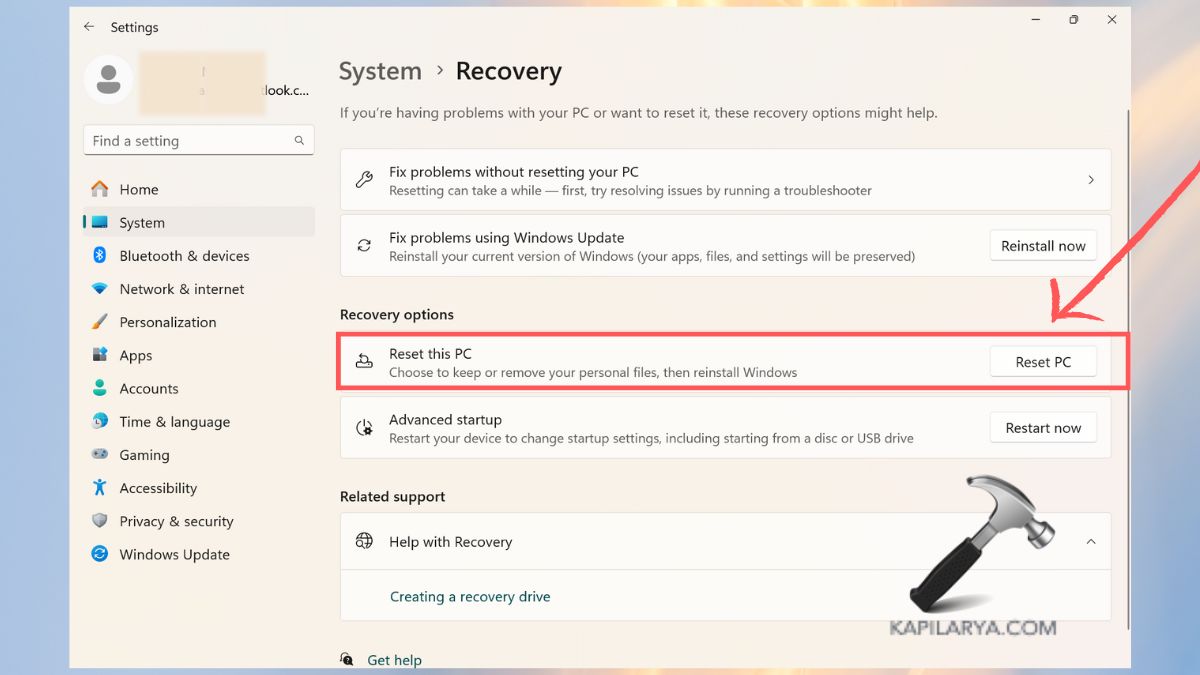
6. Choose Keep my files option. Allow Windows to install essential drivers such as the camera. This fixes corrupted system files that has been blocking the driver of the camera to install.

Method 6: Perform a Clean Installation of Windows 11
When all other methods fail, a clean installation is the most powerful remedy.
Follow this tutorial specifically for Version 25H2, latest atm: How to clean install Windows 11 Version 25H2.
Important: Before a clean install, it is best to make sure that you have saved up what is important to you.
Frequently Asked Questions (FAQs)
Why is my webcam missing from Device Manager in Windows 11?
The driver can be deleted, obscured or corrupted.
Can Windows Update reinstall camera drivers automatically?
Yes. Install updates to the driver and have it automatically install camera driver packages.
What if I accidentally uninstalled the camera on my laptop?
In case the camera application has been removed on the laptop by mistake, you can again reinstall it through Microsoft store.
How do I fix error code 0xa00f4244 nocamerasareattached?
Follow this article to fix We Can’t Find Your Camera (0xA00F4244) In Windows 11/10“.
My external USB camera is not recognized. What should I do?
Twist the USB connector, refresh the drivers used by the chipset or physically install the camera driver obtained on the producer’s site.
That’s it!

![Fix: Camera doesn’t work in Windows 11 [2026 Fix]](https://www.kapilarya.com/assets/camera_privacy_1692031411.jpg)
![Guide to open RW2 files in Windows 11/10 [6 Options]](https://www.kapilarya.com/assets/Cam-2-768x508.jpg)
