

You may receive Windows Update error 0x800f0989 in Windows 11, while you have failed cumulative updates. This error most likely to occur when you have corrupted update files or corrupted system files. If you are having this Windows Update error, begin by doing basic troubleshooting and go to system repairs if the issue doesn’t resolve.
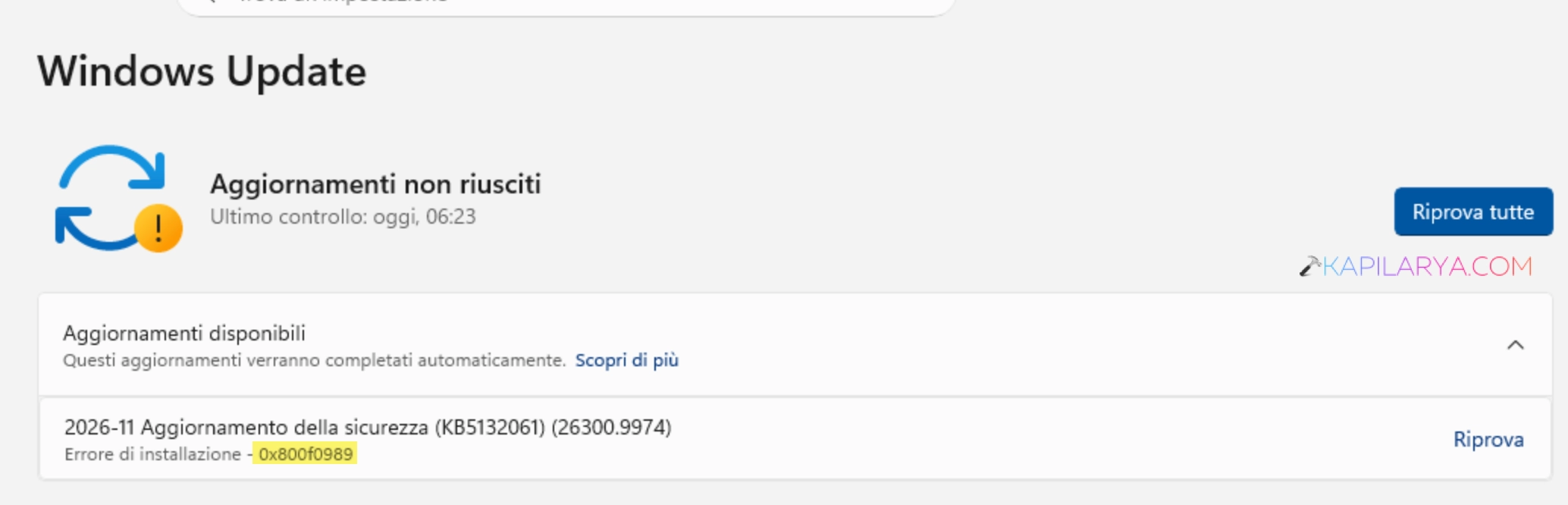
Here are some ways to fix the problem without reinstalling Windows.
Page Contents
Fix: Windows Update Error Code 0x800f0989
Method 1: Check Disk Space Before Installing Windows Updates
The space required in Windows is the amount freed up by the download, unpacking, and installation of the update files. The update process may fail if the system drive is almost full.
1. Open Settings by pressing Win + I. Click on System > Storage.
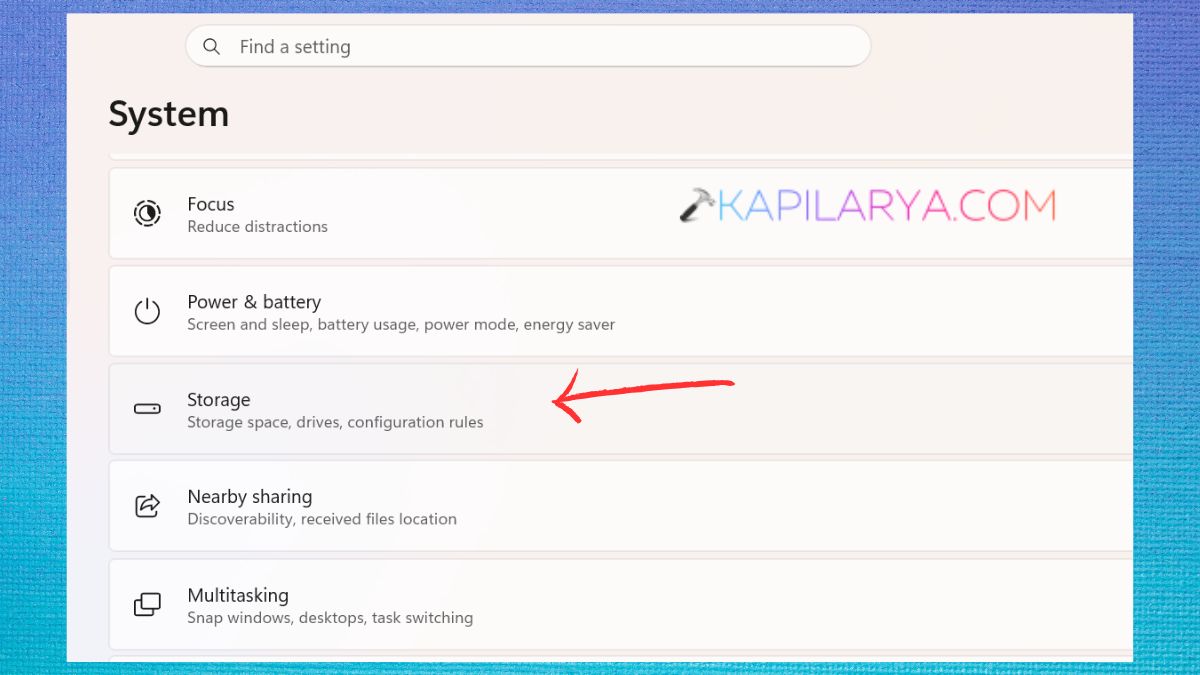
2. See how much space you have on your Windows drive. Open Temporary files and delete the ones that are not necessary.
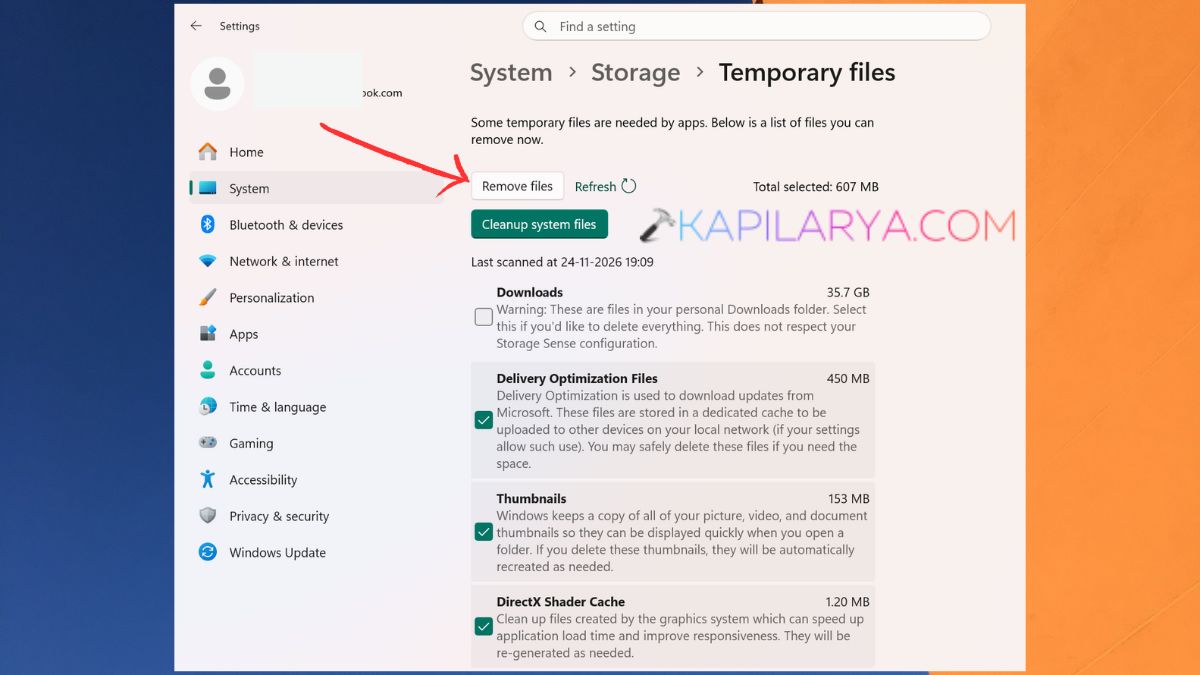
3. Clear the Recycle Bin and delete files that you don’t need. Keep a minimum of 15- 20 GB of free space available, if possible. This isn’t a hard and fast rule for all updates, but rather a best practice.
4. After you’ve made some room, turn on the computer and make another attempt to install the update.
Method 2: Run DISM and SFC to Repair Windows Files
Various corrupt or missing system files can cause problems with Windows Update. DISM repairs the Windows component store, and the SFC scan verifies protected system files and replaces any damaged copies, if found.
1. Click on the Start key and type in Command Prompt. Run it as administrator, if you are.
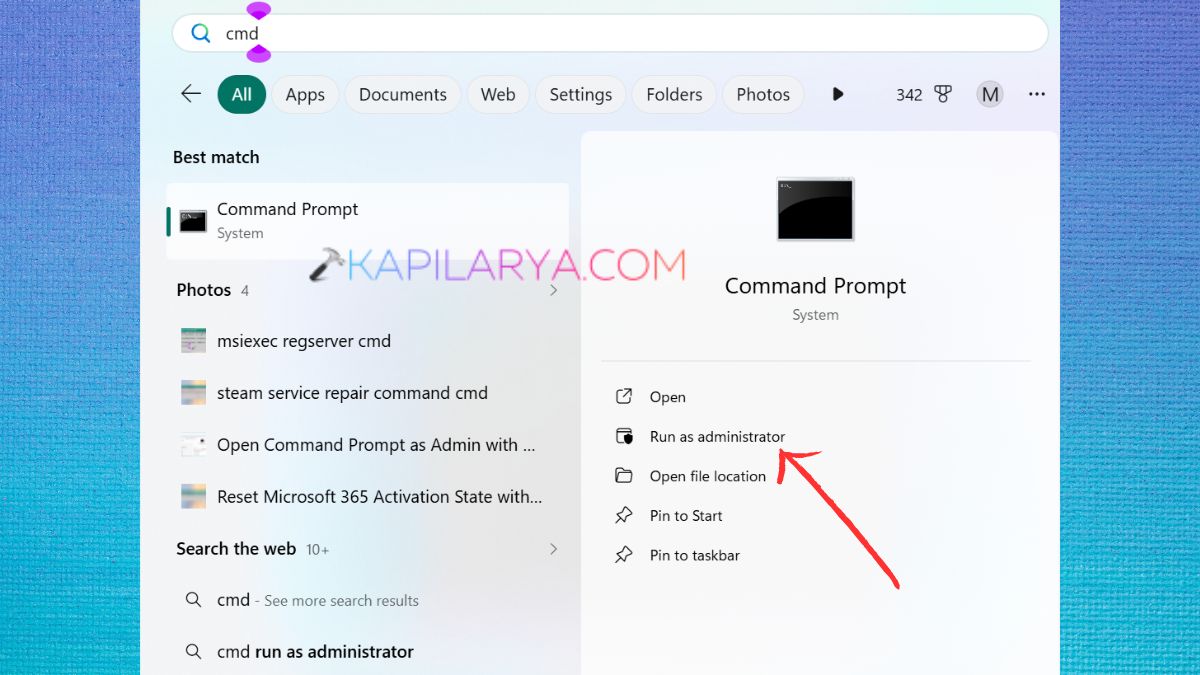
2. Run the following command. Wait until the scan is completed. May take a while.
DISM /Online /Cleanup-Image /RestoreHealth
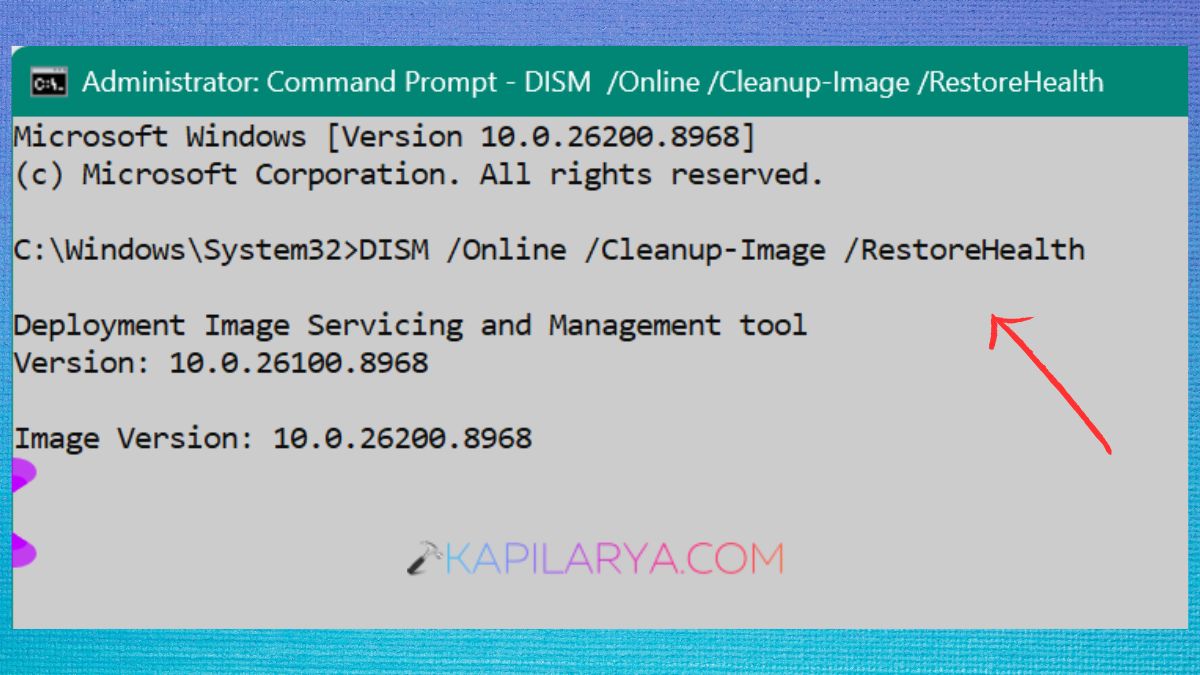
3. Then run the following command. After both scans are done, log out and back in again and check for updates.
sfc /scannow
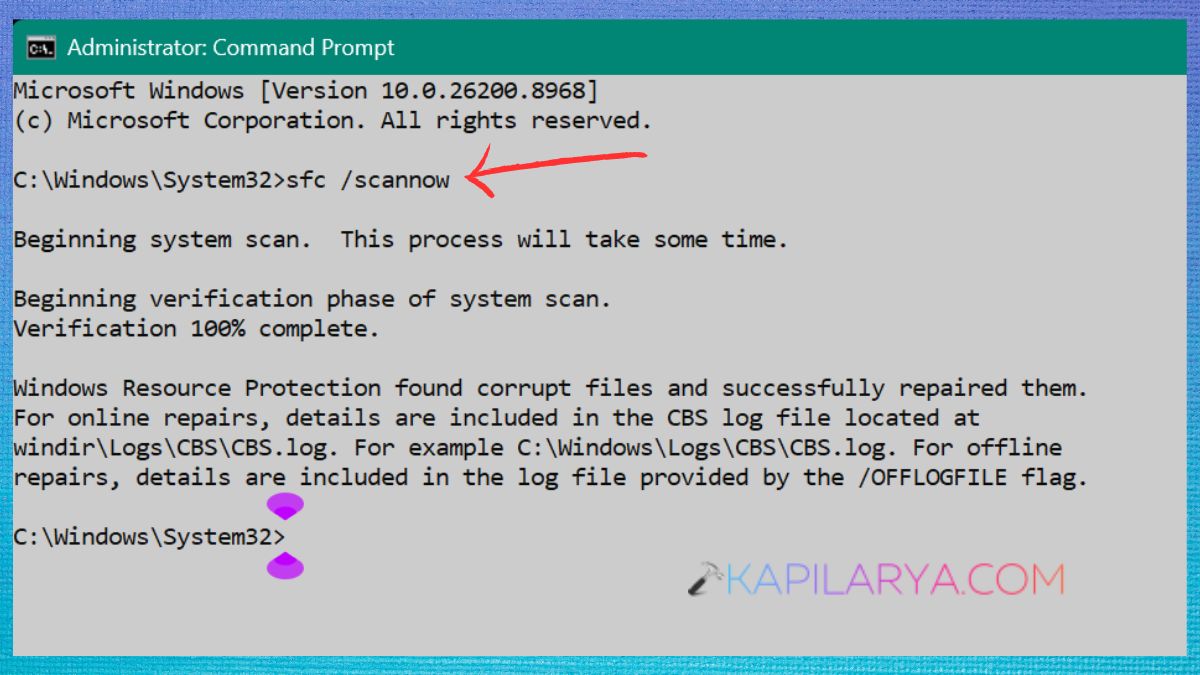
These tools can help fix Windows Corruption and get the update installed.
Method 3: Restart Your PC and Run the Windows Update Troubleshooter
There have been instances when an update would fail because of waiting for the previous install to complete or the service was stuck. Hence, restarting can clear off any pending operations so that the update process can begin once again.
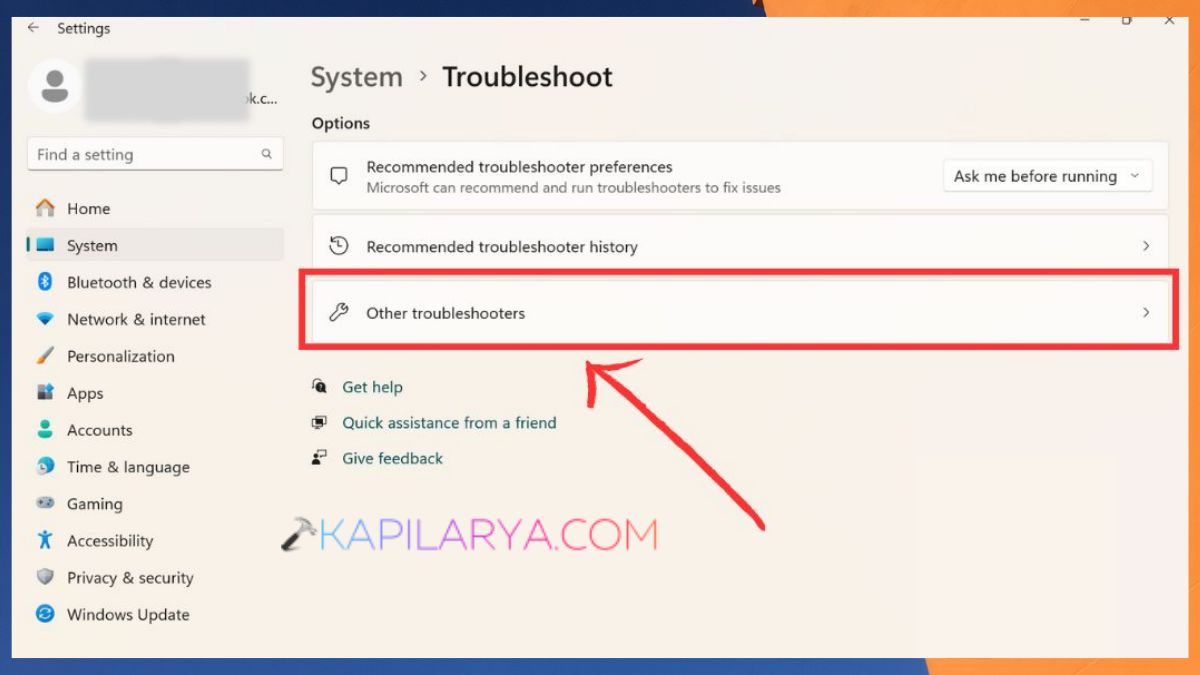
1. Once restarted, execute the Windows Update troubleshooter that is part of the Operating System. Access Settings and then System > Troubleshoot > Other troubleshooters.
2. Click on Windows Update and then click Run. Follow the directions from the troubleshooter. Restart the computer if prompted.
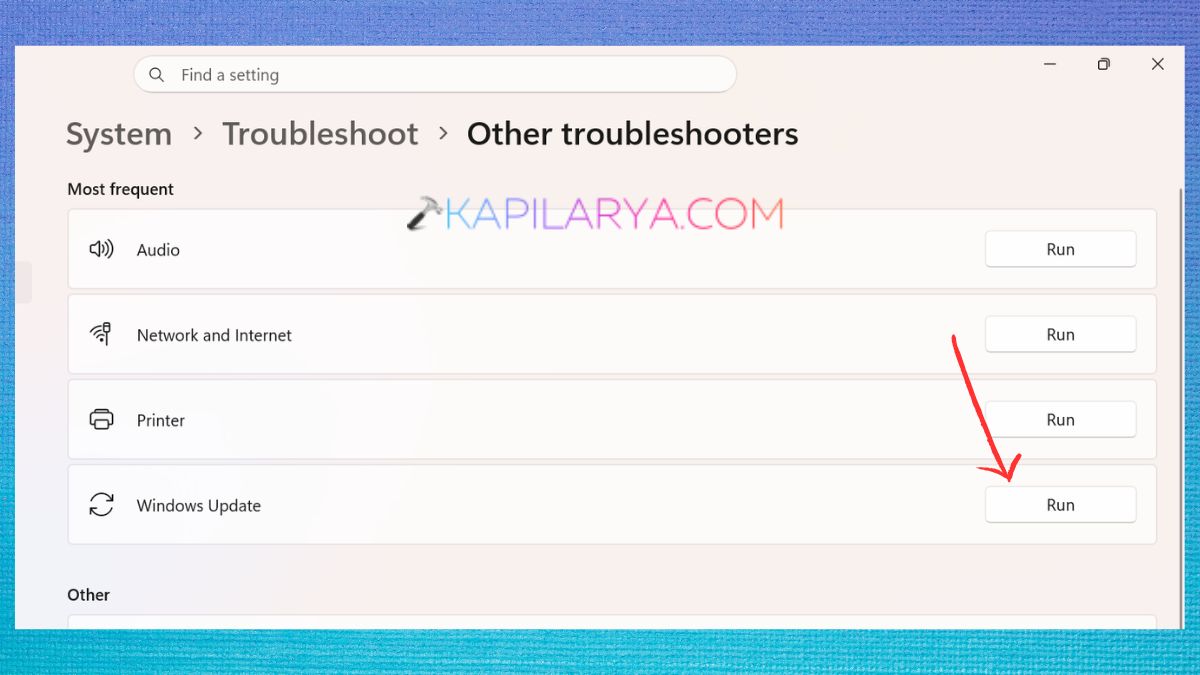
This tool will test for common issues with updates, and try to fix them for you automatically.
Method 4: Read CBS.log and DISM.log to Find the Actual Cause
Check the Windows servicing logs if the Windows Update error 0x800f0989 persists. These files can be useful for diagnosis of the failed installation to pinpoint the component or operation that failed.
These logs are stored on Windows in the following places:
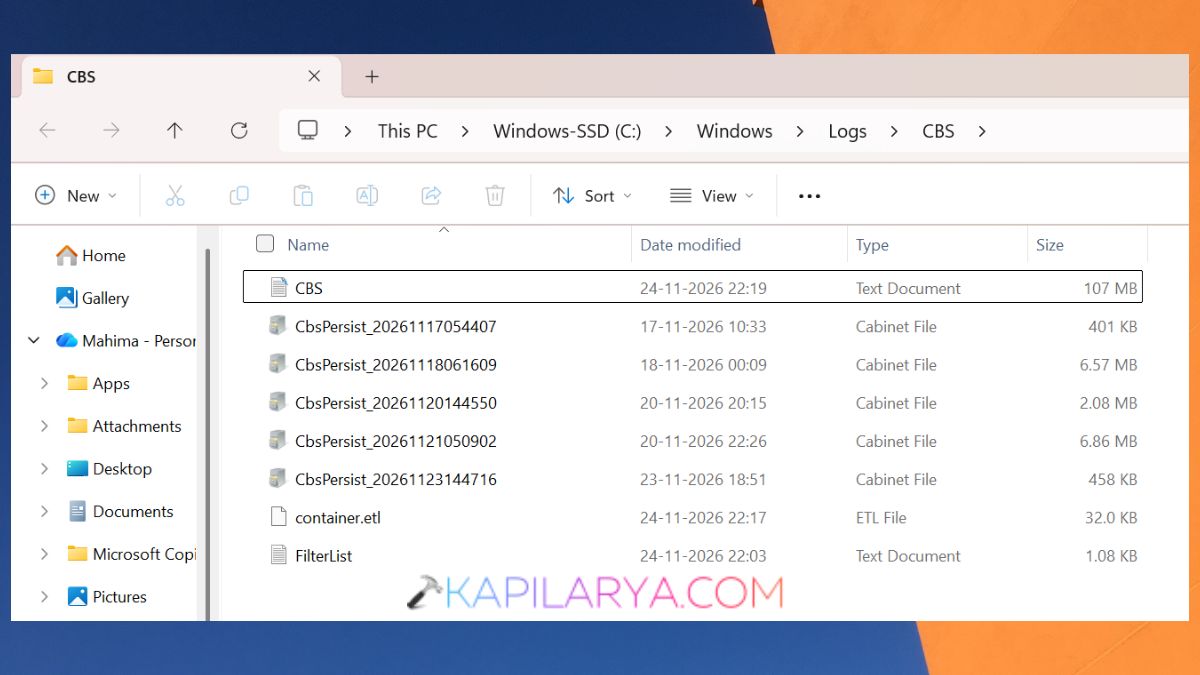
- CBS.log: C:\Windows\Logs\CBS\CBS.log
- DISM.log: C:\Windows\Logs\DISM\dism.log
CBS.log contains information about servicing activities such as repairs to system files and installation of system updates. DISM.log contains information about the image servicing and repair.
Follow these steps to find the actual cause:-
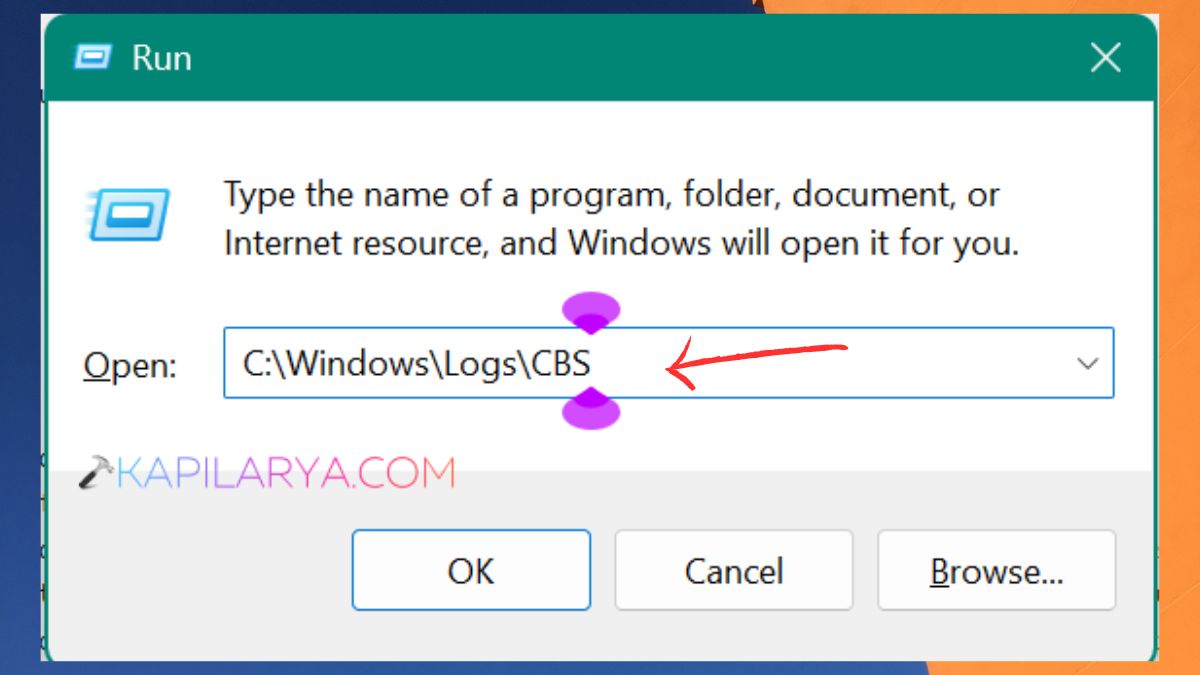
1. Click the Windows key+R, type this in and press Enter.
C:\Windows\Logs\CBS
2. Using Notepad, open the CBS.log file. Look for Error, Failed or the KB number of the update. Look at the time stamps surrounding the failed update; there might be other errors there.
If you ran DISM previously, then use the dism.log file; if you did not run DISM previously, repeat the process for the dism log. These logs may be extensive; only pay attention to the information recorded in the logs in the time frame surrounding the update failure. It can be useful in cases of corruption of components or missing file reference, to help determine if further repairs are required.
Method 5: Download and Install the Update from Microsoft Update Catalog
If Windows Update keeps on failing to install, you can install the update manually. This can be useful when the regular update package download (or processing) is not successful.
1. Run Microsoft Update Catalog from its official website – ‘https://www.catalog.update.microsoft.com/Home.aspx‘.
2. Go to Settings > Windows Update and record the KB number of the Windows update that failed.
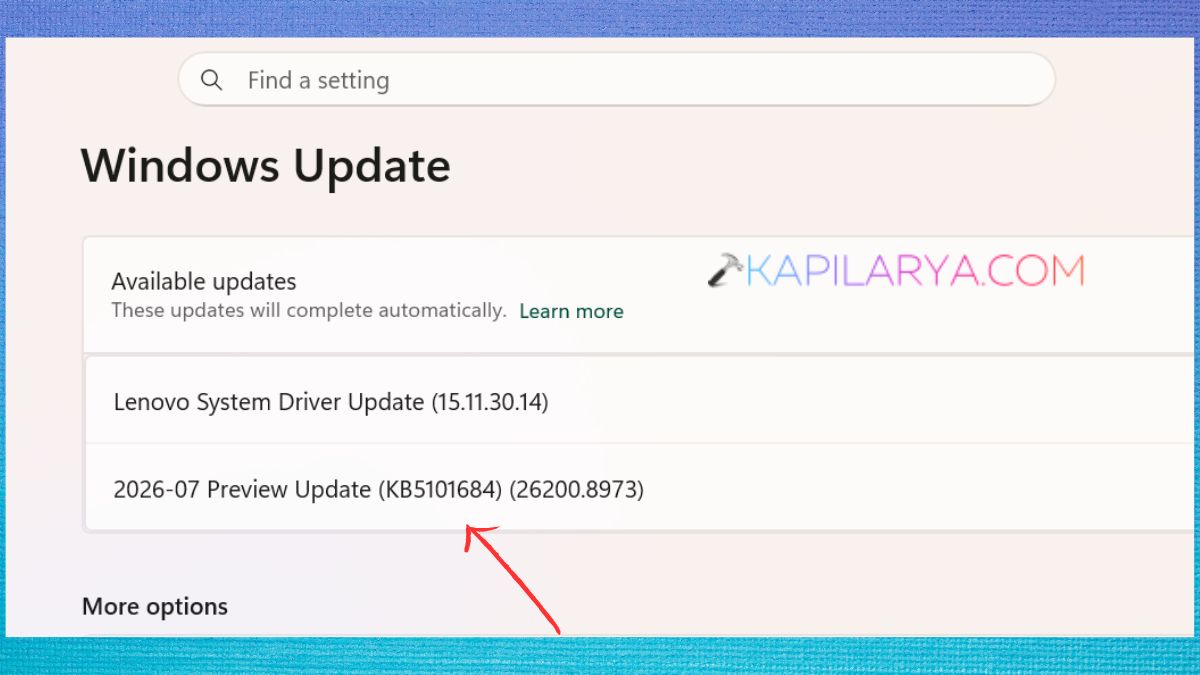
3. Look up that ‘KB number’ in the Microsoft Update Catalog. Then, check for a package appropriate to your Windows version, machine architecture (x64 or ARM64) and system requirements. Next to the correct package, click Download.
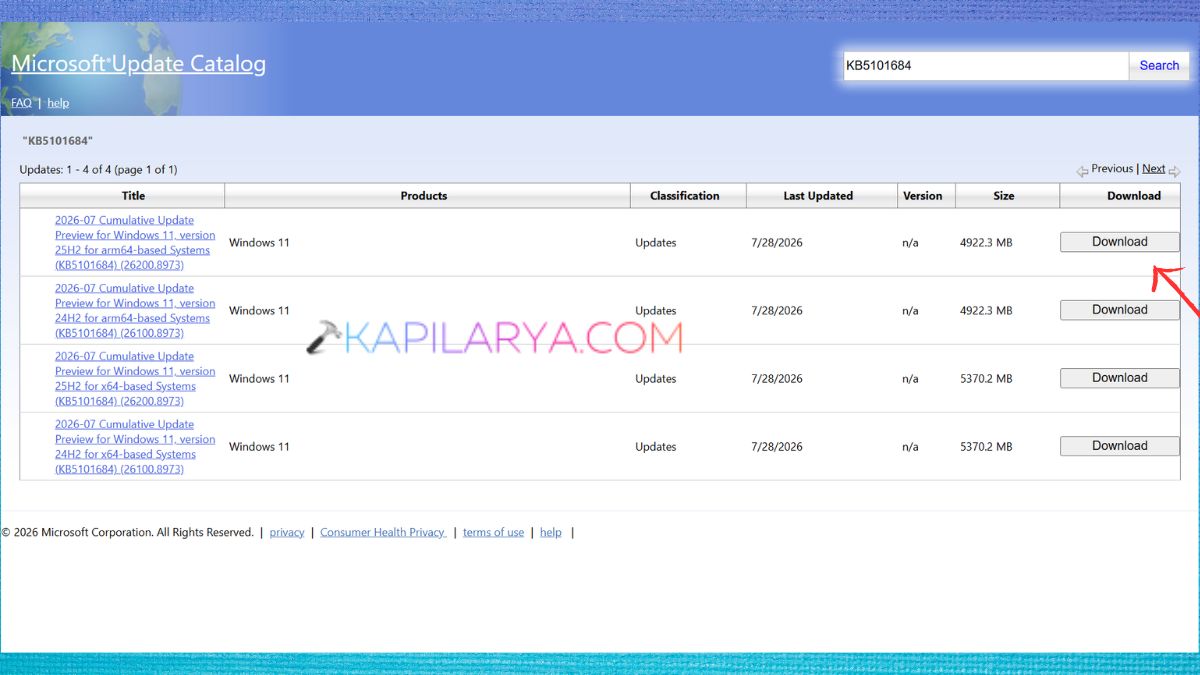
4. Click on the .msu file you have downloaded and install it according to the instructions. When the installation is complete, reboot your computer.
Be sure to download the right Windows build update. Installing an incompatible package might cause it to fail, or result in further update issues. If an update needs a servicing stack update (SSU), then install the necessary SSU prior to the update.
Method 6: Perform an In-Place Repair Upgrade of Windows
An in-place repair upgrade may be the remedy of last resort if none of the above remedies is effective. Reinstalls Windows system files without removing any of the personal files, installed applications, or settings (unless you choose to during installation).
1. From the Microsoft Windows download page, download the official Windows ISO for your installed Windows version.
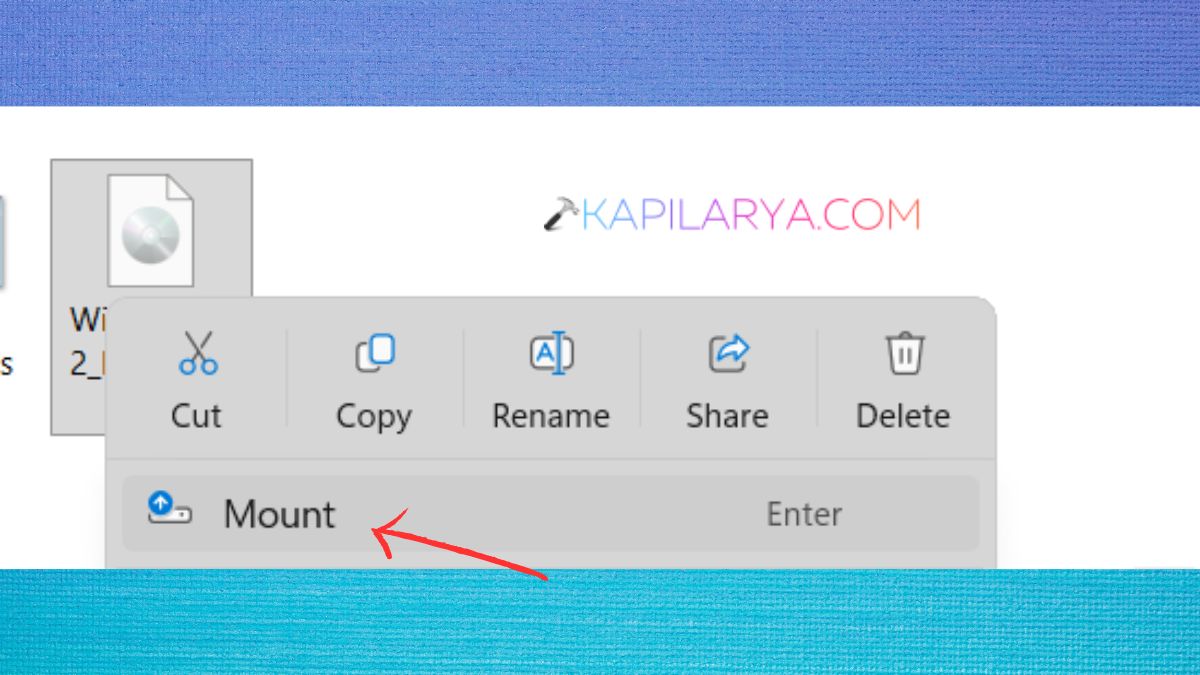
2. After downloading, right-click the ISO file and choose Mount.
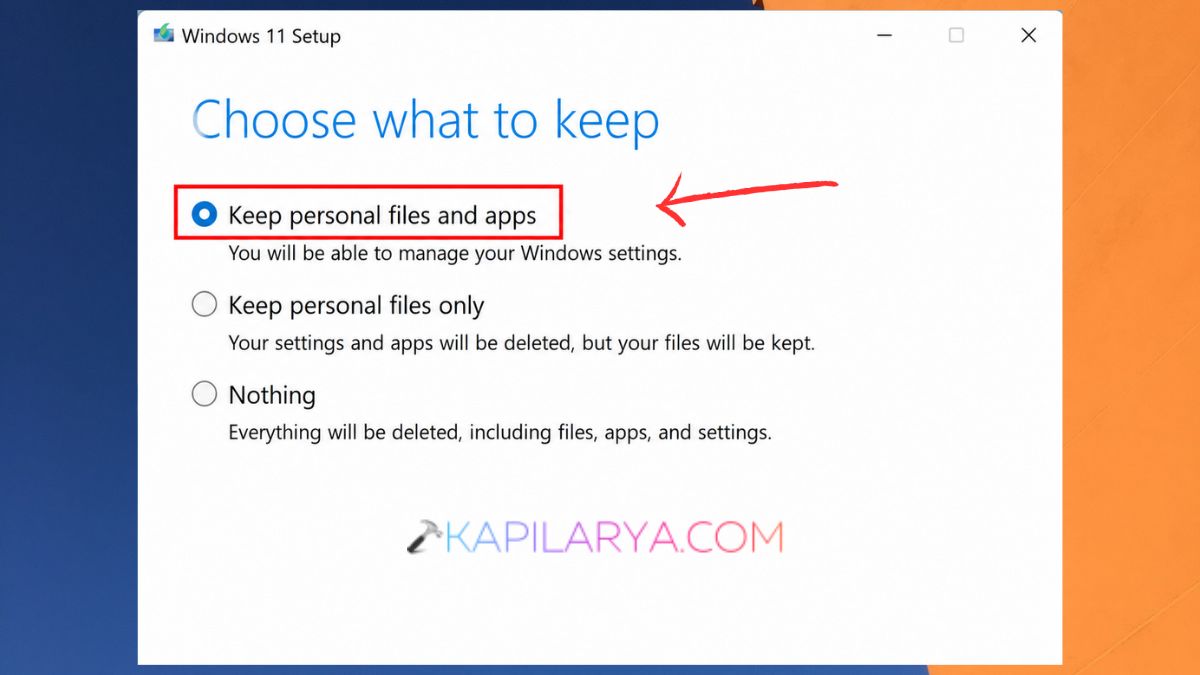
3. Follow the directions for set-up. If there’s an option, choose Keep personal files and apps.
4. Proceed to install, and restart your PC as necessary. Once the repair upgrade is complete, restart in Windows and then check for updates again.
An in-place repair upgrade can address deeper issues that may not be rectified with routine troubleshooting in Windows that may affect Windows components and services. But before continuing, be sure that the keep-files-and-apps option is also there, and that you back up the data even if you plan to keep everything.

Frequently Asked Questions (FAQs)
That’s it!
