

Today, we’re going to discuss about the DVD drive missing problem in Windows 8 File Explorer. One of my friend experienced this problem on his PC. Actually, his Windows 8 was showing Devices with removable storage but was unable to locate the DVD drive attached to PC. However the PC was able locate the same when booted with Windows 7.
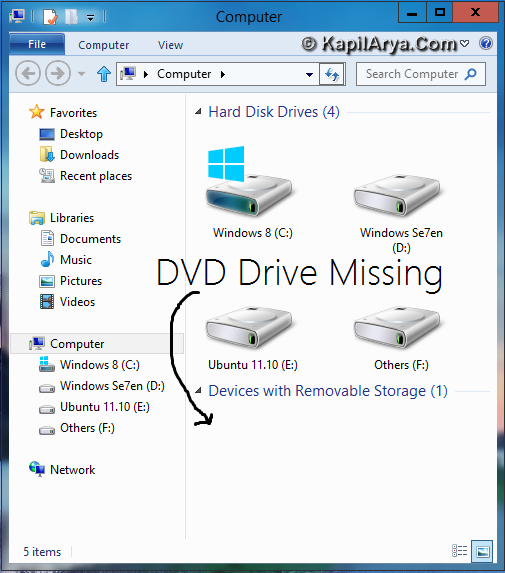
By hypothesis, we observed that the main problem is missing of required registry key to show the DVD drive in this issue. So a simple registry patch is the answer to this query. Without wasting your time anymore in talks, let see how to solve this issue:
FIX : Windows 8 Not Showing DVD Drive
1. Open the Command Prompt with administrative privileges (Ctrl+Shift+Enter).
2. Type the following command and hit Enter key:
reg.exe add “HKLM\System\CurrentControlSet\Services\atapi\Controller0” /f /v EnumDevice1 /t REG_DWORD /d 0x00000001
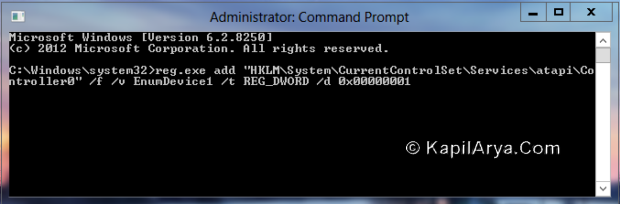
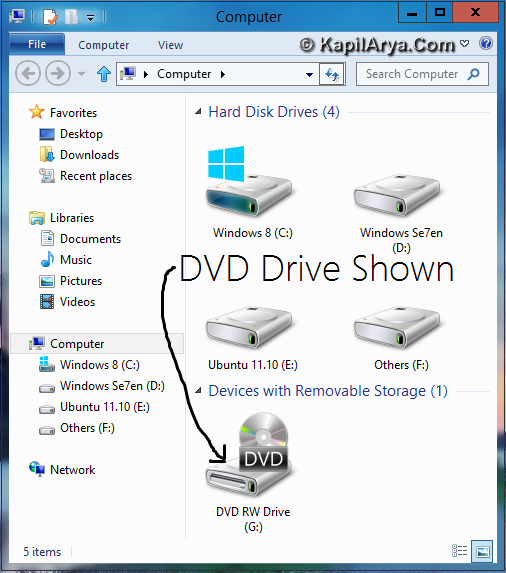
3. Exit the Command Prompt and hopefully reboot. Insert a disk to test and the DVD drive should shown now.
Hope this helps!





good post ,thanks!
Hey kapil sir…
Getting Windows 8 Error: C:WindowsSystem32winload.exe
Code: 0xc0000428
Details: Cannot verify the signature of the file.
HELP PLSSSSSSSSSSSSSSSSSSSSSSSSSSSSSSSSSSSSSSSSSSSSSSSSSSSSSSSSSSSSSSS
^^ Try sfc /scannow command.
I tried that but unfortunately can’t sort the problem, still have same issue!!!
^^ It seems your boot loader is corrupted, so run the Windows 8 Setup and use “Repair Computer” option :)
cool ;)
thks bro.. i’ve successfully repaired the corrupted booter… tanx again
^^ Glad to hear that you fixed the problem :)
i got an error invalid key name while run this command
^^ You must check via the BIOS setting for DVD drive. Also try to run sfc /scannow command and see whether it works. Report me if still have issues.
@ RANBIR, What error you are getting?
My CD/DVD drive is not showing in my computer. My DVD drive is “SATA”. These registry entries doesn’t work. What should i do to enable DVD drive???
PLZZZ HELPPP !!! :) ^_^
Hi Kapil
Thanx it really worked but the issue is Im not able to open my DVD Drive.
^^ Make sure the hardware is still compatible and working. Else, visit nearest computer shop to verify, if there is not any issue with hardware configuration.
Worked for me with Windows 10 upgrade. No DVD now I have a working one!!!..:-)
^^ Glad it helped! :)
I followed the steps with no good results. Sorry.
^^ If your DVD drive is much older, it may have lens malfunctioning problem. Suggest you to have its checkup at nearest computer repair shop.