

In Windows 8, one of the leading new feature introduced is the Charms Bar. It is actually replacement of the Start Button and Start Menu. It lets you to access search, settings, devices, share and of course to Start Screen. It can also be displayed using  + C combination on keyboard.
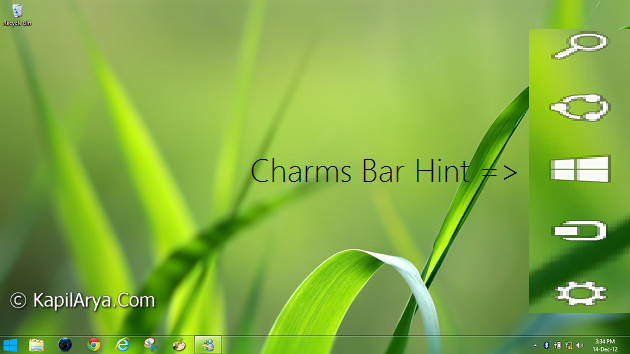
The Charms Bar automatically displayed as a hint whenever you brought the mouse to right sharp corner of screen. This general phenomenon is the Charms Bar hint. In this article, we’ll tell you how you can disable this Charms Bar hint using Registry Editor. So here we go…
How To : Deactivate Charms Bar Hint In Windows 8.1
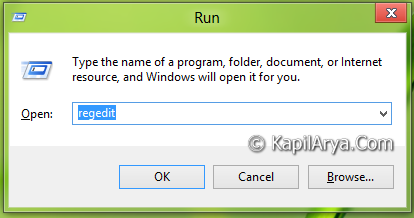
1. Press + R and put regedit in Run dialog box to open Registry Editor (if you’re not familiar with Registry Editor, then click here). Click OK.
2. Navigate here:
HKEY_CURRENT_USER\Software\Microsoft\Windows\CurrentVersion\ImmersiveShell
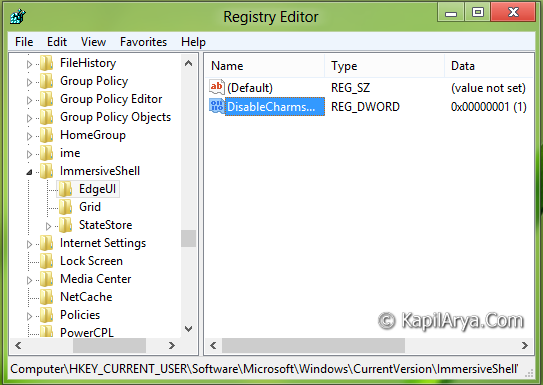
3. In the left pane, create a new key by navigating right click -> New -> Key. Name this key as EdgeUI.
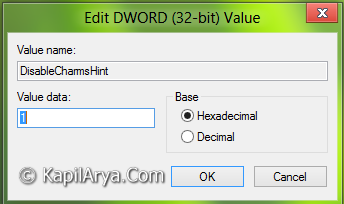
4. Now come to right pane of the key created previously, and create a DWORD there using right click -> New -> DWORD. Name it as DisableCharmsHint. You can use following Value data for DisableCharmsHint DWORD:
1 – Disable Charms Hint or delete the Edge UI key mentioned in step 3.
0 – Enable Charms Hint (default setting)
Hope you find the tip useful!



This fix didn’t work for me. Charms bar still pops up.
^^ Restart the machine after making registry manipulation :)
I used regedit and re started the laptop, and still… the annoying charmsbar is there. I’m so frustrated.
^^ Did the registry DWORD existed already?
Thankyou so much for taking the time to show us how to do this Kapil, you a legend. :)
^^ Glad we could help :)