For an optimistic user of Windows 8, sometimes the issue governing too big or too small size of Start Screen tiles arise. This graphical user interface connected issue is relatively effective for monitor sizes. However making some sort of modification in the registry keys can help you to fix this.
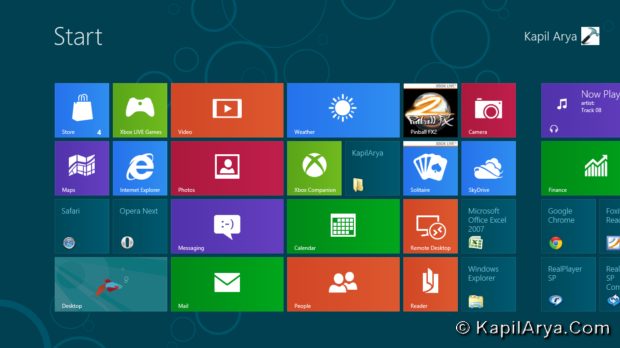
By modifying registry you can change the DPI (which controls the size of the Start Screen UI) by changing the monitor size detected by Windows. This will be beneficial in case of television projection. So using the trick of this article, you can easily project the tiles from a 10” monitor to 42” television without losing relative proportion of tiles.
So without wasting your time anymore, let us share the way…
Configure DPI Settings In Windows 8 Using Registry Editor
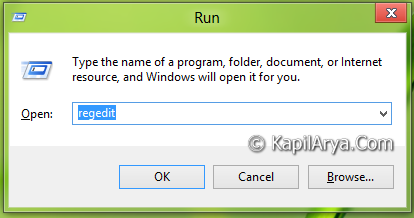
1. Press  + R and put regedit in Run dialog box to open Registry Editor (if you’re not familiar with Registry Editor, then click here). Click OK.
2. Navigate to this location:
HKEY_LOCAL_MACHINE\SOFTWARE\Microsoft\Windows\CurrentVersion\Explorer
3. In the left pane of this location, create a subkey named as Scaling using Right Click -> New -> Key. If this subkey already exists, then skip this step and move to next step.
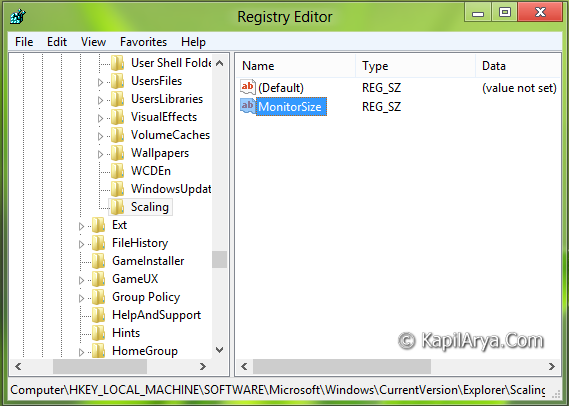
4. In the right pane of subkey Scaling, create a new string by navigating Right Click -> New -> String Value. Name this string as MonitorSize. Double click on it to modify, you’ll get this prompt:
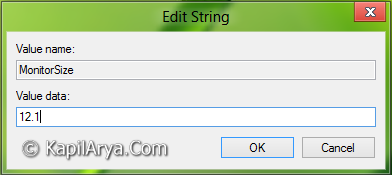
5. Finally in the field of Value data, input 12.1. That’s it. Please make sure that we’ve used periods here, so avoid the comma for inches.
Close the Registry Editor and reboot to get results!