You press PrtSc to capture a screenshot in Windows 11 or 10. And you see nothing happened. Then you tried the Snipping tool and still can’t take screenshots. When a simple feature suddenly starts working, it feels annoying. But the good news is, you can fix it easily with a few simple steps. Below are some of the best solutions you can try.
Page Contents
Why Can’t You Take Screenshots In Windows 11 or 10?
This issue happens because:
- Snipping Tool could be a problem
- Disabled screenshot shortcuts
- App overlays blocking screenshots
- Clipboard issues
- Corrupted system files
- Organization restrictions
Fix: Can’t Take Screenshots In Windows 11/10
Let’s begin with solutions:
1. Try Another Screenshot Shortcut
Sometimes when the shortcuts don’t work, try using:
- Win + Shift + S
- Win + Prt Sc
- Alt + Prt Sc
- Fn + Prt Sc (on some laptops)
If one shortcut fails, another may work.
2. Enable The Print Screen Key
Windows can open the Snipping Tool when you press the Print Screen Key.
1. Open Settings.
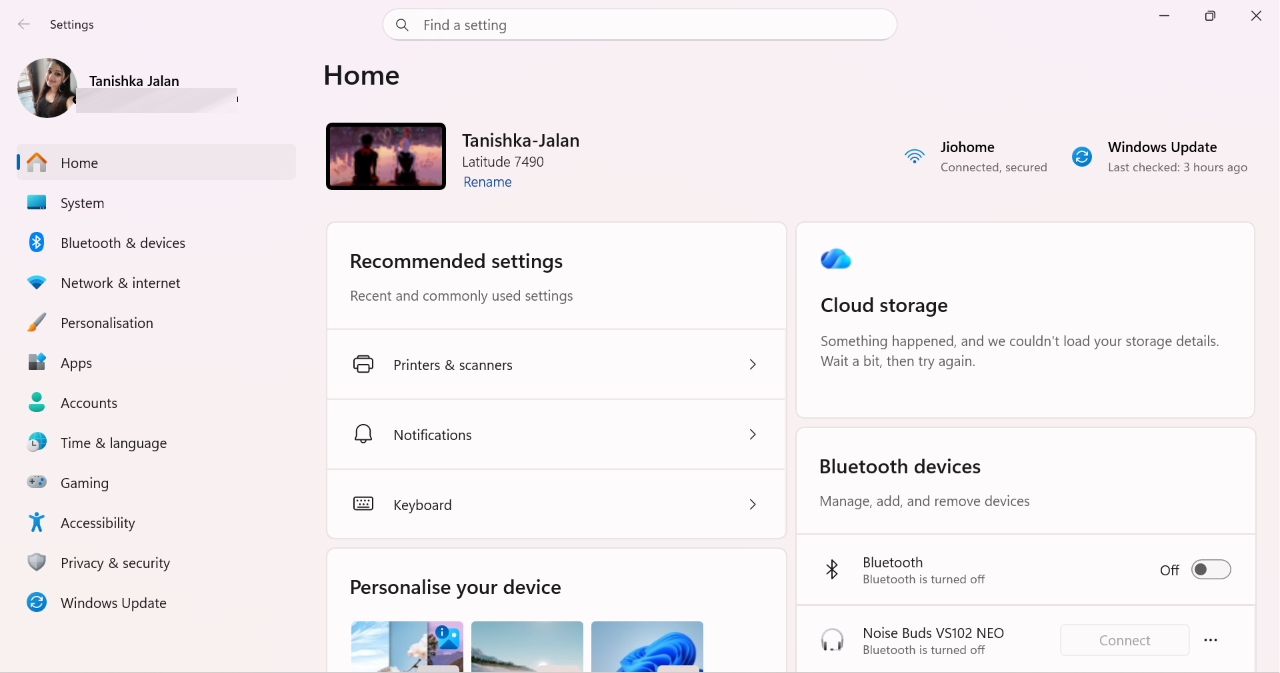
2. Go to Bluetooth & devices > Keyboard.

3. Turn on Use the Print Screen key to open screen capture.
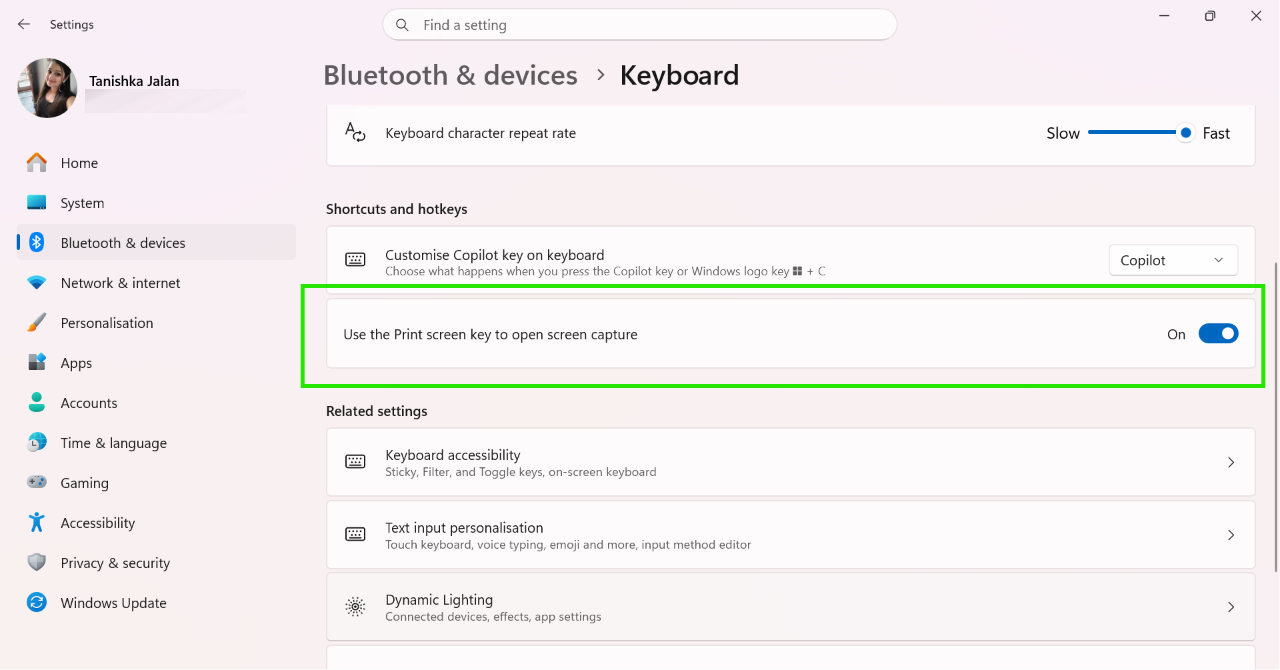
4. Now test the key again.
3. Repair The Snipping Tool To Take A Screenshot
A damaged Snipping Tool app can stop screenshots from working properly. So, you need to follow:
1. Open Settings.
2. Go to Apps > Installed apps.
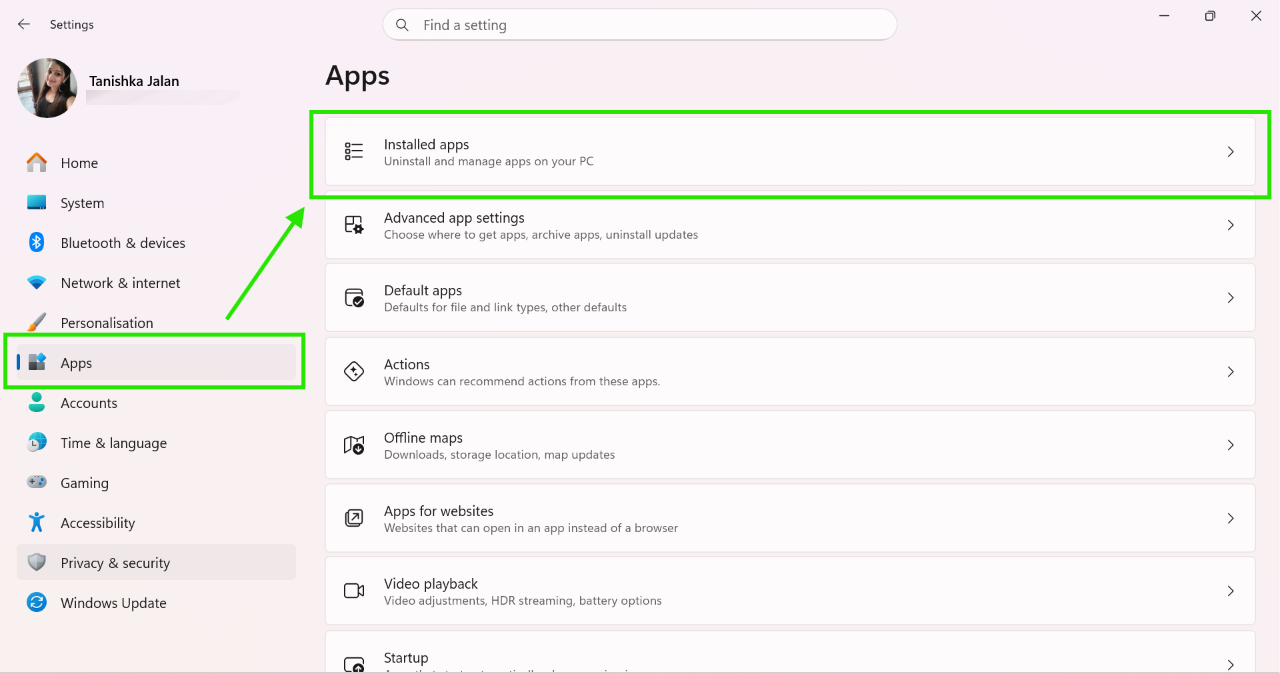
3. Find Snipping Tool.
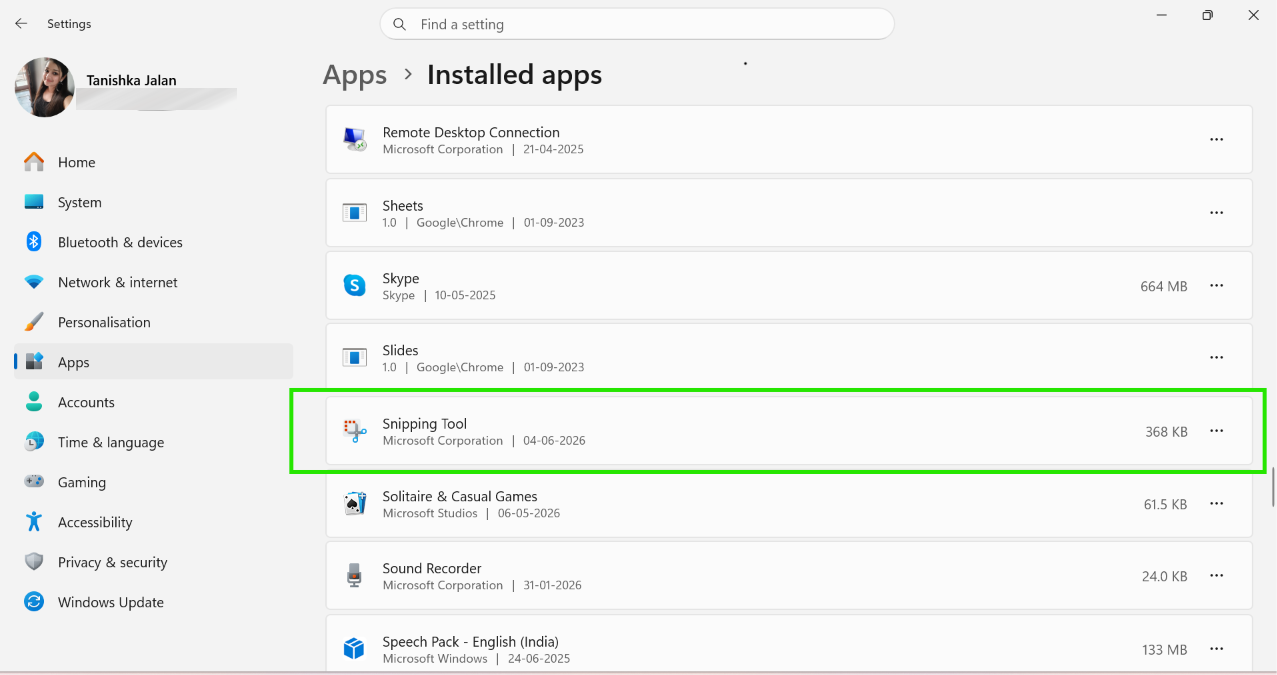
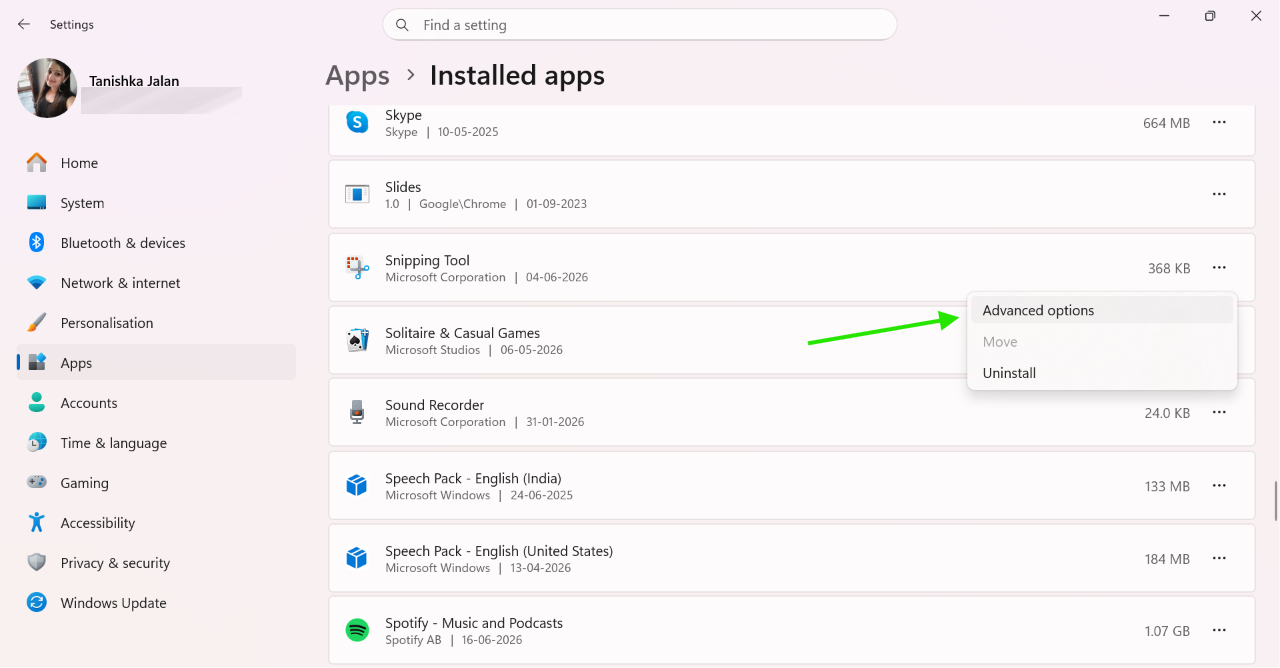
4. Open Advanced options.
5. Scroll down and click Repair.
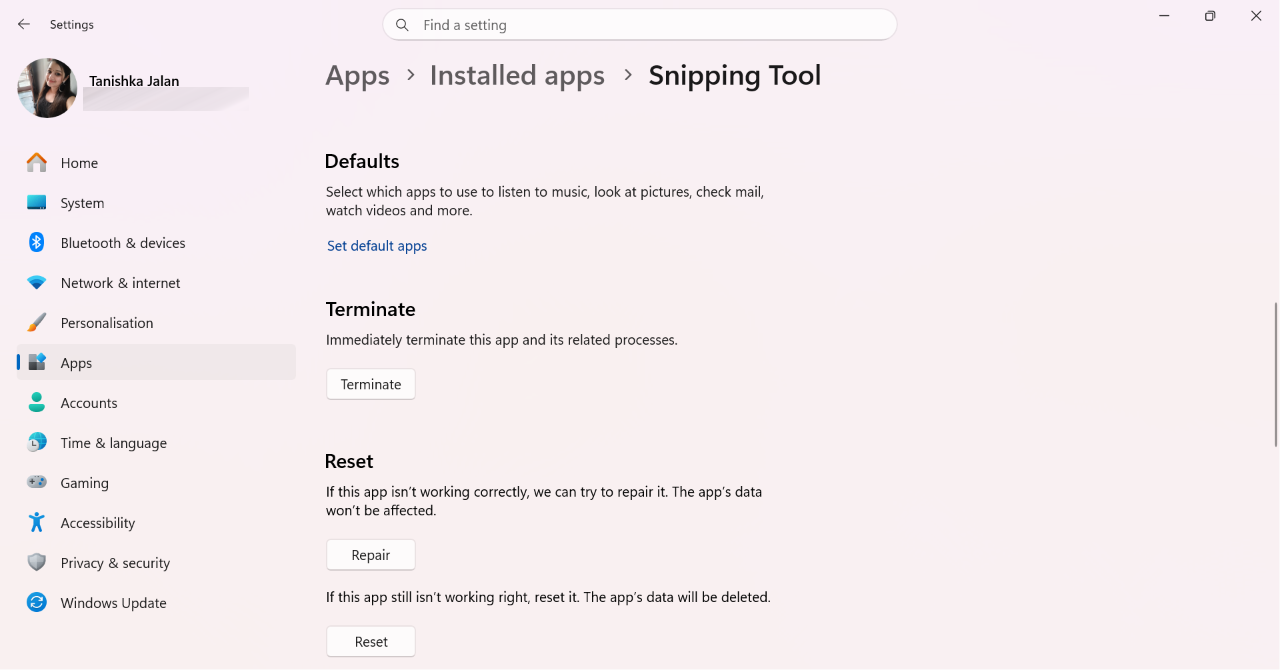
If it still does not work, use Reset option.
4. Check Where The Screenshots Are Saved
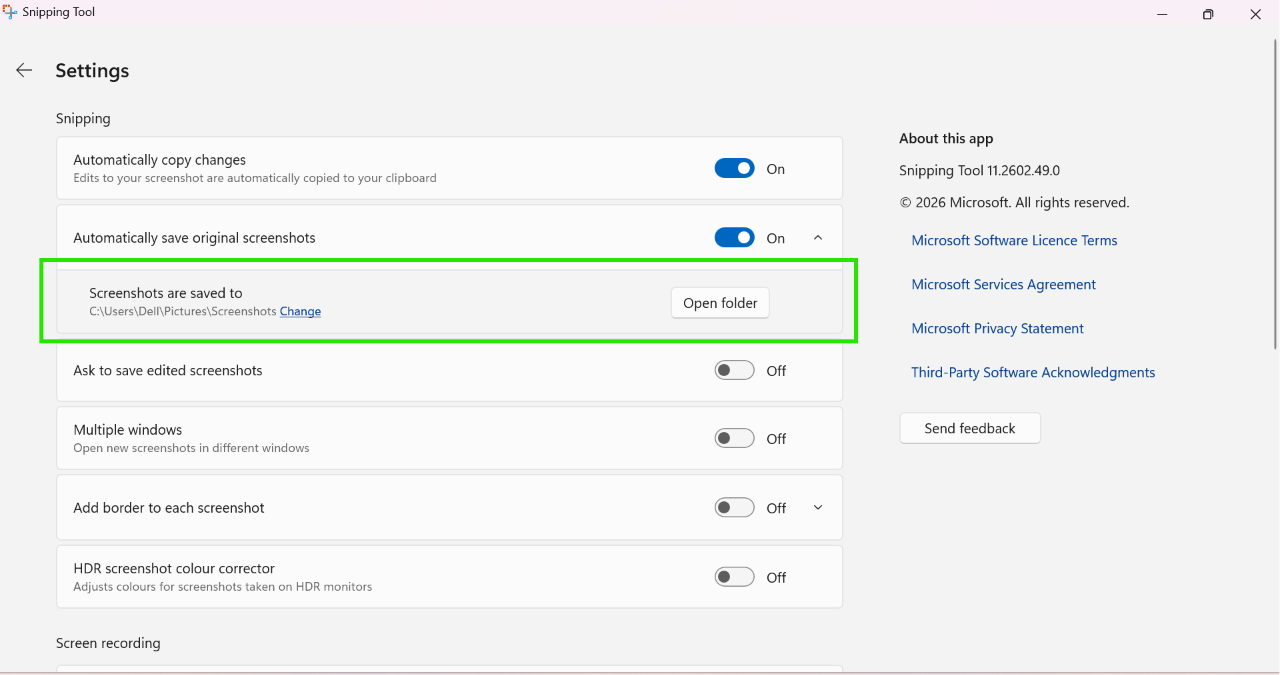
Your screenshots may be saved to a different folder. Check them by:
1. Open Snipping Tool > Settings and check the screenshot save location.
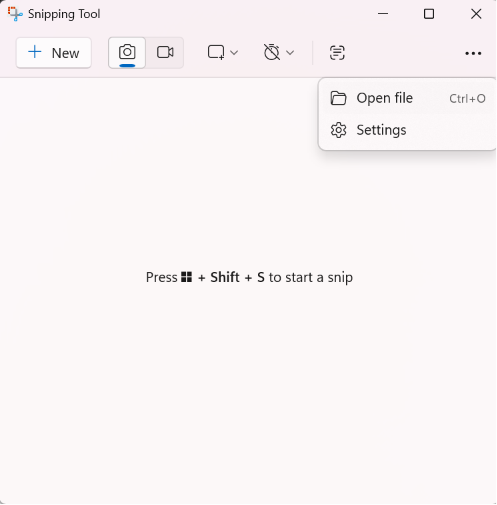
2. Open the folder and look for your captured screenshots.
5. Turn On The Clipboard History
Screenshots which you copy to the clipboard can disappear quickly. Follow the steps below to fix it:
1. Press Win + V.
2. Click Turn on.
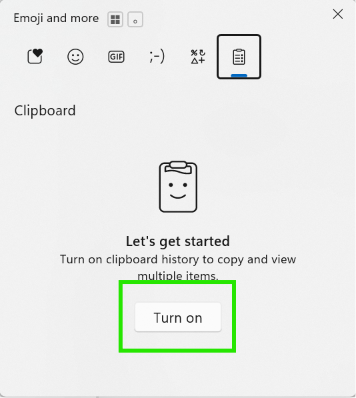
This lets Windows keep recently copied screenshots. Now you can copy and paste screenshot using Clipboard history, a more handy way.
6. Disable App Overlays
Some apps can interfere with screenshots. So, temporarily disable apps such as:
- Discord
- NVIDIA software
- and any screen recorder, if you’ve installed
7. Run An SFC Scan
Corrupted system files can cause screenshot capture issues. Here is how to fix it:
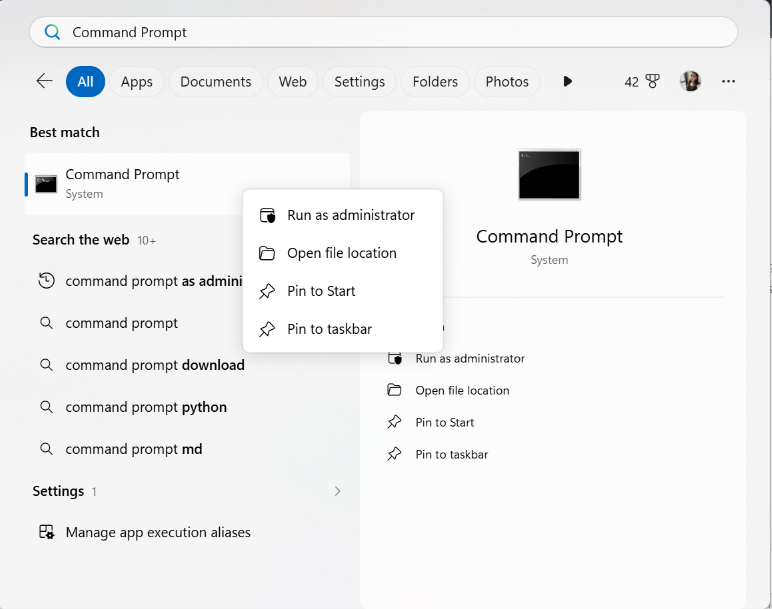
1. Open Command Prompt as Administrator and run:
sfc /scannow
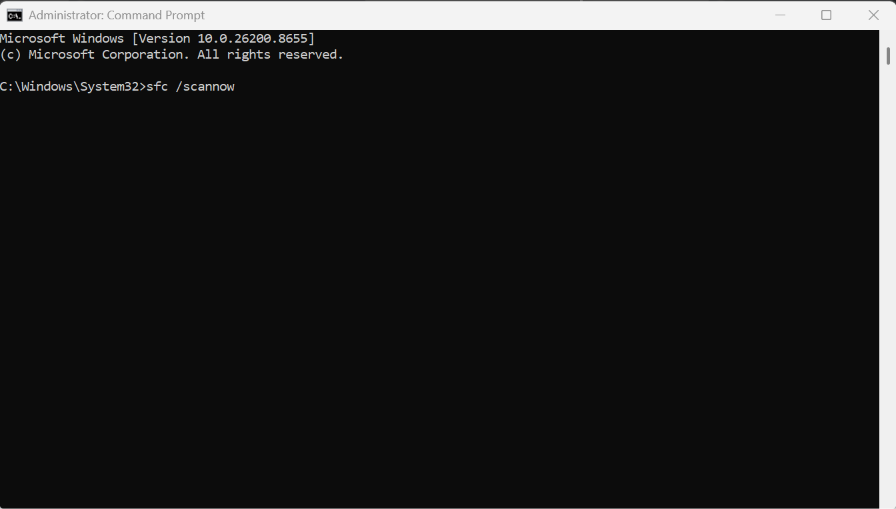
2. Restart your PC after the scan finishes.
8. Check Work Or School Restrictions
Lastly, if a company or school manages your PC, screenshots may be blocked by policy settings.
You may contact your IT administrator for help. Or you can proceed to disconnect work/school account.