We all know that as soon as you login, the explorer.exe process starts in the background. It is responsible to load UI elements such as taskbar, Start Menu, File Explorer, Action Center etc. But after launching of explorer.exe process, sometimes you may get the Explorer.EXE blank message in Windows 10.
As you can see in the screenshot, the Explorer.EXE warning message appears but there is nothing mentioned inside it. There is just an OK button which if you click, the message immediately disappears.
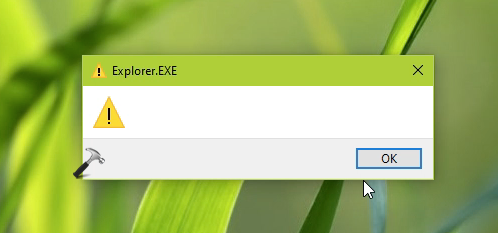
But when you sign in again, the message comes back. In this way, the message appears after each login. You might want to fix this blank message, so that it doesn’t welcome you after signing in. Try the registry based solution mentioned below and this will help you to resolve the problem.
Fix: Explorer.EXE blank message in Windows 10
1. Press  + R and type
 regedit in Run dialog box to open Registry Editor (if you’re not familiar with Registry Editor, then click here). Click OK.
2. In left pane of Registry Editor window, navigate to following registry key:
HKEY_CURRENT_USER\Software\Microsoft\Windows NT\CurrentVersion\Windows
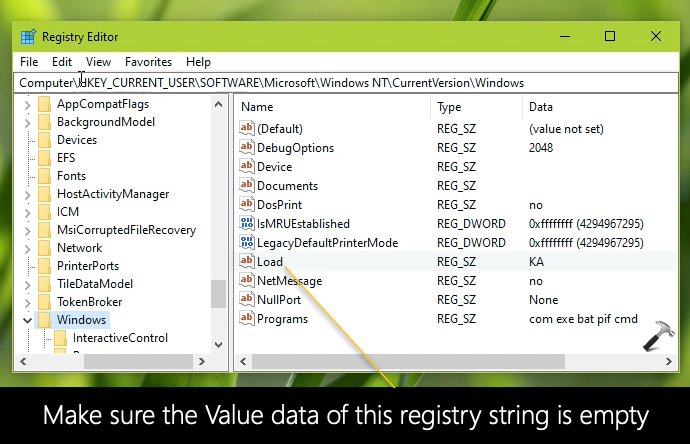
3. Now in the right pane of Windows registry key, locate the registry string (REG_SZ) named Load. The Value data for this registry string should be empty. If there is some Value data assigned for this registry sting, you’ll get Explorer.EXE blank message after signing in. So double click on the registry string and remove the Value data so that it becomes empty.
4. Close the Registry Editor, sign out and then sign-in back.
After login again, you will find that Explorer.EXE blank message/warning no longer appears now.
Check this video to illustrate above steps:
That’s it!
Related: File Explorer not working in Windows 10.