Microsoft Teams is a platform which is used by various users across the world for various professional purposes. This application is used for chatting, joining meeting, sharing documents online, etc. and is an extremely popular chat platform. However, the users of Windows 11 can at times faces issues while trying to access Microsoft Teams. They may face the Microsoft teams error code CAA5009D. This issue may occur for various reasons but is solvable. Hence, this blog enlists the various fixes which the users can use for solving the issue of Microsoft Teams error code CAA5009D.
Page Contents
Fix: Microsoft Teams error code CAA5009D
Fix 1: Linking Device to the work or school Account
Firstly. the users can try linking the device to the Work/School Account and see if this fixes the issue. For that, follow the steps below.
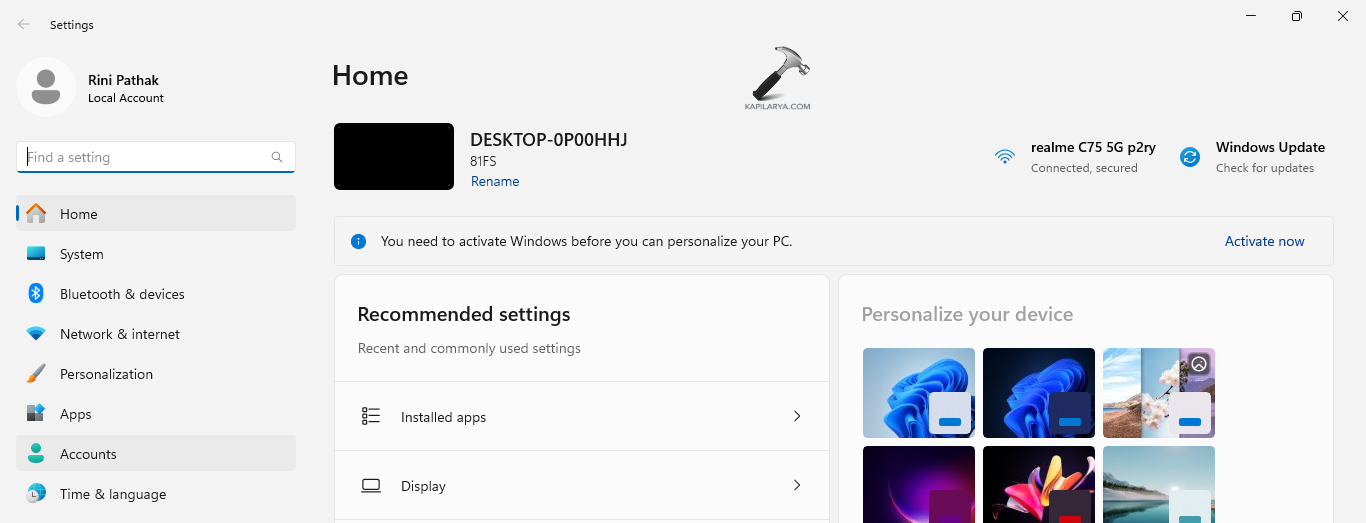
Step 1- Primarily, open Settings. Now select Accounts.
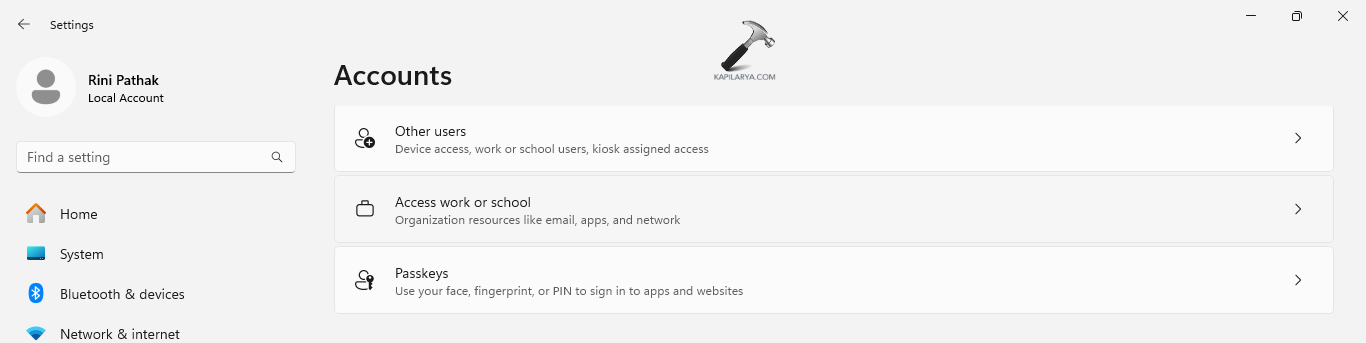
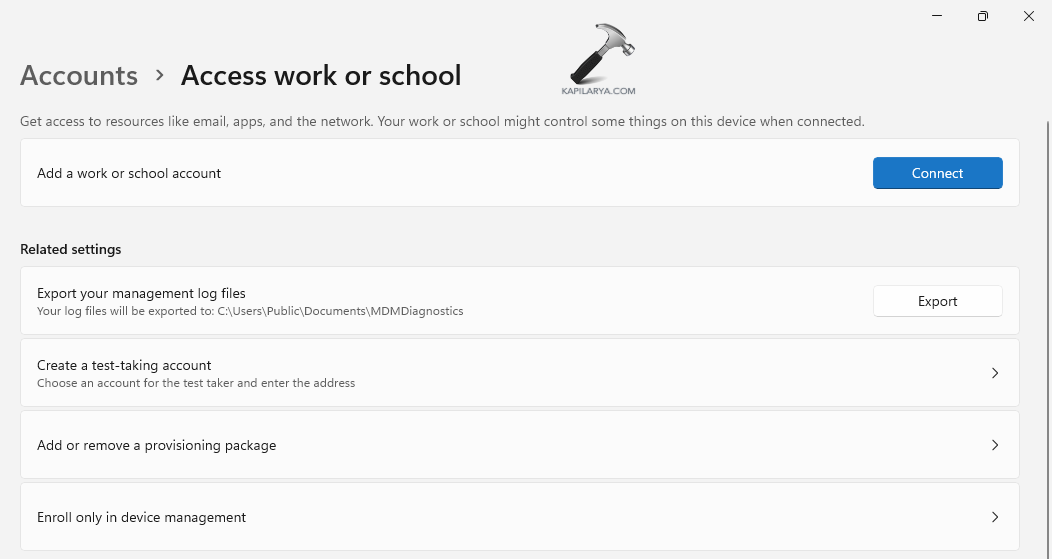
Step 2- Next select Access work or school and press Connect. Lastly, follow the on-screen prompts for finishing linking the device to Azure.
Fix 2: Accessing the Teams account on a web client
Another solution which the users can attempt is accessing the account on a different platform. For instance, if signed into a Team’s desktop application, then the users can try switching to the web client. Thereafter, check if this helps in logging in without any issue.

Fix 3: Temporarily Disabling Antivirus
Disabling antivirus and temporarily can also aid in fixing the problem.
Now, for disabling Antivirus, follow the steps given below-
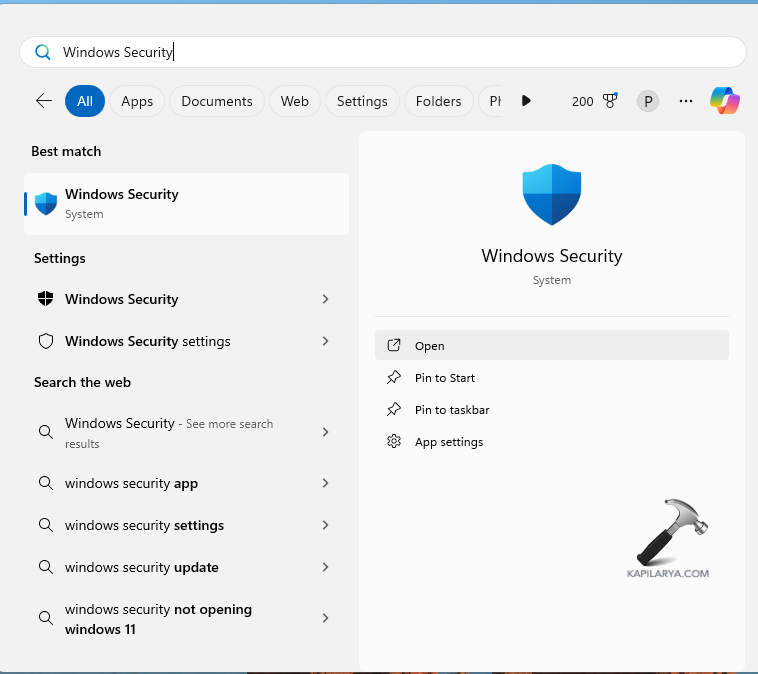
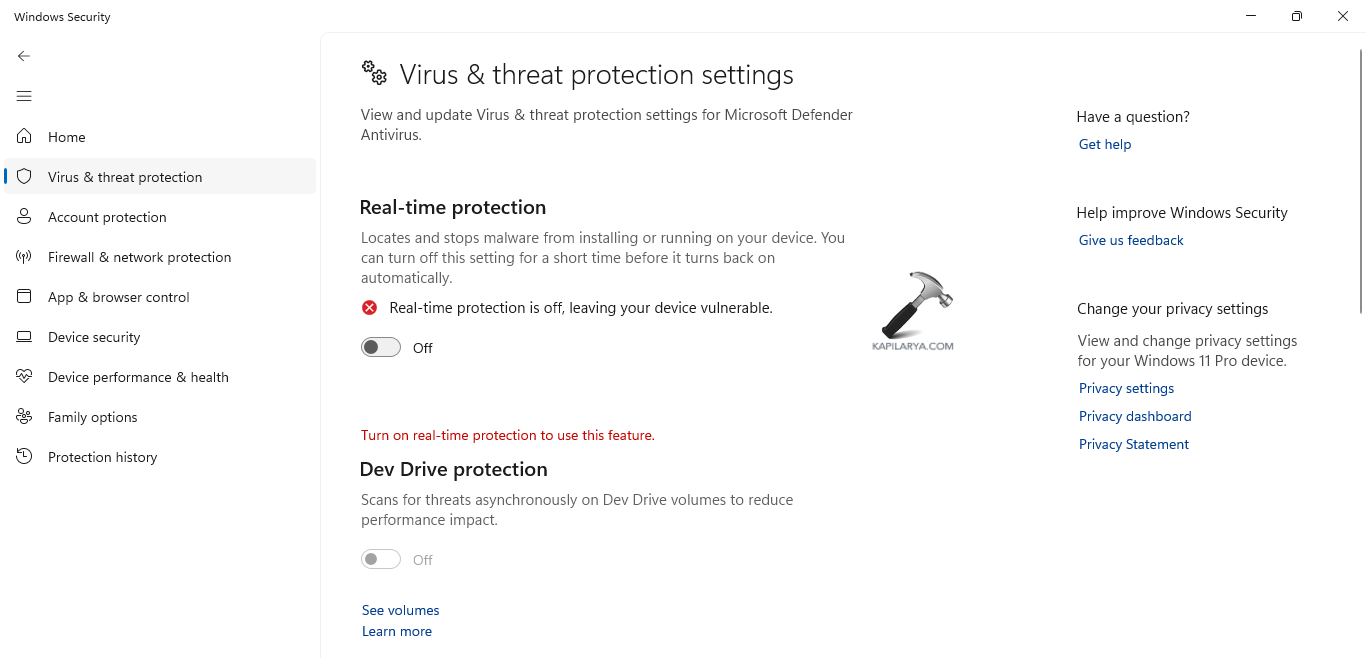
Step 1- Open Windows Security and go to Virus & threat protection.
Step 2- Next, select Manage settings and disable Real-time protection.
Fix 4: Closing Background Applications
Overheating of the CPU can also cause the existing issue. Hence, closing any running background application can solve the problem. Thus, follow the steps below for doing the same.
Step 1- Firstly, open Task Manager > Process tab.
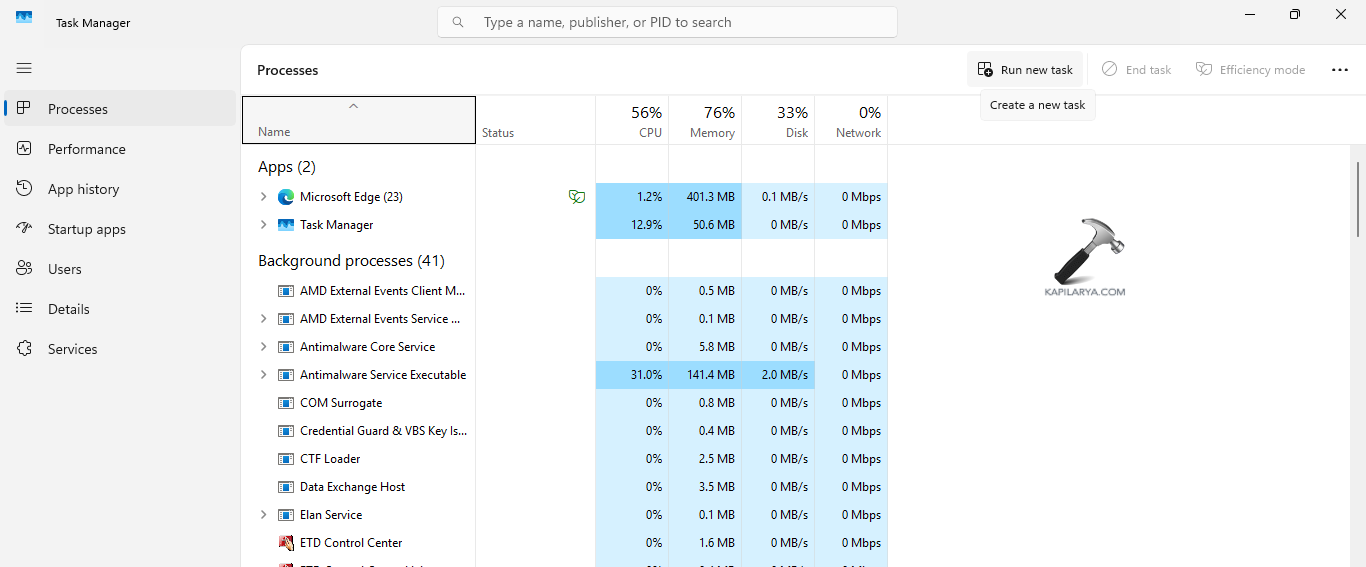
Step 2- Now, right-click the app for closing and select End Task from the menu. These applications may include Skype, Telegram, etc.
Step 3- Close any active background program. Lastly, reopen Microsoft Teams and check if this fixes the problem.
Fix 5: Clearing Team app cache and credentials
Another possible solution for solving the issue of Microsoft Teams error code CAA5009D is clearing the team application’s cache and credentials using the steps below.
Step 1- At first, exit Microsoft Teams. Then click Windows + R and write the prompt below in the Run box and press Enter.
%appdata%\Microsoft \teams
Step 2- Next, delete all the files from the folders provided below while keeping the folders-
- %appdata%\Microsoft \teams\application cache\cache
- %appdata%\Microsoft \teams\ blob_storage
- %appdata%\Microsoft \teams\ Cache
- appdata%\Microsoft \teams\ databases
- appdata%\Microsoft \teams\ GPUcache
- appdata%\Microsoft \teams\ Indexed DB
- appdata%\Microsoft \teams\Local Storage
- appdata%\Microsoft \teams\tmp

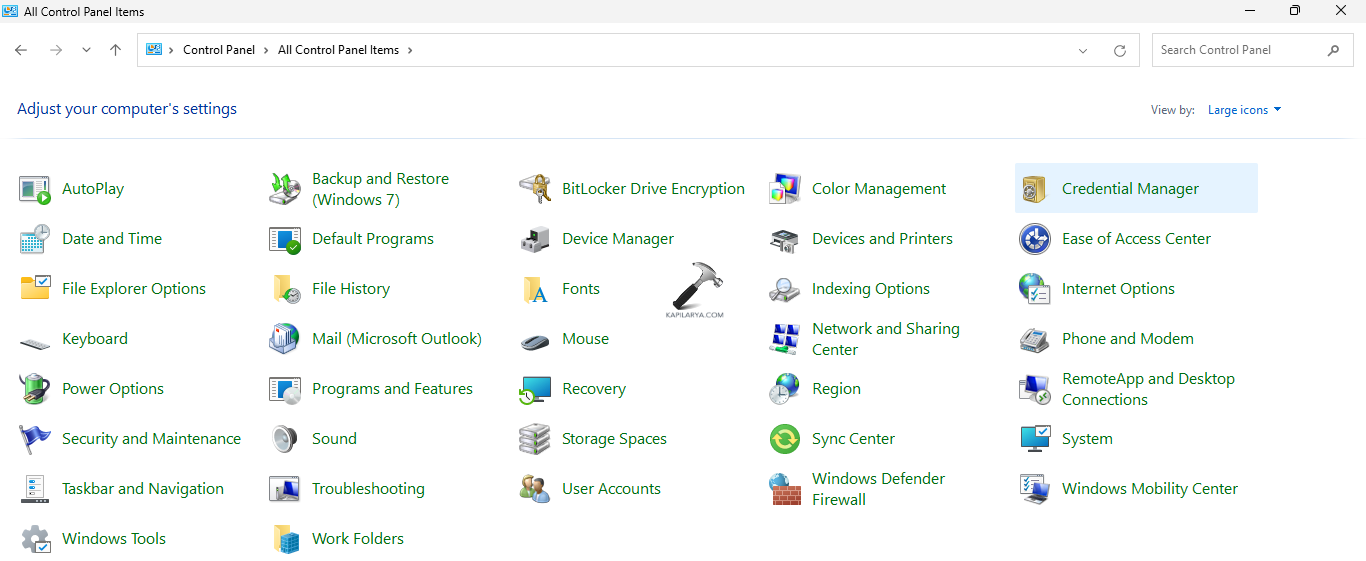
Step 3- Now, open Control Panel. Thereafter, visit Credential Manager.
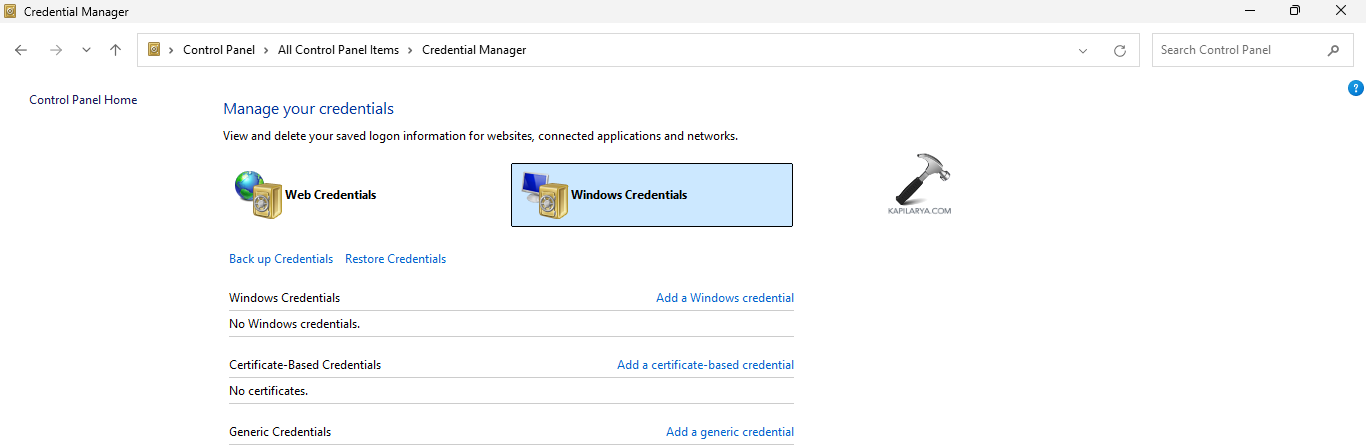
Step 4- Select Windows Credentials > Generic Credentials. Here, remove the Teams credentials.
Step 5- Lastly, restart the PC and reopen Teams. Check if this fixes the issue.
Fix 6: Updating Microsoft Teams
Outdated Microsoft Teams application can too cause the error code CAA5009D. Hence, updating the Microsoft teams to the latest version can also solve the problem. For finishing the update, press Settings and more > Check for Updates.

Hoping this helps!