If Microsoft Teams is not working properly while connected to a VPN in Windows 11, you may experience issues like failed calls, messages not sending, or no network errors.

Page Contents
Troubleshooting Microsoft Teams VPN Issues
This happens because VPNs can reroute, block, or slow down the traffic required for real-time communication. Below are the most effective methods to fix Teams VPN issues in Windows 11.
Fix 1: Enable Split Tunneling
VPNs often route all traffic through the corporate network, which can slow down Teams. Ask your IT admin to enable split tunneling. This allows Teams traffic to bypass the VPN while keeping secure traffic inside.
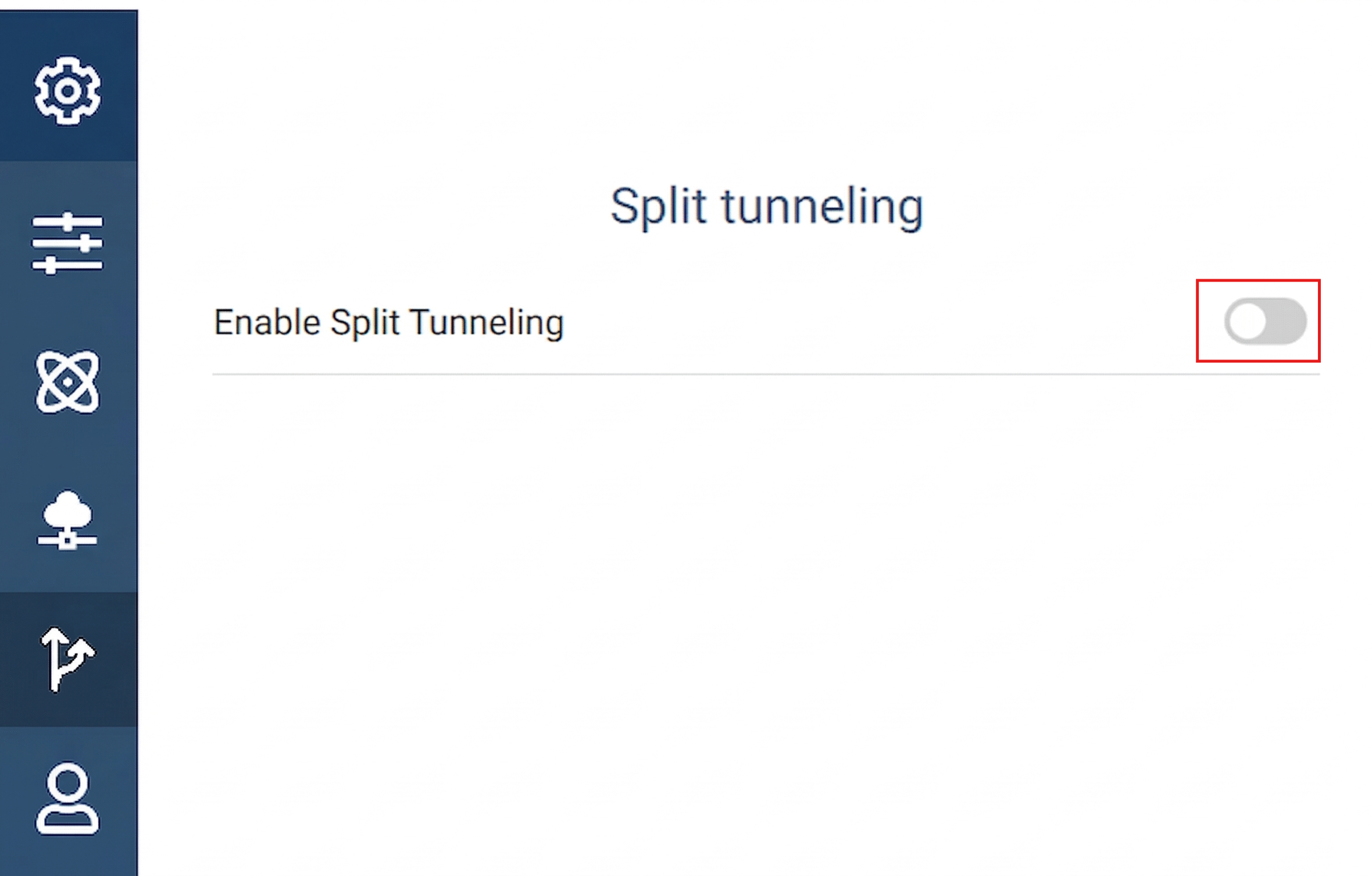
This reduces latency and improves call quality significantly.
Fix 2: Switch VPN Protocol (Use UDP-Based)
Microsoft Teams works best with UDP for voice/video calls.
1. Open your VPN settings and go to Advanced settings.
2. Click on Edit Connection properties.
3. Look for Protocol / Connection / VPN Type.
4. Switch to IKEv2, IPsec, or WireGuard.
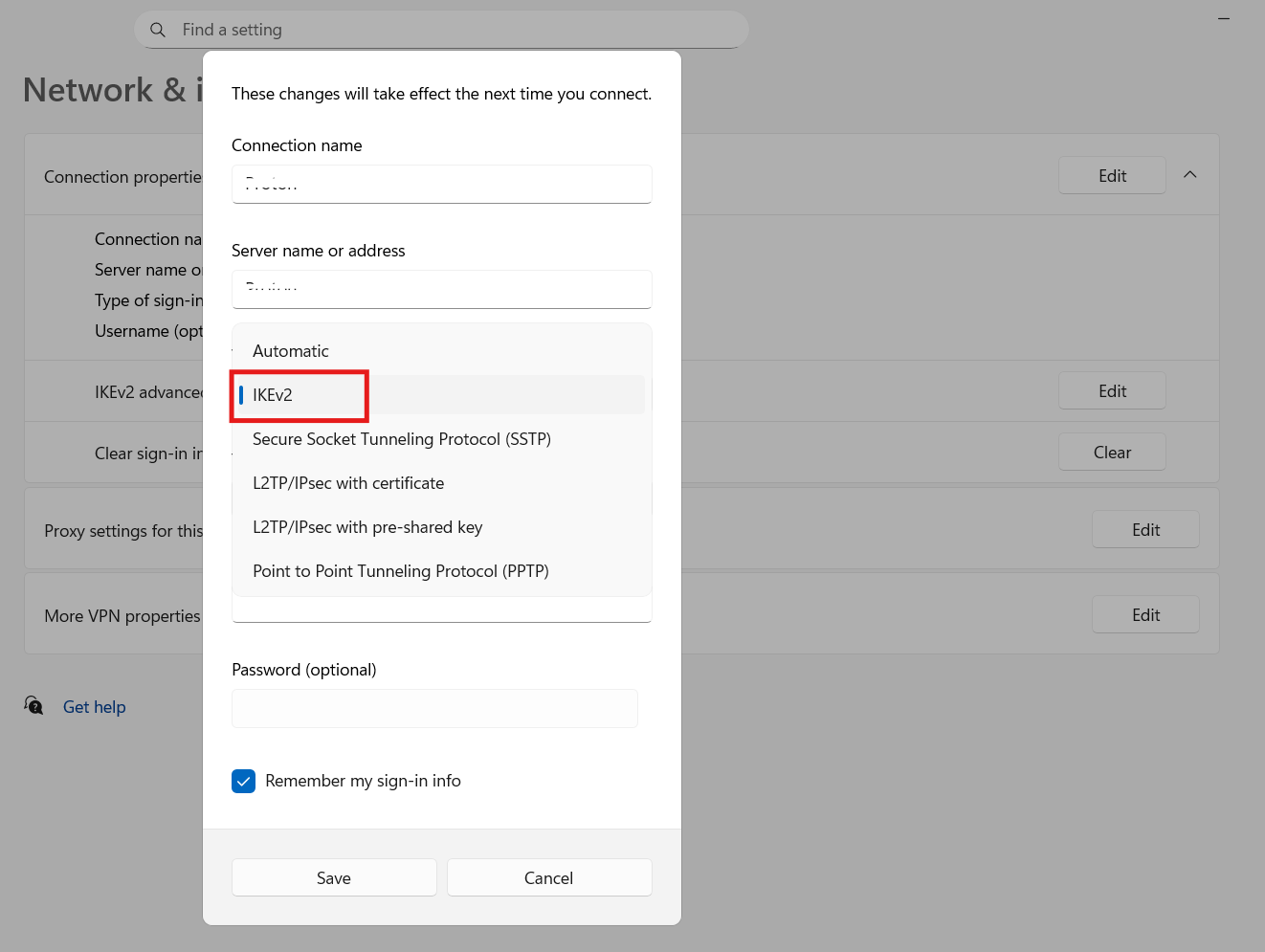
UDP-based protocols allow smoother audio/video compared to TCP.
Fix 3: Flush DNS and Reset Network Stack to fix Microsoft Teams VPN Issues
VPN DNS servers may fail to resolve Teams servers properly.
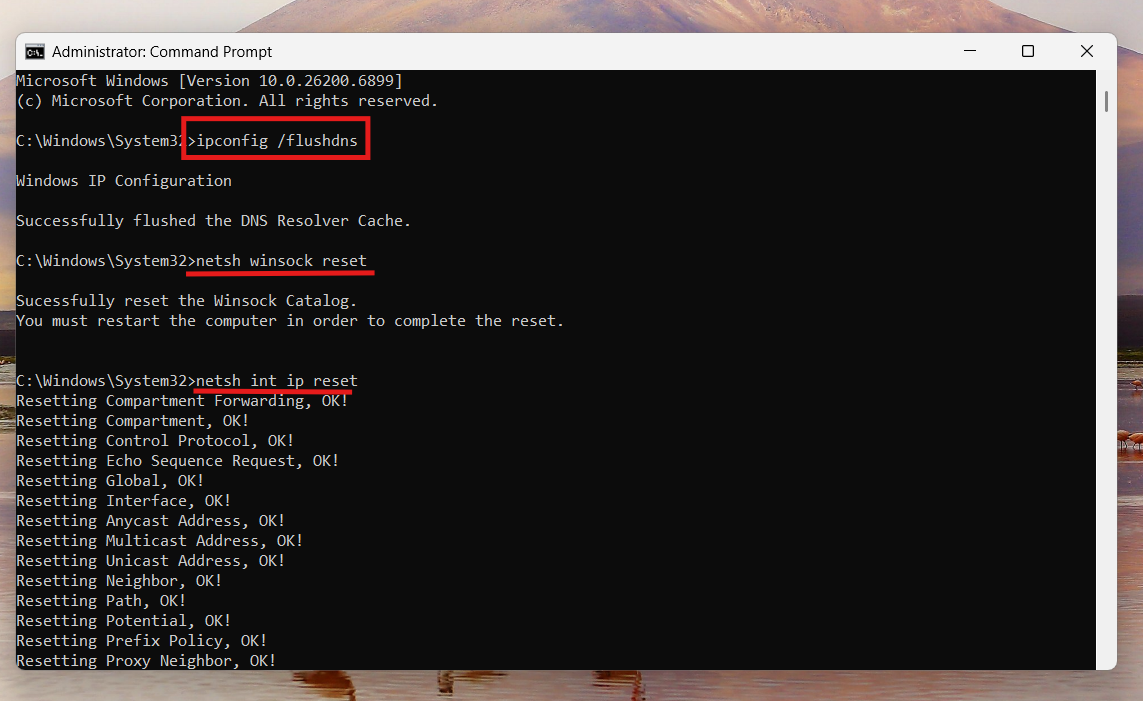
1. Open Command Prompt (Admin).
2. Run the following commands one after another:
ipconfig /flushdns
netsh winsock reset
netsh int ip reset
3. Restart your PC.
4. You can also set a public DNS by going to your network settings through the control panel, like:
- 8.8.8.8 / 8.8.4.4 (Google)
- 1.1.1.1 / 1.0.0.1 (Cloudflare)
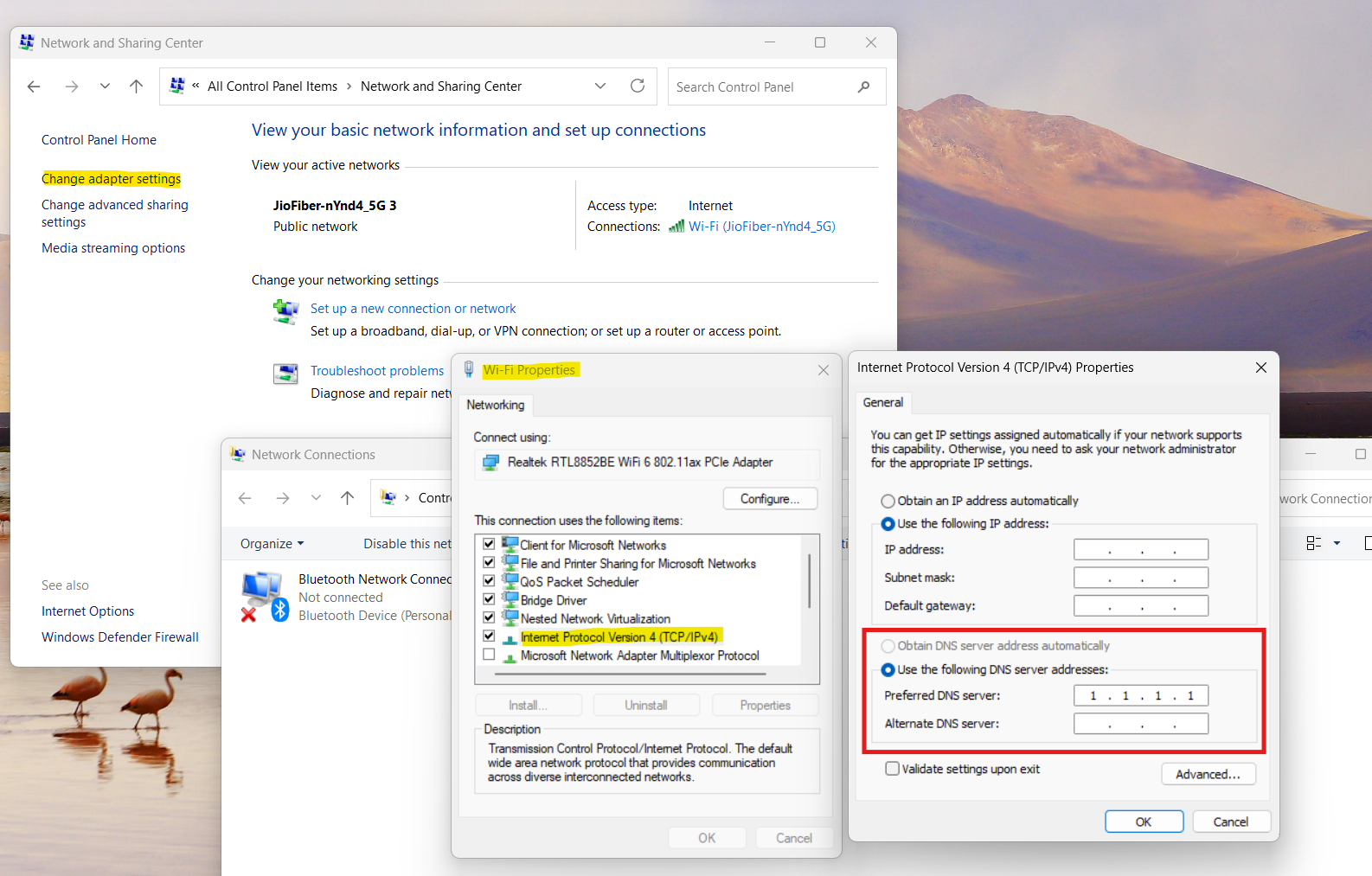
This ensures reliable name resolution.
Fix 4: Adjust VPN Server Location to fix Microsoft Teams VPN Issues
Connecting to a distant VPN server can trigger security flags or slow performance.
1. Choose a server closest to your actual location.
2. Avoid Auto or Fastest options.
3. Confirm the correct region with your IT team.
Location mismatches can cause Teams connectivity failures.
Fix 5: Adjust MTU and Network Settings
VPNs increase packet size, which may cause fragmentation and timeouts.
1. Open Command Prompt (Admin).
2. Run:
netsh interface ipv4 show subinterfaces
3. Then set a lower MTU (example):
netsh interface ipv4 set subinterface "VPN Name" mtu=1400 store=persistent
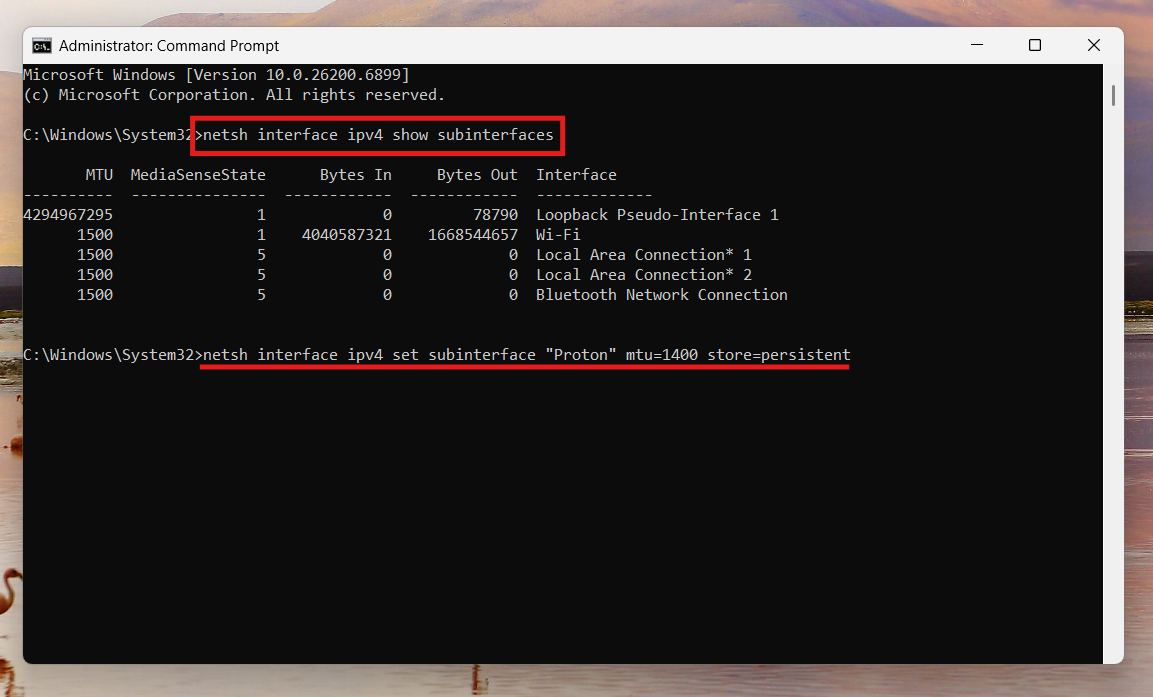
Lower MTU helps prevent dropped packets and improves stability.
Fix 6: Restart or Reconnect VPN & Teams
Simple resets can resolve temporary issues:
1. Disconnect and reconnect the VPN.
2. Restart Teams or your PC.
3. Try the Teams web version as a test.
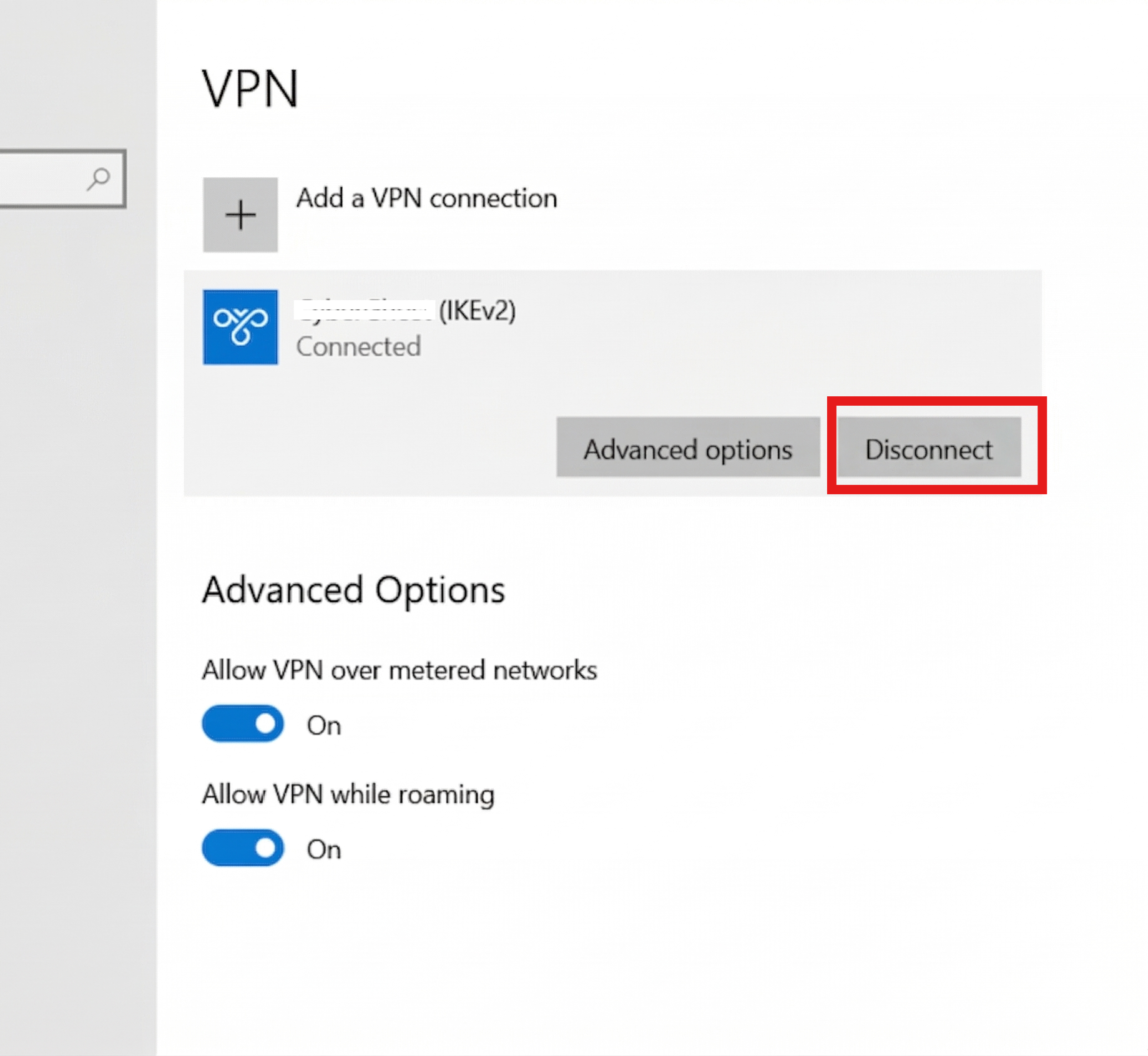
This helps rule out temporary session or cache problems.
Summary
Routing conflicts, DNS problems, or protocol limitations usually cause Microsoft Teams VPN issues. Enabling split tunneling, switching to UDP-based protocols, flushing DNS, and adjusting network settings are the most effective fixes. If problems persist, test Teams without VPN to confirm whether the VPN is the root cause.