There are several features in Windows 11 which you can enable using Turn Windows features on or off window. Features like .NET Framework, Hyper – V, Windows Sandbox, Virtual Machine Platform, Microsoft Print to PDF etc. can be easily enabled or disabled using that window. However, sometimes you may have issues turning on or off the features. In such cases, you would simply receive Windows couldn’t complete the requested changes.
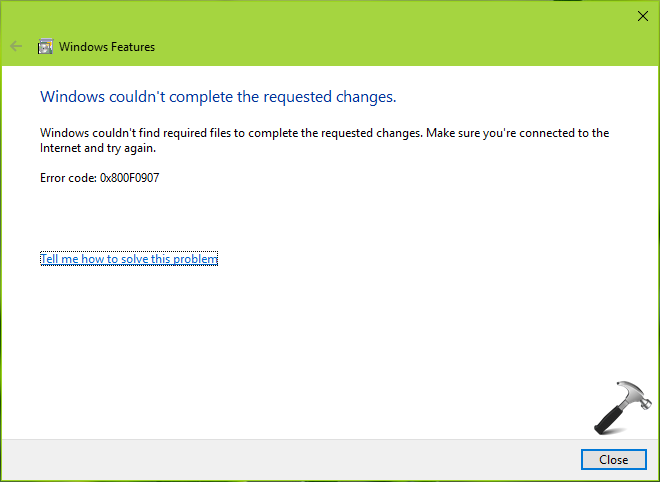
The error can be accompanied with error codes like 0x800F0906, 0x800F081F, 0x800F0907, 0x800F0922, 0x800F0805, 0x80070422 etc. In this article, you will read how to overcome this error and enable or disable your feature successfully.
Page Contents
Fix: Windows couldn’t complete the requested changes
Fix 1: Run Network Adapter troubleshooter
As soon as you receive this error, the first step is to check your Internet connection. While enabling or disabling the feature, it is very important that you must have an active working Internet connection. Even though Internet appears to be working, sometimes it may not. Recommended action is to check your Internet connection using the Network Adapter Troubleshooter.
1. Right click on the Start button and select Settings.
2. Go to System > Troubleshoot > Other troubleshooters.
3. Click on the Run button next to Network and Internet.
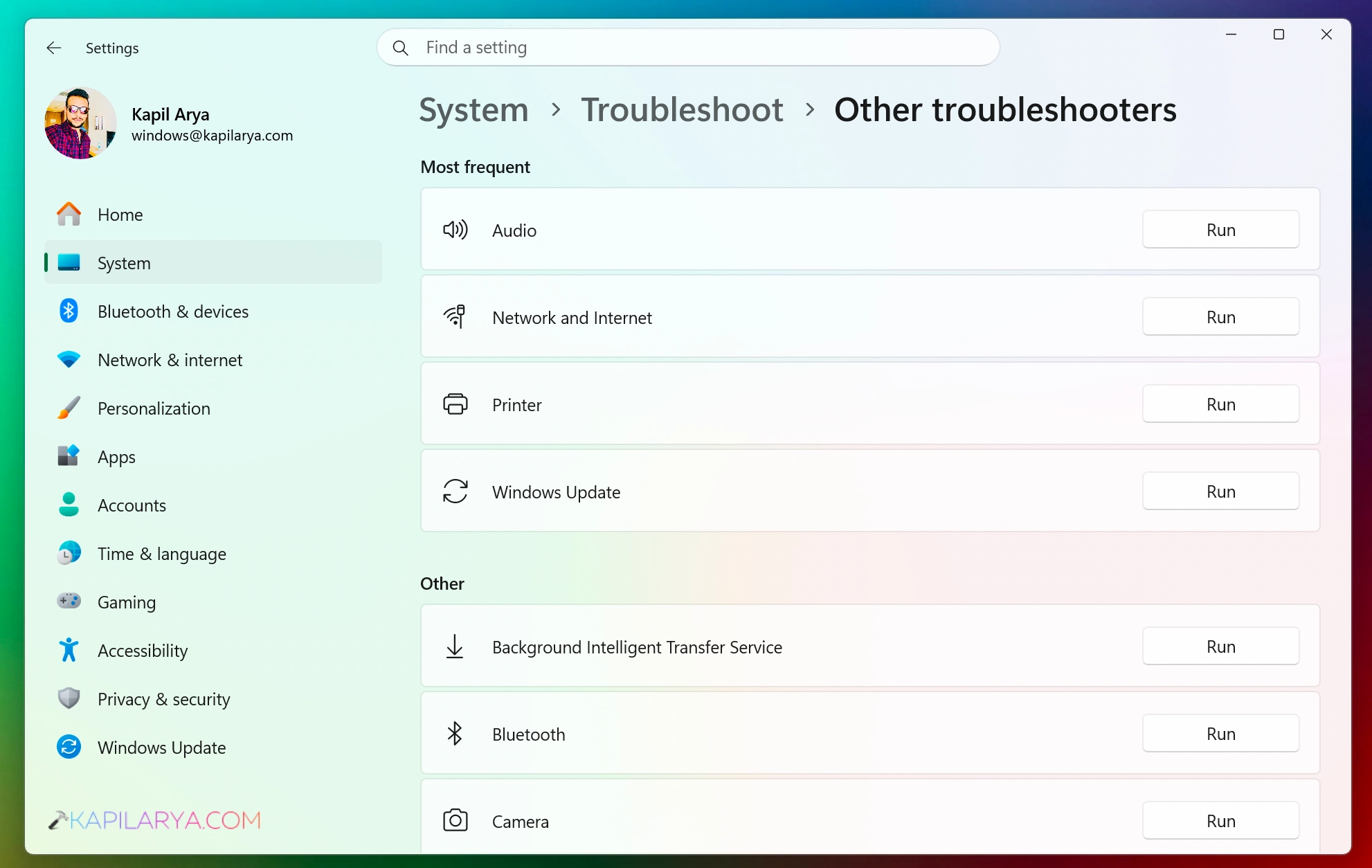
Note: Options and label may differ due to Windows 11 version.
Follow the on screen instructions and complete the troubleshooting by the actions recommended by the troubleshooter.
Fix 2: Using Group Policy
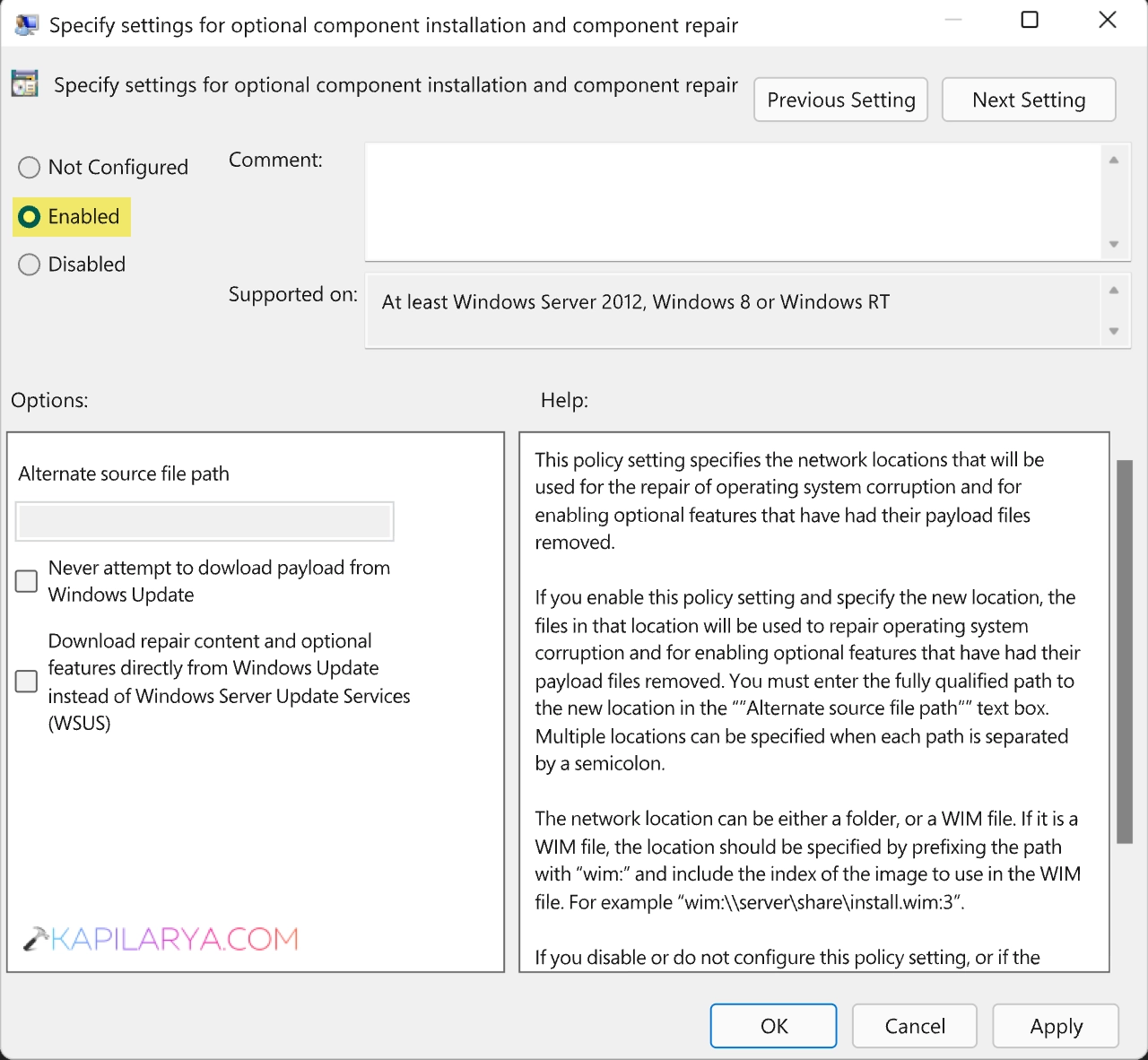
This issue may also appear if your system is configured to use Windows Server Update Services (WSUS) instead of the Windows Update server for servicing. You can change this by configuring a simple Group Policy setting using the steps mentioned below.
1. Open the local group policy editor using gpedit.msc command.
2. In the Local Group Policy Editor window, navigate to Computer Configuration > Administrative Templates > System.
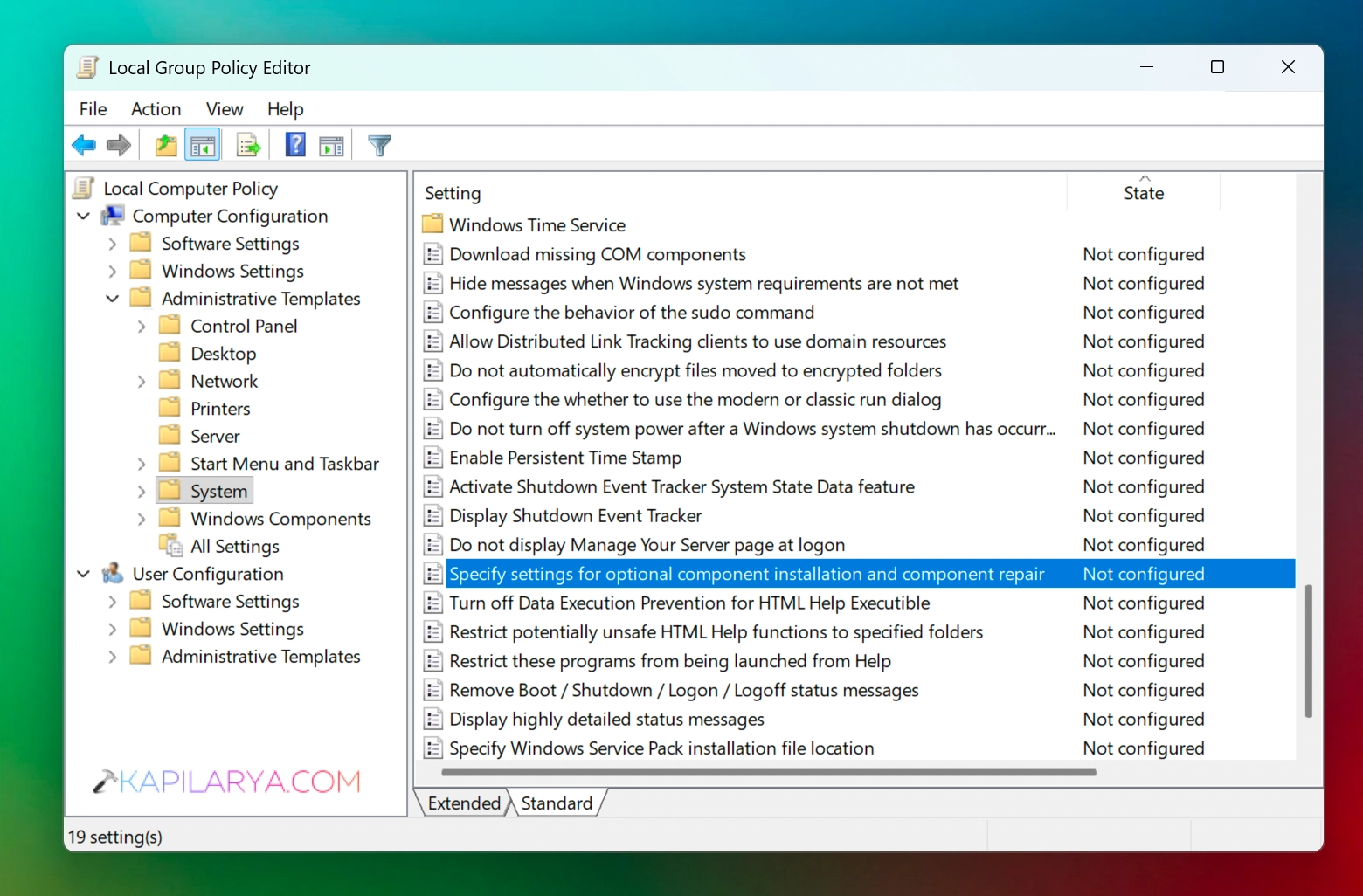
3. Locate the Specify settings for optional component installation and component repair Group Policy setting, double-click on it. Now select Enabled.
Fix 3: Solutions specific to error codes
Fix Error code 0x800F0907
This error code indicates the alternative source defined is either not found or is invalid. To resolve this error, you must configure the Group Policy setting Specify settings for optional component installation and component repair and make sure you check Never attempt to download payload from Windows Update option.
Fix Error code 0x800F081F
This error code indicates the source files are missing, or the user attempting to install the feature is not having the read access. To resolve this error, you have to specify the correct source to install the feature.
To provide a source, enable Specify settings for optional component installation and component repair Group Policy setting and specify alternate source file path as sources\sxs for your Windows 11 ISO file. You may attempt to download the source files again in case if the previous are not working.
That’s it!