You need a media feature pack error if you get this error in Windows 11, then this article is all you need. The error typically occurs on Windows 11 N or KN versions, which lack built-in media technologies such as Windows Media Player, some codecs, and media frameworks. Subsequently, applications based on these elements do not work effectively.
This is a guide to discuss what causes the “You need a Media Feature Pack error in Windows 11” and, most importantly, how to fix it with step-by-step instructions.
Page Contents
Why Does the You Need a Media Feature Pack Error Occur in Windows 11?
This is the mistake that mostly happens due to:
- You are on Windows 11 N or KN version.
- Such aspects of the media as codecs, Windows Media Player, or media APIs are absent.
- There were problems with the installation of Windows updates.
- Media feature system files are corrupted.
Pro Tip: Check Your Windows Edition First
It is always prudent to check your version of Windows to ascertain which version you are using before attempting any form of fix. This is what you can do to check your Windows 11 version.
1. Click “Windows + R“. Type this and press Enter.
winver
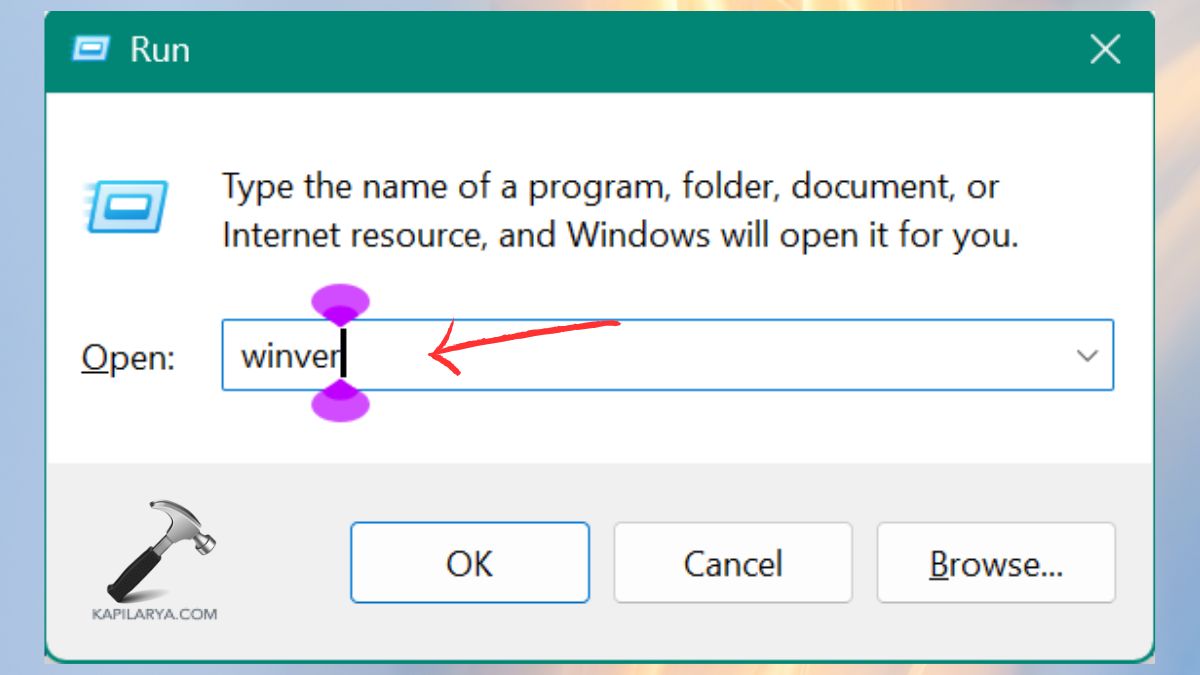
2. Seek Windows 11 N or KN. In case you notice N or KN, then you are in the right place. At this point, we will proceed to the best measures to correct you have the media feature pack error in Windows 11.

Fix You need a media feature pack error in Windows 11
The fix you need a media feature pack error in Windows 11 might seem like a serious issue at first, but it is one of the simplest Windows issues to resolve. Also, it might take a few minutes with the appropriate actions and a bit of advice.
Method 1: Install Media Feature Pack Through Optional Features
This is the surest and least effortful method of correcting the mistake. This technique is suitable for the majority of users and recovers lost media elements instantly.
1. Press “Windows+I” to access Settings. Go to System. Click on Optional features.

2. Click the View features under the Add an optional feature.
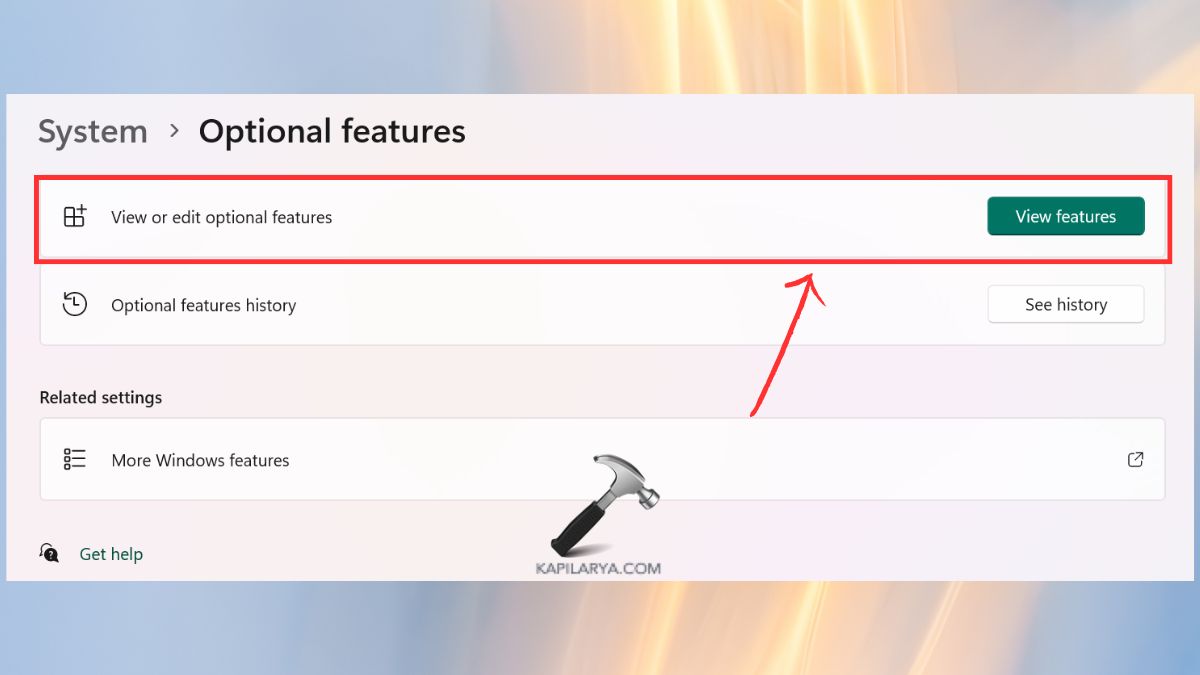
3. Here, search Media features pack. Check the box and click “Next”. Click “Install”.

Finally, boot into the PC after installation.
Method 2: Run the Windows Update Troubleshooter
In some cases, the error may be brought about by stuck Windows updates. This way resolves the update-related problems that can lead to the installation of the Media Feature Pack not being completed.
1. Open Settings. Go to “System”. Click “Troubleshoot”.
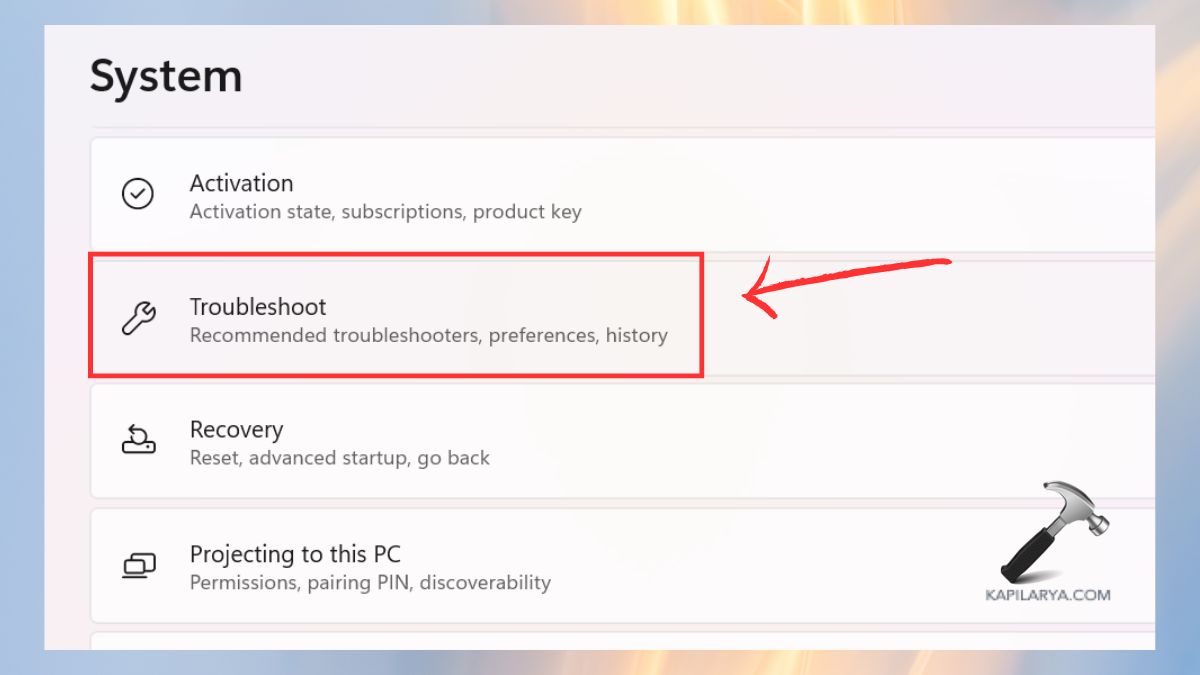
2. Choose the option “Other troubleshooters”.
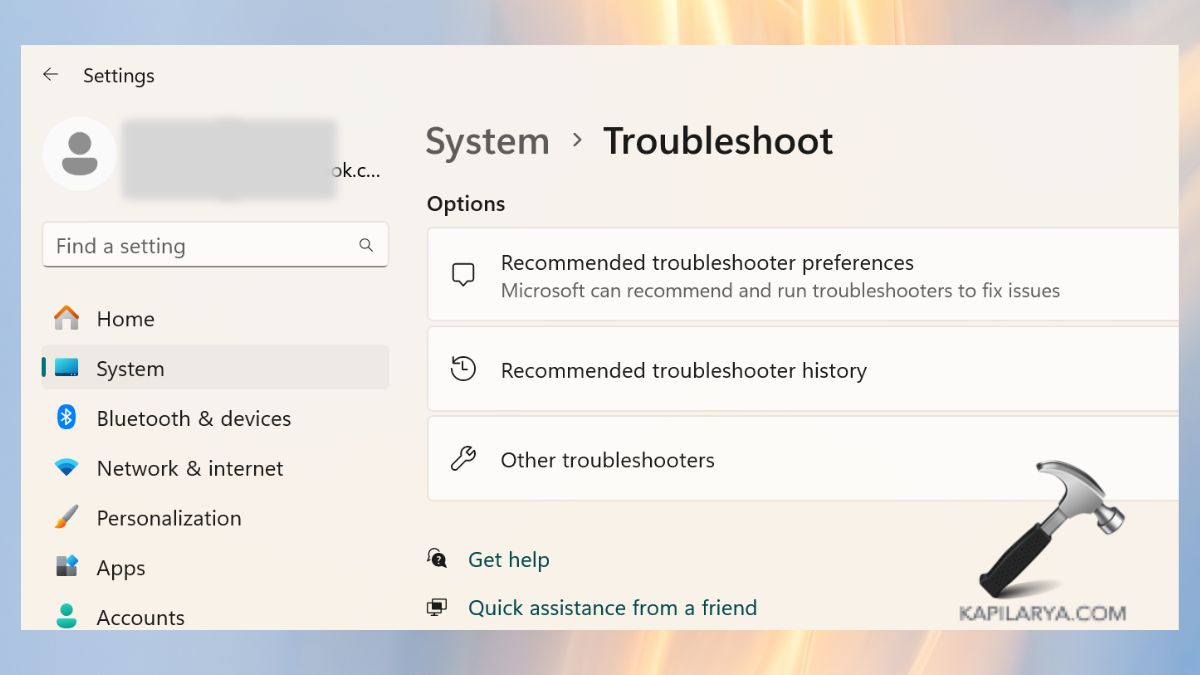
3. Now, press the button “Run” beside the Windows Update.

Take the on-screen directions. Restart your system.
Method 3: Install Media Feature Pack from Microsoft’s Official Website
Only in case the Optional Features fail to work, the pack can also be manually installed, which is a good option. Always remember to download from Microsoft and not to have a problem with malware.
1. Go to the official downloads webpage of the Microsoft Media Feature Pack (https://support.microsoft.com/en-us/topic/media-feature-pack-list-for-windows-n-editions-c1c6fffa-d052-8338-7a79-a4bb980a700a).
2. Choose the right variant of Windows 11 version with “N”. Download it and run the installer.
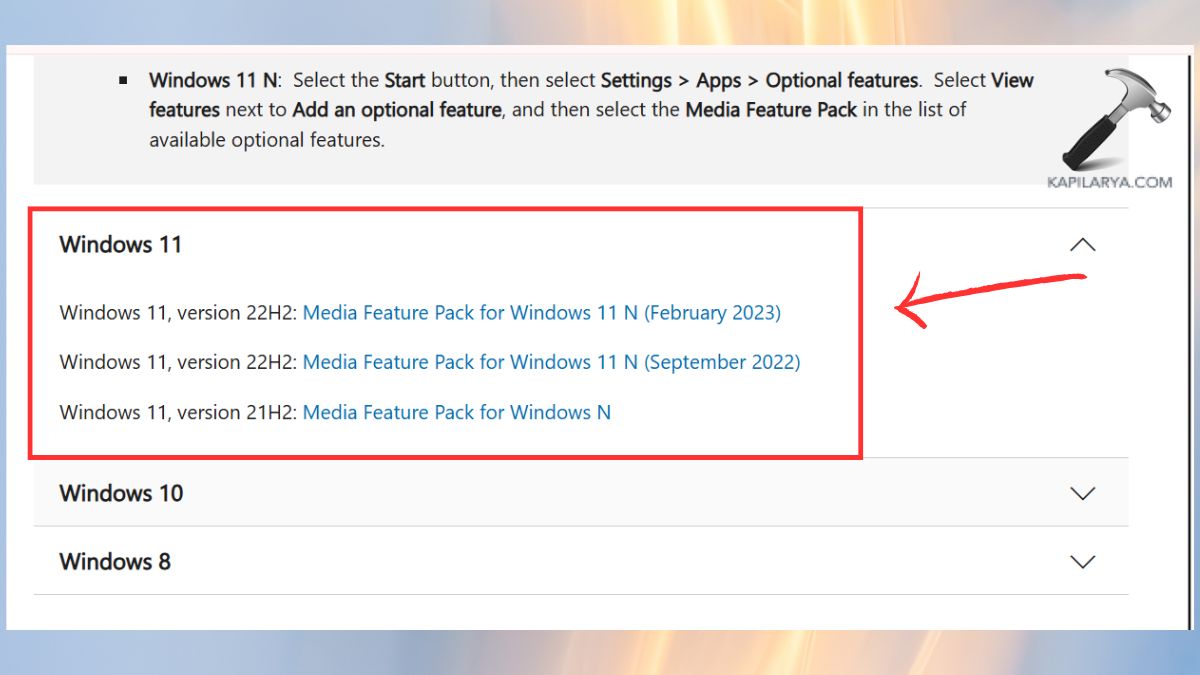
Restart your PC, again.
Method 4: Install Media Feature Pack Using DISM Command
This is the best way to be used by highly advanced or IT professionals. DISM can be used directly to install missing capabilities in Windows and is highly effective.
1. First, press “Windows + S” or open Start menu, type “CMD”. Right-click Command Prompt or click Run as Administrator.

2. Enter the following command. Then, press Enter.
DISM /Online /Add-Capability /CapabilityName:Media.MediaFeaturePack~~~~0.0.1.0

Allow the process to fully finish.
Frequently Asked Questions (FAQs)
What is the Media Feature Pack in Windows 11?
The Media Feature Pack comes with critical media technologies such as codecs, Windows Media Player, as well as media APIs absent in Windows 11 N and KN versions.
Which Windows 11 versions need the Media Feature Pack?
The media feature pack is only necessary with Windows 11 N and KN. These features are already present in standard editions.
Can I install the Media Feature Pack without reinstalling Windows?
Yes, it can be easily installed through optional features, the Microsoft website, or even through DISM commands. There is no need to reinstall.
Will installing the Media Feature Pack fix app and game errors?
Yes, numerous applications, games, and video players are dependent on media elements. Related errors are normally solved through the installation of the pack.
That’s it!