Windows Hello PIN login failed or not working in Windows 11? After updates, system updates, or account sync problems, Windows 11 users can experience sudden Windows Hello PIN problems. Though this is an error that is quite easy to correct without having to install Windows or lose your information.
Windows Hello PIN is designed to be quicker and more secure for logging in. However, the errors will lock you out or make you repeat the actions of signing in. In this tutorial, you will know the reason why the Windows Hello PIN login will not work in Windows 11 and fix this problem step by step.
Page Contents
Windows Hello Issues in Windows 11
Windows Hello can, in certain instances, block some specified sign-in options completely, such that you cannot create or change your PIN. This normally occurs because of restrictions on policy or improper system settings.
Examine this stepwise procedure to address the problem – Fix: Windows Hello is preventing some options from being shown in Windows 11.
Unless your issue is PIN-only, you might be facing a larger problem with authentication, as you can use face recognition or even complete Windows Hello failure as well.
Why Windows Hello PIN Login Failed in Windows 11
The causes of this issue are-
- Infected Windows Hello PIN data.
- New Windows 11 versions are proving to be problematic in the systems.
- Problem with Microsoft accounts sync.
- TPM (Trusted Platform Module) malfunction.
- Corrupted profile settings or system files.
Whatever the reason, the following solutions are sure to get you out of the Windows Hello PIN login failure in Windows 11.
Is Windows Hello PIN Safe to Use?
Yes, absolutely. Nevertheless, Windows Hello PIN is among the most secure ways of logging in in Windows 11, despite the error. Here’s why:-
- One of them is that the PIN is stored on your computer, not on the Microsoft servers.
- The PIN is not applicable on a different device, even when one has stolen your password.
- It supports TPM (Trusted Platform Module) to enhance additional security.
- And even when your Windows Hello PIN is not working, it does not reveal any information that the functionality is unsafe. It only requires reconfiguring or resetting.
Fix Windows Hello PIN login failed in Windows 11
With no success with Windows Hello PIN login failing on Windows 11, the following solutions can assist in restoring access to the system within the shortest possible time and with maximum security.
Fix 1: Sign in Using Your Local Account Password
In case your PIN is not responding, then the quickest method is to use your local account password in order to access the computer again.
1. On the Windows sign-in screen, the Sign-in options are represented.
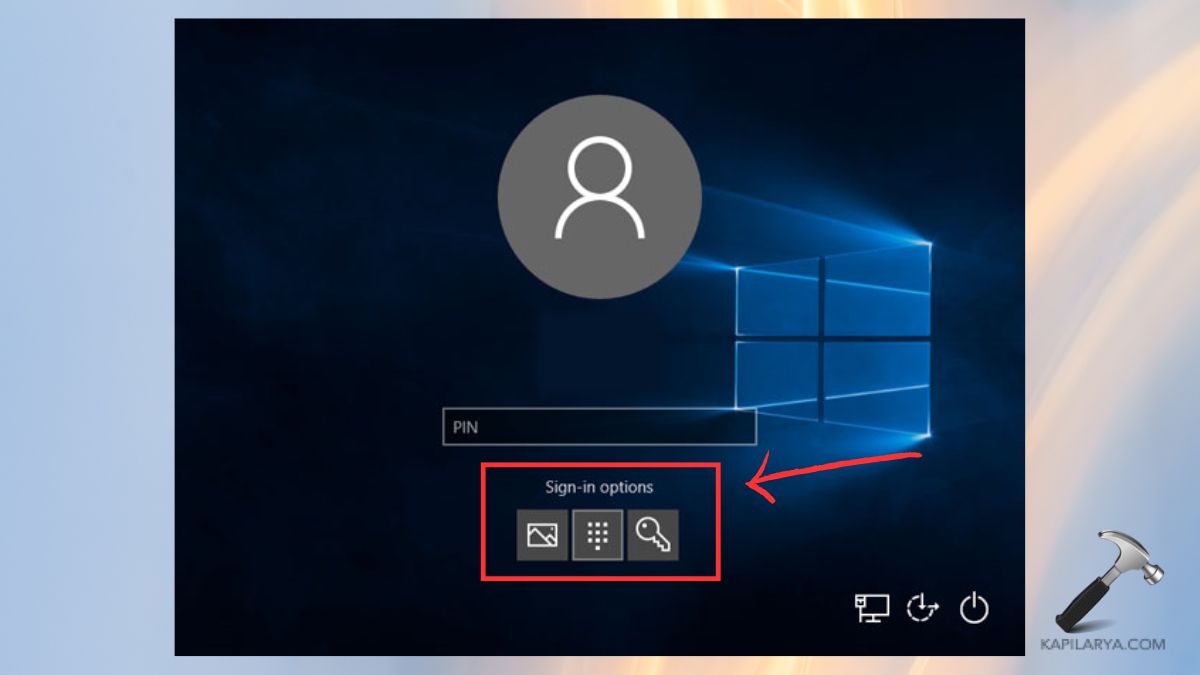
2. Select the Password icon. Type in the password of your local account.
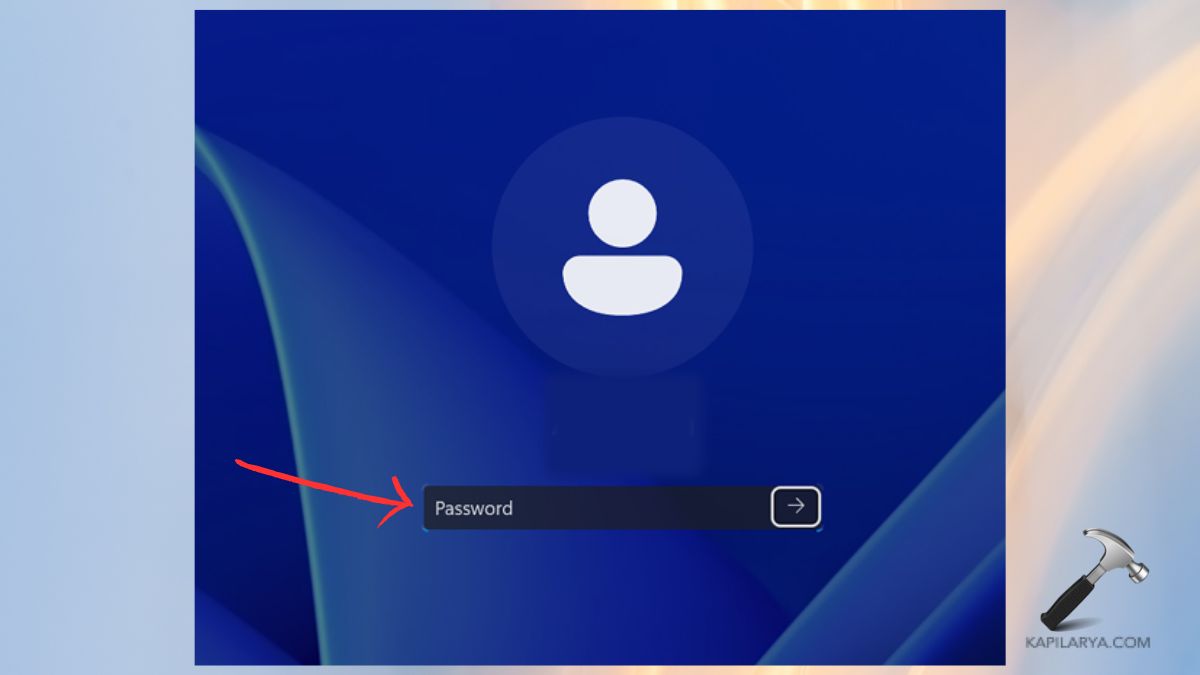
Press Enter. When logged in, one is able to change or reset the PIN of Windows Hello.
Fix 2: Sign in Using Your Microsoft Account
In some cases, the error can be caused by the misconfiguration of local accounts. It can be remedied by switching to your Microsoft account.
1. During the login screen, you need to select Sign-in options.
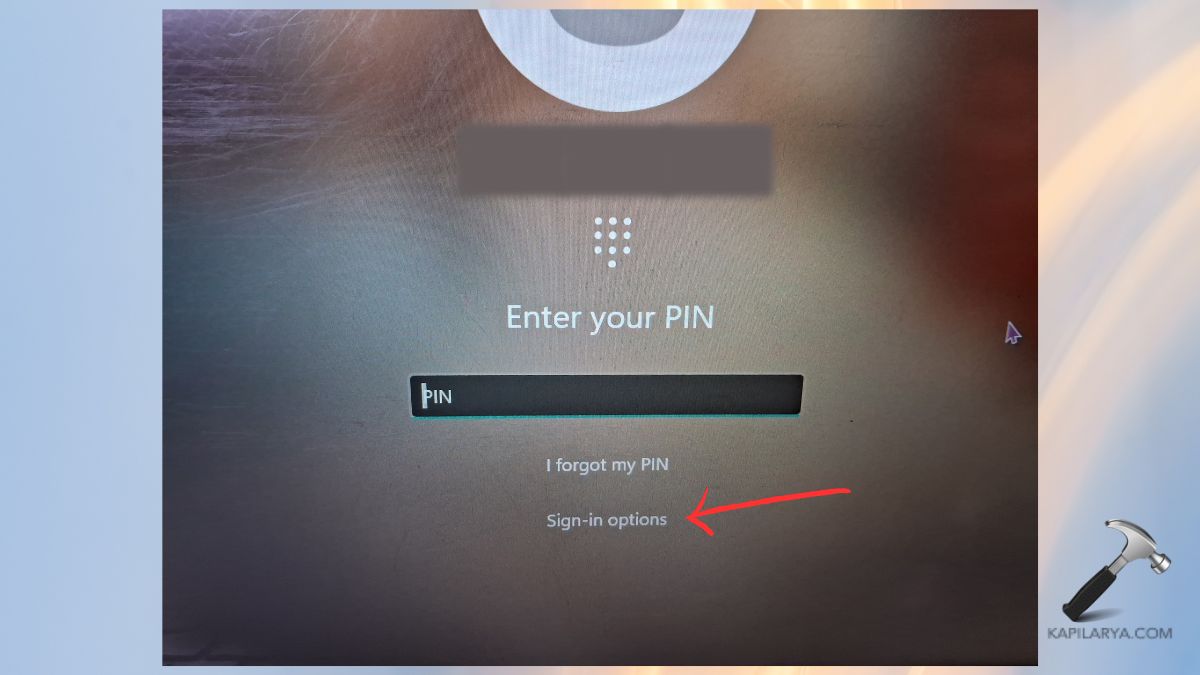
2. Choose a Microsoft account password icon. Enter password and address: Microsoft mail address.
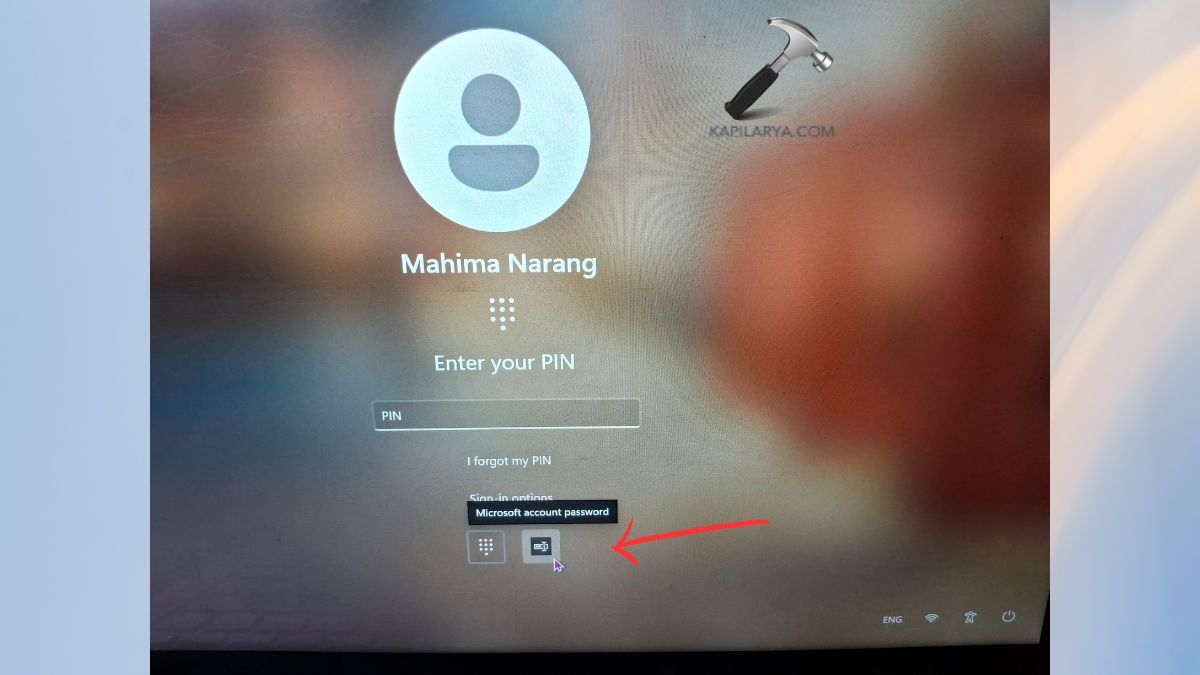
3. After the login, change the PIN of Windows Hello.
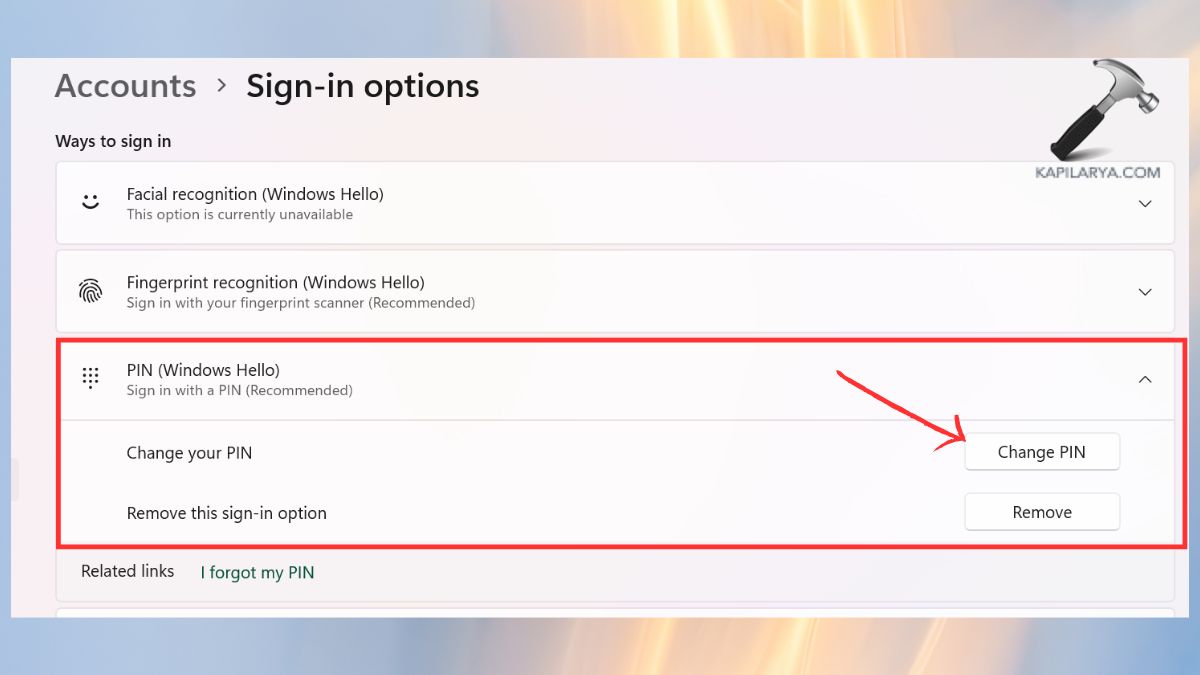
Fix 3: Reset Windows Hello PIN from Settings
Corrupted credential data can normally be solved by resetting the PIN. The procedure to Reset Windows Hello PIN is the following.
1. Login using alternative sign-in option as mentioned in Fix 2.
2. Hit “Windows + I” in order to open Windows settings. In the Accounts section, go to Sign-in options.

3. In PIN (Windows Hello) by click on remove.
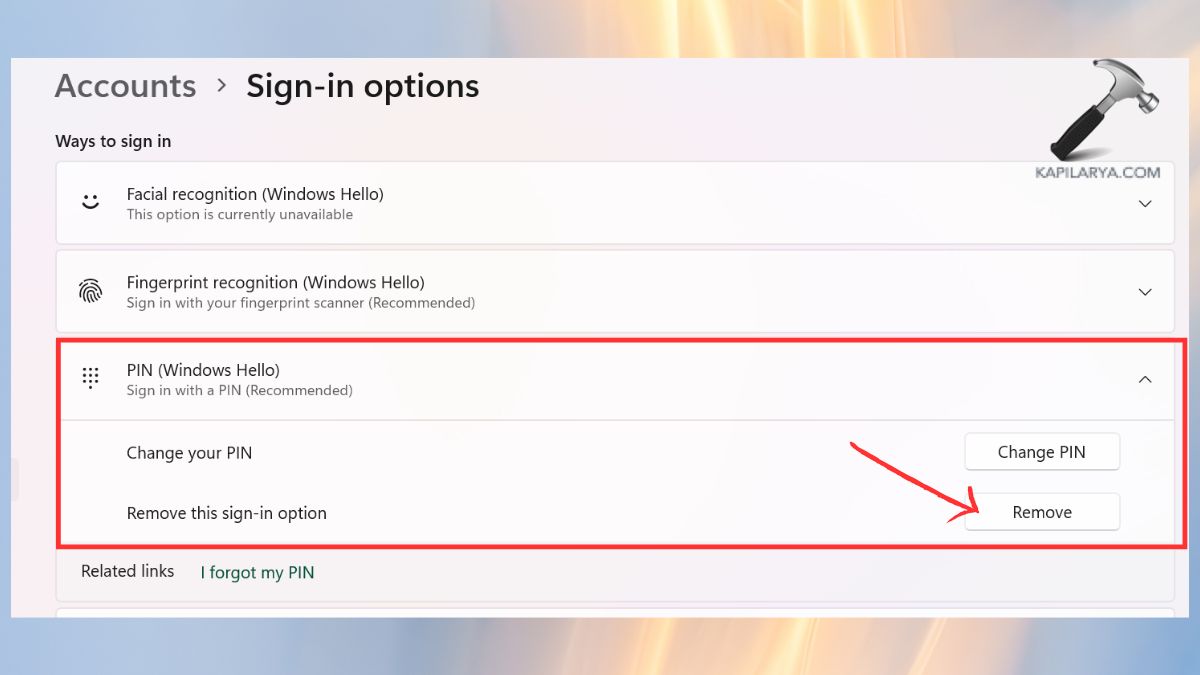
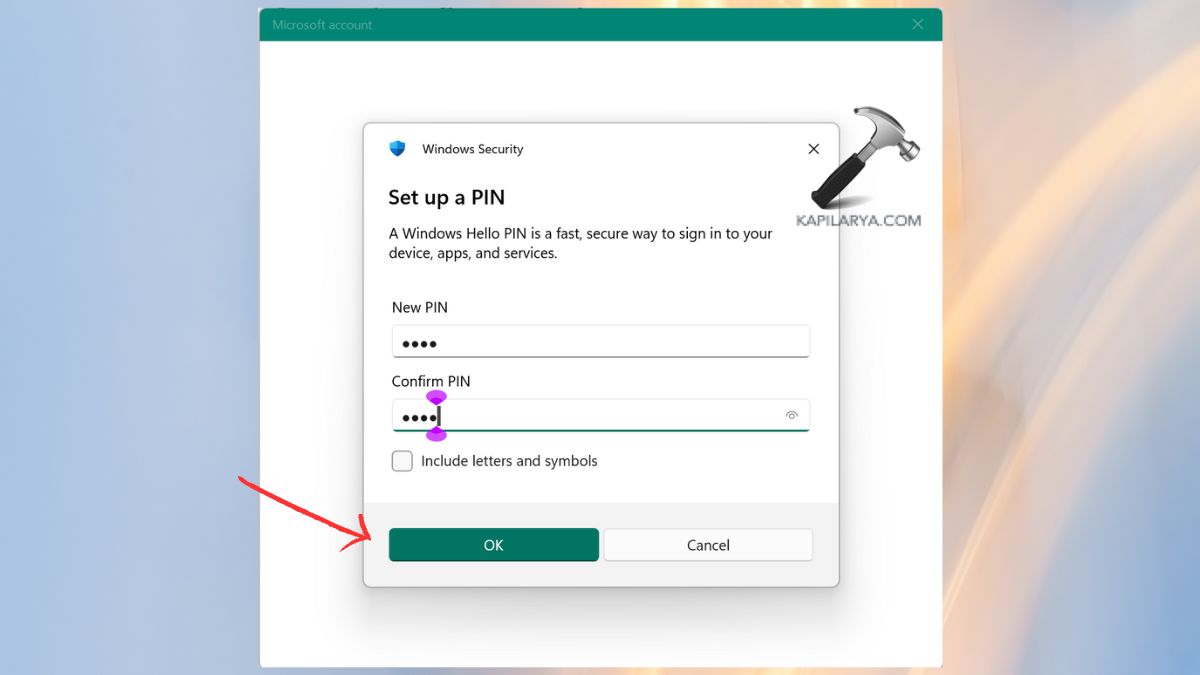
4. Restart your PC. Go back to Sign-in options. Click Setup.
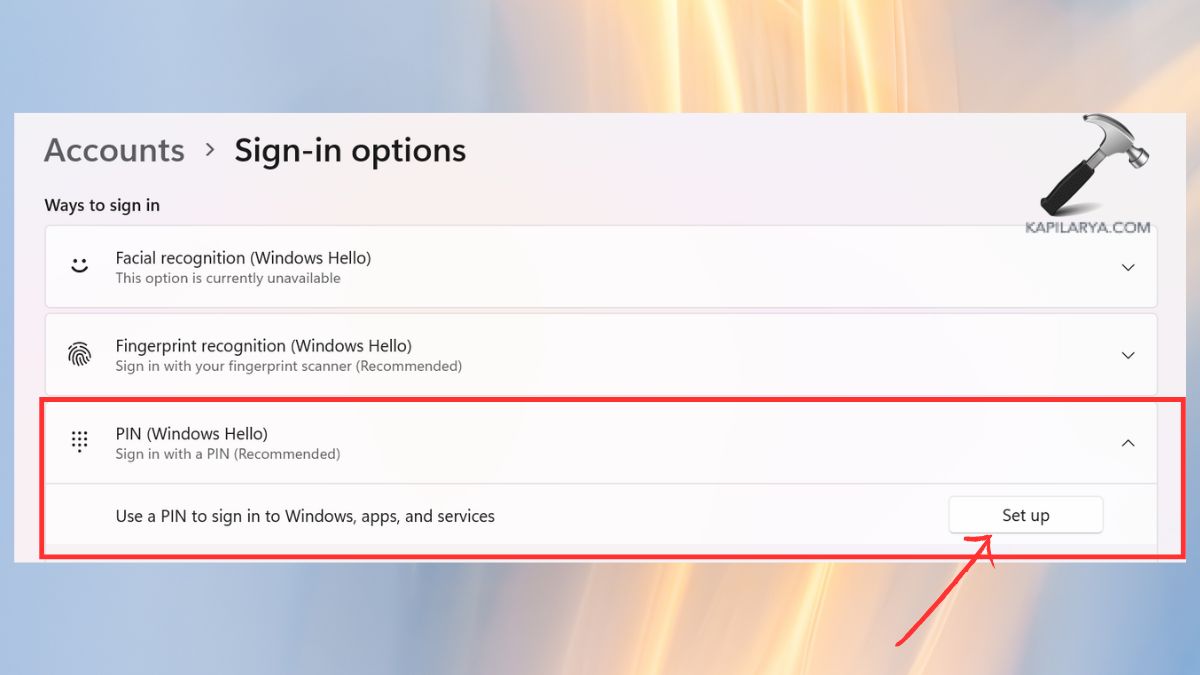
5. Now, follow the on-screen instructions and set a new PIN.
Fix 4: Clear Windows Hello PIN Cache (Recommended)
In case the problem continues, it is possible to clear a PIN cache manually.
1. Sign in with the aid of a password of a Microsoft account, or fingerprint(if available).
2. After login, open File Explorer. Navigate to this path remove the files in the NGC folder –
C:\Windows\ServiceProfiles\LocalService\AppData\Local\Microsoft\NGC
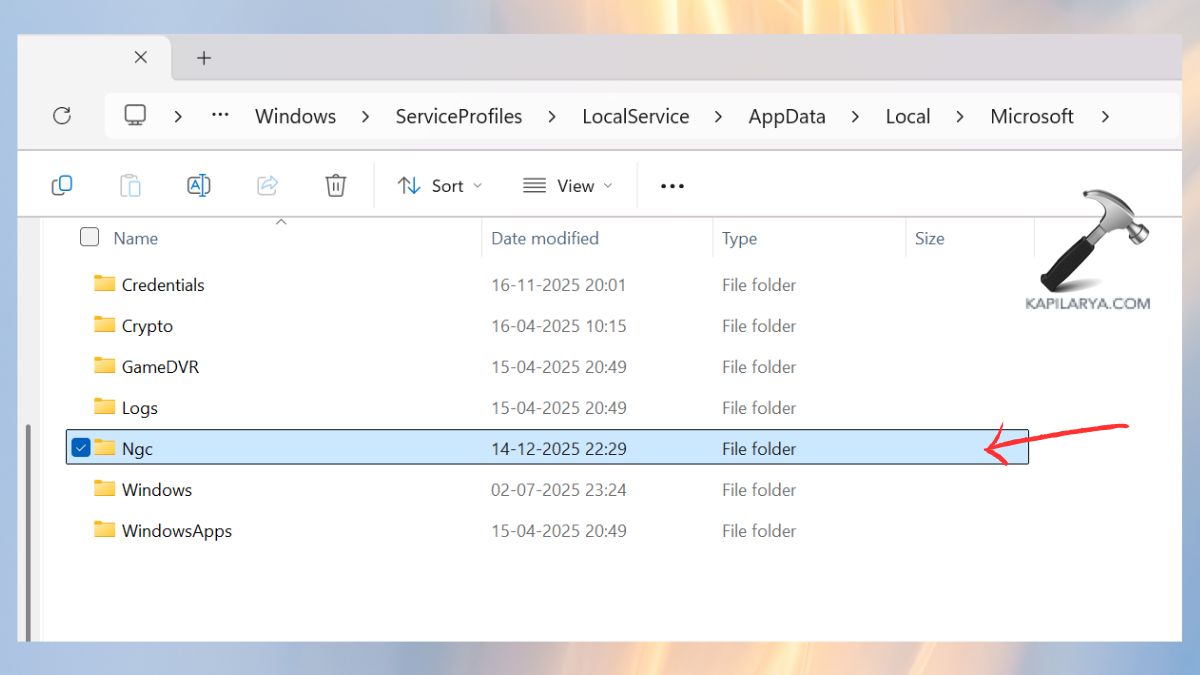
Then, you have to restart your PC.
Video fix
You can also refer this video fix for further help:
How to Prevent Windows Hello PIN Login Failed Error in the Future
It is always good to prevent rather than repair the problem at a later date. These few procedures can make sure you will not have to deal with Windows 11 PIN login issues once more.
- Always update your Windows 11 system.
- Never forget to take your Microsoft account password.
- Do not use force shutdowns during Windows updates.
- Enable a backup sign-in (fingerprint or password).
- PIN is not the same after resetting.
Frequently Asked Questions (FAQs)
Why does Windows Hello PIN stop working suddenly?
This normally occurs following Windows updates, bad system files, or account sync issues.
Can I use Windows 11 without Windows Hello PIN?
Yes. Instead, you can use biometric, a password, or a Microsoft account login.
Does resetting the PIN delete my data?
No. Resetting or deleting of PIN does not hurt your personal files or applications.
Is Windows Hello PIN more secure than a password?
Yes. The PINs are device-specific and saved on local devices, hence safer to attack by the online device.
That’s it!
![Windows Hello not working in Windows 11/10 [2026 Fix]](https://www.kapilarya.com/assets/Windows-Hello-768x343.jpg)