

Error code 0x800f0983 Windows Update is a well-known error that occurs during the installation of cumulative or feature updates in Windows 11 or Windows 10. This is quite likely to block successful updates from being made on Windows. And, this can be caused by wide-ranging factors, including spoiled update files, unstable communications, or damaged system parts.
If you also download the Windows updates as soon as they are available, but get stuck with the 0x800f0983 update error? Well, that happens to many of us. With this guide, you can also easily correct it through defined and effective troubleshooting procedures.

Page Contents
Fix Windows Update error code 0x800f0983
The following are the most effective Windows Update error 0x800f0983 troubleshooting and solving methods. Check each of the methods step-by-step and see whether the problem is solved after each of them.
Fix 1: Run System File Checker (SFC Scan) to Repair Corrupt Files
The damaged files on the system are one of the main reasons for error code 0x800f0983. These corrupted files can be checked and fixed by running an SFC (System File Checker) scan.
1. For this, press Windows + S, write cmd. Then, right-click Command Prompt and choose Run as administrator.

2. Access the Command Prompt and type in the command below and press the Enter key.
sfc /scannow

Wait until the end of the scan. Though this can take a couple of minutes.
3. After doing that, restart your computer, and again check for the latest Windows Update.
Fix 2: Retry Installing the Failed Windows Updates
In some cases, there might be a temporary problem caused by an unfinished installation. In many cases, we can solve the 0x800f0983 update error by simply trying the update again.
1. Click on Settings (Windows + I) and go to Windows Update.
2. Tap again on the “Check for updates” button.

Note: In the case the failed update has been displayed, click Retry to make another attempt to download and install the update.
3. Hence, reboot your PC when the successful installation is done.
Fix 3: Manually Reset Windows Update Components
In case it gives the error due to the corruption of the update components, one of the most recommended methods to solve Windows Update error code 0x800f0983 is to reset it manually.
1. Click Start. Type “cmd” on the Run line and select Run as Administrator.
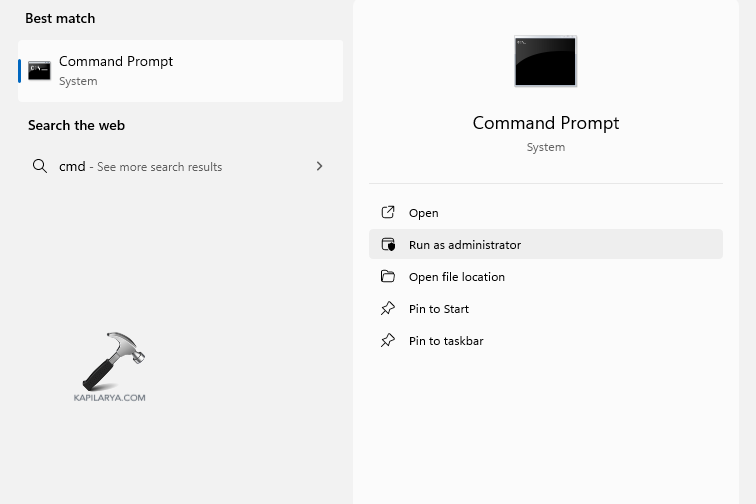
2. To stop services like Windows Update, type each of the following commands, pressing Enter after each.
net stop wuauserv
net stop bits
net stop cryptsvc
net stop msiserver

3. Type these commands to rename the folders.
ren C:\Windows\SoftwareDistribution SoftwareDistribution.old
ren C:\Windows\System32\catroot2 Catroot2.old

4. Restump the services, you paused previously.
net start wuauserv
net start bits
net start cryptsvc
net start msiserver

5. Exit the Command Prompt and restart your PC.
6. Now, open the Settings app and go to Windows Update and recheck updates.
To reset Windows Update, you can also refer this video guide:
Fix 4: Run Windows Update Troubleshooter
Windows Update Troubleshooter is a built-in menu offered by Microsoft that detects and addresses the issues of updates, including the 0x800f0983 error.
1. Press the button Windows + I to open the Settings, then select System > Troubleshoot > Other troubleshooters.
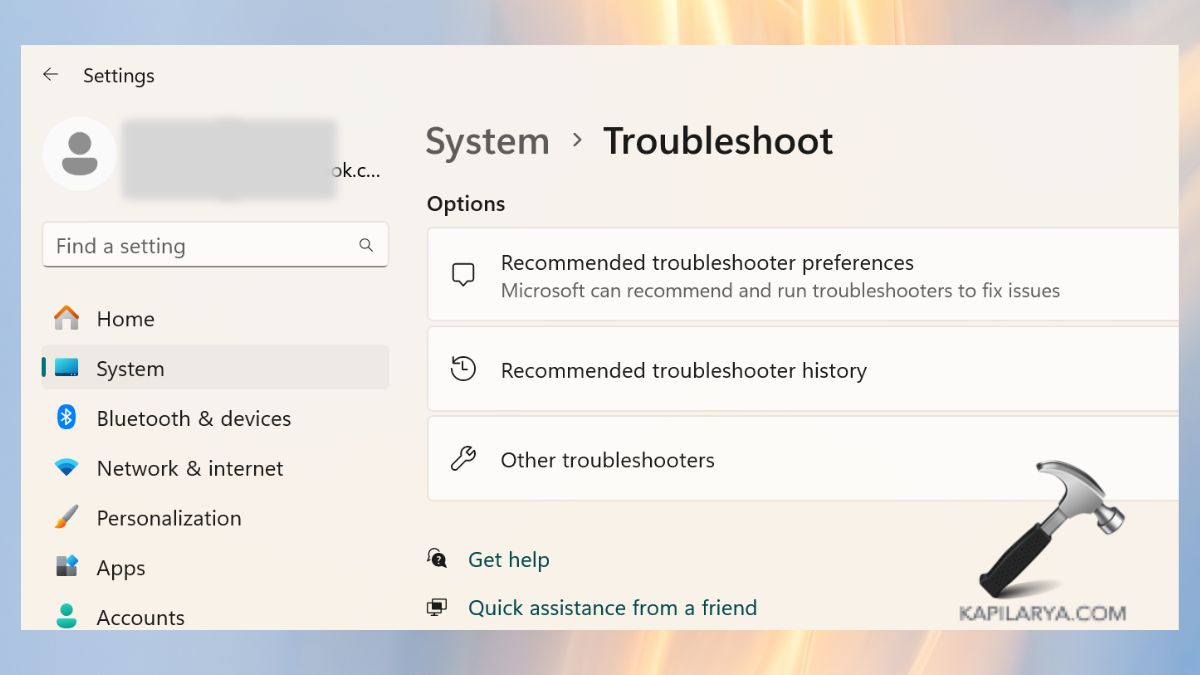
2. Go to the list and find Windows Update; then, press Run near it.

Allow the troubleshooter to go through scanning and implementing suggested repairs.
3. After that is done, restart your PC and then try the update again.
Fix 5: Verify your connection to the Internet
As you are aware, a consistent connection is the key to downloading and the successful completion of Windows updates. Moreover, an inadequate internet connection might result in the failure to download the update, such as 0x800f0983.
1. First, make sure to connect your computer to a fast internet connection. Reboot the modem/router one time.
2. Turn off any VPN or proxy.
3. Use Network Troubleshooter:-
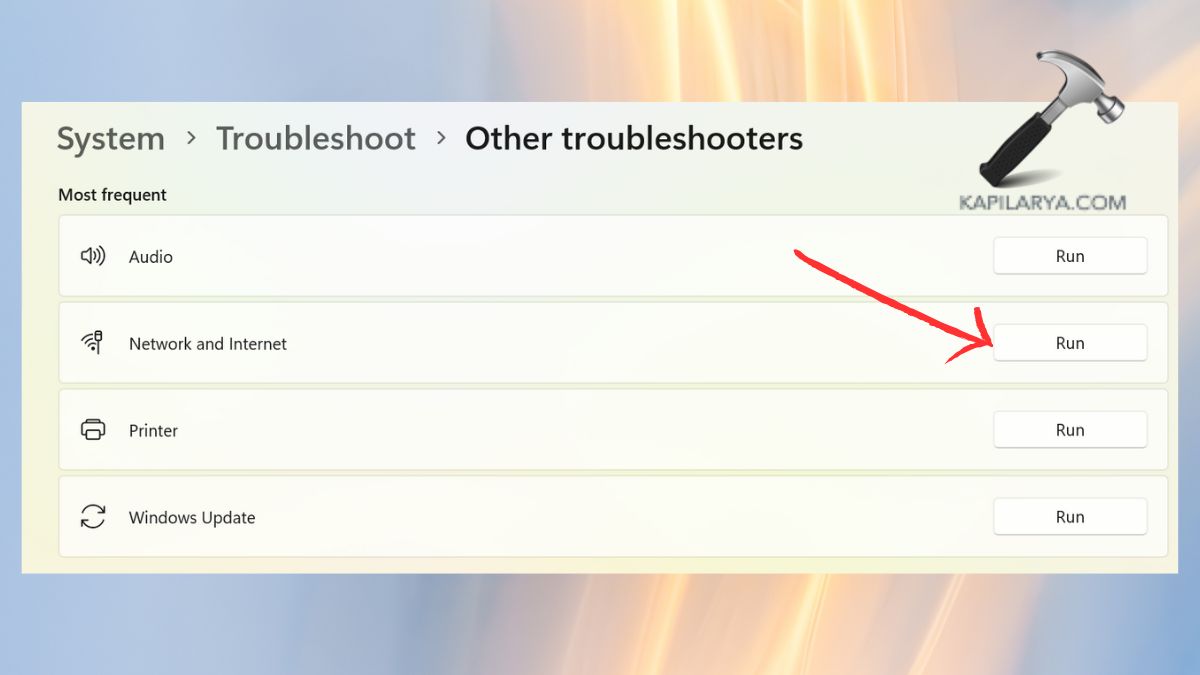
a. Go to Settings > System > Troubleshoot > Other Troubleshooters.
b. Then, find the Network & Internet and proceed to tap “Run”.
Frequently Asked Questions (FAQs)
That’s it!





Thank you Mahima N. Yours is one of the best how to fix this pages I have found. The inclusion of the screen grabs is exactly how I do my version of help files for friends who need help. The only issue I would like to see here is how to fix the onboard windows update troubleshooter. I had the same failure with the previous big update 24H2. At least the windows update troubleshooter worked then. So now I am going to start my search for addressing this issue. Your step by step approach is logical (at least to my brain) and easy to follow.
Again, thank you