

Toast notifications are one of the thousand new features introduced inside Windows 8. Toast notifications alerts users about the ongoing process inside the system. A message inside box is pop-up when something important happened on your system.
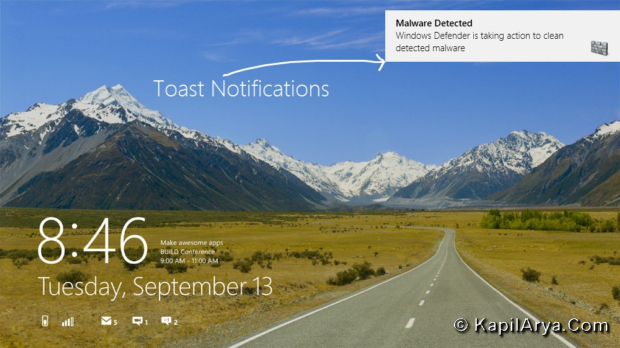
In Windows 8, toast notifications are shown at the top right corner of screen. These notifications are also shown on lock screen. Now if you are enjoying lock screen and toast notification interrupt you, you’ll surely want to disable it because this time they are irritating.
In this article, we’re going to share you the way to disable these notifications. Here is how :
How To : Disable Toast Notifications From Lock Screen In Windows 8
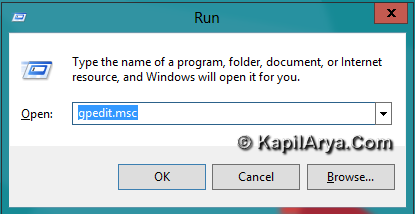
1. Press  + R combination on keyboard. Type gpedit.msc in Run dialog box and click OK.
2. Navigate here :
User Configuration -> Administrative Templates -> Start Menu and Taskbar -> Notifications
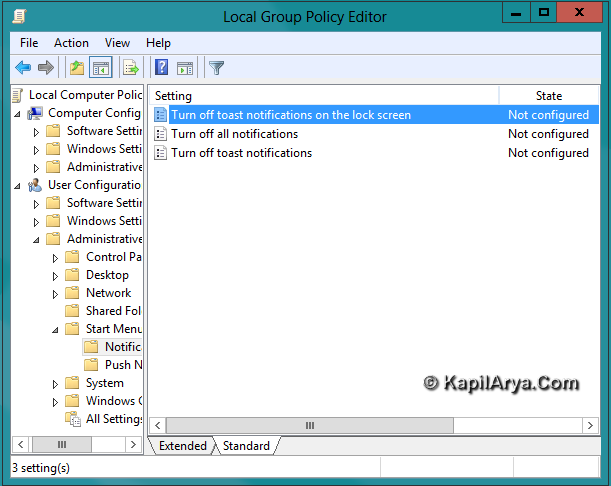
3. In the right pane, double click on Turn off toast notifications on the lock screen. Choose the Enabled option from the window opened and click on Apply followed by OK.
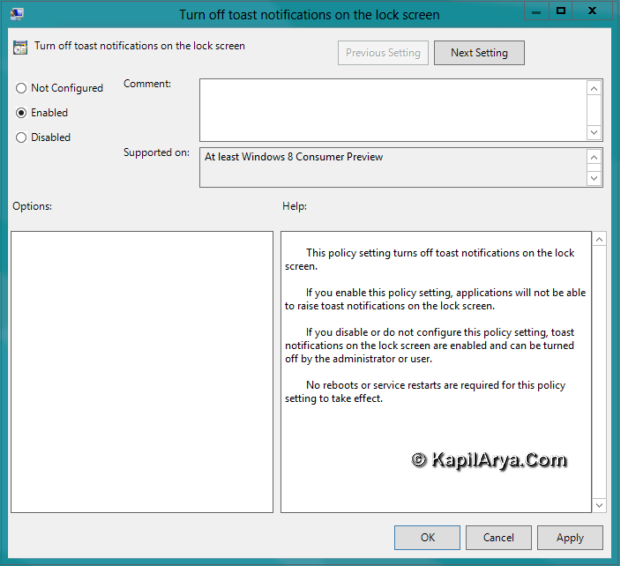
You have successfully disabled toast notifications on lock screen. Press + L to check.
You might also want to read Disable Annoying Notification Balloons In Windows 7 & 8!



great buddy. some of the features in in windows 8 has no meanings for me and this also one of them.
gud!! i think it can b done via regedit :)
hi guys, i m new here can you tell me where can i get commands for winodws 8 beta?
^^ Hello leopard709, welcome to Kapil Sparks™!
Go here :
http://www.kapilarya.com/ultimate-collection-of-windows-8-commands-shortcuts
thanks kapil nice tip as usual :xD
this is ultimate lolz :)