In case Windows 11 keeps freezing randomly on your computer or notebook, you are not isolated. Numerous users report system lock-ups, frozen screens, or sluggishness without explanations. This is a frustrating problem that might interrupt work, play, or just general use and can usually come as the symptom of some deeper issues with drivers, settings, or system files.
In this article, we are going to discuss 10 solutions in detail and efficiency that can assist you in troubleshooting random freezes on Windows 11. Be it a driver problem, a conflict in settings on your display unit, or the load on memory, the step-wise approaches will steady your system. Continue reading to learn how to alleviate freezing issues in Windows 11 and optimise the performance of your PC.
Page Contents
Fix Windows 11 keeps freezing randomly
Fix 1: Adjust the Display Resolution on Windows 11
The wrong display settings will cause overloading of your GPU, particularly when you are using a very large resolution not supported by your hardware.
1. Pressing Windows + I opens the Settings. Visit System > Display.

2. In Display Resolution, choose the recommended resolution (up to 1920 x 1080 on a screen with a ratio of 16:9).

3. See Click Keep changes to confirm.
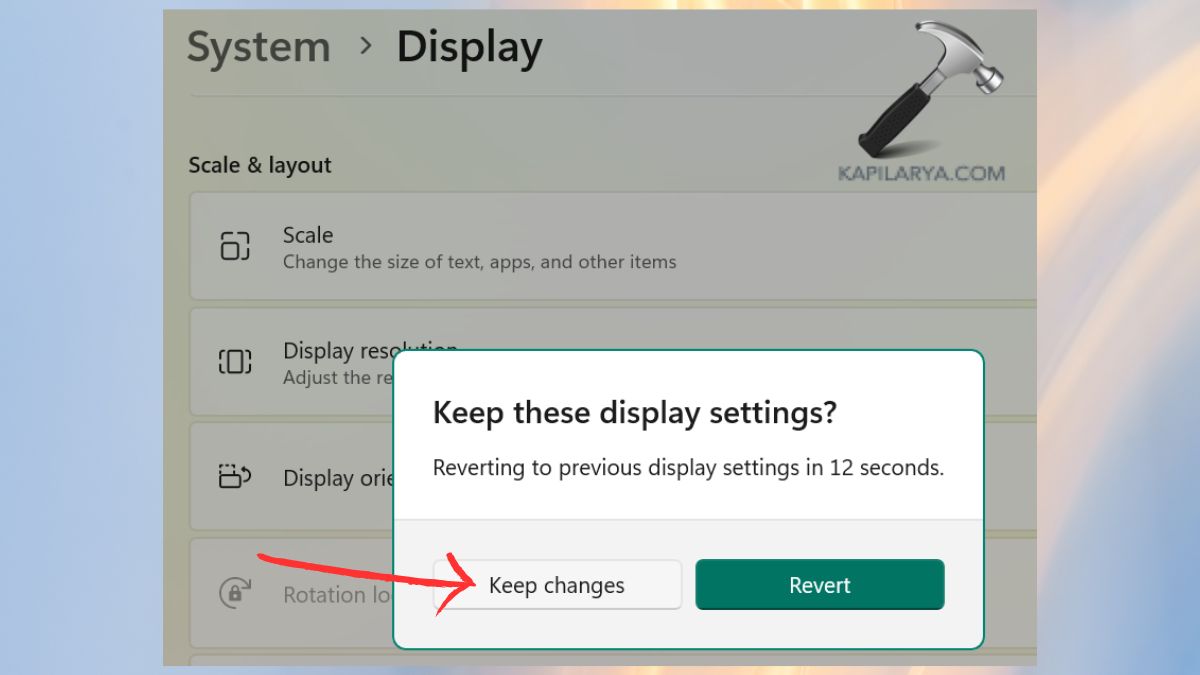
Reducing the resolution of your screen will free some dots on your graphics hardware and can prevent freezing Windows 11.
Fix 2: Delete Temporary Files on Windows 11
Even the presence of numerous temporary files may considerably reduce the speed of the system and cause Windows 11 to freeze at random moments.
1. Hit the Windows key + R, type the command, and hit Enter.
temp

2. Press Ctrl + A to select all the files, as well as, delete them.

3. Do it again by entering the below two command one-by-one in the Run box and delete files in these directories as well.
%temp%
prefetch

In Windows 11, clearing temporary files assists in enhancing performance and stability.
Fix 3: Run a CHKDSK Scan on Windows 11
Your hard drive may freeze or randomly shut down due to some corrupted sectors or errors on the hard drive.
1. Press Windows and S and write “cmd”. You will see the Command prompt, right-click on it and choose Run as administrator.

2. Type the command in.
chkdsk /f /r C:

Press Enter. You will be asked to plan the scan the next time the machine restarts. To restart your PC press Y.
This will search and correct hard disk errors that might be causing the freezing problem.
Fix 4: Run Windows Memory Diagnostic Test
One of the most frequent reasons for a system freezing in Windows 11 is the presence of faulty RAM. You can run Windows Memory Diagnostic once.
1. Quickly press Windows + R, type this command, and tap Enter.
mdsched.exe

2. Select Restart and test it now to find problems.

Your system will be restarted to determine memory problems. The Windows will show the test results after the scan process. When some RAM issues are identified, such an idea as the replacement of your memory modules should be considered.
Fix 5: Run a Deep Virus Scan on Windows 11
The CPU has the ability to run high or just in the background, causing malware or a virus.
1. Access Settings > Privacy and Security > Windows Security.

2. Select Virus & threat protection.
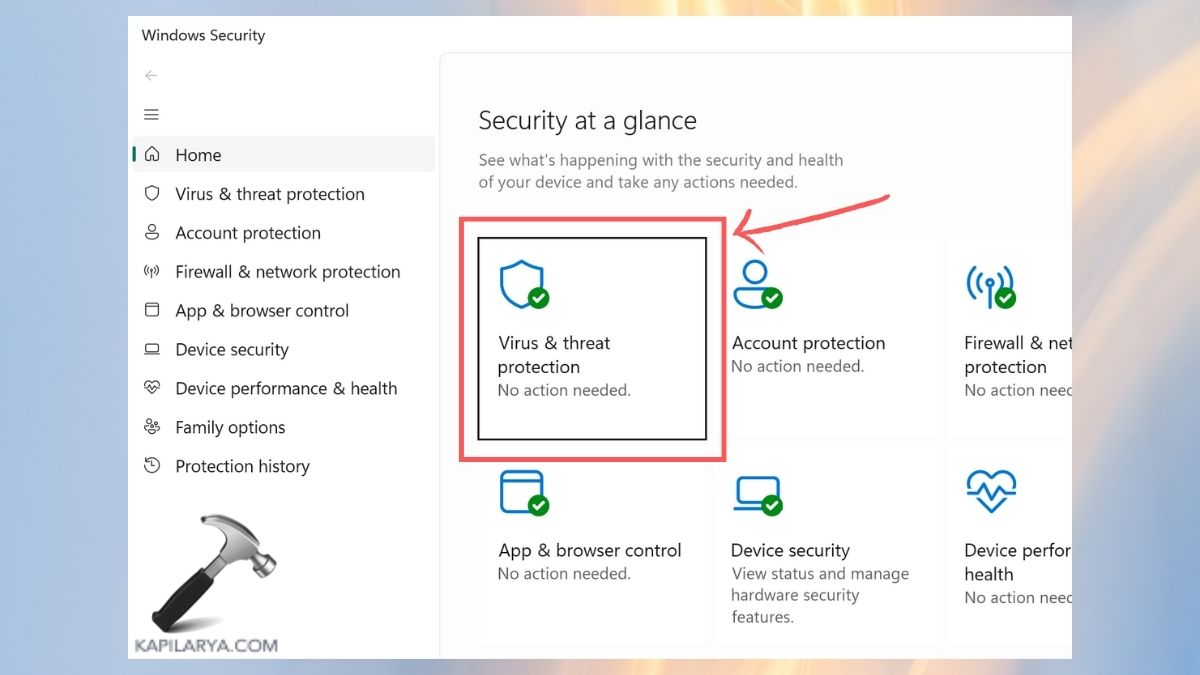
3. Check Scan Options, and click Full Scan.

Malicious programs can be deleted by carrying out a scanning exercise to detect the malicious software.
Fix 6: Adjust Virtual Memory on Windows 11
Windows 11 might freeze or get stuck without warning because it does not recognize enough virtual memory or because it is configured in a way that does not benefit it.
1. Combine Windows and S and enter “View advanced system settings”, then choose it.

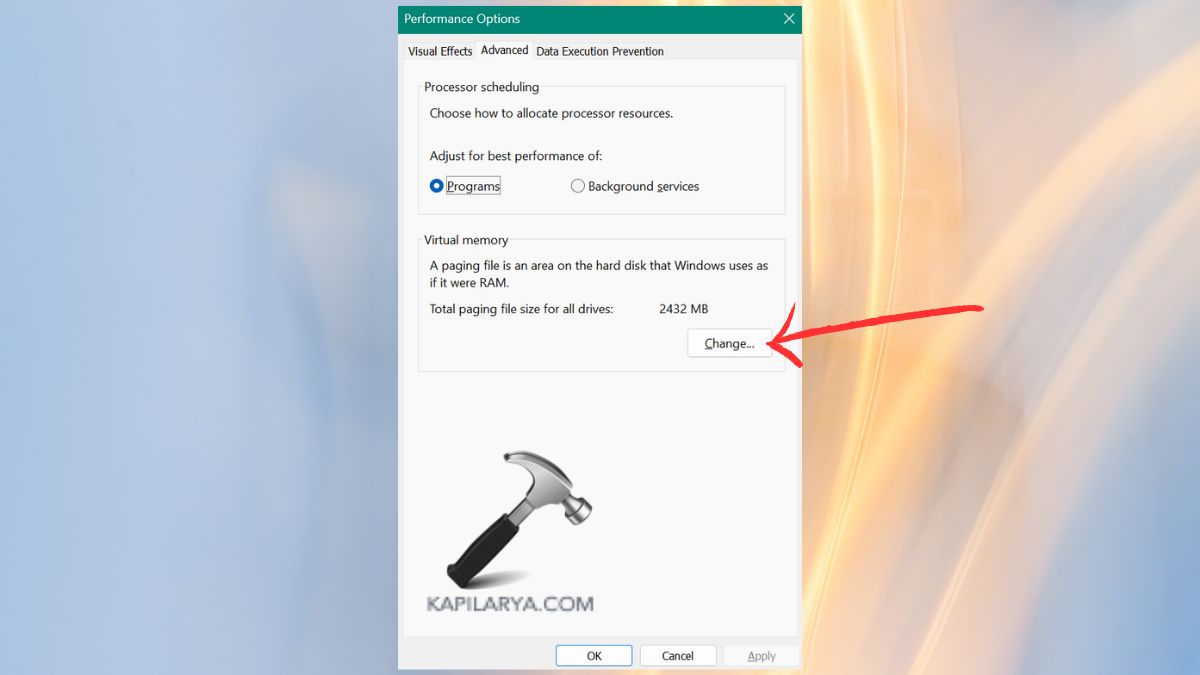
2. On the Performance section under Advanced tab, select Settings.

3. Click on the Advanced tab and change virtual memory.
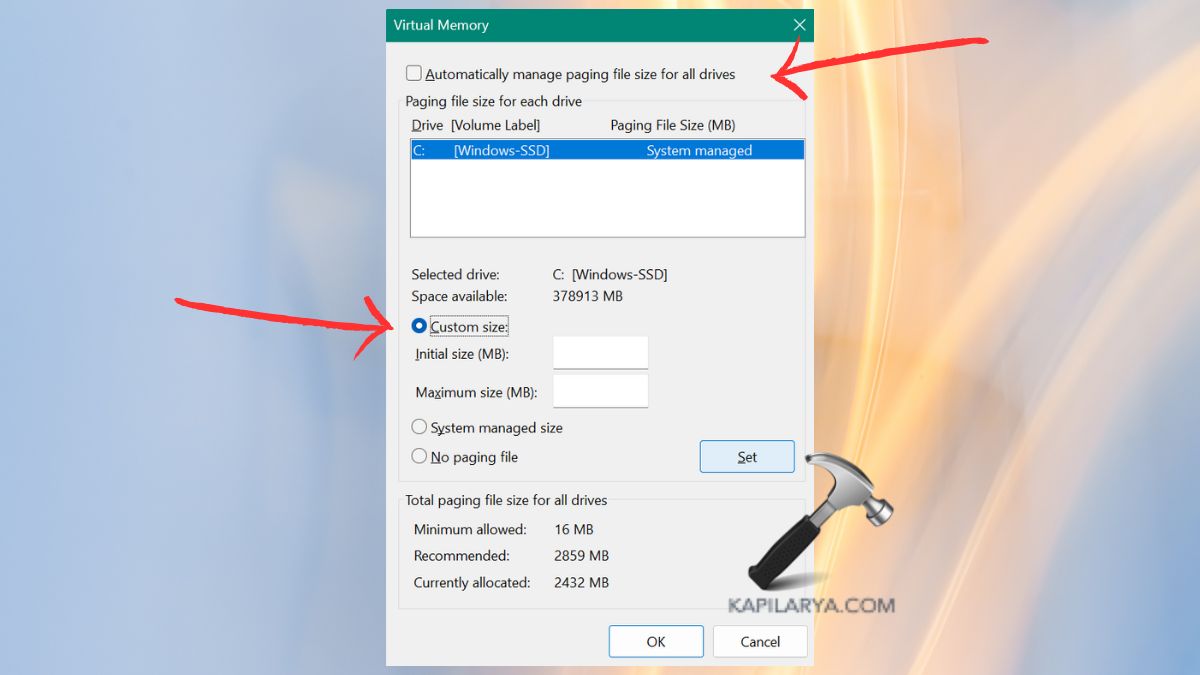
4. Clear the option “Automatically manage paging file size”. Now, select your drive, and set:
Original: 1.5 times RAM
All-time size: up to 3 times your RAM
The quantity used in the computation is usually the initial one (E.g., in 8GB RAM, initial = 12288 MB, max = 24576 MB)
Copy Set, followed by OK, and reboot your computer.
Fix 7: Run an SFC Scan on Windows 11
Freezes and instability in the system are caused by corrupt files.
1. First, run the Command Prompt as administrator.
2. Write the command.
sfc /scannow

Enter and wait until the scan is over.
Fix 8: Run DISM to Repair Windows Image
Depending on SFC, it does not do everything, and therefore, the DISM feature can be used to repair structural system image problems within Windows 11.
1. Again, right-click Command Prompt and choose Run as administrator.
2. Enter one command at a time followed by Enter each time:
DISM /Online /CheckHealth
DISM /Online /Cleanup-Image /ScanHealth
DISM /Cleanup-Image /RestoreHealth

Wait till the process is over, and restart the system.
Fix 9: Switch External Display to a 16:9 Aspect Ratio
Applying a non-standard aspect ratio on an external monitor can lead to performance problems and freezing in Windows 11.
1. Open Settings > System > Display.
2. Select Advanced display. Choose the drop-down list and select your external monitor.

3. In Display Resolution select a standard resolution such as “1920×1080” or “1366×768 (16:9)”. Use Keep changes.
A similar aspect ratio guarantees easy performance on televisions.
Fix 10: Reset or Reinstall Windows 11
In any other case, the system reset may correct the more serious problems with the OS.
1. Go to Settings > System > Recovery.

2. Click reset this PC.
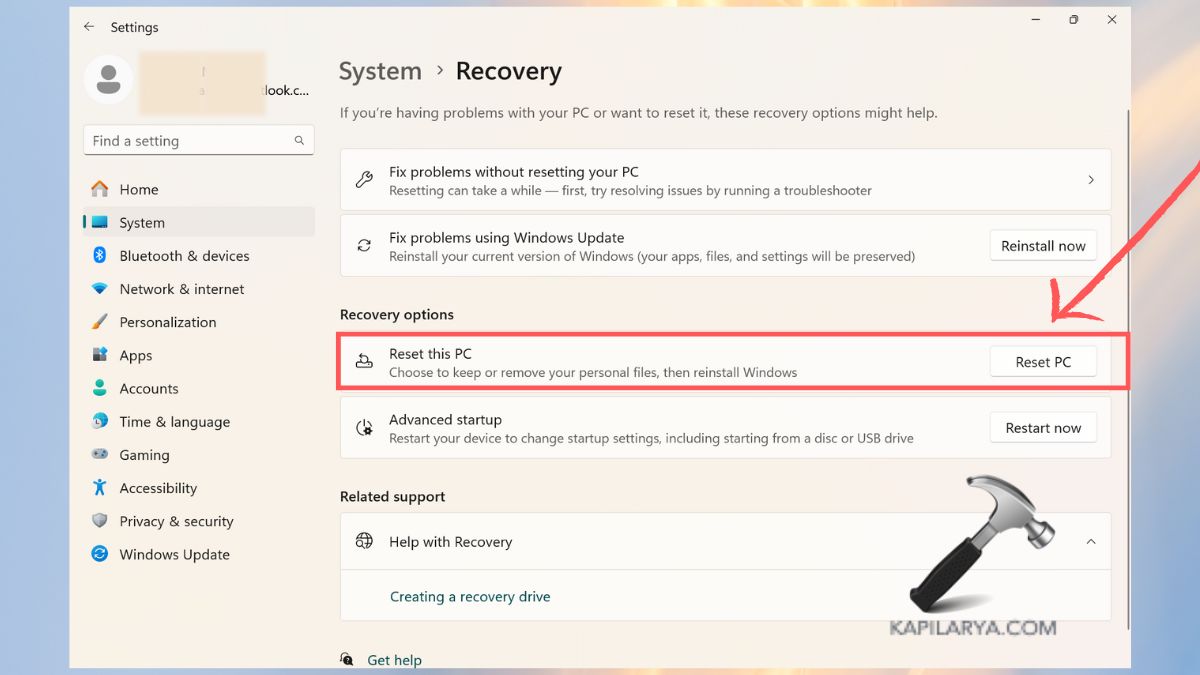
3. Select Keep my files or Remove everything whichever seems appropriate. Listen to the on-screen detailed instructions.

Video fix
Here’s a video to help you more on this: