

By default, Windows uses following network priority order:
- Ethernet
- WLAN
- Cellular
This means Windows always prefer to connect to Ethernet first, when available. Although users can still select the network connection type they want to use. But it is seen that if you’re connected to wireless/WiFi connection and then you connect to wired/Ethernet connection, wireless/WiFi connection is automatically disconnected. Sometimes users may have requirement to use both wired and wireless connection at same time. This article will help you to achieve this aim.
According to Microsoft, fMinimizeConnections is the Group Policy setting that you can configure to enable multiple connections at same time in Windows 10. This policy setting helps to identify if your system can have multiple connections and if possible, allow the machine to do that. Once the policy determined that your system can have multiple connections, it then takes care of how network traffic is routed.
So in case if you want to use wired and wireless connections at same instance, you need to perform this simple registry manipulation:
Page Contents
How To Use WiFi And Ethernet At Same Time In Windows 11/10
Method 1: Using Registry
Registry Disclaimer: The further steps will involve registry manipulation. Making mistakes while manipulating registry could affect your system adversely. So be careful while editing registry entries and create a System Restore point first.
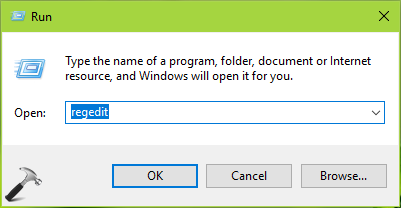
1. Press  + R and type
 regedit in Run. Click OK.
2. In left pane of Registry Editor window, navigate to following registry key:
HKEY_LOCAL_MACHINE\Software\Policies\Microsoft\Windows\WcmSvc\Local
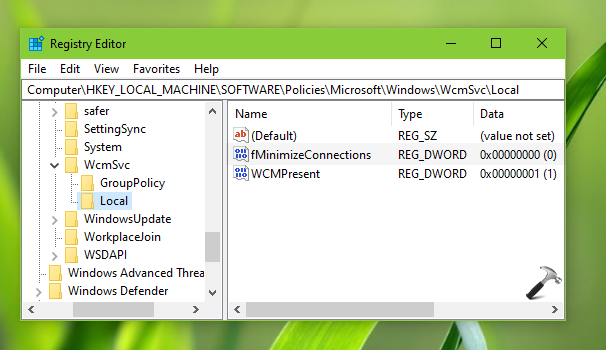
3. Now in the right pane of Local registry key, right click and select New > DWORD Value. Name this registry DWORD (REG_DWORD) as fMinimizeConnections and let its Value data set to 0.
4. Close Registry Editor and reboot to make changes effective. After restarting your system, you’ll see that both wireless and wired network connections are active atm.
Method 2: Using Group Policy
1. Open Group Policy Editor by running gpedit.msc command.
2. Go to Computer Configuration > Administrative Templates > Network > Windows Connection Manager.
3. Double click on Minimize the number of simultaneous connections to the Internet or a Windows Domain and set it to Enabled.
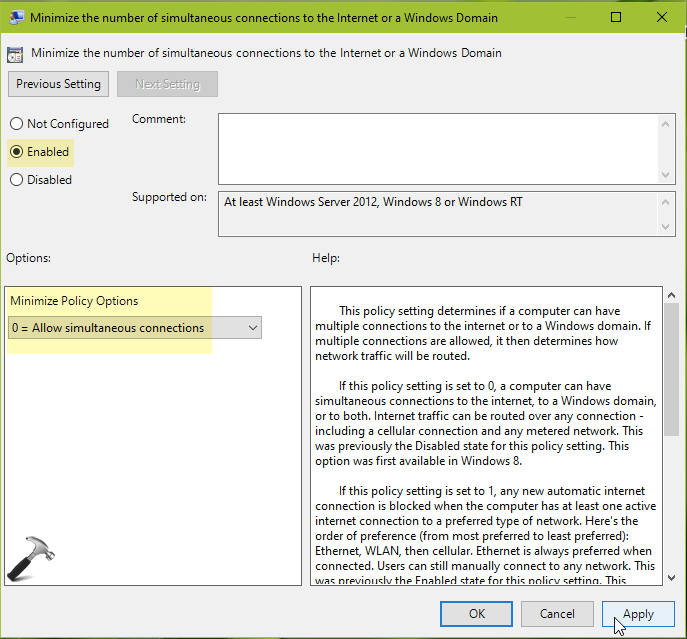
4. Under Minimize policy options, set it to 0 = Allow simultaneous connections. Click Apply, OK.
5. Close Group Policy Editor.
Method 3: Disable LAN/WAN/WWAN Switching UWP Service
In case if you’re using a HP built machine, you can disable HP LAN/WAN/WWAN Switching UWP Service to resolve this. Thanks to our reader polzmacher for adding this tip.
That’s it!
Originally written on Jun 5, 2019. Last updated for Windows 11.




In Windows 10 Pro 1903 this solution no longer works – at least for me. I already did this on 1803 and worked. After I updated to 1903 a month ago, the wifi adapted switches off when I plug in Ethernet cable, and I cannot find any way to disable it. I need Wifi and Ethernet at the same time to connect to different networks, but this is not possible now.
^^ Thanks Gábor for your comment, I’ll investigate this and revert you back.
Same for my, if you use HP u can disable HP LAN/WAN/WWAN Switching UWP Service
^^ Thanks for adding this!
@polzmacher: I are using HP Probook 450 G2. Disabling HP LAN/WAN/WWAN Switching UWP Service worked with me. Thanks so much.
^^ Thanks for confirming this!
@polzmacher…..YES! Thanks so much! After infinite dinking around with every suggested fix with regedit, and BIOS setting, and changing network metrics from GUI and PowerShell, and various service enable/disables, and power management tweaks…….FINALLY disabling the HP LAN/WAN/WWAN Switching UWP service enabled Win 10 to run ethernet and WiFi simultaneously. THANKS for this post this fix!
^^ Great!
Thanks to polzmacher, it worked great after disabling the HP LAN/WAN/WWAN….
Nice and easy
^^ Cool!
Works well on a Dell 5490 with Win10 Enterprise 1703
^^ Glad that worked Rohit!
Dear all, (sorry to come back here so late)
One precision please:
Gábor said below “In Windows 10 Pro 1903 this solution no longer works “.
May be it’s true for Win 10 Pro but for Win 10 Home this solution works fine.
I have added this new value fMinimizeConnections in the Registry editor and wireless and wired network connections are active simultnaneously.
May be only a restriction in the group policies between Pro and Home ?
BRGDS
^^ Not sure about this, but thanks a lot for adding!
Has anyone figured out the way to enable this on Windows 10 1909 or newer?
I just followed the steps to edit the registry on my Dell Latitude. Still turns wi-fi off when I connect the Ethernet cable. Help?
^^ Try Group Policy method (added today) instead, see if it makes any differences.
thank you very much, worked 4 me and I am thankful
^^ Glad to help!
Thank you very match Kapil Arya and polzmacher! Worked fine for me!
^^ Glad to help!
After years of usiing a LAN/Wifi physical switch under Windows 10, this fix finally solved my problem. I went down a couple of rabbit holes over the years but now I can use my high speed LAN and print to my wireless printer in parallel. Your regedt32 ‘fMinimizeConnections’ fix works perfectly. Thank you so much!
^^ Glad to help Joseph ☺️
I have a lenovo slim 7 running windows 11 home. I’ve tried both, and it appears not to be working. I am tethered to a Verizon phone. I have a wired network with no internet that has my servers on it. I use the mobile hotspot to distribute the internet wirelessly to my laptops. With windows 11 pro I did not have this problem. But with the home version if I enable the hotspot the internet stops working to the point where both Firefox and Thunderbird hang when starting up. The processes are there, but they don’t show up on the desktop
2022-07-12. Method 1 worked like a charm on our new Windows 11 Pro machines. THANK YOU!
Note: we use cell phone (AT&T) tether for internet, but the wifi connection for server access (through a netgear router).
^^ Glad it helped 😎
Method 1 fixed my inability to bridge so that a device without WiFi can have access to the internet through my Windows 11 Home desktop. Thanks!
^^ Glad it helped Jeremy 😎