Seeing Microsoft account creation has been blocked error while signing up? This message may be displayed when Microsoft notices unusual activity, attempts to sign up repeatedly, verification issues, network-related problems or activity it considers risky.
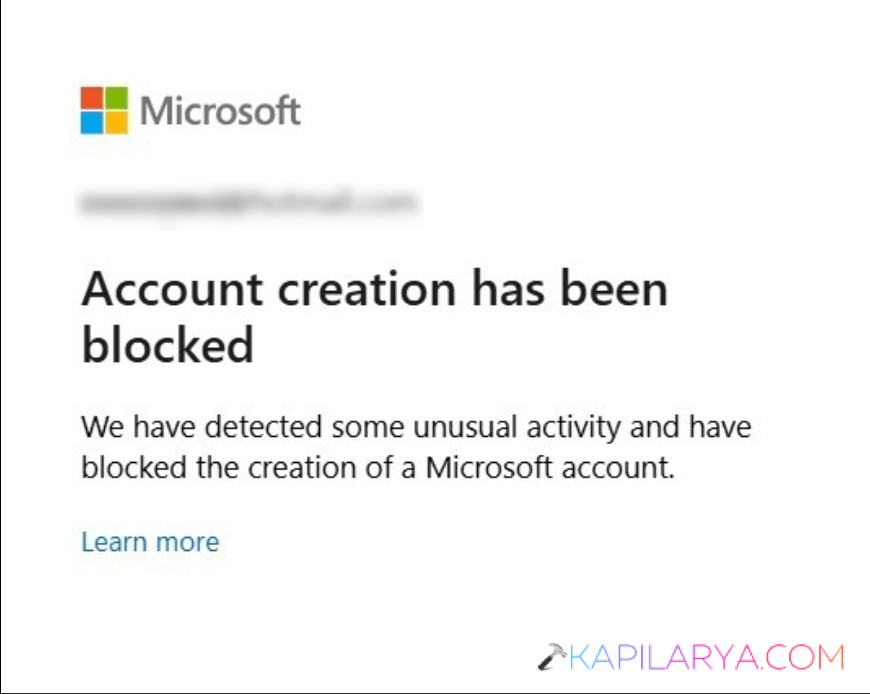
The positive side of that is it doesn’t mean that your device and/or email address has been permanently banned. If you fail to sign up for a new account, then Microsoft suggests using a different sign-up process or device.
Here, in this guide, we will provide you with some simple solutions to correct the Microsoft account creation has been blocked error in Windows 11.
Page Contents
Fix: Microsoft Account creation has been blocked error
Try the following solutions sequentially. You do not have to include all of the methods; just the easiest ones are enough, and you can go on to the next if the error persists.
Fix 1: Wait and Try Again Later
If you’ve tried to create a Microsoft account a number of times, give up for a time.
Microsoft security systems might temporarily deny accounts or verification of accounts when they notice unusual activity. Trying to do the same thing more than once can make the temporary restriction last longer or be more aggravating.
Here’s what you should do:-
1. Close the Microsoft sign-up page.
2. Check requests for new verification codes.
3. Avoid repeatedly changing phone numbers or email addresses.
4. Wait for several hours before repeating the process.
5. Wait up to 24 hours or longer to check if it persists before trying again.
Microsoft says that some temporary clearing may occur within a day, and sometimes longer waiting periods may be required.
Fix 2: Use the Official Microsoft Account Creation Page
If you are registering via a third-party website, Windows setup screen, app or another service, attempt to register straight from the official Microsoft account creation page.
If you are in need of a new personal Microsoft account, you can use the official Create free account option from Microsoft.
1. Go to the official account creation page of Microsoft.
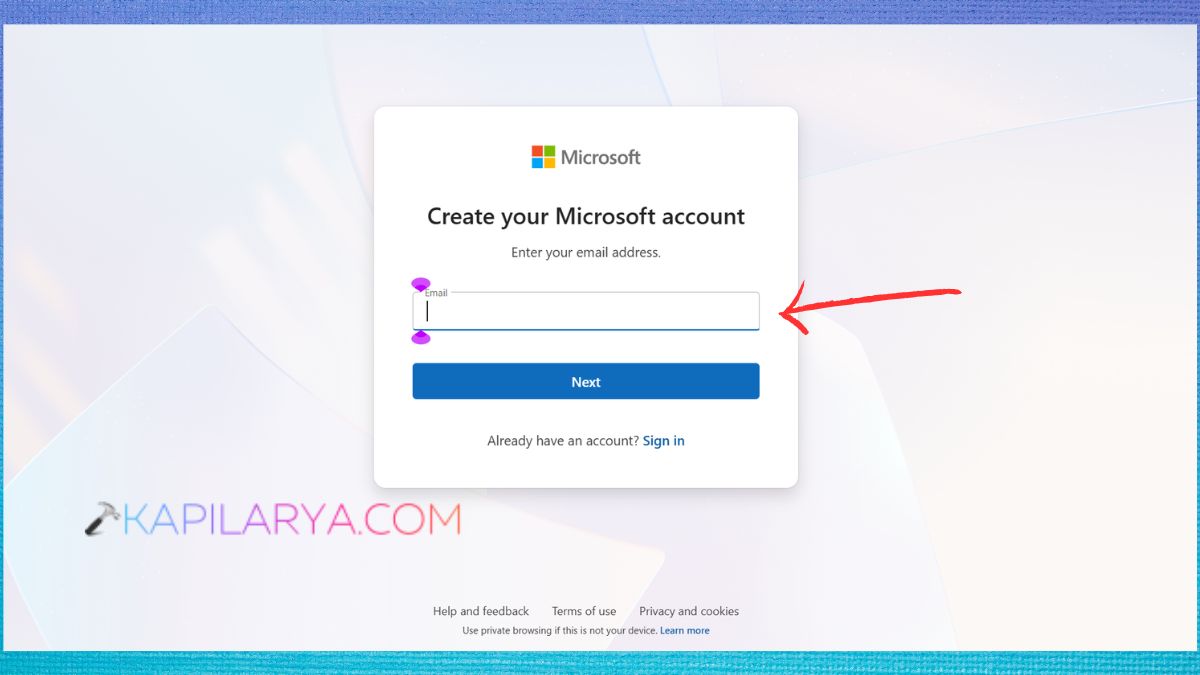
2. Enter the email ID. Decide if you would like to add an Outlook.com email address or use an existing email address.
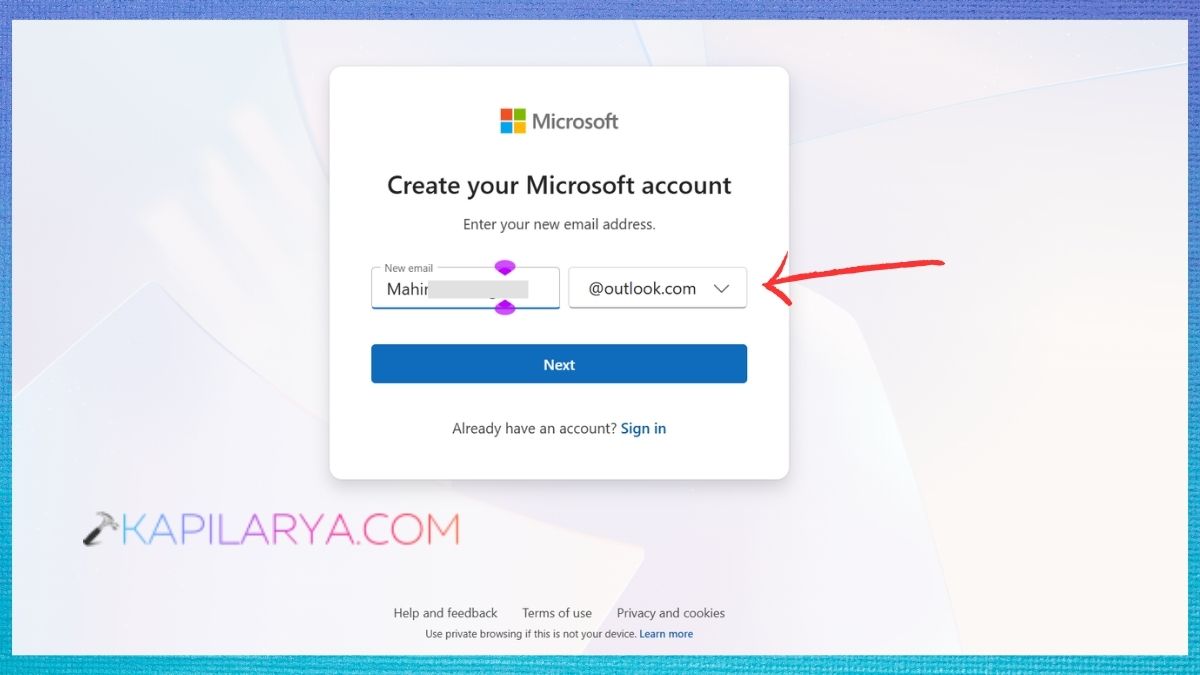
3. Fill in your desired information. Make a strong password.
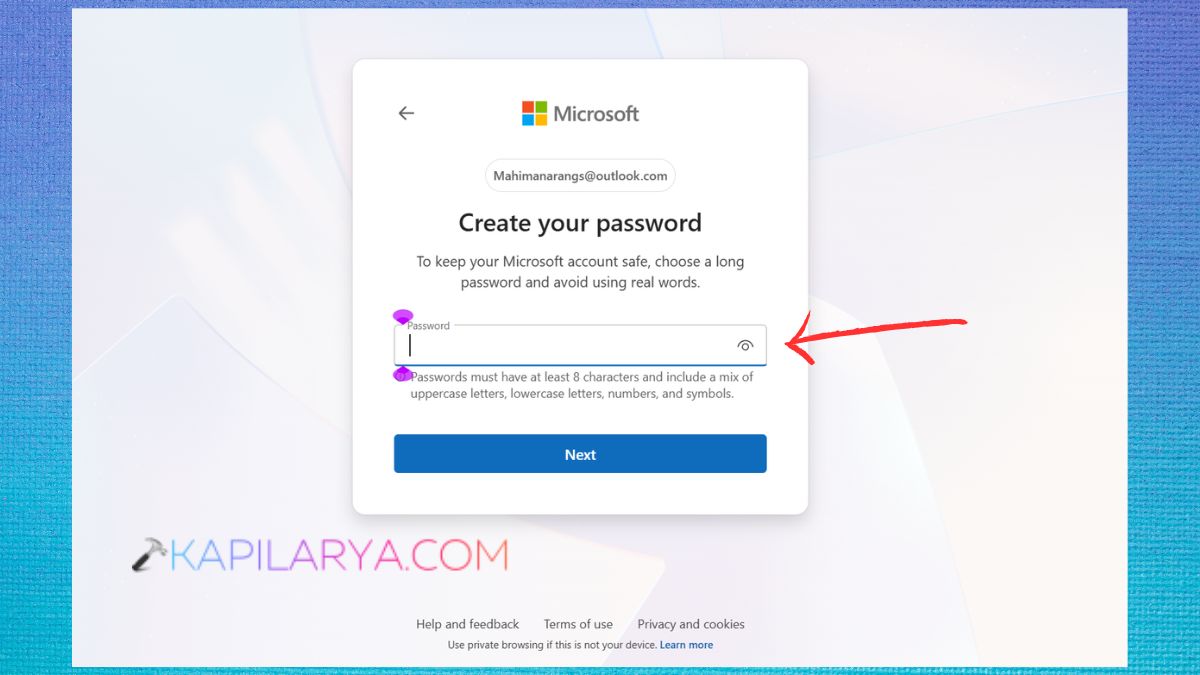
4. Complete the verification process. Then, do the rest of the on-screen instructions.
The official Microsoft sign-up process can also help identify if this is a problem with another site, application, or with the Windows signing up process.
Fix 3: Try Another Sign-Up Method
The first step to getting to the bottom of the “Microsoft account creation blocked” error is to alter the sign-up method.
If you’re looking to register using a phone number, consider using an email address instead. When users are unable to register themselves with a new account, Microsoft strongly suggests that they try an alternate sign-up process.
1. Open Microsoft account page and try to login.
2. If you entered a phone number before, click on “Use an email address”.
3. Complete the verification process. See if the account was created successfully. If one verification method is temporarily unavailable, another might be available.
Fix 4: Turn Off VPN, Proxy, or Public Wi-Fi
You can change the location or IP address you appear to be from by using a VPN or proxy. If the connection appears unusual to Microsoft’s security systems, creating or verifying an account might be denied.
Furthermore, if there are a large number of users on the internet, then the internet can be troublesome in the public Wi-Fi network.
1. Disconnect from your VPN.
2. Turn off any Proxy set up on your computer.
3. Close the Microsoft Sign Up page.
4. Connect to your normal private WiFi.
5. Click the official Microsoft account creation page once again. Attempt to make the account.
6. If you use your home WiFi, try to turn it off during the time and use another trusted network like mobile data. In certain cases, Microsoft suggests changing networks when handling account and verification blocks.
Fix 5: Clear Browser Cache or Use InPrivate Mode
Sometimes the sign up process to Microsoft account can be troublesome due to outdated browser session, cache or conflicting cookies. Try a fresh browser session, as opposed to repeatedly trying the same process within the current browser session.
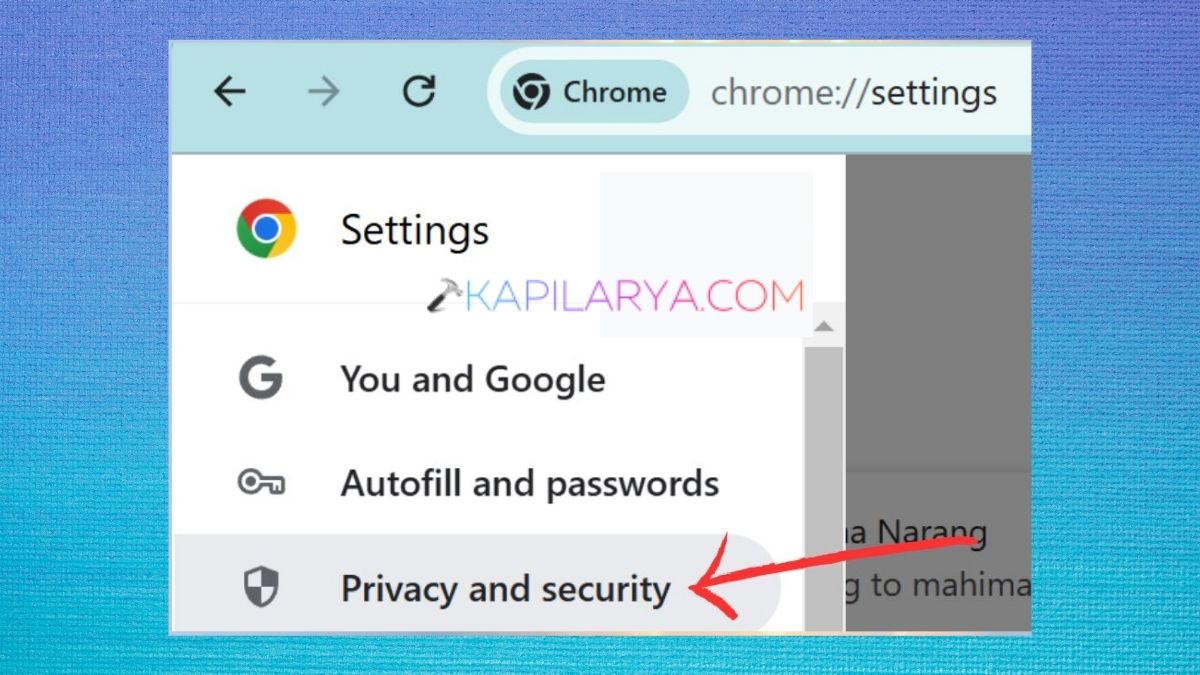
1. Open the Browser Options or Settings. Click on Privacy and security.
2. Click the “Clear browsing history” button. Remove cached files and cookies for a particular Microsoft session.
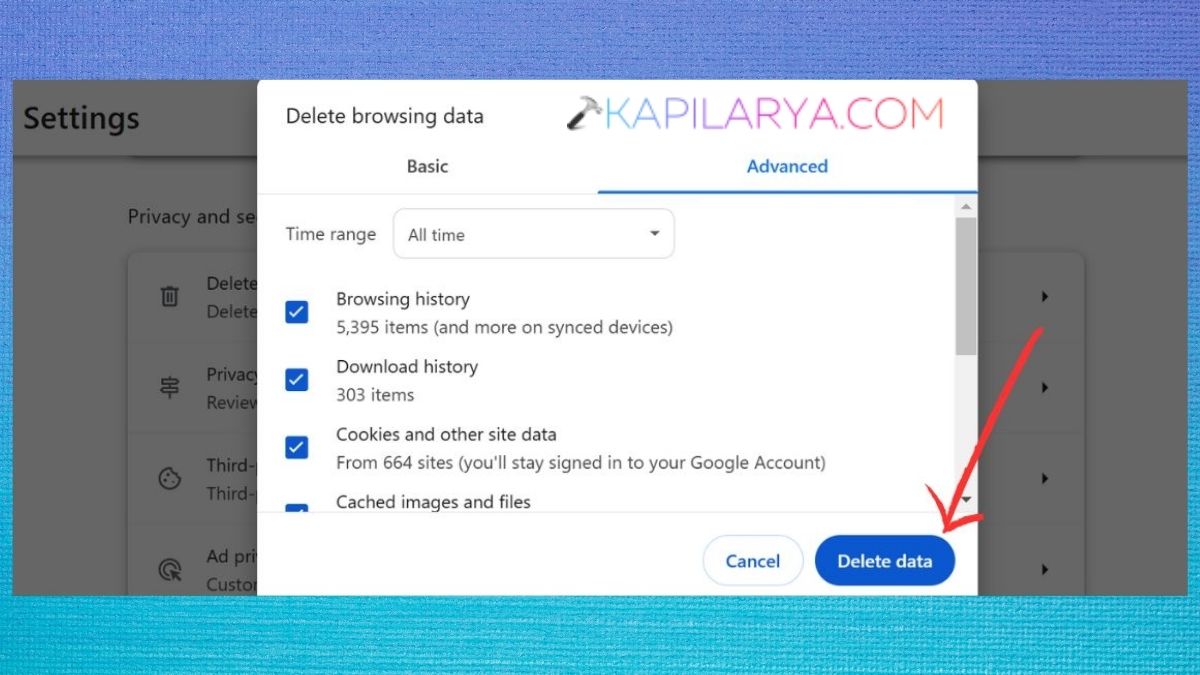
Restart the browser.
3. Open the Microsoft account creation page once again to check.
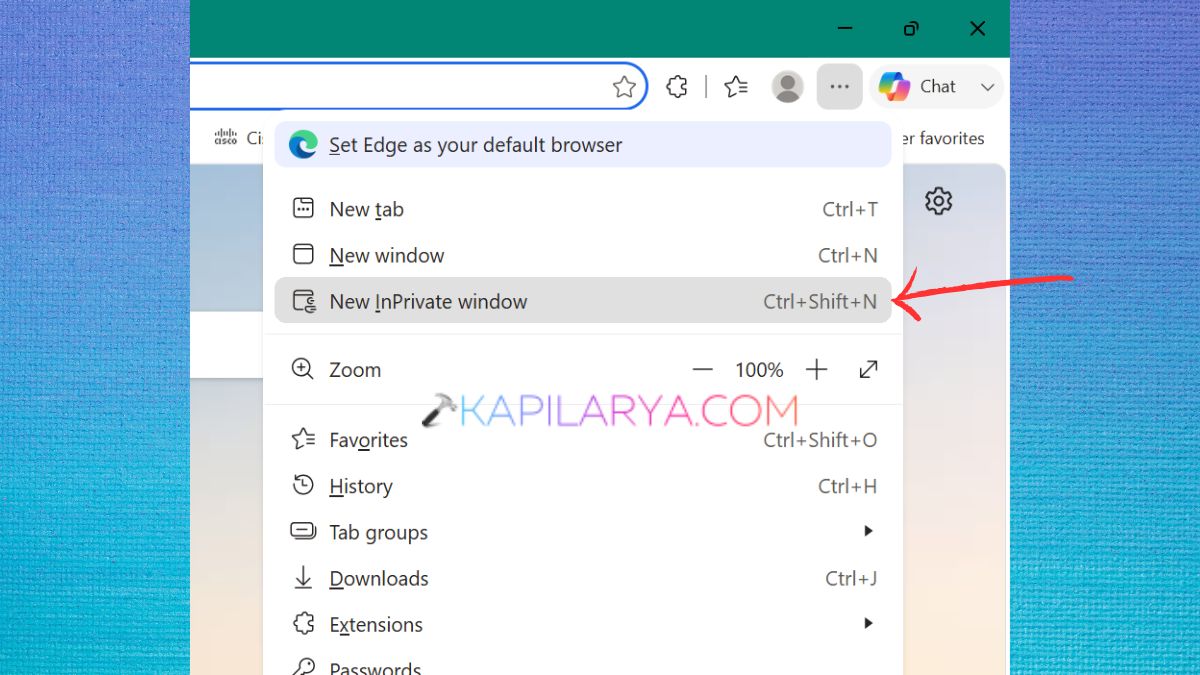
4. Also, you can use Microsoft Edge’s InPrivate mode. For some scenarios with multiple Microsoft accounts and verification codes, Microsoft suggests privacy mode as a way to help ensure that distinct sessions don’t affect each other.
Fix 6: Check for Microsoft Verification Code Problems
If the account creation process gets to the point of needing to verify the account, but you aren’t receiving the code, the issue may have to do with the process of verification itself, not the account creation form.
A couple of reasons are listed on Microsoft that cause the loss of verification codes such as unusual activity, too many requests, delivery problems in the region, blocked messages, and unsupported VoIP numbers.
1. Look in your email Spam or Junk folders.
2. Ensure the correct email address or phone number is typed into.
3. Look if you can receive messages from unknown phone numbers.
4. Avoid repeatedly requesting new codes.
5. Wait before sending another verification code.
6. Use another supported verification method, if one is available.
7. If you have asked for multiple codes, use the most recent one, do not enter the previous one again and again.
Fix 7: Use a Real Mobile Number Instead of a VoIP Number
If Microsoft requests you to prove your account with a phone number, use a valid phone number that is capable of receiving verification messages.
Microsoft says they’re not allowed to log in with a VoIP number and they do not provide verification codes for users with such a number.
1. Do use your cell phone number.
2. Please be sure to enter the number in the correct country/region.
3. Ensure that SMS can be received by the phone.
4. Do not use various numbers on the same sign-up occasion.
5.If the number is correct but still don’t get a code, do not request a code repeatedly but wait until later.
Fix 8: Try Another Trusted Device
If creation of the Microsoft account is restricted on your current computer, this may be connected to the gadget, browser, network or current session.
Whereas, if users are unable to create a new Microsoft account, Microsoft suggests that they use a different device.
When you are on a Windows PC, you can try on these:-
- A smartphone
- Another computer
- A tablet
- Another trusted browser
1. Prevent the account creation from taking place in the existing account.
2. Use another reputable device.
3. Connect to a normal private network.
4. Go to the official page to create a Microsoft account. Repeat the registration procedure.
Once the account is created on another device, you can then log in with the new Microsoft account on the original device.
Fix 10: Unlock Your Existing Microsoft Account First
However, if you are creating a new account because you cannot sign in to an existing Microsoft account, you might not be able to resolve the issue with the new account.
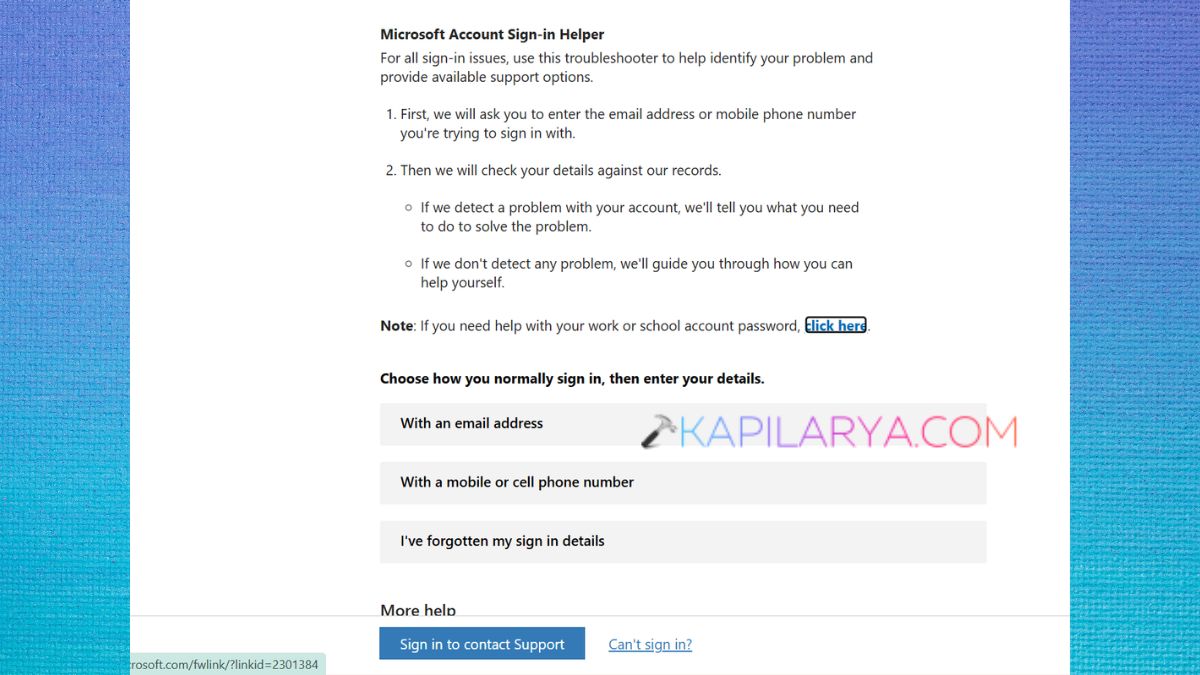
Microsoft offers a Sign-in Helper tool to help diagnose and troubleshoot a lot of account access issues and suggest the right recovery actions.
1. Open Microsoft’s Microsoft Account Sign-in Helper (https://support.microsoft.com/en-us/accounts-billing/manage/microsoft-account-sign-in-helper).
2. Enter the email address/phone number of your account. Follow the prompts.
3. Fill in any form of ID available. Recover or unlock your current account, if available.
For some reason, Microsoft might not let you sign in, such as because of unusual activity, an account compromise, or a temporary security restriction. It is better to retrieve your existing account if you need to access it than to have several new ones.
What If Microsoft Account Creation Is Still Blocked?
If none of the above options is tolerated, don’t sign up repeatedly. Frequently asking for verification codes or changing your email and phone numbers can introduce additional levels of security.
Instead, contact Microsoft Support (https://support.microsoft.com/en-us/home/contact)if the problem persists.
While Microsoft’s support team can help you determine what type of support you need, Microsoft states that you are responsible for using your own support protections and cannot ask for an account verification code from a Microsoft support agent.