The Action Center in Windows 10 provides you notifications from apps and system features. These notification will help users in the real-time to stay updated from apps. This article will show you how you can manage these notifications.
If you’re looking for turn off notifications completely, or if you want to disable notifications for a particular app, or if you don’t want notifications on lock screen, below mentioned steps will help you with these things.
Below steps can also be performed from a standard user account. Note that some apps may have additional notification settings available on them. So in case, if you configure notification settings for a particular app using below mentioned steps and it didn’t worked, check that app’s dedicated notification settings.
How To Enable/Disable Notifications In Windows 10
FYI: These steps are illustrated on Windows 10 V1903.
1. Right click Start Button or press  + X keys and select Settings.
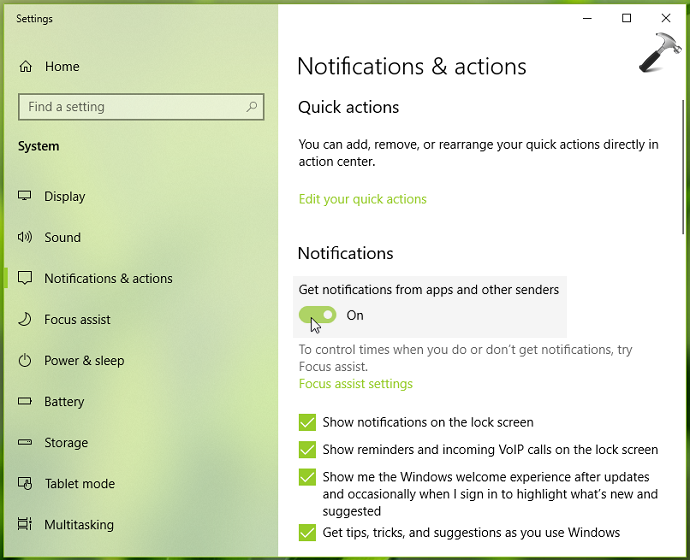
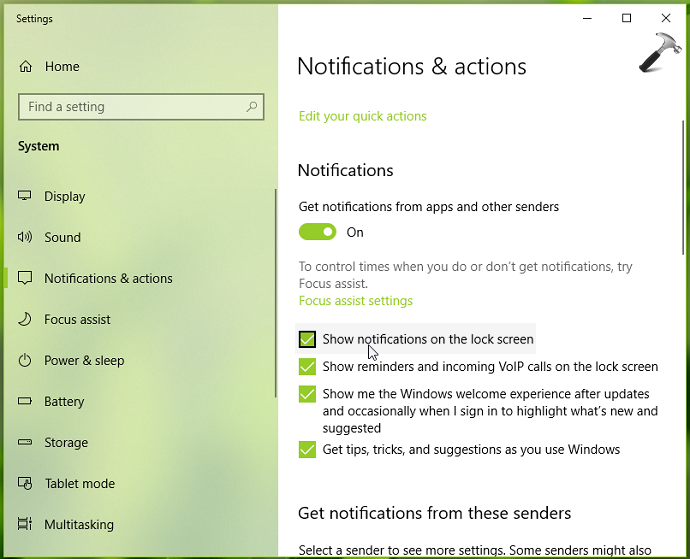
2. In the Settings app, navigate to System > Notifications & actions.
3. Now in right pane of Notifications & actions, under Notifications, toggle the option to On or Off to enable or disable notifications in Windows 10, respectively. By default, notifications are enabled.
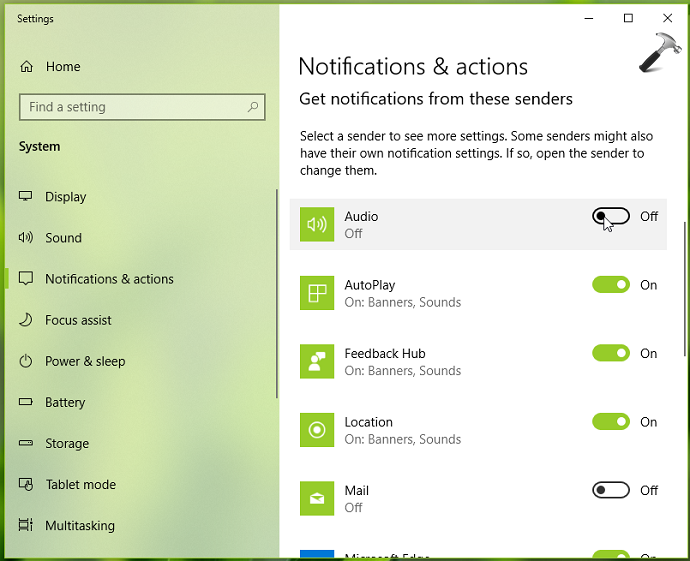
4. To manage notifications for individual apps, you can scroll down on same screen and under Get notifications from these senders section, you can toggle the option to On/Off to respectively enable/disable notifications for specific apps.
5. If you want to turn off notifications on lock screen, you can uncheck Show notifications on the lock screen option. This option is available only if you’ve notifications turned on in step 1.
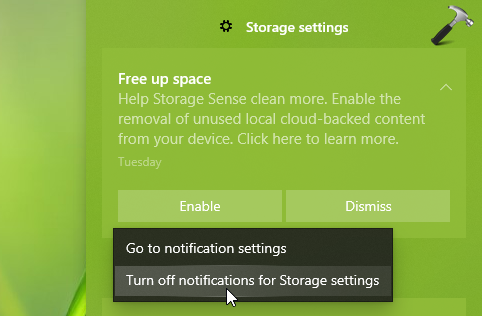
6. Additionally, you can manage notifications directly from Action Center. See this fix, if Action Center is not working for you. You can simply right click on a notification and select Turn off notifications for… to disable notifications from particular sender.
So in this way, you can manage notifications in your Windows 10.
If you want completely remove Notifications and Action Center, see this guide.
To disable Windows Update restart notification, check this article.
To block unwanted notifications, configure Focus Assist feature.
That’s it!