

Earlier we shared you following article which explains different disk partitions in Windows:
Understanding Different Disk Partitions In Windows 10
From the above article, we know that System Reserved Partition an important partition which is essential for your Windows operating system. This partition helps Windows to boot as contains necessary boot records. In absence of this partition, BitLocker drive encryption on operating system volume won’t initialize. The System Reserved Partition must be active by default.
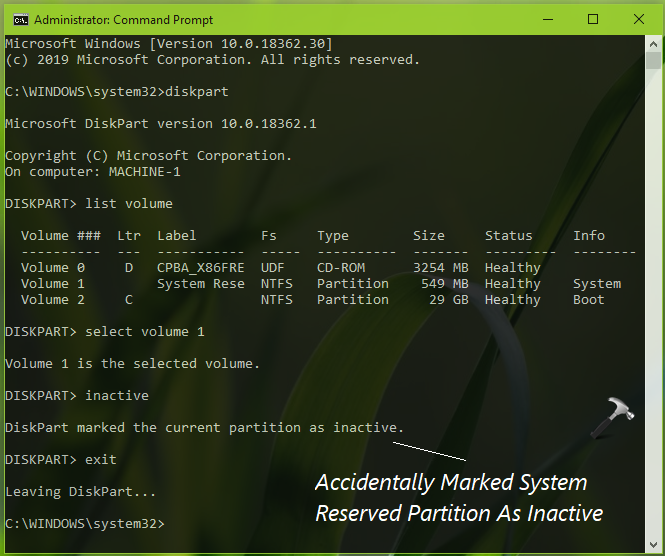
Recently, while working with DiskPart command line tool, I accidentally marked the System Reserved Partition as inactive (as you can see in below screenshot).
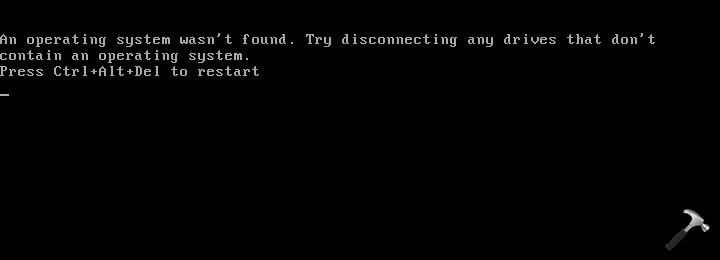
After this, when I restarted my system, it failed to boot with “An operating system wasn’t found” error.
In case if you’re also entered into this situation and doesn’t know how to proceed from here, this article is for you. All you need a Windows 10 bootable USB and you can easily fix this issue with below mentioned steps and you don’t need to reinstall entire OS.
FIX: Accidentally Marked System Reserved Partition As Inactive
1. Plug in your system recovery disc or Windows 10 bootable USB and start your system and press any key to continue.

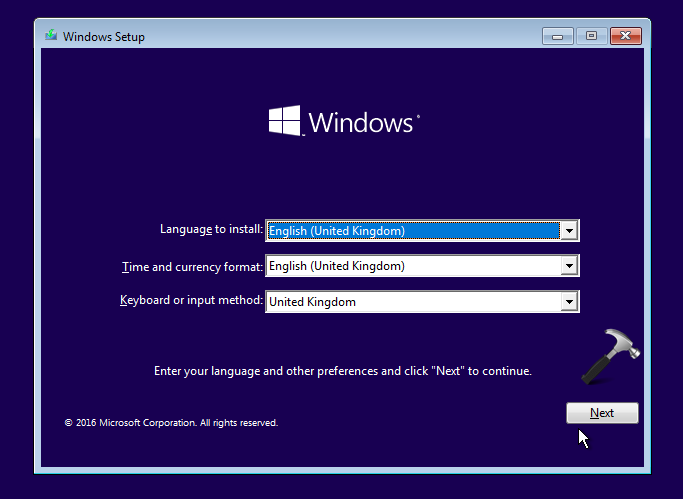
2. Then click on Next in Windows Setup screen shown below.
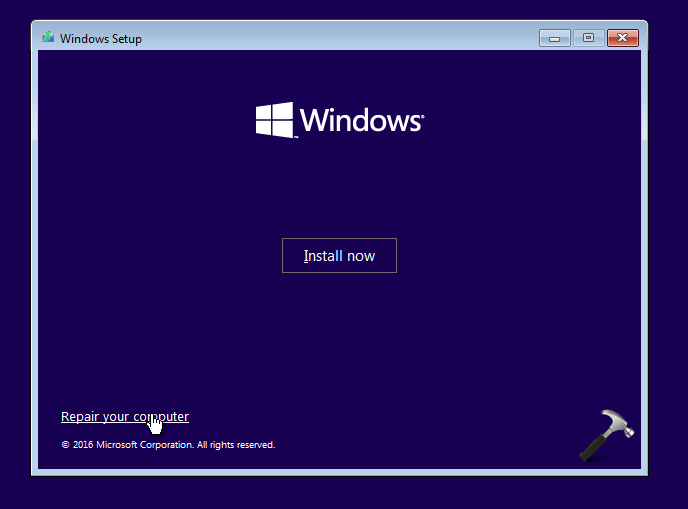
3. Moving on, click on Repair your computer link in next screen of same window.
4. Now click Troubleshoot in below shown screen.
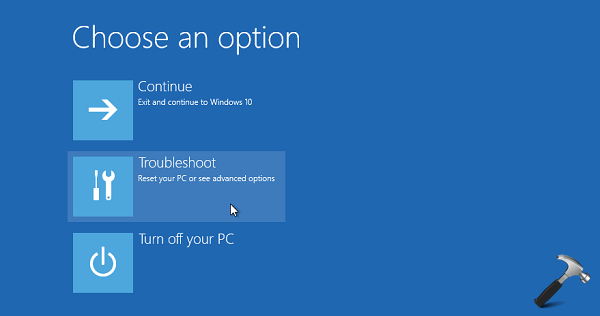
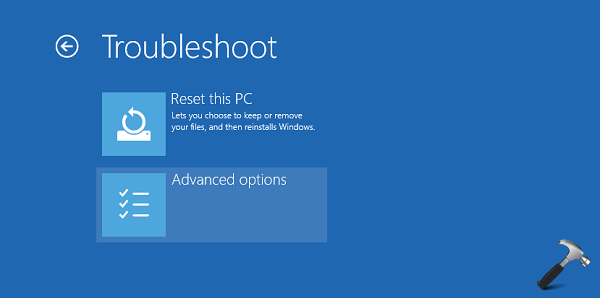
5. Then hit Advanced options entry in following screen:
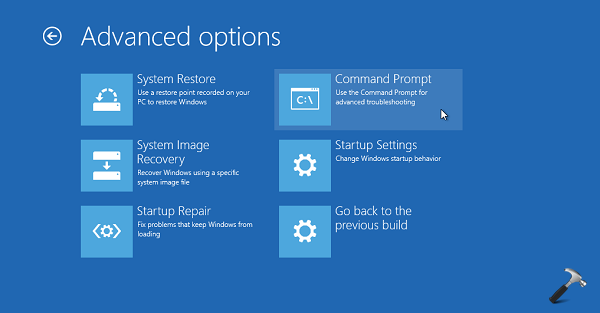
6. Moving on, we’ve now arrived in Advanced Recovery Options for Windows 10. Here, click on the Command Prompt option.
7. In Command Prompt, type these commands (mentioned in bold) and press Enter key after each. Make sure you substitute # with System Reserved Partition‘s volume number.
diskpart
list volume
select volume #
active
exit
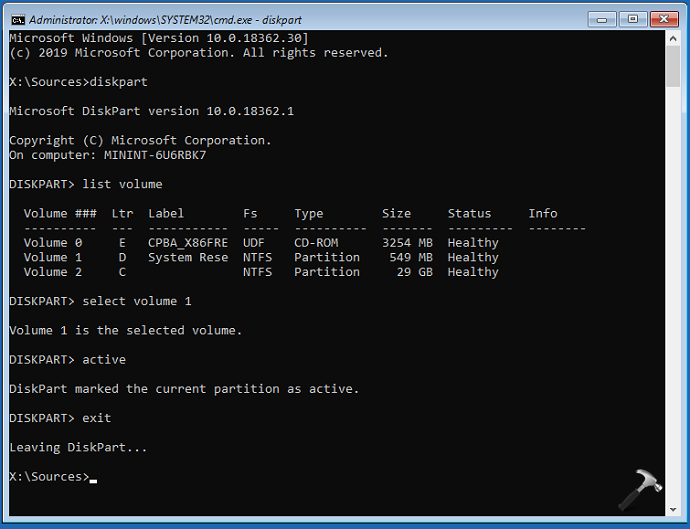
8. Close Command Prompt and continue to your Windows OS or restart the machine.
You’ll find that the problem is resolved and you can boot your Windows without any error.
That’s it!
Also see: Windows 10 Master Boot Record Is Corrupted.
![Add the Recovery Partition in Windows 11 [2026 Guide]](https://www.kapilarya.com/assets/Disk-768x494.jpg)



Thanks Kapil you made it so simple for me & now my computer is booting normally. Actually problem started when I tried to delete volume “D” then deleted partition to extend Volume “C” but extend Volume option wasn’t found active when right click Volume “C”. Can you guide me why it is so & how to correct the problem.
Anyhow, once again thanks for your help.
^^ This is because volume ‘C’ and volume ‘D’ are on different disks.
Thank you!
^^ Glad to help!