

Recently, I have shared you the fix about error which you can read using following link:
The Boot Configuration Data file is missing some required information
Actually, the boot record is consists of two files; Boot Configuration Data (BCD) and Master Boot Record (MBR). Thus when you’re not able to boot your system at all, the probability is that either of these two files is corrupted or inaccessible. In such scenario, if you open the Boot Configuration Data using Command Prompt at boot, you’ll see following error:
The boot configuration data store can not be opened.
The requested system device cannot be found.
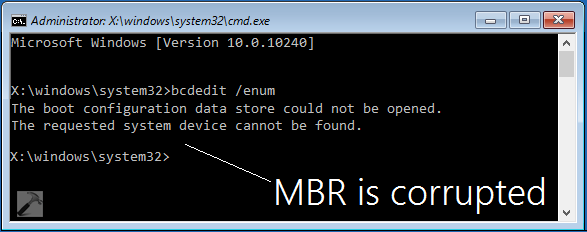
Now since the boot records are malfunctioned, Windows won’t let you to Refresh or Reset. It’ll keep saying The drive where Windows is installed is locked. Unlock the drive and try again. One easiest fix to sweep out this issue is that you create a bootable Windows installation disk using ISO image of any Windows edition released after Windows 7. Then you have to plug it and using it install the Windows edition on any other partition. In others words, create a dual boot environment. Once you’ve installed a new Windows edition in parallel to original Windows edition whose boot records are compromised, you’ll found that problem is automatically fixed. You can then uninstall the alternative installed Windows so far, and start using your original installation since the issue is resolved.
But if you can’t follow the above mentioned process, here is how to get rid of this issue very easily and repair Master Boot Record.
FIX : Windows 10 Master Boot Record Is Corrupted
1. Boot to Advanced Recovery Options. Hit the Command prompt entry at following screen:
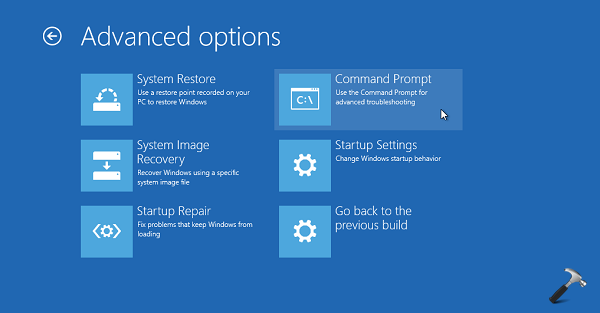
2. Last step will result in opening of Command Prompt at boot.

Select your admin account and enter your select account password to continue.
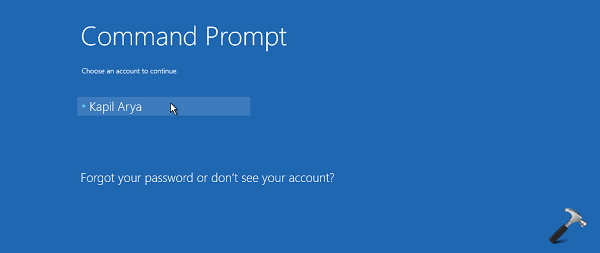
Then type following command:
chkdsk /r
After the check disk is completed, you may try booting the computer and check if that resolves the issue. If the issue persists, then try performing a SFC scan using SFC /SCANNOW command to rebuild or recover the corrupted system files on the computer. Still if you’re facing the issue, go to step 3.
3. The last option you can try to repair corrupted boot record is to execute following commands in Command Prompt at boot, press Enter key after each:
bootrec /scanos
bootrec /fixmbr
bootrec /fixboot
bootrec /rebuildbcd
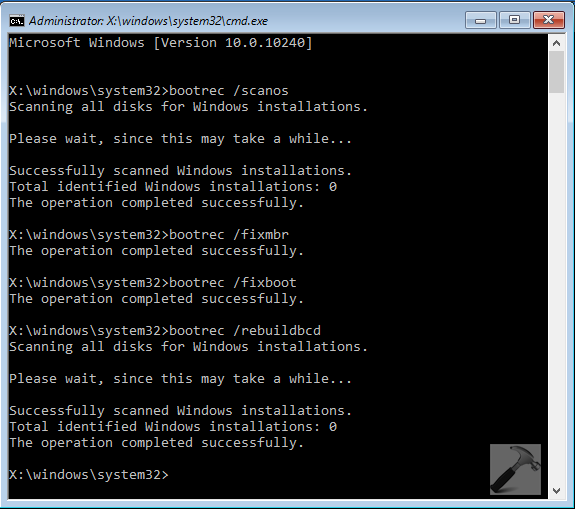
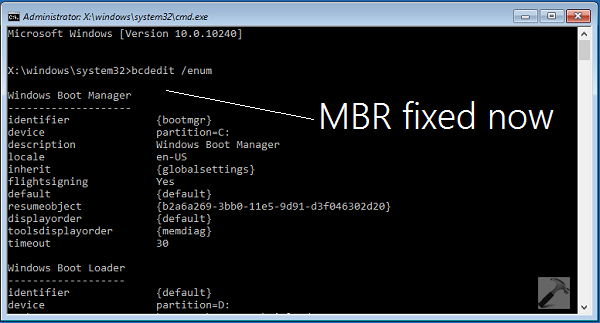
You’ll receive “The operation completed successfully” message when each command is successfully executed. In case if bootrec /fixboot command gives Access is denied, then refer this fix. Once done, restart your computer and it should boot fine now. This means the MBR is fixed now and you can verify it by executing bcdedit /enum command at Command Prompt. This method is equally helpful to Windows 7, Windows 8 or 8.1 users as well.
Checkout following video to take live demonstration of this trick:
Hope this helps!
Must reads:
1. Fix: Recovery environment disabled in Windows
2. Reinstall Windows 10 without affecting your files and apps
3. Windows stuck in Automatic Repair loop





Brilliant fix. chkdsk /r never helped me until i try 4 commands u mentioned here. Thank you kapil.
Nice… It worked on w7 too. Good job sir.
After having suffered for four days, I chanced upon your site and voila!
Utmost gratitude and keep up the stellar work.
^^ Glad we could help :)
I’m trying this, but I keep getting “element not found” on the last two bootrec commands. Any ideas?
I’m upgrading to Win10 from Win7
^^ Let me know the complete and exact error message you got, so that I can help you!
The four commands almost worked but I got “element not found” message of the last two bootrec commands too.
I had to select the correct disk and make the Windows partition active and run the two commands again. This then fixed my boot problem. Many thanks for pointing me in the right direction :-)
^^ Glad it helped, thanks for feedback!
Worked for me too!
^^ Great :)
When I try to run the bootrec /RebuildBcd command it detects one windows installation, then it asks me if I want to add a boot list and I type “yes” then I get an error” The request system device cannot be found.”
I’m working on Windows 10 from a USB repair disk
Thanks !
^^ Are you on dual boot configuration?
Didnt work even after the 4 commands bit it still said it wasn’t fixed any thing else I can try it says my hard drive is missing??
^^ This could be a hardware issue, suggest you to go nearest computer repair shop and verify if everything is ok from hardware side.
What are the commands if using GPT disk instead of MBR?
Hi there!
Keep running into the problem:
The type of the filesystem is NTFS, cannot lock current drive. Windows cannot run disk checking on this volume because it is writeprotected.
Other commands reports OK!
The system went down due to powerloss.
Can you suggest a remedy?
Regards
Jan V
^^ So what’s current status of this problem for you? You start your system and then what happens? If you see any error message or code, please do mentioned here.
I am having the same problem as Jan. “the type of system is NTFS………..” I went ahead and run the other commands; all successful until the last: bootrec /rebuild. It finds the installations, but when i add to boot list: “the requested system device cannot be found.”
I had tried a lot of pages until i found yours. Great info. Could I have run the wrong command prior to this that i need to undo? Thanks in advance.
Josh
Hi,
Same problem as Josh = the last command fails…
Chkdsk = no problem
everything ok, scanos ok, fixboot etc, but then
“the requested system device cannot be found.”
Any idea from this point? I know my programs and windows should be ok, but I can’t boot the computer…
Thanx,
Luc
2015/10/03
^^ Can you try the bcdboot c:\windows command mentioned here and see if it helps:
https://www.kapilarya.com/fix-the-boot-configuration-data-file-is-missing-some-required-information
Hey kapil, I’ve tried many solns on web ffor dis prob and dis seems to be only working soln. So many thanks for it.. god bless you man!
^^ Glad it worked! :)
Will it work on my Win7? I have an Hp lappy.
^^ Yes, definetly.
A simple boot shows Invalid Partition Table and nothing above has helped. This doesn’t seem to help as it only shows Successful attempts – What if it FAILS when running fixboot? = “Element not found.” (Uh, the last link failed since it apparently can’t find C: without a partition table. Trying to change to C: and it says “The volume does not contain a recognized file system.” 10/17/2015
Hi Kapil. Hope you can help.
My sister’s Win8.1 laptop won’t boot, stuck on initial boot screen with dots going around in circles. Initial boot attempt goes to blue screen with 0x000000f error and option to hit F8 and choose safe mode etc.
Booted from Win8 dvd image :
1. ran chkdsk /f /r on C: drive; lots of errors an “corrupted attributes deleted” etc.
2. ran sfc /scannow; completes ok but at the end, says “Windows Resource Protection could not perform the requested operation”.
3. bcdedit /enum shows both the Windows Boot Manager config data and Boot Loader data. All info looks good.
4. bootrec /scanos command just seems to sit there forever. 1 hour, still sitting there looking for windows installations. There is a recovery partition on the drive plus an acer “push button reset” partition.
Any ideas as to what it might be. Before doing the above I booted from a bitdefender rescue usb and ran its virus scan program which didn’t find any.
Hope you can help. Thanks.
^^ For error 0xc000000f, you may refer this: https://www.kapilarya.com/how-to-fix-error-0xc000000f-the-boot-selection-failed-because-a-required-device-is-inaccessible
Hi Kapil. Thanks for your response. The chkdsk has already been run. found lots of errors to fix and it did so. I had no RAW partitions at the start, they all looked good in diskpart.
The bootrec /scanos command did return but found 0 windows installations even though bcdedit /enum shows the boot mgr and boot loader information as being correct.
This is Win8.1 – are these bootrec commands still relevant?
I am now trying to refresh the o/s via the uefi screens after booting from a win 8 dvd that I created.
Should I try to remove the system files in windows\system32\config and replace them from the folder in config\regback ?
Seems like bcd data is there , partitions are good just won’t boot. Bootup goes into checking the disk but fails with this 0x000000f error.
^^ Yes, the commands are still valid if you’re on Windows 8.1. If you’re going with Refresh, I don’t think you need to remove or rename any files. Just complete the Refresh, and it will be done automatically :) Running the commands mentioned here just recreates boot store/records.
Well, the refresh encountered problems and said no files were changed.
It booted up after I replaced the reg files in system32\config with the hive files in system32\config\regBack and the windows logs showed disk errors with bad blocks / sectors.
Re-ran chkdsk and many errors still – lots of corrupted attributes errors and also many other errors and complaining about not enough space to deal with them despite many hundreds of GB of free space.
It still wants to scan and repair the drive on boot. Currently it’s doing that from the Acer boot screen and calling it drive (\\?\Volume\{0d88061e-xxxx-xxxx-xxxx-xxxxxxxxxxxx}): 74% Complete.
That doesn’t look good to me, it’s like it’s lost it’s drive label.
So I believe there is likely to be a hard drive problem. I’ve downloaded the SeaTools iso and burnt it to a CD so I’ll see if I can boot that and run the HD tests but after that not sure what to do.
Is it a re-format and re-install with the bad block errors, or perhaps a new HDD depending on if this HD test shows faults ? Any ideas.
Thanks.
^^ It seems like hard drive is culprit in your case. Suggest you to have its checkup at nearest computer shop, to verify its not malfunctioned.
Acer recommend the Western Digital LifeGuard Diagnostics tool which lets you run a SMART test, short and long.
The short test passes but the long test fails with “too many bad sectors” and terminates before it can complete !! Error code 08 which is a replace disk error.
Memory test (windows) is fine.
So definitely seems to be a disk problem, can’t fix chkdsk errors in stage 4 – looking for bad clusters in user file data, lots of disk read errors and “disk does not have enough space to replace bad clusters” . So time to look for a replacement hard drive.
My question:
1. Is there a way of checking other things like the mother board to know that there aren’t other problems and it is just the disk?
2. Is there a particular replacement drive for this Western Digital drive you would recommend or should I just go for any mainstream brand ?
thx.
^^ Ans 1. Yes, a hardware technician could help you in this regard.
Ans 2. You can opt for some good brand hard drives such as Seagate, Sandisk or any other brand recommended and used by users in your region/country. I personally use Hitachi hard drives and they worked awesome for me :)
Thank You!!! The first didn’t work but step 3 did the job I’m my Windows 10 computer.
Excellent solution for windows 10. Thank you very much.
^^ Perfect – glad we could help :)
Hi, I have tried all of the but its still not working on windows 10
^^ It worked for many others here, can you give it a try once more :)
Hi Kapil. Writing to thank you for this information. This morning I started my desktop to find it wouldn’t boot. Went to Win 10 recovery. Couldn’t get very far. Kept getting drive is locked message.
I finally worked out the boot record was missing when I opened cmd prompt and saw no file on my C:\.
I followed your MBR recovery steps and so far so good. Many thanks again. I really hope MS sort this problem out. I’ve made no changes to my pc in weeks, no new software. Only ms updates!!
Again,
Thanks.
^^ Glad to see it worked, thanks for your feedback!
I just cloned my Windows 10 laptop HDD and copied it to a SSD. Of course it wouldn’t boot up. By following your help in your article, booting with a usb stick with a windows PE , I could use the cmd prompt and fix the MBR or BCD file. It is now workning. Many thanks.
^^ Cool :)
Brilliant. The BOOTREC commands fixed my Windows 10 which MBR was replaced by grub when I dual-installed Ubuntu, but later removed (Linux) and was left with no boot at all! I was about to reinstall the whole OS when a friend pointed me to this solution. So happy!
^^ Awesome :)
Hi Kapil
I installed w10 on my newly built desktop PC using a USB thumb drive. The M/B is a UEFI type and I have been able to run the operating system and check all the partitions have been prepared. My question is I cannot remove the USB drive if the system is to reboot. It would seem that the MBR is pointing to the USB drive for the OS although I can remove the USB at any time and the system will continue to function. In your opinion should I inspect the MBR and more importantly can I modify the MBR to point to my C Drive when booting the system. As Windows 10 regularly updates I cannot risk removing the USB as I can take forever to reboot the system. Sorry for such a long explanation
^^ Please check your machine’s boot order and set Optical Hard Drive with first priority. Also let me know what happens when you start machine and USB isn’t plugged in? What do you see?
Hi Kapil, result : Reboot and select proper boot device or insert boot media in selected boot device and press a key.
I reset the 1st boot device to Windows boot manager, inserted the USB and the OS started again
^^ Okay, you may try this: https://www.kapilarya.com/reinstall-windows-10-without-affecting-personal-files
Do you think this would work to try and uninstall Linux partition so I could just have Windows 10? I encountered a problem a while back trying to dual boot Linux and Windows: reddit.com/r/elementaryos/comments/3h27c9/after_installing_freya_i_cant_boot_into_windows/
and I have been able to dual boot successfully after following their instructions, however, I want to completely remove the linux partitions (from the thread they said: ” If you want to remove Freya, go into windows, run fixmbr (Google “fixmbr windows 10″, you will find an tutorial) and after that you can delete the elementary os partition.”) and I’m a little wary of messing up my system again.
^^ Windows doesn’t sees Linux partition and vice versa, so I can’t say this will erase Linux partition. If you want to completely erase Linux, you can use Linux’s own setup and format the disk. You can then use any Windows installation disc and re-format the same drive again. Finally, you can attempt to install Windows on that drive, or you can gain the drive space for existing Windows installation. Keep us posted!
i have a dualboot pc (Windows 10 + Ubuntu)and this does not working for me. i wanted to create Windows 7 on a VHD and one command somehow removed the Windows 10 entry ( i guess this one was: bcdboot Z:\Windows). i have no clue why. and when i tried to restore with your tutorial /fixboot fails always. but the strange thing is that i can boot to Windows 10 somehow from GRUB…
thanks sooo much!
^^ Welcome!
You sir, just fixed my pc!!
I’m forever grateful for this, and I’ll bookmark and recommend this article to everyone I know!!
I sincerely thank you!
All my work programs are on this machine, and you just fixed it!
God bless you
^^ Thanks for your valuable feedback. Glad we could help :)
Hi Kapil (and everyone else). I built a gaming PC on windows 10 64 bit and it’s been working fine for 3 weeks. This past Tuesday (Could be coincidental i guess) there were patches and now all i get is a solid blue screen. No errors, just a solid blue screen (and 2 black screens because there are 2 other monitors). I can move the cursor around just fine, but can’t do anything else. I can’t get it into safe mode even. Nothing happens. It’s POSTS fine and I can change BIOS UEFI settings but that is about it.
When I insert the windows 10 USB drive, i get some options of course. The “repair” does no good. Says drive windows is on is locked. Startup repair doesn’t find any issues, I am pretty sure this is a windows issue and not a hardware issue but i’m open to suggestions. Obviously don’t want to reload it if possible but of course will if I have too.
The system is on SSD’s for everything too. Asus Z97 motherboard, 16gb of ram, GTX960 blah blah. Thanks!
^^ Have you tried above mentioned steps? Also refer this: https://www.kapilarya.com/fix-the-boot-configuration-data-file-is-missing-some-required-information
I just tried again and using the original windows 10 usb, i can scan the OS using the “BOOTREC /SCANOS” command but any other command will get me the following error “The request could not be performed because of the I/O device error”.
Thoughts?
^^ Try running Chkdsk /R C: command. Make sure you substitute correct drive letter in place of C.
I have this problem, and it happens randomly. My laptop will boot normally time after time, until occasionally it will boot into the error message 0x000000f.
I’m running a Dell E6320 i5 and 120 Samsung EVO SSD, Microsoft 10 Pro 64bit
All set up just how I like it, and runs very well, until this random 0x000000f ‘You’ll need to use recovery tools. If you don’t have any installation media (like a disc or usb device)’
I now get this regularly, and each time I am having to reinstall my updated system image each time. It takes about an hour.
I don’t change anything I can think of each time that it happens, and messes up the partitions again, changes one to RAW randomly and therefore no operating system showing in bootrec /scanos
I have tried bootrec /rebuildbcd and fixboot/fixmbr and that worked a couple of times to fix but doesn’t seem to work now. All I can do is reinstall my system image.
I think the only thing left to do is reinstall operating system from scratch and then all software etc. My system image is the best place I have it at the minute, all settings etc, browsers and everything just how I like it. Would take days to get back there.
So my question is, does any one have any other suggestions to save me from doing that?
I think the problem is related to the SSD and the image. I got the image from an old drive off an old computer that died on me. Different model. It seemed to install fine as an image and Windows 10 updated all the drivers effortlessly. Worked fine for weeks until the first 0x000000f and now I get them randomly, seemingly whenever it feels like annoying me!
^^ For 0x000000f, refer: https://www.kapilarya.com/how-to-fix-error-0xc000000f-the-boot-selection-failed-because-a-required-device-is-inaccessible
You may also try: https://www.kapilarya.com/reinstall-windows-10-without-affecting-personal-files
Excellent! This repaired my laptop after a botched installation of a linux distro to a usb thumbdrive (my fault). It left me at a grub rescue prompt. I started at your step 3 and Windows 10 now boots normally. Thank You.
^^ Thanks a ton for your feedback, glad it worked! :)
I’m on a Samsung brand new notebook. I had windows 8.1 installed when I upgraded to Windows 10 using windows update.
After it installed, the system wouldn’t boot. I got a copy of the win10 installation disk and tried the 4 cmd commands, it didn’t help. After restart, it gave me the error “0xc000000e”, no winload.exe found.
I entered the prompt again, and when I type “bcdedit” it shows both OS, windows 10 with the partition and the winload.exe correctly, and windows 8.1 inside the windows.old folder.
I tried chkdsk and scannow, it won’t boot for nothing. I have important files that I don’t want to miss, and I’m afraid that if I do a factory recover and try to upgrade again I’ll run into the same issue. If I install it with another media, I’ll lose my “genuine” windows. Any solution?
^^ Please try: https://www.kapilarya.com/how-to-perform-automatic-or-startup-repair-in-windows-10
Experiencing similar issue with my Win 10 PRO 64 system. But the cmd: “bootrec /rebuildbcd” fails for me.
I am attempting repair by running my Win 10 product DVD and using CMD prompt there.
/scanos option identified one windows installation
/fixmbr says operation was successful
/fixboot says operation was successful
I get the following from /rebuildbcd
(Quotes are mine)
“Total Identified Windows Installations: 1”
This is followed by CMD prompt asking me to choose an option:
“Add installation to bootlist? Yes(Y)/No(N)/All(A):”
Any reply I enter Y, N or A gives the following response:
“The requested system device can not be found.”
So this repair protocol is a dead end for me. Did not fix issue.
I still get the error code if I attempt to boot from hard drive.
Suggestions from here?
If I take this drive out and connect to another system as external drive to run “chkdsk /f” will it fix any errors encountered without messing up boot records further?
Regards,
^^ Read the article midway and refer the suggestion of dual boot installation. See if you can follow that and solve this issue! :)
Help! I have upgraded my windows 7 home premium Dell laptop to windows 10 SOMETIME ago now and have only today encountered the blue screen of death problem with error code 0xc000000f,stating that ‘A required device cannot be accessed’ or something to that effect. i tried the following :
1.Automatic repair by windows 10 -> failed
2.Rollingback/previous windows 10 save points -> failed/non-existant
3.At the Command prompt (which i could still access at this point under advanced options during windows 10 start up);diskpart and bootrect /rebuildbcd reveals that there is no windows installation;one disk volume is RAW instead of NTFS ; Also instead of the usual C:\ at the command prompt it is X:\windows…..
I then researched online and followed the following steps:
1.bcdedit /export c:\bcdbackup
2.attrib c:\boot\bcd -h -r- s
3. ren c:\boot\bcd bcd.old
4. bootrec /buildbcd
I have also done all the bootrec /fixmbr and fixboot options.Sfc / scannow and chkdsk also did not help.
these steps were taken from numerous sites online.But it didn;t work for me.Not only did step 4 not change anything from before BUT now i cannot even access the command prompt at the BSOD when i restart!
Instead of ‘A required device cannot be accessed’, i get : ‘The boot configuration data is missing or cannot be found’ and ‘File :\boot\bcd’ or something to this effect
After about 20 seconds or so the computer automatically restarts from the blue screen with no further options for me to select. Since this laptop came with win 7,the installation dvd will be useless for my win 10 problem.
I am currently writing this from a usb-live linux distribution plugged into the very laptop in question.The linux OS seems to see the NTFS partition but when i do a [mount -a] under root…nothing happens.I know nothing about linux and am just following instructions i can find online.
With no access to the command prompt on windows start up,the original installation dvd being for window 7,how do i solve the problem?
HEEEEEELLP!!!!
Thank youl
^^ See if this fix helps you: https://www.kapilarya.com/how-to-fix-error-0xc000000f-the-boot-selection-failed-because-a-required-device-is-inaccessible
Thank you so much!! The last four commands saved me as well! Mine was Windows 10 Build 10586, which that last dang Microsoft upgrade broke. At your debt, thanks, again!
Just another unrelated question, I’m back up on my Windows 10 Build 10586 drive, but the original problem persists. After the latest “update”, my Start button and most of my bottom of the screen tool bar has stopped working, can’ type anything on Search the web thing and Cortana ran for the hills as well. After many iterations of ‘dism’, sfc, SpyHunter, SUPERAntiSpyware, etc. Absolutely no change. I even took out any wireless keyboard, mouse, USB and external drives, just in case. Even Viewer reports CreateAppContainerProfile failed for AppContainer with error 0x800706D9. Have you seen or read about this issue before? Any help would be greatly appreciated. Thanks, BBarr
^^ Glad we could help :) For recurring problem, suggest you to reinstall Windows 10 without affecting your data and see if it helps: https://www.kapilarya.com/reinstall-windows-10-without-affecting-personal-files
Good Job, it works perfect! Thanks!
^^ Amazing :D
Thanks man you’re great. I did it following your guide ;)
^^ Nice :D
hi kapil
i have followed your 4 steps until the last one.
the bootrec /rebuildbcd has given the following result:
Total identified windows installations: 1
[1] c:\windows
add installation to boot list? y/n/a
and i choose y and it response
the requested system device cannot be found.
any idea?
Thank you for you help! The MBR and BCD really got messed up when I was trying to fix my dual boot into linux. The Windows 10 recovery USB which has fixed the MBR before was not able to fix things. I was at a loss as to what to do. Through google I found your site. Running through the suggested BOOTREC commands I was able to boot into windows. What a relief!!
I will fool with linux another day….
^^ That was great feedback, glad our steps helped you!
Thanks, this works! But this i after I ran Linux Boot Repair on my dual boot PC. After running Boot Repair, Windows 10 booted correctly once. The next time I boot, Windows 10 complained boot/bcd error and will not even progress to login screen. This is where your guide is useful.
Hello! could you help me a little? i’ve tried doing the bootrec /scanos command and it came back with 1 windows installation, but when i run all of the commands then to bootrec /rebuildbcd it says “The requested system device cannot be found.” Same thing pops up when i type bcdedit /enum or just bcdedit. Also when i tried using bcdboot it says “Failure when attempting to copy boot files.” Any help?
Hi Kapil,
i will try to make it short.
I took my SSD with Boot Partition on it out of the system, connected it as a second drive to a identical machine i build to grab USB and network drivers. After putting it back in place it does not recognise the Boot system anymore. Obviously I damaged the mbr/gpt. I tried all your steps without any result. I gave up and tried to reinstall Windows without removing Personal files and even this is not happening. It simply says its not possible. Do you have any suggestions or thoughts on my case? Did I remove the mbr/gpt? Can I restore it with another method? I could save my files by putting the disk back in the running system and copy them. But I worry now I could damage the second System too!
Thanks for reading. And thanks for any idea about this!
^^ Since you’ve tried all possible options, the only thing left is to make clean install. Here is how: https://www.kapilarya.com/how-to-make-clean-install-of-windows-10
Is it possible that Secure boot prevented methods to work properly? I give it another try at the moment to find out.
^^ Try it and let us know!
Hi Kapil – I want to prevent a problem before it arises: I cloned my 32 GB eMMC drive on which Windows 10 was installed, onto a new 250 GB SSD (this is in a ASRock BeeBox 3150)
I can now boot from the new drive, all is working well. There is no problem. But I’ve heard that if I mess with the original small drive eg re-format it, that I may start to have boot problems. I can’t disconnect that drive to test that first.
Can you comment?
^^ Since Windows is installed to smaller drive, it’s obvious that issues will start occurring if you disturb that drive. If you want to suppress these issues, you may need format Windows from smaller drive and install Windows to 250 GB drive.
I have an 0xc000000e error.
I can get to a command prompt via an install disk, and CHKDSK can see an issue needing fixed, but it will not leave a read-only state to fix the boot sector. How do I get out of a read only state to fix it, when I can only get a command line via install disk??
Not working for me…tried multiple times…i had dual boot linux and i was trying to install a newer LTS(16.04) over 14.04….now i am stuck at the grub rescue screen only …even after trying your solution.
^^ You should have to format Linux partition and reinstall Windows 10 without affecting your files.
https://www.kapilarya.com/reinstall-windows-10-without-affecting-personal-files
You saved me mate!!! This is the only guide that worked for me. THANKS!!!!
^^ That’s quite awesome 😎
Well done.. good job man, many thanks
^^ Thanks for awesome feedback!
My laptop I neither reset nor boot . Can you help me . Even using DVD . . .
I resized(shrank) the win 10 partition to make room for a dual boot installation, not knowing that this will make windows 10 unbootable.
Well, I went ahead and installed win7 in the new partition.
Now is there a way l can fix the windows 10 partition so that I can be able to dual boot with win7. If there is please guide me through the steps.
Hello Kapil my name is also Kapil I have tried these d steps all goes well but in the last step in rebuildbcd I am stuck for an hour and nothing happens does n ineed to be more patient or should I restart and follow the procedure again
And my real problem is I am upgrading to win10 from 7 and but in advanced options when I try to format it shows an error of this is MBR disk and you should first do it in gpt and when I try to recover Windows my window is now corrupt it’s not starting please help pal
^^ Suggest you to go for Clean Install: https://www.kapilarya.com/how-to-make-clean-install-of-windows-10
Hi Kapil. Sure if you can help but it appears that my ssd keeps dropping off and this is corrupting my MBR. I can’t run chkdsk due to write protected and the SFC command won’t run either. The fix boot and fixmbr commands say element not found. If I go to list disks in disk part it doesn’t show anything.
I would need to get an image of my drives before I reload windows 7. Windows 10 has been nothing but trouble so any help would be great.
^^ Suggest you to make clean install of Windows 10 or Windows 7, which works best for you!
Hi, this seems like a great tutorial unfortunately it didn’t work for me (followed all the steps exactly) – my problem seems to be MBR related but relates specfically to when the laptop restarts – if I power down straightforwardly then switch on again all is fine but if I restart then the laptop switches off then makes a clicking noise as if it is trying to reboot but can’t. The only way I can then get it back on is to disconnect the power cable completely then reconnect it and then power on normally. I’ve installed and reinstalled Windows 10 and also tried reverting to Windows 7 but the same thing happens, it defnitely seems to be MBR related (as it couldn’t find bootrec.exe) but i’m running out of things to try now, any ideas?
All the bootrec comands work for me and i get the same results. But when i do the bcdedit /enum command, i get two results, the second being my C drive. This is Windows 10. I felt like i was so close, this solution seemed so promising. But nope. if you have any other ideas, i would love to know.
^^ If step 3 commands worked perfectly, your issue might have solved. Isn’t it?
Nope. Not at all. But my results look different than yours. It is the second Windows Boot Manager that is drive C. The first input; i have no idea what the drive letter is. Thanks sooooo much for your reply by the way. ive been at this for like 17 hours total and no one else is able to help me!
PS i get an error code 0x0000001 now instead of repair options
^^ Can you share me the sequence of the things happen when you start your machine, so that I can help you further. Please mention the error message as well.
Okay. So it used to just be a INACCESSIBLE_BOOT_DEVICE problem. I would get that message, and then it would restart into repair mode. But NOW (probably from all the “solutions” i have been trying, rather than restart in repair mode, i get an 0x0000001 error. After multiple tries, the operating system on your PC failed to start, so it needs to be repaired. So now the only way to get to repair tools is via USB .
I also now have 2 windows boot manager options in my BIOS to prioritize
the results of my bcdedit /enum look like this: dropbox.com/s/a6m95z0fr0rqryl/2016-08-04%2000.01.05.jpg?dl=0
i have also tried the bcdedit /export c:\bcdbackup method but when it comes to attrib c:\boot\bcd -h -r -s, BCD cannot be found.
and that is pretty much where i am at right now. :(
i appreciate you looking into this, but i need to take a break and get sleep. i have been trying to fix this for so so so long. I’ll check back later.
^^ For INACCESSIBLE_BOOT_DEVICE BSOD error, refer: https://www.kapilarya.com/fix-inaccessible-boot-device-bsod-in-windows-10
If it is unexpected error along with Your PC needs to be repaired message, check this: https://www.kapilarya.com/your-pc-needs-to-be-repaired-0xc0000225
Thanks
^^ 😊
Kapil many thanks for this guide – but how do I run the SFC command ? The prompt says that a reboot is needed but when I do this either to the iso disk or to the non starting hard drive nothing happens.
^^ SFC commands can only be used when this issue rarely occurs and you’re able to boot. And if you’re unable to boot, go ahead with commands mentioned in step 3.
Hi Kapil. Wondering if you can help…I’ve read lots of your articles but not sure which one applies to my situation. I have been running Win10 for ages. Last week it tried to upgrade to build 1607, but couldn’t. I get the error “Windows can’t be installed because this PC has an unsupported disk layout for UEFI firmware”. So i cant do the update, but Win10 is running fine, and boots fine. Diskpart tells me i’m not running GPT.
BCDEdit /enum returns the following:
C:\WINDOWS\system32>bcdedit /enum
Windows Boot Manager
——————–
identifier {bootmgr}
device partition=C:
path \EFI\MICROSOFT\BOOT\BOOTMGFW.EFI
description Windows Boot Manager
locale en-us
inherit {globalsettings}
default {current}
resumeobject {5effb375-8773-11e6-abaf-fcaa14901551}
displayorder {current}
toolsdisplayorder {memdiag}
timeout 30
Windows Boot Loader
——————-
identifier {current}
device partition=C:
path \WINDOWS\system32\winload.efi
description Windows 10
locale en-us
inherit {bootloadersettings}
isolatedcontext Yes
allowedinmemorysettings 0x15000075
osdevice partition=C:
systemroot \WINDOWS
resumeobject {5effb375-8773-11e6-abaf-fcaa14901551}
nx OptIn
bootmenupolicy Standard
I’m really not sure what to do exactly, would you be able to assist ? It would be most appreciated
Regards
David
^^ Please follow the dedicated fix: https://www.kapilarya.com/fix-windows-cant-be-installed-because-this-pc-has-an-unsupported-disk-layout-for-uefi-firmware
Thanka lot man.
^^ You’re most welcome!
Hello sir…
I have a strange problem (at least, it’s strange for me….)
Last month,I was making my USB device bootable to install windows 7 on my laptop using Windows 10. As I restarted my laptop to boot from USB,windows 10 showed that annoying Blue Screen of death with error in non paged fault area. I googled for this problem and tried hard to install some missing drivers using windows recovery disc and flash drive but couldn’t.Then I inserted another external 250GB hdd as an internal hdd and used this already connected 750GB hard drive as external hdd.Luckily, I recovered my files but I cant fix its boot problem. And now, after a week, I managed to install Windows-To-Go version on it. But, the problem still remains there, that it requires to be connected externally through USB port to run windows (windows-to-go, infact). And when I insert it inside the laptop, it still shows that “old selection screen of windows” even I have wiped,formatted, and deleted whole data from that hdd. I dont know where that MBR thing is hiding and it even shows same partition name, used and free size which was present on it 2 weeks ago!!! Even I have TOTALLY changed partition size, Partition names and even total number of partitions…!! IF its just something that’s stored on a txt file or old log file, then it should not complete half installation of windows…!! I am 80% sure that the data and windows old junk and annoying files are still present on hdd which I have Wiped,Overwrite through Eraser and CCleaner 7-8 times!!!
I don’t know why it’s happening in this strange way….but believe me it’s really happening…!!
And I haven’t found such strange problem anywhere on the internet!!
Please give me detailed help on this issue because this issue has many topics to disciss rather than reading some web-links!!( and one more thing, I have tested almost all the methods except Linux-GRUB based method which might will affect windows 7/8/10 booting process).
I will be highly thankful to you.
Like so many here I get to “BOOTREC /REBUILDBCD” and get “The request system device cannot be found.”
If I try “Reset this PC” I get “The drive where Windows is installed is locked. Unlock the drive and try again.” I cannot run the commands to reset hibernate, plus the computer was not set to hibernate. “powercfg.exe /hibernate off”
Hi,
I had Windows 8 and Windows 10 running on my system on a separate HDD.
One day on one of the additional HDD in the same system, I tried installing Windows 8.1
Post installation, there was no option for me to boot into Windows 8 or 10 but only Windows 8.1
Can you please help me with a fix to this problem soon.
^^ If you can see Windows 8 and 10 drives in Windows 8.1 File Explorer, you can use EasyBCD (neosmart.net/EasyBCD) to add Windows 8 & 10 boot entries to boot manager 😊
Hi sir,
my windows 10 has booting problem. It shows BCD file error.the error code is 0xc0000034.
I tried chkdsk and after it finished, and then i restart my pc still same error.then i tried via command promt to see the bcd file via installation media.i tried this command “bcdedit /enum” it shows “the boot configuration date store could not e opened. The volume for a file has been externally altered so that the opened file is no longer valid.”.I dont understand what it means. can u please clarify me.and shall i proceed to “bootrec” commands
^^ On a broad scale, it shows that boot records are corrupted and I believe you should go ahead with the commands 😊
Hi, I tried the video, but it does not work, I keeo having inacessible boot device, I tried bcdboot c:\windows and says error trying to copy start file, please help
Hi, I have tried all the steps on the video but the command fixboot gave me element not found.
The command rebuildbcd after it found the installation, I cannot add the installation to the boot list and gave the message: element not found.
Could you please tell me what can I do?
Thanks.
Kapil, I have a windows 10 machine that will boot, show the Windows flag, hesitates, shows the Windows flag screen again, then goes to a blank screen. I feel like it’s searching for whatever it needs next but can’t find it. This is progress though. Originally when turning it on it just said OS not found. I did all the steps you listed and now I’m here. What am I missing? What can I do next? This was a Windows 7 upgraded to 8, then 10 if that makes a difference. Thank you! Laura
Error Code 0xc000000e
attempting Win10 Recovery from USB
Trying to fix corrupted “C” drive yet the recovery command prompt stars at “x:\Sources>”
“element not found” message on step#2: bootrec /fixboot
How to select the correct disk and make the Windows active and run the commands again?
Hello and Good day to you sir kapil so this is my problem if I go to my command prompt it wont let me choose my user it only directly opens command prompt here is the real deal sir.
I typed chkdsk/r but when I pressed enter it says the type of the file system is ntfs
cannot lock current drive
windows cannot run disk checking on this volume because it is write protected
the I typed chkdsk/ c which si my hdd letter it says
WARNING F PARAMETER NOT SPECIFIED
RUNNING CHKDSK IN READ ONLY MODE
WARNING C PARAMETER SPECIFIED YOUR DRIVE MAY STILL BE CORRUPT EVEN AFTER RUNING CHKDSK READ ONLY CHKDSK FOUND BAD ON DISK UPPERCASE TABLE USING SYSTEM TABLE.
windows has checked the file system and found problems run chkdsk with the /f (fix) option to correct these..
3086 kb total disk space
4kb in 9 indexes
0kb in bad sector’s
2485 kb in use by the system
2048 kb occupied by the log file
597kb available on disk
512 bytes in each allocations unit
6173 total allocation units on disk
1195 allocation units available on disk
Failed to transfer logged messages to the event log with status 50.
Also I tried chkdsk/f but it is the same as chkdsk/r as I mentioned earlier
Then I tried sfc/scannow but it says
verification 100% complete
windows resource protection could not perform the requested operation
all the 4step in the article is successful but when I tried to boot the same error is in the screen again.
Please help me kapil youre the only one who can help me.
sincerely Daniel
This is the same error I get from my screen the os couldnt be loaded because system registry file is missing or contains errors.
file:/windows/system32/config/system
error code: 0xc0000224
^^ Try in-place upgrade and see if it helps you: https://www.kapilarya.com/how-to-repair-windows-10-using-in-place-upgrade
But i cant use my desktop kapil when i boot or startup my pc it only goes to the same error i cant go to my desktop i cant even reset it and i dont have refresh icon please help me sincerely Daniel
Please help me kapil your my last resort now ive search the internet ages and ages but no usefull fixes pleasee
^^ Okay, try this. Use Windows 10 bootable ISO to install a fresh OS in parallel drive to current OS. This MAY fix the boot issues with original OS. Also you can keep using newly installed OS if you like, after backup of data from original OS.
But I cnat use my internet browser because I cant go to my desktop any possible ways to use that thing kapil.??
And how can I use windowe bootable iso any tutorials the sir.kapil
Please help
Thank you s much for responding
Sir kapil how can I use windows 10 bootable iso without using my internet browser because im stuck of error and I cant reset my pc I cant recover how can use them.
Sincerely Yours faithfully Mr.Kapil
thanks nfor helping im looking forward to you
I used the following Repair steps 1-3 from the link below to successfully fix the problem. It works especially for people who cannot get “BOOTREC /REBUILDBCD” to work and get the message “The request system device cannot be found.” like I did with my laptop
NB: change V:\windows to where you windows is located. Mine was D:\windows
Kapil,
thanks for you help, but not quite there for me, I get to the point of ‘add installation to boot list?…’ but when I select ‘y’ i get the following error ‘A device attached to the system is not functioning’.
The only thing attached to the laptop is the USB i’m using to try to recover. there is no DVD drive or anything like that attached, or even available on the laptop.
It’s windows 10 with SSD.
hope you can help me over this last problem.
^^ See if this fix helps you anyway: https://www.kapilarya.com/fix-a-device-attached-to-the-system-is-not-functioning-windows-10
thanks for the link, but not sure any of these actually are my situation. I’m trying to reinstall windows due to the problems with the boot record, all of the suggestions are related to windows issues, I can’t get windows to run.
I’m happy to do a full reinstall of windows but it won’t do that due to the boot record issue towards the end of the install process.
Not sure if I should be trying to format the hard drive and then do an install? If I do that I don’t know that I can install as I don’t know what my Windows product key was, pc had Windows 8 from store and then I upgraded to Windows 10. Can I find out the key from dos somehow?
thanks.
^^ You can try the in-place upgrade if you’ve installation media with you: https://www.kapilarya.com/how-to-repair-windows-10-using-in-place-upgrade. Run the activation troubleshooter to automatically resolve the activation problem, if any. Also, you can get your product key by running wmic path softwarelicensingservice get OA3xOriginalProductKey command in Command Prompt.
My system got stuck while installing windows 10 or 8 saying that windows could not update the boot configuration.Intallation cannot proceed
Help me! what is this, how to overcome this problem.
Plz help!
^^ Try steps mentioned above or FIX 2 here: https://www.kapilarya.com/windows-could-not-update-the-computers-boot-configuration-windows-10
Total identified windows installation = 0 , Why this is showing like this ?
When I run the bootrec /RebuildBcd command it detects one windows installation, then it asks me if I want to add a boot list and I type “Yes”, “Y”, “No”, “N”, “All”, “A” , then I get an error ”parameter is incorrect”
I’m working on Windows 10 from a USB repair disk
Thanks !
not work
Only partially worked for me… when I did the bootrec /fixmbr, /fixboot, and /rebuildbcd, commands, it told me it found a windows installation and would I like to add it. I answered Y and ran bcdedit /enum and did indeed see an entry for the Windows installation on my c:\ drive.
HOWEVER, when I rebooted, I got a non OS found error after POST.
I ended up having to use the installation media and go to Repair computer -> Troubleshooting -> Startup Repair.
Any thoughts as to why the installation media’s Startup Repair worked in the UI but bootrec /rebuildbcd from the command prompt failed???
Thanks for your time… the webpage is well done and helpful otherwise!
^^ Thanks for your comment 😊 I believe the Startup repair fixed some other factors including drivers that would not get fixed by ‘bootrec /rebuildbcd’ alone.
/bcdedit /enum works but I cannot bootrec/ /FixBoot. It says access denied
everyting worked until i got to fixboot then it said access denied
Dear Kapil. I browsed through all comments to find a case corresponding to mine but did not find one.
After performing ‘bootrec /scanos’ command the result says:
“Total Identified Windows Installations: 0”
Then, when I request “bootrec /fixmbr” I get the following:
“The request could not be performed because of an I/O device error”
Is there any solution or it’s terminal disease??
Thank you in advance.
Pete.
I wasted a whole day trying everything I could find on every website on the flippin planet! I was so angry at MS, as it all started when they kept trying to install the 1709 update every single day (and failing).
Bottom line, it always came back to an “Access Denied” error when I got the the /FixBoot step.
Finally, I bit the bullet and bought some software that had NO reviews apart from one guy saying “It’s legit software, but only for lazy people who can’t work out how to do it for free.”
Well sorry, nothing else was working and I was desperate and was ready to risk wasting $20.
The software (to my delight) worked. Wish I had’ve taken the punt and bought it this morning instead of wasting a whole day of valuable time and sanity.
Look it up: Easy Recovery Essentials
Meanwhile, the 1709 update STILL will not install.
Dear Kapil, i have tried everrything from all the pages in fact but don’t come right. I have a Lenovo ideapad 110 and was just doing an update in Microsoft Office and then the system for reboot of which i thought was normal and i accepted but since it never came back on instead it goes to a blue screen where first it asks me to “Choose your keyboard layout” of which i chose US and from there, there’s only two options under “Choose an option” i have “Troubleshoot and Turn off your PC”. I have excercised the turn off n on like the whole day but nothing happens and then the Troubleshoot option, “System Restore” doesn’t want to work as it gives me the following “To use System Restore, you must specify which Windows installation to restore. Restart this computer, select an operating system,and then select System Restore.” Unfortunately there’s no way i can do that as i’ve mentioned before i only have two options. The second one which is a “Startup Repair” option will diagnos and then attempt to repair but nothing happens as it says ” Startup Repair couldn’t repair your PC” and only have two options from here “SHUTDOWN and ADVANCED OPTIONS” and these options are taking me nowhere really. As i’ve mentioned i have tried almost all the Command Prompt as suggested but nothing works. Please help don’t mind doing it again though as per your suggestion.
^^ I suggest you to perform clean install and see if it helps: https://www.kapilarya.com/how-to-make-clean-install-of-windows-10
Hi Kapil,
I suddenly cannot boot my Lenovo laptop with Samsung SSD and Windows Server 2012R2. All updates were disabled, but after a reboot one day I got the “INACCESSIBLE_BOOT_DEVICE” error, and it has never booted up since.
When I apply “bootrec /fixmbr” i get… “The operation completed successfully.”
When I apply “bootrec /fixboot” i get… “The operation completed successfully.”
When I apply ‘bootrec /scanos’ i get… “Total Identified Windows Installations: 0”
“The operation completed successfully.”
When I apply ‘bootrec /RebuildBCD’ i get… “Total Identified Windows Installations: 0”
“The operation completed successfully.”
When I apply ‘bcdedit enum’ i get…
Windows Boot Manager
——————–
identifier {bootmgr}
device partition=\Device\HarddiskVolume2
description Windows Boot Manager
locale en-US
inherit {globalsettings}
extendedinput Yes
default {default}
resumeobject {f04f848d-78e1-11de-b692-abbf25df600e}
displayorder {default}
toolsdisplayorder {memdiag}
timeout 30
Windows Boot Loader
——————-
identifier {default}
device partition=C:
path \Windows\system32\winload.efi
description Windows Server 2012 R2
locale en-US
loadoptions DDISABLE_INTEGRITY_CHECKS
inherit {bootloadersettings}
recoverysequence {current}
recoveryenabled Yes
isolatedcontext Yes
allowedinmemorysettings 0x15000075
osdevice partition=C:
systemroot \Windows
resumeobject {f04f848d-78e1-11de-b692-abbf25df600e}
nx OptOut
hypervisorlaunchtype Auto
Any insight would be highly appreciated!
Best Regards,
Marc
^^ Can you boot into Safe Mode?
Hi Kapil,
Safe mode does not work either and returns the same “INACCESSIBLE_BOOT_DEVICE” error.
I tried all the following one by one:
– Safe mode
– Safe mode with networking
– Safe mode with command prompt
– Enable boot logging
– Enable low resolution video
– Last known good configuration
– Debugging mode
– Disable Automatic Restart on System Failure (which allows me to read the error code)
– Disable Driver Signature Enforcement
– Disable Early launch Anti-Malware driver
– Start Windows Normally (obviously fails too)
Same thing happens each time, but after each two fails, it loads the blue “Automatic repair” recovery screen where I’m told to choose to:
– Exit and Continue (to normal boot, which then crashes )
– Use a device (Recovery CD)
– Troubleshoot (where I can access a command prompt)
– Turn off your PC
Any ideas about what could be the issue?
^^ Alright, make sure you install the machine without any external devices plugged in. In case if issue still persists, you need to look for BSOD dump file and share it on Microsoft Community by creating a new thread. Dump analysts will identify the cause and help you accordingly.
Ok thanks Kapil.
In that case where do I find the BSOD dump file?
I seems that I do not have a minidump folder under the c:\windows directory.
Marc
^^ Marc, you need to first allow Windows to create dump file: https://www.kapilarya.com/how-to-allow-or-prevent-windows-10-to-create-dump-files. Once you allowed it, and if it crashes with BSOD, the dump file should record this and you can use it for analysis purpose.
I see Kapil…
But we have a Catch-22 scenario here. I am unable to log into windows to enable the boot-logging. So I’m rather stuck, unless there is a way how to enable it via the command line. The F8 option does not seem to work or generate any log file.
Marc
^^ Unfortunately, you can enable logging only after you login. In this case, as you’ve tried possible solutions and nothing worked, I suggest you to go ahead with clean install.
Hi Kapil, I’m unable to get to desktop, I’m having lot off these same issues i.e.: file error: \windows\system32\drivers\partmgr.sys ;
Error code – 0xc000000f , C:\WINDOWS\System32\Logfiles\Srt\SrtTrail.txt
Those 2 are the main ones. When I run
sfc /scannow. It goes through the verification successfully then says “Windows Resource Protection could not perform requested operation”.
Chkdsk /r ran good.
When I run the 3 bootrec.exe commands the only problem one is bootrec.exe /fixboot it tells me Access is Denied.
Side question: is it possible to use a cell phone as a usb drive to download missing or corrupt files and transfer them to laptop? Thank you.
^^ You may download drivers and transfer them to Windows, if your mobile OS supports this and have the File Manager ability to synchronize with system.
Hi Kapil
I runed the the 4 commands and the 3-rd command `bootrec /fixboot` gives me `Access is denied.` . What should I do to fix that ? , bcs I now don`t have any OS instaled on Laptop altho I have USB bootable Windows 10 attached to laptop . I provided my e-mail down in option but for now dont have access to it . if you can help me with the problem with 3-rd command post it here please . Thank You
^^ Please refer this fix: https://www.kapilarya.com/fix-bootrec-fixboot-access-is-denied-in-windows-10.
hi Kapil my iball i360 FHD laptop says wdf01000.sys failed and stop code DRIVER_VERIFIER_IOMANAGER_VIOLATION and my laptop keeps on rebooting again and again with this error message also not able to access BIOS by any set of key please assist i am looking for a resolution since last 1 year but no body is assisting
Thank you very much Sir. You really save my ***. :D
when I got to the advanced screen I did not have the option to go to a command prompt
My problem is laptop lost power during Win10 update, and now only boots to BIOS screen.
^^ Andy, check the BIOS boot order, make sure your hard drive is given first preference there.
Thank you Kapil. I was on build 1709 and it worked for me.
^^ Happy to help 😊
Following your advice, when on the command prompt screen it isn’t recognising my password, can you offer any advice?
Lost everything due to format failing due to drive being too big. Really should point that out and thanks for nothing.
New PC build 2023 turns on but won’t install Windows 10 – can’t get past the Bios screen.
I am stumped! I’ve turned my computer on and off. Made sure it was set to the default settings and then I turned on AI Overclocking for my DDR4 ram and I can see the 16GB flash drive (BRAND NEW) in the boot priority part of my menu but every time I press F8 to try to boot it or when I save and quit to see if it will boot that way – neither way will boot.
HELP WOULD BE SO GREATLY APPRECIATED!
My computer specs are as follows: Intel Core i5-12400 2.5 GHz 6-Core Processor
Asus Tuf Gaming Z690-Plus Wifi D4 ATX LGA 1700
G Skills Ripjaws V 16 GB (2 x 8 GB) DDR$-3200 CL 16 Memory
Seagate BarraCuda 3 TB 3.5″ 7200 RPM Internal Hard Drive
MSI GeForce RTX 3060 Ventus 2X 12G GeForce RTX 3060 12 GB 12 GB Video Card
Antec DF700 Flux ATX Mid Tower Case
Cooler Master MWE Gold 850 – V2 850 W 80+ Gold Certified Fully Modular ATX Power Supply
(Microsoft Windows 10 Home OEM – DVD 64-bit
THANK YOU! Earth
3 of the 4 steps worked. However the FIXBOOT step responded with access denied. How do I get around that?
.
I tried exactly as per your instruction. I had windows 10 on it. your windows 10 boot record corrupted video, but it did not recover to windows back.
I even tried hard Factory reset, its not doing it. It doesn’t go after the OEM DELL logo, it telling me that windows did not start correctly after automatic repair.
Tell me any way, even factory reset, as its not letting me this hard rest either