We all know Metered connection limits data usage limit by applying relevant constraints. To avoid unnecessary usage of your data, it is often recommended that you set your connection as Metered.
By default, if you’re on Metered connection, OneDrive pause will be automatically sync. This means as long as you’re on Metered connection, OneDrive will no longer automatically sync your content to cloud. In case if you’re on Metered connection all the time, you may want to change this setting to automatic sync.
Here’s how you can allow OneDrive automatic sync in Windows 10, when you’re on Metered connection.
Page Contents
How To Allow OneDrive Sync Over Metered Connection
Method 1 – Via OneDrive Settings
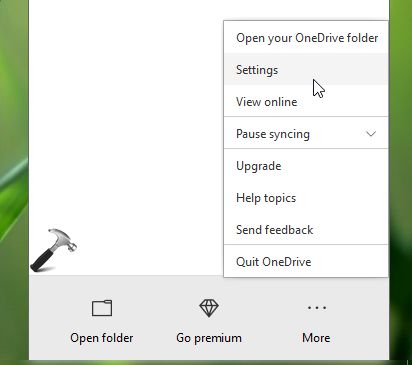
1. Right click on OneDrive icon on taskbar and click Settings.
2. In Microsoft OneDrive window, under Settings tab, under General heading, uncheck Automatically pause sync when this device is on a metered network option. Click OK.
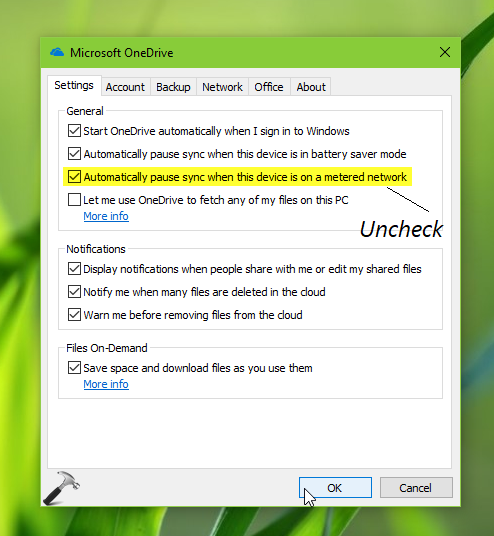
Your setting will be saved and applied. You can also configure this setting via registry.
Method 2 – Via Registry
Registry Disclaimer: The further steps will involve registry manipulation. Making mistakes while manipulating registry could affect your system adversely. So be careful while editing registry entries and create a System Restore point first.
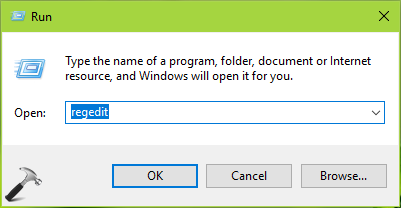
1. Press  + R and type
 regedit in Run dialog box to open Registry Editor (if you’re not familiar with Registry Editor, then click here). Click OK.
2. In left pane of Registry Editor window, navigate to following registry key:
HKEY_CURRENT_USER\SOFTWARE\Microsoft\OneDrive
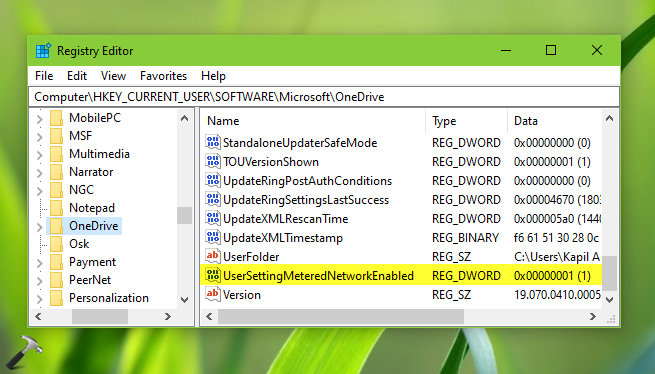
3. Now in the right pane of OneDrive registry key, look for the registry DWORD (REG_DWORD) named UserSettingMeteredNetworkEnabled. It must be having its Value set to 1 by default, which means OneDrive sync is automatically paused when you’re on Metered connection. Double click on the string to modify its Value data:
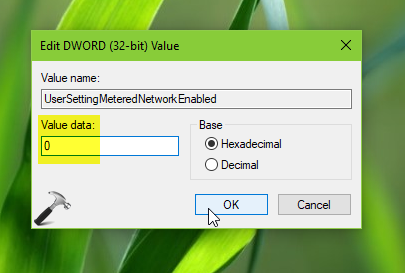
4. Set the Value data to 0 to allow OneDrive sync over Metered connection. Click OK and close Registry Editor. Restart your system make changes effective.
Hope you find the article useful!