

Wireless or WiFi network doesn’t needs an introduction in today’s computing world. Whatever computing device you buy today, most of them comes with wireless capability. This means the device can be instantly connected to wireless networks (open or secured with password).
Consider a scenario. You own multiple devices and one of them is Windows running system. You’ve connected this Windows system to your private wireless network long time ago. Now you want to connect your another device to same wireless network but you no longer remember the network password. In this situation, you can find wireless network password saved on Windows running system. Once you got the password, you can easily connect other device to wireless network without resetting the password for same network.
So here is how you can find wireless network password on your Windows system.
Page Contents
How To Find Your WiFi Password In Windows 10/8/7
Method 1 – Via Control Panel
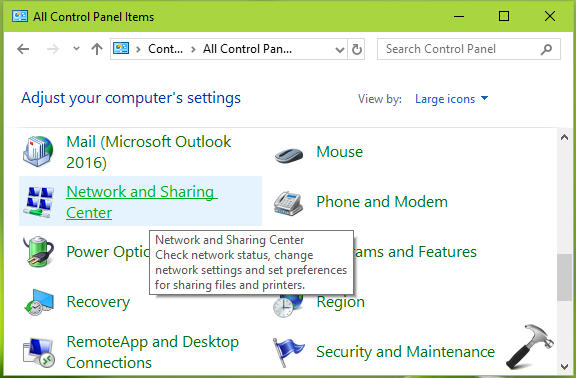
1. Open Control Panel and then click Network and Sharing Center.
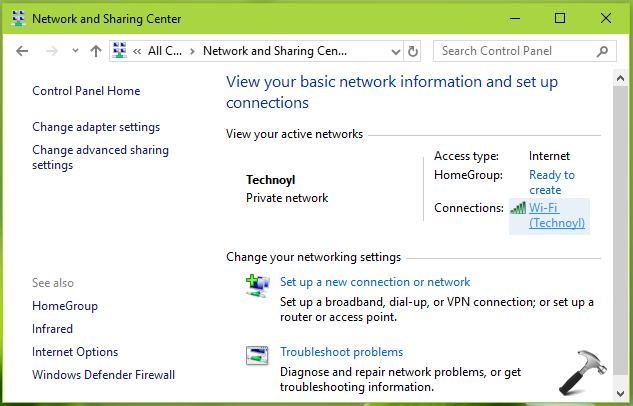
2. In Network and Sharing Center, against Connections, click on your currently active wireless network name.
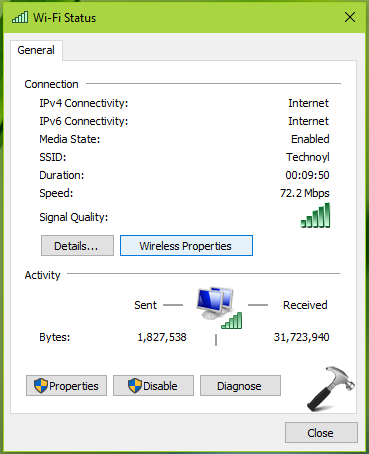
3. Moving on, on the wireless status sheet, click on Wireless Properties button.
4. Finally, in wireless network property sheet, switch to Security tab. Below Network security key, click on Show characters. You’ll be now able to view wireless network password against Network security key.
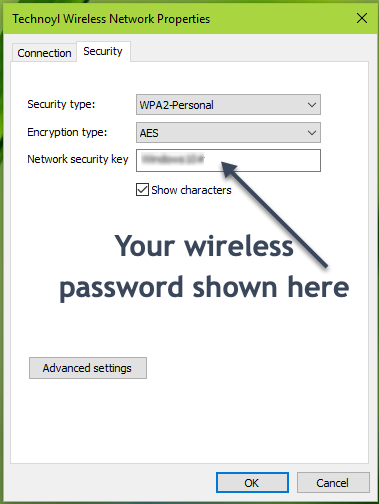
So this is how you can view wireless network password for currently active wireless network. To view passwords saved for all wireless network connected to your system, refer Method 2 below.
Method 2 – Via Windows PowerShell
1. In Windows 10, right click Start Button or press  + X keys and select Windows PowerShell (Admin). In Windows 8.1/8/7, use search to find Windows PowerShell, right click on ‘Windows PowerShell’ search result and select Run as administrator.
2. In administrative Windows PowerShell window, type/paste following and press Enter key:
(netsh wlan show profiles) | Select-String "\:(.+)$" | %{$name=$_.Matches.Groups[1].Value.Trim(); $_} | %{(netsh wlan show profile name="$name" key=clear)} | Select-String "Key Content\W+\:(.+)$" | %{$pass=$_.Matches.Groups[1].Value.Trim(); $_} | %{[PSCustomObject]@{ PROFILE_NAME=$name;PASSWORD=$pass }} | Format-Table -Wrap

3. The cmdlet execution takes few moments and you’ll be able to see passwords for all wireless networks connected to the system, till date.
That’s it!





