We all know that Microsoft adopted chromium project for their Edge browser. The company released Chromium based Microsoft Edge browser earlier this year. In this article, we will see how you can allow or prevent access to Developer tools in Microsoft Edge (Chromium).
Most of the browsers comes with Developer tools built-in and by default, you can access them. In Microsoft Edge (Chromium), you can access Developer tools from Settings > More tools or using Ctrl+Shift+I keyboard shortcut. You can also right click on any element on webpage and select Inspect element to access Developer tools.
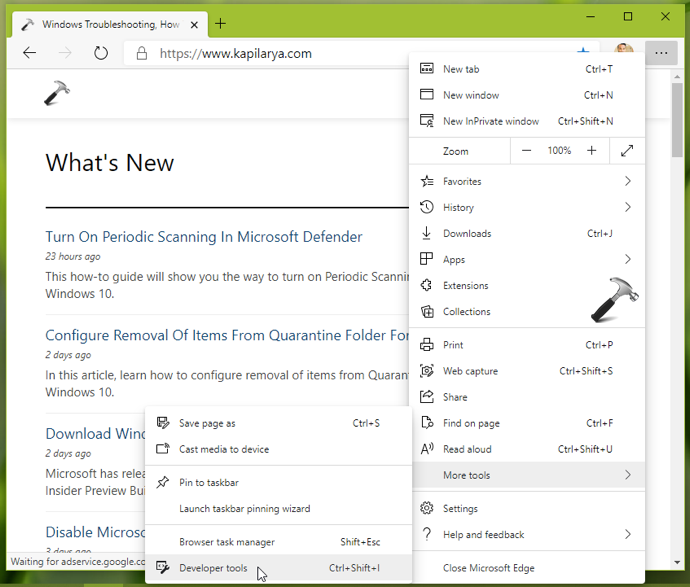
Then you can see the Developer tools as shown in the below screenshot:
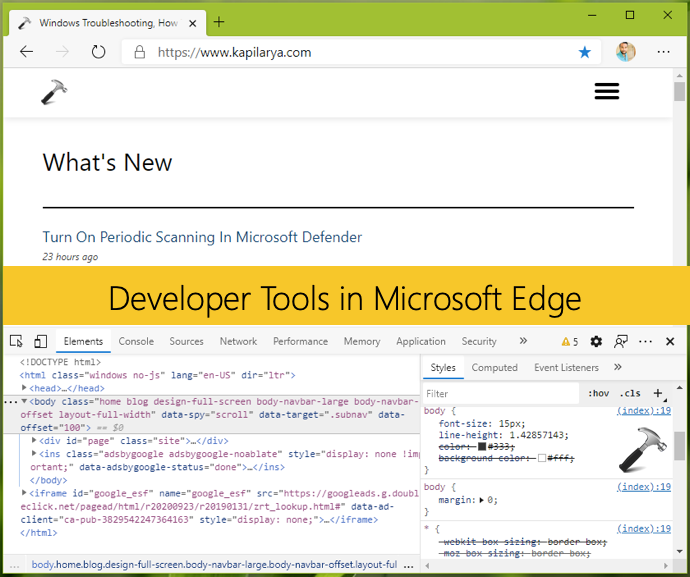
You’ll see following tabs in the Developer tools:
- The Element tab shows the HTML code of an element on the page and also shows you the CSS code for selected element.
- The Console tab shows the Verbose, Info, Warnings, Errors on the page.
- The Sources tab shows the resources that has build up the page.
- On Network tab, you can record network activity while loading the page and also, you can preserve the logs.
- The Performance tab shows the actual performance for loading a page or site.
- The Memory tab shows the memory allocation for the page.
- The Application tab allows you to inspect and manage cache, storage, databases.
- The Security tab mentions whether the page you are loading is fully, partially secure or insecure. It also shows the level of security by SSL certificate installed on the loaded page.
- The Audit tab helps web developers to check the performance of their website.
In case, if you want to disable Developer tools in Microsoft Edge (Chromium) browser follow below mentioned steps.
Allow/Prevent Access To Developer Tools In Microsoft Edge (Chromium)
1. Open Registry Editor.
2. Locate the HKEY_LOCAL_MACHINE\SOFTWARE\Policies\Microsoft\Edge registry key.
3. Create/edit registry DWORD (REG_DWORD) named DeveloperToolsAvailability.
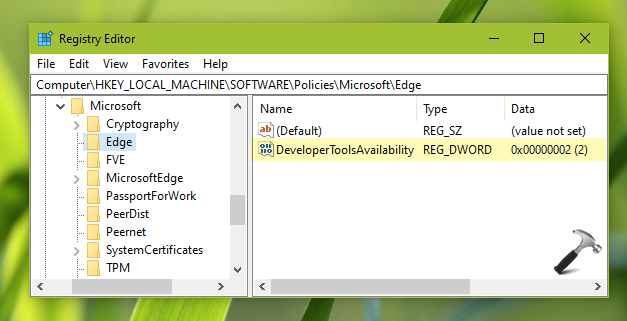
4. Set the DWORD Value data to 2. Close Registry Editor.
Now check Microsoft Edge (Chromium) browser and you’ll see that Developer tools are blocked and can no longer be accessed. They are now managed by your organization, in short by the registry.

Check this video to illustrate above method:
If you later want to enable Developer tools, simply delete the DeveloperToolsAvailability registry DWORD.
AllowDeveloperTools DWORD at HKEY_LOCAL_MACHINE\SOFTWARE\Policies\MicrosoftEdge\F12 and set it to 1.That’s it!