

In Windows, there are certain processes running in the background. Sometimes these processes may report high memory, CPU, disk or network usage. Obviously, if there is much burden on a particular process, it may show higher resource usage. This spike in specific resource usage should fade away with time. However, sometimes this doesn’t happens and a process may eating up system resources. In this article, we will particularly talk about the case of high memory usage by Desktop Window Manager.
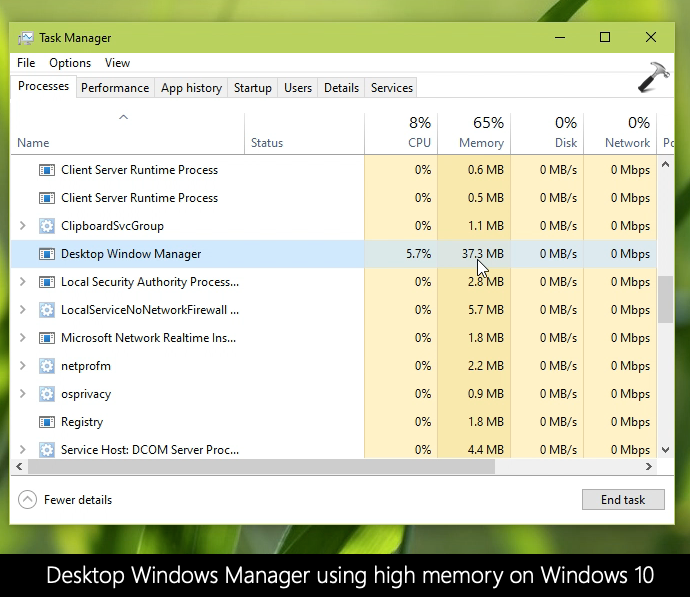
So the Desktop Windows Manager (DWM.EXE) is an official process running in a Windows operating system (OS). It is responsible to manage GUI visual effects and related components. It is there to enable use of hardware acceleration to render the graphical user interface of Windows. It combines visual elements from separate sources and make up a final image and results each program’s buffer into a final image. This process is integrated into the system and hence can’t be removed from the OS. If it is causing high memory usage on your system, here’s how you can correct it.
Page Contents
Fix: High memory usage by Desktop Window Manager
FIX 1 – General Suggestions
1. As soon as you detect the high memory usage by Desktop Windows Manager, try rebooting your system. In some cases, this will resolve the issue and you do not need to further troubleshoot.
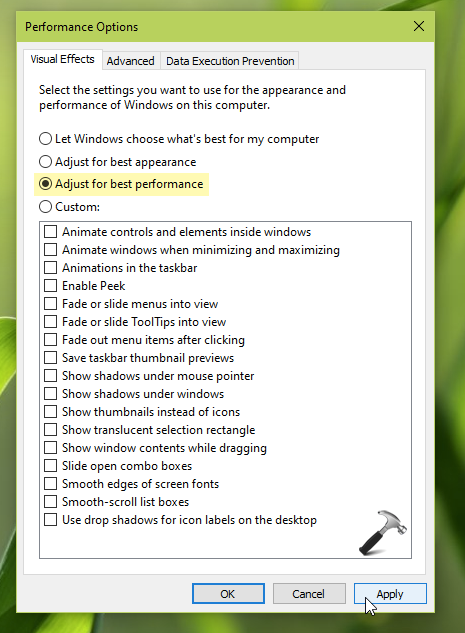
2. If rebooting doesn’t helps, you can adjust your system visual effects for best performance. Run sysdm.cpl command. In System Properties, go to Advanced > Performance > Settings. Select Adjust for best performance. Click Apply, OK.
3. Run SFC scan. If issue persists, use DISM command-line tool to repair system corruption.
4. Perform clean boot and identify, remove any third-party software causing the issue.
5. Update your display driver to latest version.
FIX 2 – Using Registry
1. Run regedit command to open Registry Editor.
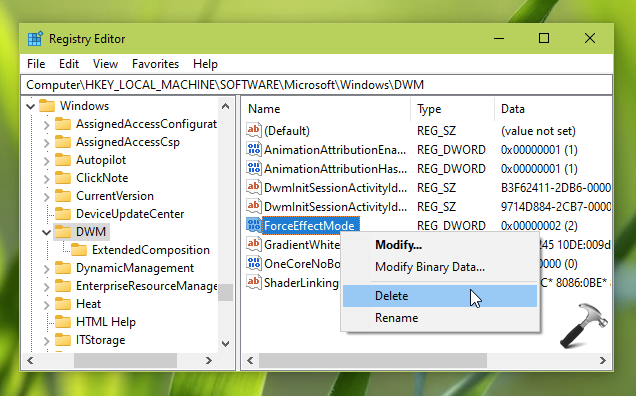
2. In Registry Editor window, go to HKEY_LOCAL_MACHINE\SOFTWARE\Microsoft\Windows\DWM.
3. Right click on ForceEffectMode named registry DWORD (REG_DWORD) and select Delete. Confirm this operation.
4. Close Registry Editor and reboot your system.
After restarting your system, you will find that the issue has been resolved.
Check this video to illustrate above steps:
That’s it!
Also check: Windows 10 100 Percent Disk Usage Problem.
![Solved: 100% CPU usage in Windows 11 [2026 Fix]](https://www.kapilarya.com/assets/Drivers-768x413.png)



![SecurityHealthSystray.exe High CPU / Disk / Memory Usage [Fixes]](https://www.kapilarya.com/assets/Windows-Defender-768x669.png)

Thanks Kapil..
^^ Glad to help!