If you’re using Windows 10, you’ve Microsoft Defender (earlier Windows Security/Defender) icon shown by default. You can go to taskbar settings and turn on or off that icon. In Windows Server, Microsoft Defender also comes pre-installed like in the client edition. However, you may have observe that there is no Microsoft Defender icon present on taskbar, by default. In this article, we will see how to show Microsoft Defender taskbar icon on Windows Server.
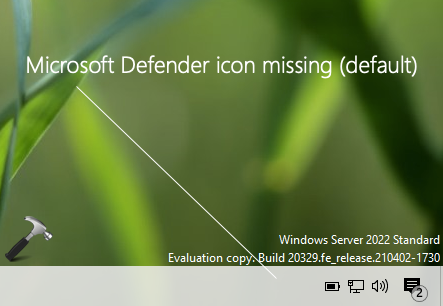
So as you can see in the screenshot above, Microsoft Defender icon is missing from taskbar system icons area. Moreover, if you go to taskbar settings, there is no option for Microsoft Defender, to enable that icon. The major benefit of that icon is, you can easily check Microsoft Defender status. Also, you can access its settings just by clicking on that icon. In the default condition, you need to search for Microsoft Defender, in order to access its settings. To simplify this, we need to restore Microsoft Defender icon on taskbar. But the question is how? Well, there exists a simple Group Policy based solution, which is shared below.
Here’s how you can restore Microsoft Defender icon on your Server taskbar.
Show Microsoft Defender taskbar icon on Windows Server
1. Open local GPO Editor by running gpedit.msc command.
2. Next, open the GPO Editor window, navigate here:
Computer Configuration > Administrative Templates > Windows Components > Windows Security > Systray

3. In the corresponding right pane of Systray, look for the only policy setting named Hide Windows Security Systray. Double click on the policy to modify its status:
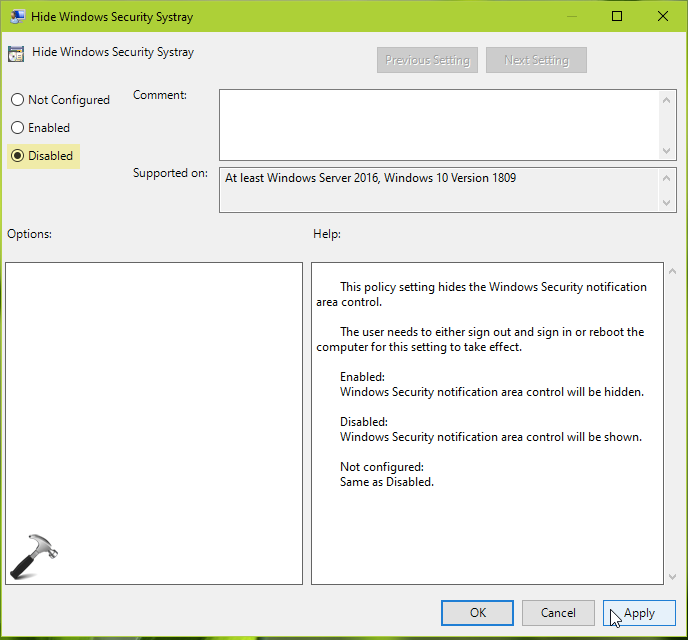
4. The policy should be set to Not Configured by default. However, we here need to set it to Disabled. Once you set the policy to Disabled, click Apply followed by OK.
5. Close GPO Editor and reboot your Windows Server.
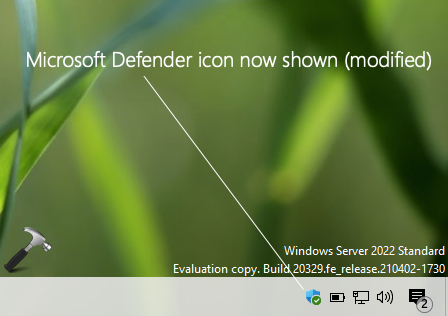
After restarting the Windows Server, you should be able to spot Microsoft Defender icon on taskbar.
Check this video to illustrate above steps:
That’s it!
Read next: Missing Group Policy areas from Group Policy Editor on Windows Server