

To test new features of any operating system without affecting your primary operating system, virtual machines (VMs) are the way to go. Using Hyper-V in Windows, you can create new VMs as per your requirement and install new operating systems on them. If you ever observe your Hyper-V virtual machine slow startup on your system, this article will help you.
So in this case, when you try to start your VM, you will see following screen for a long time. The VM may boot as usual, but after sometime. We’ll fix up this time lag in this post.
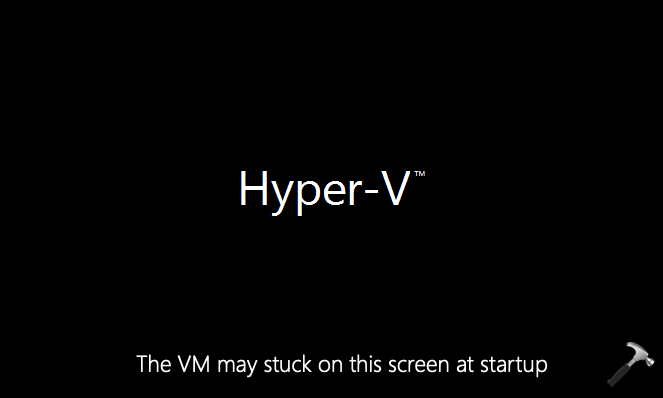
So if you are also facing the same problem as described above, here’s how to solve it.
Fix: Hyper-V virtual machine slow startup
Well, this is a known issue atm. According to Microsoft, the time required for the hypervisor to send IPIs to a large number of processors, and the fact that the processors have entered a deep processor idle power state (ACPI C-state). Waking the processor to deliver the IPI takes longer than delivering an IPI to a processor that does not have to exit the deep idle sleep state. The number of IPIs that must be sent during startup and shutdown increases with the amount of memory a VM is configured to use, and an IPI must be sent to each processor in the system. Thus, using deep ACPI C-states on systems with a large number of CPUs and using VMs with large amounts of memory will compound the causes and result in noticeable VM startup and shutdown delays.
To fix this issue, follow these steps:
1. Run regedit command to open Registry Editor.
2. In Registry Editor window, go to:
HKEY_LOCAL_MACHINE\SYSTEM\CurrentControlSet\Control\Processor
3. In the right pane of Processor key, create Capabilities named registry DWORD (REG_DWORD).
4. Finally, set the Value data for Capabilities as 0x0007e066.
5. Close Registry Editor and reboot your system to make changes effective.
Kindly note that when deeper ACPI C-states are disabled, your system power consumption may increase.
Hope this helps!





Hi,
Where should we edit the registry, in hyper-v or VM
^^ Do this at host, where Hyper-V is installed.
Hi, the key processor doesnt exist in 2019 std.. can you help me? Very slow vm startup. Shutdown is normal. Tks
^^ I didn’t understand what you meant by ‘key processor doesnt exist in 2019 std’.
Can you elaborate your question?