Has Windows Defender Threat Service stopped on your Windows 11 PC? If yes, then find here how to fix Windows Defender Threat Service has stopped error.
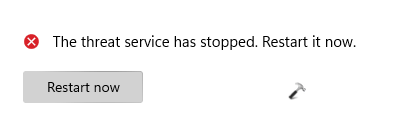
When try to restart the service, this error comes appears.

In this post, learn about some effective solutions to fix this issue. Let’s get started!
Page Contents
Fix: Windows Defender Threat Service has stopped error
Fix 1: Disabling Third-party Antivirus
Windows Defender does not work if you have installed a third-party antivirus on your Windows system. Usually, such antivirus programs disable Windows Defender automatically. In that case, you need to disable or uninstall third-party antivirus.
Fix 2: Using Registry Editor
1. In the first place, you need to open the Run dialog box. For this, press the Windows + R keys simultaneously on your keyboard. Once opened, type regedit in the Run dialog box to open Registry Editor.

2. After that, navigate to the following location:
HKEY_LOCAL_MACHINE\SOFTWARE\Policies\Microsoft\Windows Defender
3. Once there, right-click on the REG_DWORD keys present in the right pane if any. Now, select the Delete option from the context menu.

4. Or else, change the value to 0. To do so, double-click on the REG_DWORD and change its value data.

5. Lastly, close Registry Editor and reboot your Windows system to apply the changes.
6. Now, open Windows Security and look for Virus & threat protection. Now, click on Turn on to enable the service.

7. Also, in the Virus & threat protection settings, enable the Real-time protection by turning its toggle On.

Fix 3: Installing Windows Updates
1. Firstly, open Settings by pressing the Windows + I keys together on your system. After that, click on the Windows Update tab and select Check for updates.

2. If available, click on the Install now button.

3. Lastly, click on the Restart now button.

Fix 4: Check if Some Services are Running
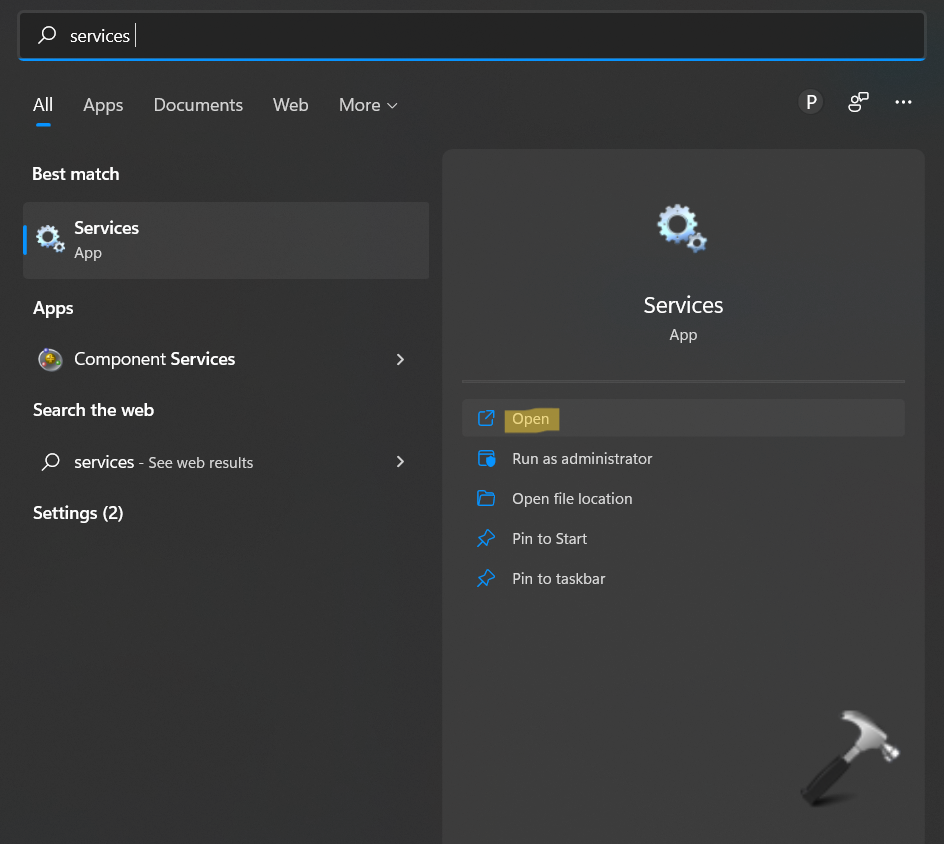
1. In the first place, open the Services utility through Windows Search. Type Services in the search column and click on Open.
2. Now, look for Windows Defender Firewall and check if its status is Running.

3. After that, look for Microsoft Defender Antivirus Network Inspection Service and Microsoft Defender Antivirus Service and check if their status is Running.

4. Lastly, look for Security Center and check if its status is Running.

5. If any of these services is not running, then right-click on it and then, choose Start.
Video fix
Here’s the video fix to help you more on this:
So, this is how to fix Windows Defender Threat Service has stopped error.
Related fix: Windows Defender won’t open in Windows 11.