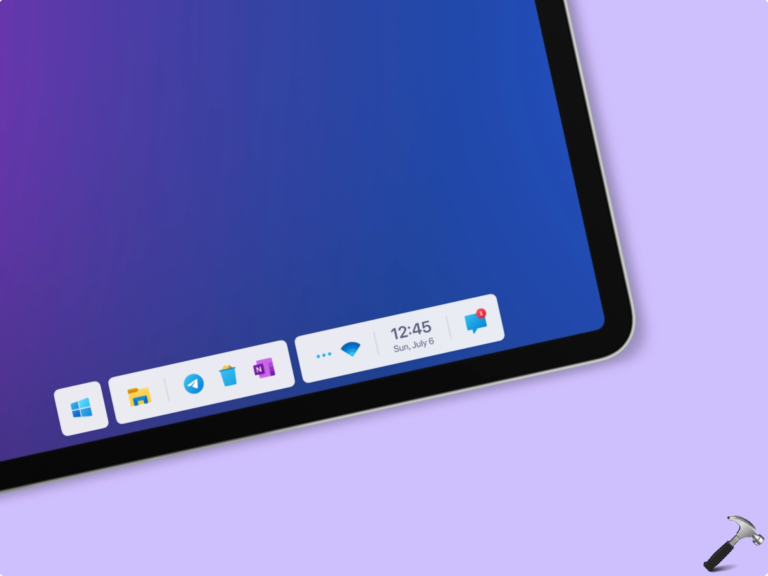
Tablet mode in Windows operating system is a feature designed to provide a more touch-friendly and streamlined user experience on devices with touchscreens or convertible form factors, such as 2-in-1 laptops or tablets. When tablet mode is enabled, the user interface is optimized for touch input, making it easier to interact with the device using your fingers or a stylus. In this article, we’ll read how to turn off tablet mode in Windows 11.

Page Contents
Tablet mode is removed in Windows 11
As per Microsoft, Tablet mode in Windows 11 is removed and new functionality and capability is included for keyboard attach and detach postures.
Hence, unlike Windows 10, you won’t find out any setting to manage Tablet mode. Although, Windows 11 may still automatically use Tablet mode functionality for better user experience on 2-in-1 devices.
Disable or turn off tablet mode in Windows 11
As the official settings to manage tablet mode is missing, you can use these workarounds:
Option 1: Reattach keyboard or rotate device orientation
This can be consider Microsoft’s way to disable tablet mode functionality.
In this case, you when you’re on tablet mode, you can simply re-attach the keyboard and the device will be again in laptop mode.
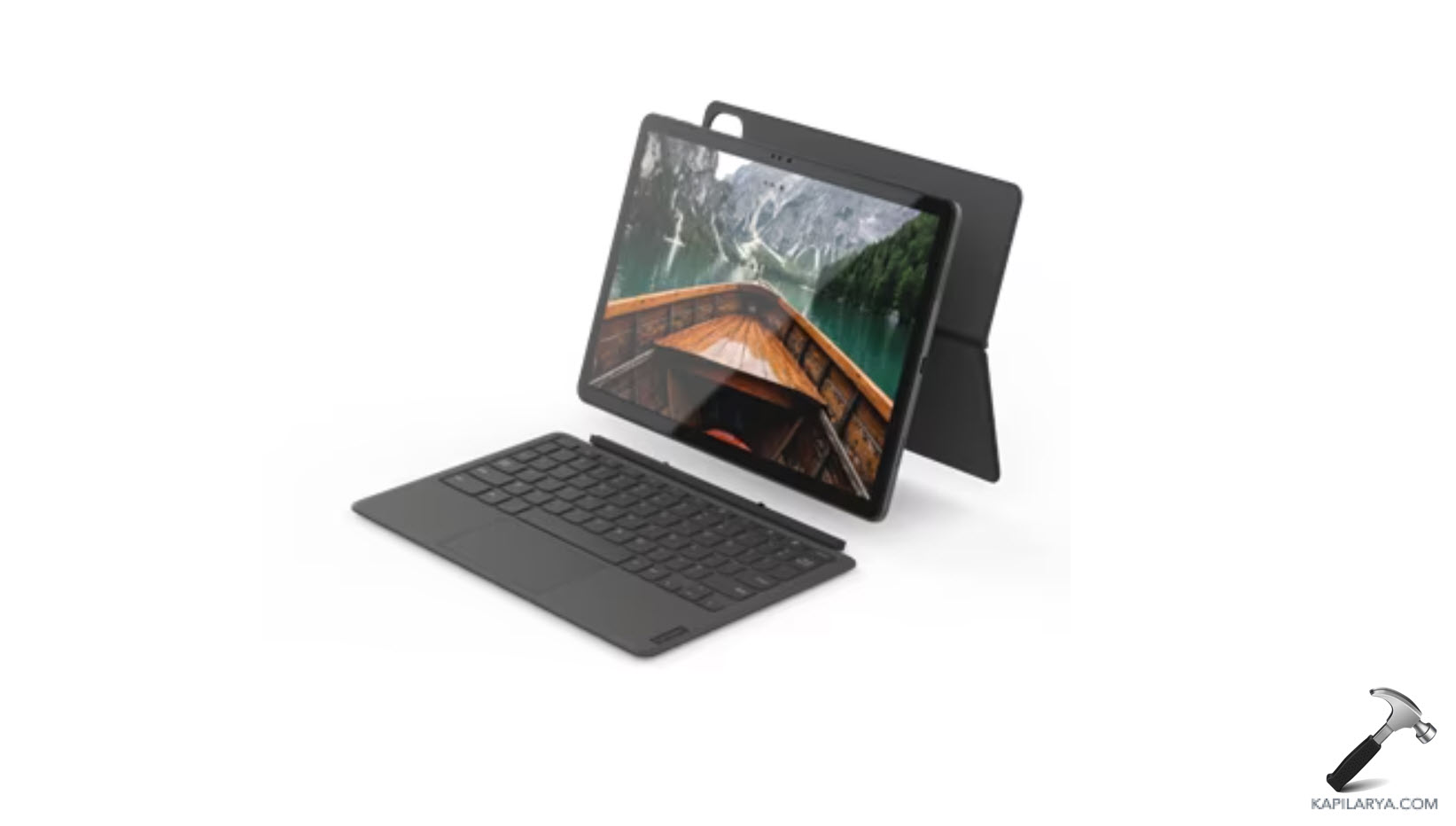
If your device is not having a detachable keyboard, you can rotate screen back into laptop orientation.
The tablet mode should be disabled immediately with either of above suggestions.
If you’re still in tablet mode, see Option 2 next.
Option 2: Prevent taskbar optimization for touch interactions in tablet mode
You can try this alternative option to reduce tablet mode functionality.
1. Press  + I keys to open Settings app.
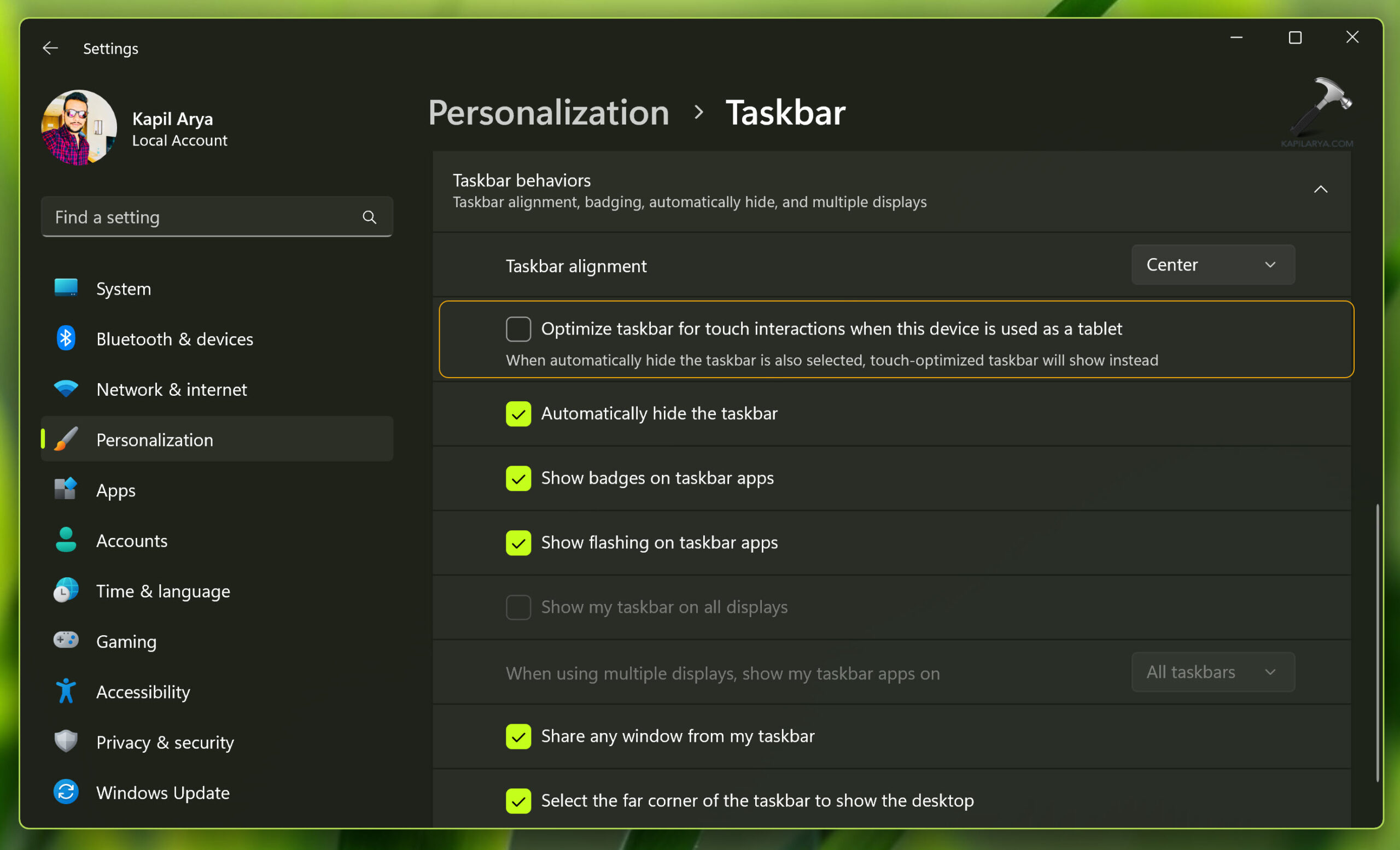
2. Go to Personalization. In the right pane, click on Taskbar.
3. Under Taskbar, make sure Optimize taskbar for touch interactions when this device is used as a tablet is turned Off or unchecked. Even if you’ve Automatically hide the taskbar checked, you’ll see a touch-optimized taskbar instead.
Option 3: Using Registry Editor
1. Press + R keys and type regedit to open Registry Editor.
2. Go to HKEY_LOCAL_MACHINE\SYSTEM\CurrentControlSet\Control\PriorityControl.

3. Create/update ConvertibilityEnabled registry DWORD to Value data as 0.
Hope this helps!