Volume Shadow Copy service is a built-in tool of Windows which allows the users to generate file backups automatically. But, at times the users of Windows 11 can face the issue of Volume Shadow Copy service not working. Thus, this guide follows the main solutions for solving this issue.
Page Contents
Fix: Volume Shadow Copy service not working
There might exist several reasons for error of Volume Shadow Copy service not working. These may include, system file errors, dysfunctional dependency components, etc. The user should first try the basic fixes listed below for fixing the issue-
- Restart the PC
- Restart the Volume Shadow Copy service
- Disabling any multiple data backup application if existing
If the problem still persists, then follow the fixes provided below.
Fix 1: Performing Clean Boot
Performing a clean boot is a troubleshooting feature which will help in manually eliminating startups and services which may be the reasons behind the occurrence of the Volume Shadow Copy not working issue. Thereafter, to perform this clean boot follow these steps-
Step 1- Firstly, press Windows + R. Now, on the Run dialog box, write the prompt below and select OK.
msconfig
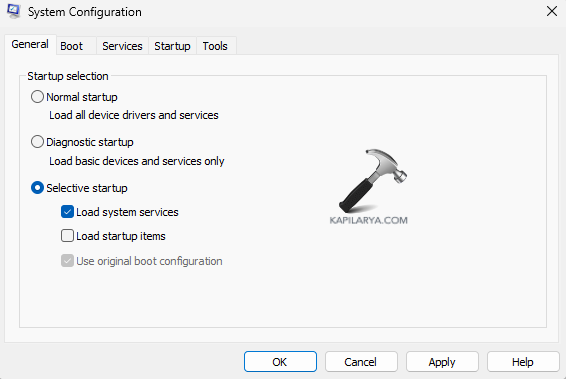
Step 2- Now, go to General tab of the System Configuration windows and deselect Load startup items under Selective startup. Additionally, select Load system services and Use original boot configuration.
Step 3- Next, go to Services, select Hide all Microsoft services > Disable all.

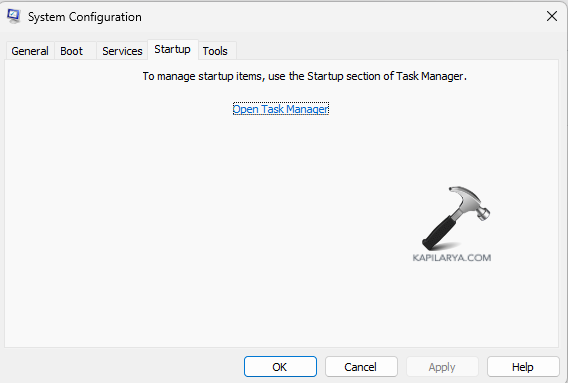
Step 4- Go to Startup > Open Task Manager.
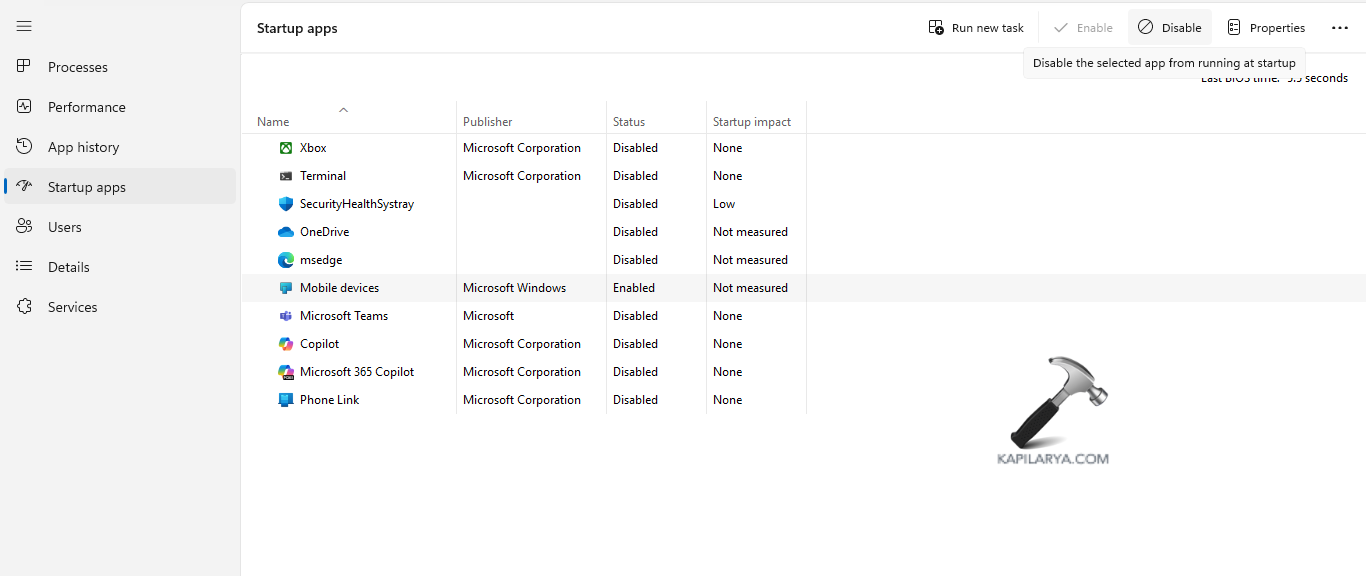
Step 4- Again, go to Startup in Task Manager. Now, select every startup item and press Disable.
Step 5- Navigate back to System Configuration and press OK.
Step 6- Lastly, press Restart and restart the computer.
Fix 2: Checking Hard Drive Errors
If the above fix does not work, then the users should check the disk drives and even the external drives. Corrupted drives may cause in the failing of backups which might trigger the issue. For, checking the hard disks, follow the steps given below-
Step 1- Open File Explorer. Now, go to the drive which is showing problems in backing up.
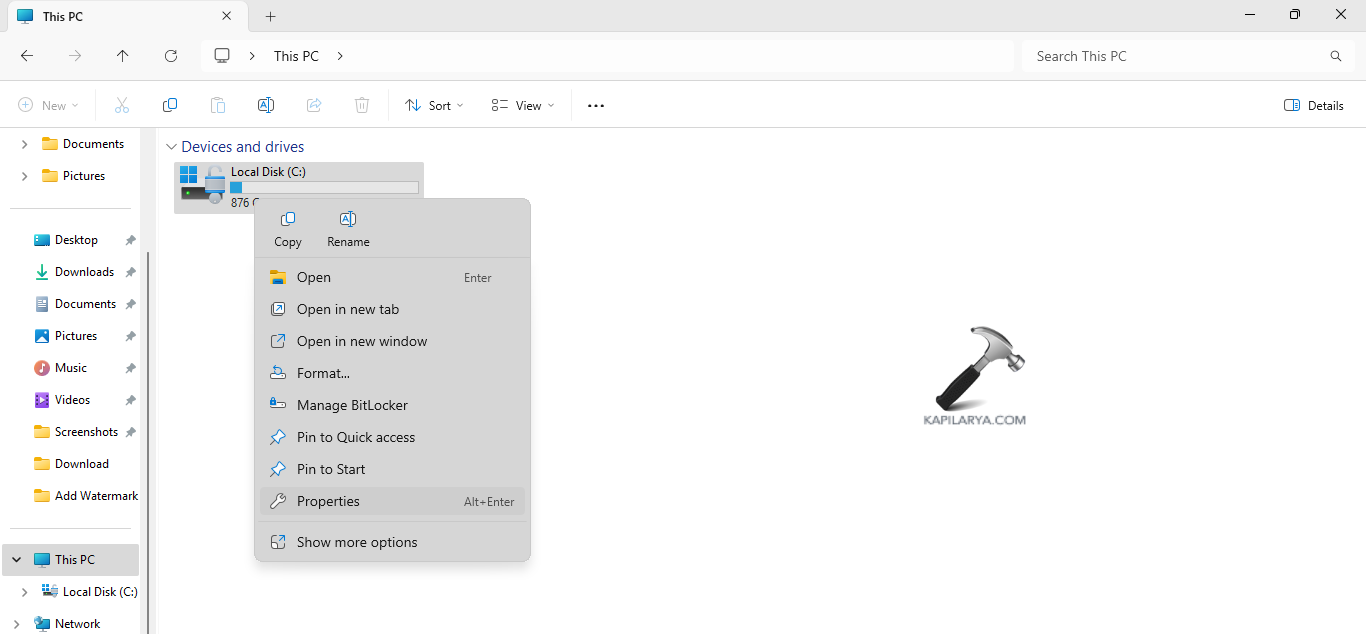
Step 2- Next, right-click on it and press Properties > Tools > Check. Thereafter, follow the on-screen prompts for scanning and fixing the file system errors.

The users can also run CHKDSK command further for fixing hard drive issues.
Fix 3: Enabling Volume Shadow Copy service
The Volume Shadow Copy service when disabled can too cause the issue. Thus, it is necessary to ensure that the service is enabled. Follow the steps for doing the same.
Step 1- At first, open Services.
Step 2- Next, in the Services, window, go to Volume Shadow Copy Services and right-click it.

Step 3- Select Properties. In the General tab, change the Startup type to Automatic.

Step 4- Start the service if the Service status is stopped. Lastly, select Apply > OK.
Fix 4: Temporarily disabling Antivirus and Firewall
Disabling antivirus and firewall temporarily can also aid in fixing the problem.
Now, for disabling Antivirus, follow the steps given below-
Step 1- Open Windows Security and go to Virus & threat protection.
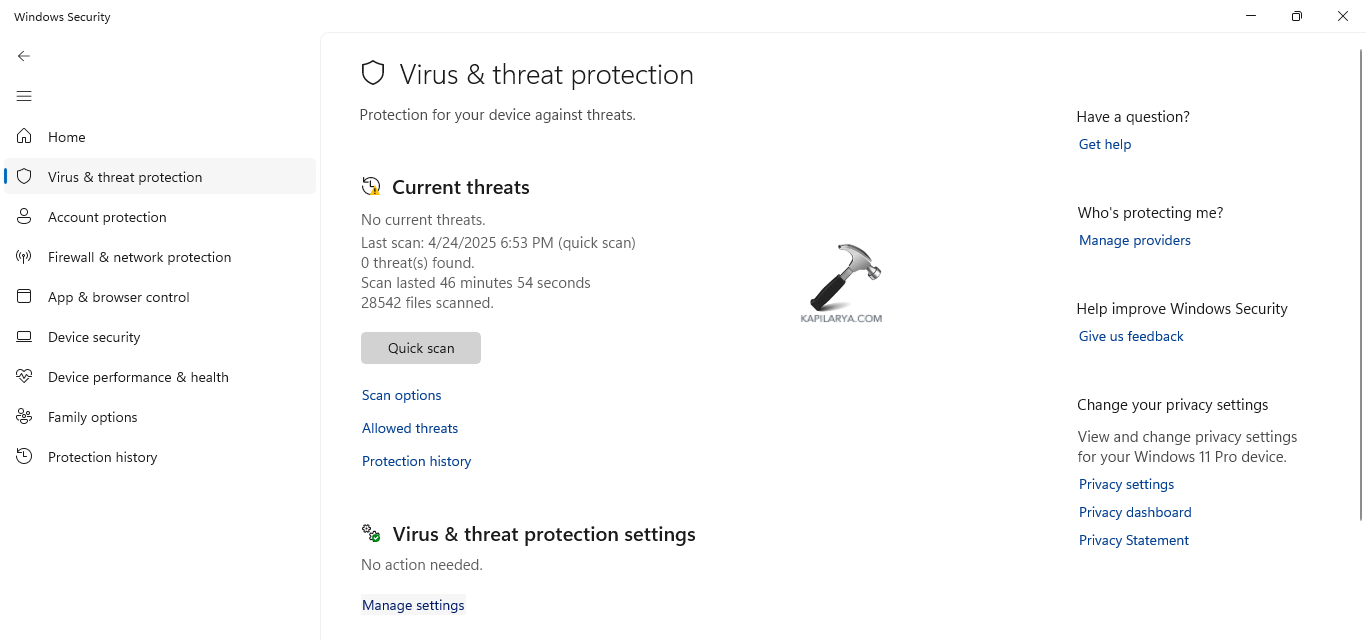
Step 2- Next, select Manage settings and disable Real-time protection.
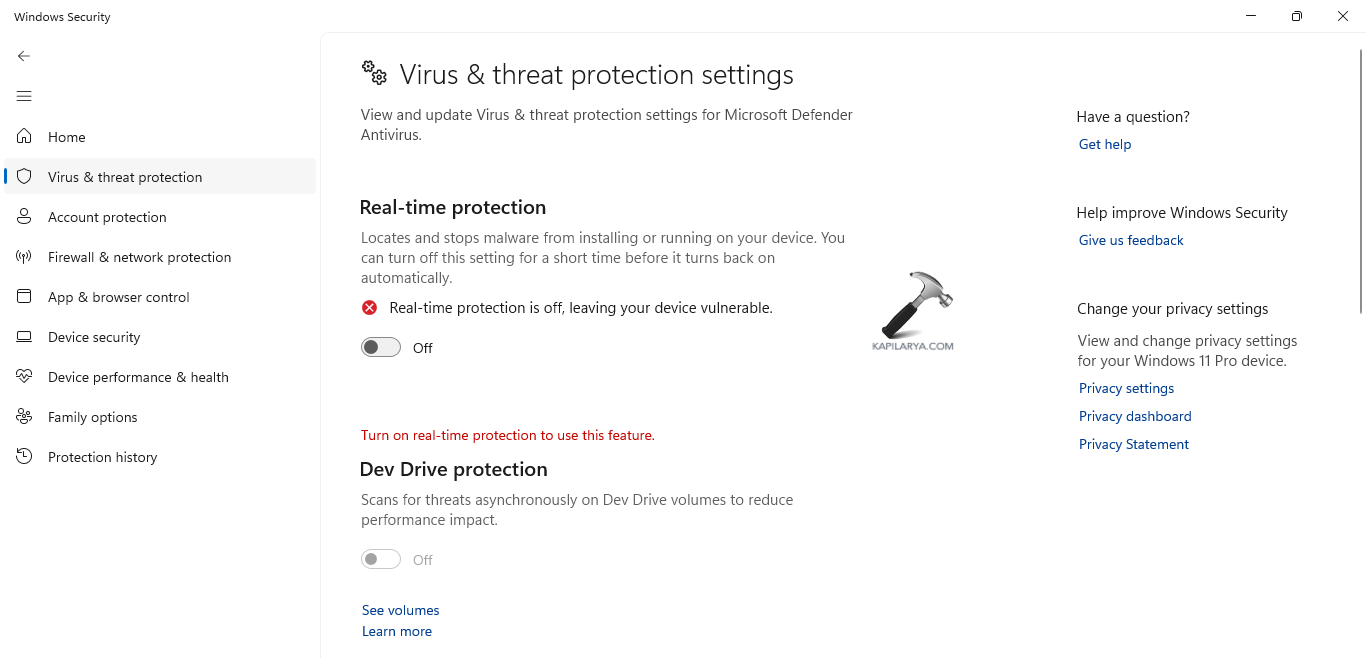
Again, for disabling Firewall, follow the below instructions-
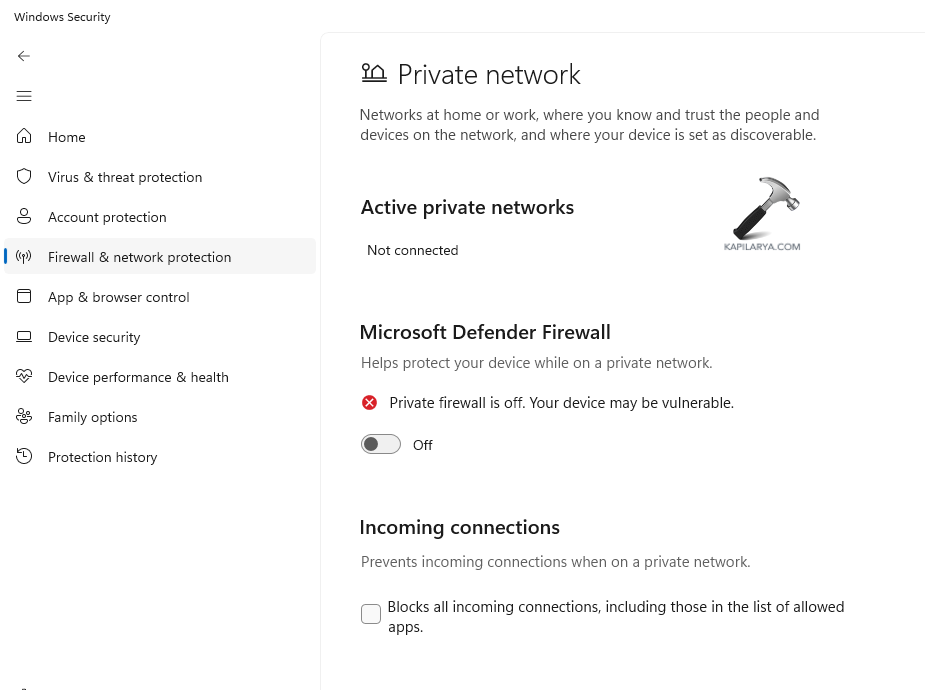
Step 1- Again, open Windows Security and go to Firewall & network protection.

Step 2- Further, choose the active network (Domain/Private/Public) and disable the Microsoft Defender Firewall.
Fix 5: Running SFC scan
Running the SFC scan can also lead to solve any glitch in the Volume Shadow copy service. Thus, follow the steps below for running the same.
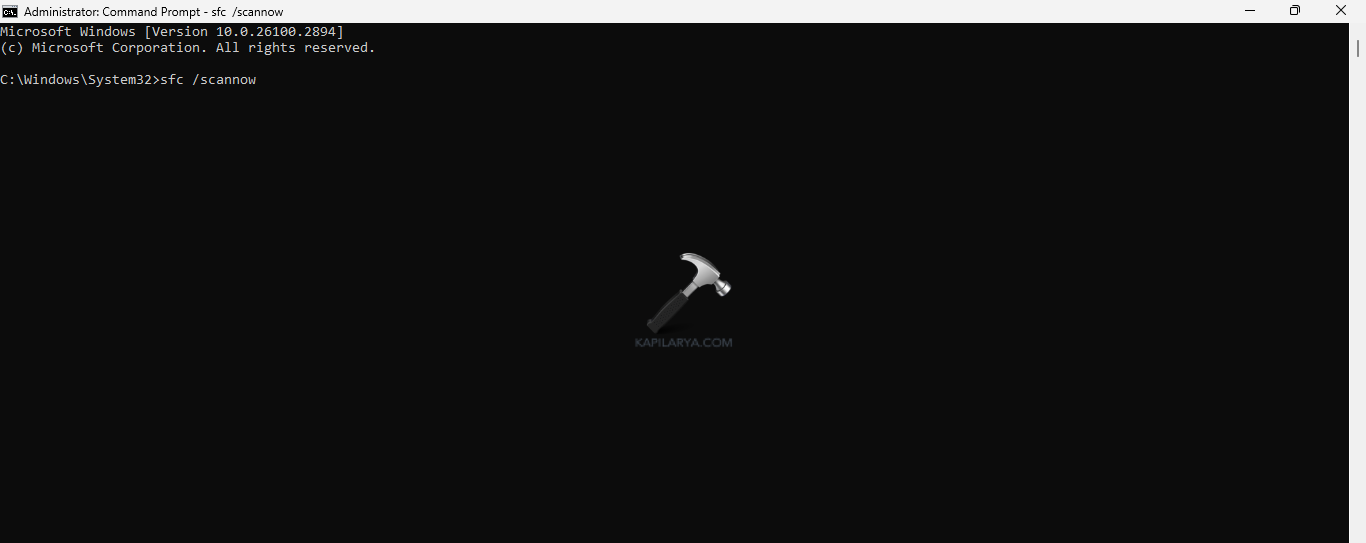
Step 1- Firstly, run the Command Prompt as an administrator.
Step 2- Now, copy and paste the prompt given below and click Enter-
sfc /scannow
Step 3- Restart the PC and check if the problem is solved.
Fix 6: Changing System Restore Settings
Wrong system restore settings may be another reason for the existence of the problem of Volume Shadow Copy service not working. Hence, configuring system restore settings using the steps below can aid in solving the problem
Step 1- Press Windows + R. In the Run dialog box, write the command given below and press Enter.
gpedit.msc
Step 2- Now, in the Local Group Policy Editor Window, select Computer Configuration.
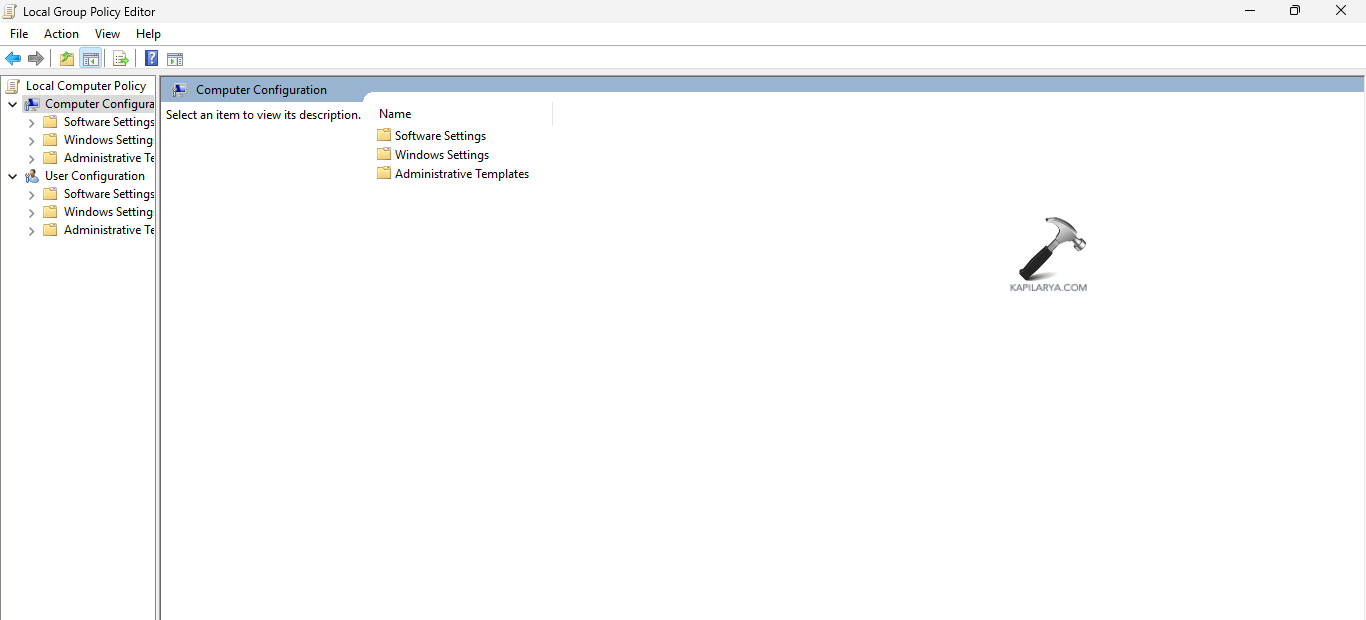
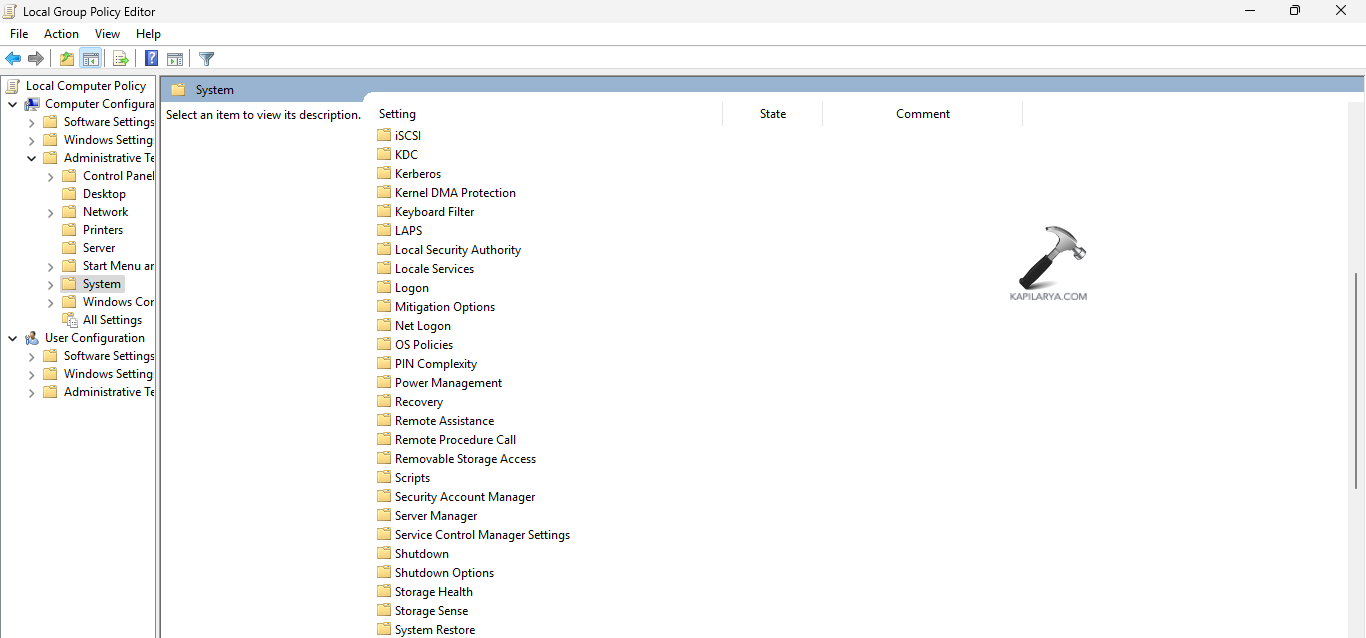
Step 3- Next, go to Administrative Templates > System > System Restore.
Step 4- Now, right-click Turn off System Restore and select Edit.
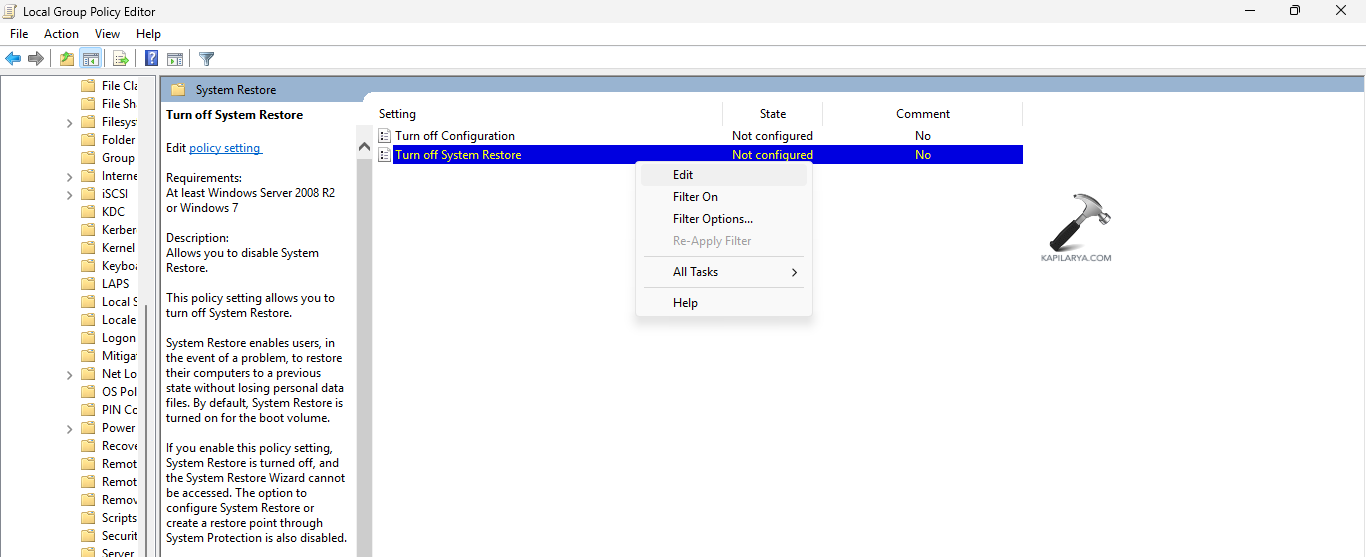
Step 5– Lastly, select Not Configured > Apply > OK.

Hoping that this helps the users in solving the issue of Volume Shadow Copy service not working.