

The users of Windows 11 may want to customize the sound scheme on their PC according to their own needs. The users if not satisfied with the customization can also go back to their default sound scheme by choosing Windows Default as their Sound Scheme. Thus, this article will guide the users to change sound scheme in Windows 11 PC.
Page Contents
Change sound scheme in Windows 11 PC
If the users are facing any limitations regarding changing their sound scheme in Windows 11, they should check that the policy setting provided below is enabled-
CPL_Personalization_NoSoundSchemeUI
If this is enabled, then the users will face problems in changing the sound scheme. Hence, the users must see that this policy setting is disabled. Now, let us check the main ways with which the users can change the sound scheme in Windows 11.
1. Changing Windows 11 System Sounds
At first, let us check how to change Windows 11 System Sounds with the steps given below.
Step 1- Firstly, open Settings > System > Sound > Sound Settings.
Step 2- Next, go to Advanced and then select More sound settings.
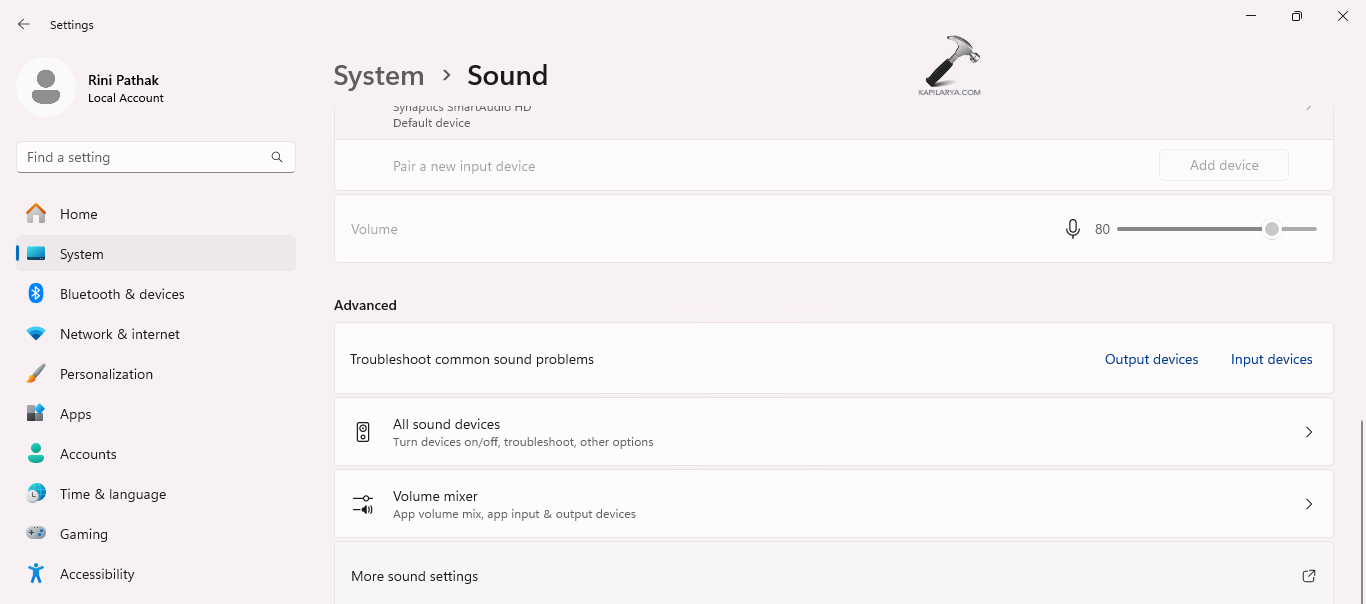
Step 3- Now, go to Sound tab. Then, from the list of Program Events, select an event for changing.
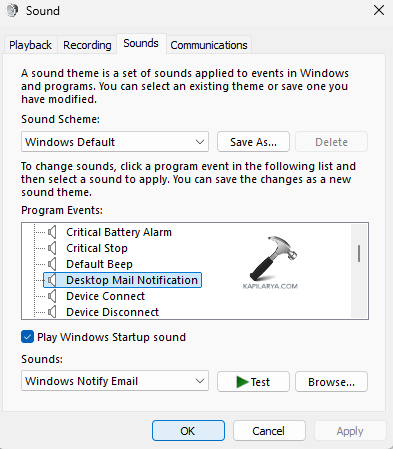
Step 4- Next, a new drop-down menu will appear which will consist of the available sounds. Lastly, press OK for saving all the changes.
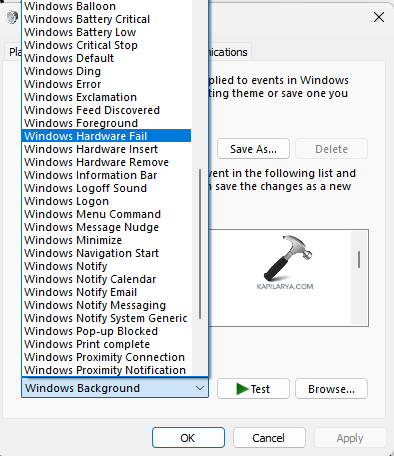
2. Changing Windows 11 Sound Scheme
Now, let us check how to change Windows 11 Sound Scheme.
Step 1- For saving a new Sound Scheme, click Save As….. button near the Sound Scheme menu.
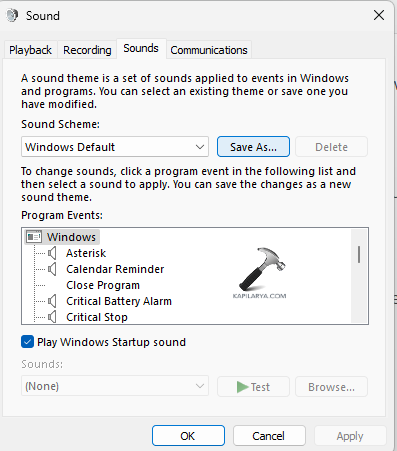
Step 2- Write a name for the sound scheme and select OK.
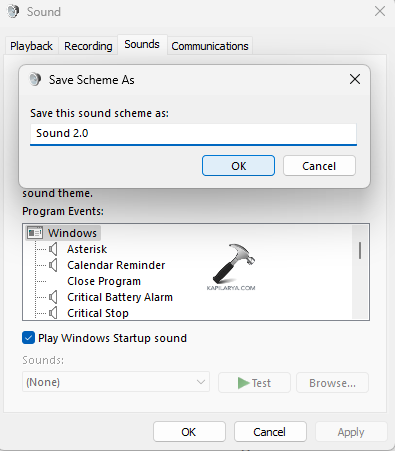
Step 3- Now, the sound scheme will appear in the drop-down menu. Activate it by selecting it from the menu.
Step 4- Lastly, press OK for saving all the changes and close the window.
3. Turning Off Windows 11 System Sounds
Furthermore, the steps below will allow the users to turn off Windows 11 system sounds if required.
Step 1- Select Sound Scheme located near Sound settings window.
Step 2- Next, select No Sounds and press OK for saving the settings.

4. Changing Sound Scheme using Control Panel
Apart from changing sound scheme with the Settings app, the users can also change the Sound Scheme using Control Panel. Follow the steps for doing the same.
Step 1- Firstly, open Control Panel.
Step 2- Next, go to Sound.
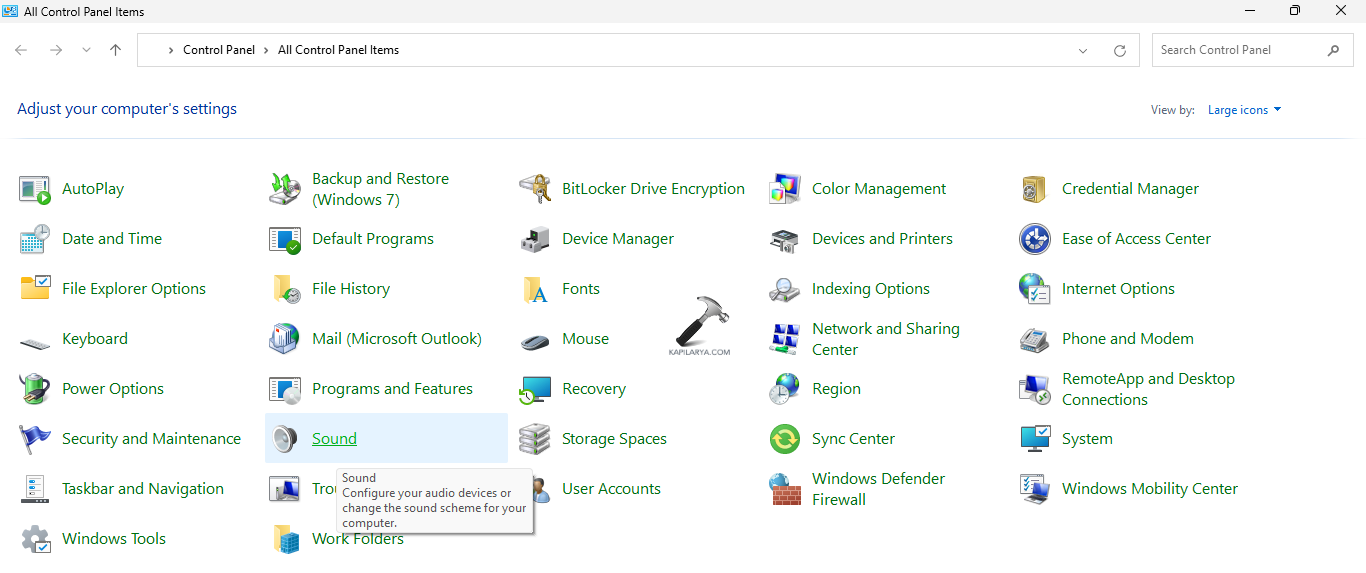
Step 3- Now, in the Sounds tab, select a sound or customize specific sounds for different events.
Step 4- Further, assign personal .wav files to different events through selecting event in the list. Press the Browse button for locating the required sound file.
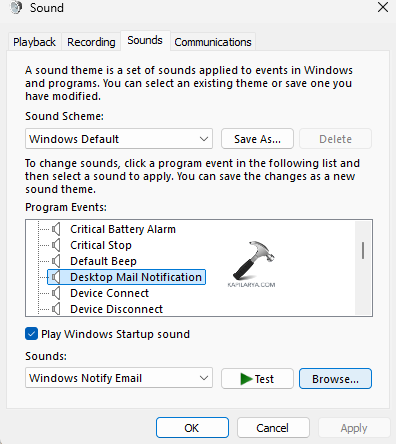
Step 5- Lastly, save the new sound scheme through giving a name in Sound Scheme and press Save.
5. Turning Off Windows 11 Startup Sound
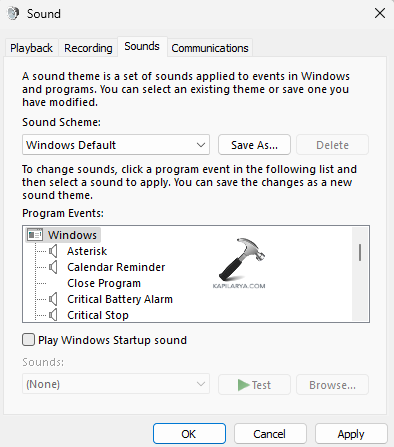
Unlike Windows 10, Windows 11 does not include the key option of Windows Startup Sound. It is the sound which plays when Windows starts. Windows 11 does not allow its users to change Windows 11 startup sound, but they can turn it off through deselecting the Play Windows Startup sound in the Sound Settings window.
Hoping this helps!




