Do you want to fix Hyperlinks not working in new Outlook? The issue of hyperlinks failing in the new Outlook is frustrating to many Windows 11/10 users and Office users, particularly after the new updates. You can go around clicking on a link in an email or trying to operate a URL in your default browser, but nothing will come up, or worse still, you will see a couple of error messages.
This could cause workflow and communication disruption, especially for professionals who use Outlook services to communicate and also to schedule. In this tutorial, we are taking you through the steps to open hyperlinks in a new Outlook with easy-to-follow solutions.
Page Contents
Fix: Hyperlinks not working in new Outlook
Fix 1: Reset URL File Types
In specific situations, it is simply not possible to distinguish which application is intended to deal with some file or protocols, e.g. HTTP or HTTPS. The hyperlink problem can be solved within minutes by resetting such file associations.
1. To go to the Settings, press Windows key and I. Under Apps, go to Default apps.
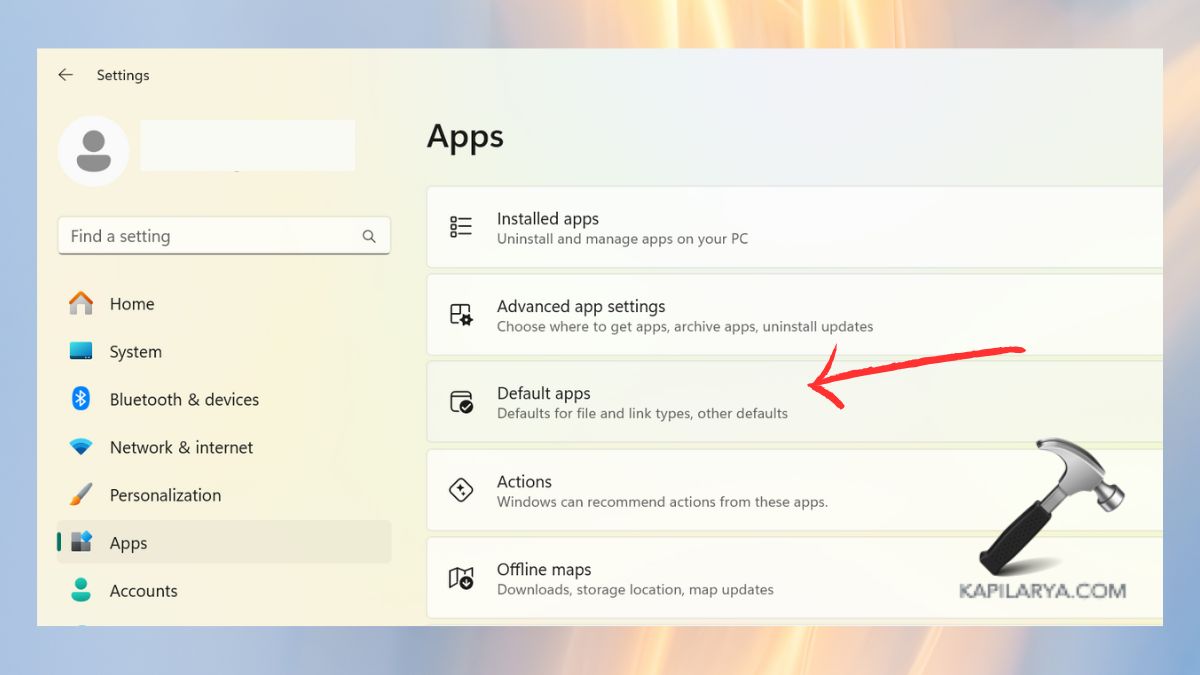
2. Scroll around and rap on Choose defaults by file type. Find .htm and .html extensions and ensure that they are tagged to your favorite browser (e.g. Microsoft Edge or Google Chrome).

3. Do this with HTTP and HTTPS protocols under Choose defaults by link type.
Fix 2: Choose Microsoft Edge as Your Default Web Browser
The new Outlook version is highly integrated with Microsoft Edge. In case, your default browser is some other one, or it is corrupted, hyperlinks will not work in Outlook.
1. Press Windows + I to Open Settings. Again, go to Apps > Default Apps.
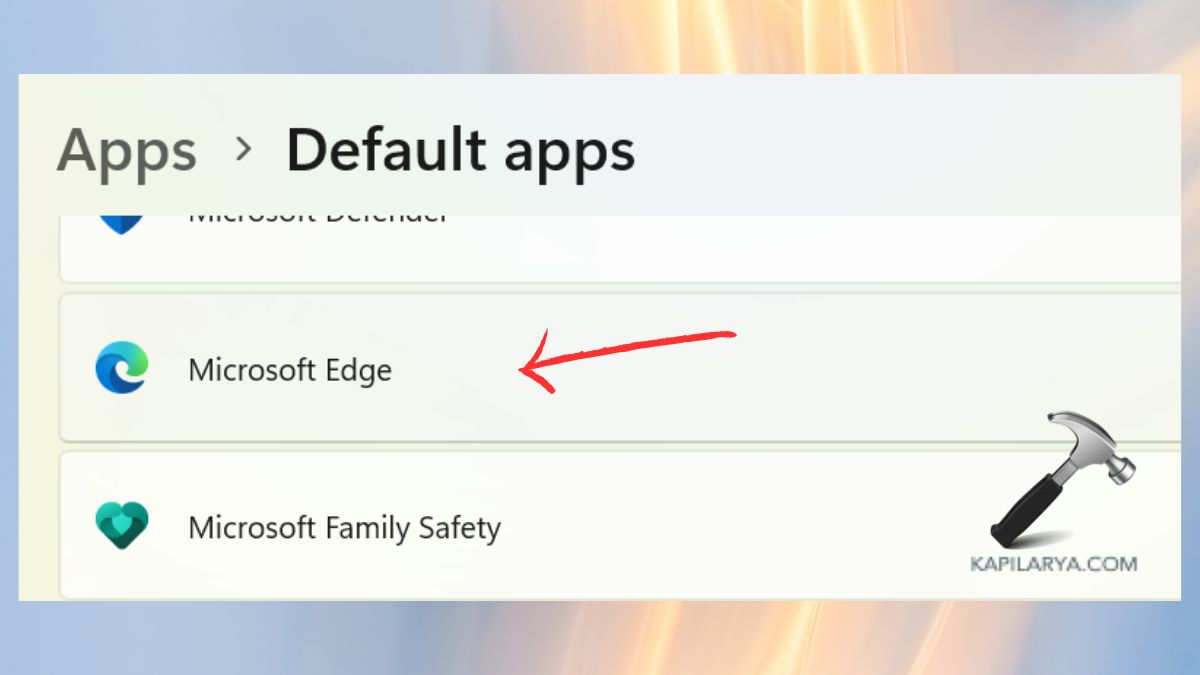
2. Open Microsoft Edge and click on it.
3. Click Set default to set Edge as the default whenever dealing with any file type or links in a compatible system.
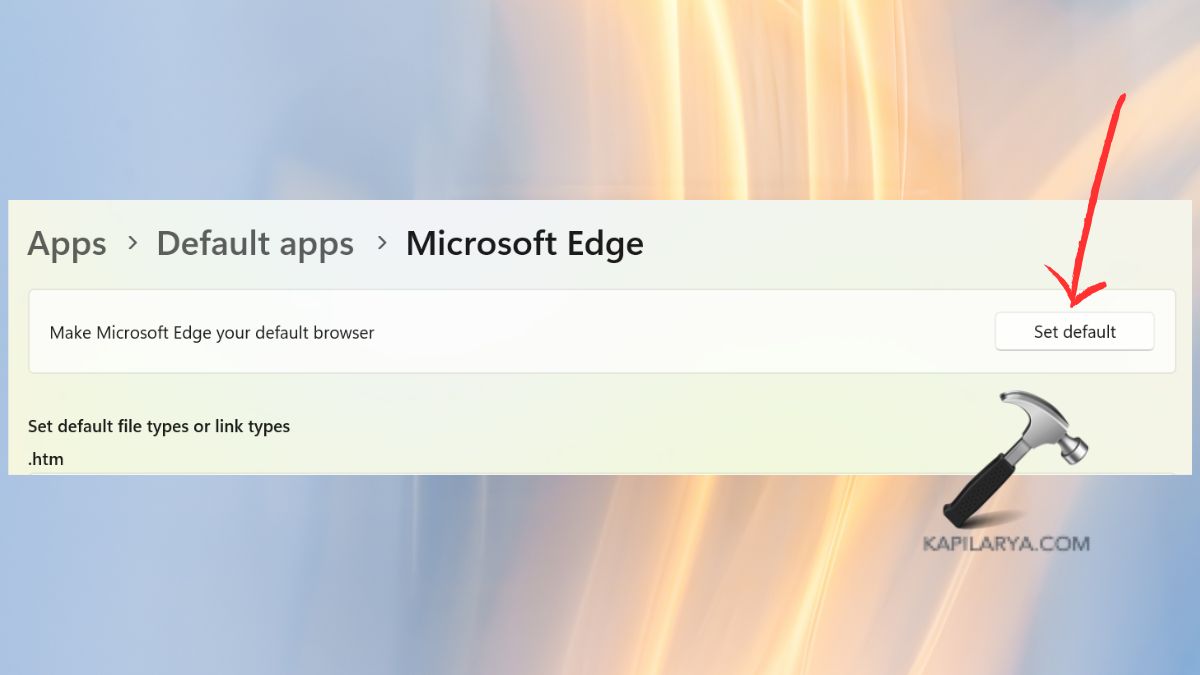
Operating in Microsoft Edge will prevent the compatibility problem with Outlook after the feature update.
Fix 3: Reset Microsoft Edge
In case Edge is not opening links, and you have set Edge as your default browser, then the same browser might be causing the problem. The solution to this is usually to reset it to its default settings.
1. Launch Microsoft Edge. Select three dots (…) in the upper-right corner, and open Settings.
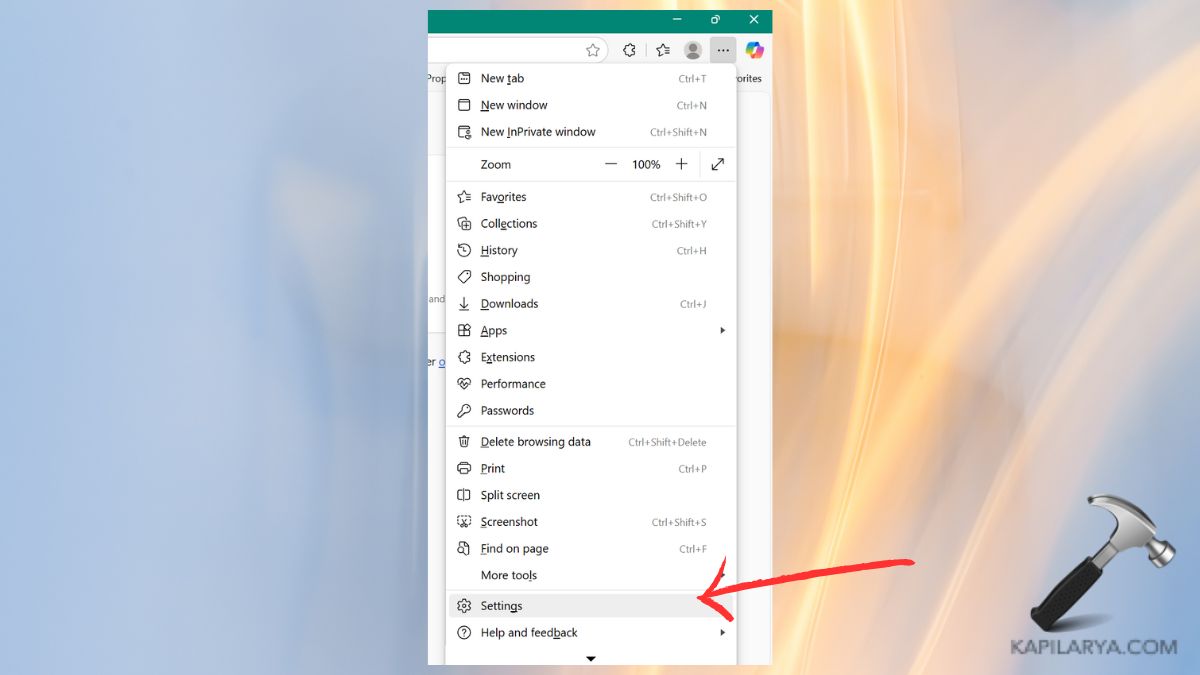
2. Go to the bottom and press Reset Settings > Restore settings to the default value.
Then, check by clicking Reset.
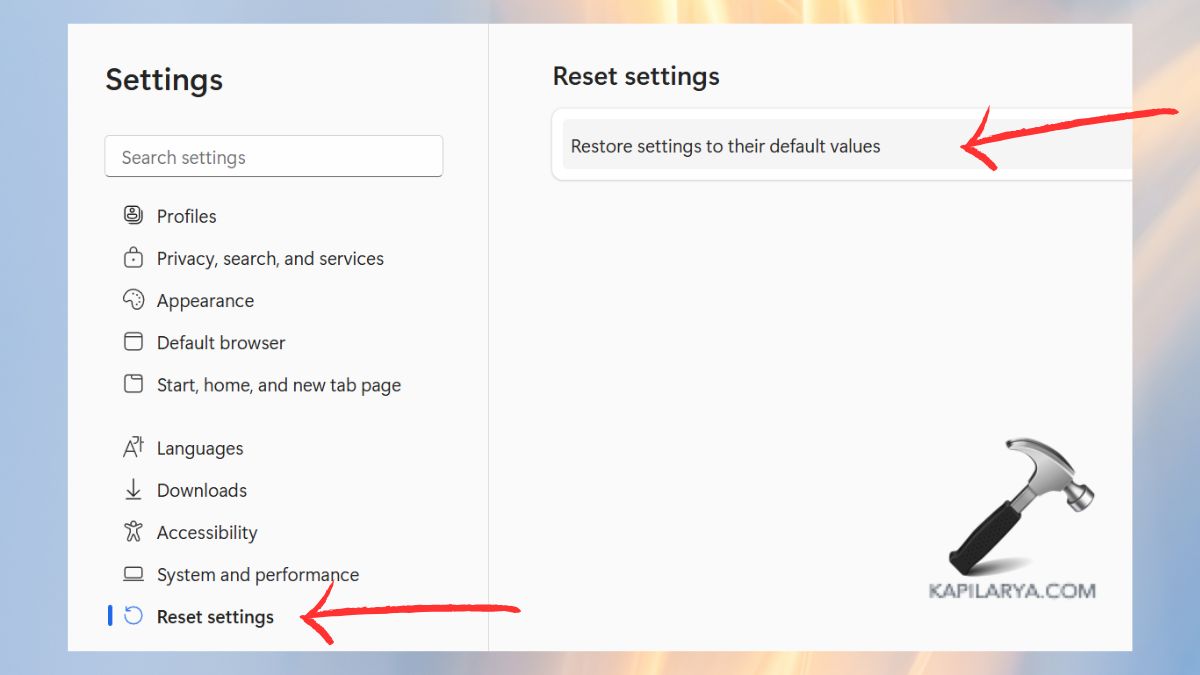
This will eliminate troublesome settings or extensions that might cause interference in the handling of hyperlinks.
Fix 4: Register DLL Files Again
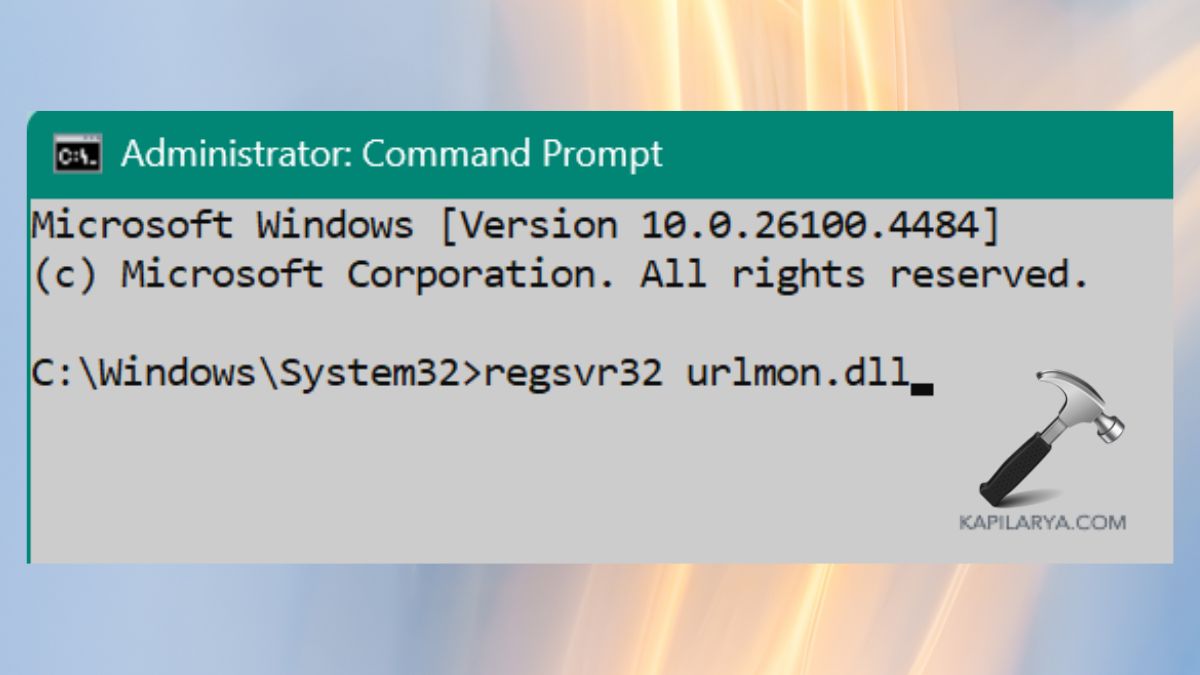
It is also possible to encounter broken or unregistered DLL files, which may prevent the opening of hyperlinks in Outlook. Hence, this can be solved by re-registering them in the Command Prompt.
1. Search by typing “cmd” in Windows. To enable this feature, simply right-click on Command Prompt and click on Run as administrator.

2. Key in the neat commands listed one at a time and hit the Enter key after each.
regsvr32 urlmon.dll
regsvr32 mshtml.dll
regsvr32 shdocvw.dll
regsvr32 browseui.dll
regsvr32 msjava.dll
Reboot your computer when it is done.
Fix 5: Repair Outlook or MS Office
In emails, hyperlinks can be an issue due to the corruption of the Outlook or Office installation files. Though the fix may be accomplished by repairing the application.
1. Press Windows + I and click on Apps > Installed Apps.
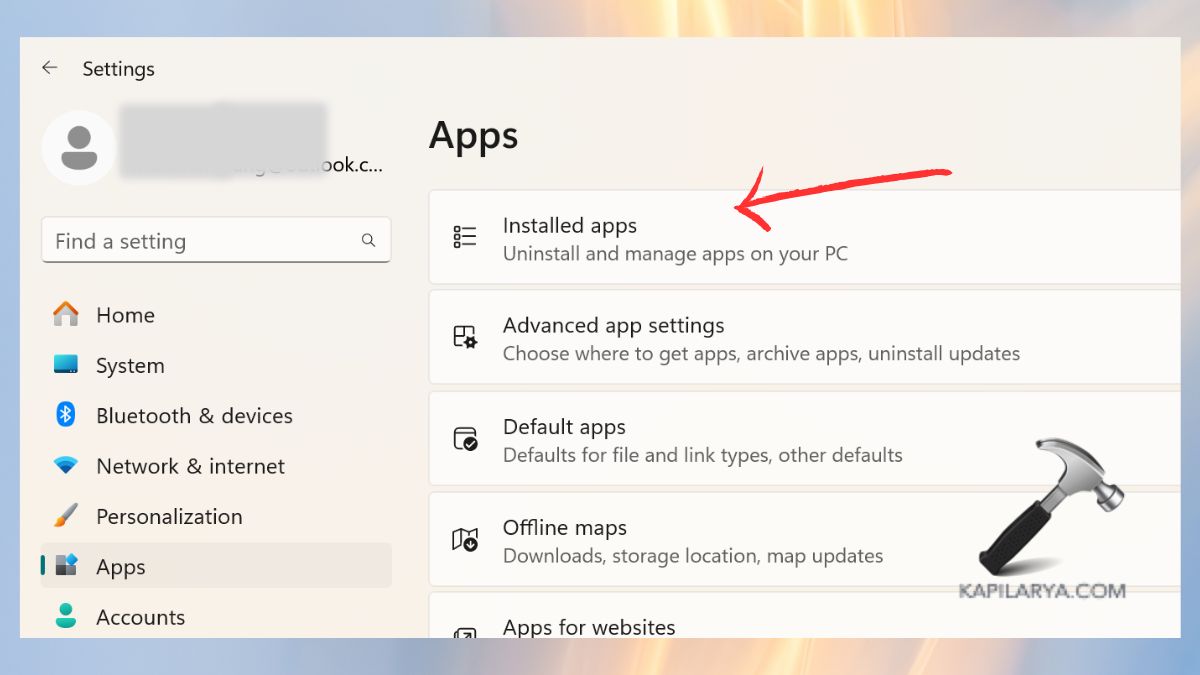
2. Locate Microsoft Office on the list, select the three dots, and select “Advanced options”.

2. Then, choose Repair.

Restart your PC by following the instructions on the screen. This will leave your Outlook files in a clean, trouble-free state.
Fix 6: Check Your Browser Settings (Pop-up Blockers, JavaScript)
All modern browsers are blocking pop-ups or scripts, which can have implications for link behavior in Outlook.
1. First, visit the Browser settings and go to “Privacy and Security”.

2. Now, hit the Site Settings option.
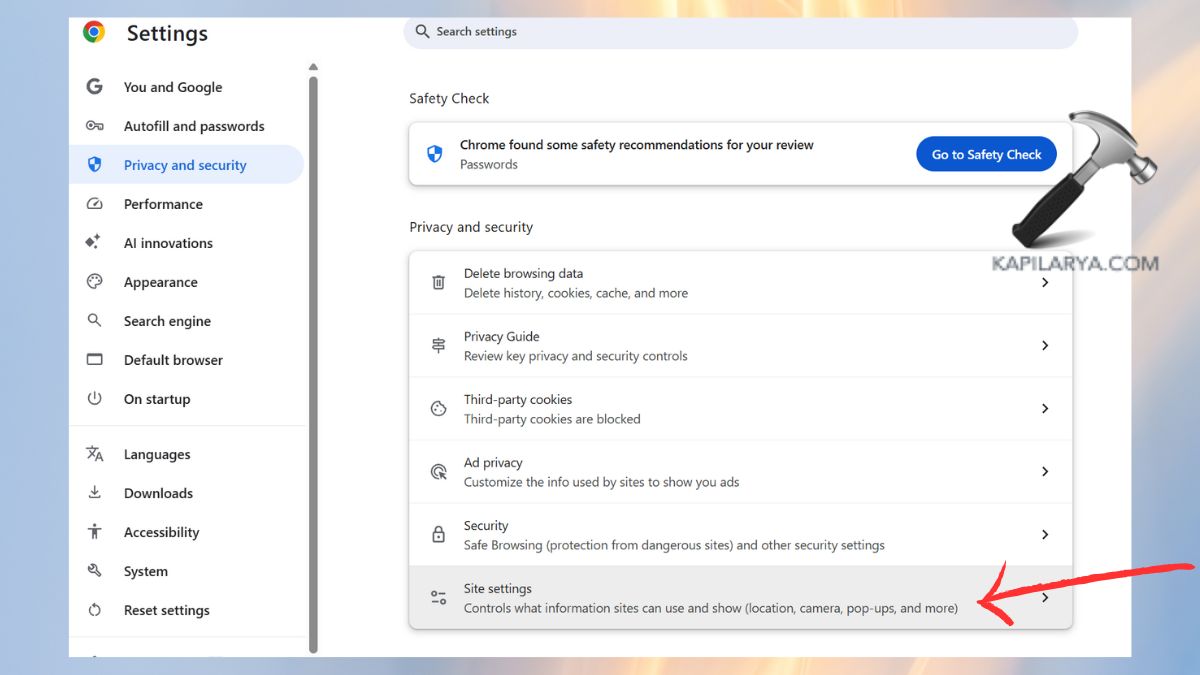
3. Enable JavaScript; allow pop-ups and redirects to secure websites by enabling pop-ups and redirects.
Test the hyperlinks of Outlook once again.

Hence, wrong settings in browsers may block password scripts, which are important in opening URLs.
Frequently Asked Questions (FAQs)
#1 Why are hyperlinks not working in the new Outlook?
This mostly occurs as a result of improper default browser settings, the absence of registry values, and browser extensions.
#2 Is Microsoft Edge required to fix hyperlinks not working in Outlook?
It is not, but Outlook works best in Edge. Other browsers can be used, but only on a properly configured browser.
#3 Can broken Outlook hyperlinks be fixed without reinstalling Office?
Yes, to eliminate most problems of hyperlinks not working, you can use solutions like checking the browser settings, a reset of protocols, etc.
#4 Is this hyperlink issue caused by Windows Update?
In other cases, hyperlink errors may occur because an update to major Windows or Office releases can reset file associations or behavior that is unexpected.
That’s it!