One of the most frequently asked questions is how to reset Windows 11 to the latest state and have a clean slate in case of regular system errors, performance degradation, malware infection, etc. Factory resetting your Windows 11 PC is arguably the best and fastest way to clean up your PC. Also, this makes it run faster by getting rid of undesired applications and perhaps getting rid of some ingrained system issues.
This step-by-step tutorial will tell you how to completely Reset Windows 11 in two trusted ways. Hence, this tutorial will teach you how to run the entire process in minute detail, so go ahead.
Page Contents
What to know before you Reset Windows 11?
- Back up your data: Back up the data because a full reset will clear files unless the option of keeping my files is selected. Save necessary information on an external disk or in the cloud.
- Find your Microsoft account sign-in: You may be required to sign in using your Microsoft account credentials after the reset.
- Reinstall apps: All the apps installed will be uninstalled (excluding the pre-installed apps). Write down the names of the most essential applications you are going to have to reinstall.
How to completely Reset Windows 11
Method 1: Reset Windows 11 via Windows Recovery Environment (WinRE)
In case you cannot boot into Windows or your system is so unstable, one good way to proceed is to reset Windows 11 using Windows Recovery Environment (WinRE). This allows you to reset Windows 11 without logging in. One must use this procedure despite the unavailability of the standard settings menu.
a. Get into Recovery Mode
For a force shutdown, press and hold the Power button three times. There will be a third attempt at rebooting, and at that, won’t be getting into Windows Recovery Mode (WinRE). Instead, hold Shift and Restart when seeing the sign-in screen.
b. Choose the Reset Option
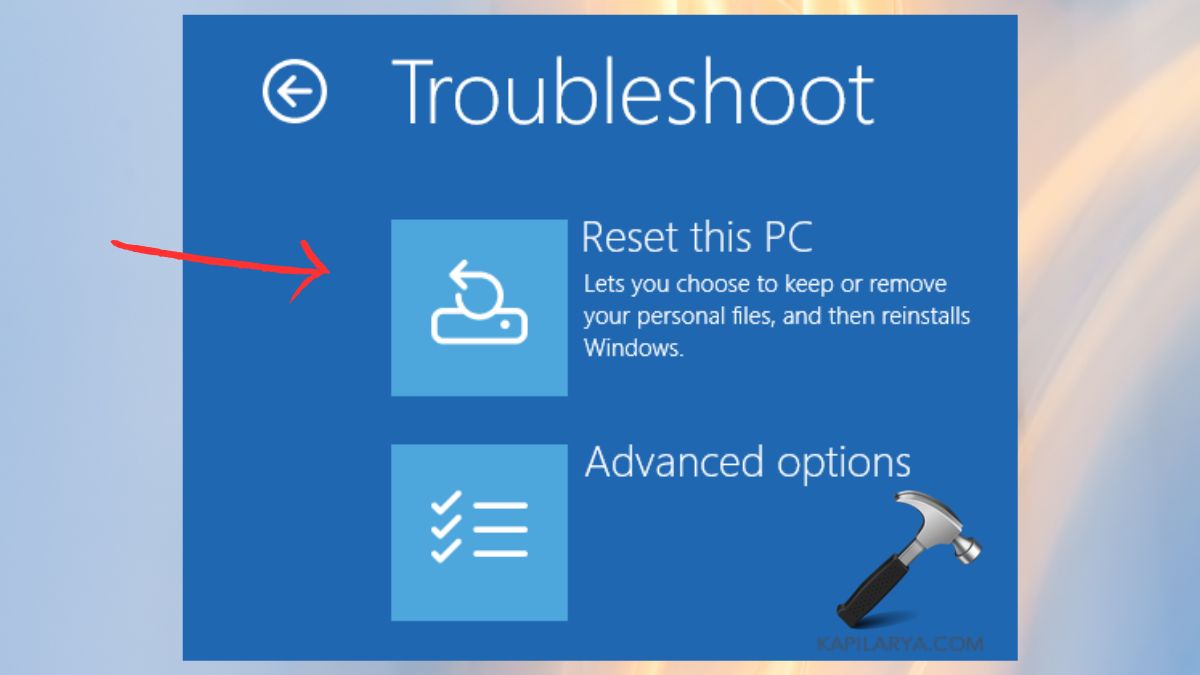
1. Click on Troubleshoot on the screen, choose an Option.

2. Finally, choose Reset this PC.
c. Select Reset Type
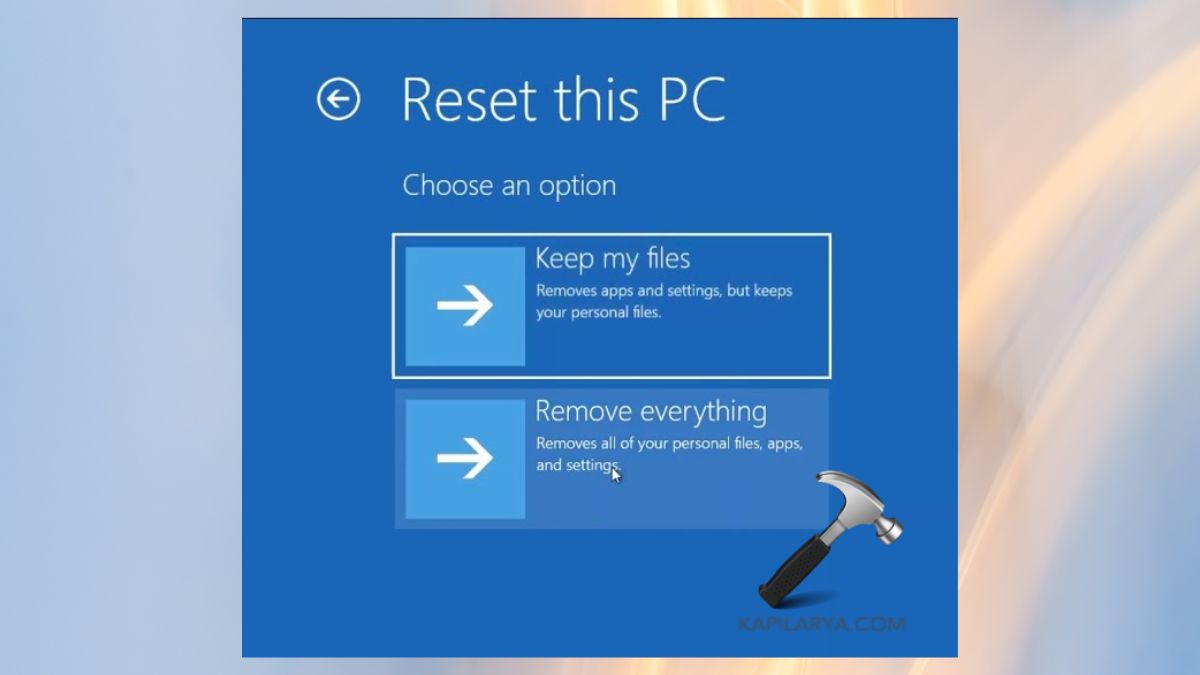
- Keep my files- It gets rid of the apps and settings, but not personal files.
- Remove everything- This wipes all the files, apps, and settings on your PC.
d. Cloud Download Vs Local Reinstall
- Cloud download starting is when a new copy of Windows 11 is retrieved from the servers of Microsoft.
- Local Reinstall method makes use of the files present in the system to reinstall Windows.

e. Start the Reset
Browse your selection, press Next, and Reset to begin. Hence, this is the ideal way to use when your system is badly hit or unresponsive.
Method 2: Reset Windows 11 via Settings (Recommended for Most Users)
The easiest means of resetting Windows 11 completely is by using the system settings. The approach is advised for users who are still able to boot on Windows and would like to refresh the system conveniently.
a. Begin the Reset Process
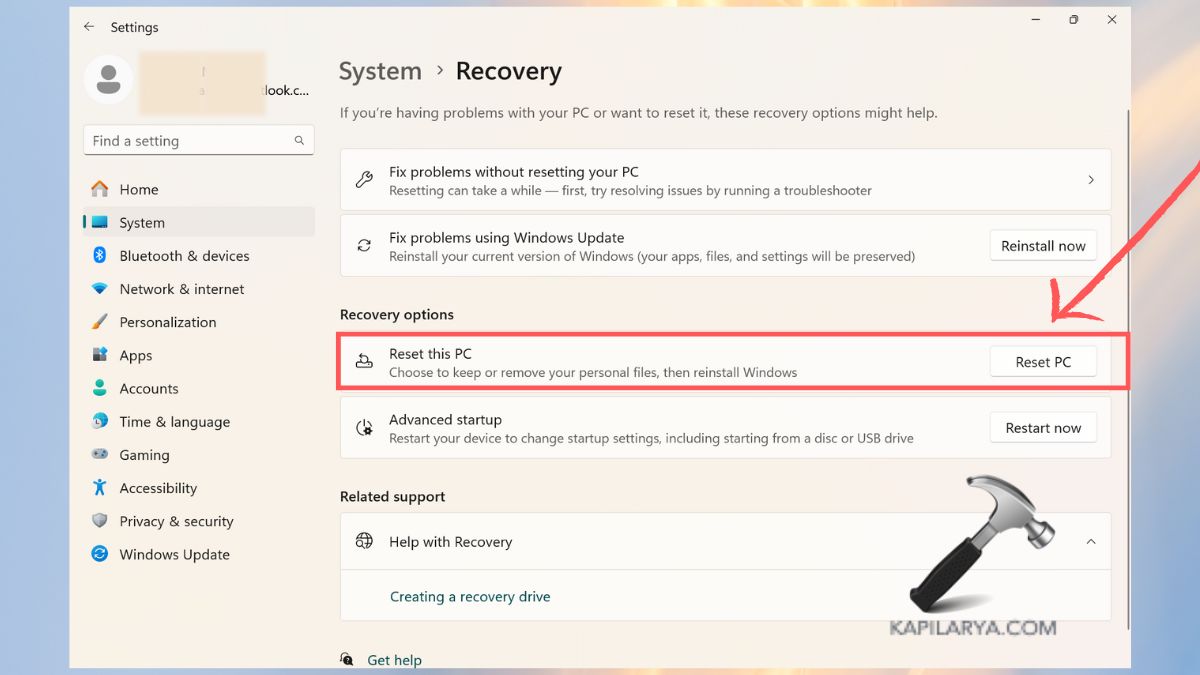
1. First, type Windows + I to open the Settings app. Open System > Recovery.

2. In Recovery options, tap the Reset PC button beside the option of Reset this PC.
b. Select Reset Type
- Save my files – stores files, images, and other documents of users.
- Erase all – erases all personal files, applications, and settings (recommended full reset).

c. Reset and Re-installation Method
1. Select the option of Cloud Download or Local Reinstall, and pick the one that suits you and the internet connection.

2. Then, do as the action is excited by the screen.
3. Hit Reset, and your computer will restart and start the reinstallation.
It is not dangerous, works successfully with most common cases, such as performance optimization or cleanup, etc.
Frequently Asked Questions (FAQs)
It will depend on your system and also on the method you will be choosing-
- The local reinstall performance takes 20-40 minutes.
- However, the download in the clouds can also be slower depending on the speed of your internet.
That’s it!