It is really helpful to have different accounts for multiple users on a shared Windows 11 PC. In this way, every user can create their own sign-in information. Plus, they can access their Desktop settings, their personal files and browser favorites. One can create a local user account or Microsoft account to sign into the Windows system.
Now, how to add Microsoft account in Windows 11? It is very easy to create a Microsoft user account on Windows PC using the following methods. Have a look at them below!
Page Contents
How to add Microsoft account in Windows 11
Method 1: Add Microsoft Account Through Settings
1. In the first place, open Settings on your system by pressing the Windows + I keyboard shortcut.
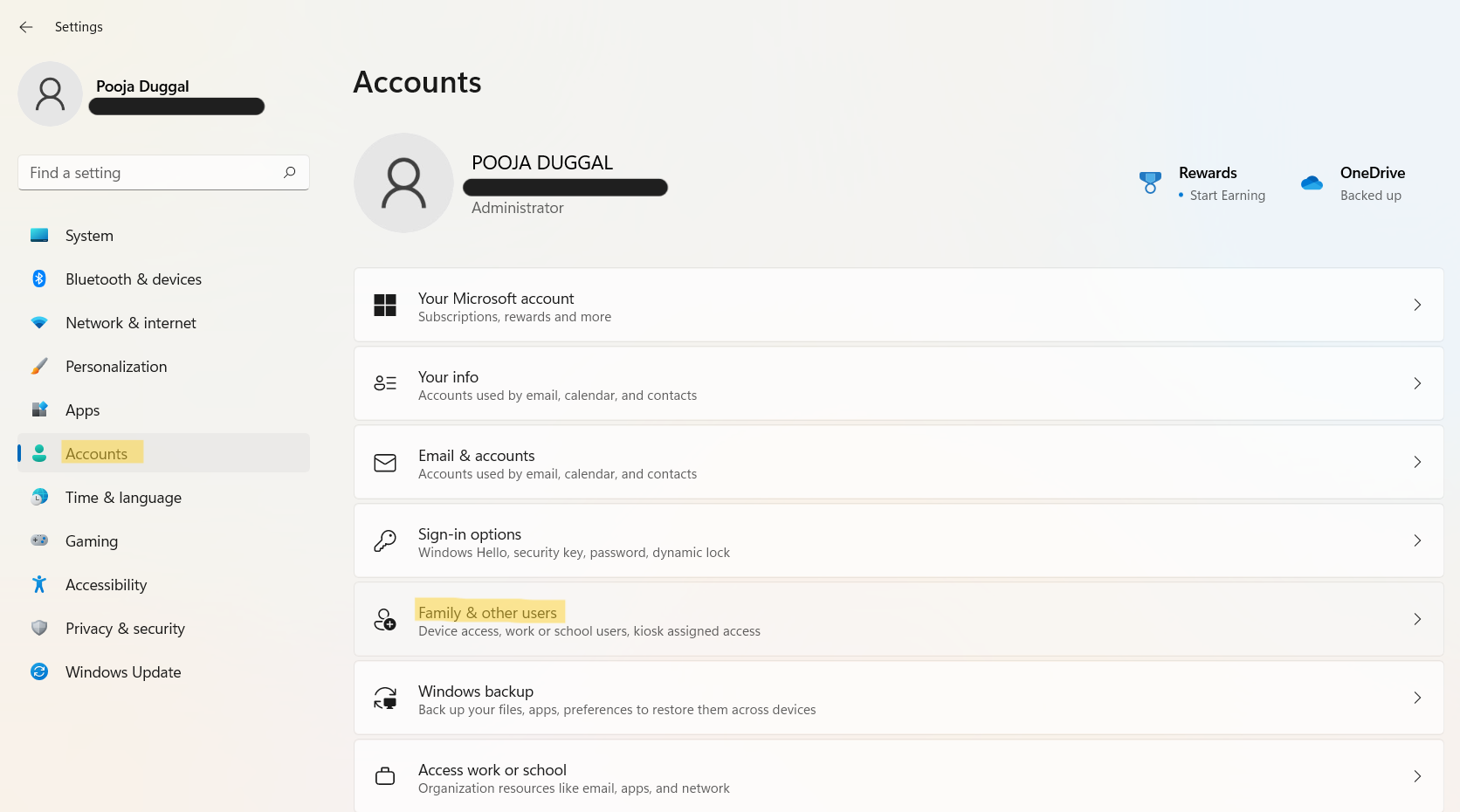
2. Now, go to the Accounts tab and then, select Family & other users present on the right.
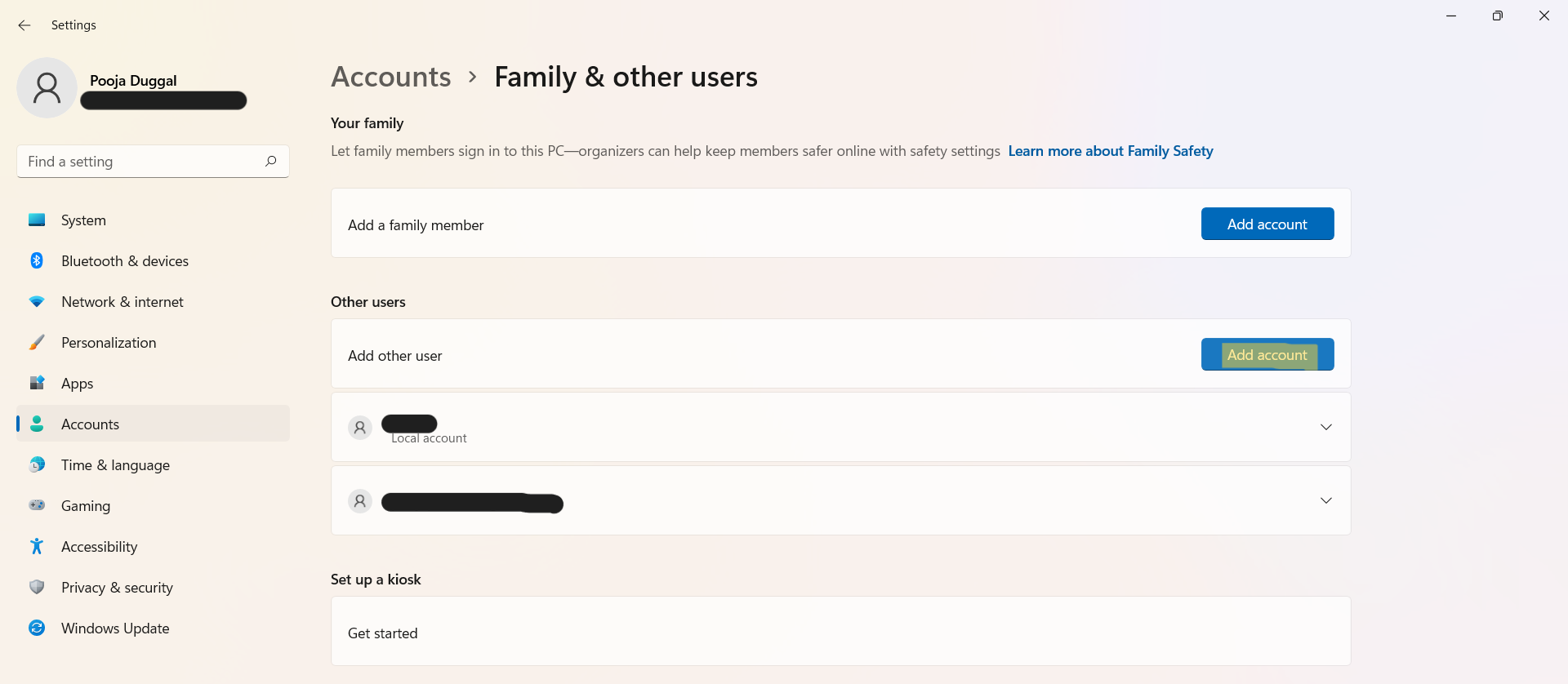
3. Once there, click on the Add account tab present next to Add other user.
4. Next, type in the email address of the Microsoft account that you like to add. Once done, click on Next.
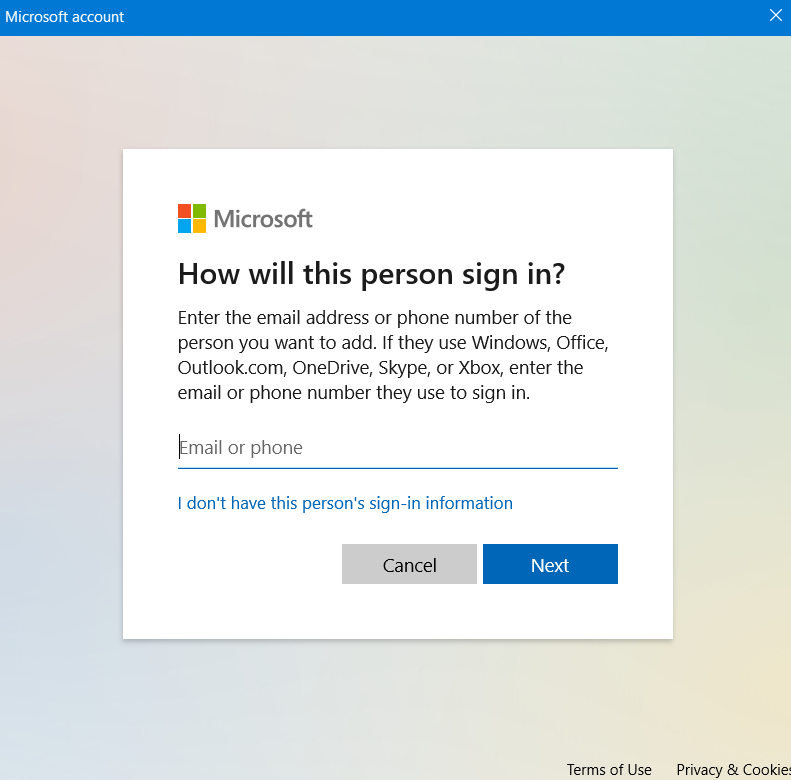
5. Lastly, click on Finish.

6. While logging into Windows 11 for the first time, the new Microsoft account user will need to click on Sign in.
7. After that, they need to enter the password and click on Sign in.
8. If the two-step verification is enabled, then enter the received code after clicking on Send code. Once entered, click on Verify and choose the privacy settings.
Method 2: Add Microsoft Account Through netplwiz
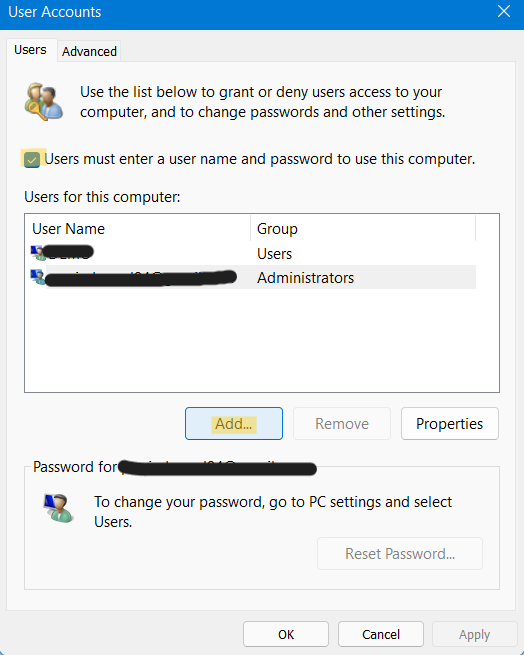
1. Open netplwiz on your Windows PC.

2. Go to the Users tab and make sure the box next to Users must enter a user name and password to use this computer is marked.
3. Now, click on Add to add a Microsoft user account.
4. Enter the email address of the Microsoft account that you like to add. Once entered, click on Next.
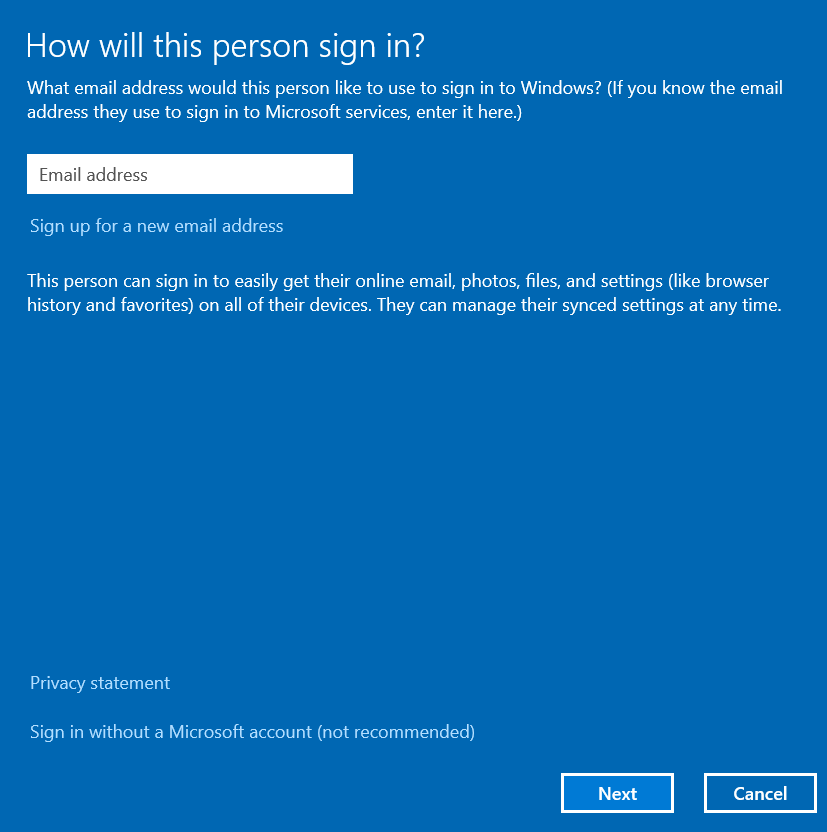
5. Now, click on Finish.
6. While logging into Windows 11 for the first time, the new Microsoft account user will need to click on Sign in.
7. If the two-step verification is enabled, enter the received code after clicking on Send code. Once entered, click on Verify and select the privacy settings.
So, this is how Windows users can create a Microsoft user account on a shared PC.
If you want to add custom email Microsoft account to Windows 11, check this video guide:
Read next: How to create a local account in Windows 11.