Usually, when Windows fails to boot, we suggest to perform a Startup repair. The Startup repair was also known by the name of Automatic repair. Now in new versions of Windows 11, Microsoft has added a new feature called Quick Machine Recovery. Using Quick Machine Recovery feature, your system will attempt to perform repairs in order to fix boot issues. To have this feature working, Windows will first detect the current configuration of the system and connect to the cloud. It will pull the Windows Update from Microsoft servers and apply that patch in order to fix the boot issues. In this guide, we will see how to use Quick Machine Recovery in Windows 11.
This feature will be helpful to IT admins, and they can fix boot issues for a machine in their environment without physical interaction.
Page Contents
Quick Machine Recovery process in Windows 11
The Quick Machine Recovery involves these phases:
- Windows will automatically start WinRE (Windows Recovery Environment).
- Windows now checks the XML file for network and configuration settings. It would be connecting to network for next step.
- Windows will send a crash report to Microsoft servers to determine the root cause.
- A patch/fix will be provided via Windows Update. If no fix is found, the system will repeat the process according to the configuration. If fix found, Windows attempts repairs.
- Finally, Windows 11 will restart and boot up as usual.
How to use test mode for Quick Machine Recovery in Windows 11
Enable Quick Machine Recovery test mode
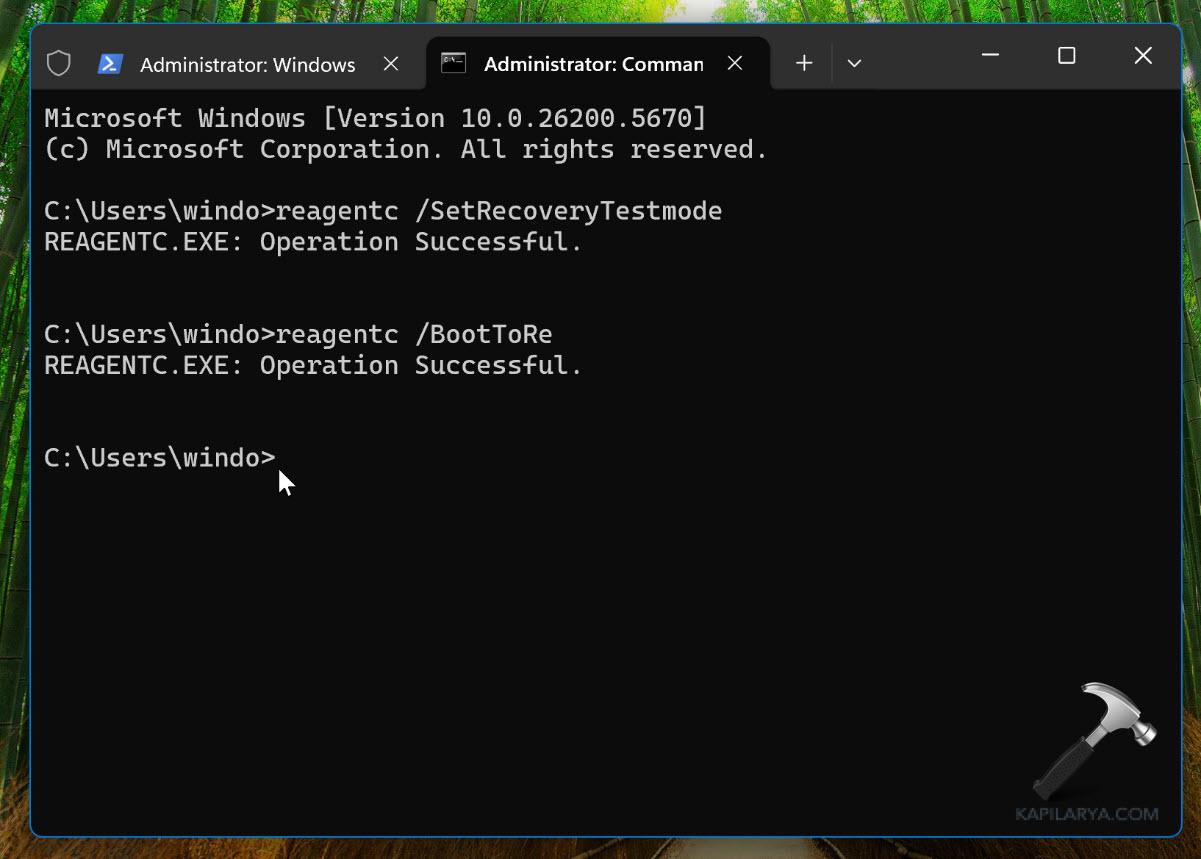
The test mode shows how this feature works. Open administrative Command Prompt and execute these commands one by one.
reagentc /SetRecoveryTestmode
reagentc /BootToRe
Once both commands are executed successfully, you can restart your system.
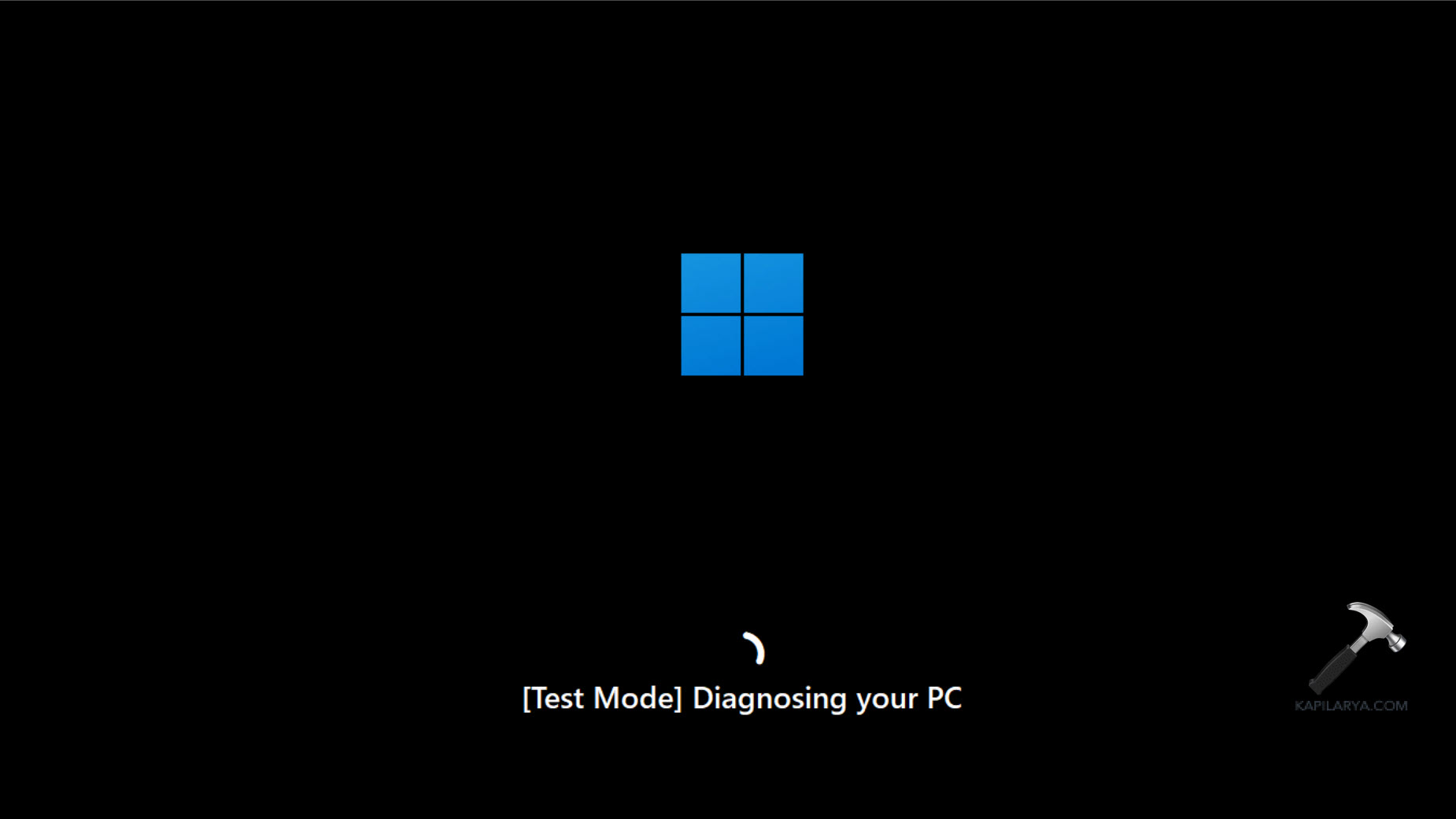
Once Windows restarts, you’ll [Test Mode] along with Diagnosing your PC. In this phase, Windows will check the current configuration and network configuration.
Next, it will attempt to connect to the Internet. This is the phase where Windows will connect to Microsoft servers for solutions.

When Windows connect successfully with Microsoft servers the solutions will be now searched and you can see ‘looking for solutions’ on the screen.

If a solution is found to the known issue, Windows will attempt to repair. If none of the solutions are found, the process will be repeated.
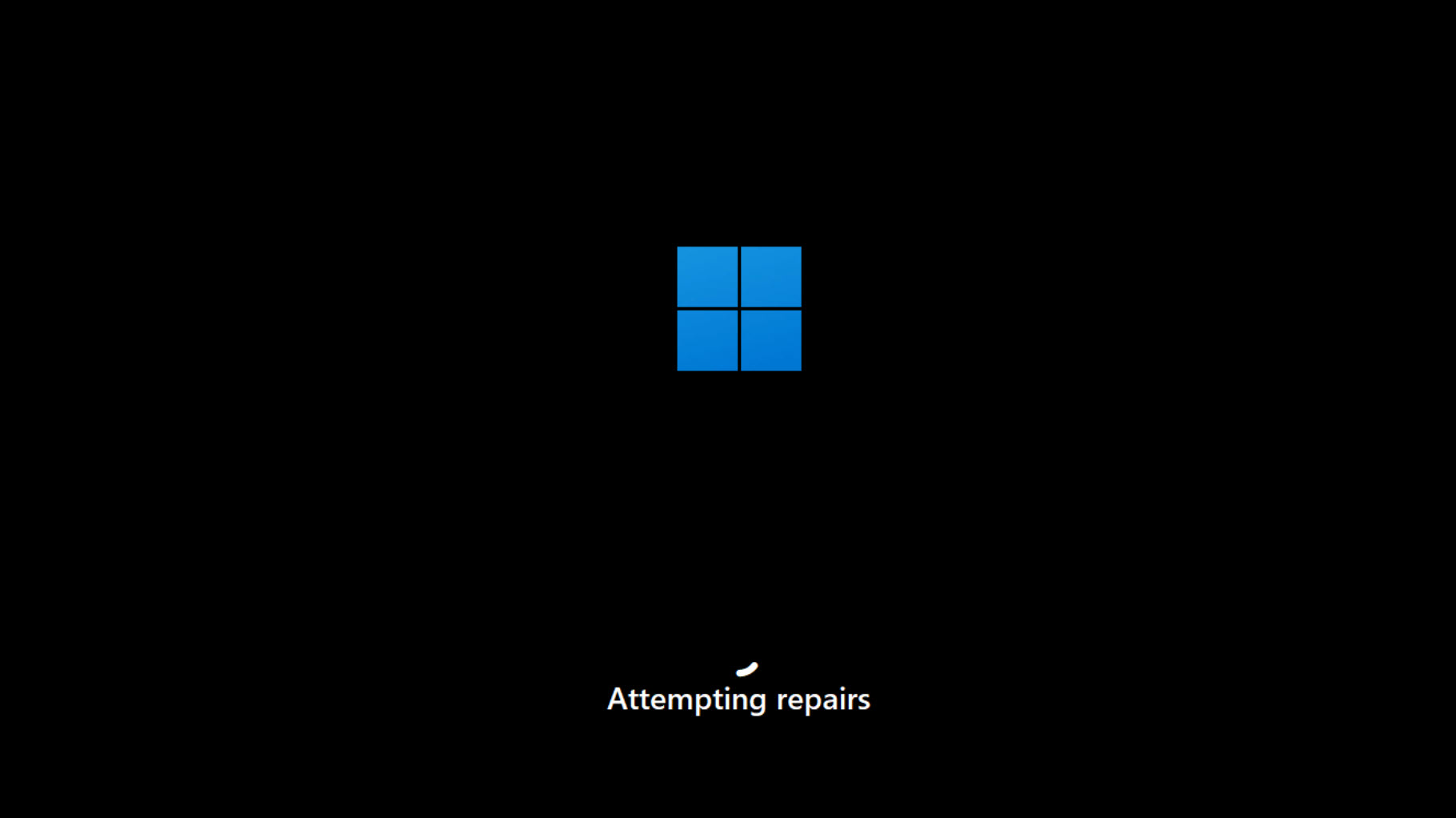
Once the repair has been completed, your system will normally boot. It is the final phase for the Quick Machine Recovery process.
This same process will be applied when Windows will detect a boot issue on your system. In that case, you do not need to trigger the test mode, and Windows will automatically follow all the phases of the machine recovery feature.
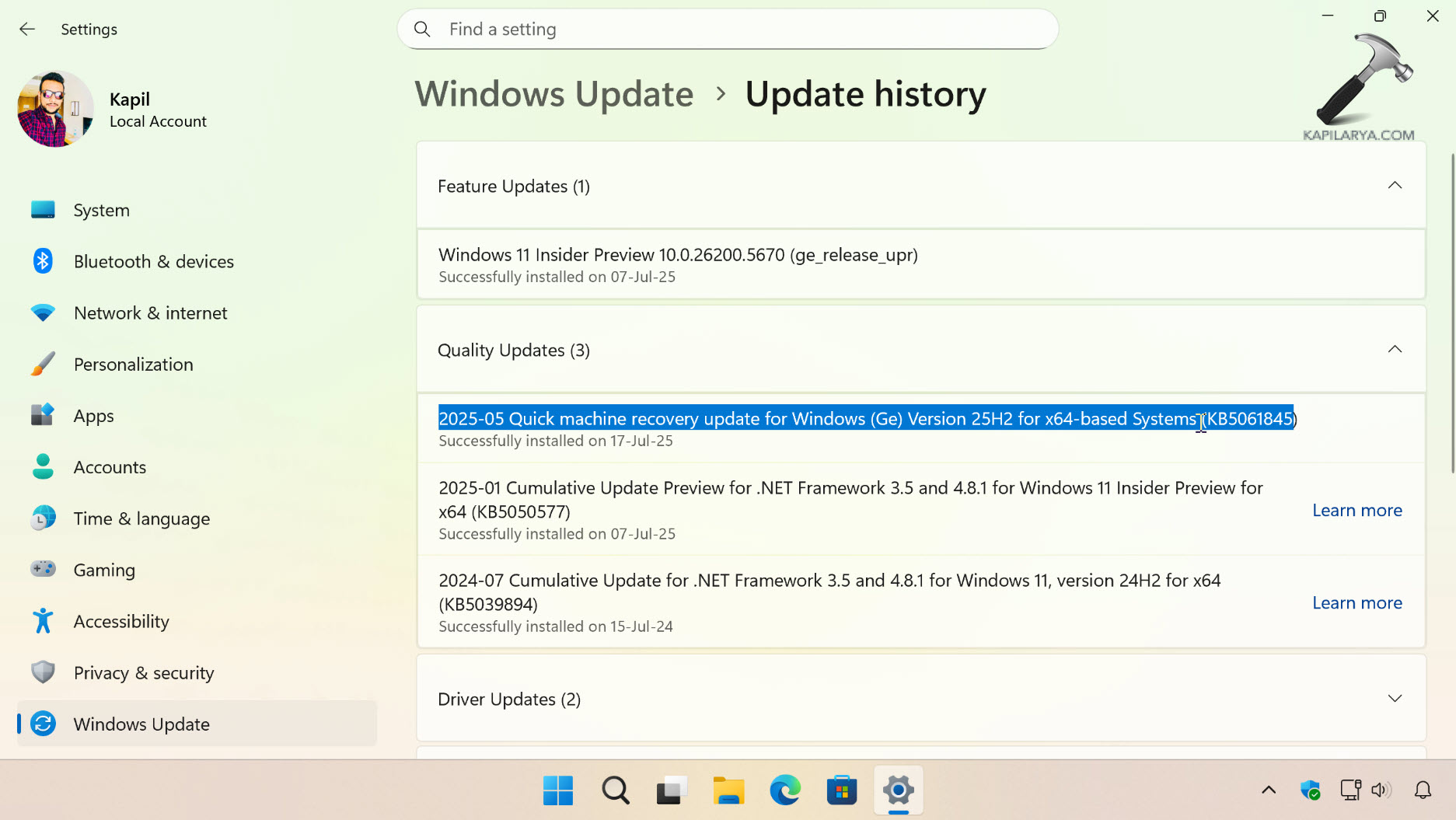
You can check the Update history on the concerned system, and it will show you boot issue was fixed via Quick Machine Recovery and the applied KB Windows Update.
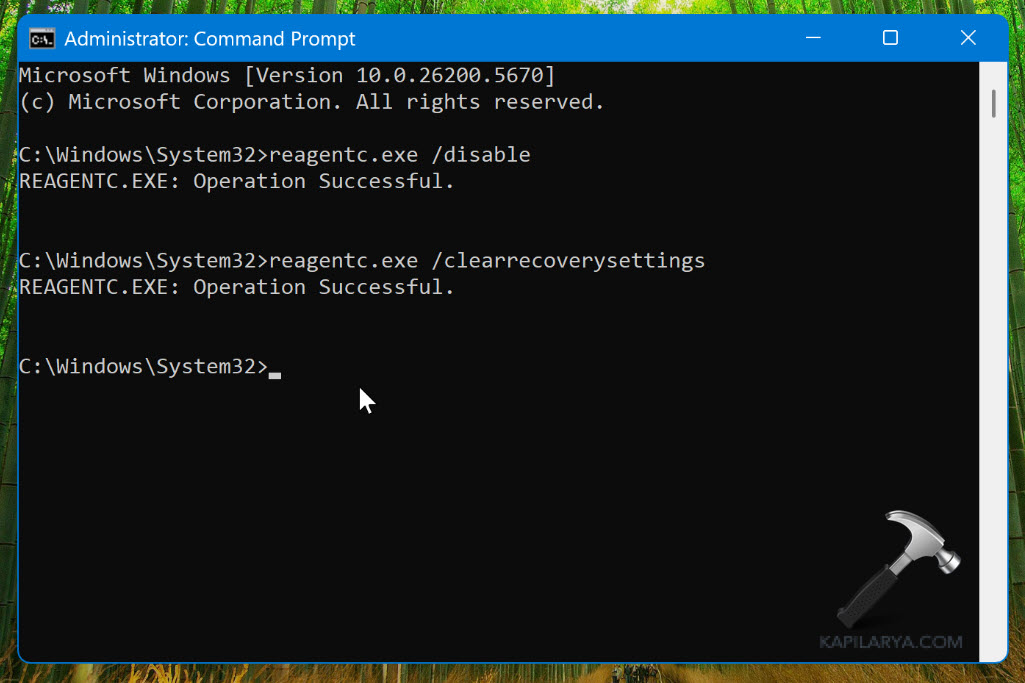
Disable Quick Machine Recovery test mode
You can disable Quick Machine Recovery using these two commands:
reagentc.exe /disable
reagentc.exe /clearrecoverysettings
Video guide
Here’s a video guide to learn more about Quick Machine Recovery and how to use it:
That’s it!