This article is for you if Windows 11 is stuck in infinite boot loop and restarting endlessly. It is like being outside your home with your key not working, right? Fixing this problem immediately can help you protect your system and avoid other issues in the future. That is why this article is here to guide you through detailed steps to help you get back inside your Windows system, even if it doesn’t boot normally.
Page Contents
Why Does Windows 11 Get Stuck in a Boot Loop
A Windows 11 boot loop problem occurs when your Windows system encounters an error during startup and fails to load Windows properly.
Possible causes of this problem:-
- Incomplete Windows Updates.
- Corrupt boot configuration.
- Damaged hardware devices.
- Faulty system files.
- Malware or viruses.
- The Windows startup service failed to run.
Fix Windows 11 Stuck in Infinite Boot Loop
Many Windows users believe that if they have a boot loop problem, it means their computer is dead. However, this is not true because this problem can be fixed using six easy ways, as explained in this guide.
Fix 1: Repair Boot Drive Using Command Prompt
If your Windows 11 is unable to start, you can fix this problem by using the Command Prompt to fix the boot drive.
1. Start your computer and allow it to fail booting three times to trigger the Windows recovery environment.
2. Select Troubleshoot, then select Advanced options, and choose Command Prompt.
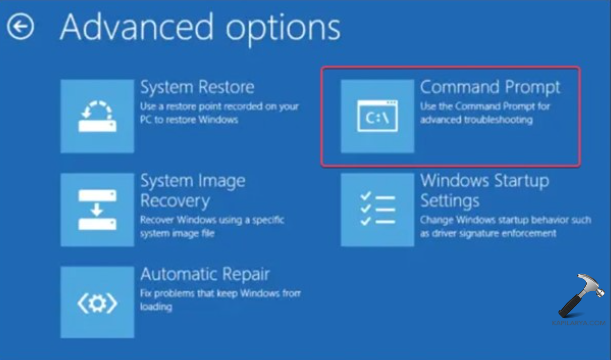
3. Enter the command lines one after another:-
bootrec /fixmbr
bootrec /fixboot
bootrec /scanos
bootrec /rebuildbcd
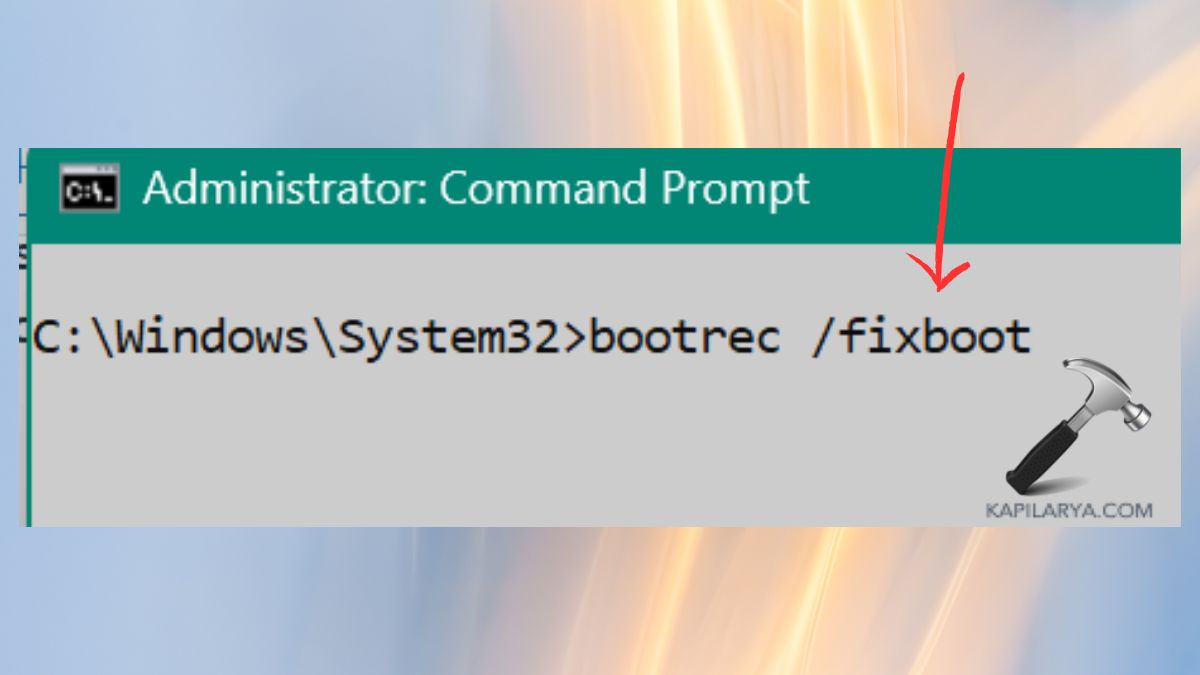
Close your Command Prompt window and restart your computer. This works because it can fix your Windows system’s boot configuration, fixing problems that prevent your Windows system from loading properly.
Fix 2: Run Windows Automatic Repair to Fix Startup Problems
Using Windows Automatic Repair is one of the best ways to fix an infinite boot loop problem.
1. Enter your Windows recovery environment.
2. Select Troubleshoot.

3. Navigate to Advanced options > Startup Repair.

4. Select your user account and enter your password if prompted. Let Windows diagnose and fix the problem.
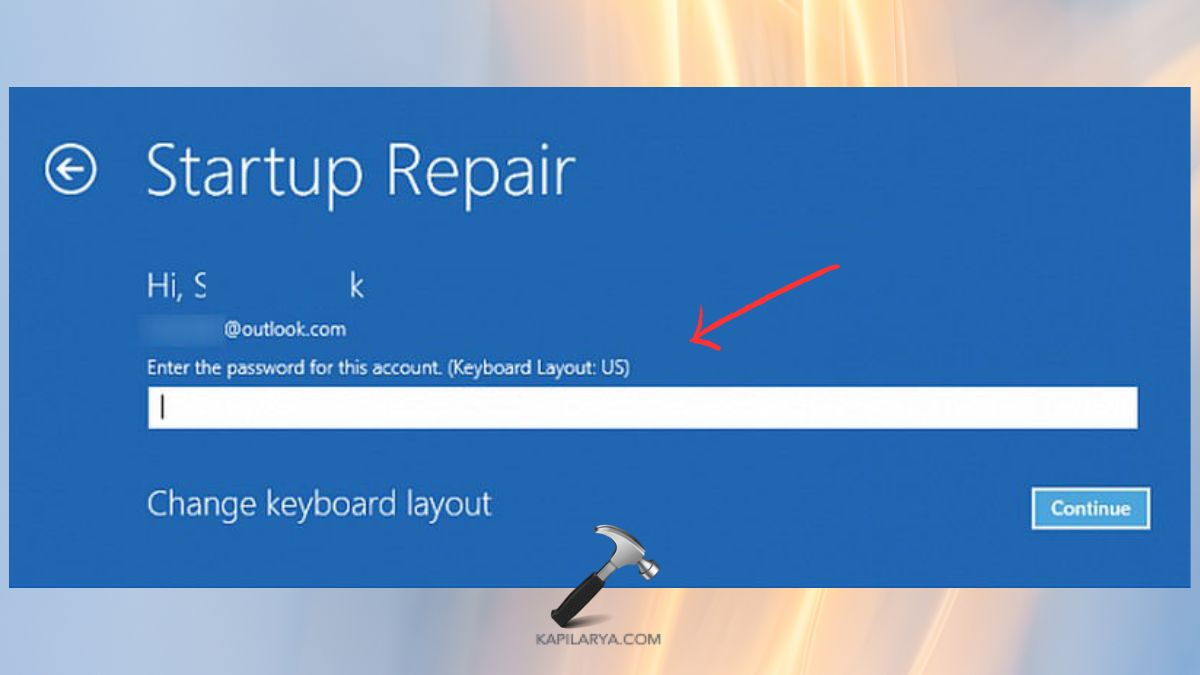
This process scans critical files and components, reinstalls the boot loader, and resolves issues that cause Windows to crash during startup.
Fix 3: Uninstall Recent Windows 11 Updates
Incomplete or damaged updates can cause an endless reboot cycle.
1. Enter WinRE through automatic repair or forced shutdown (three times).
2. Select Troubleshoot > Advanced options > Uninstall Updates.
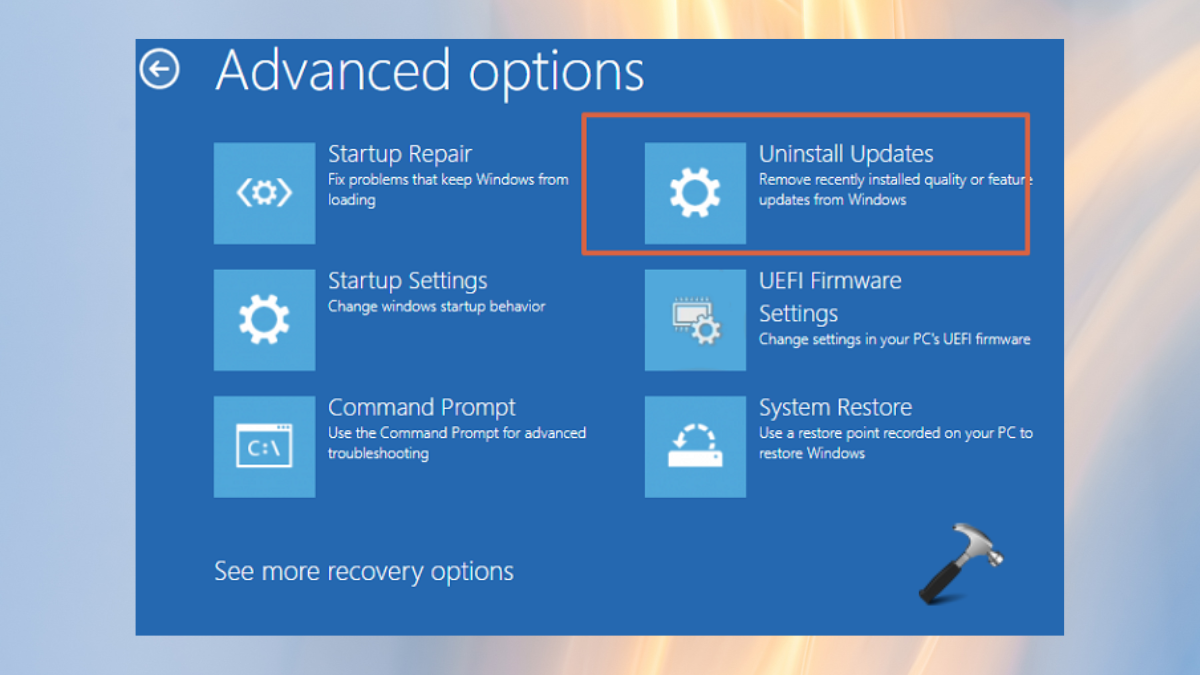
3. Select one of the following:-
- Uninstall latest quality update
- Uninstall latest feature update
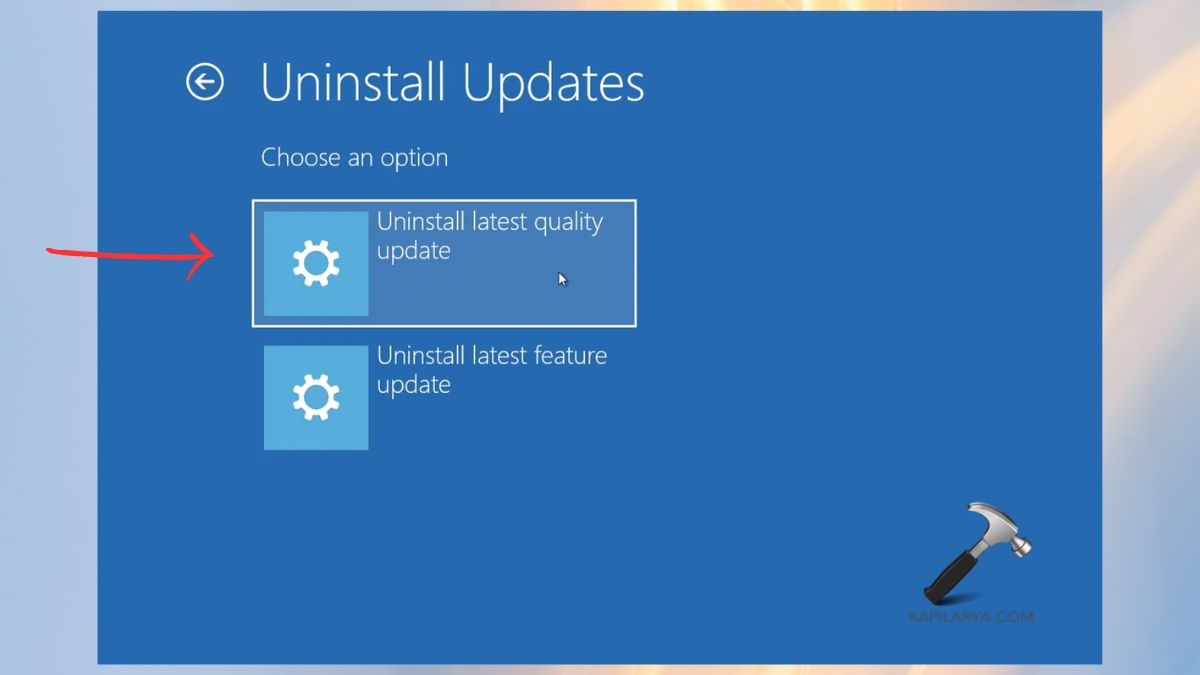
Restart your computer and check if the problem is fixed.
Fix 4: Clean Windows SoftwareDistribution Folder
The SoftwareDistribution folder holds temporary files for Windows updates. If this folder contains corrupt files, it can cause a boot failure cycle.
1. Enter Safe Mode: WinRE > Troubleshoot > Advanced options > Startup Settings > Restart > Press 4.

2. Then, open Command Prompt. Enter the following commands:-
net stop wuauserv
net stop bits

3. Navigate to this path and delete all contents:-
C:\Windows\SoftwareDistribution

4. Restart the services with these commands:-
net start wuauserv
net start bits
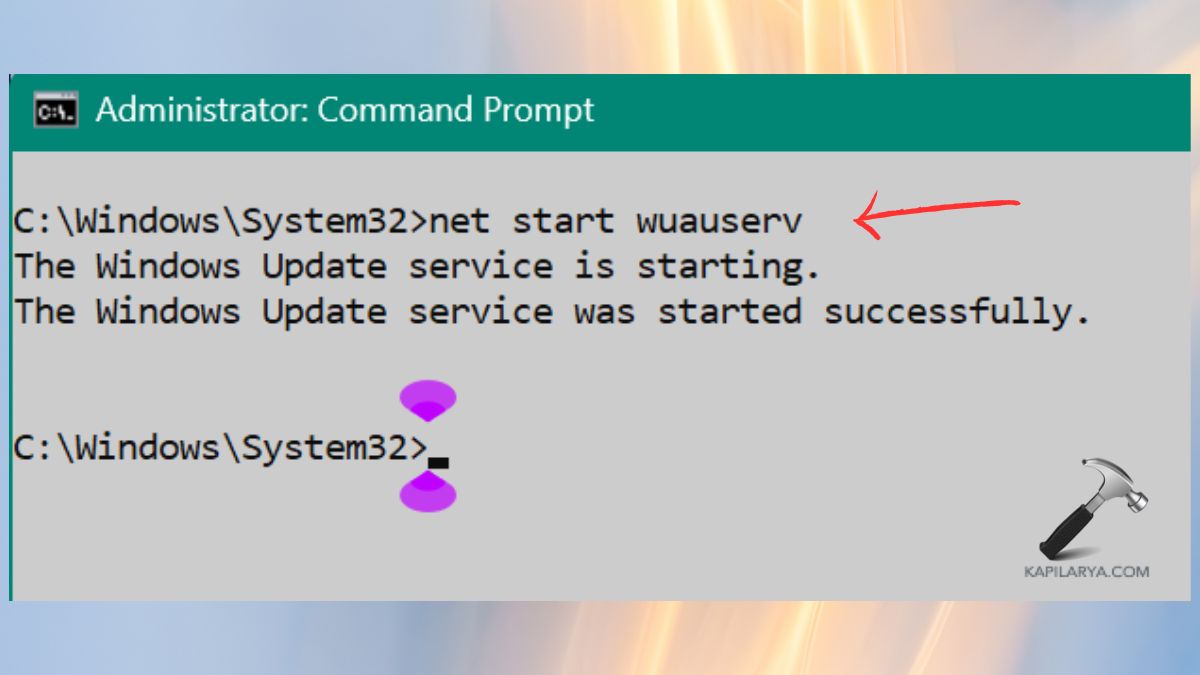
Restart your computer normally. This method can fix issues related to an endless reboot cycle due to an incomplete or corrupt update.
Fix 5: Unplug External Devices & Restart Windows 11
External devices like USB drives, external storage devices, printers, etc., can sometimes cause an interference in the Windows booting process, leading to a cycle of endless reboots.
1. Completely shut down your computer.
2. Disconnect all external devices.
3. Restart your computer/laptop.
This method will work if you have connected a new device to your computer recently, and it causes an endless reboot cycle.
Fix 6: Run an Antivirus or Malware Scan
Malware can sometimes cause changes to your startup files, leading to an endless cycle of reboots.
1. Enter Safe Mode with Networking.
2. Open Windows Security.
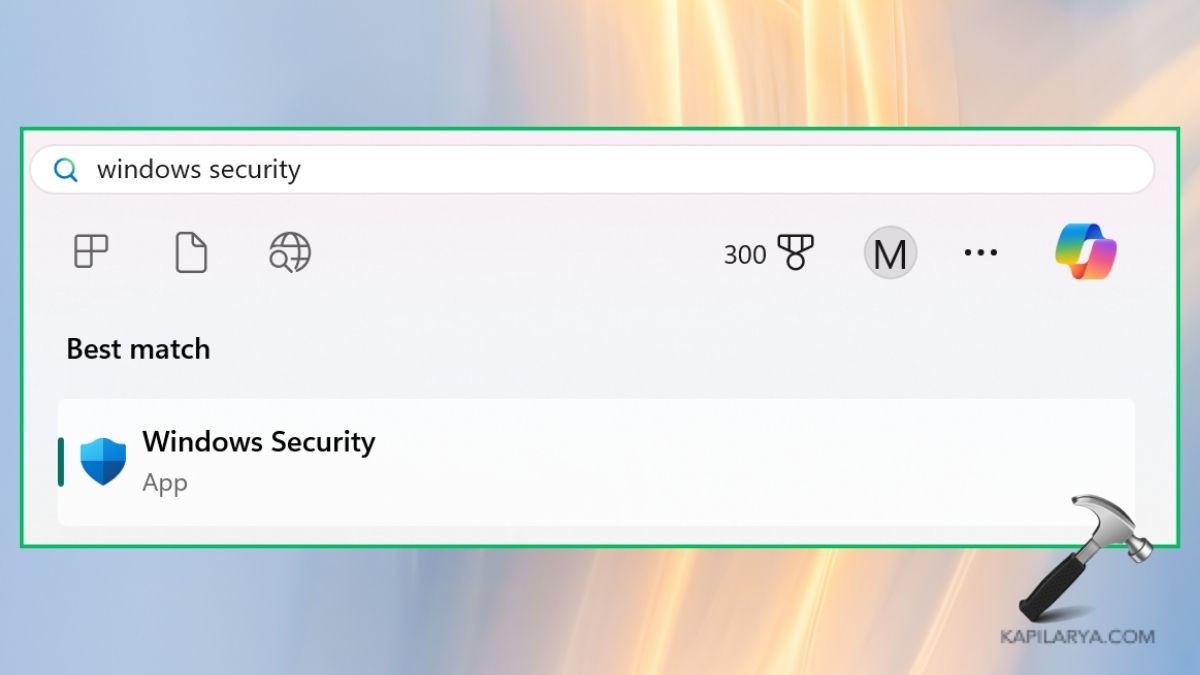
3. Navigate to Virus & threat protection.

4. Run a Full Scan. If the program finds viruses, remove them and boot the PC.

If the PC cannot boot in Safe Mode, use an Antivirus Boot Disk on a USB Drive.
Frequently Asked Questions (FAQs)
Why is my Windows 11 stuck in an infinite boot loop?
Common causes of a boot loop include: damaged updates, system files, drivers, external devices, and malicious software in the boot process.
Can I fix Windows 11 boot loop without formatting my PC?
Yes, most boot loops can be solved by using Startup Repair, Command Prompt boot repair, uninstalling the last update, and cleaning the Software Distribution folder.
What if none of the methods work?
If none of the methods works, do contact Microsoft support for further assistance.
Does a Windows update cause boot loops?
Yes, among the common causes of a boot loop is the presence of a faulty update. To fix the problem, you can remove the last update installed on the system.
That’s it!