

“The requested system device cannot be found” is a common error that may occur when undergoing a repair, boot configuration, or recovery in Windows 11. It normally occurs when administering command-line commands such as bootrec or diskpart, and it means that your system cannot find a necessary boot or recovery partition. This will cause Windows not to boot or restore, and your PC will not be able to work.

In this guide, you are going to learn the simple solutions to resolve the issue of The requested system device cannot be found in Windows 11. No matter what the problem is with the settings of a partition (wrong boot mode or lack of system files), we will provide you with guidelines on how to recover the system in four proven ways.
Page Contents
Fix: The requested system device cannot be found in Windows 11
Method 1: Set the Correct Partition Using Command Prompt
This error can be induced by incorrect or inactivated partitions. These are the instructions on how to make the proper system partition active with the help of the Command Prompt.
1. Press Shift and restart it with the Start menu. Or use a Windows 11 installation USB/DVD, then Repair your computer > Troubleshoot > Command Prompt.
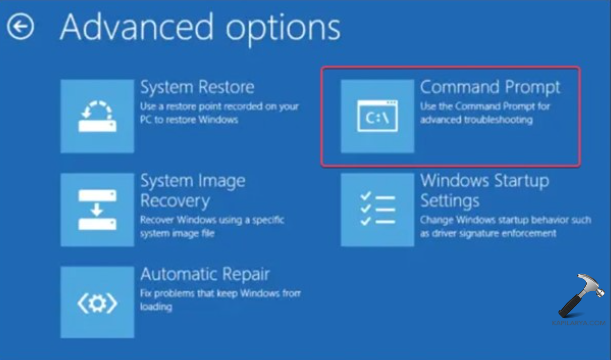
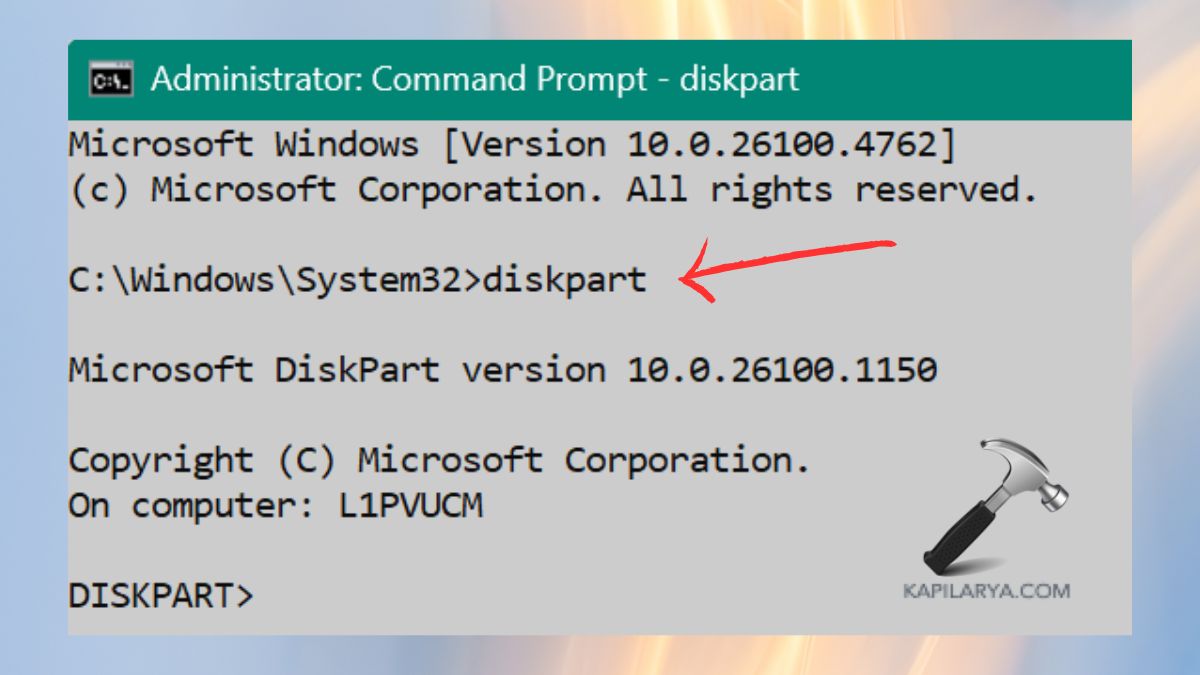
2. The command can be entered in the Command Prompt window.
diskpart
Press Enter.
3. Use this command to list the Drives.
list disk
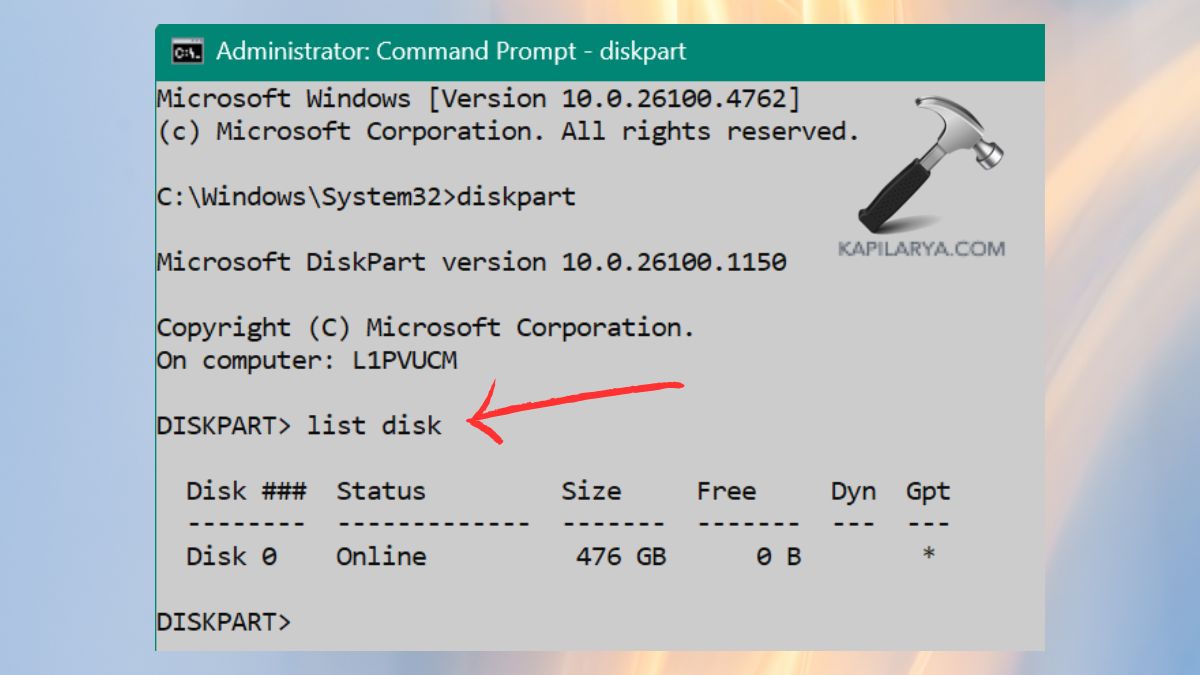
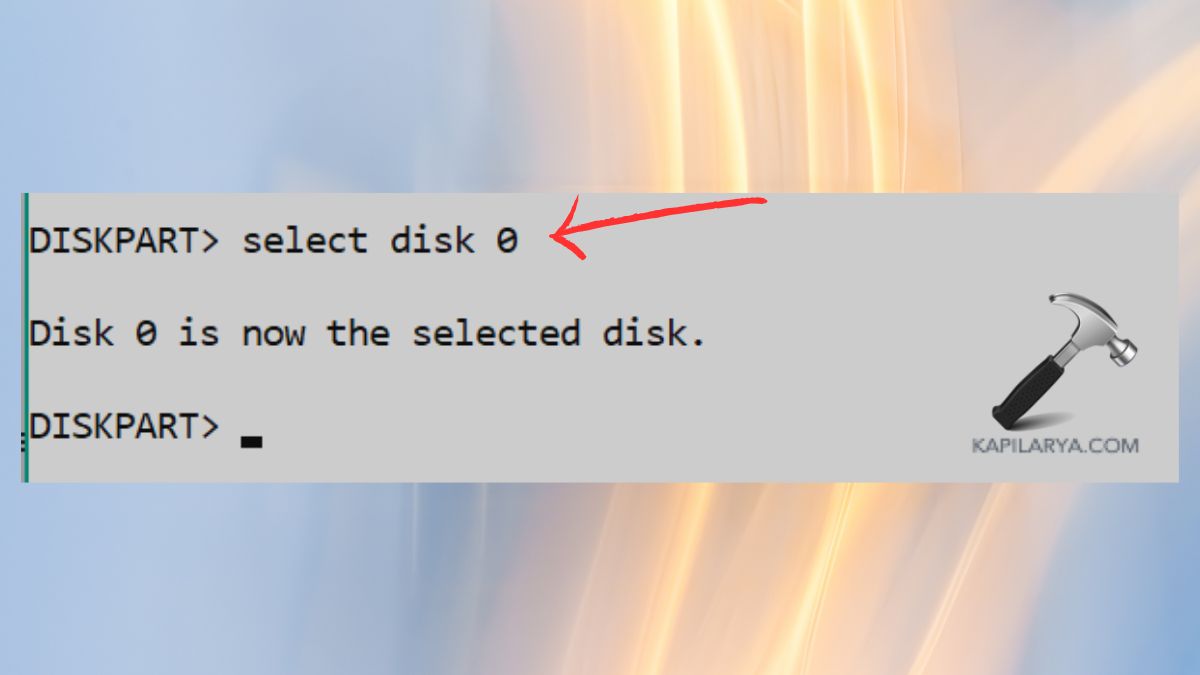
4. Find out your system disk (the most common disk is Disk 0). Choose the System Disk.
select disk 0
5. List Partitions.
list partition
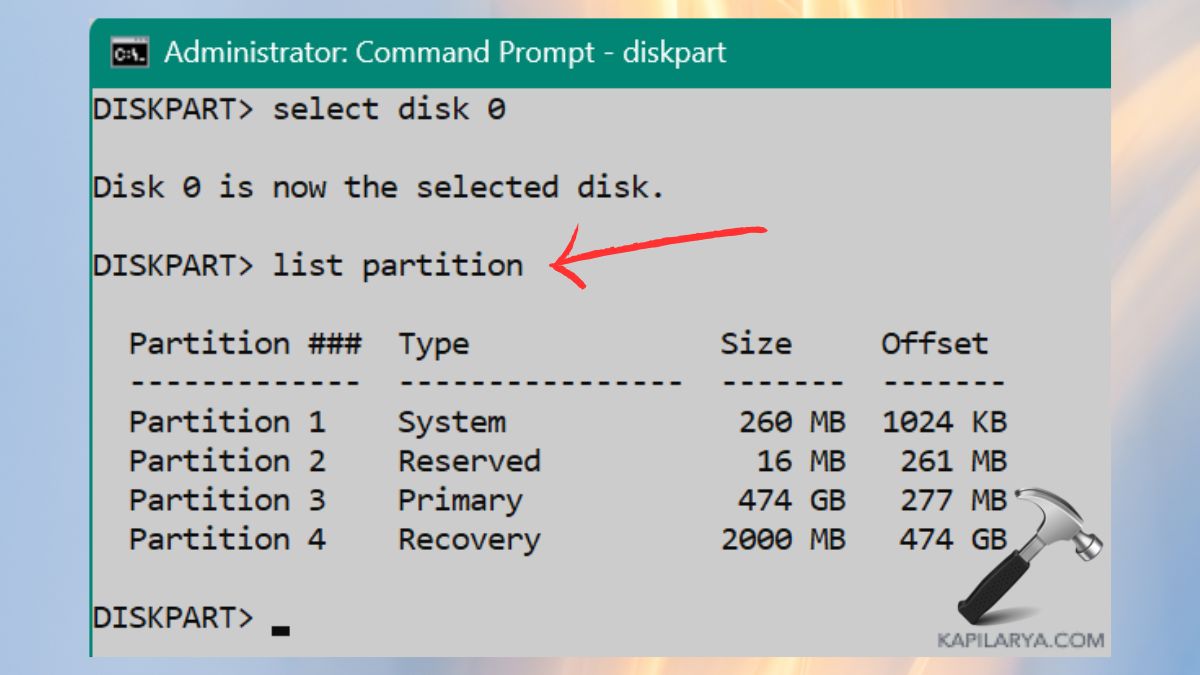
6. Press and select Correct Partition by locating the partition that contains your OS.
select partition 1
active

7. Hence, the disk here is of GPT and not MBR. Now, exit DiskPart.
exit
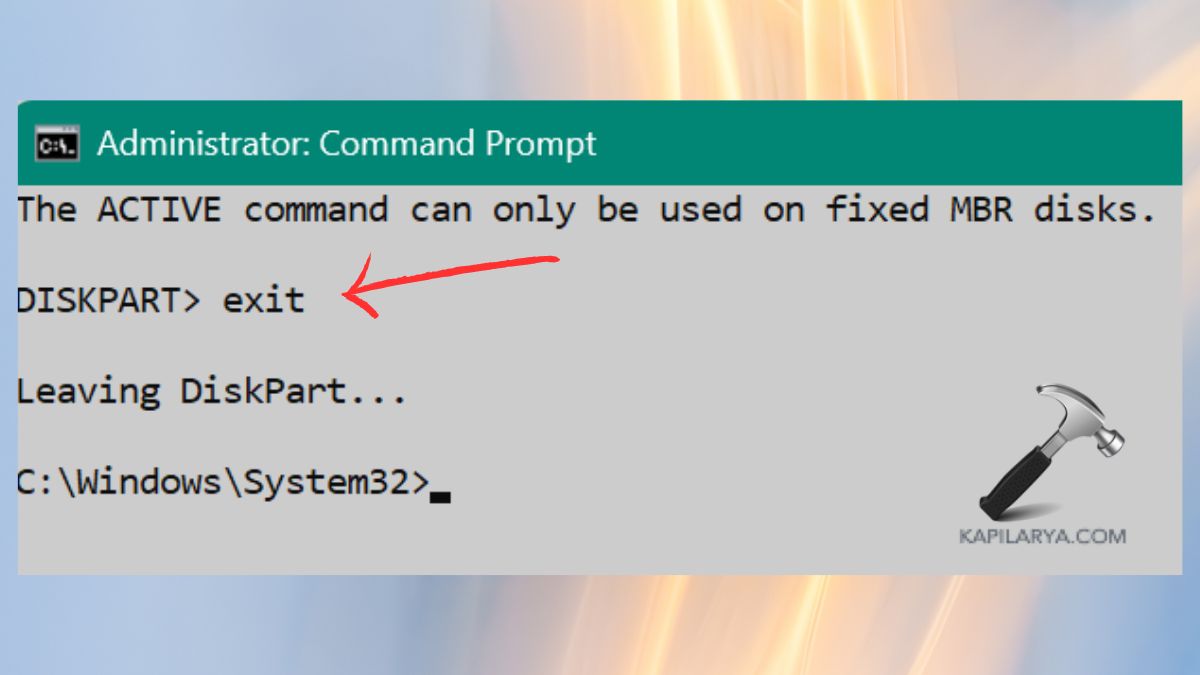
8. Reboot your PC and check whether the problem is fixed or not.
Method 2: Change the Boot Mode from BIOS/UEFI
Occasionally, boot mode (Legacy or UEFI) does not align with the partition type (MBR or GPT) of your disk, and you fail to see the bootable partition.
1. Turn on your PC and hit the BIOS key (F2, F10, DEL, or as the screen says during the Boot). Go to the Boot tab.
2. Change Boot Mode:-
- In case you are using MBR as the drive, then set boot mode to Legacy.
- When your drive is GPT, make it UEFI.
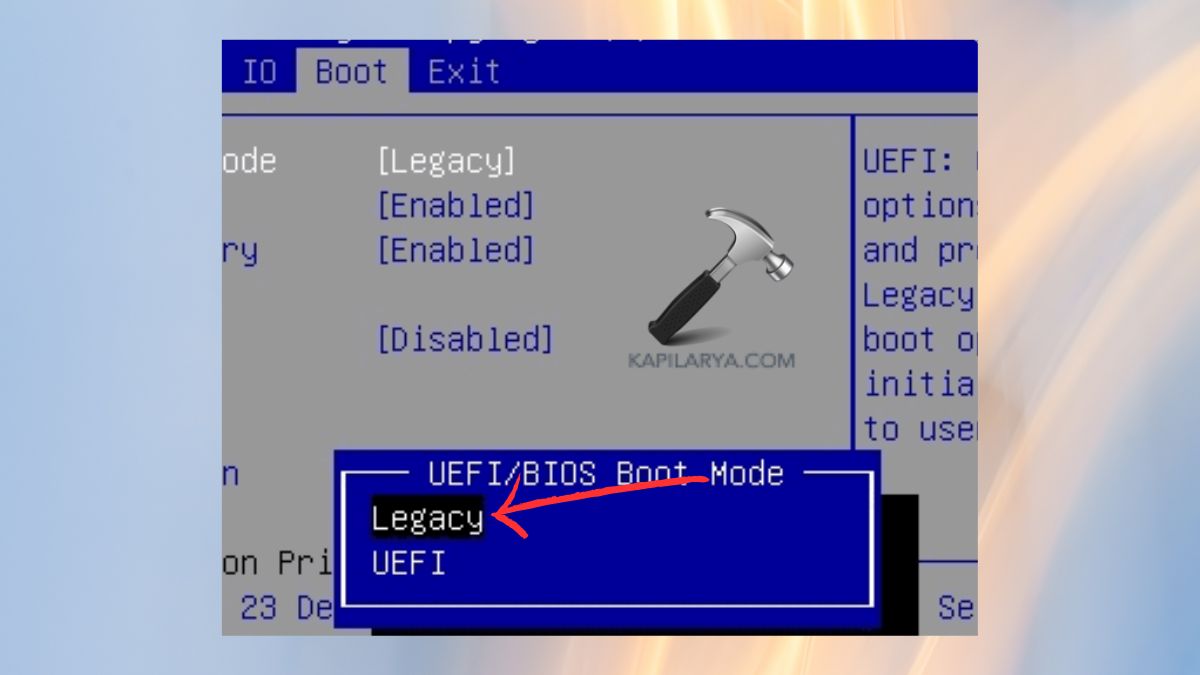
To resolve the system device error, you can alter the boot mode that corresponds to the partition format of the disk to assist Windows in finding the right boot partition.
3. Save changes with the key F10. Turn your PC off again and then ON to check the error.
Method 3: Reinstall Windows 11 to Resolve Device Not Found Error
In case the issue remains and you cannot launch or fix your system, reinstallation of Windows 11 can be the only option left. A fresh installation will reset the partitions and files in the boot properly.
Note: It is important to make a backup of the files, as reinstalling will delete the OS partition.
1. Apply the Installation Media Tool for Windows 11 on a different PC.

2. Then, insert the bootable USB into the affected PC.
3. Tap the boot menu key (F12, Esc, and so on) and select the USB flash disk.

4. Press Install Now > Enter your product key (or Skip by clicking, in case it is not needed). Select the Custom Installation.

5. Format your partition OS and do a Windows installation. With the installation, you should configure your account and reinstall the necessary applications.
Method 4: Repair Windows Using a System Repair Disc or Installation DVD
Windows 11 repair disc or DVD is able to automatically find and solve problems associated with boot, including the “The requested system device cannot be found” problem.
1. Firstly, use the Windows 11 installation disc or recovery drive to boot your system.
2. On the pop-up, select your language > click Repair your computer > Troubleshoot > Startup Repair.

Windows will detect the problem and will automatically check and fix boot-related problems.
3. Return to Advanced options > Command Prompt.
4. Repair boot commands.
bootrec /fixboot
bootrec /scanos
bootrec /fixmbr
bootrec /rebuildbcd
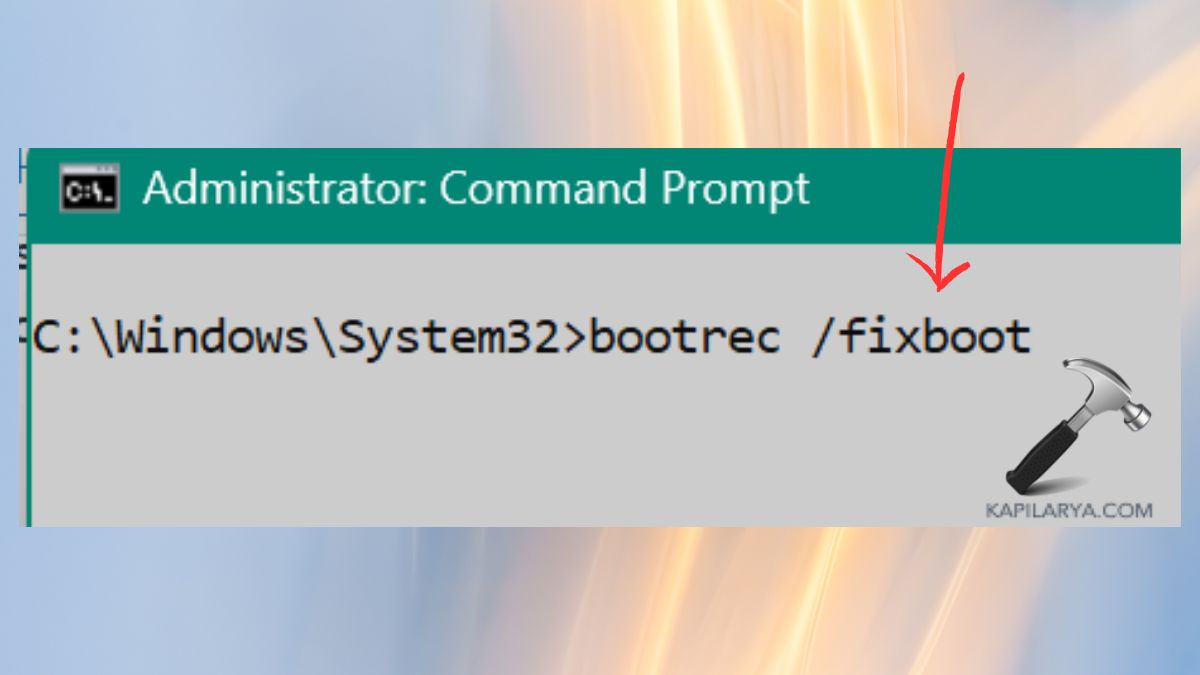
5. Lastly, restart the system and see whether or not the problem goes away.
The repair disc is perhaps one of the best methods of restoring boot and partition errors in Windows 11 without necessarily reinstalling the same.
Author’s Take
Solving the problem of the requested system device cannot be found in Windows 11 is not a complex task, and these step-by-step instructions can help you fix it quickly. You may need to tweak partition settings, offer boot modes, provide a clean installation, etc. The main idea is to define the root cause and provide the corresponding resolution.
Always have your system regularly backed up and be in possession of a recovery USB or DVD; this can save you time and information in case of any unexpected system boot.
Frequently Asked Questions (FAQs)
#1 What causes the “The requested system device cannot be found” error in Windows 11?
Such a mistake is typically brought about by faulty boot settings, disabled system discs, inconsistent boot modes (UEFI/Legacy), or a lack of system files.
#2 Can I fix the system device error without reinstalling Windows?
Yes, usually you can repair it with the help of Command Prompt, change BIOS settings, or by start-up repair(key is to make your USB/DVD bootable).
#3 Is it safe to activate a partition using DiskPart?
Yes, just choose the right system partition (usually where Windows is installed), and it is safe enough to set it active to remedy possible boot problems.
#4 How do I know if my system uses MBR or GPT?
To know it easily, go to the Command Prompt Admin and enter the following commands.
diskpart
list disk
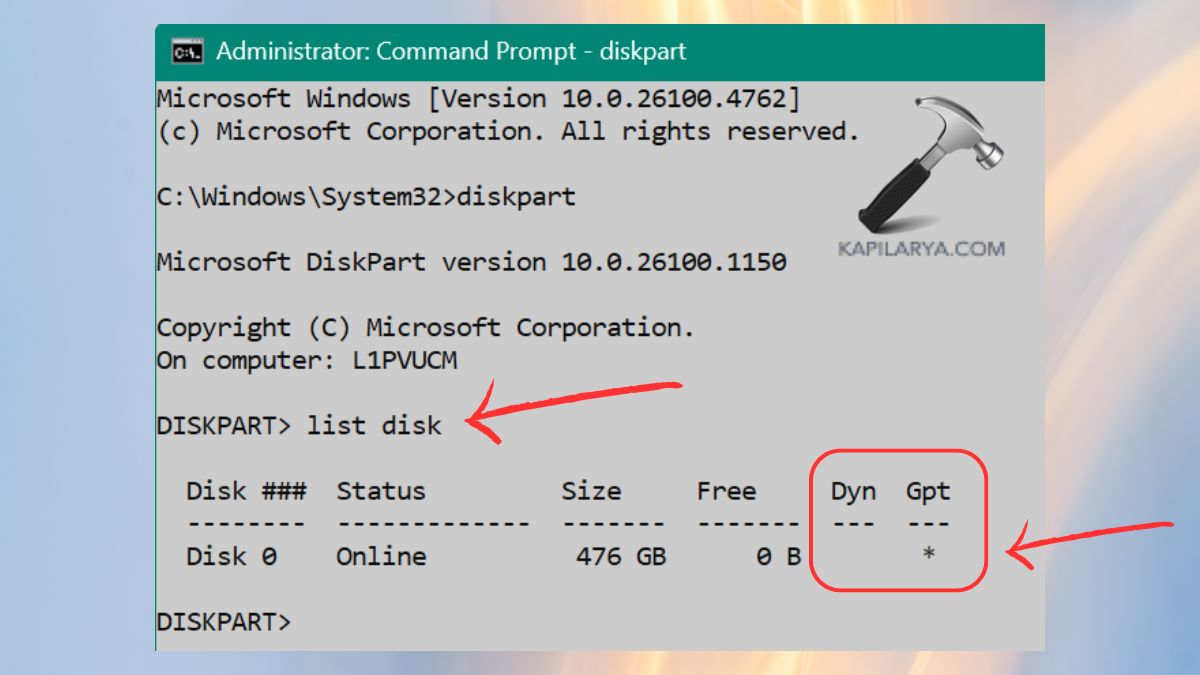
When a disk has an asterisk (*) in the GPT column, then it is using GPT. Otherwise, it is MBR.
That’s it!


