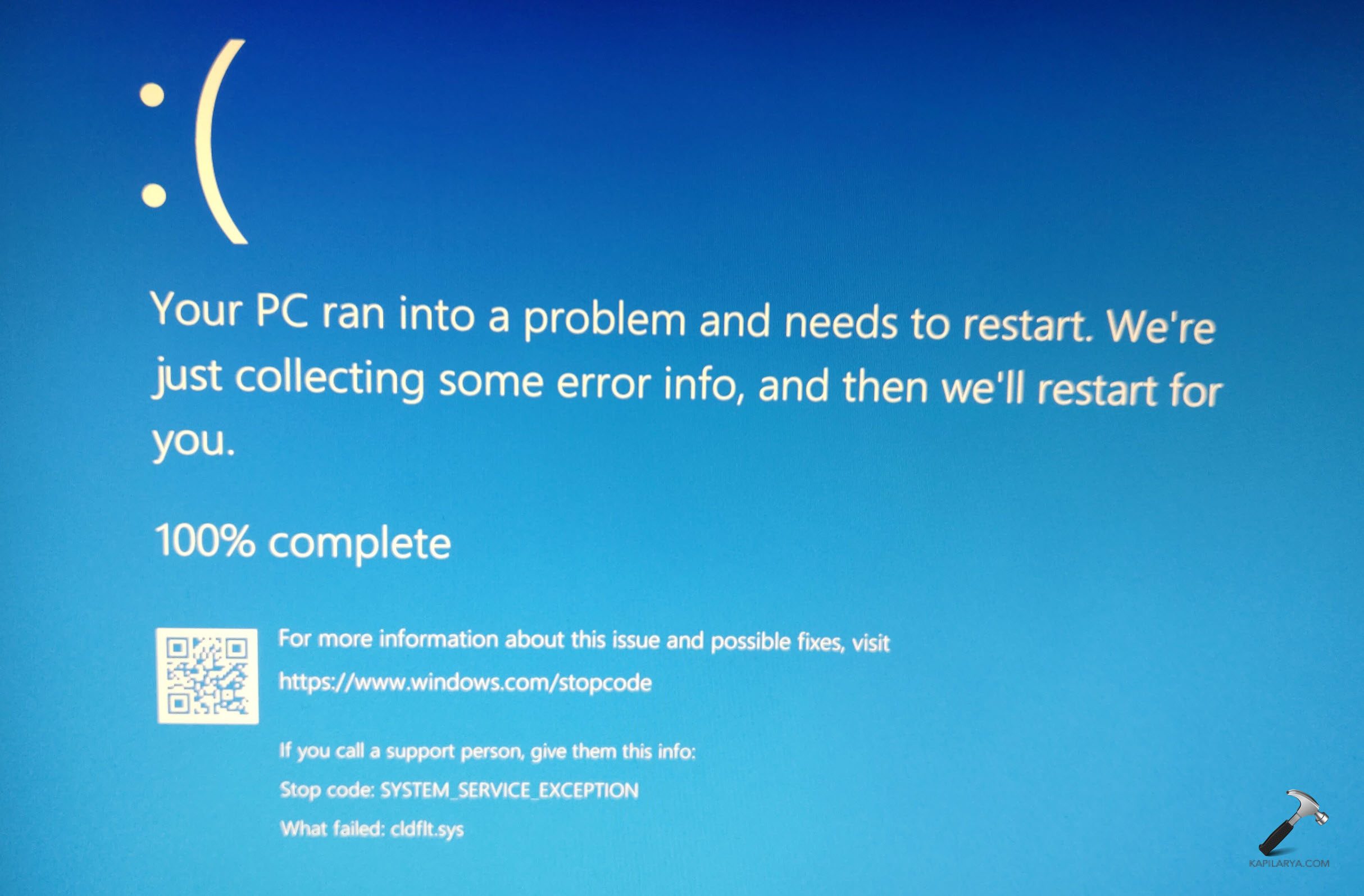
The Cldflt.sys BSOD in Windows 11 is a well-known Blue Screen of Death (BSOD) bug, and it is also quite frustrating. This crash of the system is typically related to the issues of Cloud Filter Driver when Microsoft OneDrive or file synchronization programs are typically the most popular. Should you be having this error and be experiencing system crashes or reboots, do not panic, as this error is solvable.
This guide contains a series of fixes to get rid of Cldflt.sys BSOD on Windows 11 that are certain and easy to follow. These solutions are meant to prevent crashes by fixing system file corruption, registry, and conflicts within the software.
Page Contents
What Causes the Cldflt.sys BSOD in Windows 11?
Before getting to the solutions, let us take a glimpse at several causes of the Cldflt.sys error:
- Damaged or deleted OneDrive cloud files
- Conflicts arise sometimes in the course of cloud file synchronization.
- Corrupted system files or Windows image
- Registry corruption
- The interference of third-party apps
- Corrupted or old Windows Updates
Fix Cldflt.sys BSOD in Windows 11
The following are the most efficient ways of resolving this error properly.
Fix 1: Boot into Safe Mode When You’re Stuck in Cldflt.sys BSOD Loop
1. Forced shutdown is possible by pressing and holding the power button. Now do it again 3 times – on the 3rd boot, Windows will automatically begin the Automatic Repair Mode.
2. In case it fails, then you need to force close the shutdown a bit earlier or later in boot. Timing matters.
3. Click Advanced options when the window with Automatic Repair appears.
Tap on Troubleshoot > Advanced options > Startup Settings.

4. Choose option “Enable Safe Mode with Networking”. Now, you just need to restart the system.
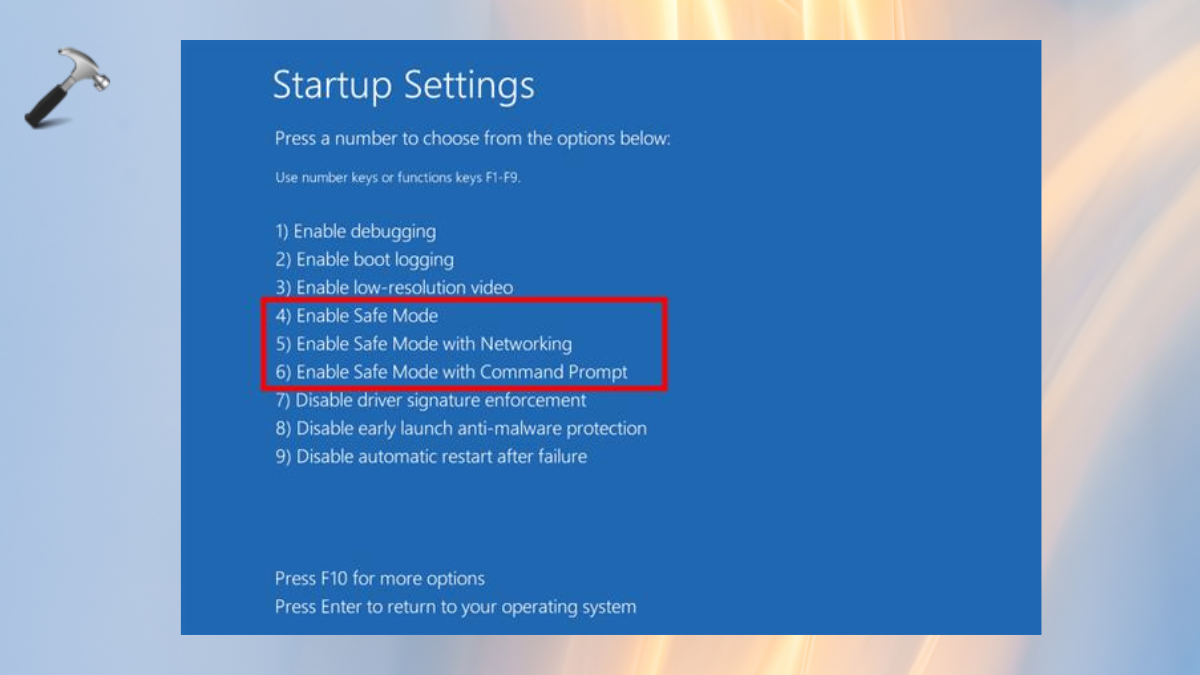
Boom. You are in Safe Mode.
Fix 2: Reinstall OneDrive
Because the Cldflt.sys file is directly related to OneDrive, we can solve the error by reinstalling it or by resetting it.
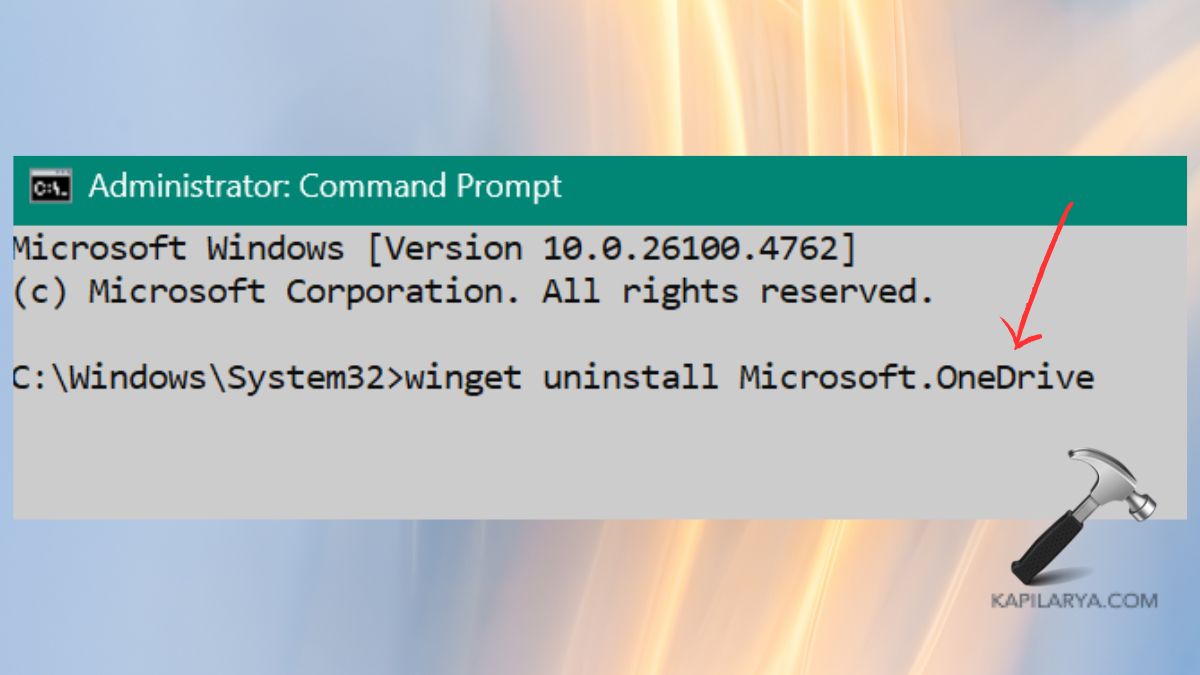
1. When Safe Mode is entered, the Terminal (Admin) or Command Prompt (Admin) tools have to be opened by pressing Ctrl + F12.
2. Then, enter the following command:
winget uninstall Microsoft.OneDrive
3. As soon as the system is restored to normal operation, you must refer to the official portal to download the OneDrive installer (https://www.microsoft.com/en-in/microsoft-365/onedrive/download). Get the latest version of the installer.

Now, reinstall and log in to your Microsoft account. This assists in solving any damaged cloud synchronization drivers associated with Cldflt.sys.
Fix 3: Run SFC and DISM Commands to Repair Corrupted System Files
In rare instances, hidden culprits are corrupted system files, causing the Cldflt.sys BSOD error on Windows 11. Fortunately, Windows also offers tools that automatically scan and (hopefully) fix these files, SFC (System File Checker) and DISM (Deployment Imaging Service and Management Tool).
The way to use them is as follows:
1. Windows will boot automatically into the Recovery Mode after 2-3 unsuccessful boot-up attempts.
2. Click on Advanced Options in the blue screen. Tap the Command prompt option.

3. Type the following in the Command Prompt window and press Enter:
sfc /scannow

Wait until the scan is complete; it may take a couple of minutes. After that, restart your PC.
4. Upon reboot, enter the following command:
DISM /Online /Cleanup-Image /RestoreHealth

These tools will check your systems against any missing or damaged files and repair them automatically. It is not a very complicated move, but it is very effective and sometimes it solves the BSOD with minimal fuss.
Fix 4: Modify the Registry Entry (Advanced Users Only)
Cldflt.sys BSOD can be caused by a wrong registry setup. It can be beneficial to edit the registry with care.
In case the Cldflt.sys BSOD (Blue screen of death) error is still there, do the following.
1. To enter Command Prompt, 3 times press Force to shut it down and enter Recovery Mode → Advanced Options.
2. Type these commands in sequence in Command Prompt.
reg load HKLM\FixHive C:\Windows\System32\config\SYSTEM
reg add "HKLM\FixHive\ControlSet001\Services\CldFlt" /v Start /t REG_DWORD /d 2 /f
reg unload HKLM\FixHive
shutdown /r /t 0

This will not remove, delete, or uninstall a single thing it only tells Windows not to load the cloud driver aggressively upon start-up.
Frequently Asked Questions (FAQs)
#1 What is Cldflt.sys in Windows 11?
Cldflt.sys is a Cloud Filter Driver utilized by OneDrive and Windows to synchronize files on your device and the cloud. Should this driver be corrupted, then it may lead to the occurrence of BSOD errors.
#2 Is Cldflt.sys a virus?
No, Cldflt.sys is a valid Windows system file. Malware may, however, masquerade using similar names. It is advisable to carry out a complete antivirus scan in case you are not sure.
#3 Can I delete Cldflt.sys?
No, removal of Cldflt.sys is not advised. It is a key system driver. Rather, consider turning off or resetting OneDrive or follow the abovementioned methods in order to resolve the corresponding BSOD errors.
#4 Will reinstalling Windows fix Cldflt.sys BSOD?
Yes, restoring or reinstalling Windows 11 is most likely to resolve the problem, and in case of deep corruption of the system. However, use the less violent means first in order not to lose your files or apps.
That’s it!