If you have recently installed or updated Realtek audio drivers on Windows 11 and all of a sudden sound on the computer stops working, you are not alone. This is a frustrating complication that many users encounter following driver updates, re-installation, or upgrades to Windows. The positive news? It can be fixed easily most of the time.
We are going to show you 7 solutions in this guide that have proved to be effective in restoring your sound, step by step. Such solutions will make it easy to get rid of the issue of Realtek no sound in Windows 11.
Page Contents
Why does this Realtek no sound in Windows 11 happen?
The problem of no sound after Realtek driver installation is likely to emerge due to:
- The audio output applet is incorrectly configured.
- The upgrading of the Realtek driver is not compliant or failing.
- Audio services were shut down.
- The update damaged system files.
Now, it is time to get into the solutions.
Fix No sound after installing Realtek drivers on Windows 11
Solution 1: Roll Back the Realtek Driver
At times, the new driver is not compatible. Audio can be recovered by rolling back to the earlier version.
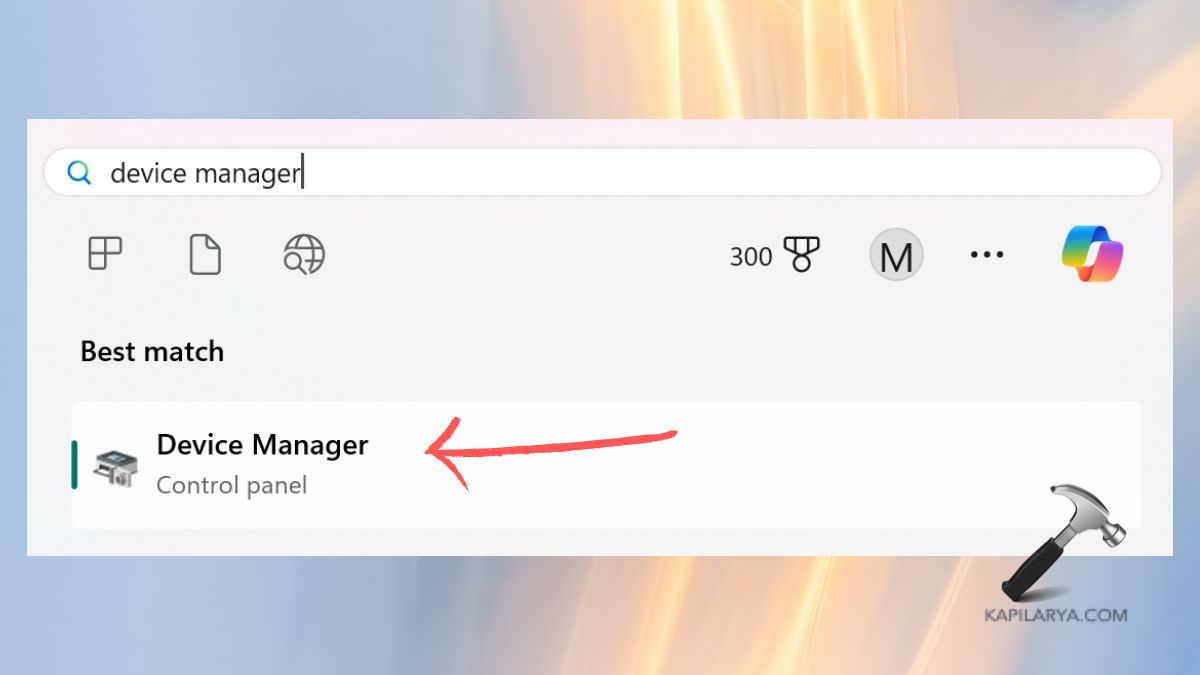
1. Press Windows + X and click on Device Manager.

2. Extend “Sound, video, and game controllers”. Right-click Realtek Audio and click Properties.

3. Click on the Driver tab and click on Roll Back Driver (if it’s greyed out, you may have used it already). Choose a reason (e.g, Previous version worked better), and then click Yes.
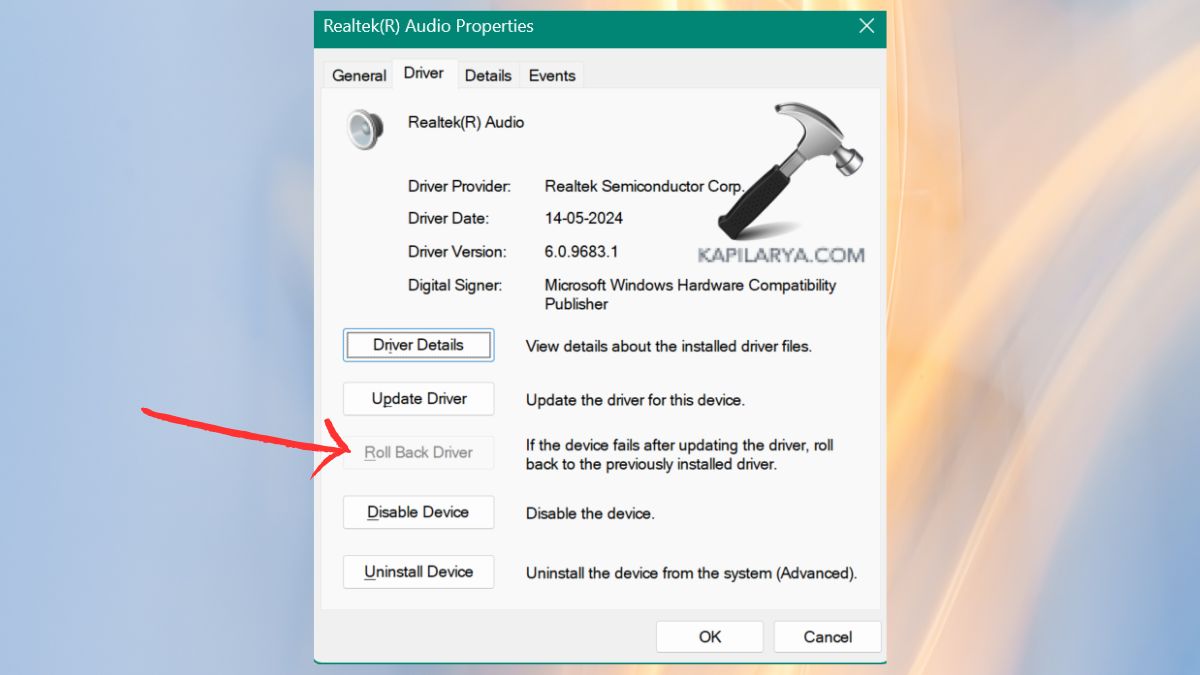
4. Restart your PC and see if the sound comes back.
Solution 2: Check the Status of Audio Services
Unless you have the basic Windows audio services running, you will not hear anything, even when you have a properly configured sound card.
1. Hold down the Windows + R keys and type in.
services.msc
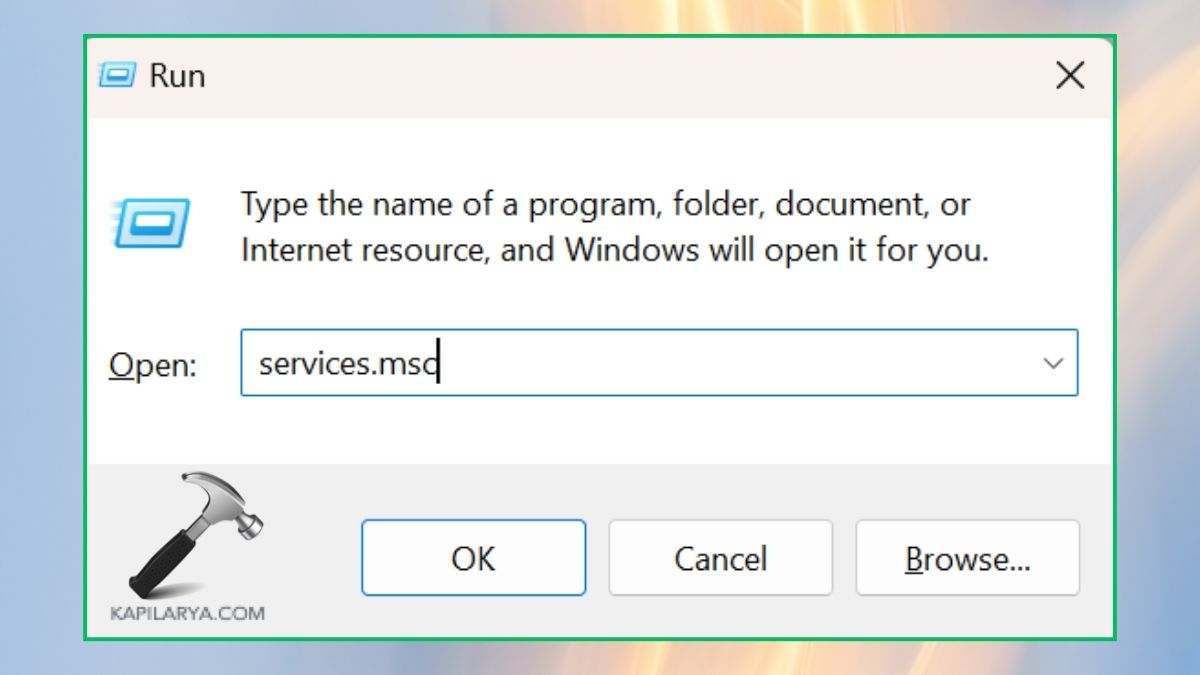
2. Find these services:
a. Windows Audio
b. Windows Audio Endpoint Builder
Right-click them separately and click Restart.

3. In case any is disabled, right-click and go to properties and select Startup type as Automatic.

Solution 3: Check Your Sound Settings
The wrong choice of audio output may give you the illusion that you have lost your sound.
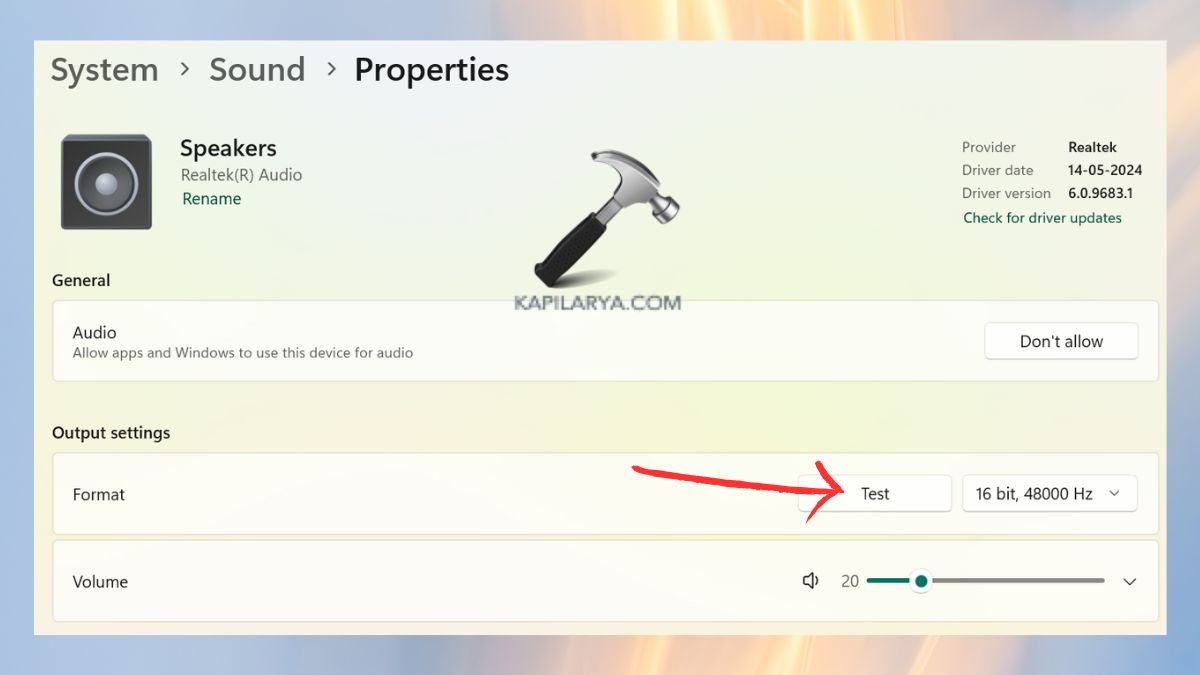
1. Click the Sound icon on the taskbar, right-click it, and select Sound settings.

2. Under the option Choose where to play sound, Realtek Speakers/Headphones can be chosen. Try to move the volume sliders to ensure it is not on mute.

3. To hear whether the sound comes out, click Test.
Solution 4: Run the Audio Troubleshooter
Windows 11 has an in-built troubleshooter that has the capability of automatically identifying and resolving any sound problems.
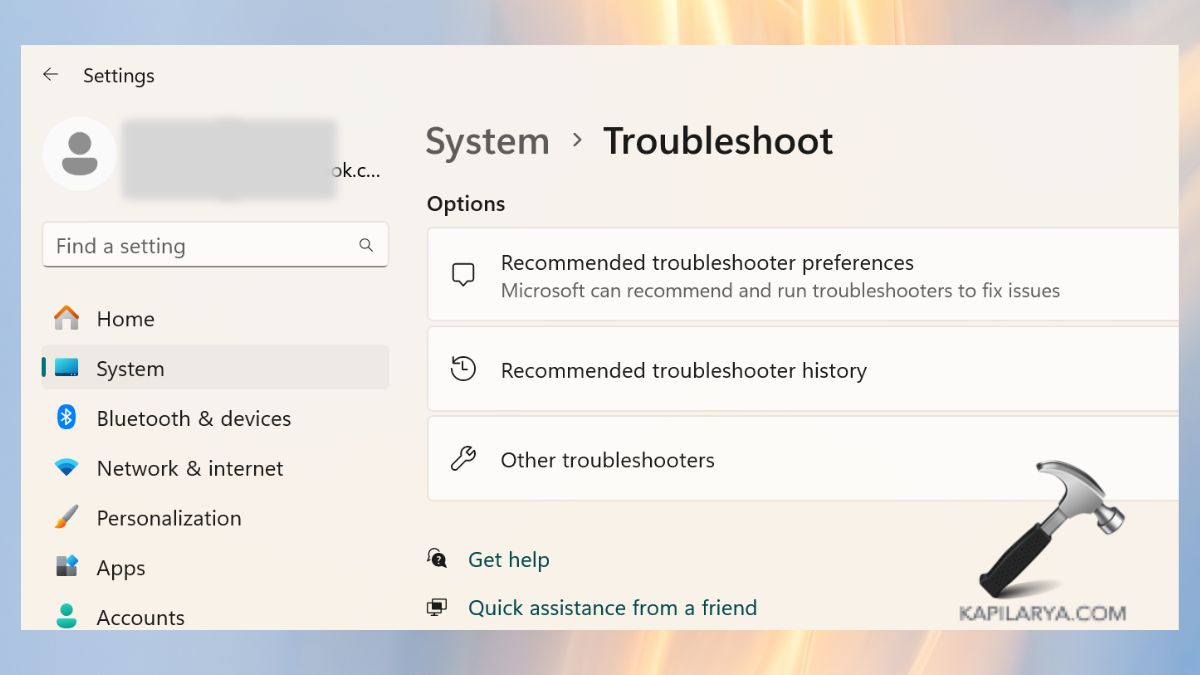
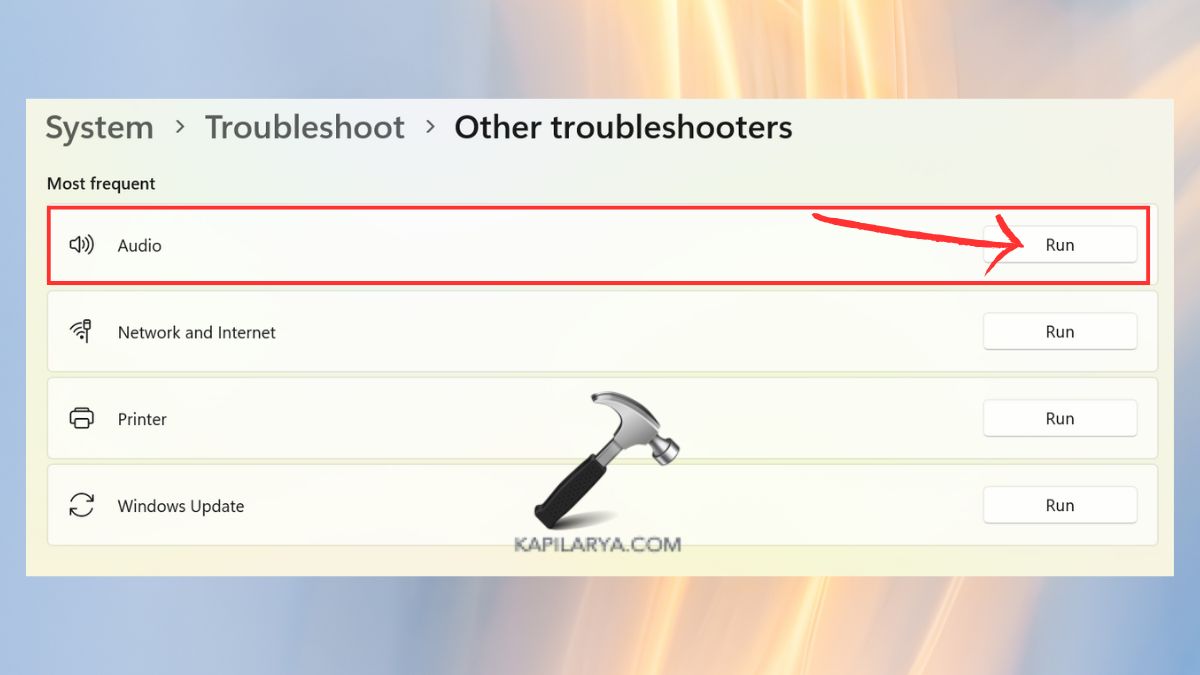
1. Press Win + I to start Settings. Go to System > Troubleshoot > Other troubleshooters.
2. Find Audio option and click Run. Implement fixes through the prompts of the screens.
Solution 5: Uninstall and Reinstall the Realtek Driver
In case of a corrupt driver installation sound problem could be removed by reinstalling the driver.
1. Launch the Device Manager app.
2. Right-click Realtek Audio and select Uninstall Device. Uninstall the driver software of this device. Check Delete -> Click Uninstall.

3. Reboot your computer – with the help of Windows, it will reinstall the driver again. As an option, you may download the newest Realtek driver from the vendor’s website.
Solution 6: Run System Restore
System Restore can restore your system settings and drivers to a previous configuration, in case the sound was working well on your system.
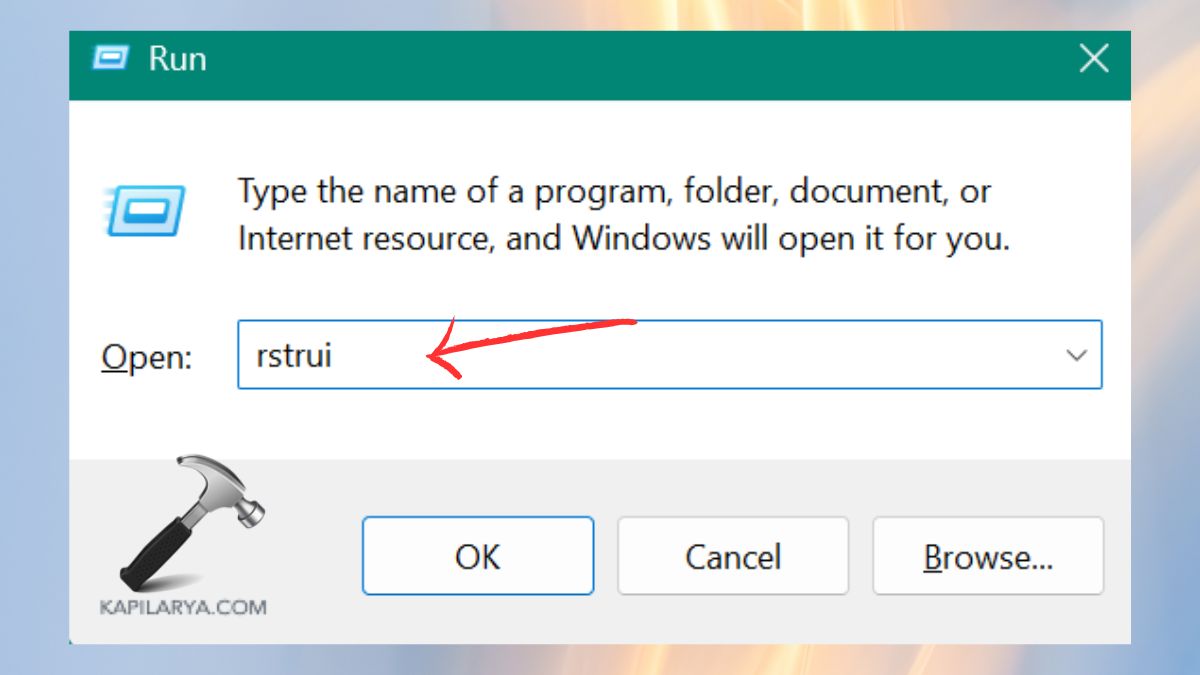
1. Hold down the Windows + R keys, type, and Enter.
rstrui
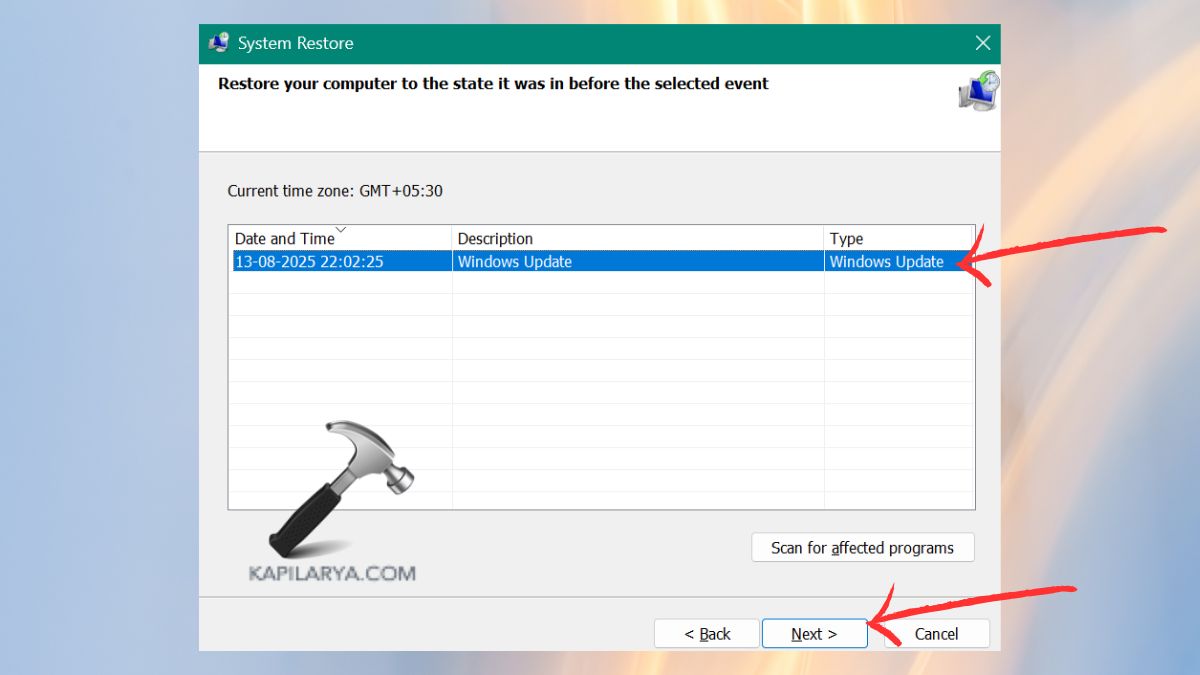
2. Select a restore point prior to when the sound problem began. Use the instructions to reinstall Windows.
Frequently Asked Questions (FAQs)
#1 Why did my sound stop working after installing Realtek drivers?
This normally occurs when the drivers are incompatible, or incorrect settings or an audio service.
#2 Can I use Windows’ default drivers instead of Realtek drivers?
Yes. The Realtek drive can be removed, and Windows will use its default audio driver, which might work well.
#3 Is Realtek necessary for sound in Windows 11?
Unless an absolute requirement, Realtek drivers can usually offer superior sound quality and additional features.
#4 Will reinstalling Windows fix the no sound problem?
Sure, it can, but it is the last resort. Attempt the 7 fixes outlined above prior to taking into consideration a complete re-install.
That’s it!