

Are you wondering how to uninstall a device in Windows 11? Removing the device (and its driver) is generally the quickest solution to a printer, Bluetooth headset, webcam, or driver problem. This helpful tutorial takes you through four sure ways so that you can unplug/remove devices without breaking them. It will also prevent driver conflicts, multiple installs, or unknown device errors.
Page Contents
Before you start: Safety & Tips
Make a System Restore point (to be able to roll back in case something goes wrong).
- To do this, open Start > type Create a restore point > System Protection > Create.

- Unless you intend to delete keyboard/mouse drivers, plug alternative input devices.
- Be an administrator since certain procedures need administrator privileges (PnPUtil or removing drivers).
- Also, note down the device name and model so that you can install the drivers again.
How to uninstall a device in Windows 11
Method 1: Uninstall device in Windows 11 Device Manager (best for most devices)
The traditional and most secure location to uninstall hardware and drivers is the device manager.
1. Press Windows + X and select Device Manager (type in Device Manager in Start).

2. Locate the device category (e.g., Sound, video and game controllers, Network adapters, Bluetooth). Expand the category.
3. Click the particular device with the right-hand button > Choose Uninstall device. Click Uninstall.

In the confirmation dialog, select the option Delete the driver software of this device
in case you would like Windows to delete the driver package completely. (When that checkbox is not present, the driver package is left in the store – remove it with PnPUtil in the next method.)
Restart Windows after uninstalling. Windows reinstalls the affected computer automatically.
Method 2: Uninstall device using PnPUtil (removes driver packages)
With a driver package that is still present in Windows and keeps reinstalling, use pnputil. This is effective and wield with caution.
1. To do so, open Start, type “cmd” > right-click Command Prompt (or Windows Terminal) > Run as administrator.

2. List third-party driver packages using the following command.
pnputil /enum-drivers
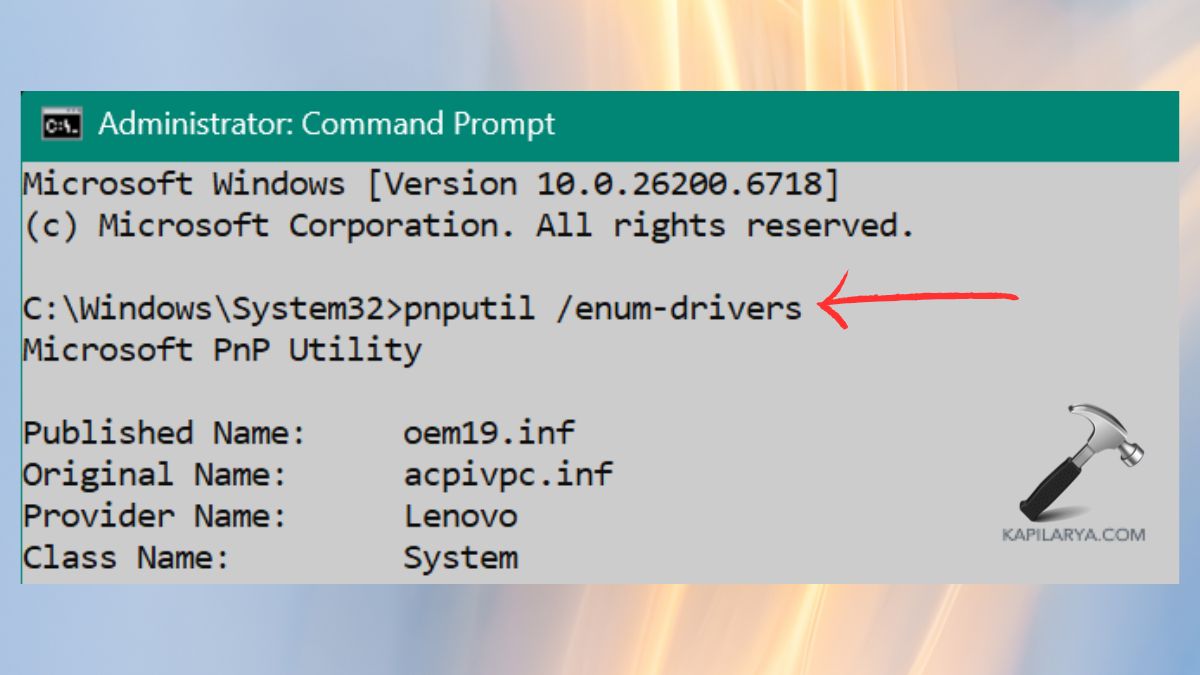
3. Find the Published Name values, such as “oem1.inf” or “oem12.inf”. Find the suitable driver that corresponds to your device (publisher and driver date assistance).
Erase and uninstall the driver package (use the name of the OEM information, not the name in the driver package).
pnputil /delete-driver oem##.inf /uninstall /force
- “/uninstall” will remove drivers on any device to which they are used.
- “/force” deletes in use (use carefully).
Restart your PC.
Things to Keep in Mind:
- pnputil will uninstall the driver package in the Windows driver store, and it can be beneficial when Windows continually rereads an invalid driver.
- Look twice at the name published before deleting. Note down the name of the driver that you have deleted to install it again.
Method 3: Uninstall device in Devices and Printers (Control Panel)
Worth traditional peripherals (including printers and scanners as well as some Bluetooth gadgets), and when you would want to use the Control Panel UI.
1. Open Settings > Bluetooth and devices, then Printers and scanners.

2. Click on “Remove”. Delete it there as well as it may appear.

Tip: Once removed, open Device Manager, check that all the drivers are removed there (see Method 1). In the case of printers, you might also have to gain access to the driver package in Print Management (where it exists, or pnputil).
Method 4: Uninstall device in Windows 11 Settings (Bluetooth, audio, some peripherals)
The Windows 11 Settings has a new experience for deleting Bluetooth and other paired devices.
1. Click Windows + I to go to Settings > Bluetooth and devices.
2. On the Devices, locate the device (e.g., the Bluetooth headset, speaker, or accessory). Click the three dots towards the right (or the device entry) > Delete device. Confirm.

Frequently Asked Questions (FAQs)
That’s it!




![[How To] Completely Uninstall Printer In Windows 10](https://www.kapilarya.com/assets/Printer-768x481.png)
