“Outlook has exhausted all shared resources” – this error message makes you wonder what exactly has gone wrong. When you are in a critical email discussion and Outlook suddenly freezes, you have found the right place.
In this article, there are step-by-step troubleshooting instructions that you can follow even when you are not a technical person. We have a simple purpose: we want to ensure that Outlook in Windows 11 can be run smoothly, faster, and without any errors, so that you do not have to wait any longer to fix the error
Page Contents
Causes of “Outlook has exhausted all shared resources” Error
This is an error that normally pops up when Outlook struggles with these:-
- Unnecessary background checks.
- Corrupted profile settings
- Overloaded PST/OST files
- Excessive accounts are put on a single profile.
- Incompatibility with other messaging or email packages.
- Too little cache or memory allocation.
Fix Outlook has exhausted all shared resources Error
The issue of outlook has exhausted all shared resources can be mitigated within minutes in case you follow the steps thoroughly as outlined below. This guide will solve your Outlook resource problems and help increase performance.
Fix 1: Reduce and Manage PST Files for Better Stability
When PST files become very large, Outlook tends to slow down or crash. All of your emails, attachments, calendars, and so on are kept in these files. Hence, it is important to efficiently manage them.
1. Click on Outlook and select File > Account Settings > Account Settings.

2. Click on the Data Files tab. Look at the number of files linked to PST.
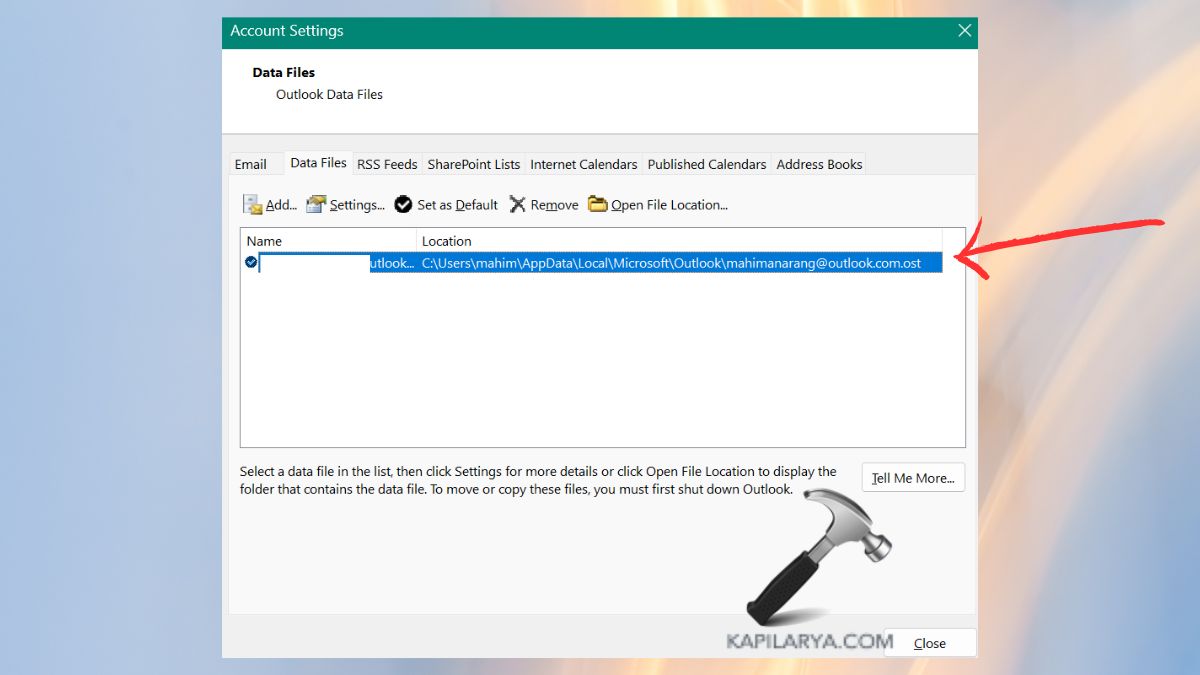
Delete unwanted PST files and check them off before clicking on remove.
3. To format large PST files, make archives via File > Tools > Clean Up Old Items.
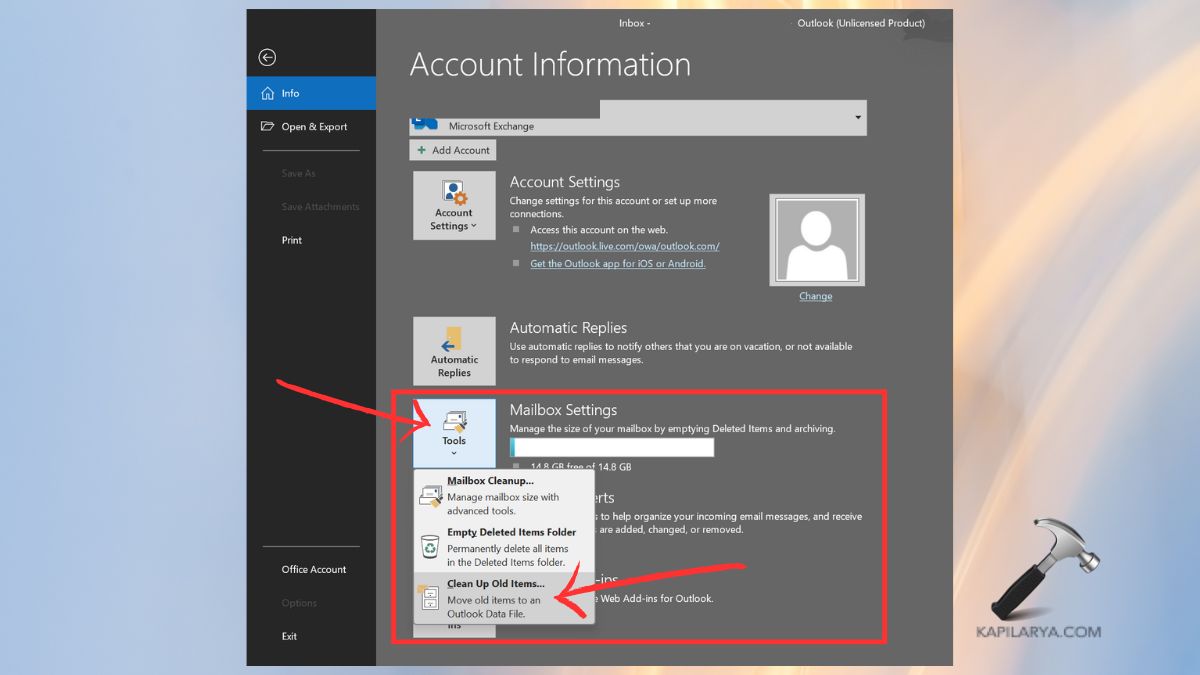
Restart Outlook to implement changes.
On this task, a decrease in PST load assists Outlook in utilizing fewer resources and operating effectively.
Fix 2: Reset the Navigation Pane to Fix Loading Issues
When your Navigation Pane becomes corrupted, then it is possible that Outlook will fail to load properly, and other errors will be caused by a shared resource. A restart will delete problematic shortcuts and view settings.
1. Completely close Outlook.
2. Type the following command in the Run box. You can open the Run dialog box by pressing Windows + R. Press Enter.
outlook.exe /resetnavpane
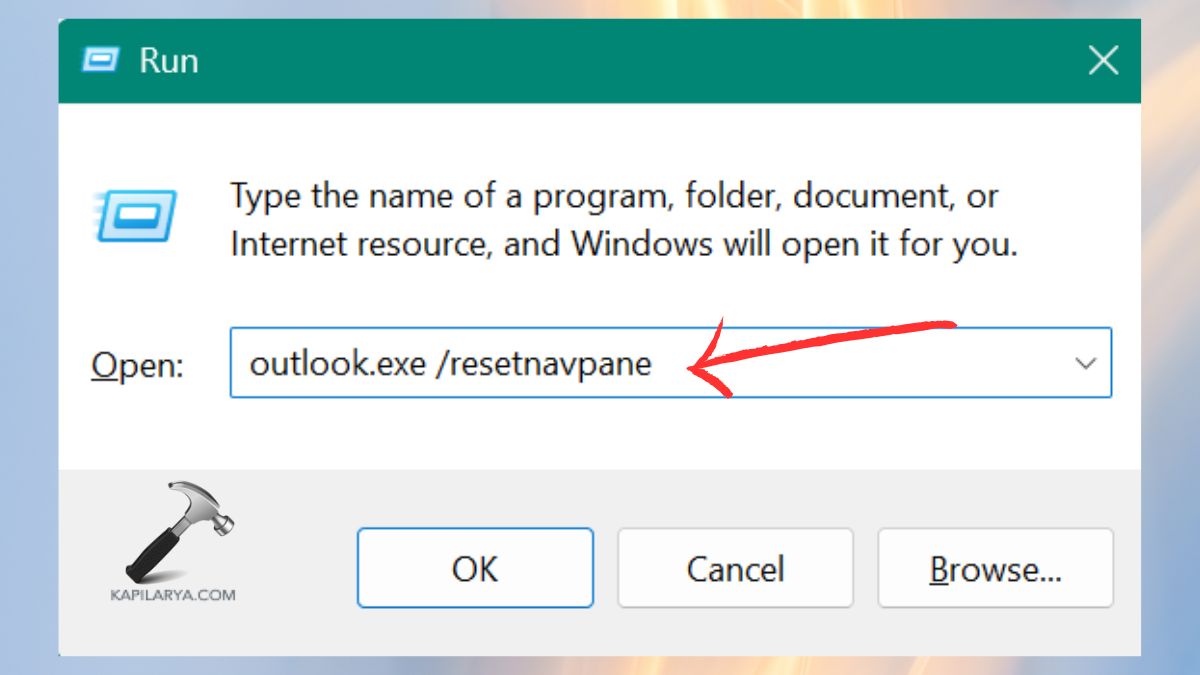
This single reboot can fix boot-up problems on the spot.
Fix 3: Close Other Messaging or Communication Apps
Applications such as Teams, Slack, Skype, and other email clients are typically run in the background, which consume the same system resources that Outlook relies on.
1. Click Ctrl + Shift + Esc or search to open Task Manager.

2. Click the Processes tab. Seek applications like Microsoft Teams, Slack, Skype, Mail, or other email programs.
3. Select the “End Task” option by right-clicking each one of them.

Restart Outlook. This releases the shared memory and avoids software clashes.
Fix 4: Repair Your Existing PST File
Corrupted PST files may result in the crash of Outlook or the display of the error as exhausted shared resources. The built-in repair utility of Microsoft is capable of repairing this.
1. Close Outlook application completely.
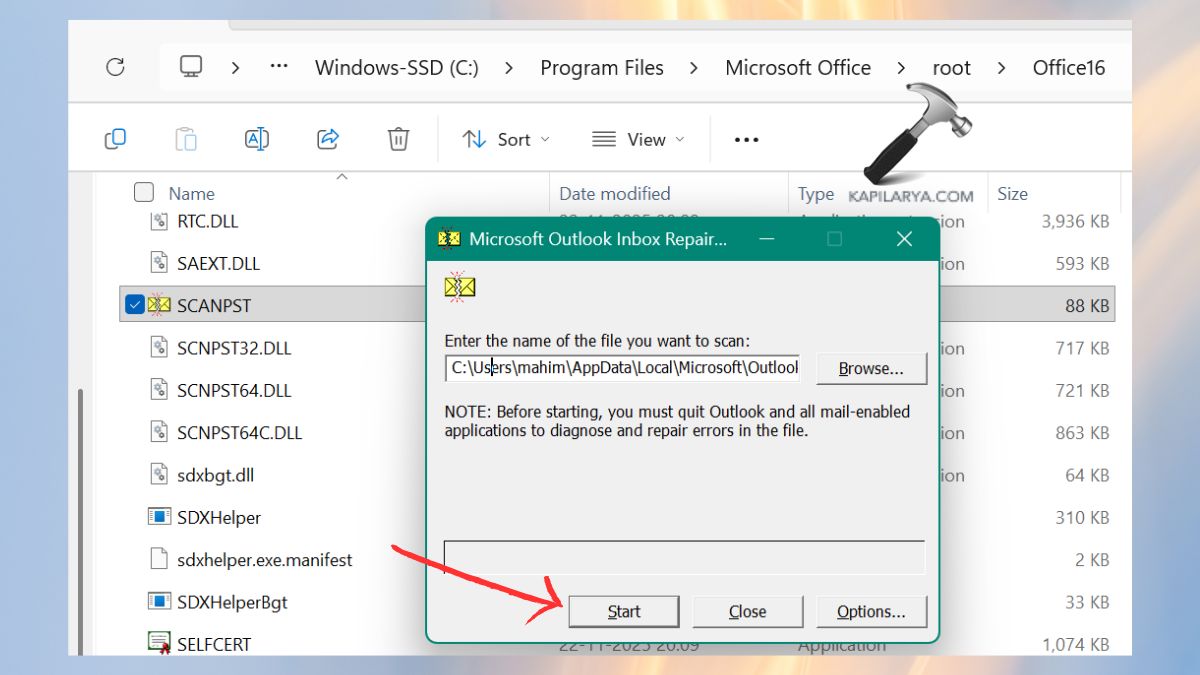
2. Open the Outlook installation folder and find the tool called “scanpst”.
C:\Program Files\Microsoft Office\root\Office16 (version may vary)
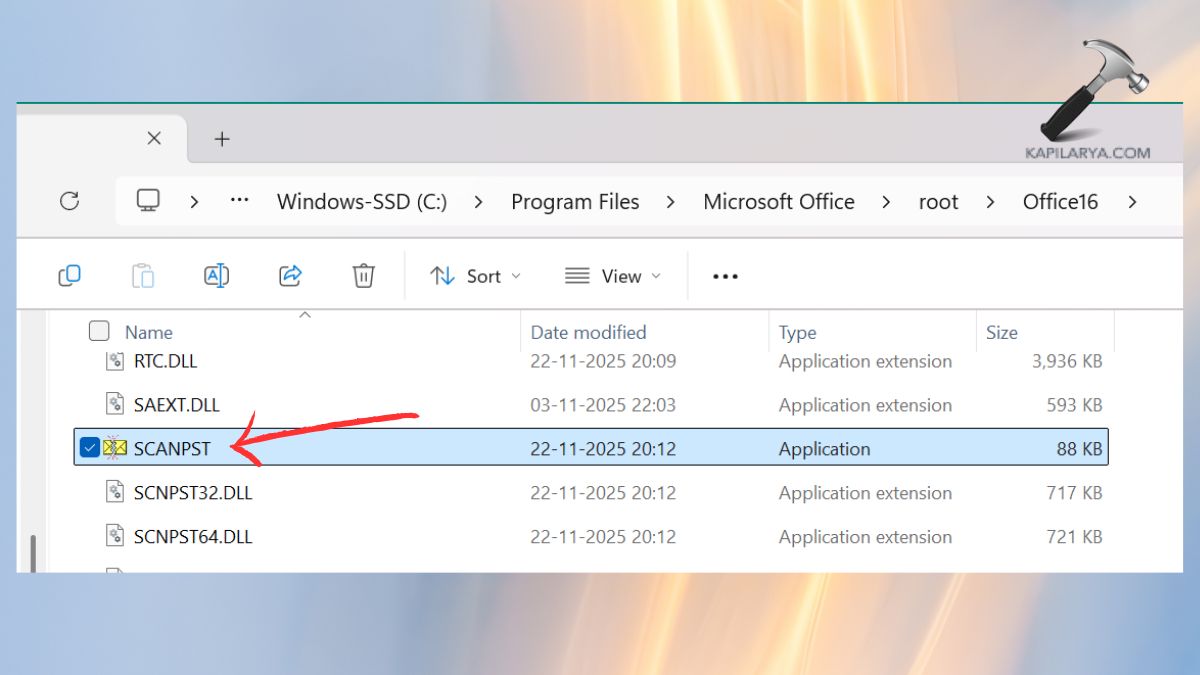
3. Click to open the PST file, which is “SCANPST.exe”, and then press Browse. Click Start and start scanning.
4. After the scan has been done, press Repair.
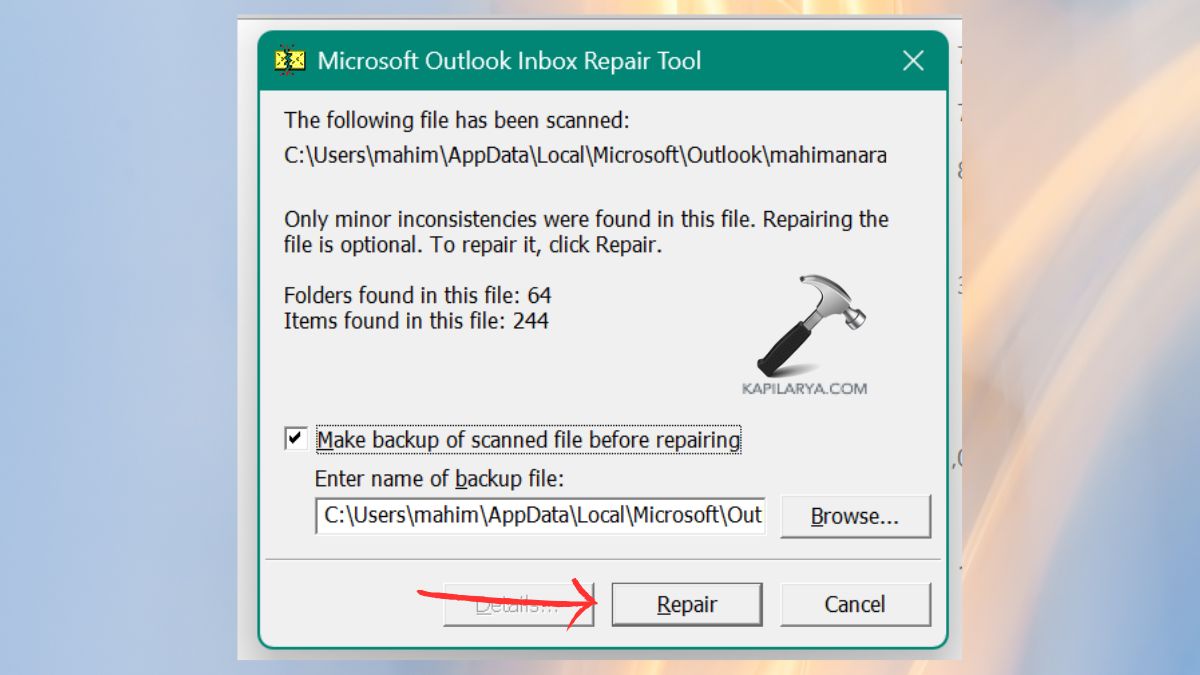
This software corrects internal malfunctions and helps to repair files. Start the Outlook now to determine whether the problem is eliminated.
Fix 5: Create a New Outlook Profile
The formation of a new profile erases configuration clashes. It also tends to repair any common resources and shared memory problems in real-time.
1. Close Outlook.
2. Open the Control Panel from the search section.

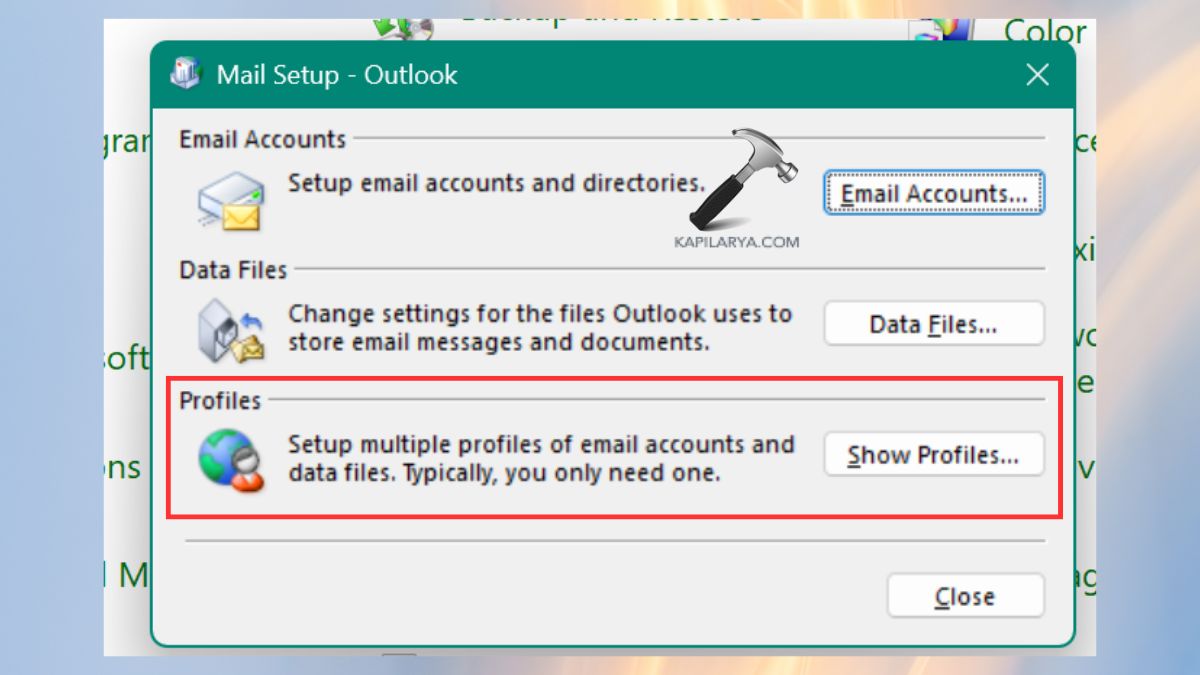
3. Click Mail (Microsoft Outlook).

4. Select Show Profiles.
5. Click Add, make a new profile. Enter your email account information. Make it a permanent use of this profile.
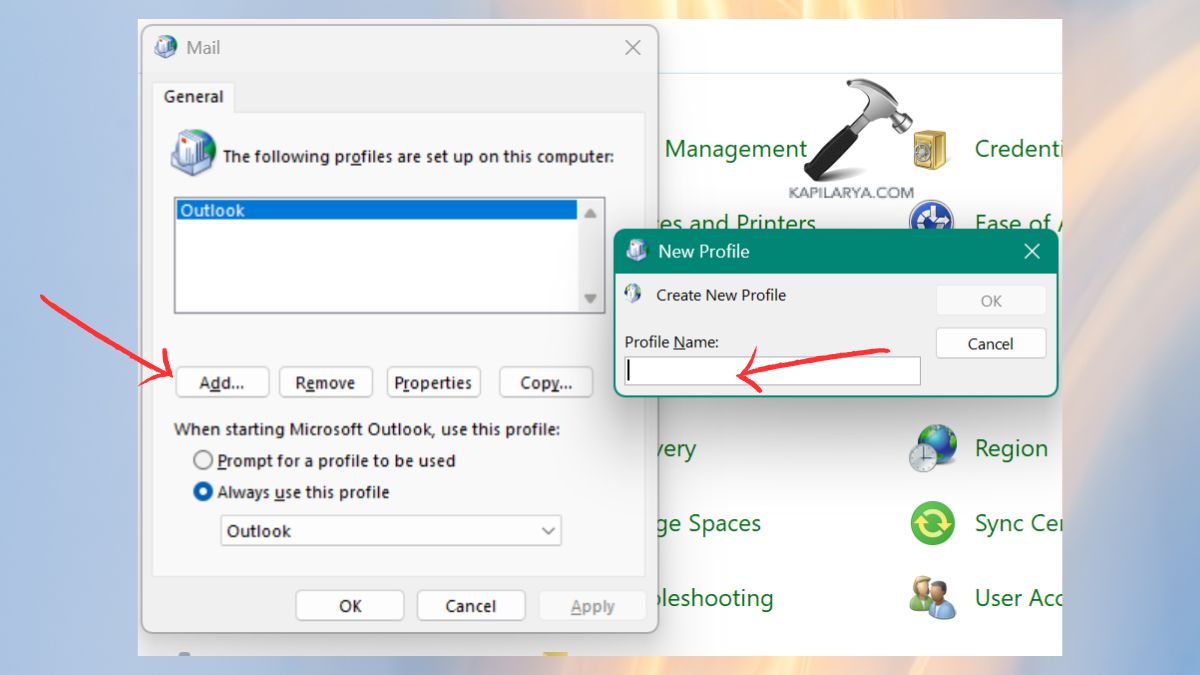
Restart Outlook.
Fix 6: Manage and Reduce the Number of Accounts
An excess of more than one account within a single Outlook profile is resource overloading. Both accounts require memory; therefore, making your setup lean increases performance. Follow these steps.
1. Open Outlook. Click on File > Account settings.
2. Under Email, the list of accounts is reviewed. Get rid of any unused or old accounts.
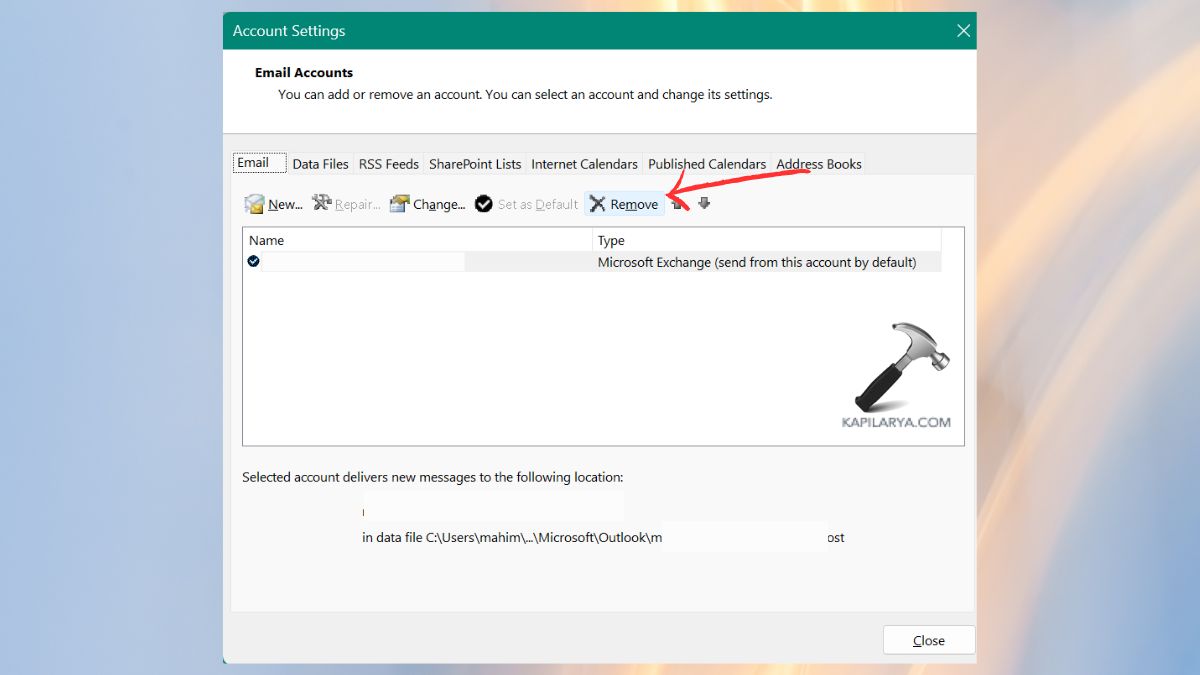
Restart Outlook.
Fix 7: Adjust Outlook Cache Size
A low cache has the power to slow Outlook sync and lead to errors in resources. This assists the Outlook in saving a larger amount of data locally and saves the sync pressure.
1. In Outlook, again go to File > Account Settings.
2. Open the Email tab. Choose “Change” by selecting your account.
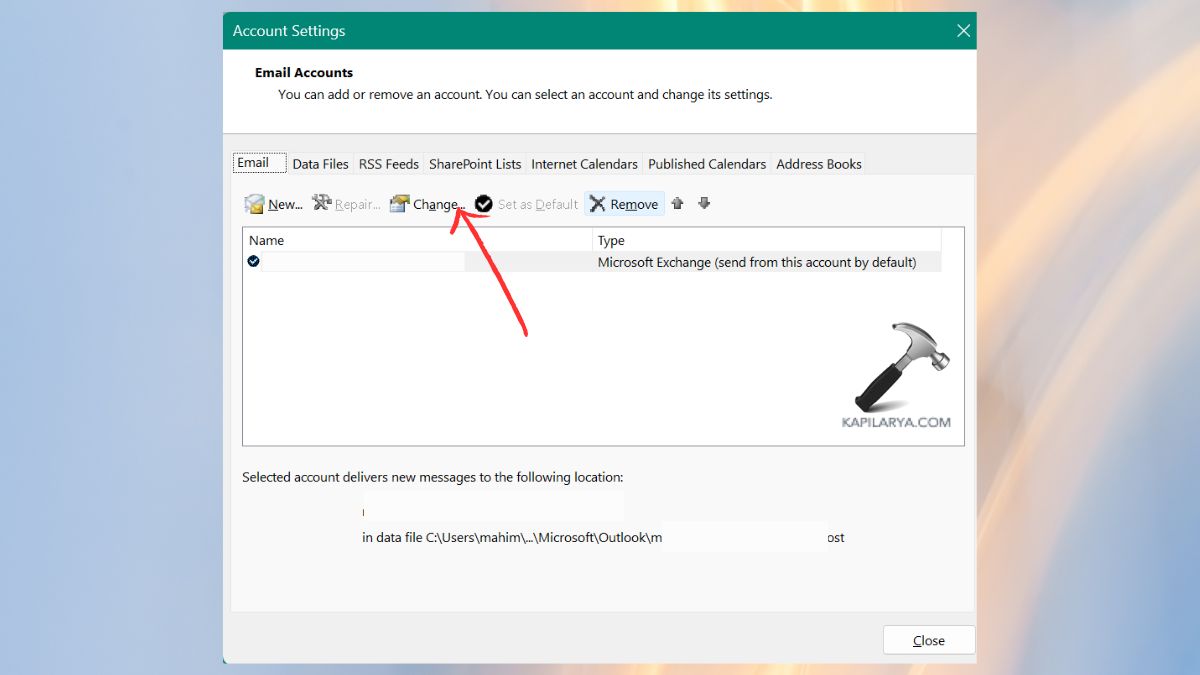
3. Store the offline slider with the Mail. Select “Next” and follow on-screen instructions.
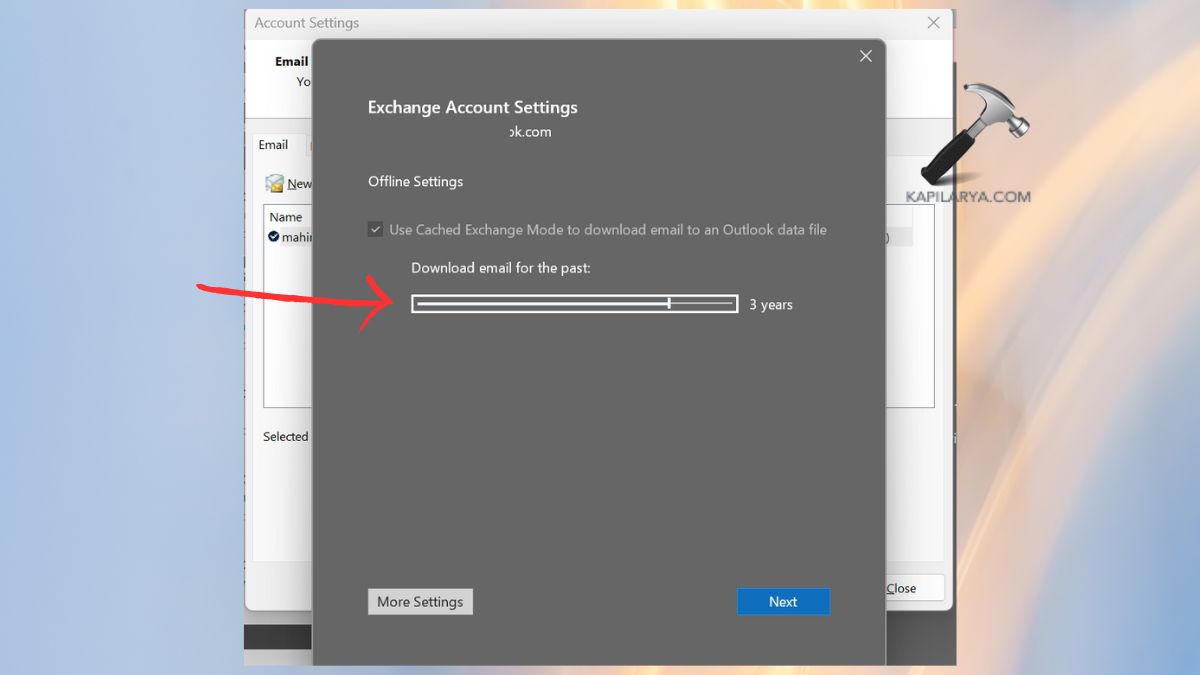
Restart Outlook.
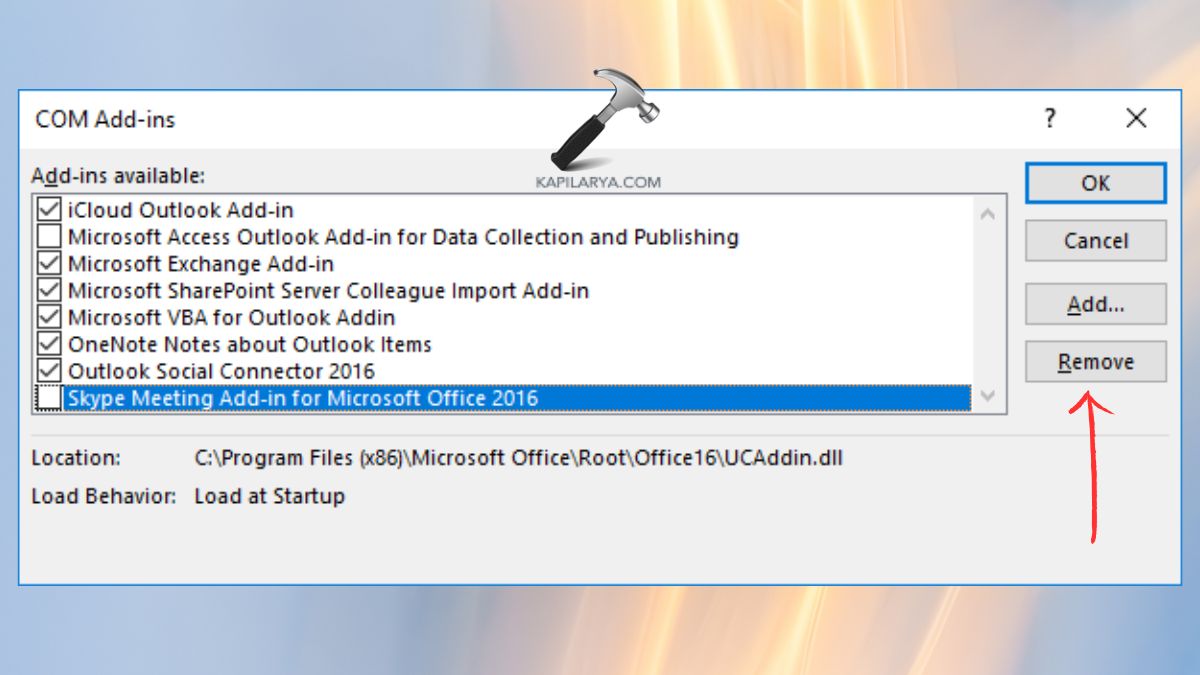
Fix 8: Restart Outlook in Safe Mode to Disable Faulty Add-ins
Outlook may also be overloaded with add-ins. These steps represent a quick method of diagnosing resource-intensive extensions.
1. Close Outlook once again.
2. Enter the following command in the press Windows + R. Press Enter.
outlook.exe /safe
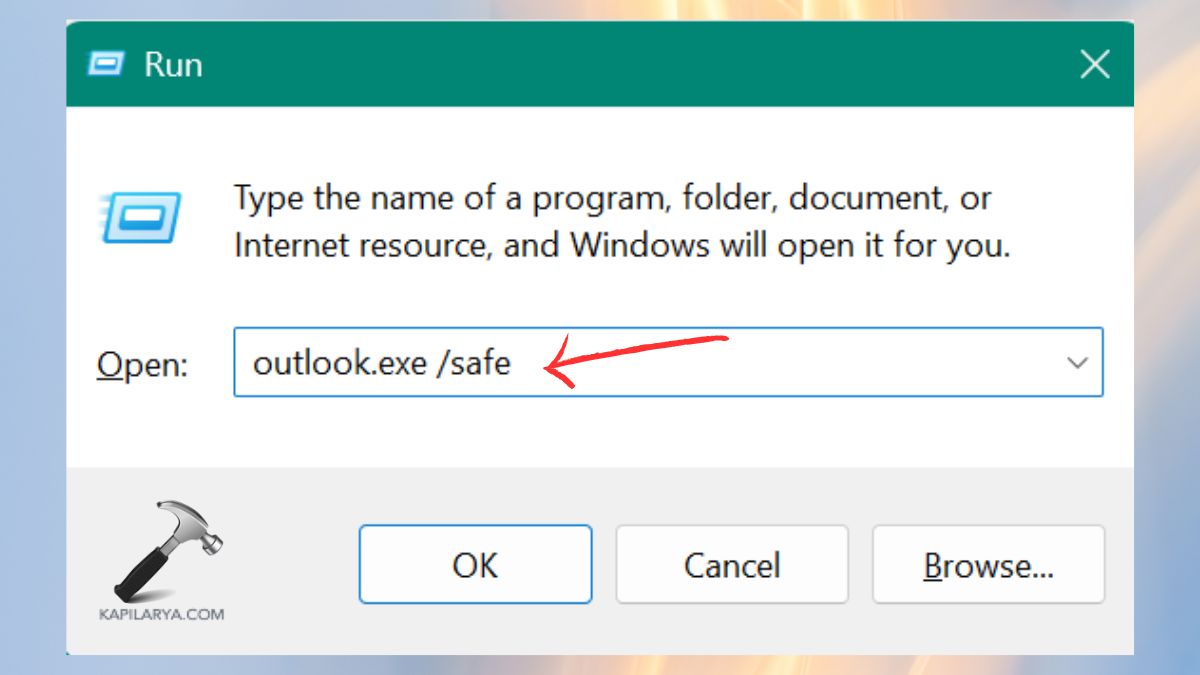
3. In case Outlook is fine in Safe Mode, select File > Options > Add-ins. Disable unnecessary add‑ins.
Frequently Asked Questions (FAQs)
Why does my Outlook say “Outlook has exhausted all shared resources”?
It occurs when Outlook has difficulties with its memory, PST/OST file congestion, a corrupt Outlook profile, or conflicts with background applications.
Can too many PST files cause this Outlook error?
Yes! Various PST files add a considerable load to Outlook and may cause a shared resource problem.
Will creating a new Outlook profile fix this error?
In most cases, yes. A new profile eliminates corrupt settings and makes things normal again.
Is it safe to repair my PST using SCANPST?
It is, of course, a legitimate official Microsoft tool that will repair corrupted PST files without destroying your information.
That’s it!