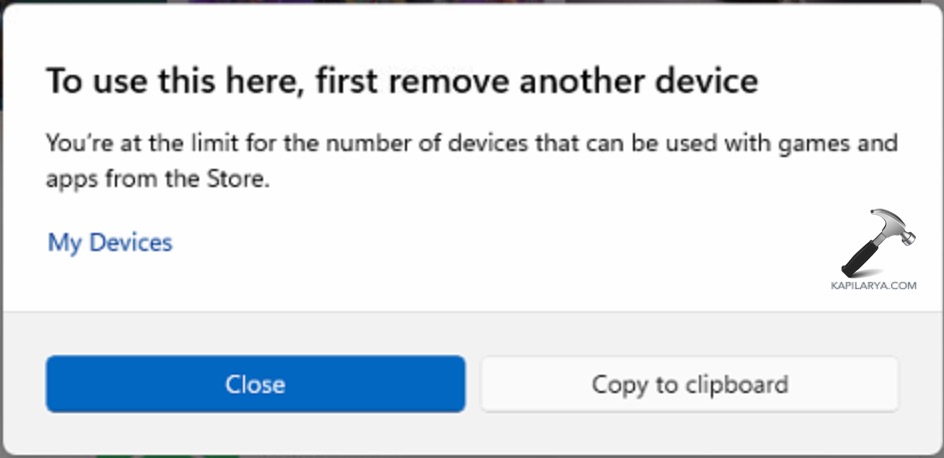
You’re at the limit for the number of devices error in Windows 11 — You may just be attempting to install a new application, log in, or coordinate your preferences, only to find yourself throttled without a notice. Windows 11 requires your Microsoft account to interact with the license of the apps, syncing of OneDrive and your experience. That is why when the system believes that you are utilizing too many devices, the installation of new apps is turned off to avoid abuse. You can easily reconnect normal access and match your Windows 11 applications without errors using the following methods.
Page Contents
Why This Error Happens on Windows 11
The error “You’re at the limit for the number of devices” in Windows 11, is about the number of devices that you have reached is typically the case when:
- There are an excessive number of devices connected to your Microsoft account.
- There are still registered old devices, unused devices, and duplicate devices.
- The cache of the Microsoft Store becomes corrupted.
- Licensing services are ineffective.
- Contradictory work/school histories lead to matters of verification.
- Stored authentications tamper with new logins.
Fix You’re at the limit for the number of devices for Windows 11
Method 1: Clear Microsoft Store Cache
This is among the simplest and quickest procedures of mending up the issues related to the Microsoft Store.
1. Press Win + R. Type the command. Press Enter.
wsreset.exe
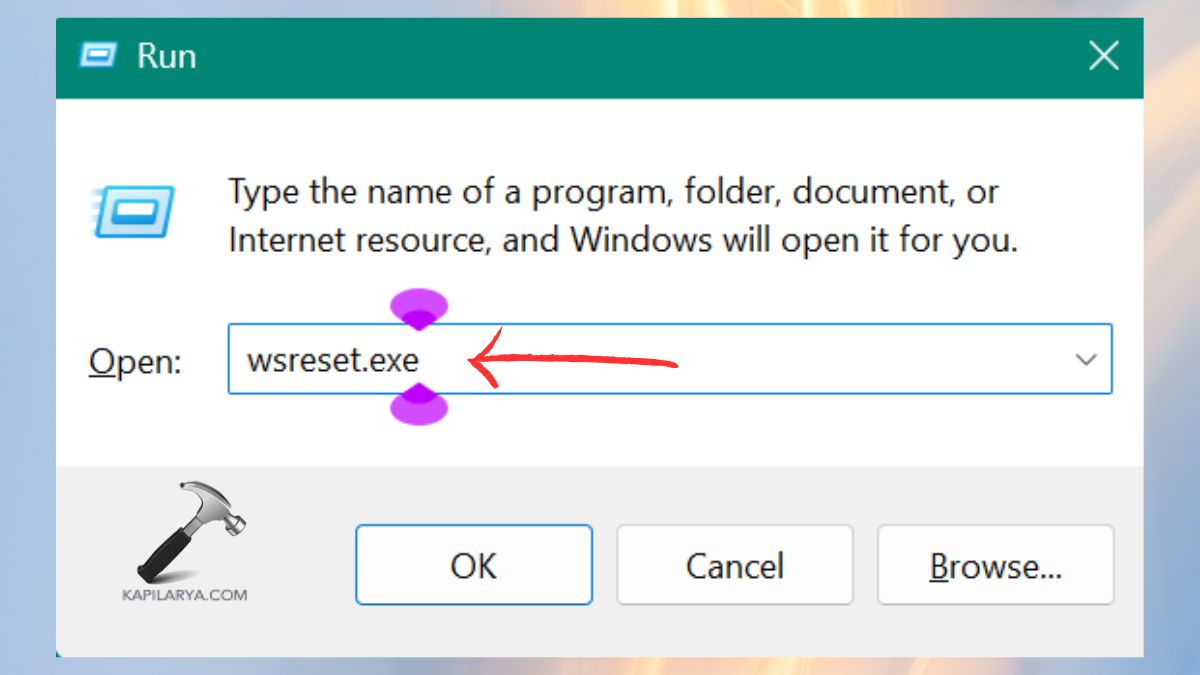
An empty Command Prompt window will open, and that will close automatically. There will be a clean start of the Microsoft Store app.
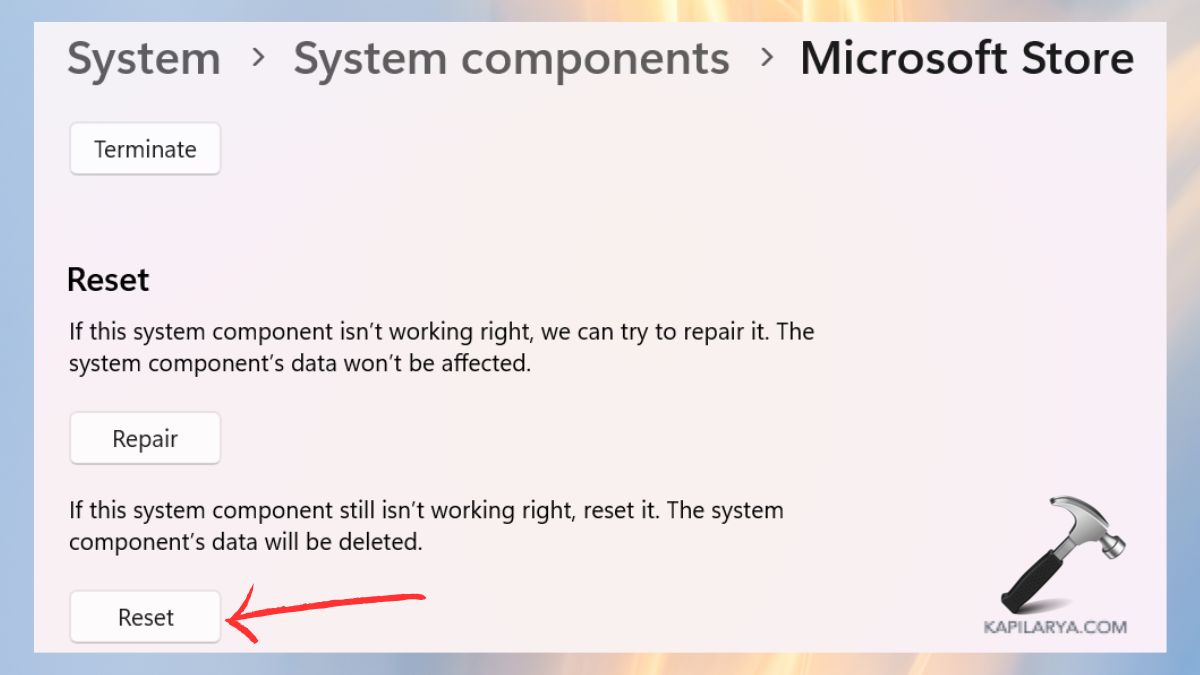
2. Open Settings. Go to Apps > Installed apps.
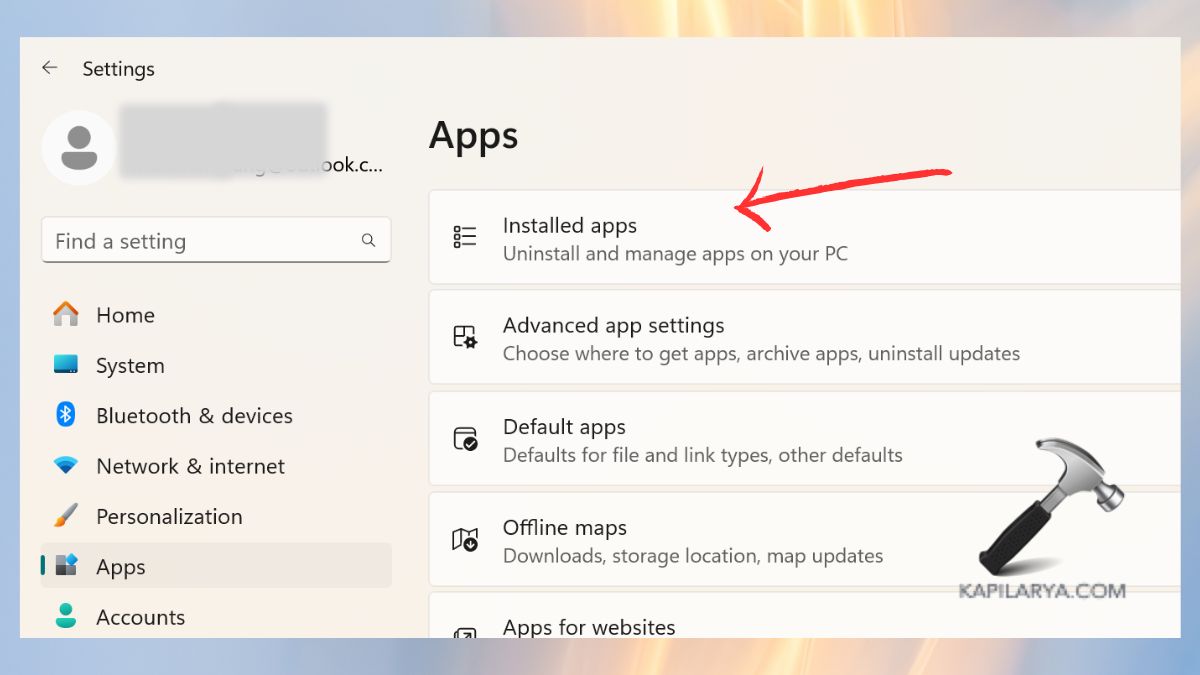
3. Find Microsoft Store. Click Advanced options.
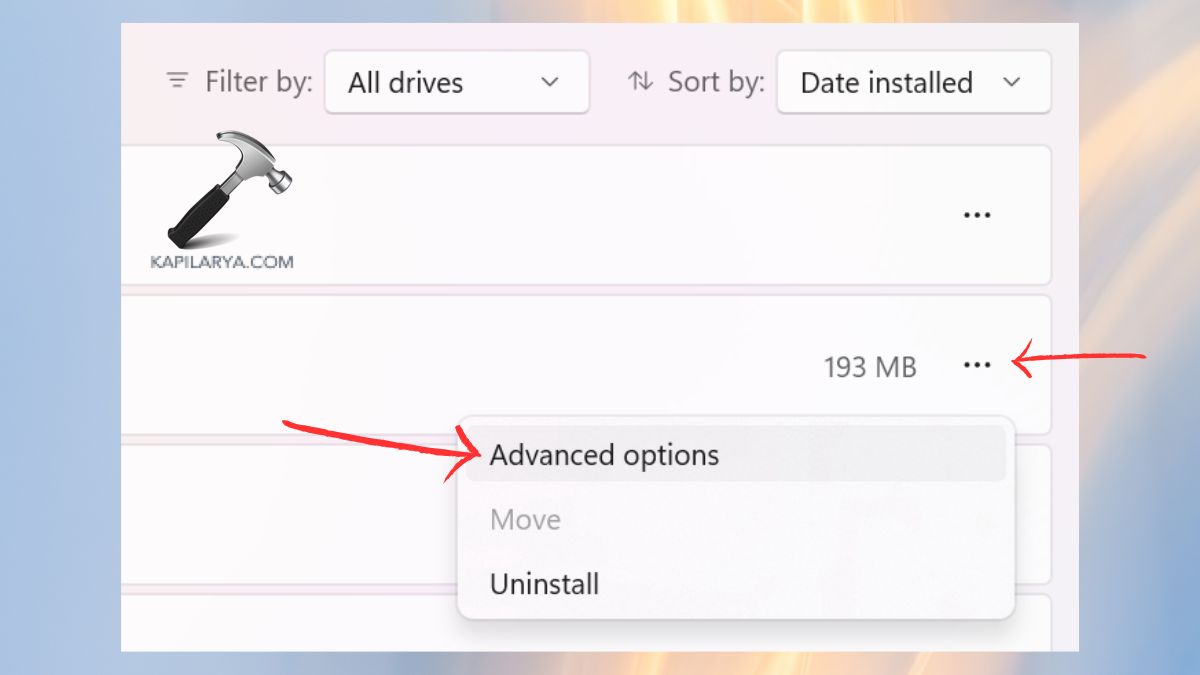
4. Scroll down and click “Reset”. This eliminates damaged information, which can lead to machine constraint failures.
Method 2: Disable Client License Service
When the Windows licensing service is stalled or corrupted, then it provokes errors about activation and device limits.
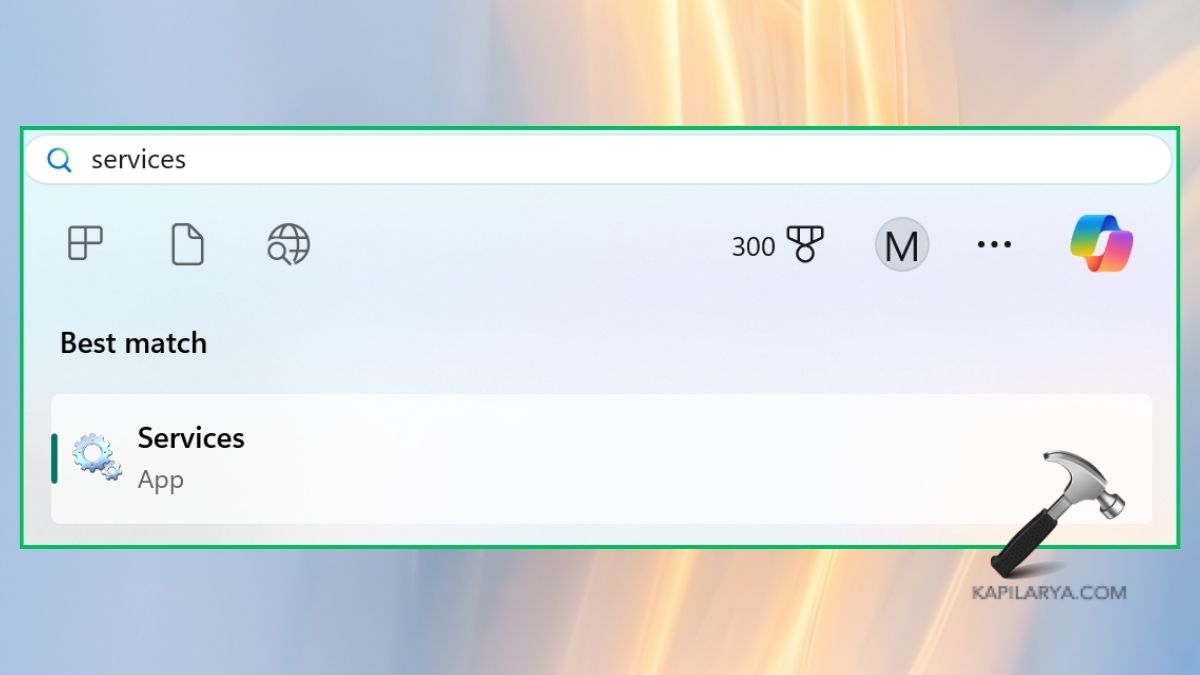
1. Open the Services application via start menu.
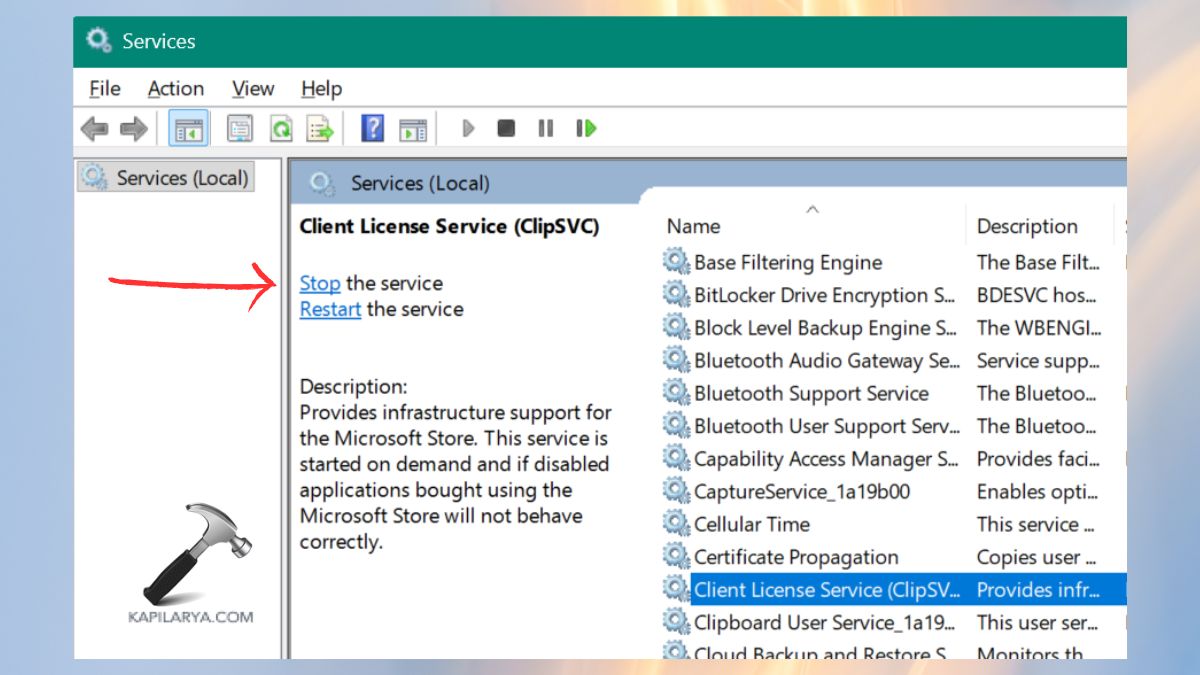
2. Search and locate Client License Service (ClipSVC). Right-click and choose “Stop”.
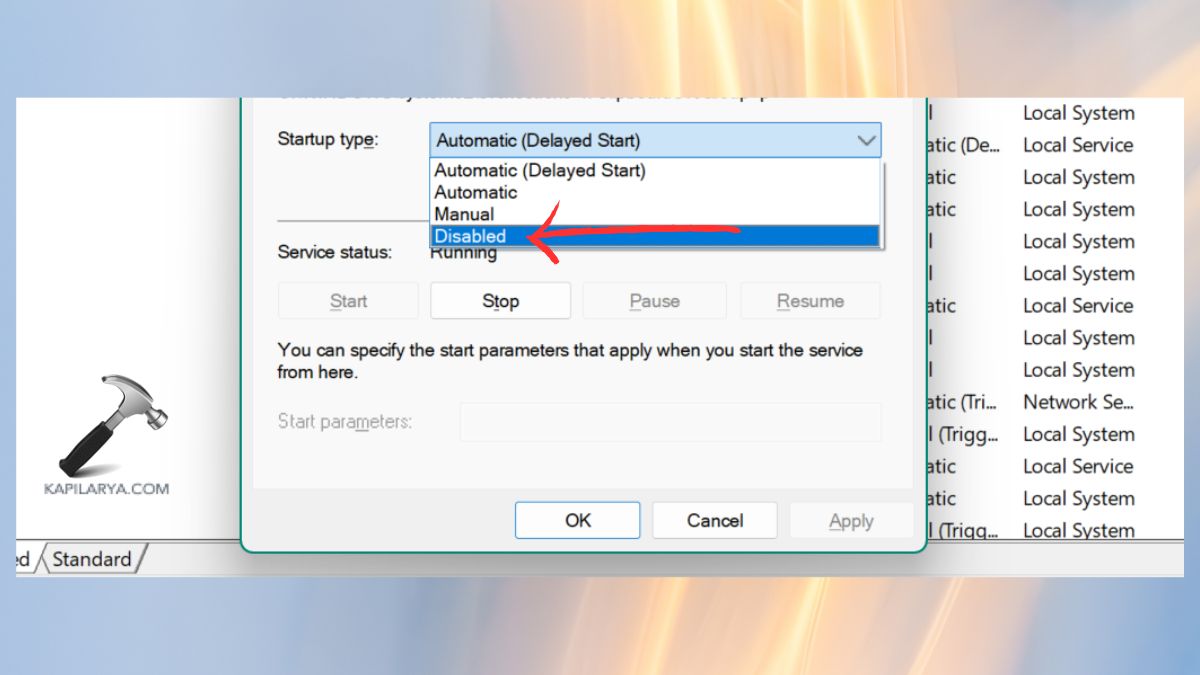
3. Right-click once more on Properties. In the field of Startup type, choose disabled. Click Apply > OK.
Reboot your computer and again sign up to the Microsoft Store.
Method 3: Remove Old or Conflicting Microsoft / Work Accounts
The conflict in licensing sometimes arises due to old school or work accounts. You can disconnect those old work or school account.
1. Open Settings. Click Accounts. Go to Access work or school.

Any account here should be removed.
2. Go back again to Accounts, then email and accounts.
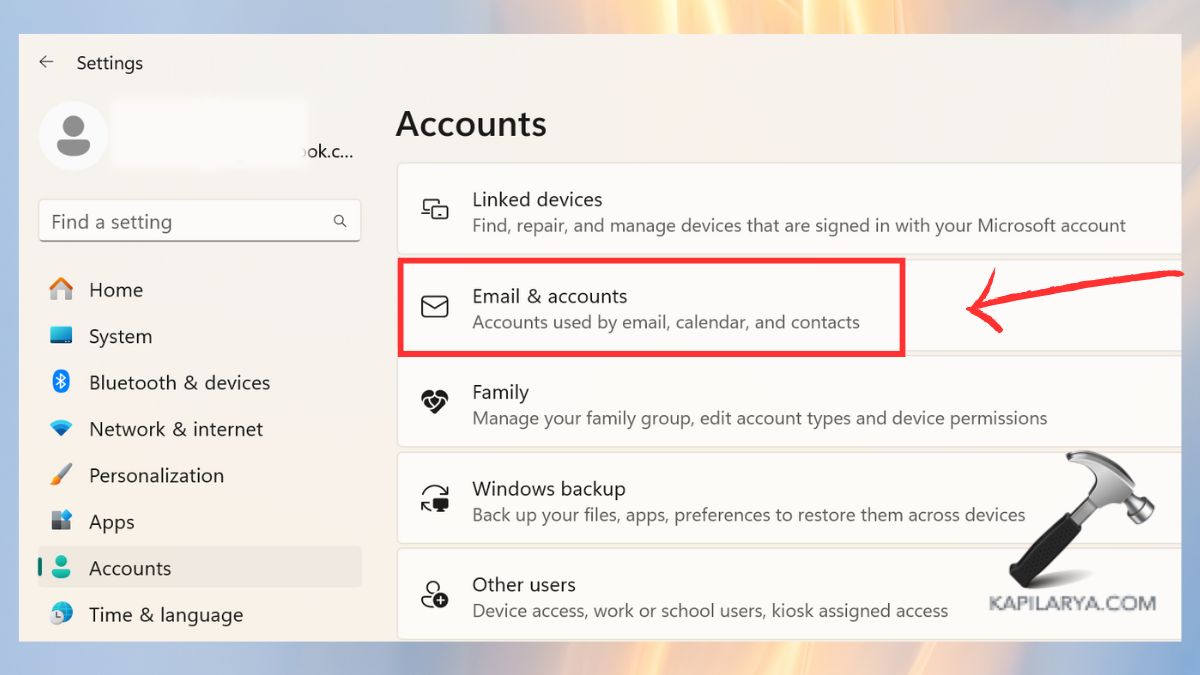
3. Eliminate the old Microsoft accounts or the old login email.
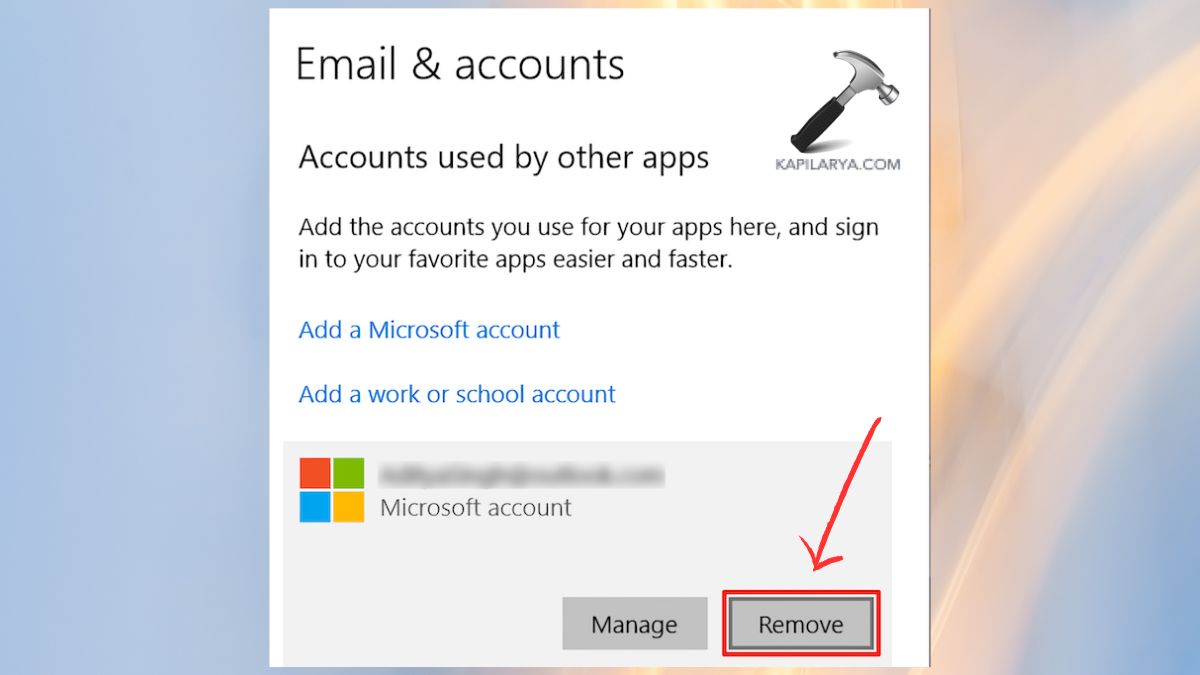
After that, you can restart your computer. This makes sure that Windows 11 applies the right account that is in use.
Method 4: Remove Microsoft & Xbox Credentials from Credential Manager
In case Windows continues believing that your account is connected to two or more devices, it is potentially due to outdated credentials.
1. Search Credential Manager in Start.

2. Open it and select Windows credentials.
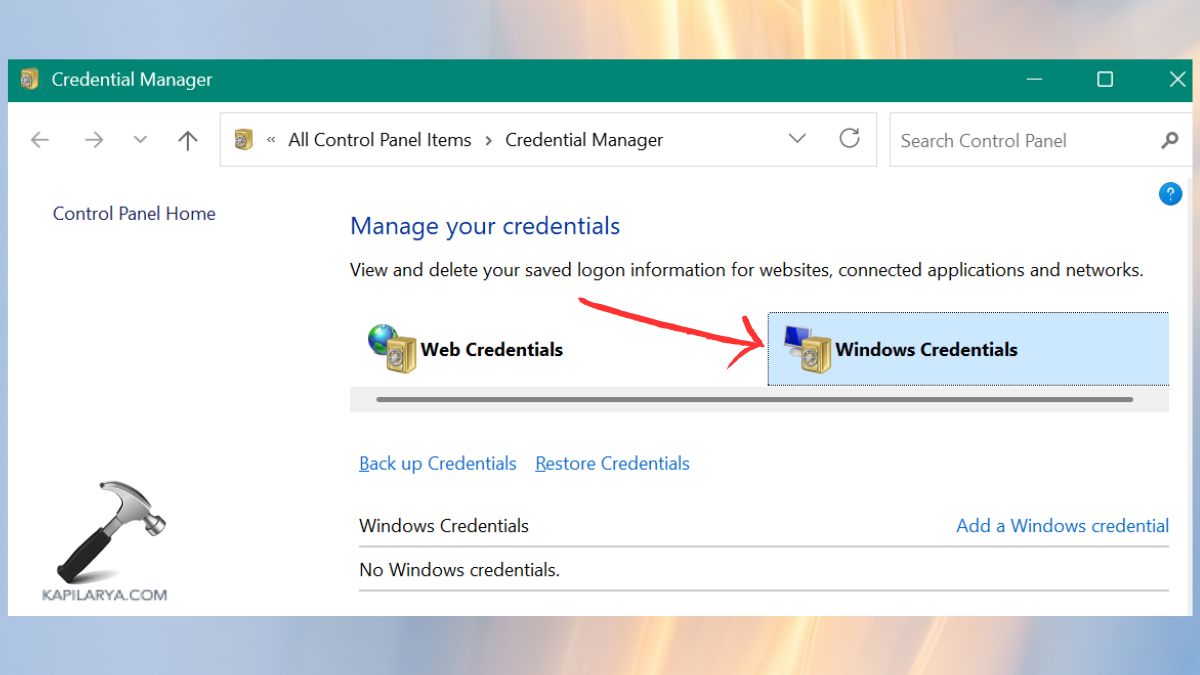
3. Search up information regarding these-
- xboxlive.com
- microsoft.com
Click and choose each of them and select remove. This triggers stepping over fresh credentials with Windows.

Method 5: Remove Old Devices from Your Microsoft Account
In some cases, the device limit is literally achieved. There is a limit to the number of devices that can be used with apps, licenses, and Store in Microsoft.
1. Open your browser. Go to the Microsoft page: “https://account.microsoft.com/devices“.
2. Twitch Sign in.
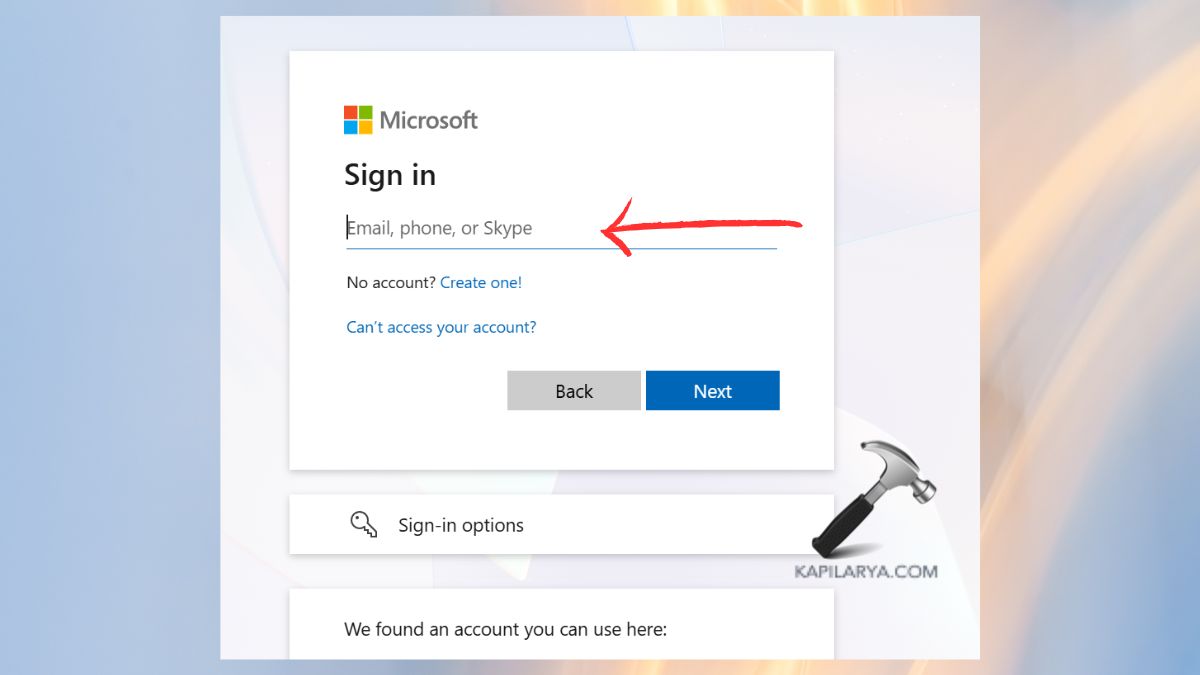
3. Check the list of devices. Get rid of old laptops/PCs/phones that you no longer use.

Restart your Windows 11 PC. Resign into Microsoft Store. This will automatically solve the You-re-at-the-machine limit error to the majority of users.
Frequently Asked Questions (FAQs)
What does “You’re at the limit for the number of devices” mean?
It indicates that your Microsoft account has reached its maximum number of device Store app or license. You have to get rid of old gadgets to keep on.
How many devices can I use with a Microsoft account?
Microsoft gives up to 10 devices to use apps, which depends on the type of product.
Will removing a device from my Microsoft account delete my data?
No. It does not delete your complete PC data, it just leaves the gadget off of your Microsoft online dashboard.
Why is Microsoft Store still showing the same error “number of devices limit” after removing devices?
The reason could be the stale credentials or the trusted cache. Clear the Store app, reset Store app or delete credentials according to the above steps.
That’s it!