Clipchamp on Windows 11 needs an active Internet connection to fetch assets, authenticate your account, and save or export projects.
Page Contents
Fix Clipchamp Fails to Connect to the Internet
If it shows Clipchamp needs an Internet connection to work, even when you’re online, it means the app can’t recognize or use your network correctly. Try these tested fixes to restore connectivity.
Fix 1: Check Your Network & Proxy Settings
Incorrect network or proxy settings can fool Clipchamp into thinking you’re offline:
1. Open Settings and click on Network & Internet.
2. Make sure your Wi-Fi or Ethernet is connected and working.
3. Click Proxy and ensure Use a proxy server is OFF. Leftover corporate or school proxy settings can block Clipchamp.
4. Test Clipchamp again.
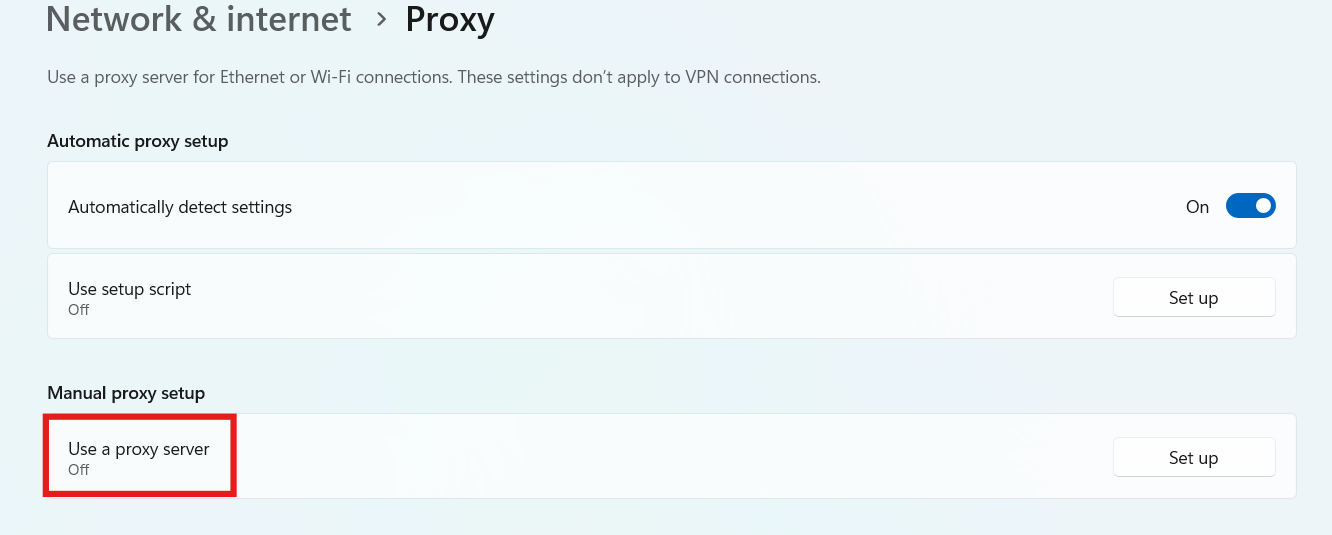
This clears hidden network blocks that most often cause the issue.
Fix 2: Power-Cycle and Try Another Connection
Network glitches or ISP routing errors can block connectivity:
1. Restart your router by unplugging it for ~2 minutes and powering it back on.
2. Connect to a different network or mobile hotspot.
Clipchamp detecting internet on a new connection often isolates the problem to your initial network.
Fix 3: Disable VPN, Firewall, or Antivirus
Security or privacy tools can block Clipchamp’s access:
1. Temporarily turn off any VPN you’re using.
2. Open your antivirus/firewall settings.
3. Disable real-time protection or add Clipchamp to the allowed apps list.
4. Relaunch Clipchamp.

Only do this if you trust Clipchamp; re-enable protections afterward.
Fix 4: Reset or Repair Clipchamp
Corrupted app data can stop connectivity features:
1. Open Settings and go to Apps. Click on Installed apps.
2. Find Clipchamp and go to Advanced options.
3. Click Repair first; if it fails, click Reset.
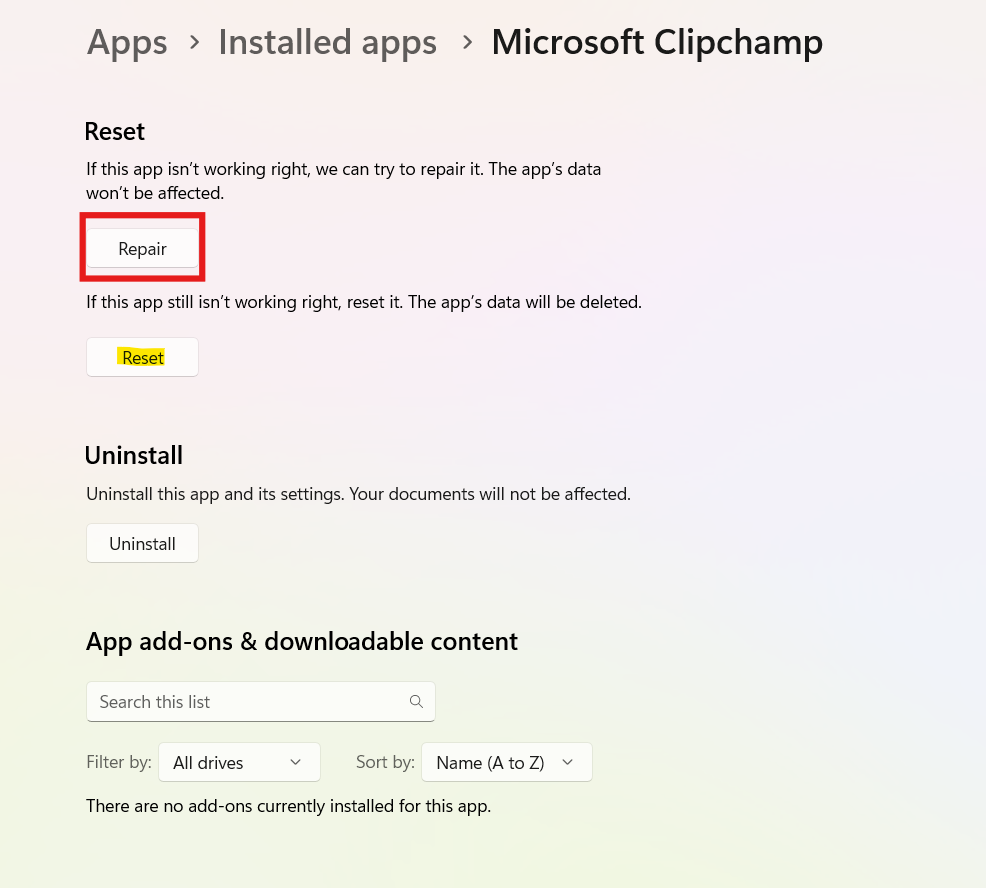
This clears local settings and cache that might be blocking internet checks.
Fix 5: Reset Network Settings
Resetting all network components fixes deeper connectivity issues:
1. Go to Settings and click on Network & Internet. Then go to Advanced network settings.
2. Click Network reset and then reset now.
3. Restart the PC.
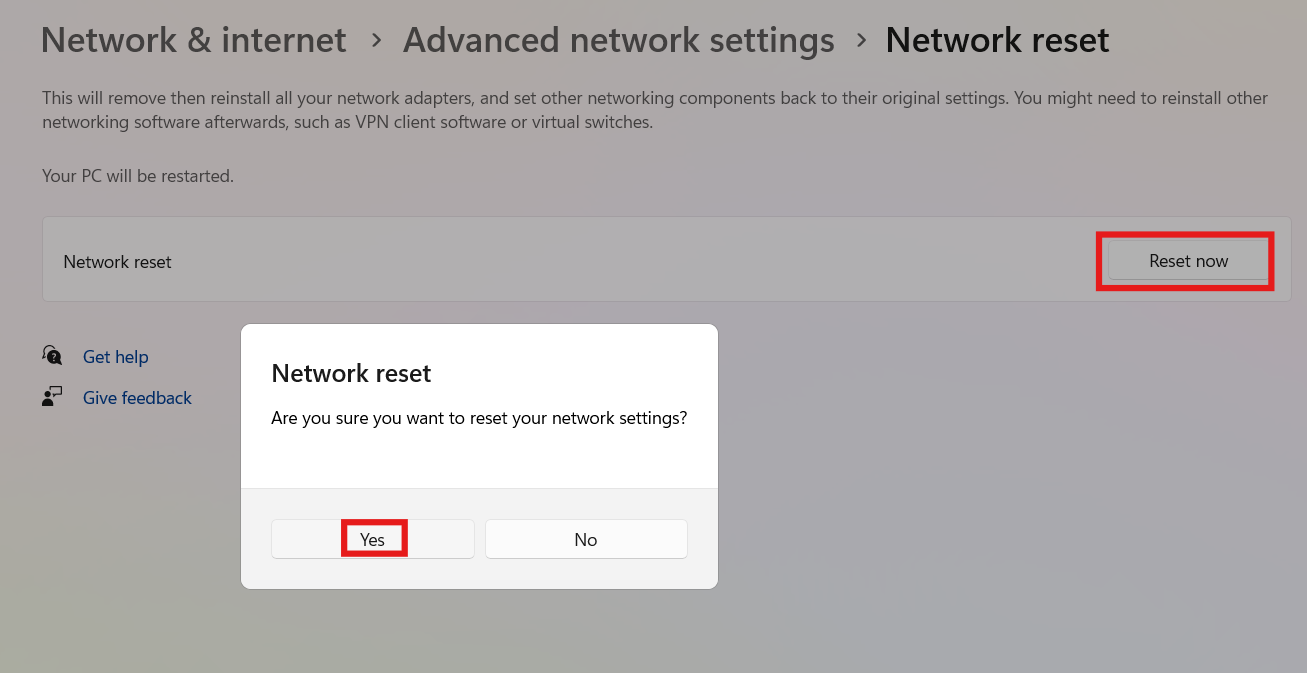
This reinstalls network adapters and clears system-level network errors.
Fix 6: Use Clipchamp in a Different Browser
If you’re using the web version of Clipchamp:
1. Try opening it in Microsoft Edge (preferred) or Chrome/Firefox.
2. If it works there, clear the cache and cookies in your usual browser.
Browser extensions or corrupted cache can block web apps from detecting internet access properly.
Summary
Clipchamp may fail to detect your internet because of proxy/VPN interference, firewall blocks, router glitches, corrupted app data, or outdated network settings. Start with network and proxy checks, move on to firewall/VPN adjustments and app repair/reset, and finish with network reset or browser alternatives to restore connectivity in Windows 11.
Also see: Fix Microsoft Clipchamp not working on Windows 11.